Show the Notify me button on preorder products
Add a back in stock Notify me button to preorder products so customers can also sign up for restock alerts.
Last updated
Use this guide if you want preorder products to show a Notify me when available button alongside the Preorder button, so customers who’d rather wait for stock can sign up for a back in stock alert instead of preordering. You turn this on from the Back in stock section of the preorder Widget editor.
Before you begin
Section titled “Before you begin”| Requirement | Detail |
|---|---|
| Back in stock widget on | The Notify me button only works if your back in stock signup widget is enabled. It’s on by default. See Turn the Notify me widget on or off. |
| Shop-wide setting | This is one setting for your whole store, not per offer. You reach it from inside an offer’s editor, but turning it on shows the Notify me button on preorder products across every offer. |
What customers will see
Section titled “What customers will see”With this off (the default), a preorder product shows only its Preorder button. With it on, eligible preorder products also show a Notify me when available button, so a customer can either preorder now or join the waitlist for when the item is back in normal stock.
A product counts as a “preorder product” here when the selected variant is selling as a preorder through a STOQ offer, or its Shopify Continue selling when out of stock setting is on and its inventory is at or below zero. For the full rules on which products and variants show the button, see Choose which products show the button.
Set it up
Section titled “Set it up”On a phone, this menu is collapsed. In the Shopify mobile app, tap the STOQ logo at the top of the screen to open it, then choose the section named below. There is no hamburger icon. See Finding the STOQ menu.
-
Open the offer’s Widget section
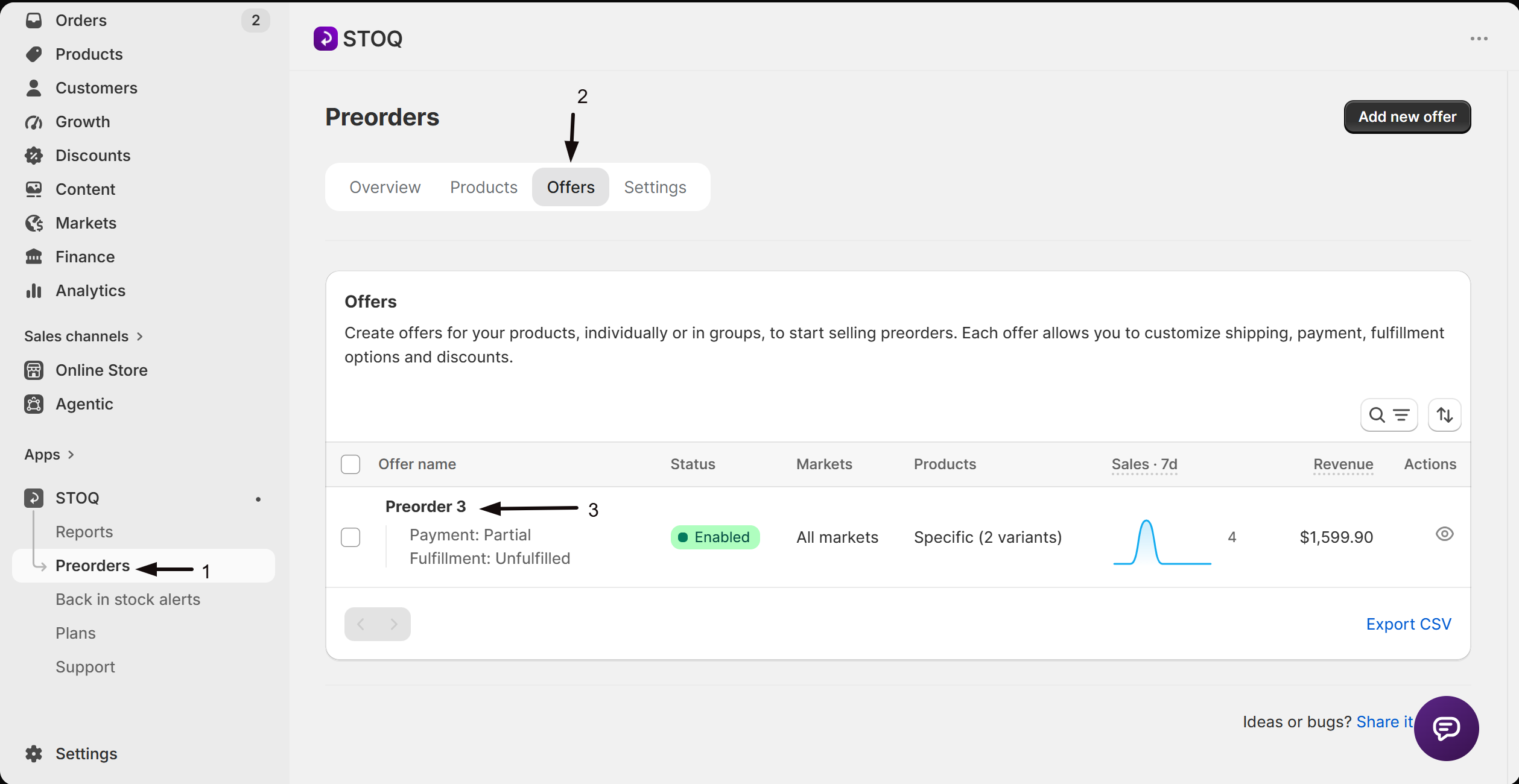
- In the left menu bar of the STOQ app, click Preorders.
- Click the Offers tab.
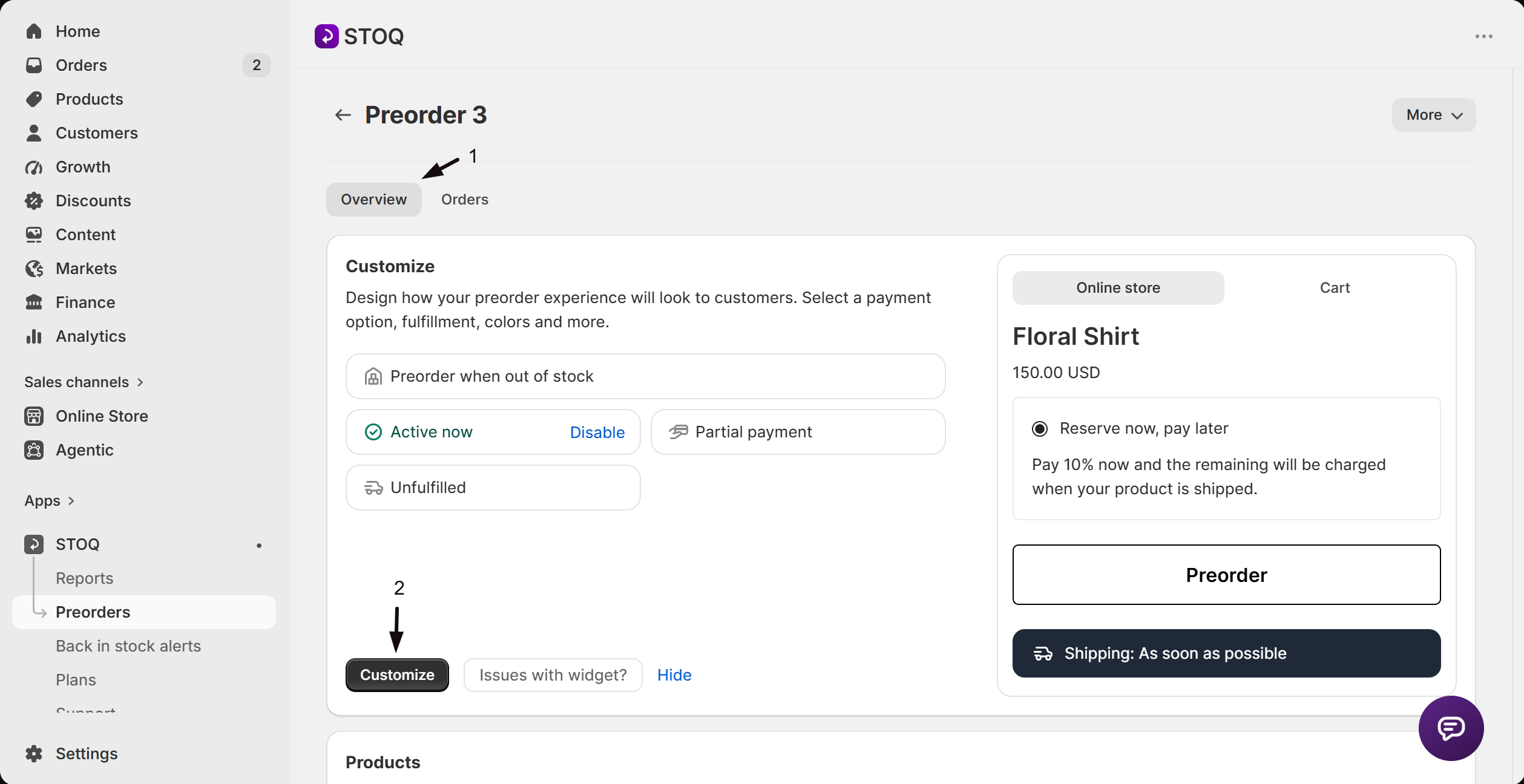
- Click any offer to open its Overview tab, then click Customize to open the editor.
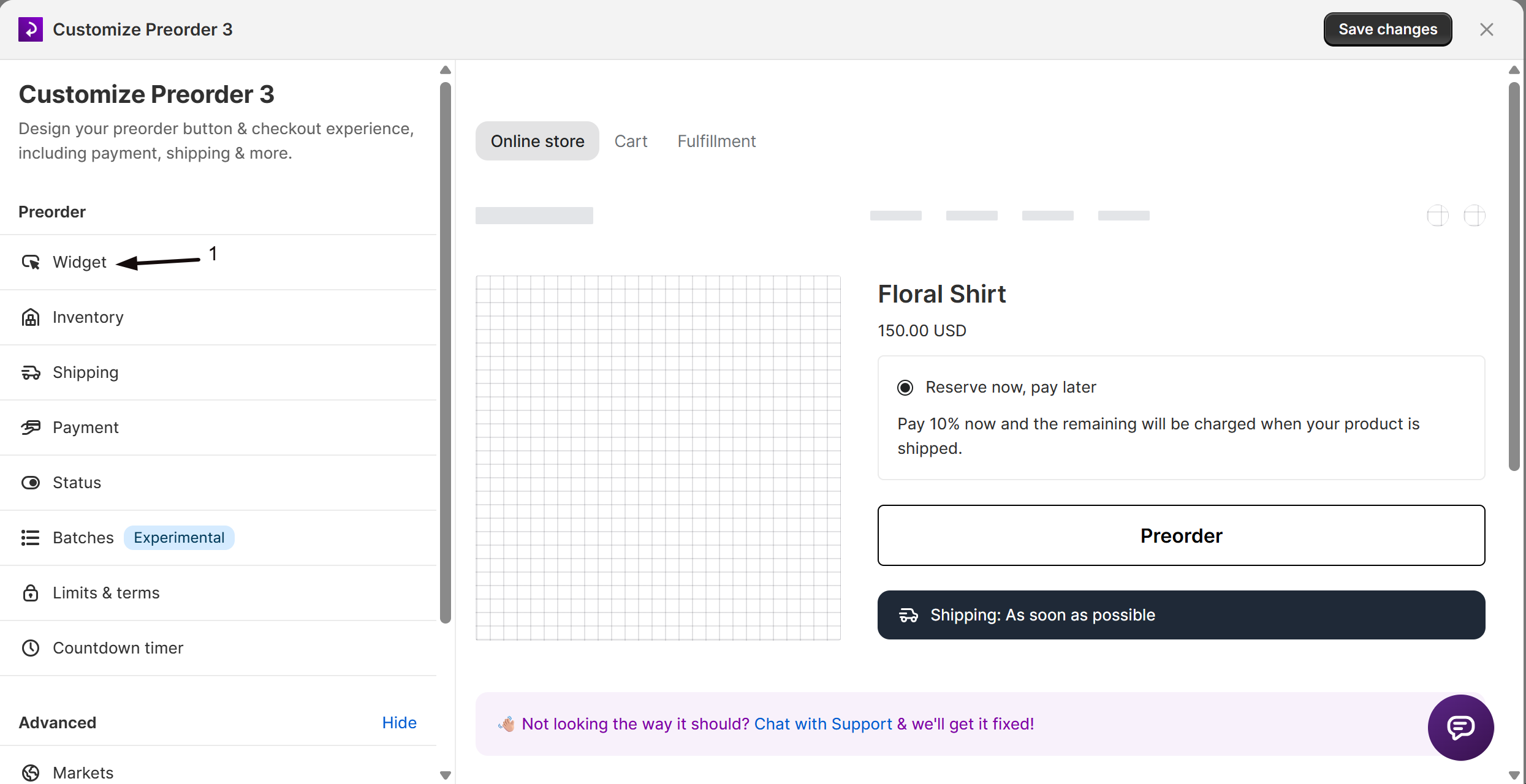
- In the editor sidebar, click Widget.
-
Turn on the Notify me button
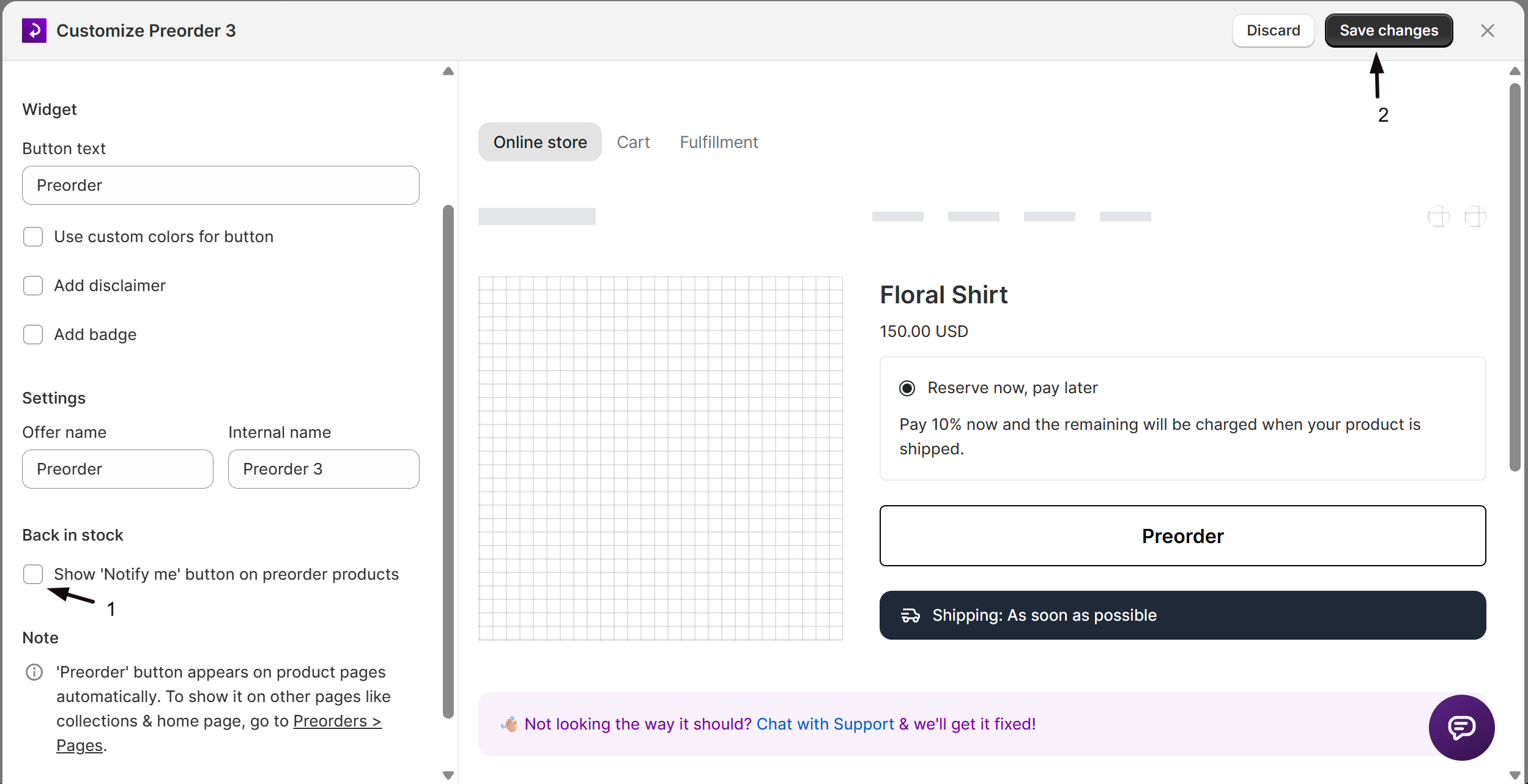
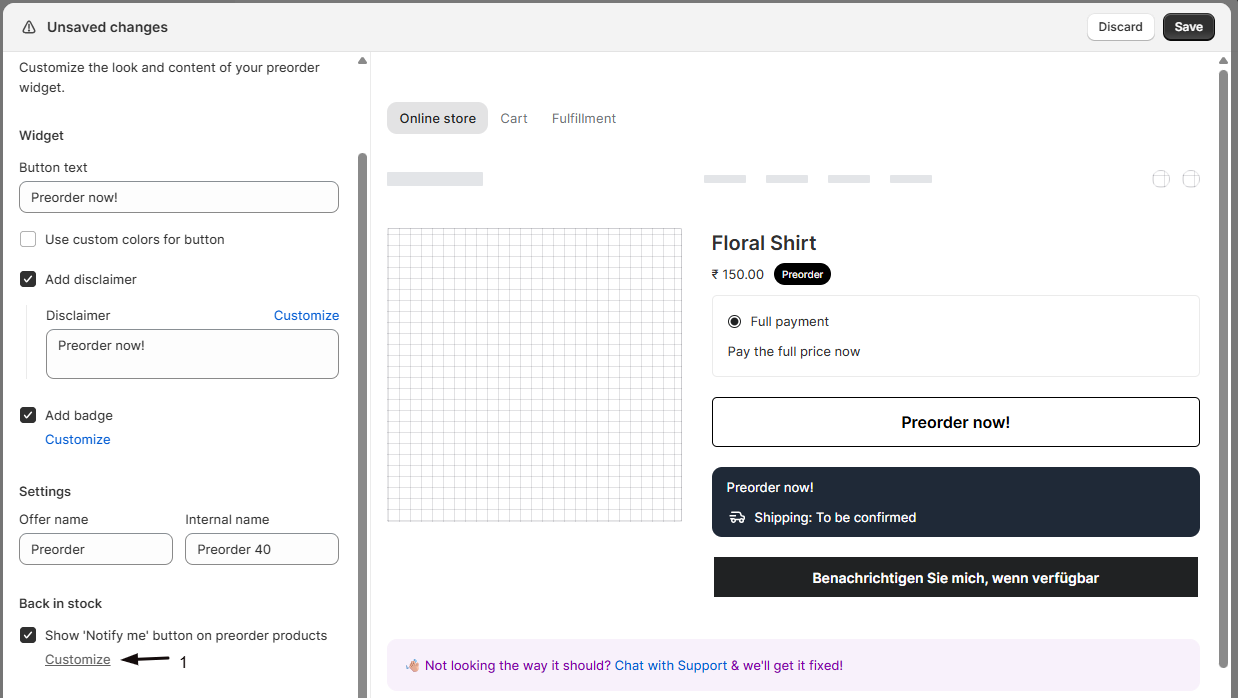
Scroll to the Back in stock section and check Show ‘Notify me’ button on preorder products. A note explains that customers will then see a “Notify me when available” button to sign up for restock alerts too.
-
(Optional) Design the button
Use the Customize link in that section to style the Notify me button and its signup form. See Design the Notify Me button.
-
Save changes
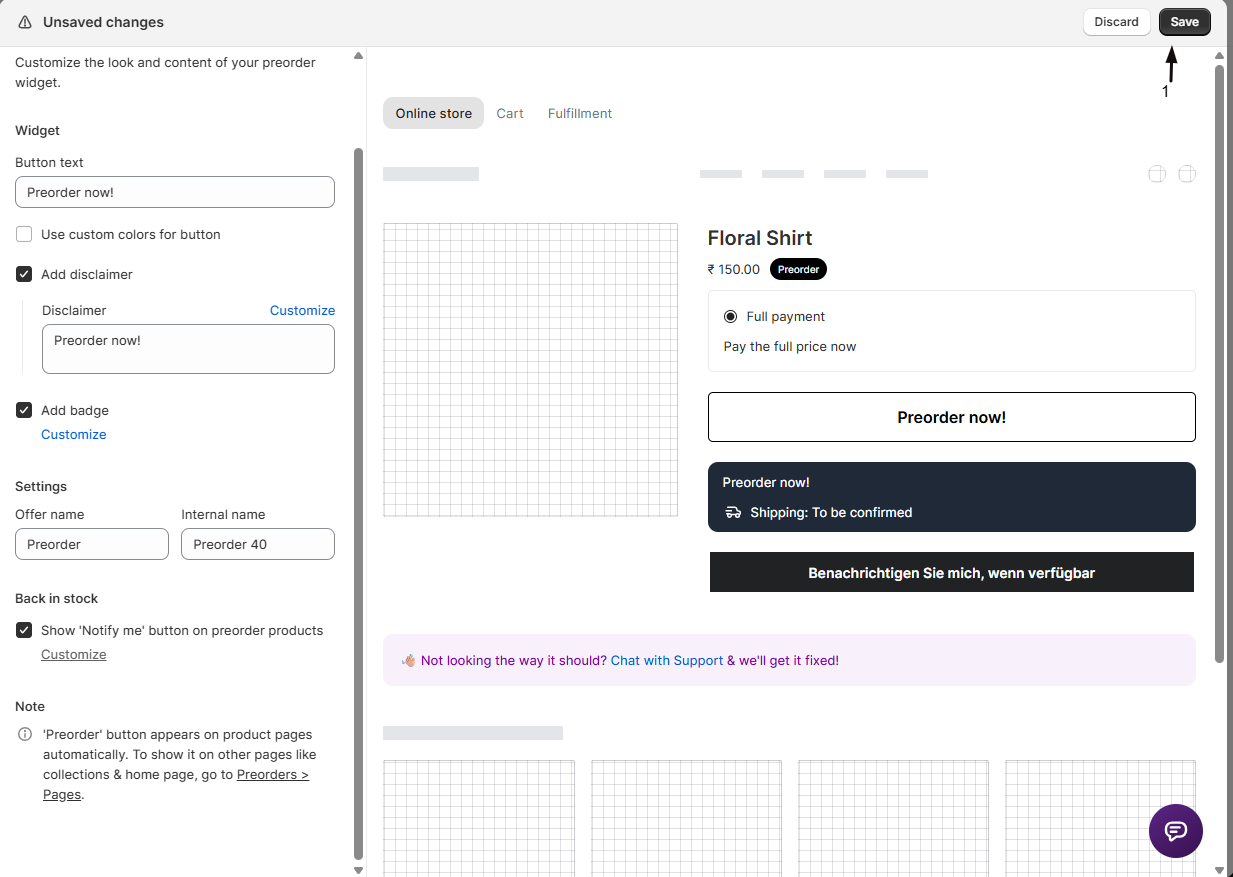
Click Save changes. The button setting takes effect across your store.
Check your setup
Section titled “Check your setup”Open a preorder product on your live storefront, in an incognito window, with a preorder variant selected. Confirm both the Preorder button and the Notify me when available button appear, and that clicking Notify me opens the signup form.
Is this per offer or for my whole store?
Your whole store. Even though you turn it on inside one offer’s Widget editor, it’s a single shop-wide setting, so it applies to preorder products across all offers. It’s the same setting as Show ‘Notify me’ widget on preorder products in the back in stock widget settings.
Does the customer still see the Preorder button?
Yes. This adds the Notify me button alongside the Preorder button; it doesn’t replace it. The customer chooses whether to preorder now or wait for a restock alert.
The Notify me button isn't showing on a preorder product
Confirm the setting is on, the back in stock widget is enabled, and the selected variant is selling as a preorder through a STOQ offer, or has Continue selling when out of stock on with inventory at or below zero. See Choose which products show the button.
Where do these back in stock signups go?
Into your normal back in stock waitlist and reports, the same as any other Notify me signup. When the product is genuinely restocked, those customers get your back in stock alert.
Do customers in markets where my preorder isn't available see Notify me?
Yes, even with this setting off. If a variant is out of stock and its preorder offer is limited to other markets, customers in the excluded market see a Notify me button and can sign up for a restock alert. See Restrict a preorder offer to specific markets.
Related guides
Section titled “Related guides”Thanks for letting us know.
Still stuck? Ask Quinn or chat with support