Set order rules: per-order limits, terms, and mixed carts
Set per-order minimums and maximums, require terms acceptance, and block mixed carts on a preorder offer.
Last updated
Use this guide to set per-order minimums and maximums, require customers to accept terms, and block mixed carts on a preorder offer. By the end, customers see the terms checkbox, per-order limit, or mixed-cart rule you configure on the product page.
Before you begin
Section titled “Before you begin”| Requirement | Detail |
|---|---|
| Active preorder offer | You need at least one offer. See Set up preorders. |
| Paid plan (some features) | Per-order limits, the mixed-cart block, and the “Accept terms” checkbox each require a paid STOQ plan. |
What customers will see
Section titled “What customers will see”Once limits are set, the storefront widget on the product page reflects them automatically, so there’s nothing extra to publish. Exact placement depends on your theme, since the widget inserts itself relative to the add-to-cart button (or a custom selector you configure in Design preorder widget).
| Element | When it appears | What the customer sees |
|---|---|---|
| Acknowledgement checkbox | Require customer to accept terms is enabled | A checkbox with your terms text, placed above the preorder button. If Disable button until terms are accepted is on, the preorder button stays disabled until the box is checked. |
| Mixed-cart error | Don’t allow mixed cart orders is enabled | If the customer tries to combine this preorder item with in-stock or regular items, they see your customized error message rather than completing the add-to-cart action. Preorders from other offers can share the cart. |
| Per-order min/max | Per-order limits are set | Enforced by the widget on the product page only; Shopify’s native quantity selector and checkout don’t display or enforce these limits. |
Set it up
Section titled “Set it up”On a phone, this menu is collapsed. In the Shopify mobile app, tap the STOQ logo at the top of the screen to open it, then choose the section named below. There is no hamburger icon. See Finding the STOQ menu.
Open Limits & terms
Section titled “Open Limits & terms”-
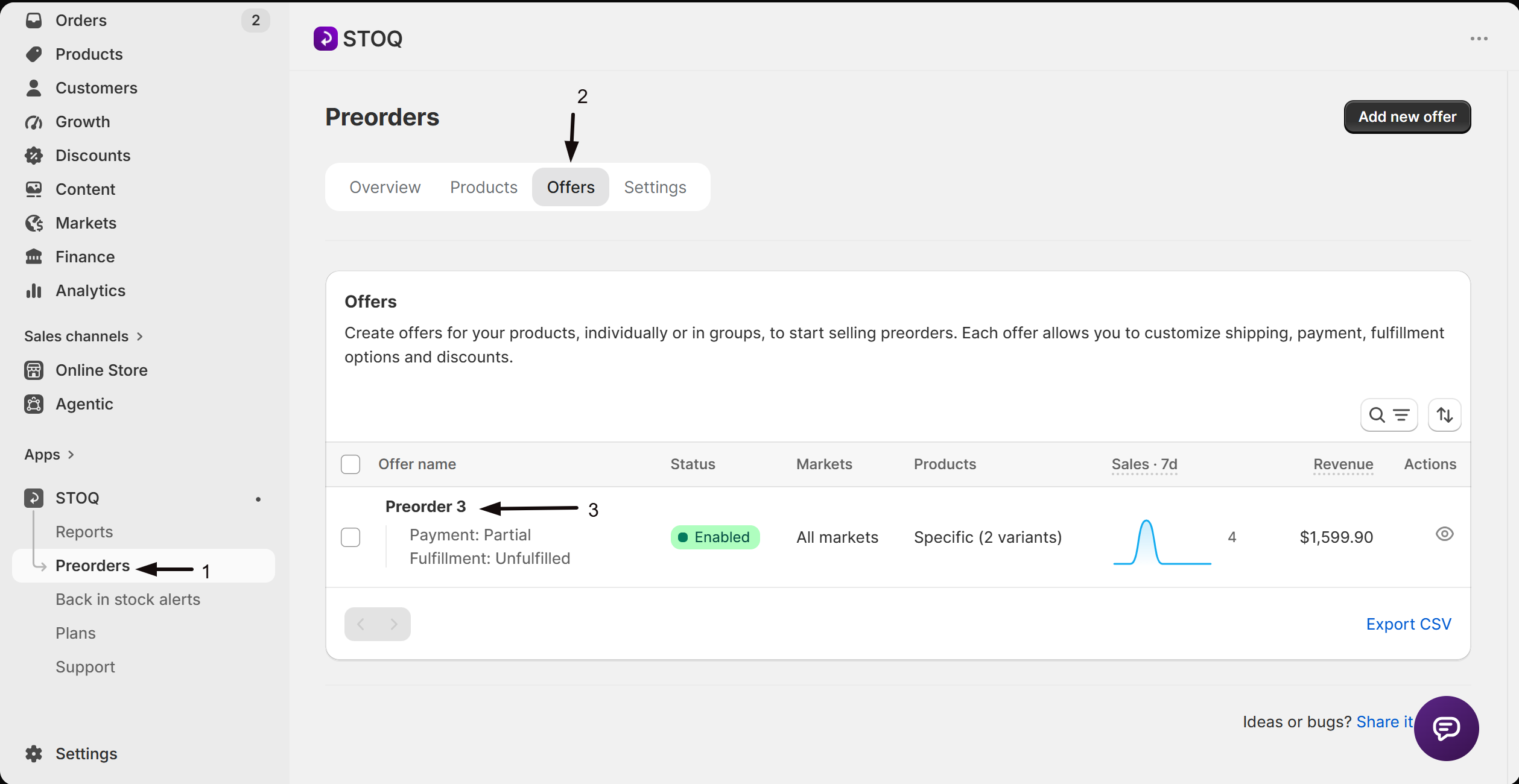
Go to your preorder offer
- In the left menu bar of the STOQ app, click Preorders.
- Click the Offers tab.
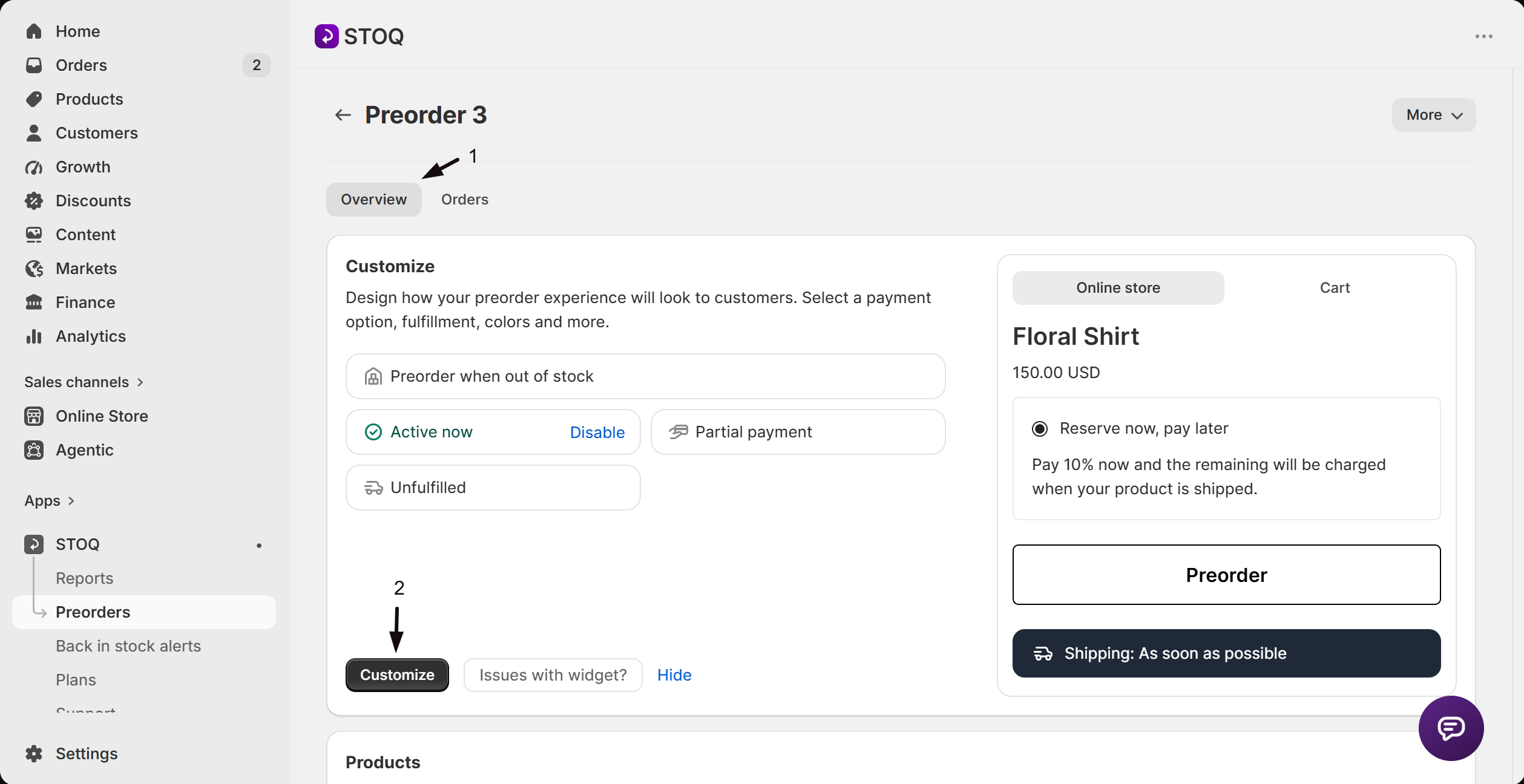
- Click the offer you’d like to configure. Its Overview tab opens, showing the Customize button, a live preview, and the offer’s Products section.
-
Open the Limits & terms section
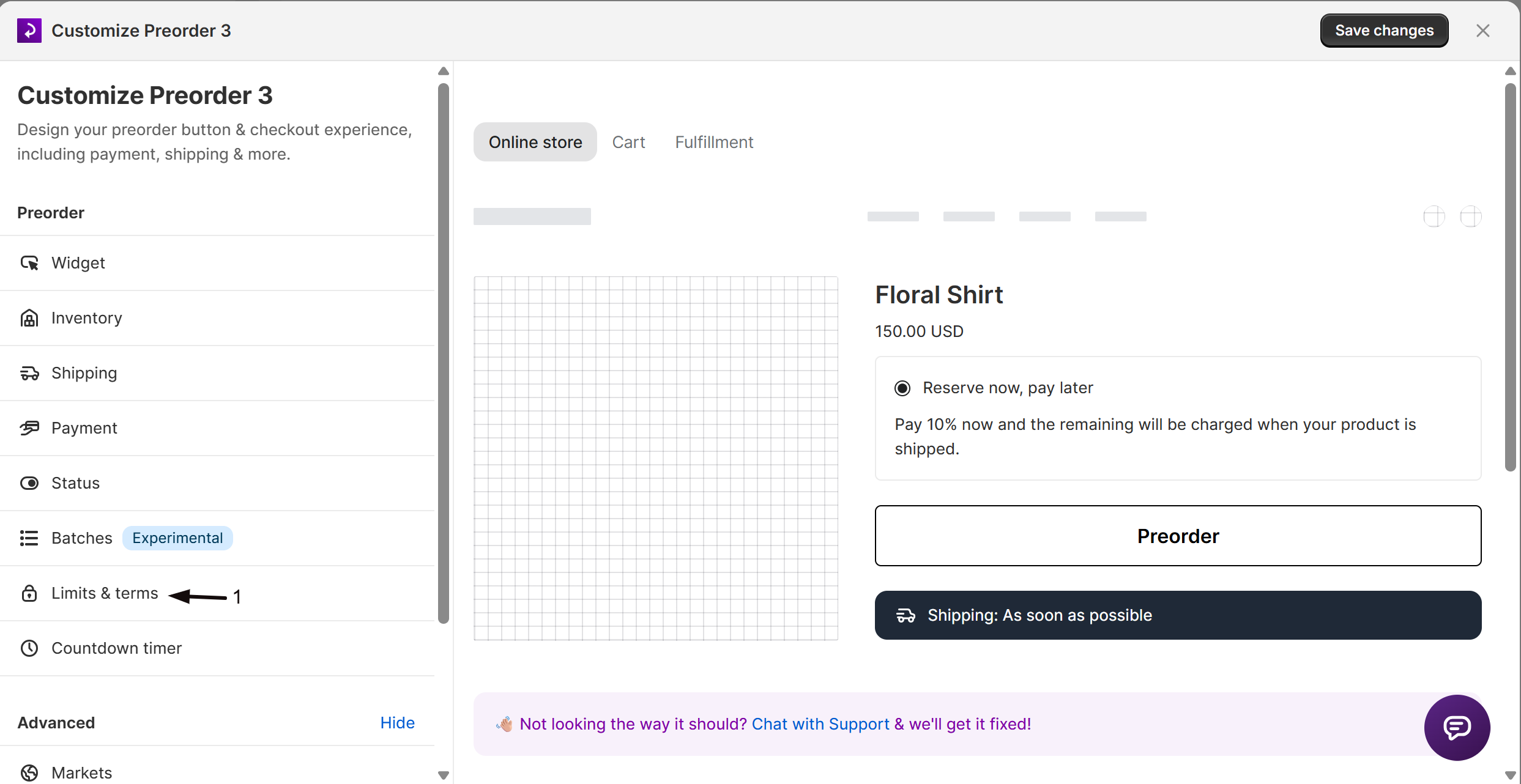
- Click the Customize button to open the editor.
- In the sidebar, click Limits & terms.
Require customers to accept terms
Section titled “Require customers to accept terms”-
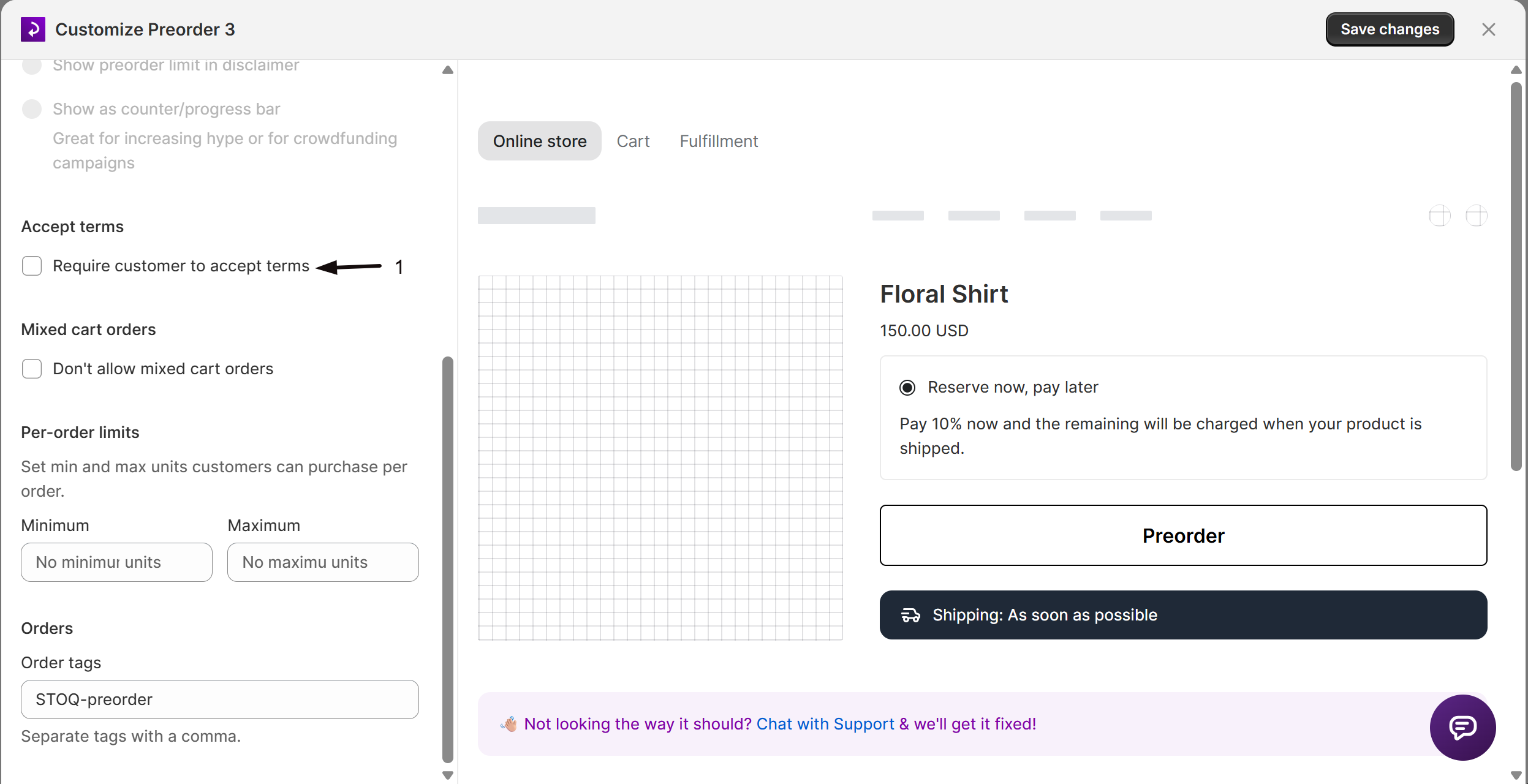
Enable the acknowledgement checkbox
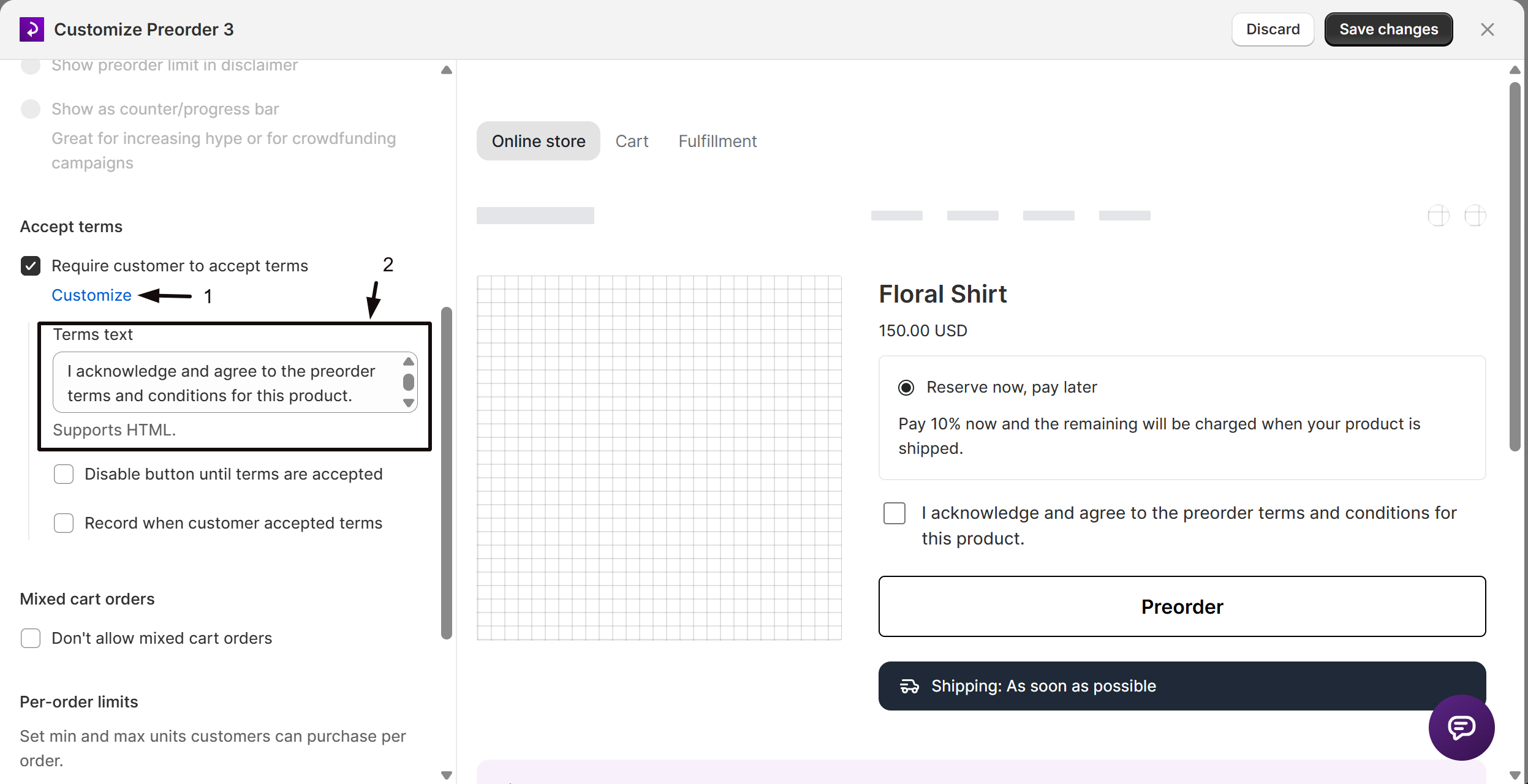
Under Accept terms, enable Require customer to accept terms. When enabled, a checkbox appears on the storefront that customers must tick before adding the item to their cart.
-
Customize the terms text and options
Click Customize to:
- Edit the Terms text shown inside the checkbox label. Supports HTML.
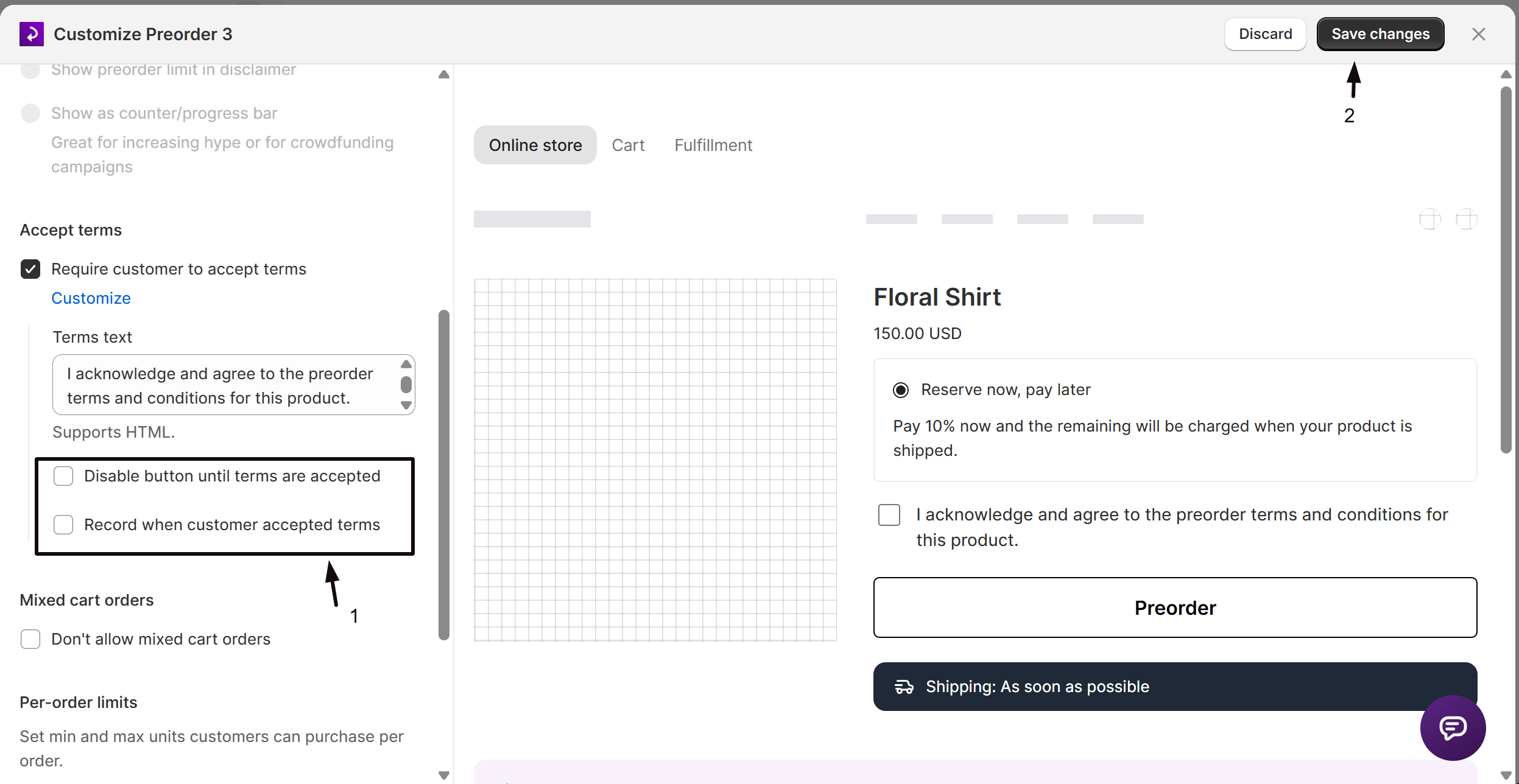
- Enable Disable button until terms are accepted: keeps the preorder button greyed out until the customer checks the box.
- Enable Record when customer accepted terms: stamps the date and time the customer accepted onto the order as a line item property. Click Customize on this sub-option to change the label (default:
Terms accepted at).
Block mixed-cart orders
Section titled “Block mixed-cart orders”A “mixed cart” is a cart that contains both a preorder item from this offer and in-stock or regular (non-preorder) products. The restriction applies to this offer only; a variant linked to a different offer without the restriction can still be mixed. Preorders from different offers can always be ordered together, even when both offers block mixed carts.
-
Enable the mixed-cart restriction
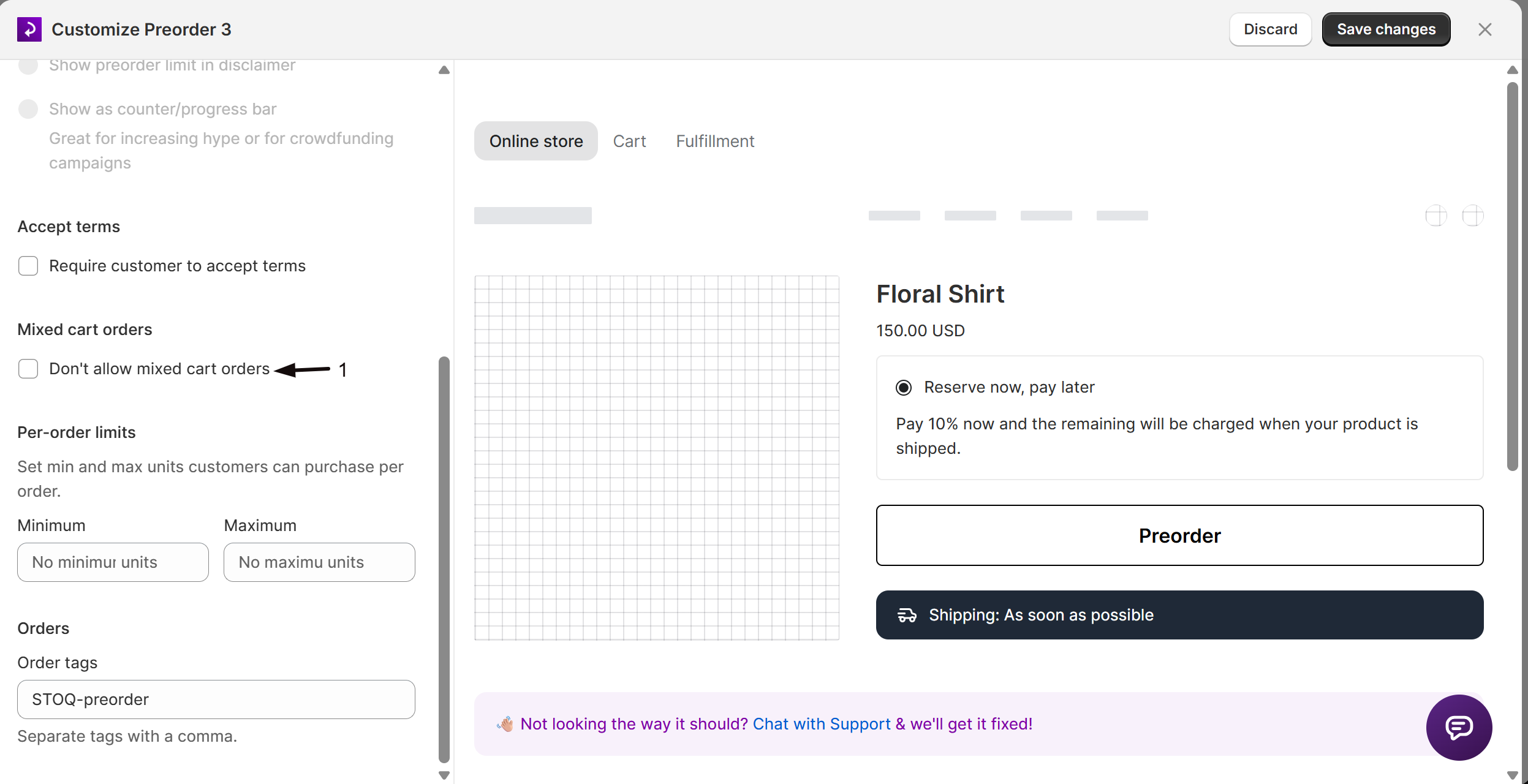
Under Mixed cart orders, enable Don’t allow mixed cart orders.
When enabled, customers who try to add this preorder item to a cart that already has in-stock or regular products, or add an in-stock or regular product to a cart that already has this preorder item, see an error message. Adding preorder items from other offers isn’t blocked.
-
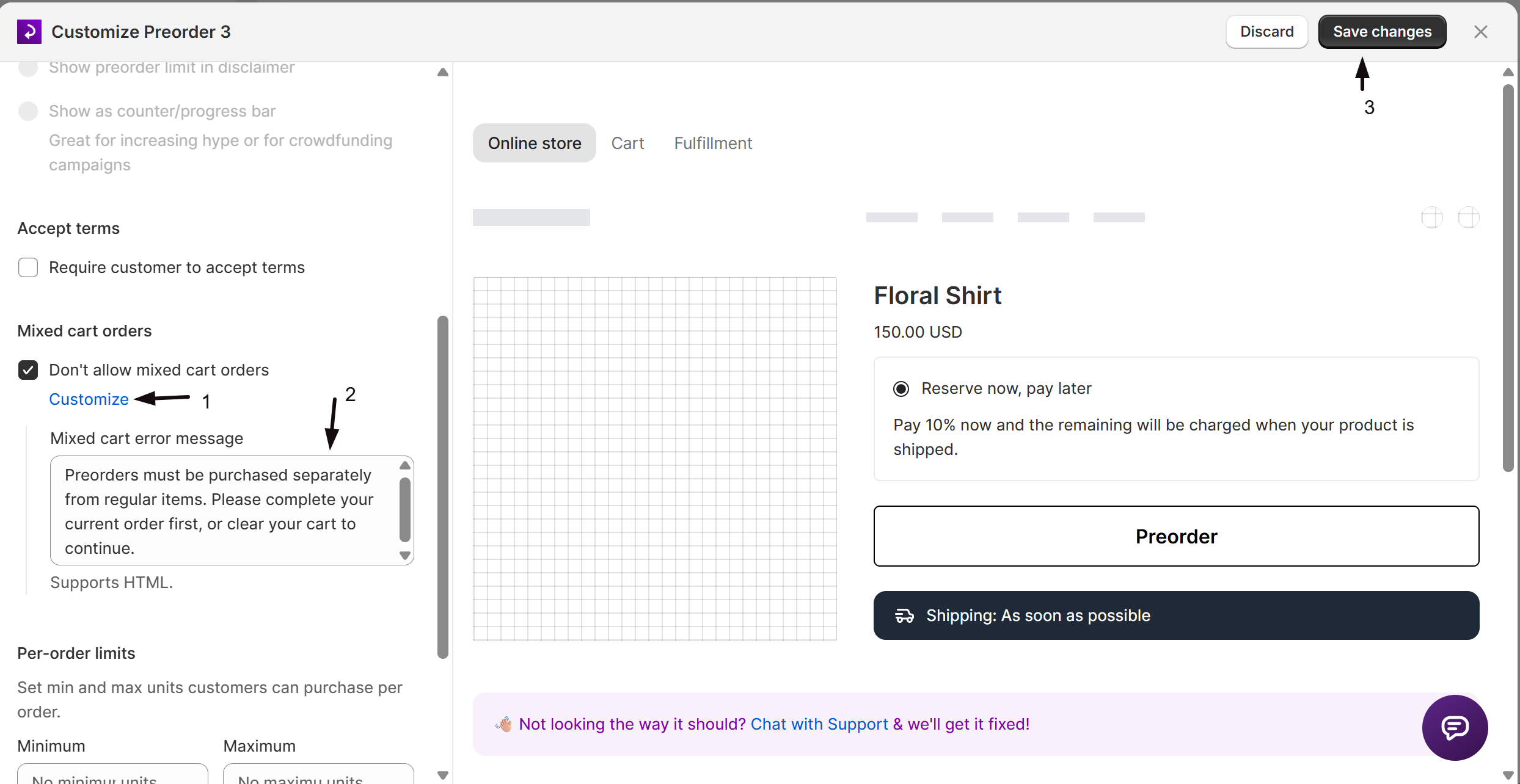
Customize the error message
Click Customize to edit the Mixed cart error message shown to the customer. Supports HTML.
Set per-order limits
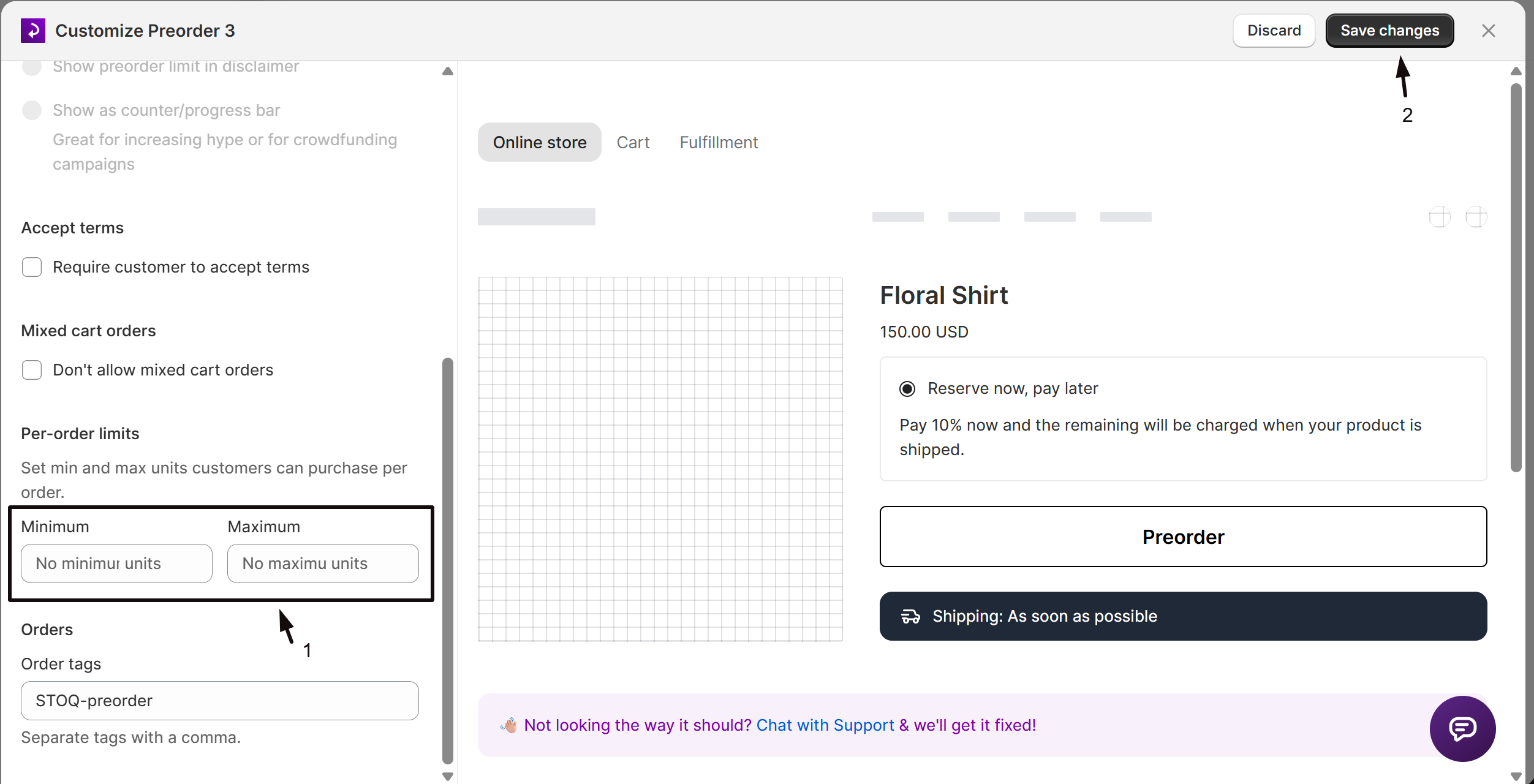
Section titled “Set per-order limits”Per-order limits control the minimum and maximum number of units a single customer can purchase in a single order. This is separate from the total variant cap in Set preorder quantity limits.
-
Set minimum and maximum units
Under Per-order limits, enter unit values in the Minimum and Maximum fields. Both accept positive integers only.
- Leave a field blank for no minimum or no maximum.
- If you set both, the minimum cannot exceed the maximum (validated on save).
Add order tags
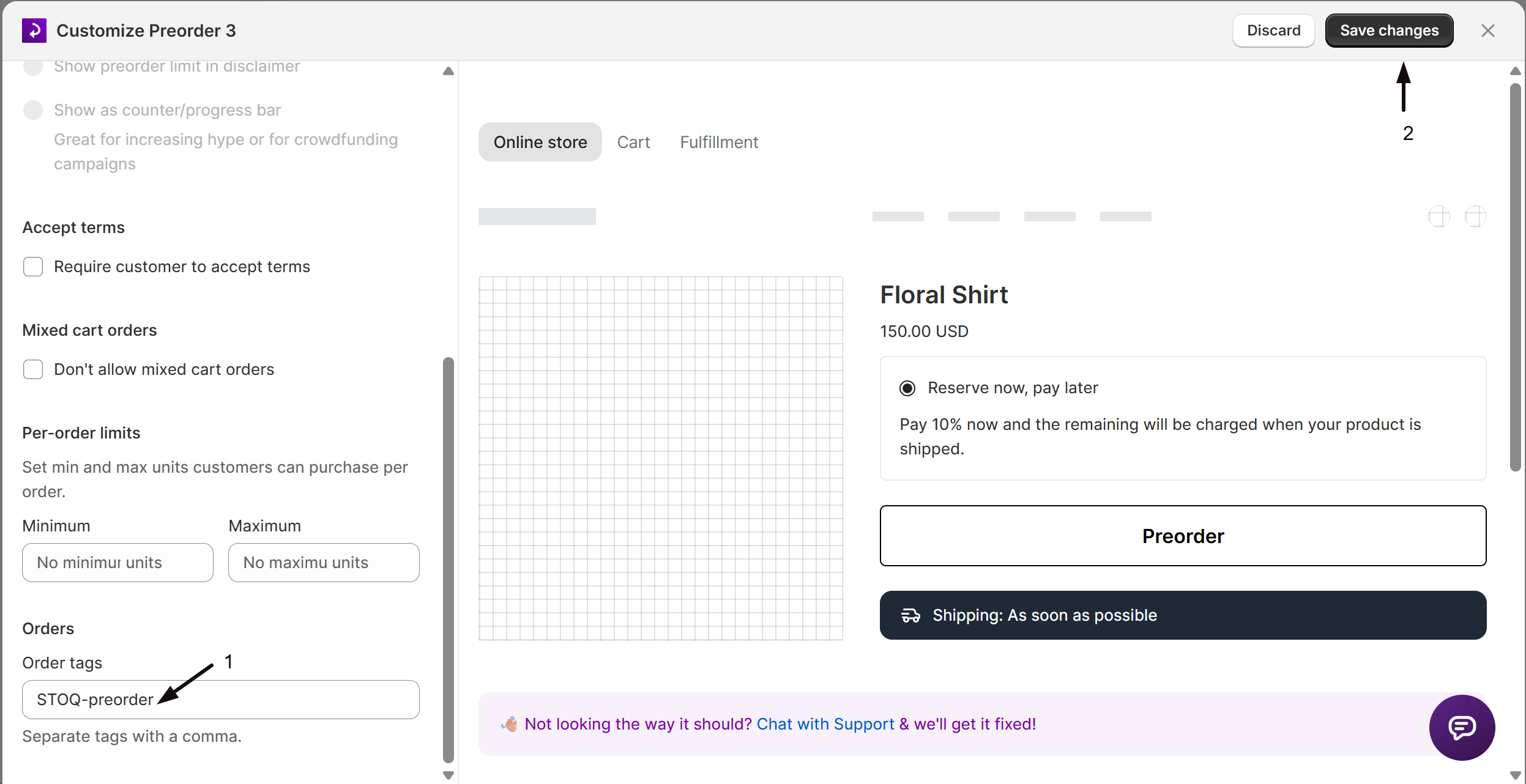
Section titled “Add order tags”Under the Orders section at the bottom of Limits & terms, enter comma-separated tags in Order tags. Every preorder order placed through this offer will receive these tags in Shopify admin.
Each tag can be up to 40 characters, which is Shopify’s limit for order tags. If a tag is longer, the field shows an error and the offer won’t save until you shorten it. Tags that use variables, like {{ sku }}, can’t be checked until the order is tagged, so STOQ cuts a finished tag that runs past 40 characters.
Click Variables above the field to add details from each preorder item to a tag:
| Variable | What it adds | Example |
|---|---|---|
{{ sku }} |
The SKU of the preordered variant | TEE-BLK-M |
{{ product_title }} |
The product name | Linen overshirt |
{{ variant_title }} |
The variant name | Medium / Black |
{{ offer_name }} |
The offer name | Spring drop |
{{ ship_text }} |
The item’s shipping date | 15 Apr 2027 |
Each preorder item in the order adds its own tag, so preorder-{{ sku }} on an order with two preorder items adds two tags. If an item has no value for a variable, like a product with only one variant for {{ variant_title }}, that tag is skipped for it. Commas are removed from the values, because Shopify reads a comma as the start of a new tag. Offers with batches can also use the batch variables.
Check your setup
Section titled “Check your setup”- Visit a product page linked to this offer. If Require customer to accept terms is on, confirm the checkbox appears above the Preorder button.
- Set a per-order minimum or maximum, then try to add fewer or more than allowed and confirm the widget holds you to the limit.
- If you enabled the mixed-cart block, add a non-preorder product, then try to add this preorder item, and confirm your error message shows.
Troubleshooting
Section titled “Troubleshooting”Saving Per-order limits fails
The minimum can’t exceed the maximum. Lower the minimum or raise the maximum.
A customer says per-order limits didn't apply at checkout
Per-order limits are enforced by the STOQ widget on the product page only. A customer who reaches checkout via a direct cart link bypasses them, since Shopify’s native quantity selector and checkout don’t enforce STOQ-specific limits.
The mixed-cart error isn't showing
Confirm Don’t allow mixed cart orders is enabled on this specific offer. The restriction is per offer, not global; a variant linked to another offer without the restriction can still be mixed.
Does changing these rules affect orders already placed?
No. Terms, the mixed-cart block, and per-order limits only control what happens going forward. Orders placed before you changed a setting keep whatever terms and cart contents they had at checkout.
Can customers order preorders from different offers together?
Yes. Don’t allow mixed cart orders only keeps this offer’s preorder items apart from in-stock and regular products. Preorder items from other offers can be in the same cart, whether or not those offers block mixed carts.
Does the per-order minimum/maximum affect Shopify's own quantity selector?
No. STOQ’s per-order limits are enforced by the STOQ widget on the product page. Shopify’s native quantity selector and checkout don’t enforce STOQ-specific limits, so a customer who bypasses the widget, for example via a direct cart URL, isn’t held to the per-order limits at checkout.
Where do I cap the total units a variant can preorder?
That’s a separate setting, the per-variant quantity limit, which also controls when STOQ stops preorders. See Set preorder quantity limits.
Can the terms text be translated?
Yes. Use the Translate icon (globe icon) at the top of the Limits & terms section for structured multi-language support across all 24 locales. See Multi-language preorders.
Related guides
Section titled “Related guides”Thanks for letting us know.
Still stuck? Ask Quinn or chat with support