Set up preorders for Shopify Managed Markets
Turn off the purchase option so preorder checkout works on a Shopify Managed Markets store.
Last updated
Use this guide if your store checks out through Shopify Managed Markets (the cross-border checkout Shopify runs on your behalf, sometimes called Markets Pro). Managed Markets doesn’t support native Shopify selling plans, the mechanism STOQ uses by default for preorder pricing and billing, so you need to turn off STOQ’s purchase option. By the end, Managed Markets customers can complete preorder checkout normally.
Before you begin
Section titled “Before you begin”| Requirement | Detail |
|---|---|
| Shopify Managed Markets enabled | Configured in Shopify admin under Settings → Markets. STOQ does not create, configure, or control Managed Markets, verify your setup there. |
| An existing or new preorder offer | See Set up preorders if you don’t have one yet. |
| Willingness to give up partial payments and payment-specific discounts | These require the Shopify purchase option, which is not available with Managed Markets. |
Choose your setup
Section titled “Choose your setup”Under Purchase option (Preorders in the left menu → Offers tab → open your offer → Customize → Advanced in the sidebar → Purchase option), STOQ offers two modes:
- Use Shopify purchase option (default, recommended for most stores): STOQ creates a native Shopify selling plan and attaches it to the product. Supports partial payments, scheduled or unknown delivery dates, and the On hold fulfillment status, but isn’t compatible with gift cards, store credits, Buy X Get Y discounts, or Managed Markets checkouts.
- Use without purchase option: STOQ applies the preorder as a cart line item property instead of a selling plan. Required for Managed Markets, and works better with gift cards, store credits, Buy X Get Y discounts, and split (separate) orders, but partial payments, payment-specific discounts, and the On hold fulfillment status aren’t available, use Hold all fulfillments instead.
If your store uses Managed Markets, choose Use without purchase option.
What customers will see
Section titled “What customers will see”- Customers in a Managed Markets checkout complete their order like any other international order: currency conversion, duties, and tax are handled by Shopify’s Managed Markets checkout, not by STOQ.
- The preorder is recorded on the order as a line item property, visible in Shopify admin as an order attribute, rather than as a selling plan on the line item.
- Full payment is collected at checkout, no partial or deposit payment, since that requires the purchase option.
- If you use STOQ’s On hold fulfillment status, it won’t apply, use Hold all fulfillments instead to prevent early shipment.
Set it up
Section titled “Set it up”On a phone, this menu is collapsed. In the Shopify mobile app, tap the STOQ logo at the top of the screen to open it, then choose the section named below. There is no hamburger icon. See Finding the STOQ menu.
-
Open the offer
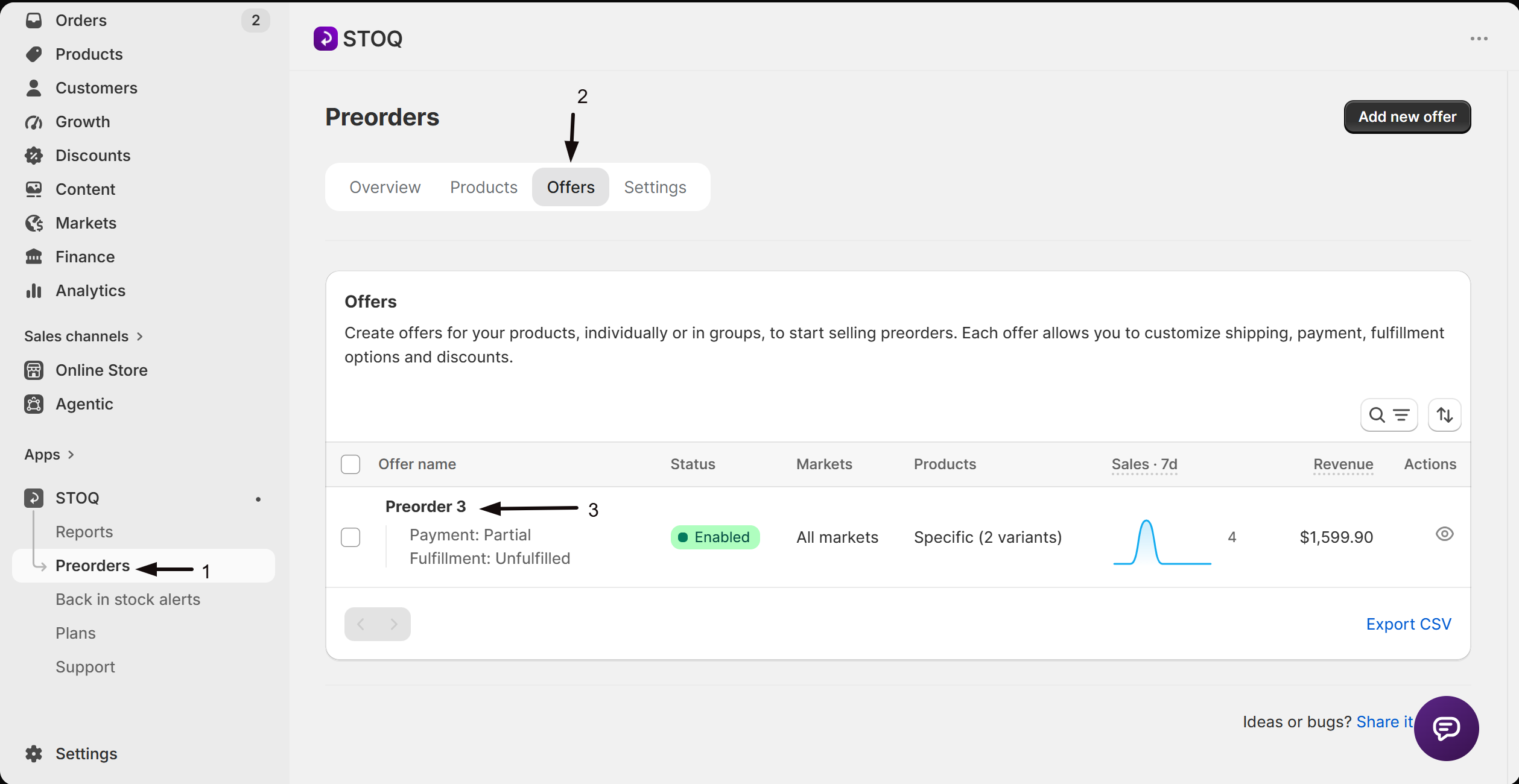
- In the left menu bar of the STOQ app, click Preorders.
- Click the Offers tab.
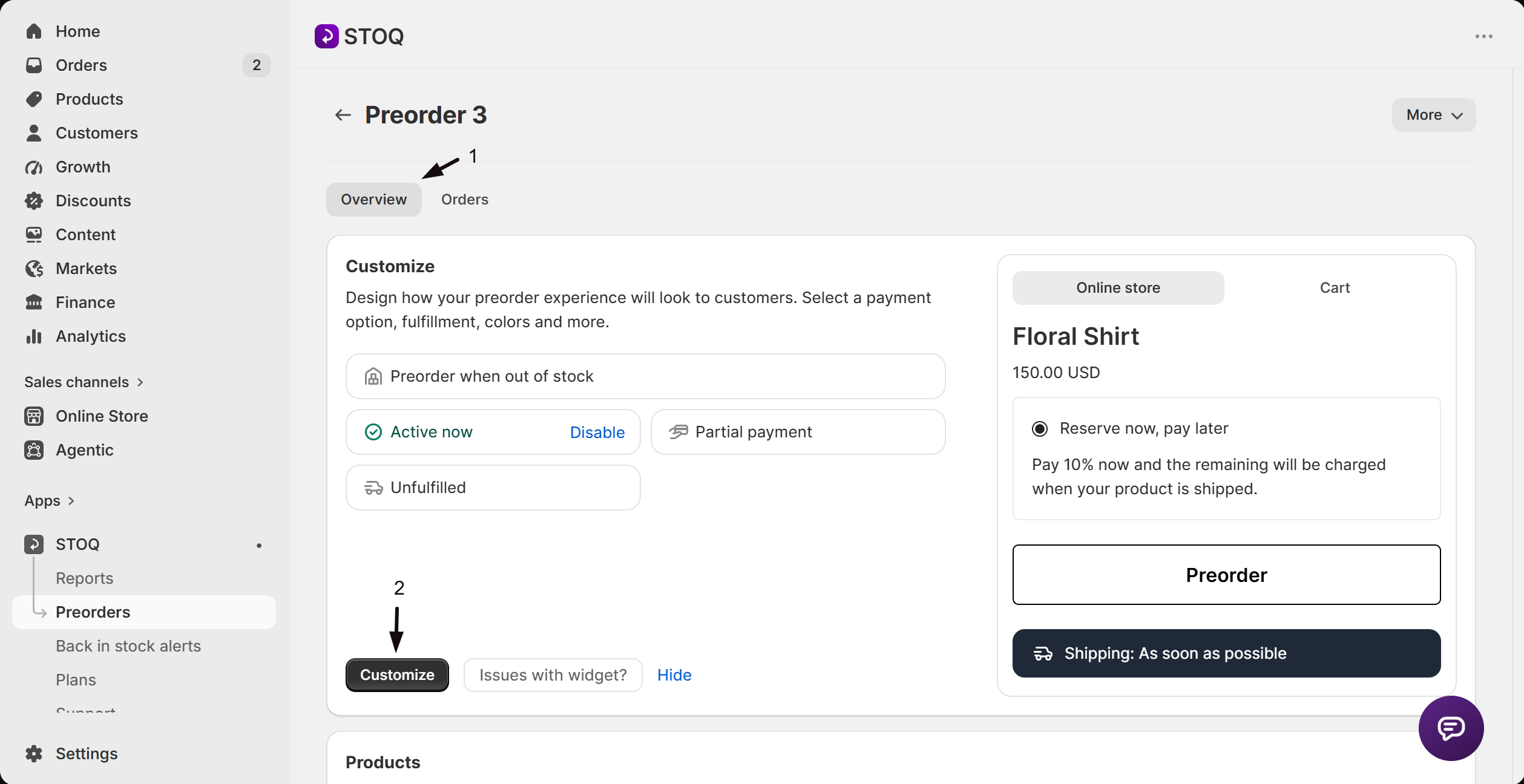
- Click the offer you’d like to edit. Its Overview tab opens, showing the Customize button, a live preview, and the offer’s Products section.
-
Go to Advanced
- Click Customize to open the editor.
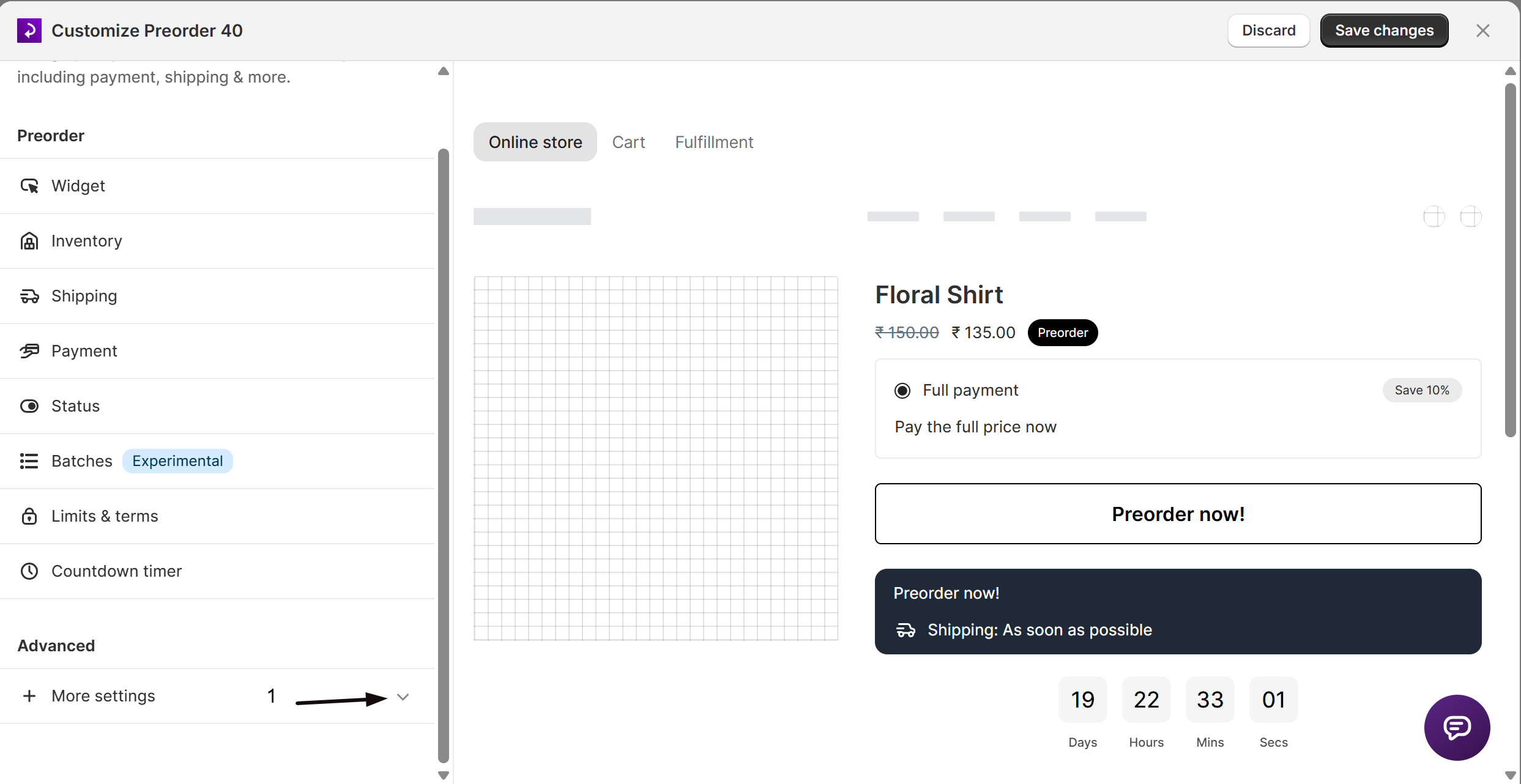
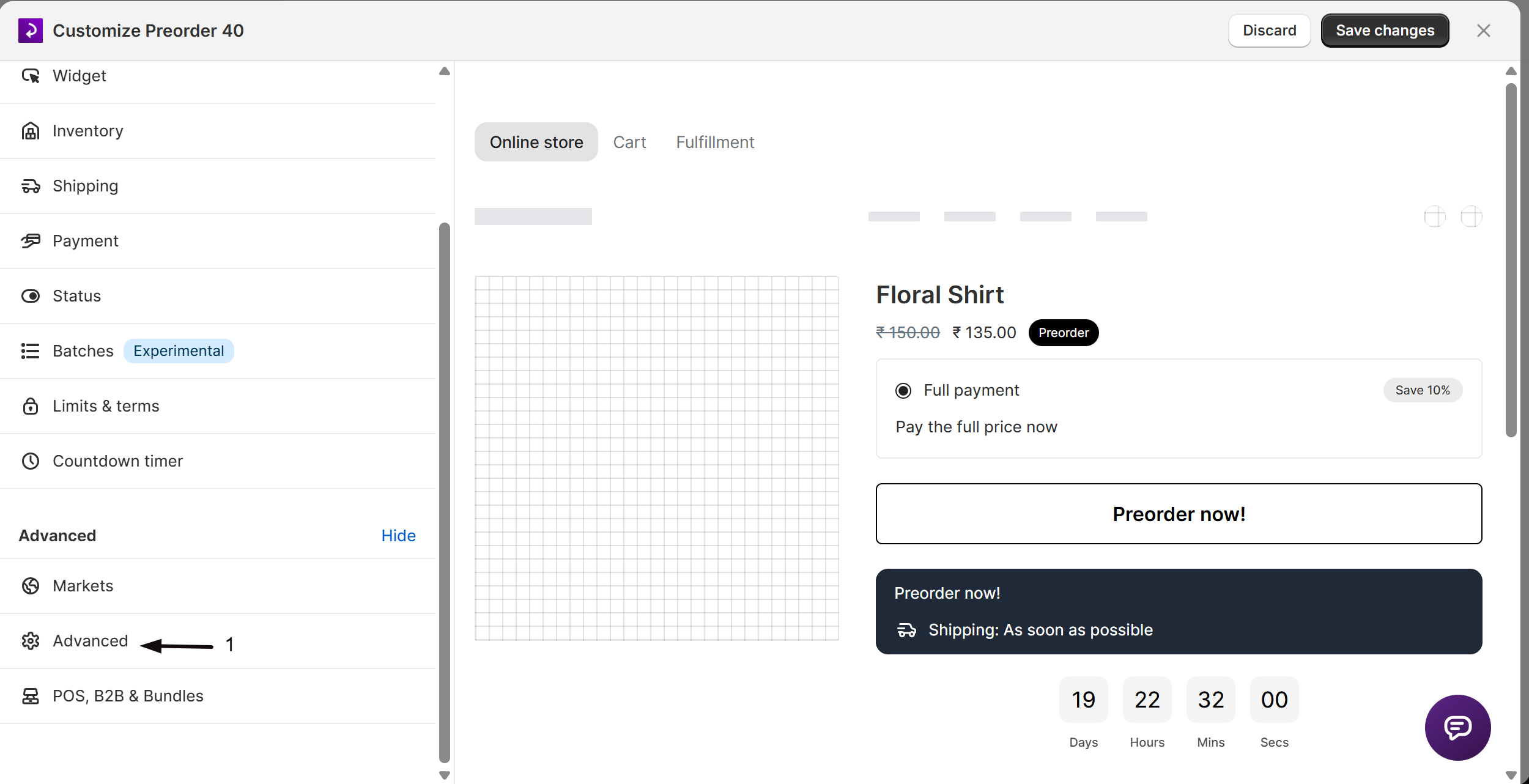
- In the settings list, click More settings to expand it, then click Advanced.
-
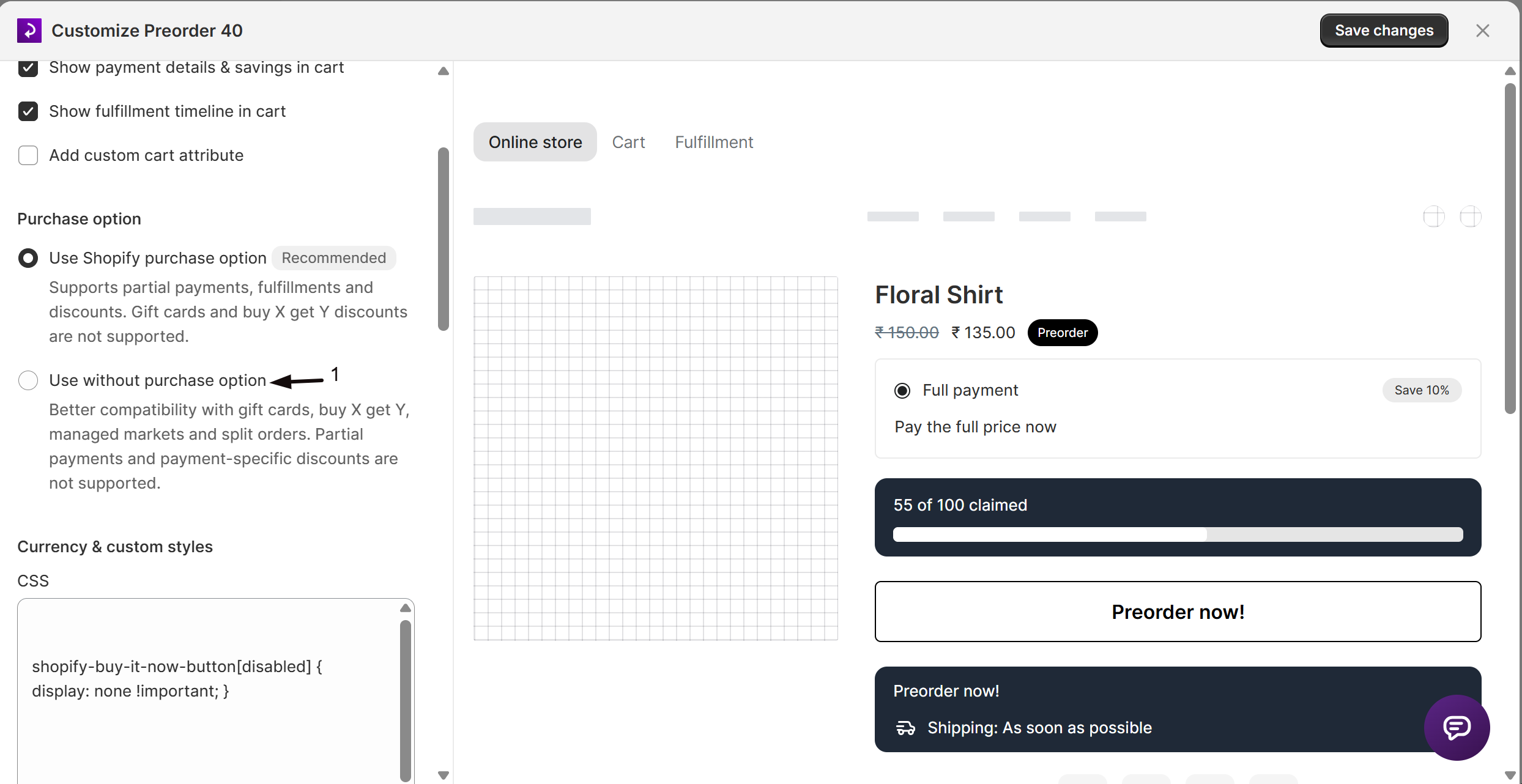
Select Use without purchase option
Under Purchase option, choose Use without purchase option.
-
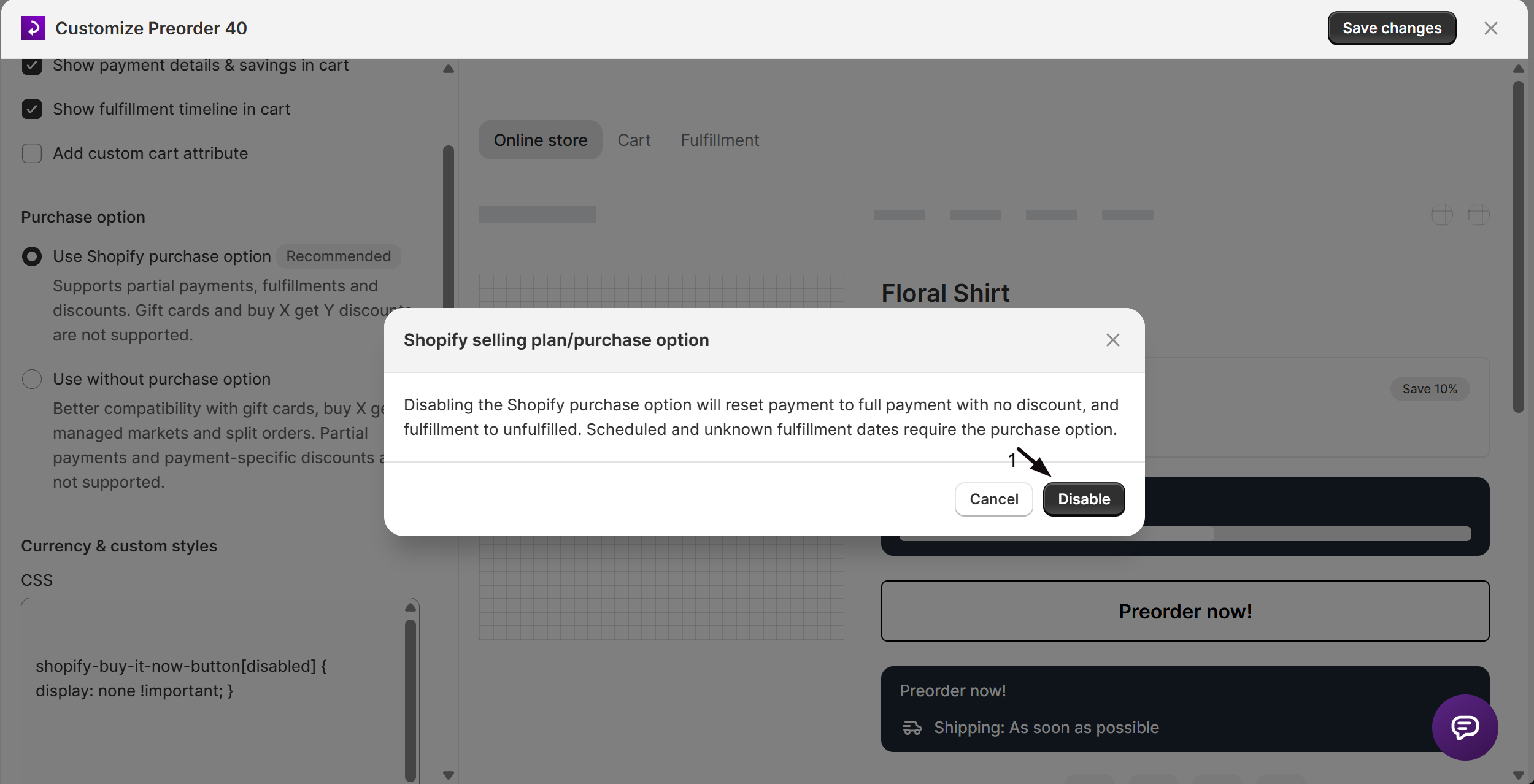
Confirm the change
A confirmation dialog explains what resets. Click Disable to confirm.
-
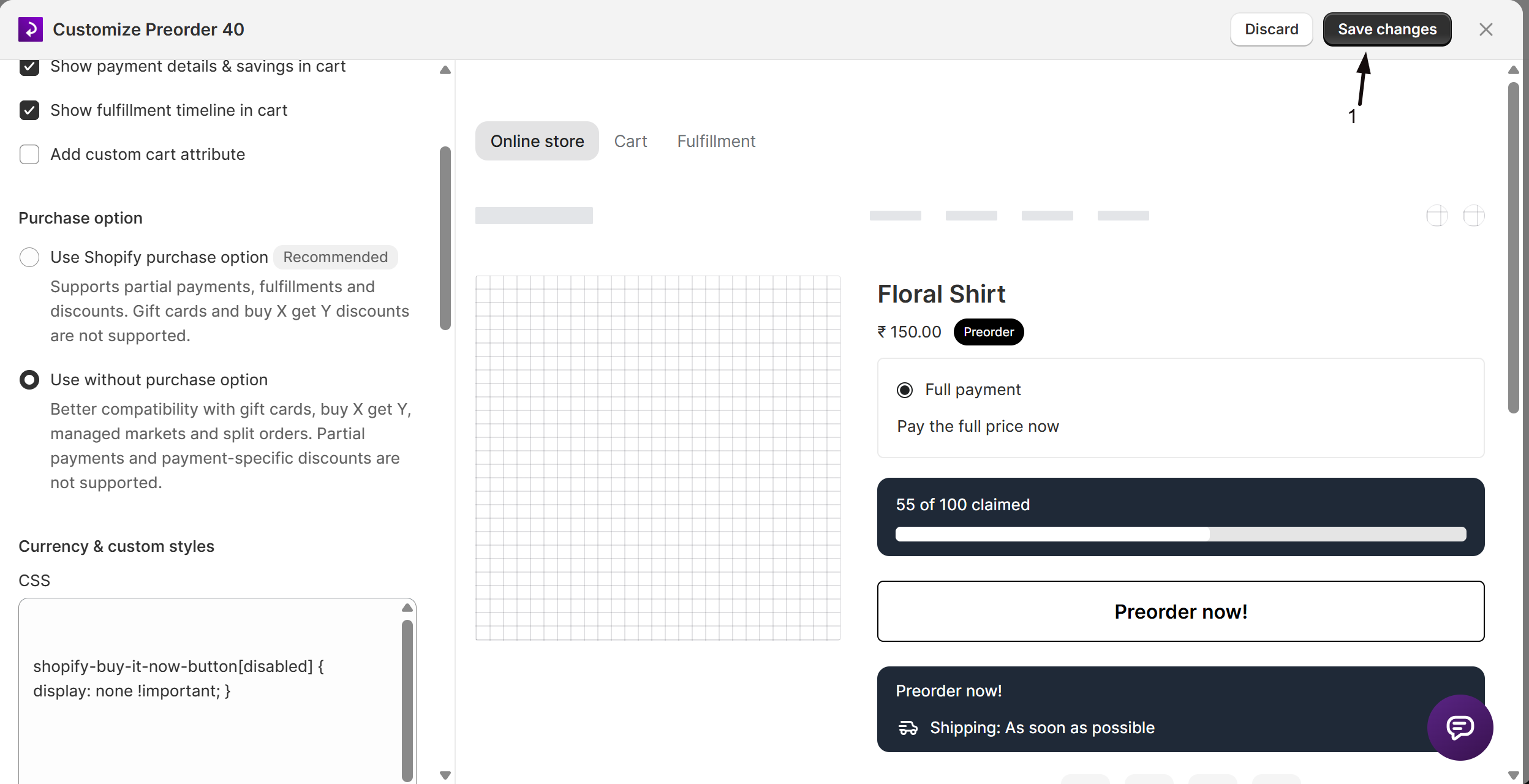
Save changes
Click Save changes at the top right of the editor. The new mode applies to carts created from this point forward.
Check your setup
Section titled “Check your setup”- In the offer editor (Preorders in the left menu → Offers tab → open your offer → Customize → Advanced in the sidebar), confirm Purchase option shows Use without purchase option selected.
- Place a test order from a Managed Markets region, or use Shopify’s test/preview tools for that market, and confirm checkout completes without a selling-plan-related error.
- Open the resulting order in Shopify admin and confirm the preorder is reflected as a line item property or order attribute rather than a selling plan.
Troubleshooting
Section titled “Troubleshooting”International customers hit checkout errors or the wrong pricing
Check that the offer’s Purchase option is set to Use without purchase option. Native selling plans aren’t supported in Managed Markets checkouts.
You need partial payments or a payment-specific discount
These require the Shopify purchase option, which isn’t available with Managed Markets. Use STOQ’s regular pricing/discount settings instead.
You need to hold shipments until you have inventory
Use Hold all fulfillments instead of On hold (Customize -> Shipping in the sidebar). On hold requires the Shopify purchase option; Hold all fulfillments doesn’t. See Auto-hold fulfillments without the purchase option.
You're not sure whether your store uses Managed Markets or regular Shopify Markets
Check Settings -> Markets in Shopify admin. Managed Markets (Markets Pro) is a Shopify feature where Shopify acts as merchant of record for international orders; regular Shopify Markets doesn’t have this selling-plan restriction. Contact Shopify support if you’re still unsure.
Limitations
Section titled “Limitations”The purchase option is set per offer. If you run multiple preorder offers, switch each one that Managed Markets customers can reach, not just one.
Do I have to turn off the purchase option for every store, or only stores using Managed Markets?
Only stores using Shopify Managed Markets need the purchase option off for that reason. If you don’t use Managed Markets, the default Use Shopify purchase option mode is recommended since it supports partial payments and more delivery-scheduling options.
Will switching modes cancel or change existing orders?
No. Switching the Purchase option setting changes how new carts apply the preorder going forward; it does not modify orders that have already been placed.
Can I still offer a discount on preorders without the purchase option?
Yes, but not payment-specific or partial-payment discounts. STOQ’s regular pricing/discount settings under the offer’s Payment section still apply; you lose only the purchase-option-specific split-payment discount behavior.
Does this affect STOQ's own Markets feature (restricting an offer to specific markets)?
No. STOQ’s Markets section, which controls which Shopify markets see the preorder button, is a separate STOQ setting and works in either purchase-option mode. See Sell preorders in multiple markets.
Does turning off the purchase option change what customers see at checkout?
Only the payment terms: customers complete checkout the same way, but they pay in full since partial payment requires the purchase option. See What customers will see above for the full breakdown.
Related guides
Section titled “Related guides”Thanks for letting us know.
Still stuck? Ask Quinn or chat with support