Split fulfillments
Split a mixed order so in-stock items ship right away while the preorder item is fulfilled later.
Last updated
Use this guide if a mixed order, one with both preorder and in-stock items, should ship in two parts instead of waiting for the preorder item. By the end, the order stays as one order with one payment, but you fulfill it as two separate shipments: the in-stock items right away, the preorder item when it’s ready.
Before you begin
Section titled “Before you begin”| Requirement | Detail |
|---|---|
| Paid plan | Available on Lite and above |
| Unfulfilled status | Set the fulfillment status to Unfulfilled first |
| Mixed orders | Splitting only happens when an order has both preorder and in-stock items |
What customers will see
Section titled “What customers will see”When a customer orders preorder and in-stock items together, STOQ splits the order into two fulfillments after checkout:
- The in-stock items become one fulfillment, ready to ship immediately.
- The preorder item becomes a separate fulfillment that waits until you’re ready.
It stays a single order, so the customer pays once and sees the order as normal. Each fulfillment gets its own shipping and tracking, so the customer can receive the in-stock items first and the preorder item later.
Set it up
Section titled “Set it up”On a phone, this menu is collapsed. In the Shopify mobile app, tap the STOQ logo at the top of the screen to open it, then choose the section named below. There is no hamburger icon. See Finding the STOQ menu.
-
Open the Shipping section
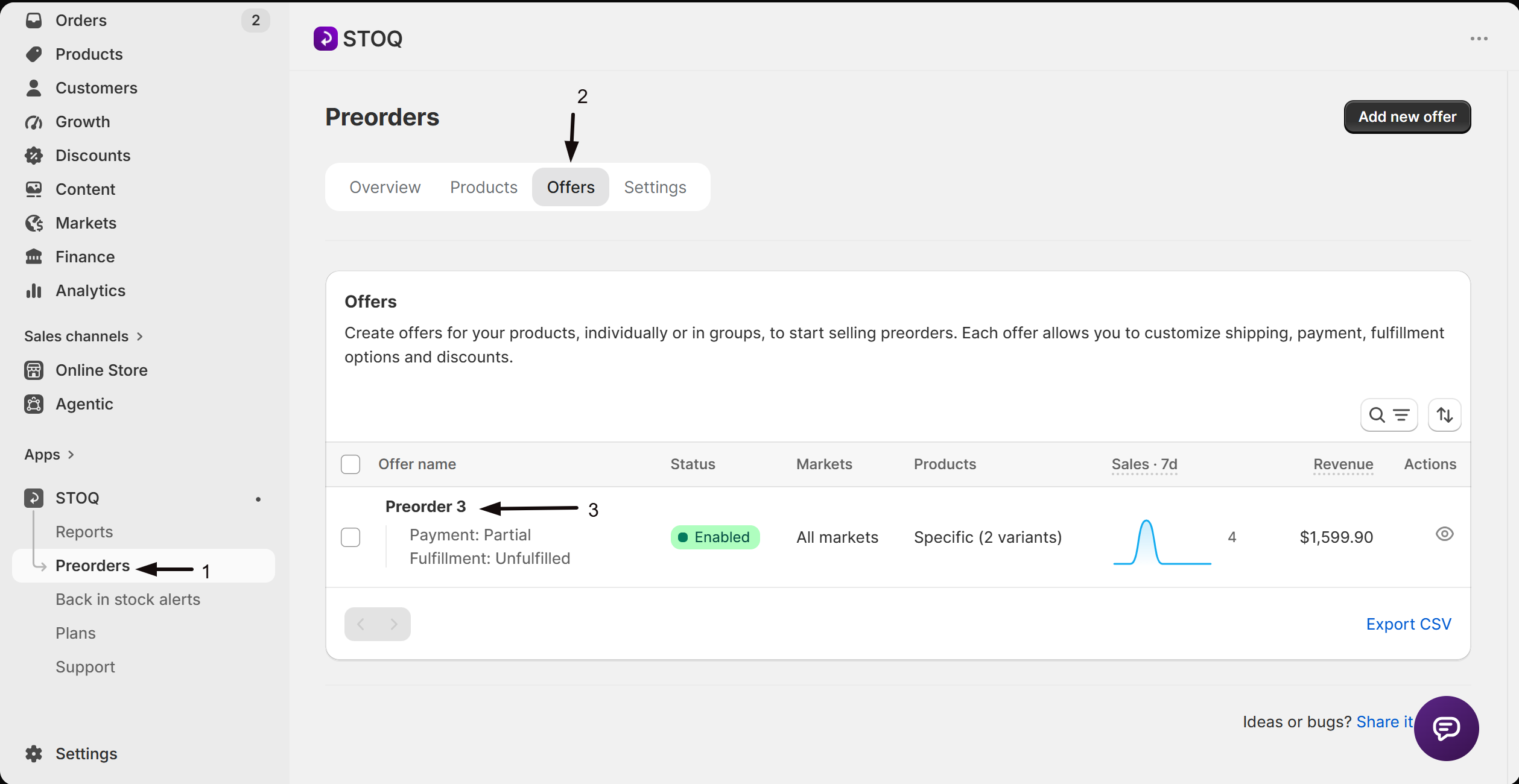
- In the left menu bar of the STOQ app, click Preorders.
- Click the Offers tab.
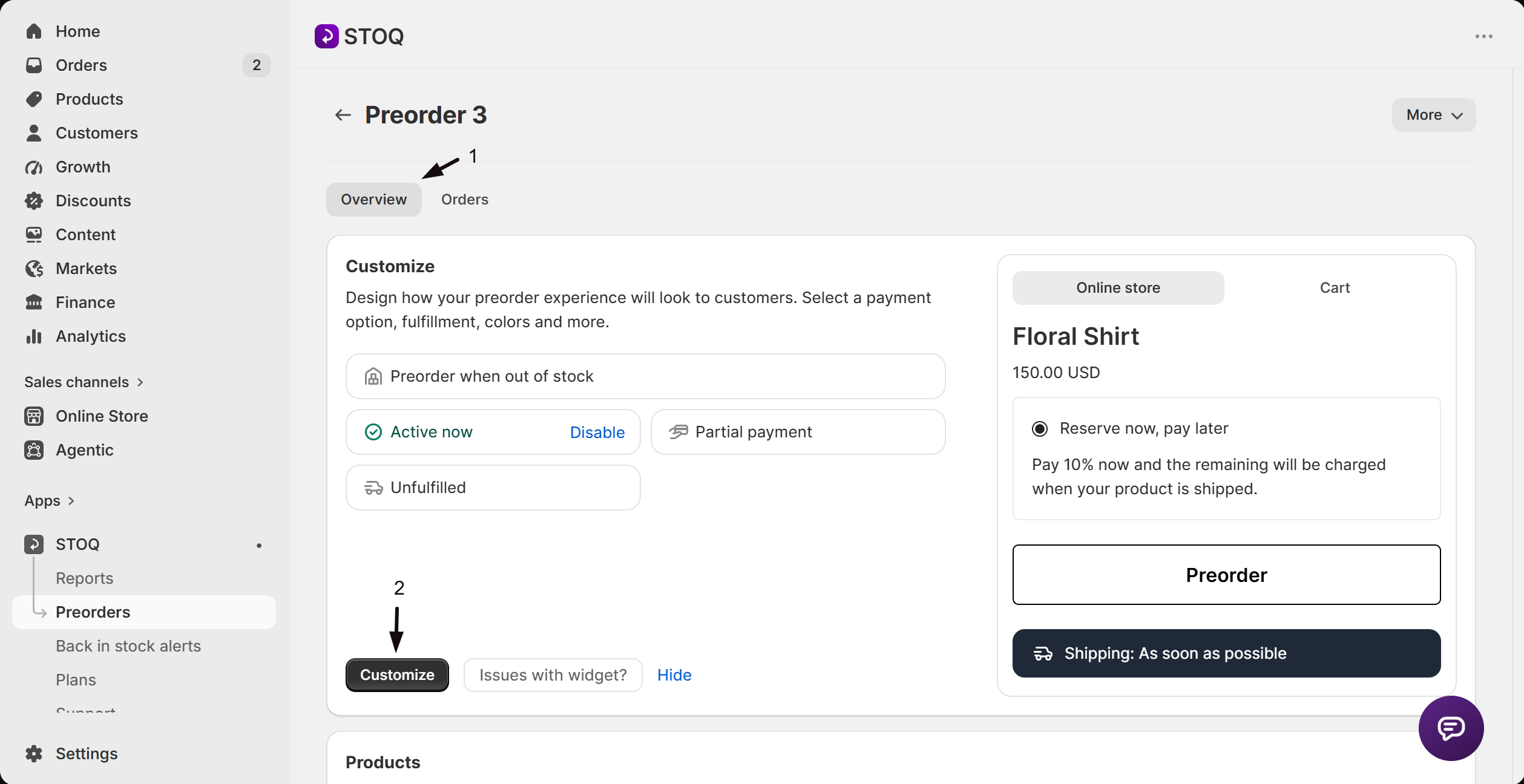
- Click the offer you’d like to edit. Its Overview tab opens, showing the Customize button, a live preview, and the offer’s Products section.
- Click the Customize button to open the editor.
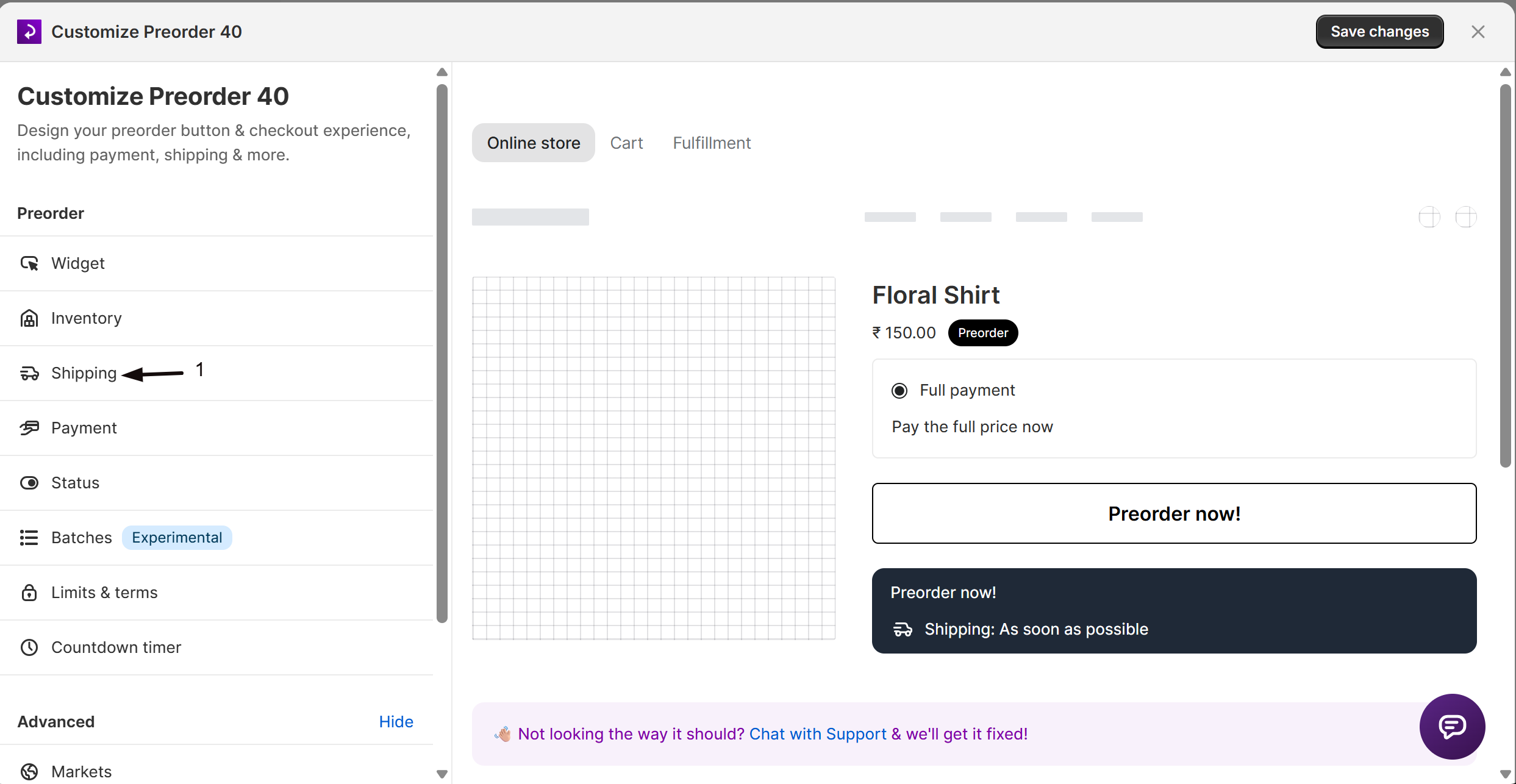
- In the sidebar, click Shipping.
-
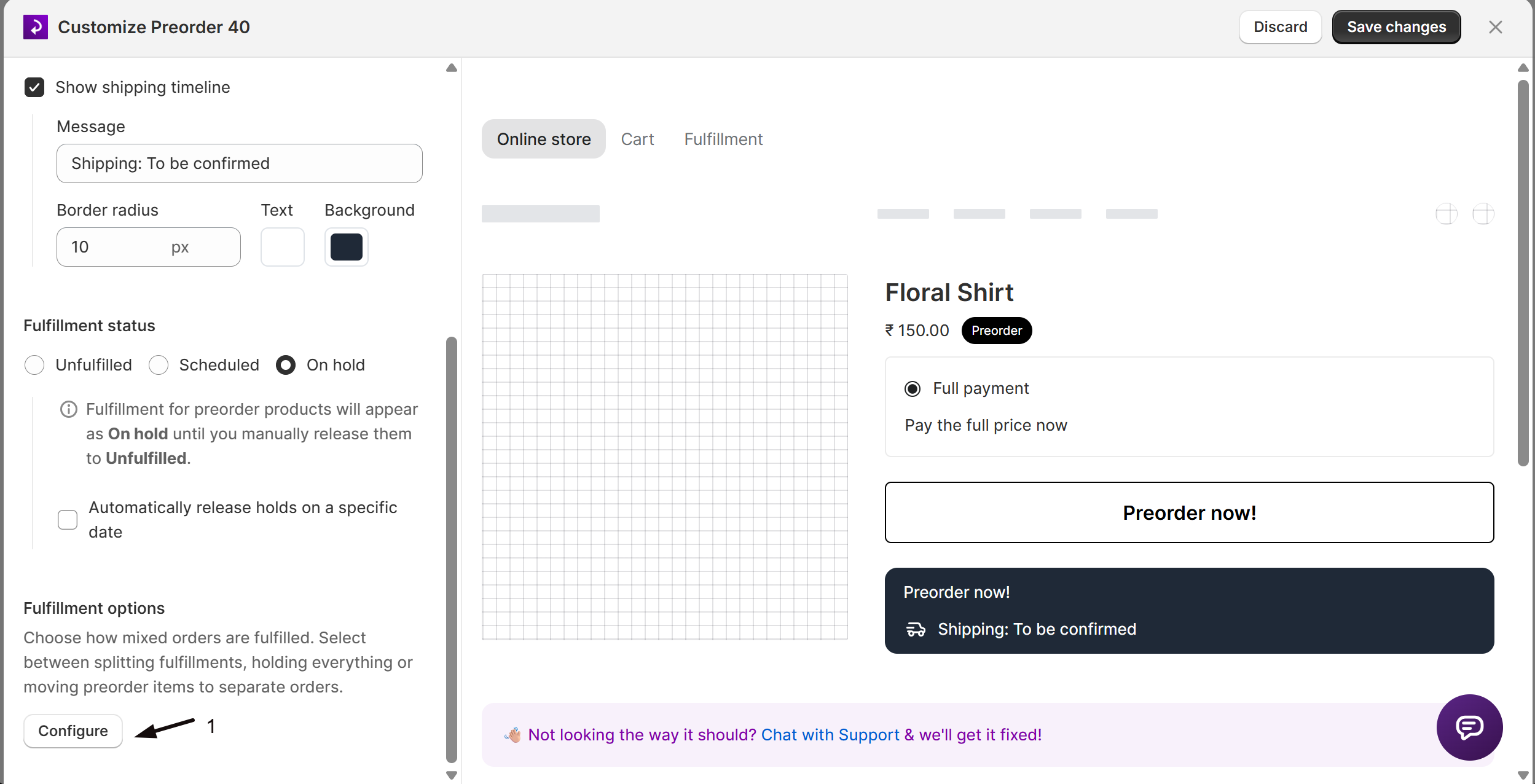
Set the fulfillment status to Unfulfilled
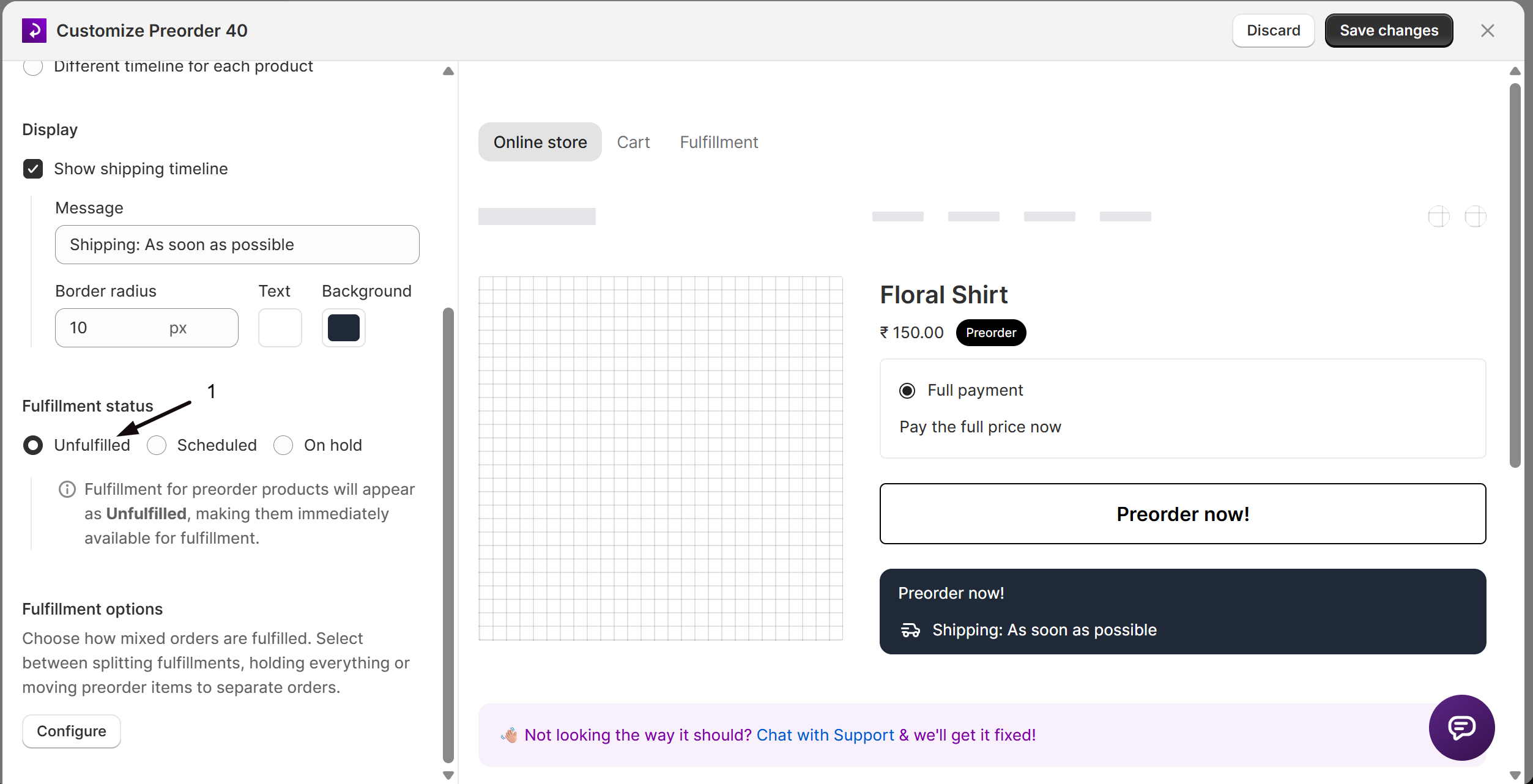
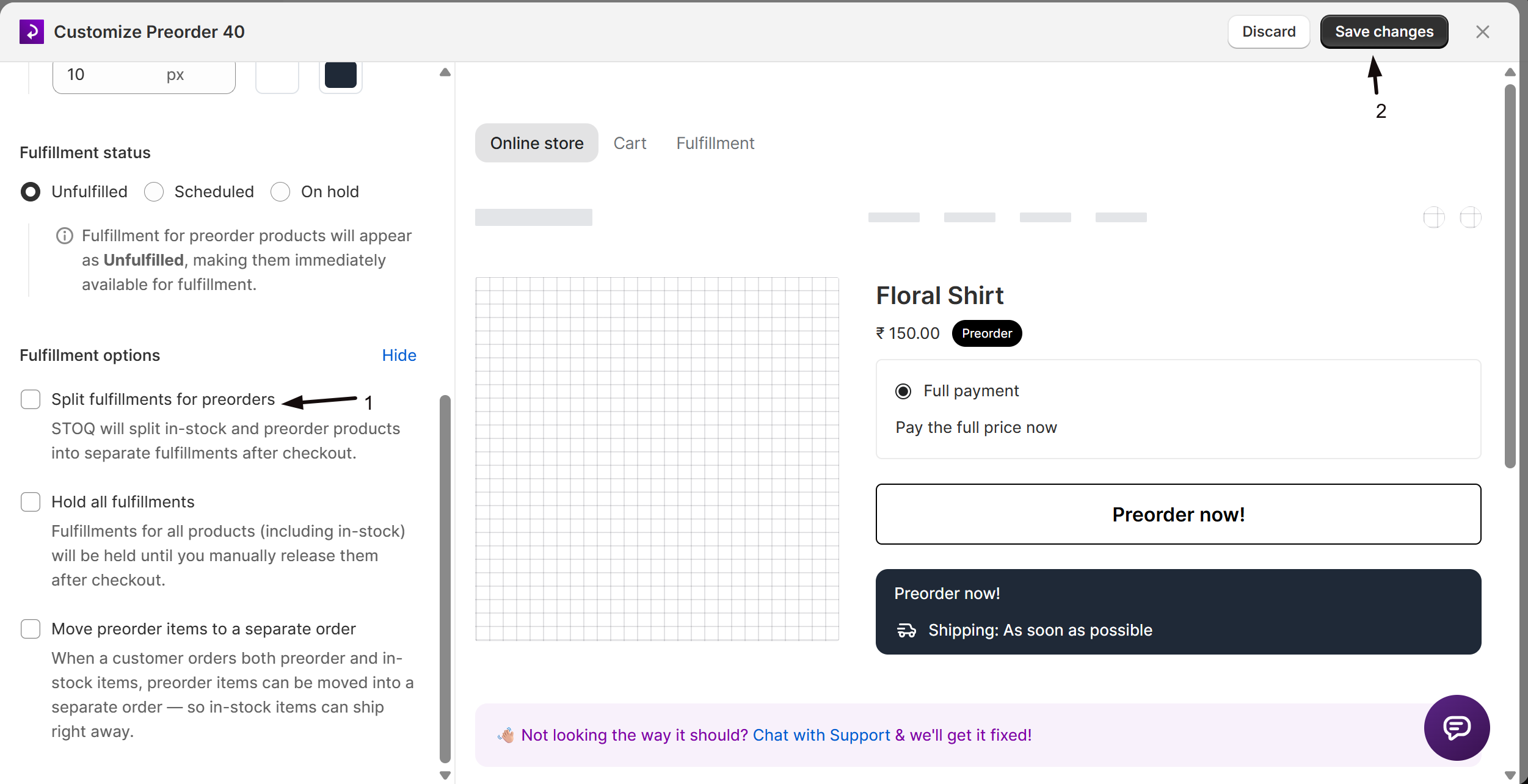
Under Fulfillment status, select Unfulfilled. Split fulfillments only appears with this status.
-
Enable Split fulfillments
Under Fulfillment options, click Configure to expand the options, then check Split fulfillments for preorders. Turning it on turns off Hold all fulfillments and Separate orders, which are mutually exclusive.
-
Save changes
Click Save changes at the top right of the editor. The setting applies to orders placed afterward.
Split an order that’s already placed
Section titled “Split an order that’s already placed”For an order placed before you turned the setting on, or one that didn’t split, split it by hand. The order’s offer must have Split fulfillments for preorders turned on.
- In the left menu bar of the STOQ app, click Reports, then click Preorders, then the Orders tab.
- Click the order to open it.
- At the top of the order page, click Fulfill order, then click Split fulfillment orders.
- Click Split fulfillment orders to confirm.
To split several orders at once, check them in the Orders list and use the Split fulfillment orders bulk action, listed under Fulfillment. Cancelled and fully fulfilled orders can’t be split.
Check your setup
Section titled “Check your setup”Place a test order with one in-stock item and one preorder item. In the Shopify order, confirm there are two fulfillments: the in-stock one fulfillable now, the preorder one separate. A 100% discount code or Shopify’s Bogus Gateway avoids a real charge.
Troubleshooting
Section titled “Troubleshooting”Split fulfillments does not appear as an option
Set the offer’s fulfillment status to Unfulfilled first. It only appears with that status.
You can't turn on Split fulfillments
It requires a paid plan (Lite and above).
Split fulfillments won't stay on
Check whether Hold all fulfillments or Separate orders is also enabled. The three are mutually exclusive, so turning one on turns off the others.
An order isn't splitting into two fulfillments
Confirm the order actually mixes preorder and in-stock items. Splitting only happens on mixed orders; an order with only preorder items has nothing to split.
How is this different from Separate orders?
Split fulfillments keeps everything in one order and keeps deposits and partial payments working. Separate orders creates a new order for the preorder items and requires turning off the purchase option, which disables deposits.
Does splitting charge the customer extra shipping?
No. The customer pays once at checkout. Splitting changes how you fulfill the order, not what they’re charged.
Can I use a deposit with split fulfillments?
Yes. Unlike Separate orders, Split fulfillments keeps the Shopify purchase option, so deposits and partial payments still work.
Does turning this on affect orders already placed?
No. It applies to orders placed after you save; orders already placed keep their original fulfillment setup.
Can I separate a preorder out of an order that's already been placed?
Yes, if the order’s offer has Split fulfillments for preorders turned on. Open the order and click Fulfill order, then Split fulfillment orders (see Split an order that’s already placed). STOQ can’t move items into a new order after checkout, so Separate orders only applies to new orders.
Related guides
Section titled “Related guides”Thanks for letting us know.
Still stuck? Ask Quinn or chat with support