What the cart and checkout show for a preorder
Every line STOQ adds to a preorder's cart and checkout, what controls it, and how to edit or remove each one.
Last updated
When a shopper adds a preorder to their cart, STOQ attaches extra lines under the product, in the cart and again in the checkout order summary. This guide names each one, says what turns it on, and whether you can change or remove it. For the step-by-step editing, each section links to its own guide.
The lines STOQ can add
Section titled “The lines STOQ can add”| Line | What it is | Controlled by | Shoppers see it |
|---|---|---|---|
| Offer name | Your offer’s customer-facing name, shown as the purchase option under the product (the way a subscription plan name shows) | On automatically when the offer uses the Shopify purchase option | Yes |
| Purchase type: Preorder | A property marking the item as a preorder | Shown when the purchase option is off, the buyer is B2B, or the sale is through POS, and no custom cart attribute is set | Yes |
| Fulfillment timeline | The ship date or message, for example “Ships by Dec 25” | Show fulfillment timeline in cart (offer editor, Advanced) | Yes |
| Payment breakdown | The deposit or split-payment summary, for example “Payment: 25% now” | Show payment details and savings in cart (offer editor, Advanced) | Yes |
| Discount | The savings amount, shown alongside the payment breakdown | Part of Show payment details and savings in cart, when the offer has a discount | Yes |
| Custom cart attribute | A freeform key: value line you write |
Add custom cart attribute (offer editor, Advanced) | Yes, unless the key starts with _ |
| Tracking properties | STOQ’s internal properties, such as _stoq_shopify_selling_plan_id |
Always, so STOQ can track the order | No, admin only |
The offer name
Section titled “The offer name”When the offer uses the Shopify purchase option (a selling plan), the cart and checkout show the offer’s customer-facing name as the purchase option under the product, the same way Shopify shows a subscription plan name. Shopify renders this line, not STOQ.
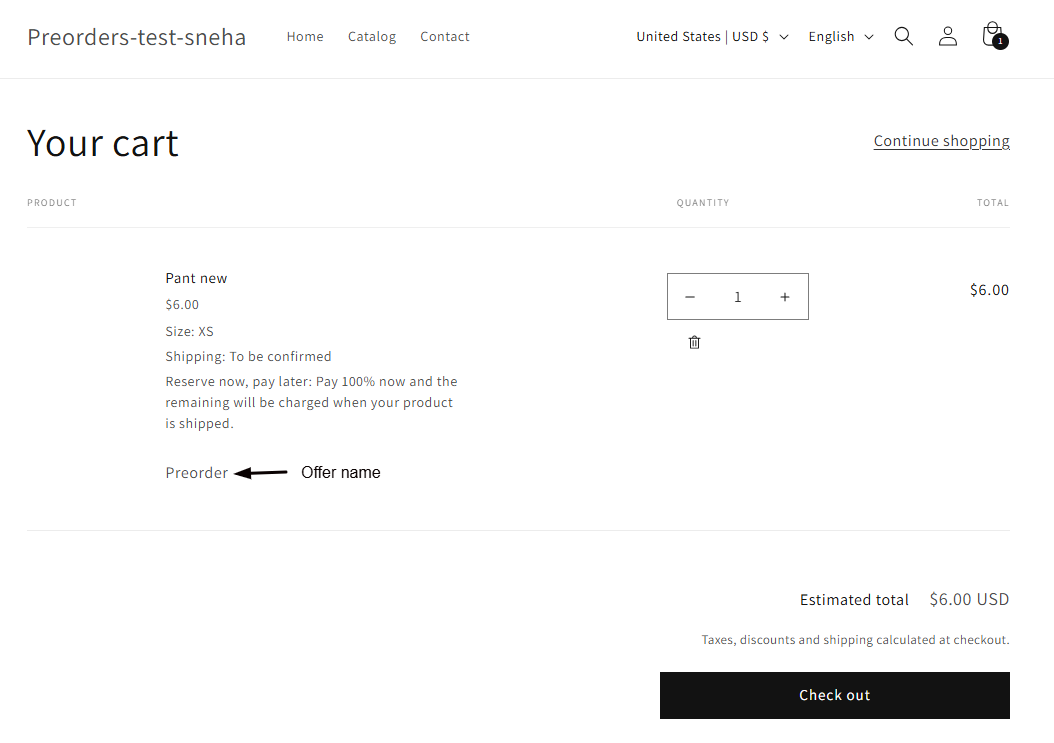
- To change it: rename the offer’s customer-facing name, see Rename a preorder offer. For other languages, translate it, see Translate into other languages.
- You can’t remove or rename it from the cart while the purchase option is on, because Shopify owns that line. The only way to remove it is to turn the purchase option off (Customize > More settings > Advanced > Use without purchase option), which also removes partial payments, deposits, and the preorder discount. See the cart text guide.
Purchase type: Preorder
Section titled “Purchase type: Preorder”This line appears only when the offer has Use Shopify purchase option turned off, the buyer is a B2B customer, or the sale goes through Shopify POS. In those modes there’s no purchase option name, so STOQ adds Purchase type: Preorder instead to mark the item.
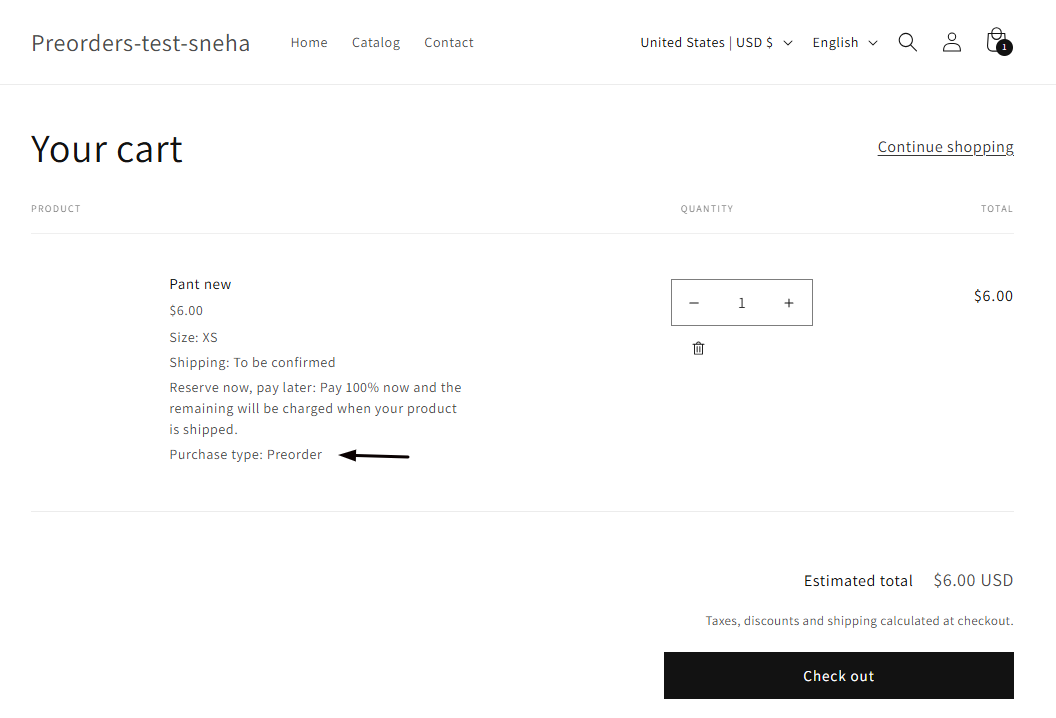
- The default text is fixed English.
- To change the wording or translate it, turn on the custom cart attribute, which replaces this line with your own text. See Change or translate the cart text.
- Turning the purchase option off is also what makes this line appear in place of the offer name. With the purchase option on (for a non-B2B, non-POS sale) the cart shows the offer name and never this line.
The custom cart attribute
Section titled “The custom cart attribute”The custom cart attribute is a line you compose yourself, in key: value format (the part before the colon is the label, the part after is the value). It’s the one way to replace Purchase type: Preorder with your own wording.
- Set it in the offer editor under More settings > Advanced > Add custom cart attribute. You can use variables such as
{{ name }}and{{ date }}, and translate it per language. - If you leave out the colon, STOQ uses your offer name as the label and your text as the value.
- Start the key with an underscore (
_) to keep the line out of the shopper’s cart and checkout while still saving it on the order.
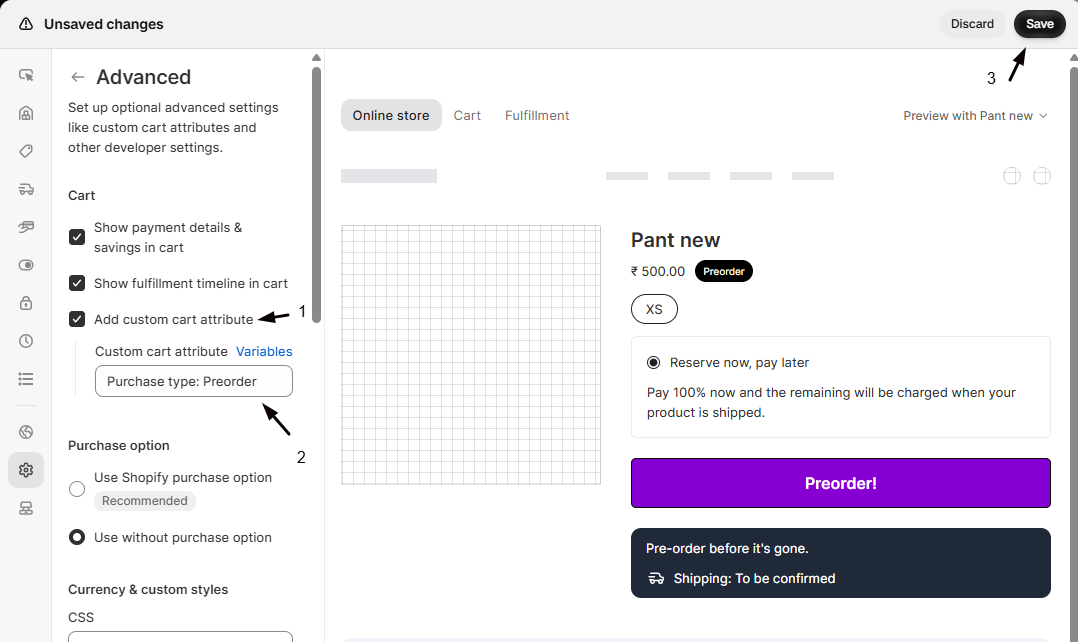
Full steps are in Change or translate the cart text and Advanced settings.
Fulfillment timeline and payment lines
Section titled “Fulfillment timeline and payment lines”These two are off until you turn them on in the offer editor’s Advanced section:
- Show fulfillment timeline in cart adds the ship date or message, for example “Ships by Dec 25”. It needs Show shipping timeline on in the Widget section first.
- Show payment details and savings in cart adds the deposit or split-payment summary, and the discount amount when the offer has one.
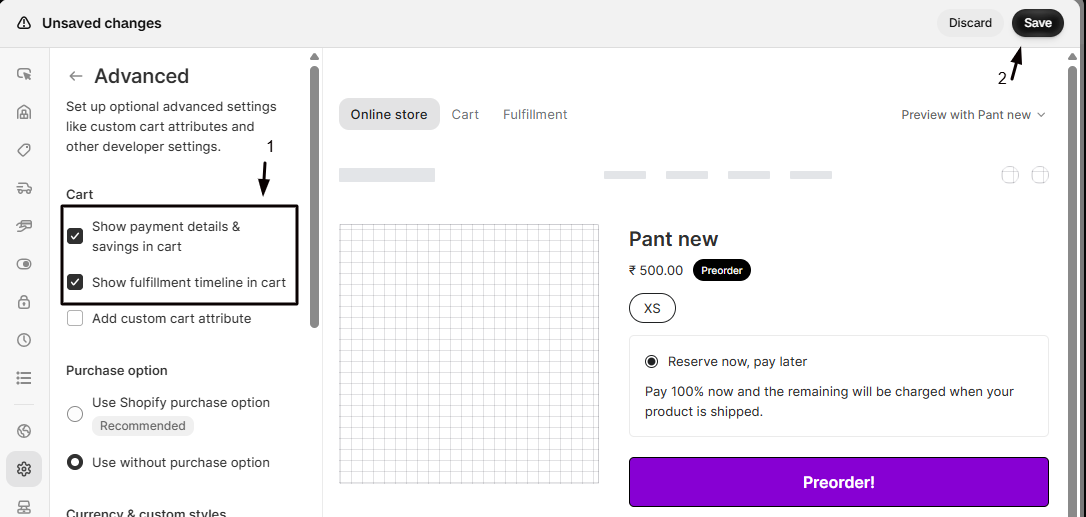
See Advanced settings for both, and Set up payment for preorders for what the payment line reflects.
Check your setup
Section titled “Check your setup”- Open your store in an incognito window and add a preorder product to the cart.
- Open the cart drawer and confirm the lines you expect: the offer name (or Purchase type: Preorder), and any fulfillment, payment, or custom lines you turned on.
- Go to checkout and confirm the same visible lines show in the order summary.
- Place a test order and open it in Shopify admin to see every line, including the hidden tracking ones.
Why does my offer name show twice on a line?
A shipping text or custom cart attribute written without a colon uses the offer name as its label, so it prints next to the purchase option name. Add a colon so the label is your own, for example Ships: Dec 25 instead of Dec 25.
Why do I see 'Purchase type: Preorder' instead of my offer name?
The offer has Use Shopify purchase option off, or the sale is B2B or through POS. In those modes there’s no purchase option name, so STOQ shows Purchase type: Preorder. Turn the purchase option on for a regular sale to show the offer name instead.
Can I remove the 'Purchase type: Preorder' line?
Not with a setting. In these modes the cart always shows either Purchase type: Preorder or the custom cart attribute that replaces it. Set a short custom cart attribute if you want it to take less space.
Can I remove the offer name while keeping the selling plan on?
No. While the Shopify purchase option is on, Shopify shows the purchase option name (your offer name) and controls that line, so STOQ can’t hide or rename it. Turning the purchase option off removes it, along with partial payments, deposits, and the preorder discount.
Do these lines show at checkout and on the order?
Yes. Every visible line carries to the checkout order summary and onto the order in Shopify admin, packing slips, and POS. Only the underscore-prefixed tracking properties stay hidden from shoppers.
Will changing these change orders already placed?
No. Cart lines are written when the item is added, so past orders, and items already sitting in a cart, keep the lines they were added with. New settings apply to items added after you save.
Related guides
Section titled “Related guides”Thanks for letting us know.
Still stuck? Ask Quinn or chat with support