Hold preorders without the Shopify purchase option
Hold preorder fulfillments when the Shopify purchase option is turned off.
Last updated
When the Shopify purchase option (selling plan) is off, for example for compatibility with gift cards and store credits, Buy X Get Y discounts, Managed Markets, or separate preorder orders, the built-in On hold fulfillment status can’t work through the Shopify selling plan. Use this guide to hold preorder fulfillments a different way. By the end, preorder orders will be automatically held after checkout, either just the preorder items or the whole order, until you release them.
Before you begin
Section titled “Before you begin”- This guide applies only when the Shopify purchase option is turned off for your offer.
- Hold all fulfillments requires a paid plan (Lite and above). The On hold fulfillment status is available on all plans.
- Hold all fulfillments can’t be combined with Move preorder items to a separate order, the two are mutually exclusive in the UI.
Choose your setup
Section titled “Choose your setup”STOQ gives you two ways to hold preorder fulfillments once the purchase option is off:
- On hold status: STOQ automatically holds only the preorder fulfillment orders; in-stock items in the same order stay fulfillable. Use this when in-stock items in a mixed order should still ship right away.
- Hold all fulfillments: STOQ holds every fulfillment in the order, including in-stock items, until you release it. Use this when nothing in the order should ship until you’re ready.
Set it up
Section titled “Set it up”Turn off the Shopify purchase option
Section titled “Turn off the Shopify purchase option”If you haven’t done this yet:
-
Open the offer in STOQ
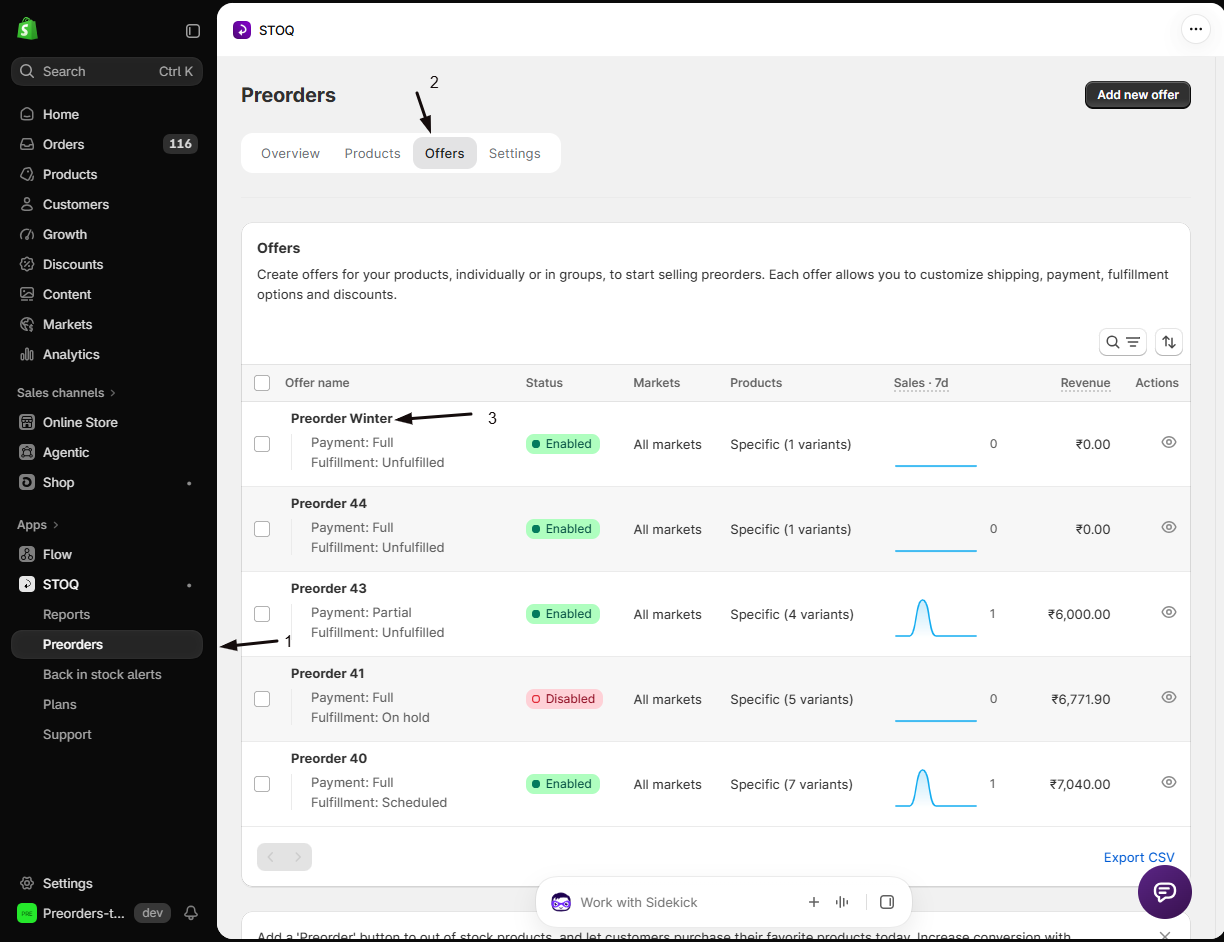
- In the left menu bar, click Preorders.
- Click the Offers tab.
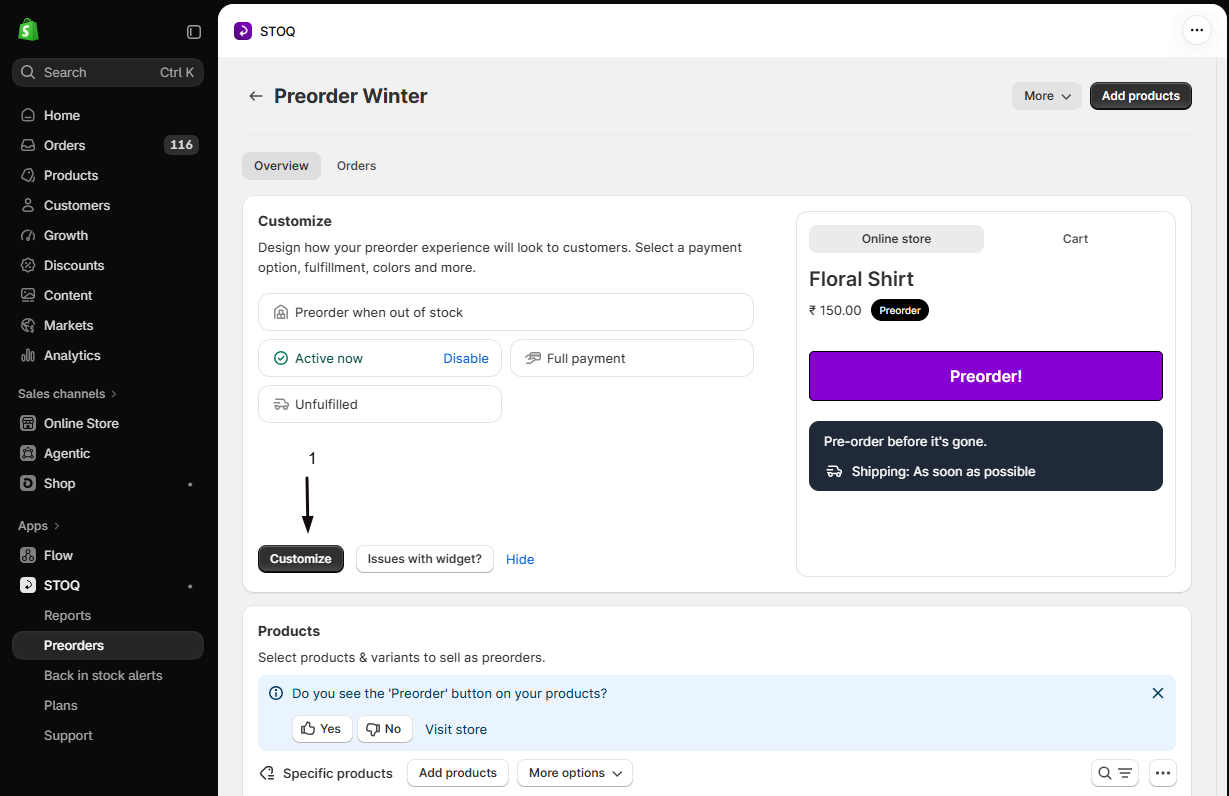
- Click the offer you’d like to edit. Its Overview tab opens, showing the Customize button, a live preview, and the offer’s Products section.
- Click the Customize button to open the editor.
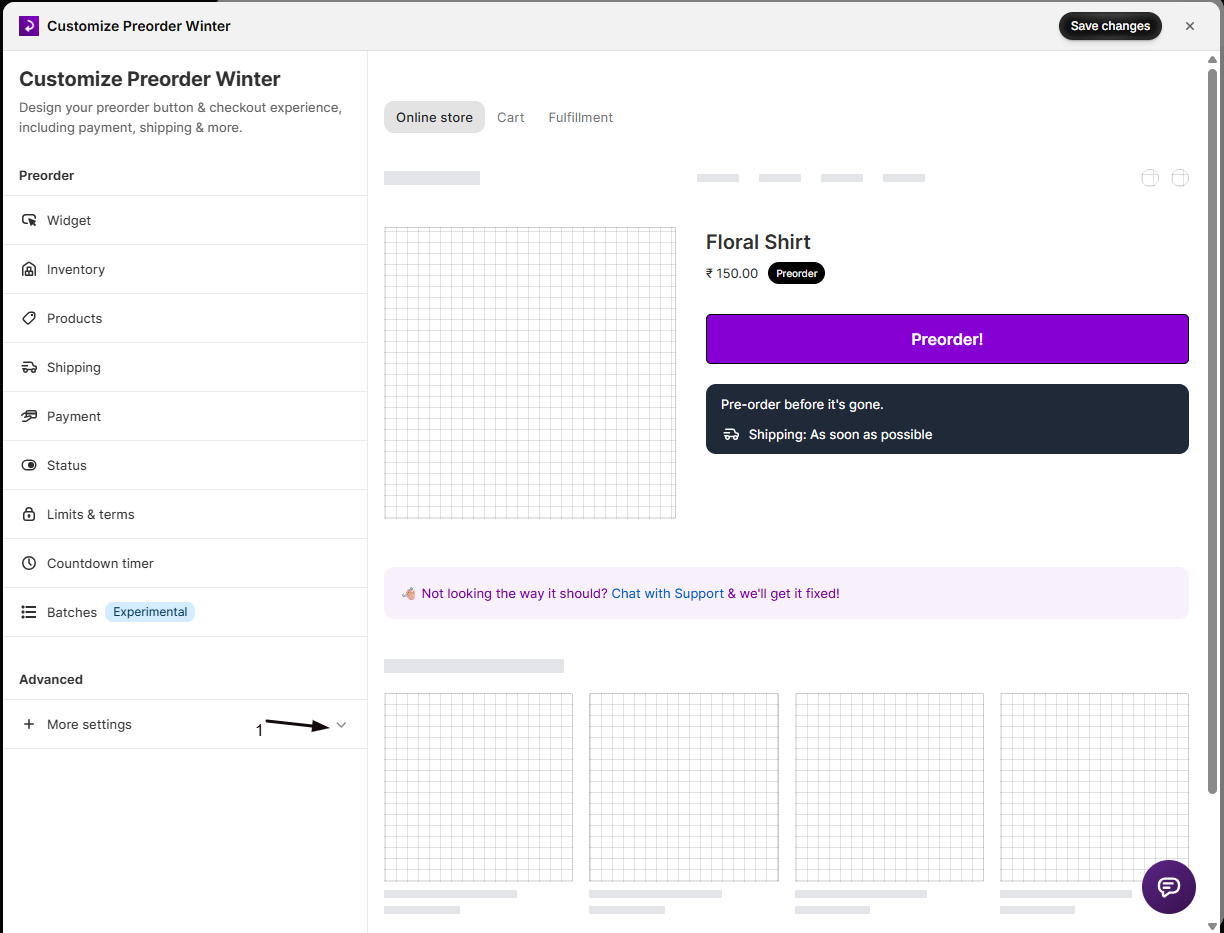
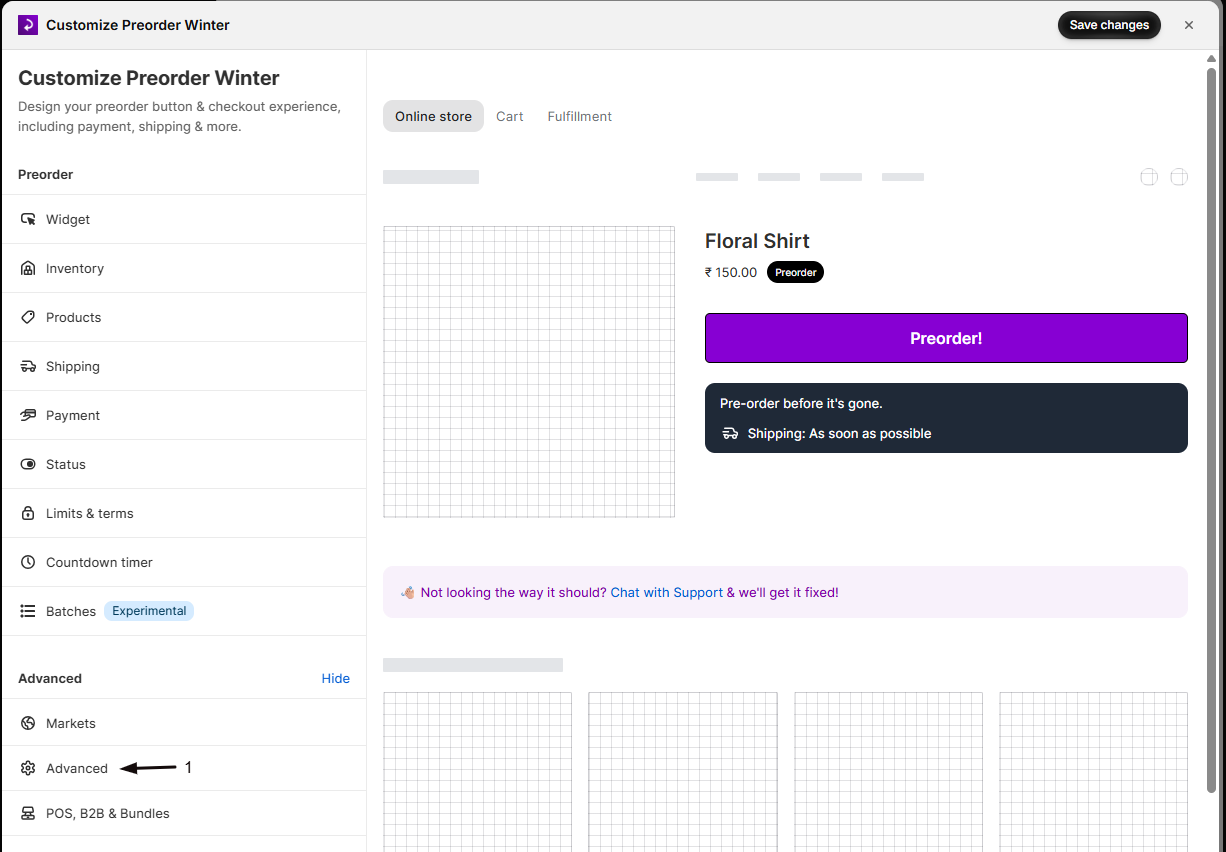
- In the settings list, click More settings to expand it, then click Advanced.
-
Select "Use without purchase option"
Under Purchase option, select Use without purchase option. A confirmation dialog warns you that:
- Payment resets to full payment with no discount.
- A Scheduled fulfillment status changes to On hold, because Scheduled requires the purchase option.
Confirm and Save.
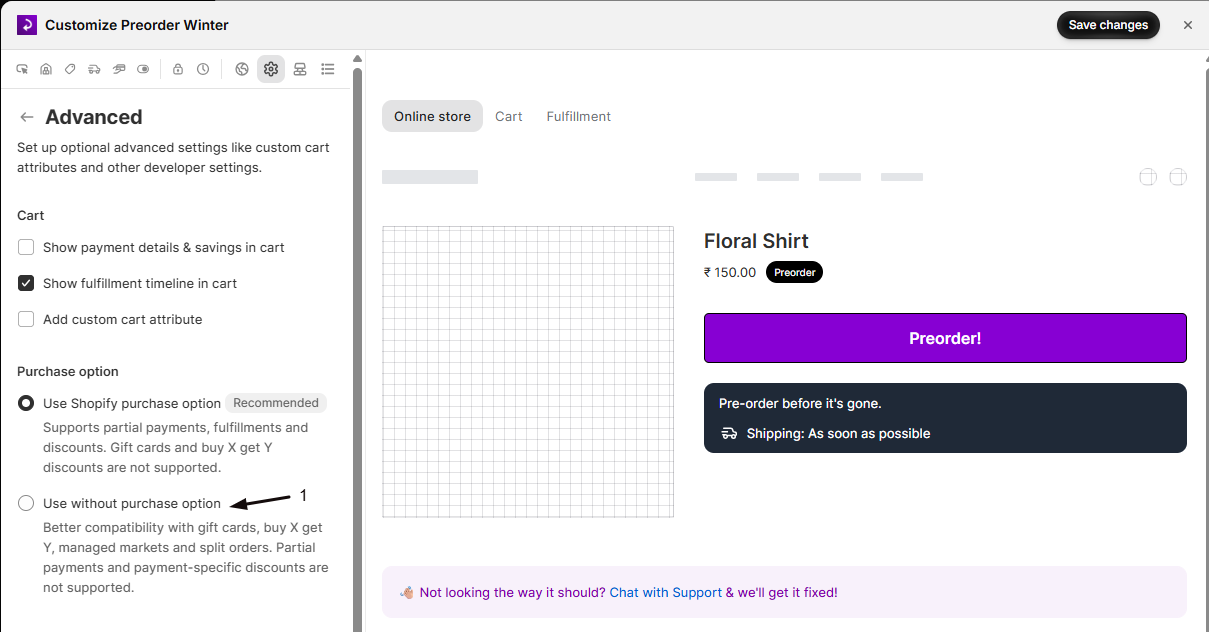
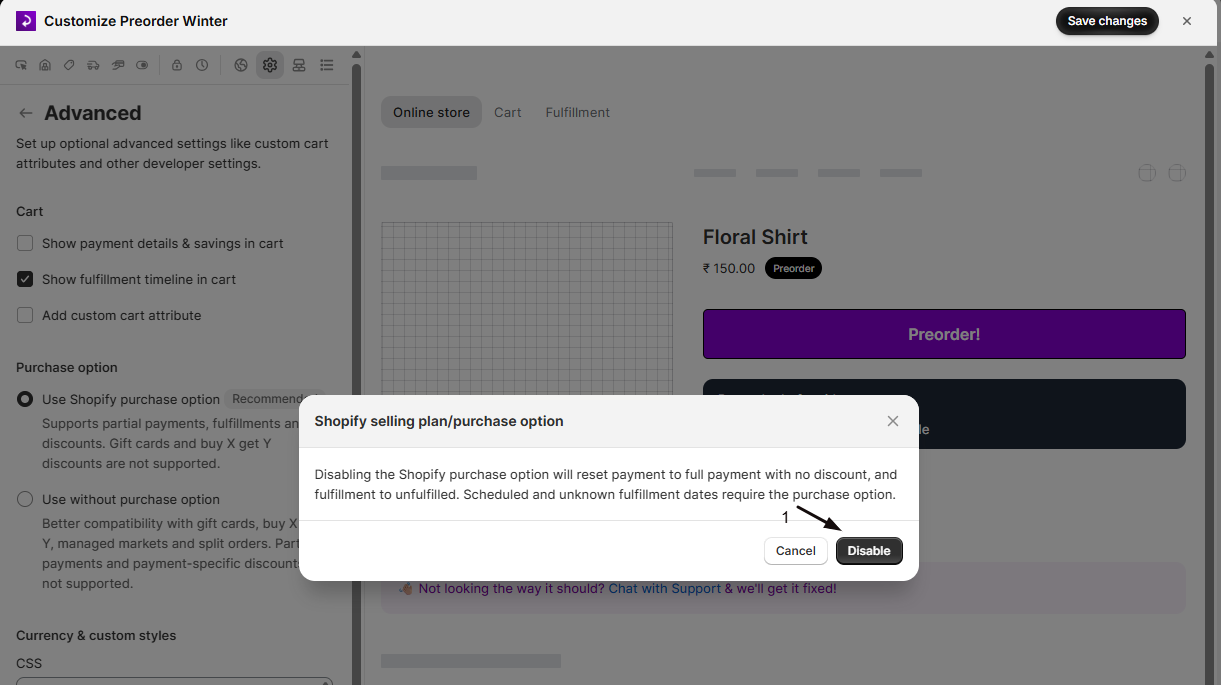
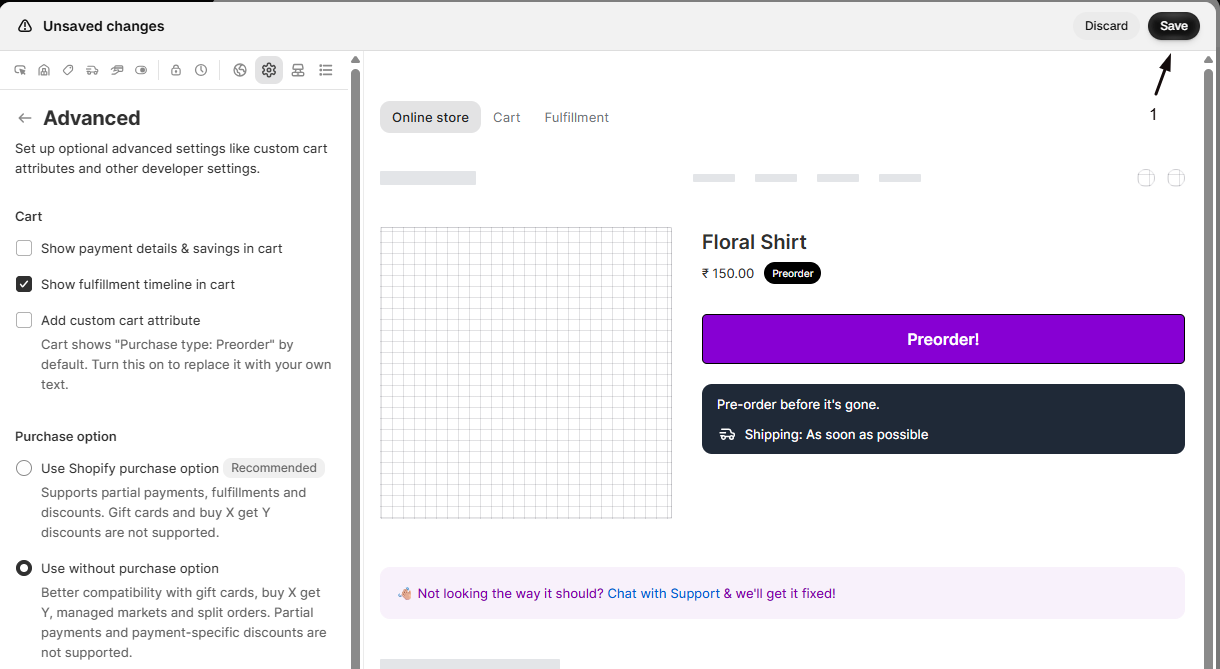
After saving, a Scheduled fulfillment status shows On hold; other statuses stay as they were. Continue below to set up the hold you chose above.
Set up On hold status (preorder items only)
Section titled “Set up On hold status (preorder items only)”-
Open the Shipping section
- In the left menu bar, click Preorders.
- Click the Offers tab.
- Click the offer you’d like to edit.
- Click Customize to open the editor.
- In the sidebar, click Shipping.
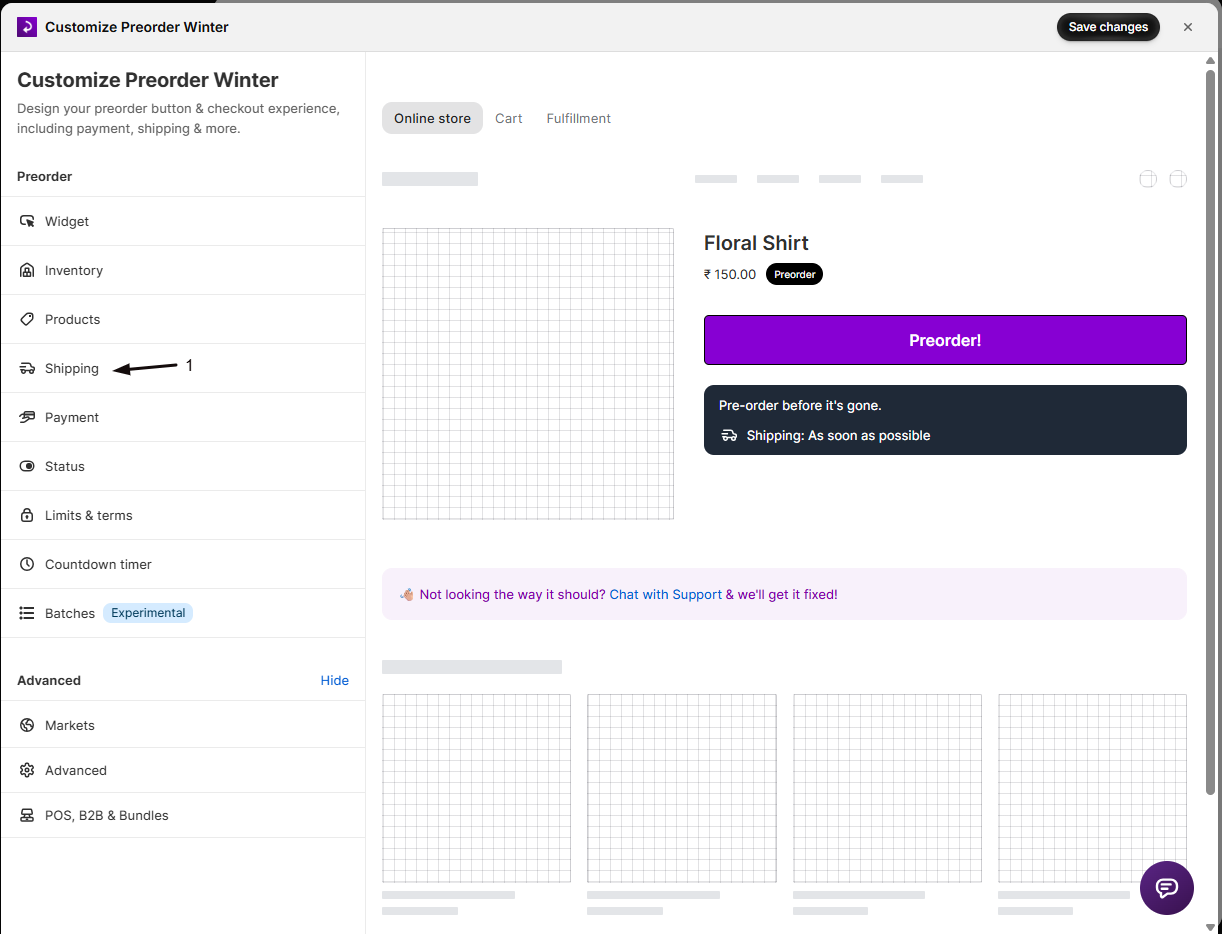
-
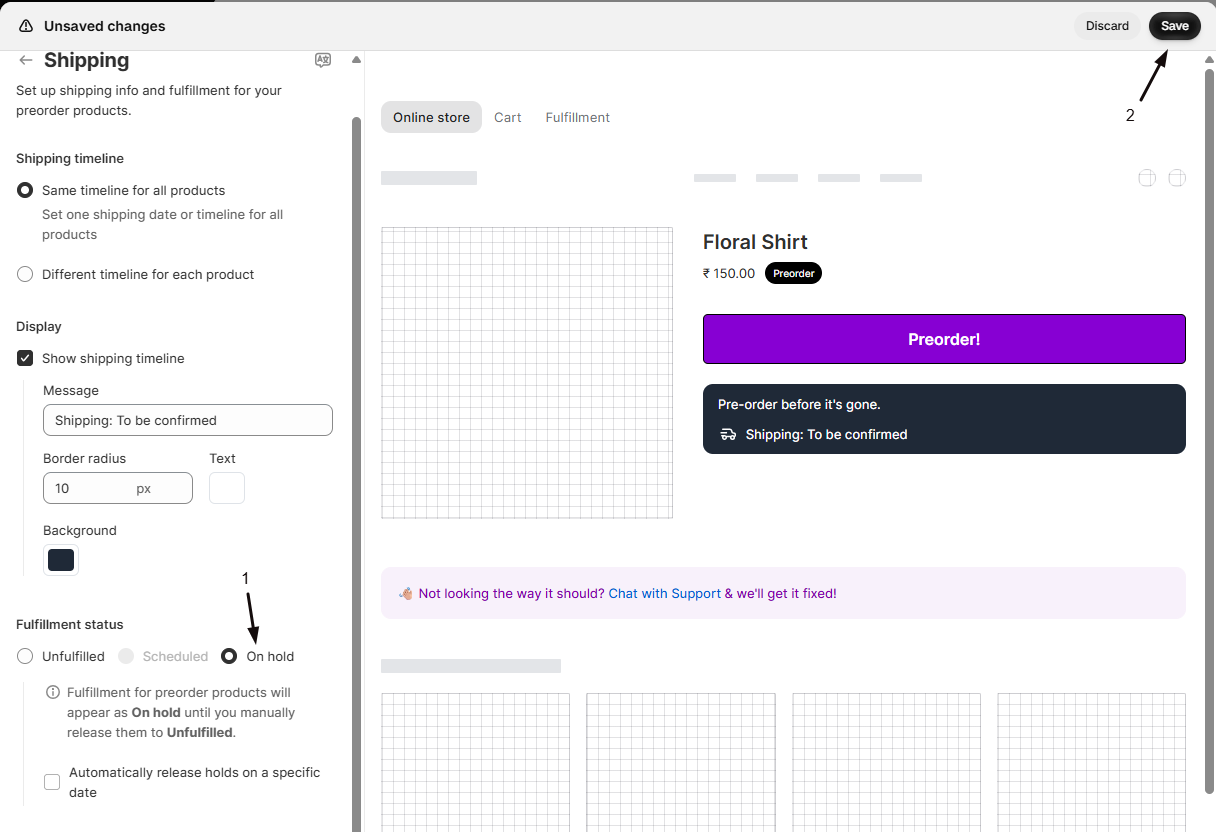
Set the fulfillment status to On hold
Under Fulfillment status, select On hold. The UI note confirms: “Fulfillment for preorder products will appear as On hold. You need to manually release fulfillments.”
-
Save changes
Click Save changes at the top right of the editor. After checkout, STOQ automatically places a fulfillment hold on the preorder fulfillment orders. In-stock items in the same order remain fulfillable.
Set up Hold all fulfillments (entire order)
Section titled “Set up Hold all fulfillments (entire order)”-
Open the Shipping section
- In the left menu bar, click Preorders.
- Click the Offers tab.
- Click the offer you’d like to edit.
- Click Customize to open the editor.
- In the sidebar, click Shipping.
-
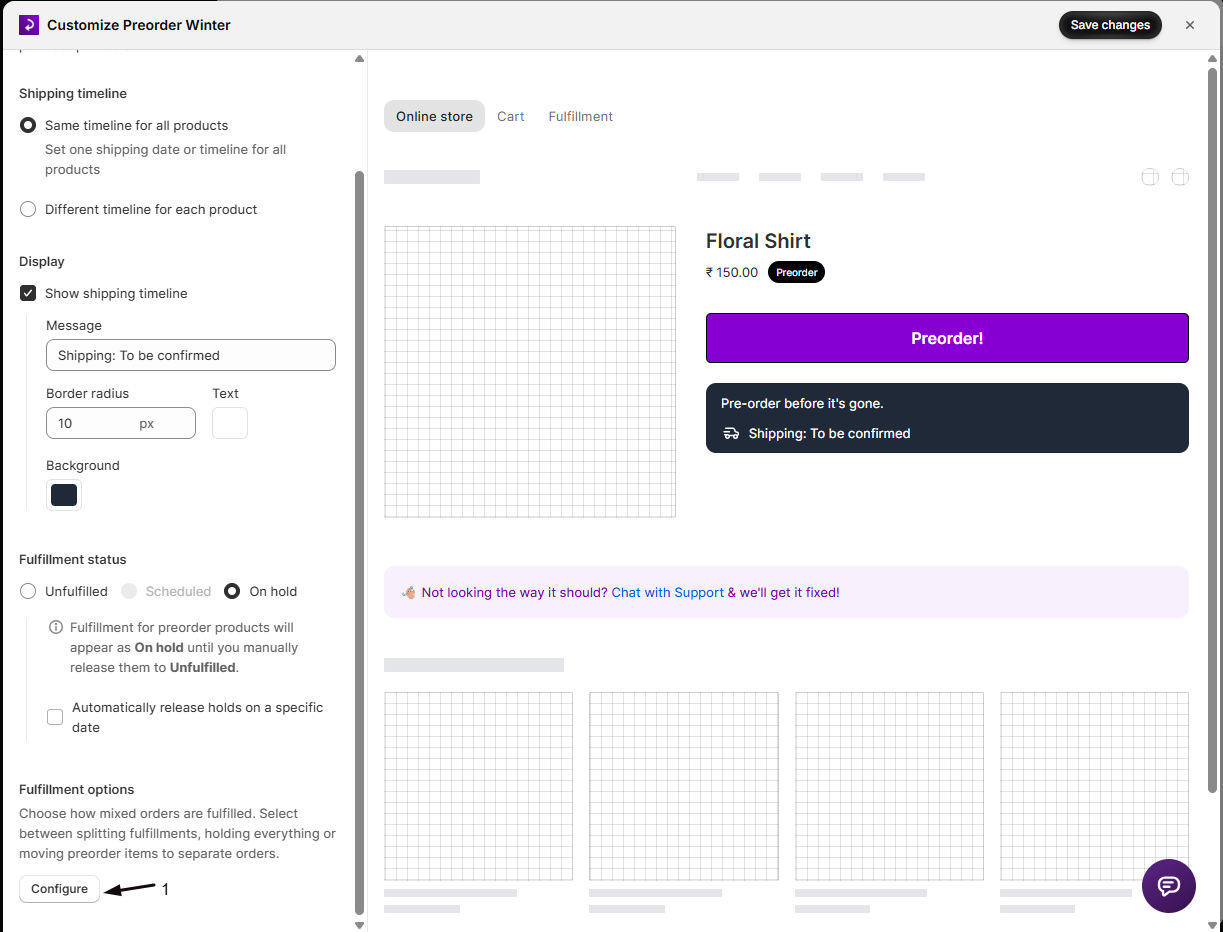
Locate Fulfillment options
Scroll to Fulfillment options.
-
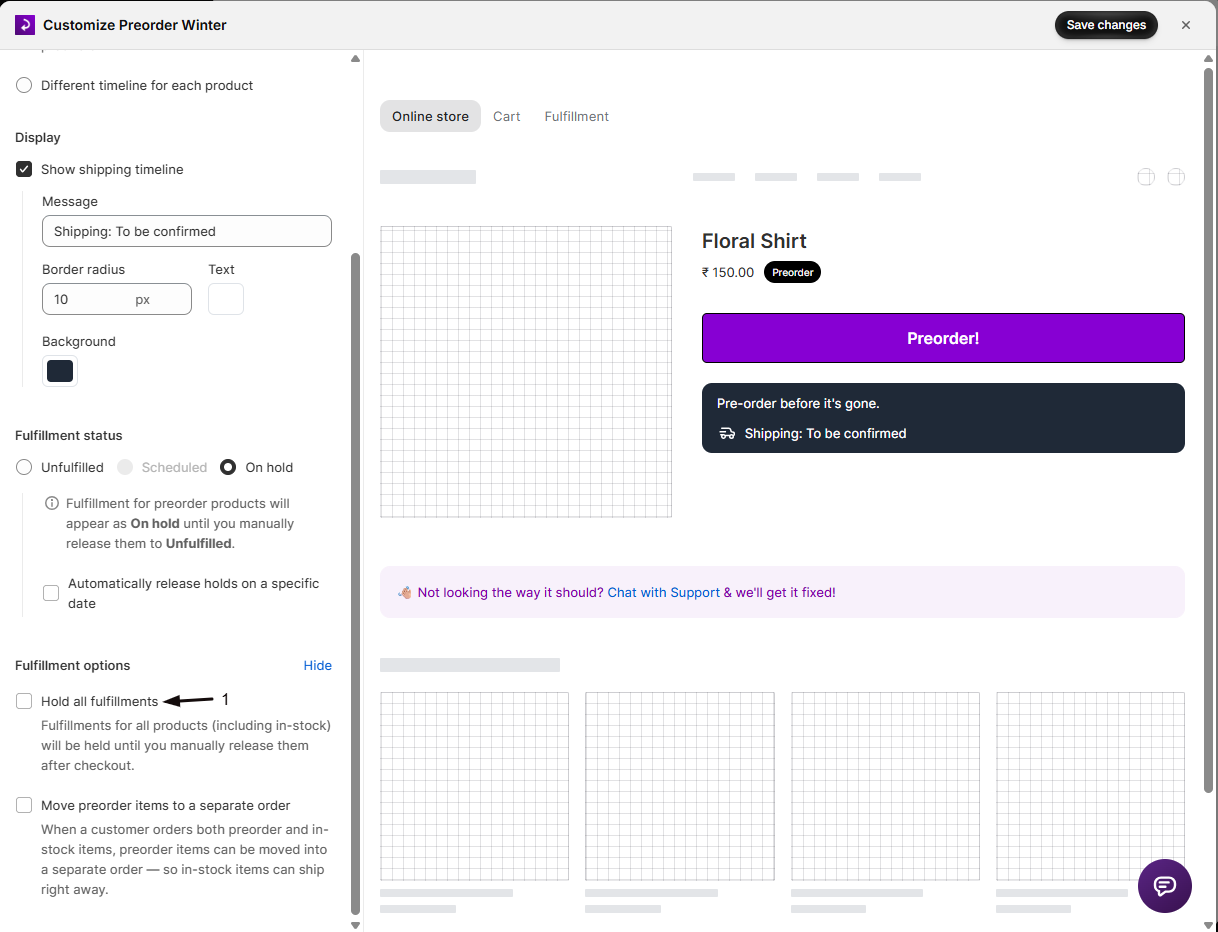
Enable "Hold all fulfillments"
Check Hold all fulfillments. The help text confirms: “Fulfillments for all products (including in-stock) will be held until you manually release them after checkout.” This requires a paid plan (Lite and above); you’ll see an upgrade prompt if you’re on the free plan.
-
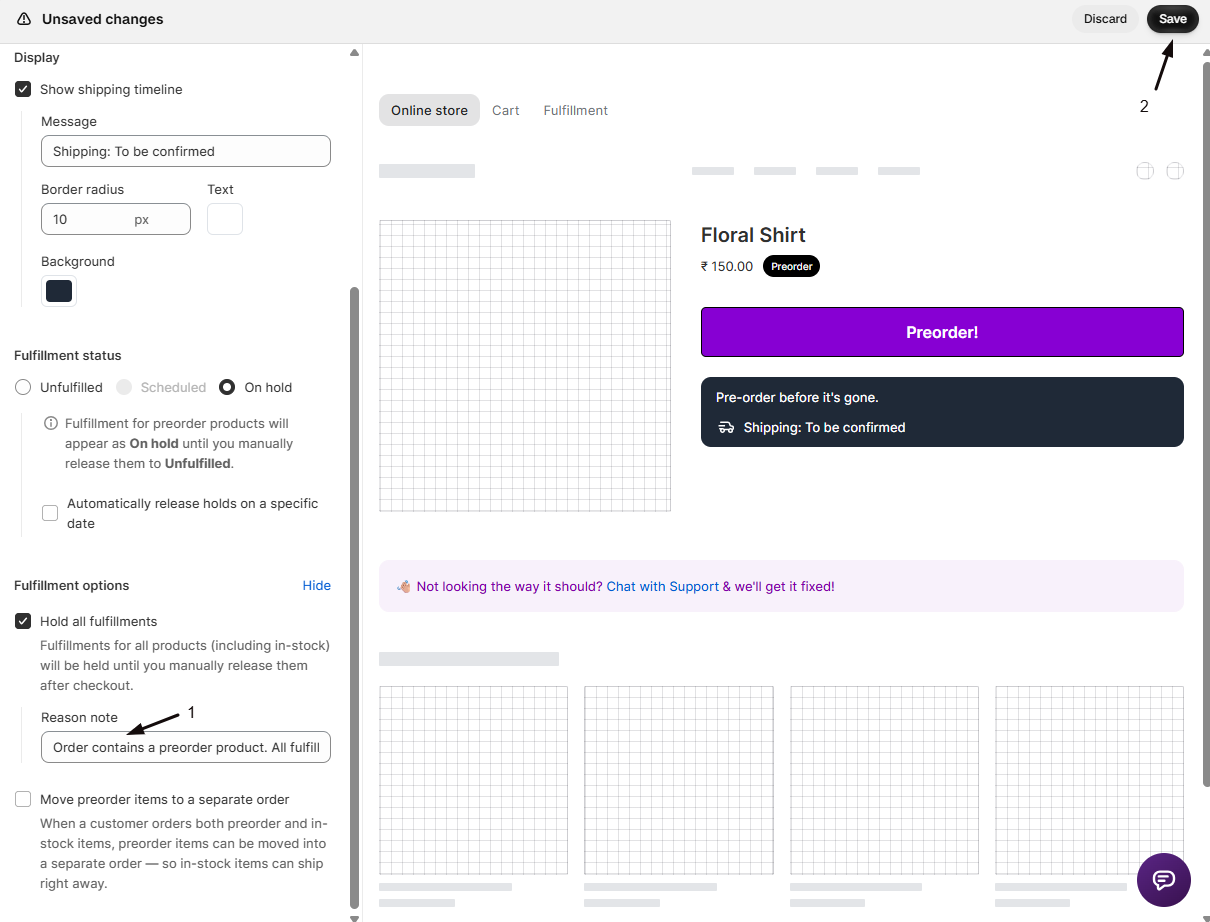
(Optional) Add a Reason note
A Reason note field appears when the checkbox is enabled. This text appears in Shopify against the held fulfillment. The default placeholder is “Order contains preorder item”. Leave it blank or customize it.
-
Save changes
Click Save changes at the top right of the editor.
Check your setup
Section titled “Check your setup”- Place a test order that includes a preorder item from this offer.
- In Shopify admin → Orders, open the order.
- Confirm the fulfillment status shows On hold.
- On hold status: only the preorder item’s fulfillment is on hold; in-stock items remain fulfillable.
- Hold all fulfillments: every fulfillment in the order shows On hold.
- In STOQ, check Reports → Preorders → Orders (or, for a single offer: Preorders in the left menu → Offers tab → open the offer → its Orders tab) and confirm the order appears with the expected hold status.
Release the hold
Section titled “Release the hold”When your stock arrives and you’re ready to ship, release the hold in one of three ways:
- In STOQ: Go to Reports → Preorders → Orders, open the order, and click Release “On hold” fulfillments. Releasing holds in STOQ requires a paid plan (Lite and above).
- In Shopify admin: Open the order, go to the fulfillment section, and click Release hold. The fulfillment moves to Unfulfilled and becomes fulfillable.
- With Shopify Flow: Add a “release fulfillment hold” action to automate release, for example, when an order is tagged or when a specific date passes.
For the complete post-inventory workflow, see Handle orders after receiving preorder inventory.
Troubleshooting
Section titled “Troubleshooting”The fulfillment doesn't show as On hold right after checkout
The hold is applied by a background job that runs after Shopify sends the order webhook, so there’s usually a short delay of a few seconds. If it’s still missing after a minute, check that the offer’s Shipping settings are saved correctly, then contact support with the order number.
You can't enable Hold all fulfillments
Confirm you’re on a paid plan (Lite or above), and that Move preorder items to a separate order is turned off for this offer, the two settings are mutually exclusive.
The wrong items got held after checkout
Check which option you set in the offer’s Shipping section:
- On hold holds only the preorder fulfillment order; in-stock items stay fulfillable.
- Hold all fulfillments holds the entire order.
Switch to the other option if it’s not the behavior you wanted.
Limitations
Section titled “Limitations”Some warehouse management systems (3PL/WMS) only import Unfulfilled orders and skip held fulfillments until you release them. Test your hold and release flow with your fulfillment provider before going live to confirm they can see and act on held orders after release.
Why can't I use On hold when the purchase option is off?
Here’s why, and how STOQ works around it:
- On hold normally uses the Shopify selling plan’s fulfillment date to mark items as On hold.
- Without the purchase option, no selling plan is attached to the order, so Shopify has no way to apply that status.
- The two paths on this page (On hold fulfillment status or Hold all fulfillments) work through a different mechanism: STOQ places the hold via the Shopify fulfillment hold API after checkout, rather than through the selling plan.
Does enabling this affect orders I've already placed?
No. STOQ applies the hold at checkout, through a background job that runs after Shopify sends the order webhook. Changing the setting only affects orders placed after you save; existing orders keep their original fulfillment status.
Will in-stock items ship before I release the hold?
With On hold: yes, in-stock items are left fulfillable and can ship right away. With Hold all fulfillments: no, every fulfillment is held and nothing ships until you release it.
Can I use Hold all fulfillments with "Move preorder items to a separate order"?
No. These two options are mutually exclusive. Enabling one automatically disables the other in the STOQ dashboard. If you need to separate preorder and in-stock items into different orders, use the separate orders feature without Hold all fulfillments.
Why was my fulfillment status reset when I turned off the purchase option?
Turning off the purchase option changes several things at once, and the confirmation dialog warns you of this before you confirm:
- A Scheduled fulfillment status changes to On hold.
- Payment resets to full payment with no discount.
- The Scheduled fulfillment status (with date tracking via the selling plan) is not available without the purchase option.
- On hold is still available, but it works differently: STOQ places the hold via the Shopify fulfillment hold API rather than through the selling plan.
Related guides
Section titled “Related guides”Thanks for letting us know.
Still stuck? Ask Quinn or chat with support