Turn preorder offers on or off
Turn preorders off for one offer or all of them, and turn them back on, from the Offers tab.
Last updated
Use this guide to stop selling preorders, or to start again. Turning an offer off removes its Preorder button from your storefront right away. Orders customers already placed are never affected.
Before you begin
Section titled “Before you begin”| Requirement | Detail |
|---|---|
| At least one offer | If you have none yet, see Set up preorders |
| App embed enabled | If a Turn on app embed badge shows next to the page title, enabling an offer won’t make the Preorder button appear. See Enable STOQ on your theme |
What customers will see
Section titled “What customers will see”| Action | Storefront result |
|---|---|
| Offer turned on | The Preorder button and its payment and shipping messaging appear on that offer’s products |
| Offer turned off | The button and messaging disappear, and no new preorders can be placed |
Existing preorder orders keep their status, payment, and fulfillment settings either way. No email or SMS is sent to customers when you turn an offer on or off.
Turn offers off
Section titled “Turn offers off”On a phone, this menu is collapsed. In the Shopify mobile app, tap the STOQ logo at the top of the screen to open it, then choose the section named below. There is no hamburger icon. See Finding the STOQ menu.
This is the fastest way, and it works for one offer or all of them.
-
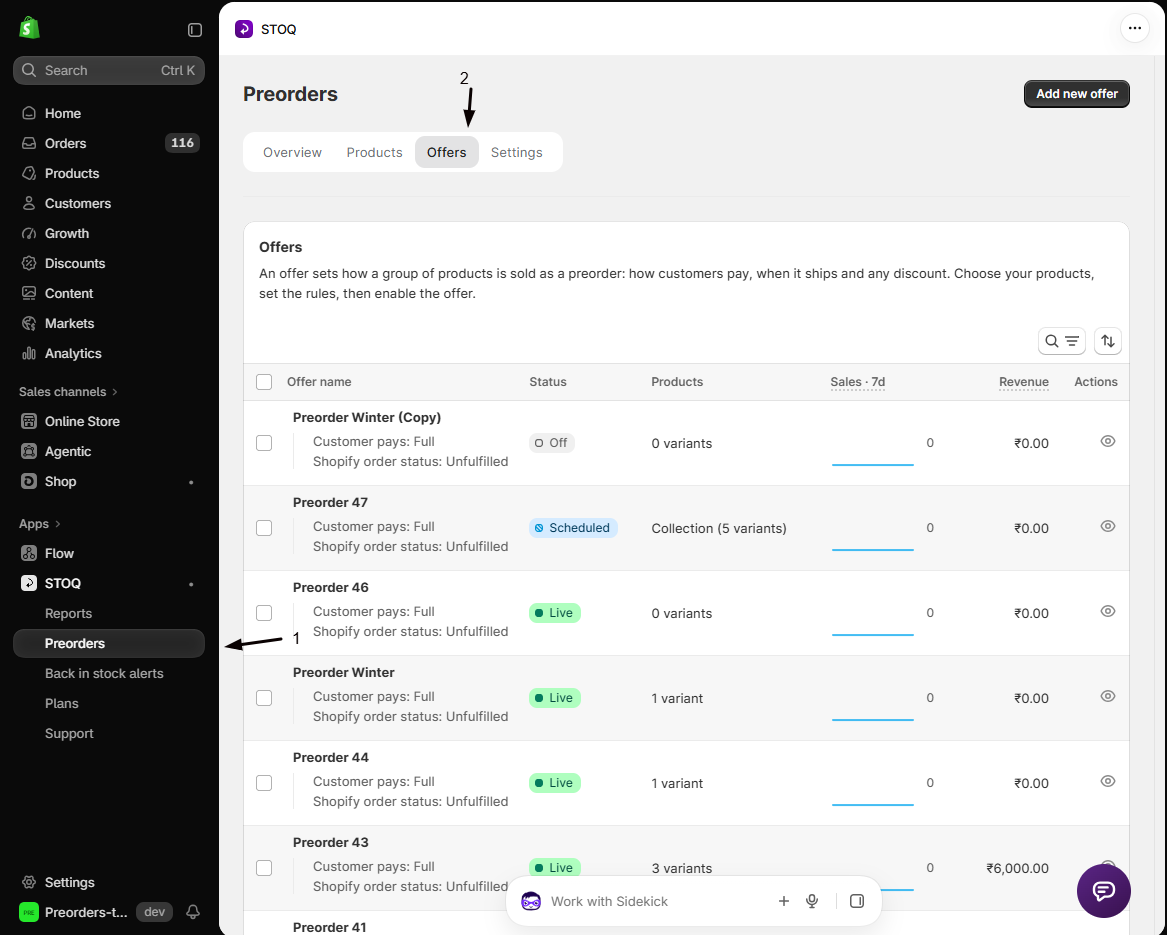
Open the Offers tab
In the left menu bar of the STOQ app, click Preorders, then click the Offers tab.
-
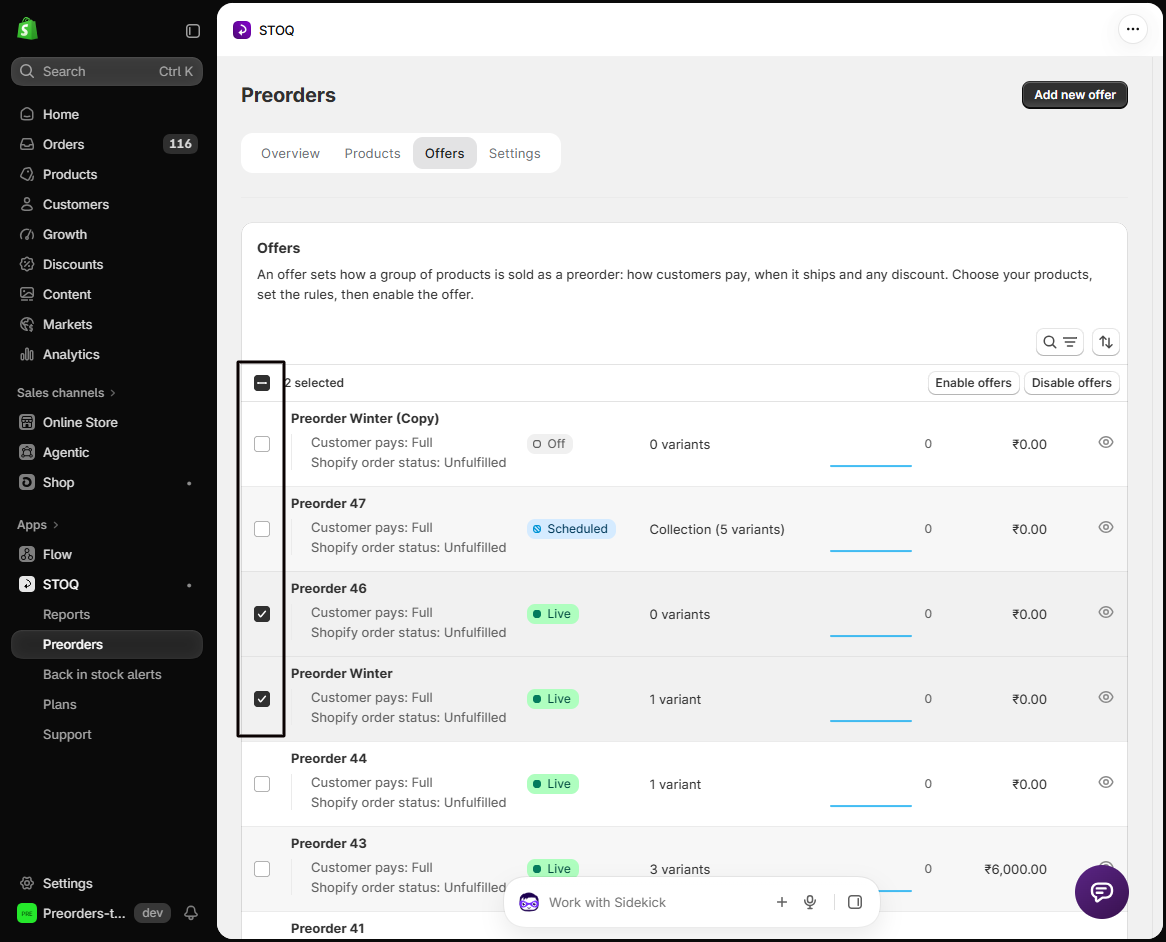
Select the offers
Tick the checkbox next to each offer you want to turn off. To turn preorders off entirely, tick the header checkbox to select every offer on the page.
-
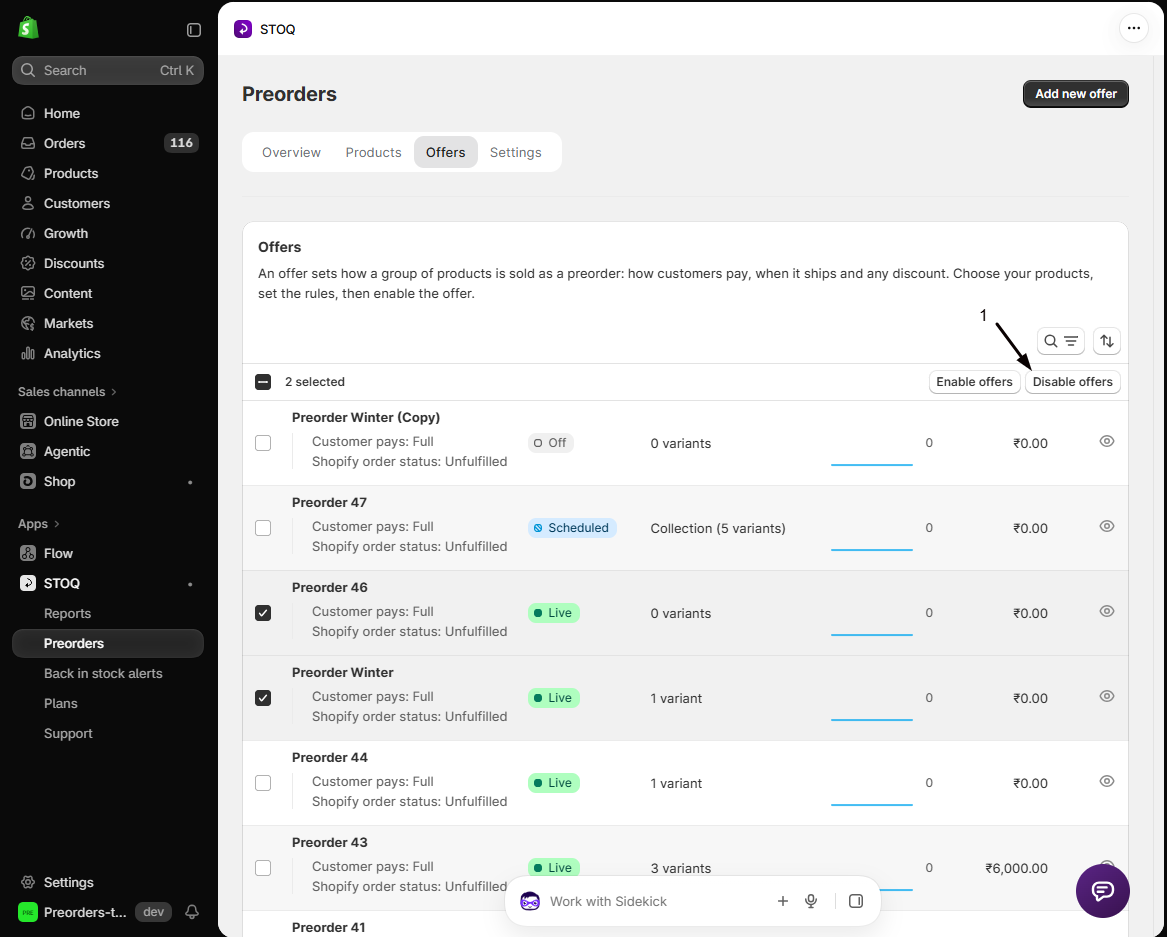
Click Disable offers
In the bulk-action bar above the list, click Disable offers.
-
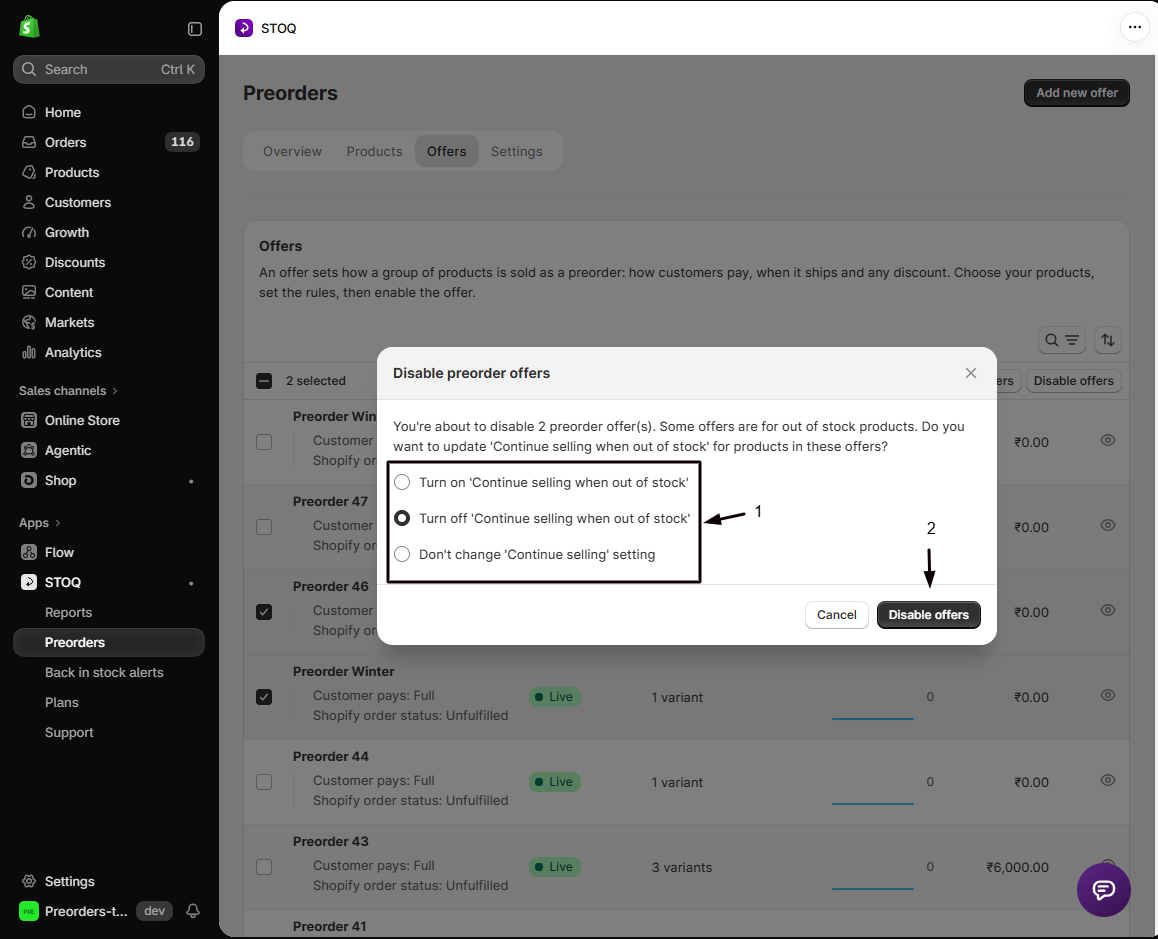
Choose what happens to Continue selling
If the offers have products attached, STOQ asks what to do with Continue selling when out of stock. See the table below, then click Disable offers to confirm.
To turn them back on, select the offers again and click Enable offers.
The Continue selling choice
Section titled “The Continue selling choice”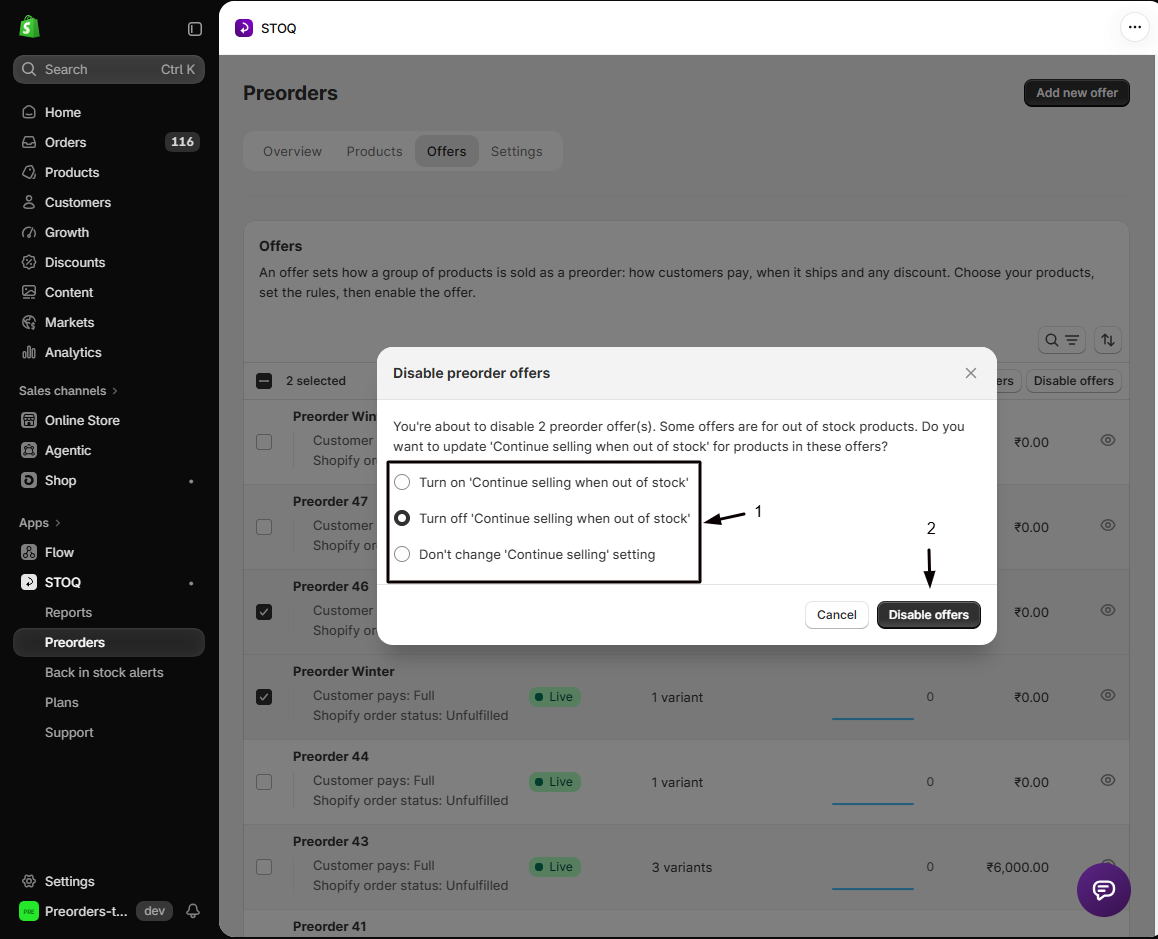
When you enable or disable offers that have STOQ-managed products attached, STOQ asks what to do with Shopify’s Continue selling when out of stock setting for those variants:
| Option | What it does |
|---|---|
| Turn on ‘Continue selling when out of stock’ | Customers can buy the variants even at zero inventory |
| Turn off ‘Continue selling when out of stock’ | Variants stop selling once inventory hits zero |
| Don’t change ‘Continue selling’ setting | Leaves it exactly as it is |
The dialog defaults to Turn on when enabling and Turn off when disabling. It’s skipped entirely if the selected offers have no STOQ-managed products attached.
Turn one offer off from inside the editor
Section titled “Turn one offer off from inside the editor”Useful when you already have the offer open.
-
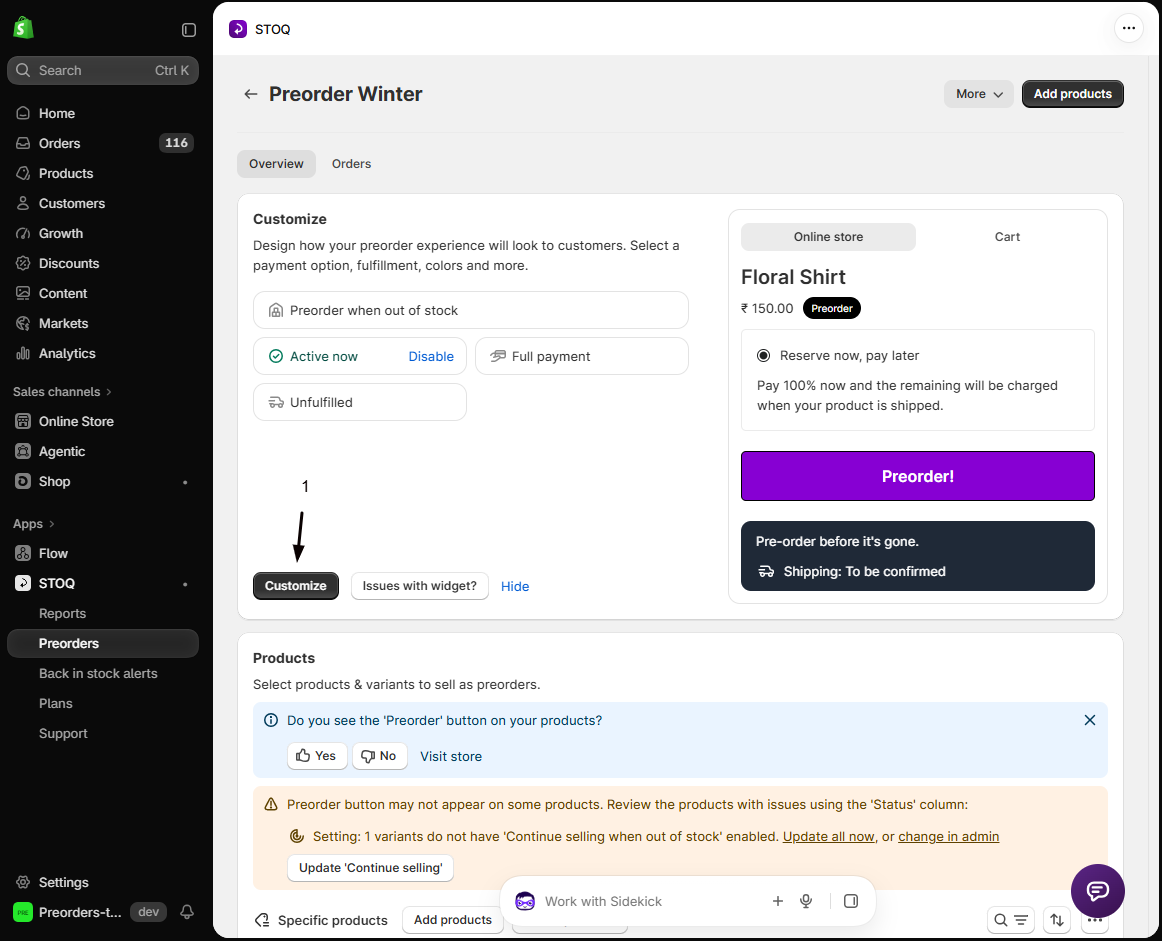
Open the offer
- In the left menu, click Preorders, then the Offers tab.
- Click the offer to open its Overview tab.
- Click Customize to open the editor.
-
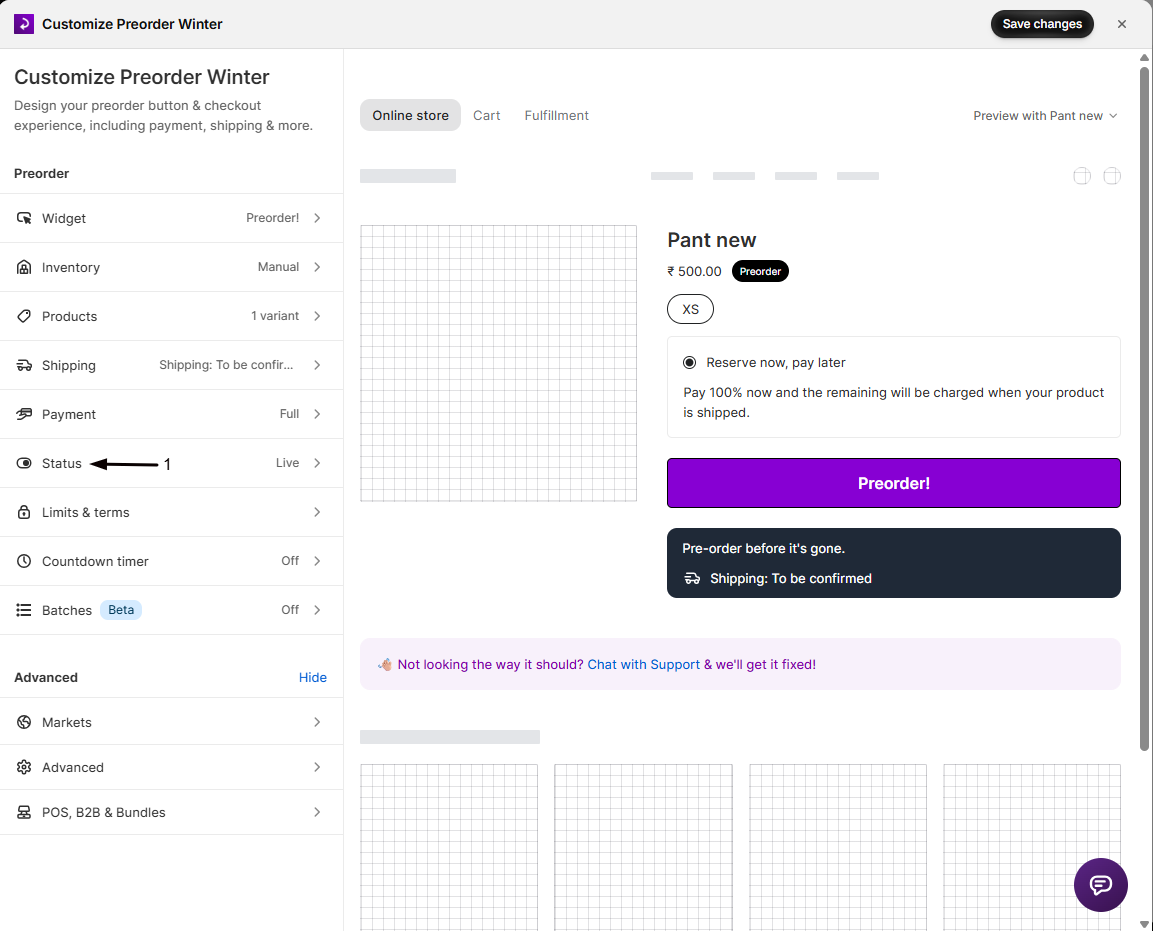
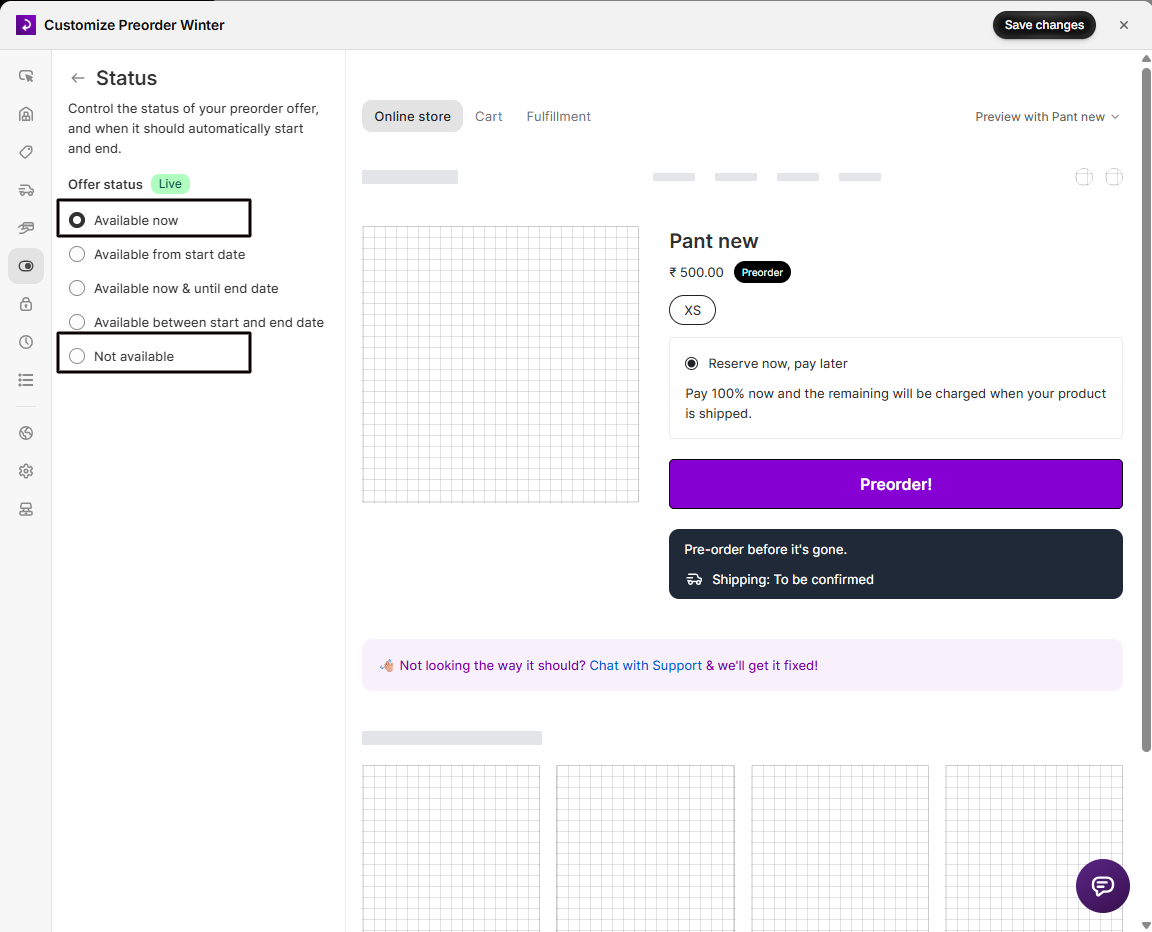
Set the status
- In the editor sidebar, click Status.
- Select Available now to turn it on, or Not available to turn it off.
- Click Save changes.
To make an offer turn on or off automatically on a date, see Schedule when an offer runs.
Check your setup
Section titled “Check your setup”On the Offers tab, the status badge next to each offer you changed should now read Live or Off (or Scheduled if the offer has a future start date). Open one of the offer’s products on your live storefront and confirm the Preorder button is there, or gone.
Troubleshooting
Section titled “Troubleshooting”You can't enable an offer and see a plan limit error
Your store has reached the monthly preorder order limit for your plan, and your plan doesn’t include per-order overage, so STOQ blocks new enables.
- Follow the Upgrade plan link in the error banner.
- Or check whether your plan allows preorder overage, which charges a small per-order fee beyond the limit instead of blocking.
The Preorder button doesn't appear after enabling an offer
Check for a Turn on app embed badge next to the page title. The STOQ app embed must be enabled for the button to show. See Enable STOQ on your theme.
A Continue selling update is taking a long time
Offers with more than 250 variants run this as a background job.
- Wait a few minutes.
- Check a product in Shopify admin to confirm the policy changed.
- If nothing has changed after 10 to 15 minutes, contact support.
What happens to existing preorders when I turn an offer off?
Nothing. They stay in your Shopify admin and STOQ keeps tracking and processing them. Turning an offer off only stops new preorders being placed.
Does enabling an offer turn on Continue selling automatically?
Not on its own. STOQ asks you to choose when the offer has STOQ-managed products attached. Offers with no products, or offers using Shopify’s inventory provider, skip the prompt.
Does turning an offer on or off notify customers?
No. STOQ’s preorder confirmation is only sent after a customer checks out. If you want automation, Shopify Flow has Preorder Offer Enabled and Preorder Offer Disabled triggers. See Automate with Shopify Flow.
Should I turn an offer off or delete it?
Turn it off if you might sell those products again, since everything is preserved and you can re-enable in a click. Delete only when you’re sure. See Delete a preorder offer.
My stock is back. Do I have to turn the offer off?
For an out-of-stock offer, no. The Preorder button hides itself while the variant has stock, so customers see the regular Add to cart button automatically. Turn the offer off only if you don’t want it to start selling preorders again the next time that product reaches zero. An in-stock offer keeps its Preorder button while in stock, so for that setup you’d turn the offer off to stop it.
If I turn an offer off, does it come back on when the product sells out again?
No. A disabled offer stays off until you turn it back on; it never re-enables itself based on stock. What comes back on its own is the Preorder button of an offer that is still Live. For a live out-of-stock offer, the button reappears automatically the next time the variant hits zero, as long as Shopify’s Continue selling when out of stock is on for that variant. If you disabled the offer, re-enable it from the Offers tab first.
Related guides
Section titled “Related guides”Thanks for letting us know.
Still stuck? Ask Quinn or chat with support