Preorders in Shopify admin
What STOQ sets on a preorder order in Shopify admin, and what Shopify controls.
Last updated
When a customer places a preorder, Shopify admin shows that order like any other, but several fields are set or managed by STOQ behind the scenes. Understanding which values STOQ writes (and when) helps you read the order accurately, spot anything unexpected, and avoid conflicting edits.
This article covers what you see in Shopify admin and how STOQ produces each field. It does not cover actions you take from STOQ itself: see Find and read preorder orders for the STOQ-side view.
Before you begin
Section titled “Before you begin”| Term | What it means here |
|---|---|
| Selling plan | The Shopify object STOQ creates to power a preorder offer. Only present when “Shopify purchase option” is on in the offer’s settings. |
| Fulfillment order | Shopify’s internal grouping of line items by location and date. STOQ’s holds and scheduling act on fulfillment orders, not the top-level order. |
| Payment terms | The Shopify object that records a scheduled remaining balance. Only present for partial-payment (deposit) preorders. |
Fulfillment status
Section titled “Fulfillment status”The Fulfillment status field in Shopify admin reflects the state of the order’s fulfillment orders. STOQ does not set the top-level fulfillment status directly: Shopify derives it from the underlying fulfillment orders after STOQ acts on them.
What status you see, and why
Section titled “What status you see, and why”| Shopify fulfillment status | When you see it |
|---|---|
| Unfulfilled | Default for a new preorder when “Shopify purchase option” is on and no hold has been applied, or when a hold has been released. Also the status when the purchase option is off, regardless of the offer’s fulfillment status setting. |
| Scheduled | The offer’s fulfillment status is set to Scheduled, with a specific date or a number of days after checkout, and “Shopify purchase option” is on. Shopify shows Scheduled until the fulfillment date arrives, at which point it moves to Unfulfilled automatically. |
| On hold | STOQ placed a fulfillment hold on the order after checkout, because the offer’s fulfillment status is set to On hold, or because the offer uses Hold all fulfillments. Shopify shows On hold until you (or a Shopify Flow) release the hold. |
STOQ sets a hold reason note on each hold it applies. The default is “Order contains preorder item,” but you can customize it per offer in the offer editor (Preorders in the left menu → Offers tab → open your offer → Customize → Shipping in the sidebar), under Hold reason note.
Fulfillment status for mixed carts (preorder + in-stock)
Section titled “Fulfillment status for mixed carts (preorder + in-stock)”When a cart contains both a preorder item and a regular in-stock item:
- On hold (standard): Only the preorder fulfillment order is held. The in-stock item’s fulfillment order remains Open (fulfillable immediately). Shopify shows the order-level status as On hold.
- Hold all fulfillments: STOQ applies a hold to every fulfillment order in the order, including in-stock items. Shopify shows the order as On hold.
- Separate orders (split): STOQ creates a new order for the preorder items and keeps only in-stock items in the original order. The original order shows as normal (Unfulfilled). The new split order carries the preorder fulfillment status. See Separate orders for mixed preorders.
STOQ can add its own hold on top of a hold another app already placed (Shopify lets holds stack from different apps), so on a mixed cart you may briefly see STOQ’s hold applied after Shopify’s.
Releasing a hold
Section titled “Releasing a hold”You can release a hold from STOQ (Reports → Preorders → Orders → Release “On hold” fulfillments, or, for a single offer, open it from Preorders in the left menu → Offers tab → your offer, and use its Orders tab), from Shopify admin (Open order → fulfillment section → Release hold), or via Shopify Flow. Once released, the fulfillment order moves to Unfulfilled and the order becomes fulfillable normally.
Payment terms (partial-payment preorders)
Section titled “Payment terms (partial-payment preorders)”When an offer is configured for partial payment (a deposit at checkout with the balance collected later), STOQ tells Shopify to record payment terms on the order.
What you see in Shopify admin
Section titled “What you see in Shopify admin”In the Payment section of the order, Shopify shows:
- Partially paid: the deposit was collected at checkout.
- A payment schedule line with the outstanding amount and due date (if a due date was set).
- The financial status stays Partially paid until the balance is collected, at which point Shopify updates it to Paid.
How STOQ sets and updates payment terms
Section titled “How STOQ sets and updates payment terms”When STOQ reschedules a payment, it updates the order’s payment terms in Shopify with the new due date. This updates the payment schedule visible in Shopify admin. STOQ tracks the due date internally and keeps it in sync with Shopify automatically whenever the order changes.
Full-payment preorders
Section titled “Full-payment preorders”When the offer uses full payment at checkout, there are no payment terms. The order shows as Paid immediately and no scheduled balance appears in Shopify admin.
Order tags
Section titled “Order tags”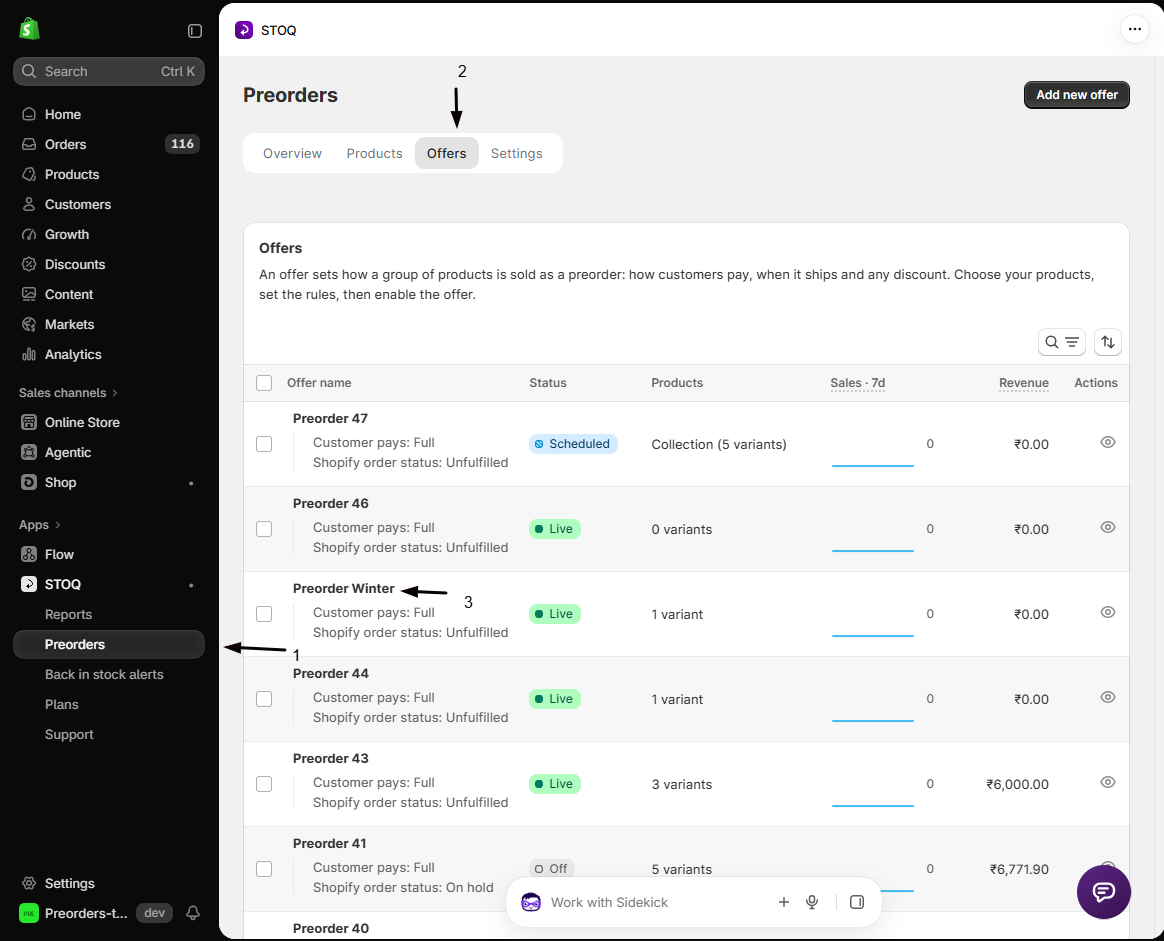
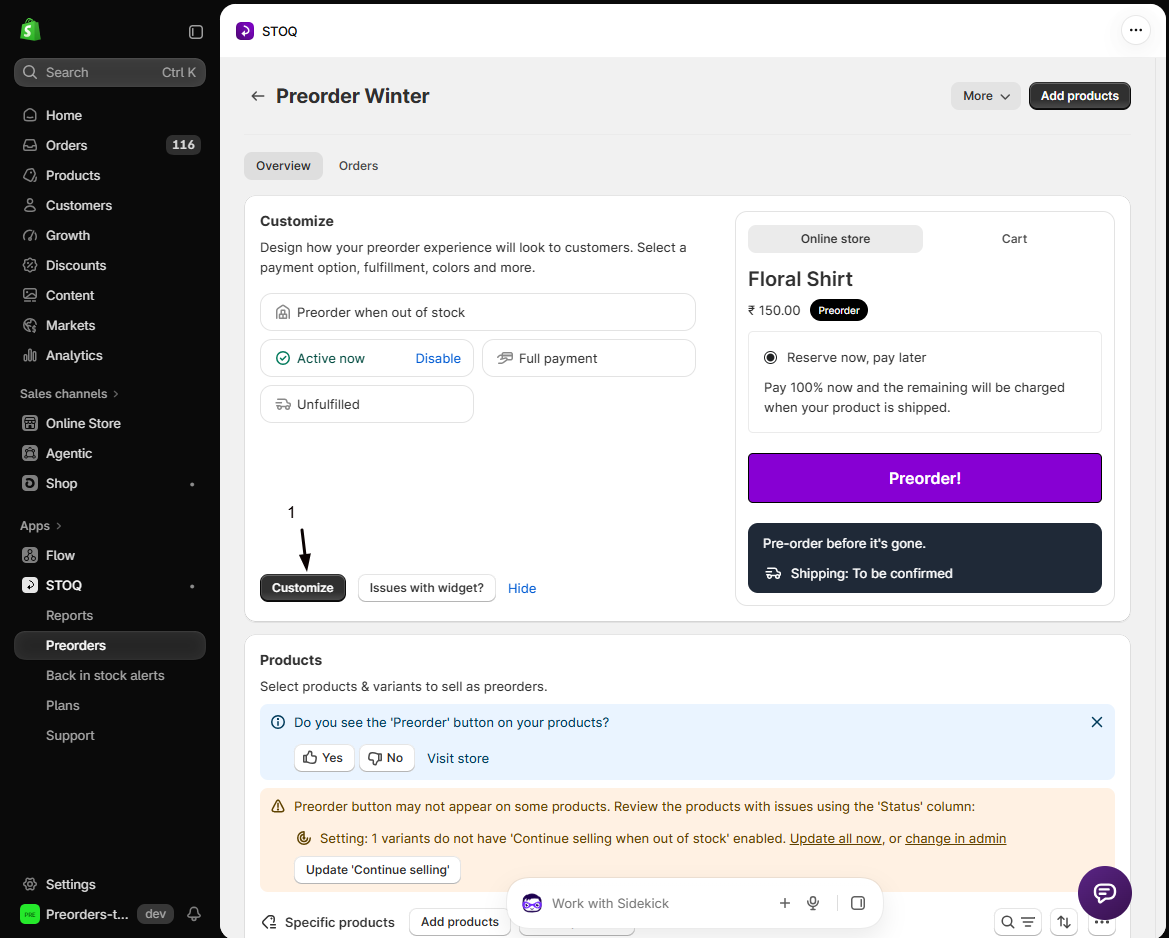
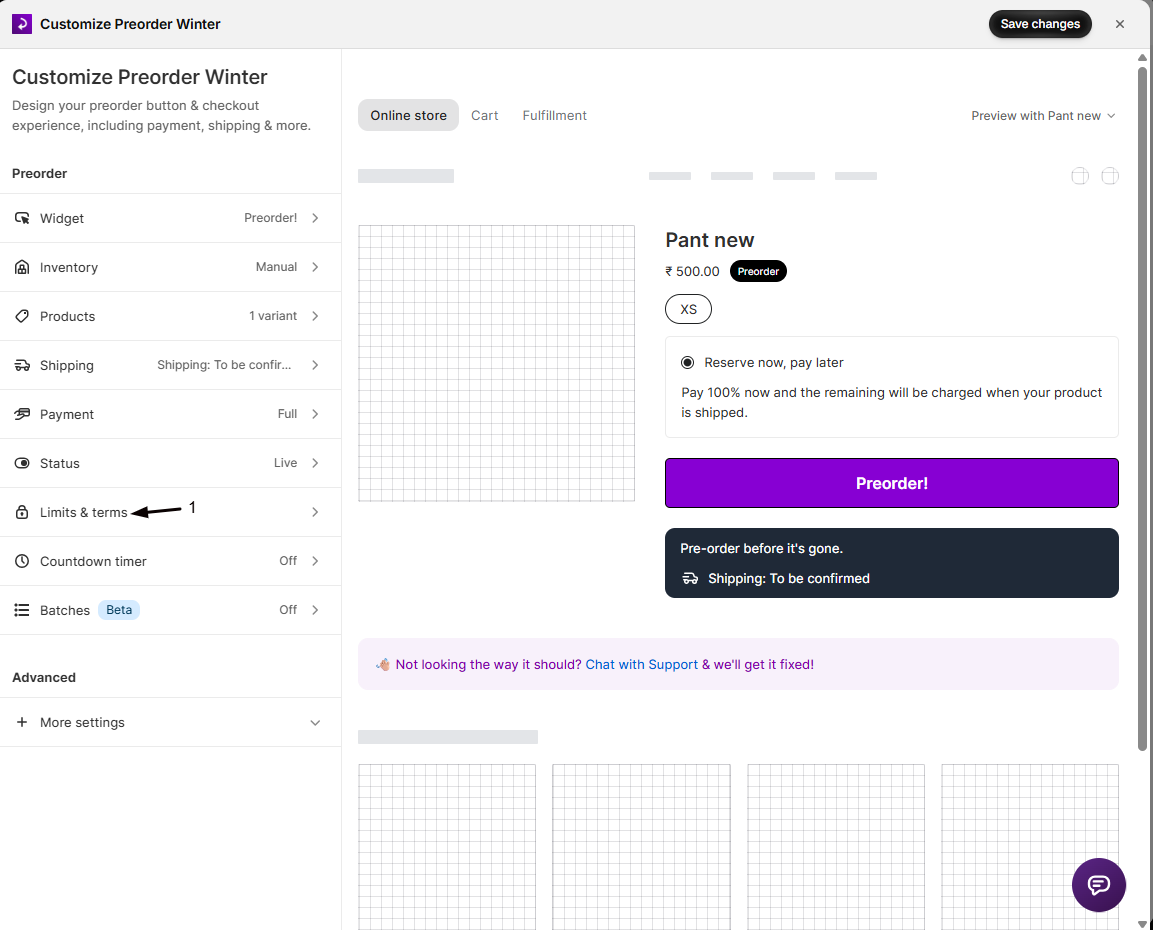
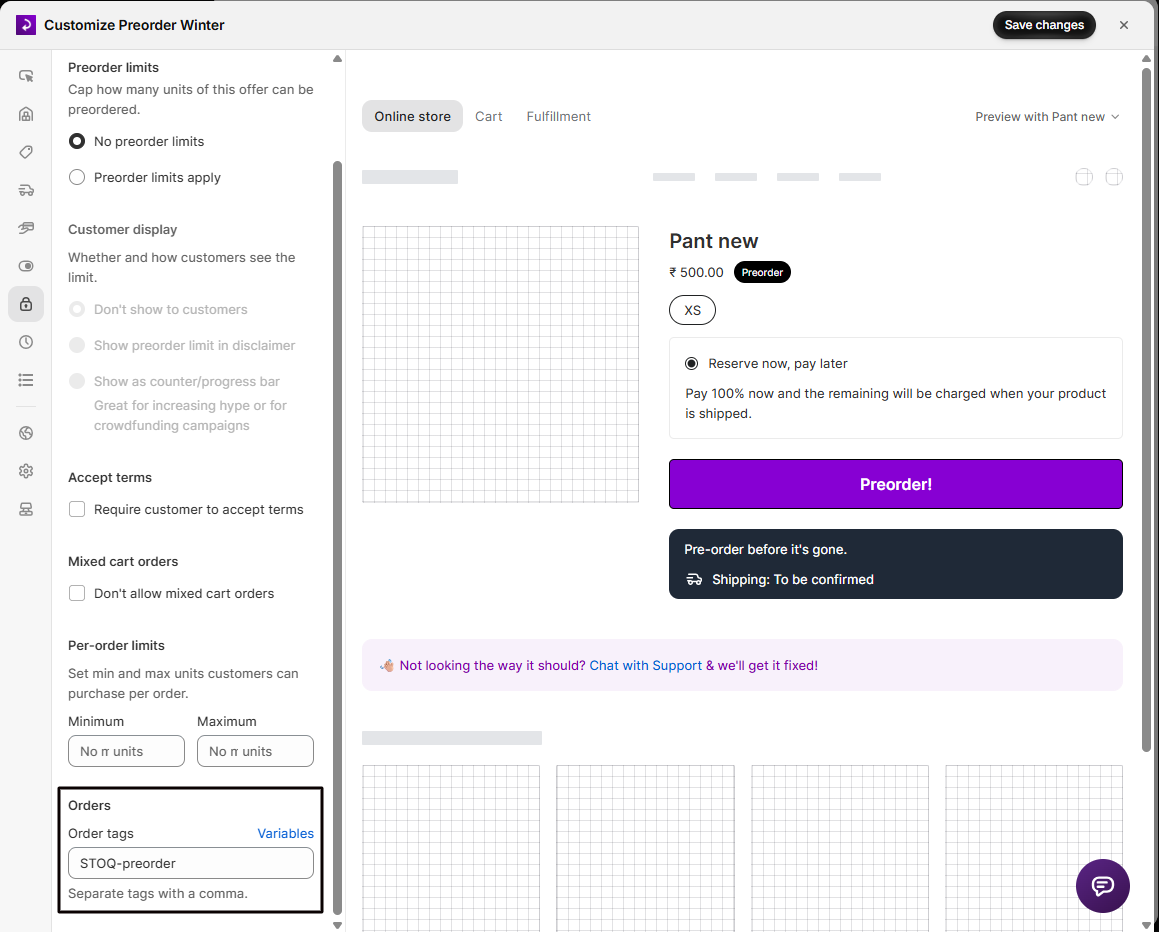
STOQ adds tags to preorder orders after checkout. The tags are configured per offer in the offer editor (Preorders in the left menu → Offers tab → open your offer → Customize → Limits & terms in the sidebar), under Order tags.
Default tag
Section titled “Default tag”The default tag applied to every preorder order is STOQ-preorder. You can change or add to this from the offer’s Limits settings.
Each tag, including the split order tags below, can be up to 40 characters. Shopify rejects every tag on an order if any one of them is longer, so the offer editor shows an error and won’t save a tag over the limit.
Additional tags for split orders
Section titled “Additional tags for split orders”When Separate orders for mixed carts is enabled on an offer, the split preorder order receives additional tags:
| Tag | What it marks | Configurable? |
|---|---|---|
STOQ-preorder |
Applied to all preorder orders (default) | Yes, see Limits settings |
STOQ-split-order |
Marks the new order as a STOQ-created split order | Yes, per offer |
stoq-split-from-#XXXX |
Traces back to the original order name | No, always set by STOQ |
The original order, which keeps the in-stock items, can also receive a hold tag and a split marker tag during the brief window while STOQ processes the split. These are removed from the original order once the preorder line items are refunded off it.
When tags are applied
Section titled “When tags are applied”Tags are applied asynchronously after the order is created, so there may be a short delay between order creation and the tags appearing in Shopify admin.
If tagging fails, for example due to a temporary Shopify error, STOQ retries automatically. Once tagging succeeds, STOQ fires the Shopify Flow trigger for “Customer placed a preorder” to keep automations in sync.
The selling plan on line items
Section titled “The selling plan on line items”When “Shopify purchase option” is enabled on an offer, each preorder line item in Shopify admin shows the selling plan name alongside the product.
What you see
Section titled “What you see”In the order’s line items section in Shopify admin, a preorder line item shows:
- The product name and variant.
- The selling plan name (for example “Preorder” or the custom name you set for the offer).
This is the Shopify selling plan STOQ created for the offer. Clicking the selling plan name in Shopify admin opens the selling plan group.
Line item properties
Section titled “Line item properties”Depending on your offer settings, STOQ can add line item properties (custom attributes visible on the line item in Shopify admin and order exports):
| Property | When it appears | Configured in |
|---|---|---|
| Shipping text (e.g. “Ships in 30 days”) | When Show shipping text on line item is enabled | Offer editor → expand More settings → Advanced → Line item properties |
| Payment info (e.g. deposit amount) | When Show payment info on line item is enabled | Offer editor → expand More settings → Advanced → Line item properties |
| Custom attribute | When a custom line item property text is set | Offer editor → expand More settings → Advanced → Line item properties |
These properties appear in the Notes and attributes section of the line item in Shopify admin, and are included in order exports.
When the purchase option is off
Section titled “When the purchase option is off”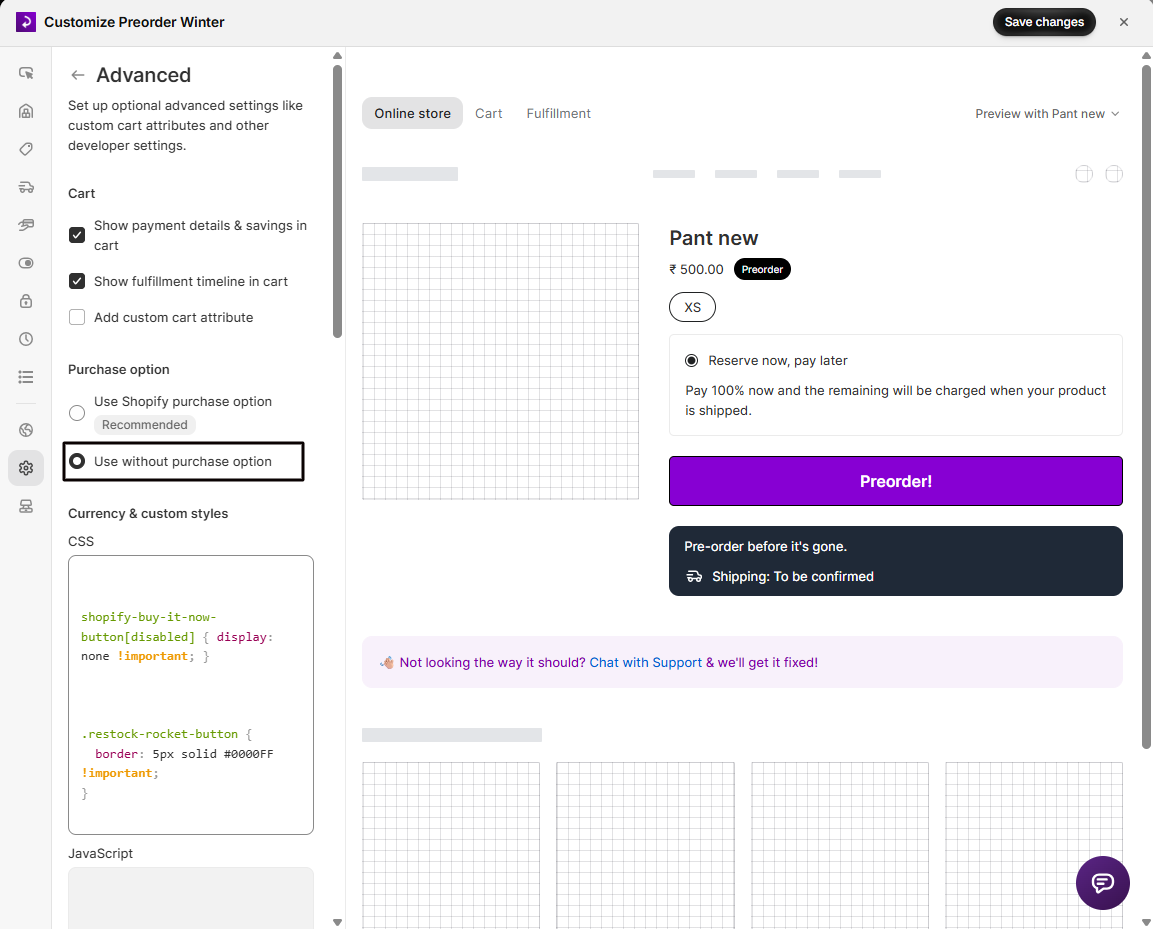
When “Shopify purchase option” is turned off (for example when using Managed Markets or the separate-orders split flow with attribute tracking), there is no selling plan on the line item. STOQ tracks the preorder using its own internal properties instead. In Shopify admin, the line item looks like a regular in-stock purchase with no selling plan shown.
The order note
Section titled “The order note”For split orders, STOQ sets an order note on the new (split) order in the form:
Split from order #XXXX - Preorder items for selling plan ‘[name]’ (regular items kept in original order for immediate fulfillment)
If the customer left a note at checkout, such as delivery instructions, STOQ copies it to the split order too. The customer’s note comes first, followed by the STOQ line, so whoever ships the preorder sees it.
This appears in the Notes field in Shopify admin and is useful for tracing split orders back to their originals without STOQ open.
Check your setup
Section titled “Check your setup”After a test preorder checkout (see Test your preorder offer):
- Open the order in Shopify admin → Orders.
- Check the Fulfillment status matches what you configured on the offer (Unfulfilled / Scheduled / On hold).
- If the offer uses partial payment, confirm the Payment section shows Partially paid and a payment schedule.
- In the line items section, confirm the selling plan name appears on the preorder line item (if “Shopify purchase option” is on).
- Check that the
STOQ-preordertag (or your custom tag) appears in the Tags field. Allow a few seconds for it to be applied.
Troubleshooting
Section titled “Troubleshooting”The order shows Unfulfilled but the offer is set to On hold
Check the following:
- The offer’s fulfillment status is saved as On hold (not Unfulfilled or Scheduled).
- Shopify purchase option is enabled, since On hold requires it.
- If the order was placed before you changed the setting, it keeps the status it had at creation; the new setting only applies to future orders.
- If none of these apply, check the Activity section in STOQ’s order detail page for hold-failure events.
No payment schedule appears in Shopify admin
Payment terms only appear for a partial-payment (deposit) offer. If the offer uses full payment at checkout, no schedule is created and the order shows as Paid; check the offer’s Payment settings to confirm the billing type.
The STOQ-preorder tag isn't appearing on the order
Allow a few seconds, tags are applied asynchronously after the order is created. If it still doesn’t appear:
- Confirm the Order tags field in the offer’s Limits settings still contains
STOQ-preorder. - Check Reports -> Preorders -> Orders -> [order] -> Activity for tag-related errors.
- If a tag uses variables, like
{{ batch }}, make sure the finished tag is 40 characters or fewer. Shopify rejects all of an order’s tags when any one of them is longer.
Limitations
Section titled “Limitations”STOQ can only auto-collect the remaining balance if the customer’s payment method was vaulted at checkout. Some manual payment methods don’t support vaulting, so automatic collection isn’t available for them.
Does editing the order's payment terms directly in Shopify admin sync back to STOQ?
Yes:
- Shopify notifies STOQ automatically when payment terms change, and STOQ updates its records of the due date and amount accordingly.
- STOQ guards against stale updates: if STOQ already has more recent information for the order, it ignores the incoming update to prevent older data from overwriting newer data.
- For best results, reschedule payment through STOQ or use STOQ’s API rather than editing directly in Shopify admin.
The split order in Shopify admin shows a 'Prepaid' transaction: is that expected?
Yes:
- When STOQ creates a split order, the customer has already paid on the original order.
- STOQ records the split order as immediately paid using a “Prepaid” transaction entry (the label is configurable per offer and defaults to Prepaid).
- This is an accounting entry only, no additional charge is made to the customer.
- You can customize the label in the offer’s Shipping section.
Can I remove or change the STOQ-added tags in Shopify admin?
You can edit tags directly in Shopify admin, but there are a few things to know:
- Changes will not be reflected back in STOQ.
- STOQ does not re-read tags from Shopify: it tracks which tags it applied internally.
- If you need to update the tags that STOQ applies to future orders, change the Order tags field in the offer’s Limits settings.
Does a 'Partially paid' order in Shopify admin mean STOQ will automatically collect the balance?
Not automatically, unless it’s configured to be:
- Auto-collect payment on fulfillment or a scheduled billing date must be set up on the offer.
- If the billing type is set to collect at a specific date or N days after checkout, STOQ’s scheduled job will attempt collection on that date.
- If billing is set to manual, you collect it yourself from STOQ (More actions → Collect payment) or via bulk action.
Related guides
Section titled “Related guides”Thanks for letting us know.
Still stuck? Ask Quinn or chat with support