When payment collection fails
Spot, understand, and recover a failed preorder balance charge.
Last updated
Use this guide if a preorder balance charge failed to collect from a customer’s saved card. It covers how STOQ detects and reports the failure, why charges fail, and how to recover it: retry the charge, reschedule the due date, or let the automatic payment-link email reach the customer. By the end, the balance is either collected or the customer has a way to pay it themselves.
Before you begin
Section titled “Before you begin”- Applies only to preorder offers with a partial payment (deposit) where the outstanding balance hasn’t been collected yet.
- STOQ makes a single automatic collection attempt per order. If it fails, no retry is scheduled: you need to retry the charge or reschedule the due date yourself.
- Retrying a charge (Collect payment) or moving the due date (Reschedule payment) both require a paid STOQ plan. On a free plan, these actions show an upgrade prompt instead.
How STOQ finds and reports a failure
Section titled “How STOQ finds and reports a failure”STOQ collects balances through Shopify’s payment system, which accepts the request right away but settles the card charge afterward. Because of this, a failure can surface two ways:
- Immediate: Shopify returns an error or hard decline right away.
- Delayed: Shopify accepts the request but the card charge fails later, for example insufficient funds or an expired card. STOQ checks pending payments starting 10 minutes after the attempt and for up to 24 hours, then records the failure once it detects one.
Either way, STOQ:
-
Adds a payment collection failed event to the order’s Activity timeline, with the amount and Shopify’s error message.
-
Emails your store’s report address. The message includes:
Field Content Order Shopify order name (for example, #1042) Customer Name and email Remaining balance Amount and currency Due date The scheduled payment date Reason The error message returned by Shopify It links to the order detail page in STOQ so you can act on it immediately.
-
May also email the customer a payment link automatically. See What customers will see below.
-
Fires the Payment collection failed Shopify Flow trigger, if you have it enabled, with the order details and error message. See Preorders with Shopify Flow.
If a payment attempt is still pending 24 hours later, Shopify never settled the charge status, STOQ marks it unverified instead of failed and sends no failure notification. See Limitations.
Find failed charges in the orders list
Section titled “Find failed charges in the orders list”-
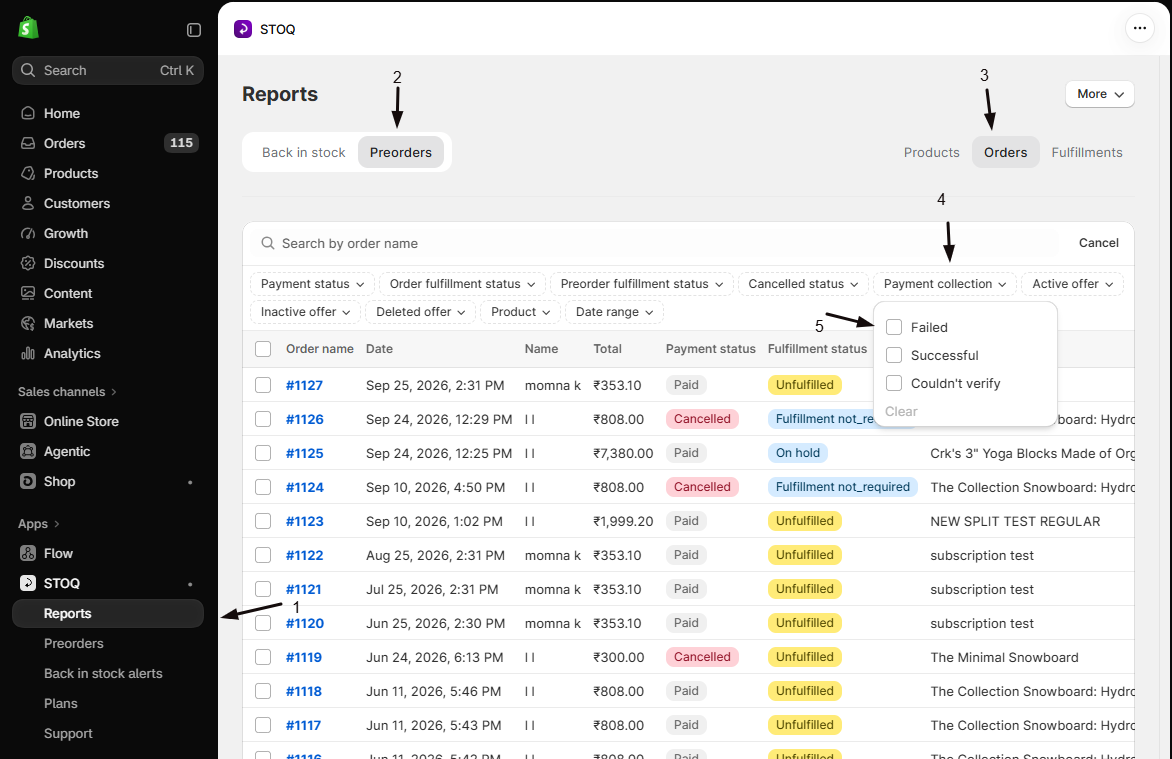
Open the preorder orders report
- In the left menu bar of the STOQ app, click Reports.
- Click Preorders, then click Orders.
- Alternatively, for a single offer: click Preorders → Offers, open the offer, and use its Orders tab.
-
Filter by Payment collection status
Click the Payment collection filter and select Failed, Successful, or Couldn’t verify:
Filter value Meaning Failed Shopify confirmed the charge did not go through Successful Shopify confirmed the charge settled Couldn’t verify The attempt aged past 24 hours before Shopify returned a definitive status -
Open the order
Orders with a past-due balance also show a Partially paid badge and a red Due badge in the table. Click any order to see the failed event on its Activity timeline.
Why charges fail
Section titled “Why charges fail”The exact reason is shown in the Activity timeline event and the merchant notification email. Common causes:
- Expired card: the card saved at checkout is past its expiry date
- Declined card: the issuing bank refused the charge (insufficient funds, fraud block, or similar)
- Card removed: the customer removed the saved payment method from their Shopify account
- Hard rejection by Shopify: no valid payment authorization on file for the order
Choose your setup
Section titled “Choose your setup”- Retry the charge: use this if you think the underlying issue is resolved, for example the customer says they’ve updated their card, or you want to try again right away.
- Let the automatic payment-link email do it: STOQ already emails the customer a link to pay themselves as soon as it detects the failure, so no action is needed if you’re happy to wait for them.
- Reschedule the due date: use this to give the customer more time before retrying, without charging anything now.
What customers will see
Section titled “What customers will see”When STOQ detects a failure, it automatically tries to email the customer a link to Shopify’s hosted payment page so they can pay with an updated card. STOQ fetches this link from Shopify. If Shopify returns one, the email goes out automatically as part of the failure-detection flow, there’s no manual step or “Send payment link” button. If Shopify doesn’t return a link (for example the order is already paid, voided, or refunded), the customer email is skipped, but your merchant notification and the failure event are still logged. See Payment collection failed email to customize the template.
Set it up
Section titled “Set it up”On a phone, this menu is collapsed. In the Shopify mobile app, tap the STOQ logo at the top of the screen to open it, then choose the section named below. There is no hamburger icon. See Finding the STOQ menu.
Retry the charge from STOQ
Section titled “Retry the charge from STOQ”-
Open the order
- Click Reports → Preorders → Orders.
- Click the failed order to open its detail page.
- Alternatively, open it from the offer’s Orders tab.
-
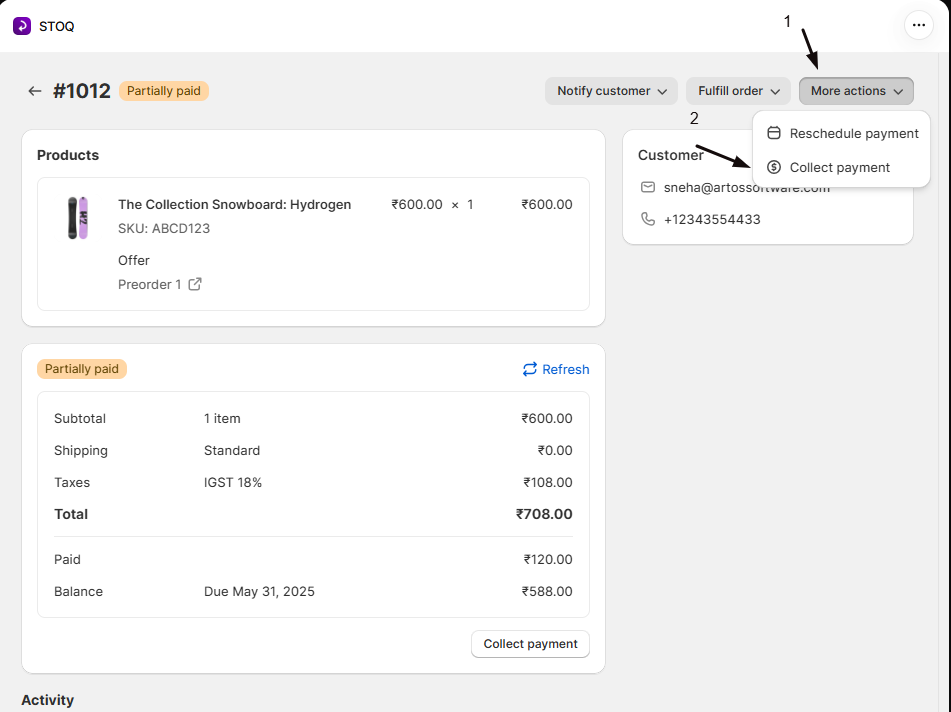
Open More actions
In the page header, click the More actions dropdown.
-
Click Collect payment
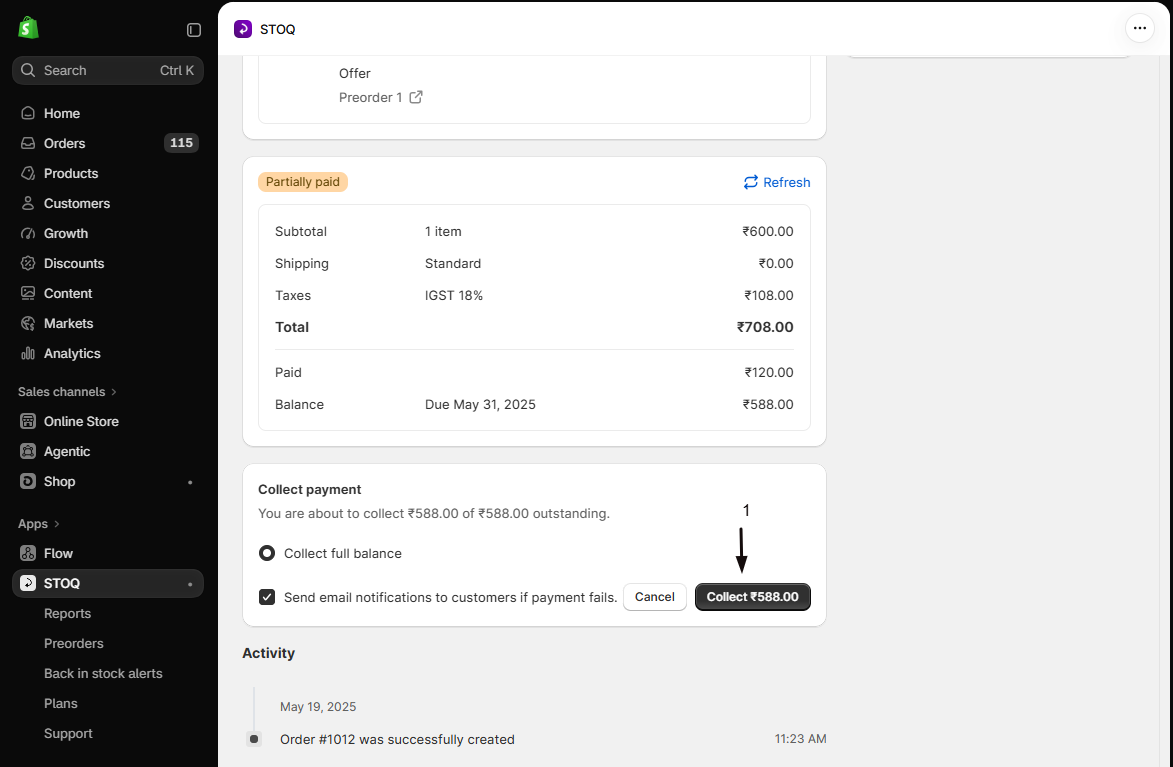
Select Collect payment. A confirmation modal shows the charge amount and a Send email notifications to customers if payment fails checkbox, ticked by default, this sends the customer a payment-link email if this retry also fails.
-
Confirm the charge
Click Collect payment in the modal. STOQ requests Shopify to collect the balance from the customer’s saved payment method.
-
Check the result
After the modal closes, STOQ refreshes the order status. A successful charge updates the order to Paid; a failed retry adds a new payment collection failed event to the Activity timeline.
You can also retry in bulk: select multiple unpaid orders in the orders list and click Collect payment in the bulk action bar. See Collect remaining preorder payments.
Reschedule the payment due date
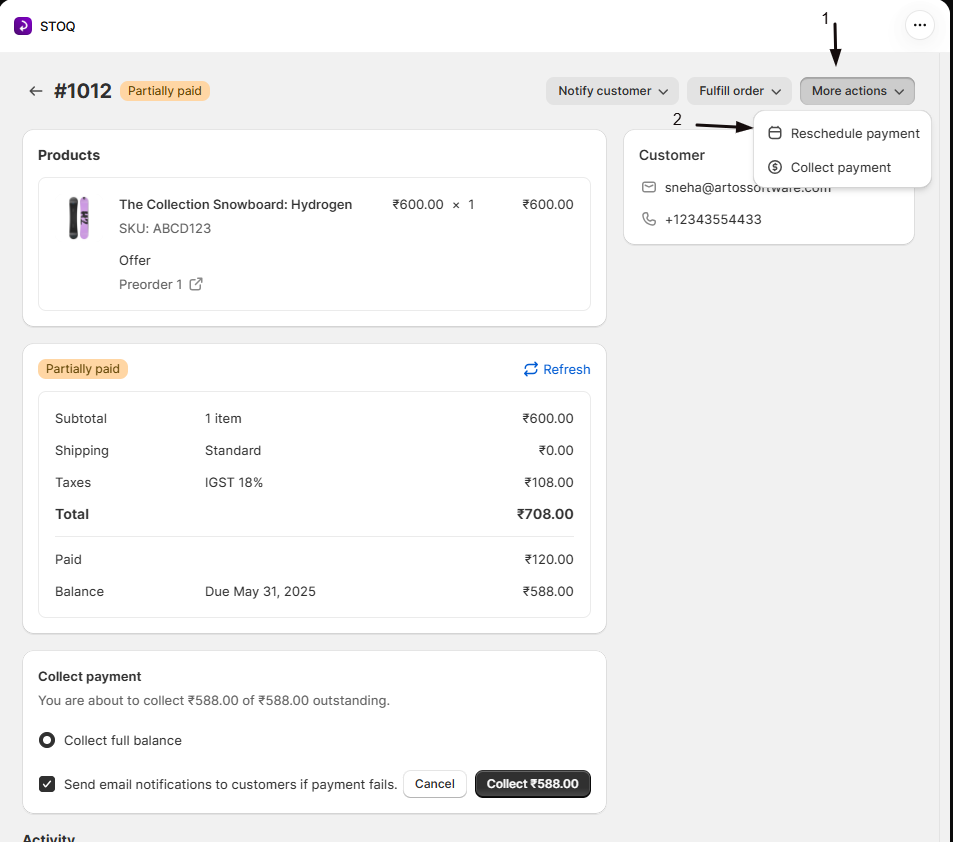
Section titled “Reschedule the payment due date”Go to the order, click More actions, then select Reschedule payment. This doesn’t retry the charge, it only moves the due date so automatic collection tries again on the new date. See Reschedule preorder payments for the full steps.
Check your setup
Section titled “Check your setup”After retrying or rescheduling:
- Open the order in STOQ → Reports → Preorders.
- Check the Activity timeline: a successful charge shows a payment collection success event, with “(collected manually)” if you triggered it. Another failure shows a second payment collection failed event.
- Check the Payment status badge in the table: a collected order shows Paid instead of Partially paid.
Troubleshooting
Section titled “Troubleshooting”A retry fails again
The underlying card issue is still there. Ask the customer to update their card through the payment-link email, or reschedule the due date to buy time.
The order still shows "Partially paid" right after a charge that seemed to go through
This is normal for up to 10 minutes, sometimes longer, while Shopify settles the charge. If no success event appears within a few hours, the charge likely failed.
You see a "Couldn't verify" status
The attempt aged past 24 hours without Shopify returning a definitive result, so no failure notification was sent. Check the order’s financial status directly in Shopify admin.
The customer never got a payment-link email
Shopify didn’t return a payment URL for that order, for example because it was already paid, voided, or refunded. You still got the merchant notification, so follow up with the customer manually if needed.
Collect payment or Reschedule payment aren't available
Both require a paid STOQ plan. A free plan shows an upgrade prompt instead.
Limitations
Section titled “Limitations”If a payment attempt is still pending 24 hours after the attempt, STOQ marks it unverified rather than failed and sends no notification, either to you or the customer. Check the order’s financial status in Shopify admin directly to confirm whether it was collected.
Will STOQ automatically retry a failed charge?
No. STOQ makes a single automatic collection attempt per order, whether the failure is detected right away or found later during STOQ’s periodic checks. You need to retry manually from the order page or reschedule the due date.
The order still shows 'Partially paid' after the charge seemed to go through, is it failed?
Not necessarily. Shopify settles card charges after the fact, so a short delay is normal, up to about 10 minutes, sometimes longer. If no success event appears on the Activity timeline within a few hours, the charge likely failed.
What does 'Couldn't verify' mean in the Payment collection filter?
It means the attempt aged past 24 hours without Shopify returning a definitive success or failure status. STOQ stops checking at that point and sends no failure notification, so check the order’s financial status directly in Shopify admin.
Why didn't the customer get a payment-failed email?
The customer email only sends when Shopify returns a payment link for the order. If Shopify doesn’t, for example because the order is already voided, refunded, or paid another way, STOQ skips the customer email but still sends you the internal notification and logs the failure event.
What's the difference between the merchant notification and the customer email?
The merchant notification goes to your store’s report address with the order, balance, and error reason, plus a link to act on it in STOQ. The customer email goes to the customer with a button to Shopify’s payment page so they can pay themselves; it only sends if Shopify provides a payment collection URL. Customize the customer email under Preorders → Settings → Notifications → Payment collection failed email.
Can I use Shopify Flow to react to a payment failure?
Yes. The Payment collection failed trigger fires every time a failure is confirmed, with the order ID, order number, order name, and Shopify’s error message. Use it to tag the order, create a task, or send a custom notification. See Preorders with Shopify Flow.
Related guides
Section titled “Related guides”Thanks for letting us know.
Still stuck? Ask Quinn or chat with support