Test your offer
Confirm the Preorder button shows, place a test order without a real charge, and check Reports.
Last updated
Before making your offer live, run through three checks: the pre-flight check flags missing product settings, the button-position check confirms the Preorder button renders correctly on your theme, and a test order confirms the end-to-end flow without charging a real card. By the end, you’ll know the offer is ready to publish, or exactly what to fix first.
Before you begin
Section titled “Before you begin”| Requirement | Detail |
|---|---|
| Offer created and saved | You have an offer set up under Preorders (left menu) → Offers tab |
| Products added to the offer | At least one variant is in the Products tab of the offer |
| STOQ app embed enabled | Check it from the app’s home page: the preorder card shows whether the embed is on. (You can also enable it in Online Store → Themes → Customize → App embeds → STOQ / Restock Rocket.) |
| Offer status is Live | A Scheduled or Off offer won’t show the button on the storefront |
Choose your setup
Section titled “Choose your setup”Place your test order using either a 100% discount code or Shopify’s Bogus Gateway, so nothing is actually charged:
- 100% discount code: works on any plan and any store. Create it in Shopify admin ahead of time, then delete or deactivate it once you’re done testing.
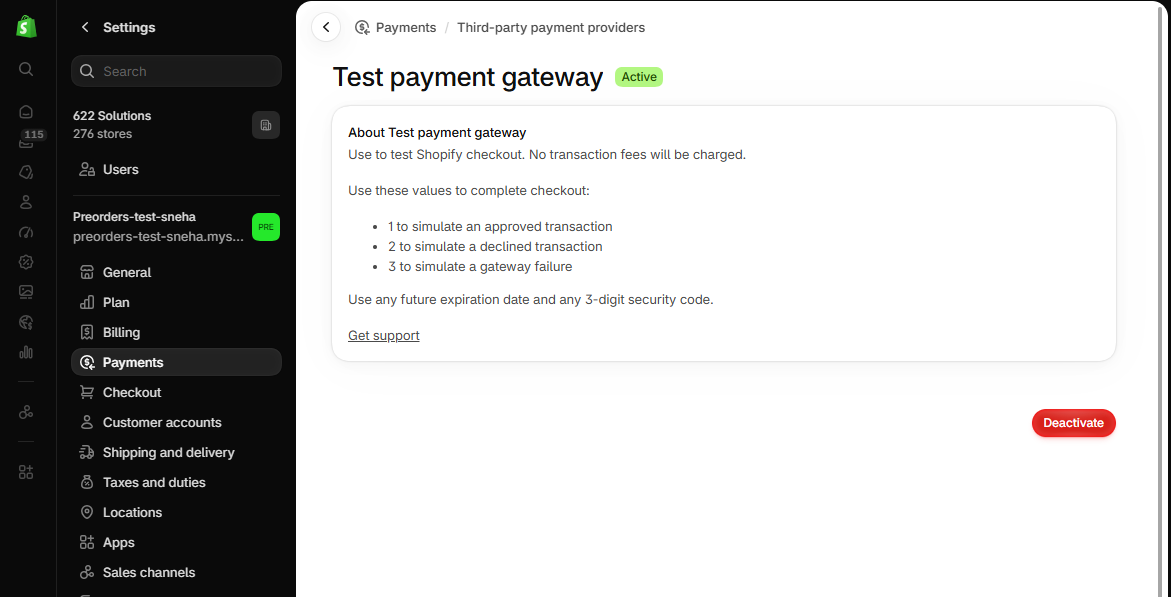
- Shopify Bogus Gateway: a test payment provider you turn on in Shopify admin under Settings → Payments → Third-party providers. It’s meant for development stores, so if you use it on a live store, disable it again right after testing.
What customers will see
Section titled “What customers will see”The button check and test order run on your storefront, so they show exactly what a customer would see: the Preorder button in place of Add to cart, the standard checkout, and, if the Preorder confirmed notification is enabled, the confirmation email. Use your live storefront, or a draft theme’s Preview if you want to test before publishing, rather than the theme editor’s inline preview pane, which doesn’t run the STOQ embed. To test on a draft theme, enable the embed on that theme first. See Enable STOQ on your theme.
Set it up
Section titled “Set it up”Review the pre-flight check
Section titled “Review the pre-flight check”When you add products to an offer, STOQ automatically runs a pre-flight check on every variant you select. The check looks for two categories of issues:
| Issue type | What it means | What happens |
|---|---|---|
| Continue selling not enabled | The Shopify inventory policy for the variant is not set to “Continue selling when out of stock,” which is required for the Preorder button to appear on out-of-stock products | A modal appears asking you to let STOQ enable it automatically, or to do it yourself later |
| Bundle products | The variant uses Shopify’s bundle/component feature, which may not work as expected with preorder selling plans | A warning appears; the variant is still added and you can remove it manually |
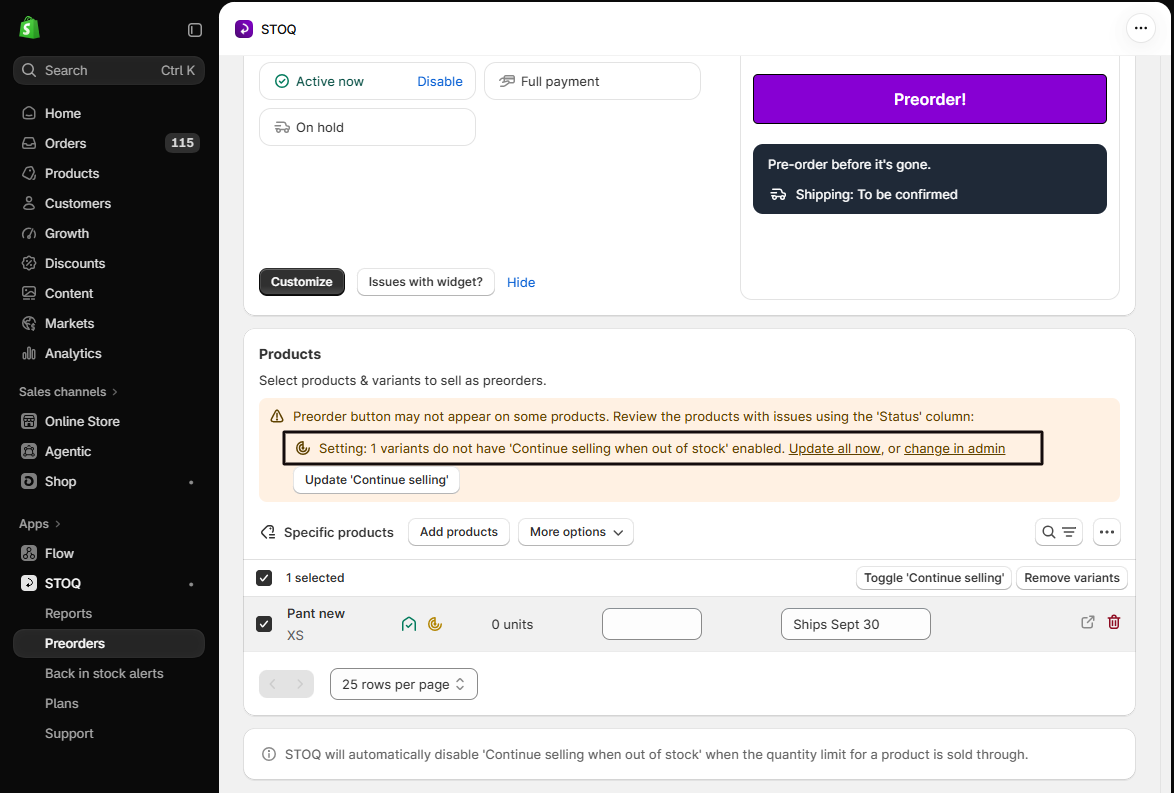
If you chose I’ll turn it on myself when you added products, look at the warning banner that appears above the product table. It lists how many variants lack “Continue selling” and offers two ways to fix them in bulk: an Update all now inline link within the banner text, or an Update ‘Continue selling’ button on the banner itself. You can also enable it per variant from Shopify admin. In the Status column, variants without “Continue selling” show a yellow warning icon.
The warning banner appears when STOQ detects issues with your products. For out-of-stock preorders (STOQ manages inventory), this means at least one variant either lacks “Continue selling” or has inventory above zero. For in-stock preorders (Shopify manages inventory), the banner appears when at least one variant is out of stock. The button-position check below is suppressed while issues exist, so resolve these first.
Confirm the Preorder button shows on your storefront
Section titled “Confirm the Preorder button shows on your storefront”After products are added and any issues are resolved, the Products tab shows a blue info banner asking:
“Do you see the ‘Preorder’ button on your products?”
-
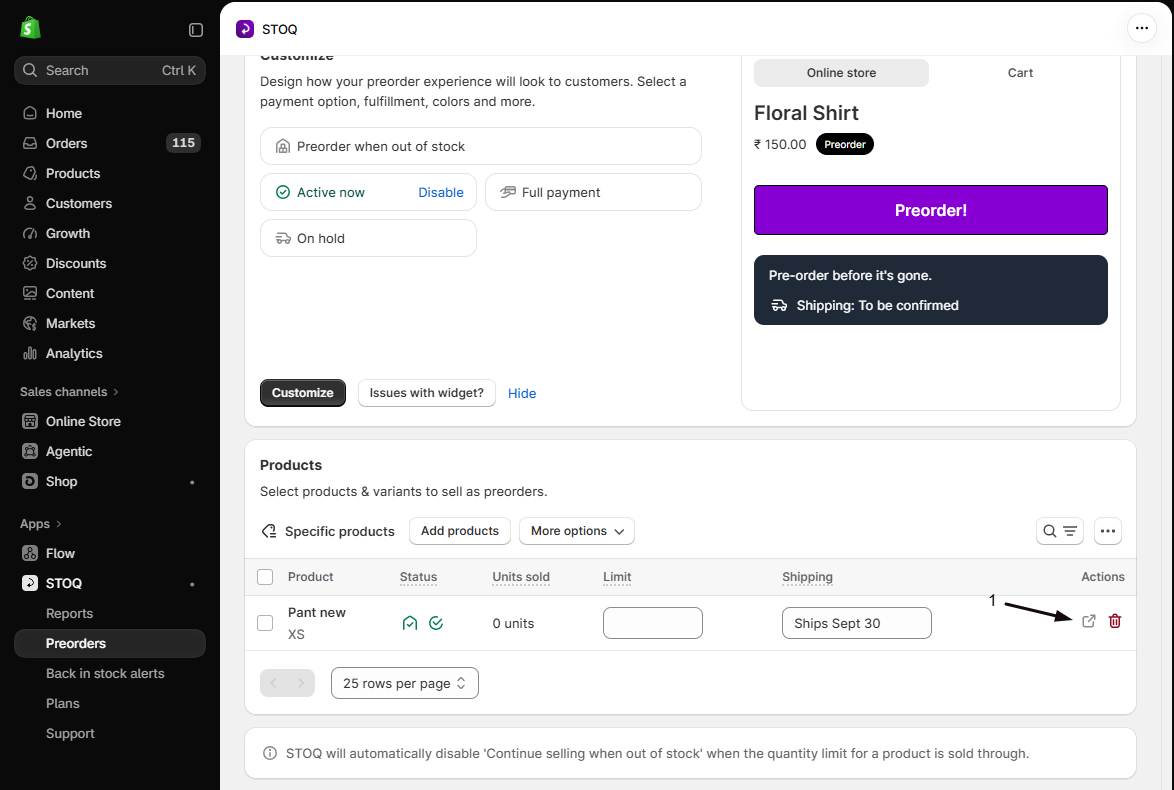
Open your live storefront
Click Visit store in the banner (or open a new tab and navigate to one of the offer’s product pages). Use the live storefront, or a draft theme’s Preview if you’re testing before publishing, not the theme editor’s inline preview pane, which doesn’t run the STOQ embed.
-
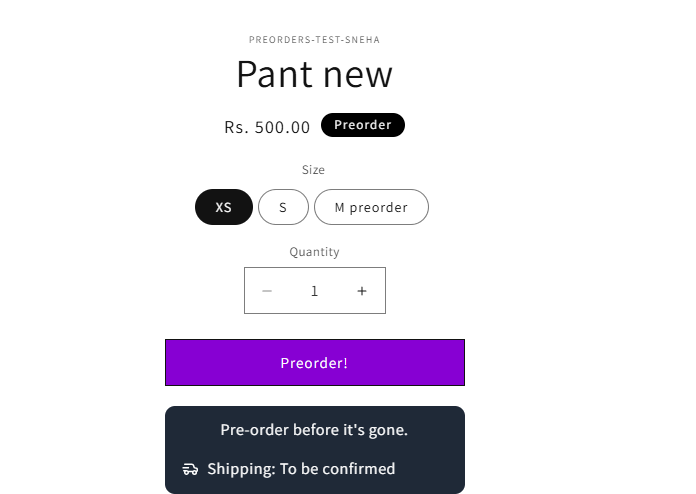
Check the button
On the product page, confirm that the Preorder button appears where the standard Add to cart button would normally be. For out-of-stock preorders the product’s inventory must be 0 or below; for in-stock preorders it must be 1 or above.
-
Answer Yes or No in the banner
- Yes: the banner confirms and dismisses itself after 10 seconds. The offer is working correctly.
- No: the banner opens a support chat pre-filled with “Hi! I need help with setting up ‘Preorder’ button.” The Merchant Success team can fix button-position issues on your theme in minutes.
The banner only appears once per offer per browser (the flag is stored in browser local storage). If you dismissed it without checking, navigate to the live storefront product page directly to verify the button.
Place a test order
Section titled “Place a test order”Test the complete checkout flow without a real charge, using the method you chose in Choose your setup above.
100% discount code
- In Shopify admin, go to Discounts → Create discount → Amount off order.
- Set the discount to 100% and restrict it to a single use if you like.
- On the product page, click Preorder, add to cart, and apply the code at checkout.
- Complete the checkout. The order total will be $0.
Shopify Bogus Gateway
- In Shopify admin, go to Settings → Payments → Third-party providers and enable the Bogus Gateway (available on development stores or as a test payment provider).
- Place a preorder order on the live storefront using the Bogus Gateway test card details provided by Shopify.
- Disable the Bogus Gateway after testing.
Check your setup
Section titled “Check your setup”After placing the test order, confirm the following:
-
Check that the order appears in STOQ
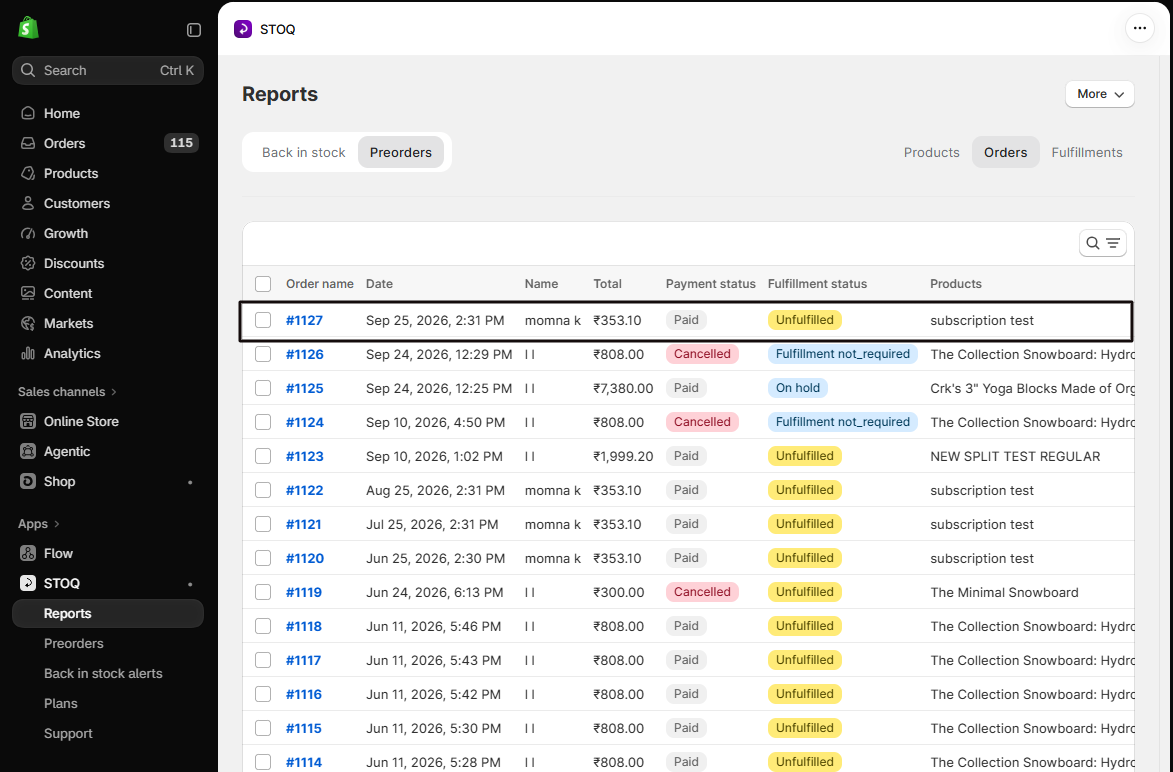
Find the order in STOQ:
- Go to Reports → Preorders in STOQ.
- Or, open your offer: click Preorders in the left menu, then the Offers tab, then your offer, then its Orders tab.
Confirm the following about the test order:
- It appears shortly after checkout.
- It shows the correct financial status.
- It shows the offer name.
-
Check the fulfillment status in Shopify
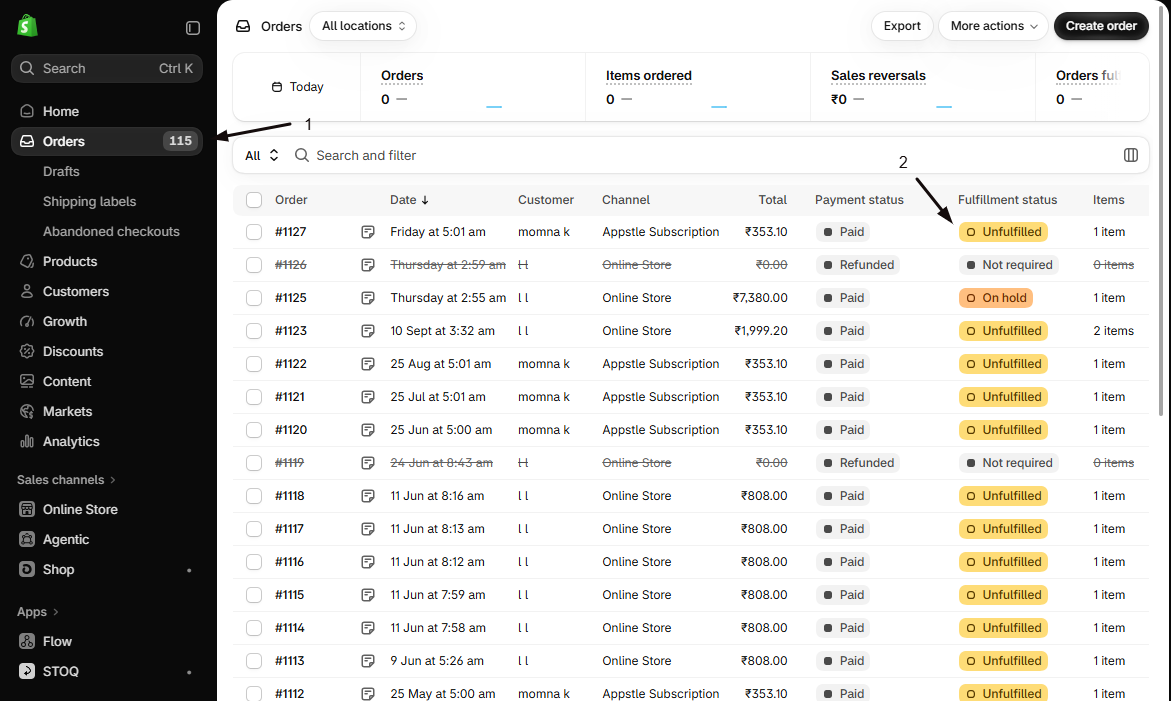
Open the order in Shopify admin → Orders. Confirm the fulfillment status matches your offer’s fulfillment setup, for example, On hold if you configured on-hold fulfillments, or Unfulfilled if you set it to fulfill immediately.
-
Check order tags
If you configured order tags on the offer, confirm the test order carries those tags in Shopify admin.
-
Check the confirmation notification
If the Preorder confirmed notification is enabled, check that the test customer email received it.
Clean up after testing
Section titled “Clean up after testing”Once everything checks out:
- Delete or deactivate the 100% discount code in Shopify admin.
- Disable the Bogus Gateway if you enabled it.
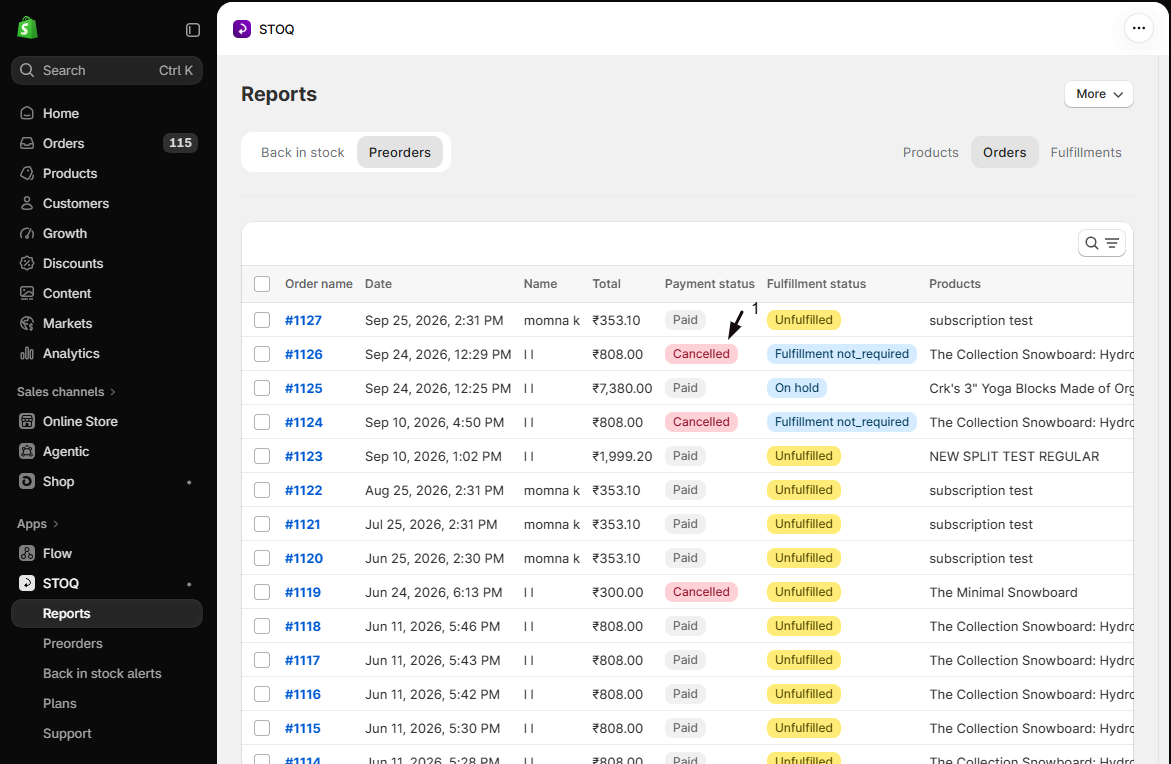
- Cancel the test order in Shopify admin. It then shows as Cancelled in Reports → Preorders → Orders, but it isn’t removed: STOQ has no action to delete an order from Reports today. Filter by Cancelled status to exclude test orders when reading your data.
Troubleshooting
Section titled “Troubleshooting”The Preorder button isn't showing on the live product page
Check, in order:
- The STOQ app embed is enabled.
- “Continue selling when out of stock” is enabled for the variant.
- The product is in the offer’s Products tab.
- The offer’s status is Live.
See Troubleshooting the Preorder button for the complete checklist, including market, variant, and multiple-offer conflicts.
The button-position banner never appeared, or you already dismissed it
It only shows once per offer per browser. Navigate to the live storefront product page directly to verify the button.
Your test order lands in Shopify Orders but doesn't appear in Reports -> Preorders
The order is only counted as a preorder if it was placed through the standard Add to cart -> Checkout flow. Re-test using the standard cart and checkout, not an accelerated button. If you did use the standard flow, wait a few seconds and refresh; there’s a short delay before a new order appears in Reports.
You see a Shop Pay or Buy it now button flash then disappear on a preorder product
STOQ hides accelerated checkout buttons on preorder product forms, but the hide only takes effect once STOQ’s storefront script finishes running, so it can briefly appear on a slow connection. It’s safe to ignore, but still place your test order through the standard cart and checkout so it’s attributed as a preorder.
The pre-flight check keeps flagging "Continue selling not enabled"
Use Update all now in the warning banner, or enable it per variant from Shopify admin. The button-position check stays hidden until every flagged variant is resolved.
Will the test order charge the customer or send a real notification?
A 100% discount code makes the order total $0, so no charge is made. If the Preorder confirmed notification is enabled, the email is sent to whatever address is used at checkout, so use your own email address for testing.
Does testing affect my real Reports data or existing orders?
It doesn’t touch existing orders, but a test order behaves like a real preorder and counts in Reports. Cancelling it in Shopify admin marks it Cancelled in Reports → Preorders → Orders, but it stays there: STOQ has no action to delete an order from Reports today. Filter by Cancelled status to exclude test orders when reading your data, and deactivate the discount code afterward.
Can I let STOQ fix 'Continue selling' automatically?
Yes. In the add-products check, keep Turn it on for me selected on the Continue selling row (it’s the default) and click Add N products:
- STOQ adds the products (Step 1/2).
- STOQ runs a background job to enable Continue selling for the flagged variants (Step 2/2).
- A progress banner in the Products tab shows the job status.
You can also click Update all now in the warning banner after products are already added.
The pre-flight check says my product is a bundle, can I still preorder it?
Yes, STOQ adds it and only shows a warning, it doesn’t block you. Bundles made with Shopify Bundles are supported, and sales count on the bundle product. See Sell a Shopify bundle as a preorder. Other bundle variants use a different checkout flow, so they may not work as expected with a preorder selling plan. If one doesn’t behave correctly during testing, remove it from the offer using the delete action in the Products tab.
I answered 'No' to the button question, what happens next?
STOQ records your response and opens a support chat pre-filled with “Hi! I need help with setting up ‘Preorder’ button.” Share the product URL there and the Merchant Success team can fix theme-level button positioning within minutes. If you clicked No by mistake, you can still reach the same team through the chat icon in the app.
Related guides
Section titled “Related guides”Thanks for letting us know.
Still stuck? Ask Quinn or chat with support