Collect remaining preorder payments
Charge the outstanding balance on partial-payment preorders from STOQ Reports or an offer's Orders tab.
Last updated
Use this guide if a preorder offer collects deposits manually and you need to charge the remaining balance. By the end, you’ll have charged customers’ saved cards for one order, many orders, or a whole offer, and know what customers see if a charge fails.
If the offer is set to collect automatically instead, STOQ charges the balance for you on the due date or at fulfillment, so you don’t need this page. See Set up payment for preorders.
Before you begin
Section titled “Before you begin”| Requirement | Detail |
|---|---|
| Partial-payment offer | Only orders with an outstanding balance can be charged |
| Shopify Payments | Balances are charged through the customer’s saved payment method |
| Unpaid orders | The Collect payment action is available only when selected orders are not already paid |
What customers will see
Section titled “What customers will see”When a charge succeeds, the order updates to Paid. STOQ doesn’t send the customer any email on success, but Shopify sends its own payment receipt (a “Your payment has been processed” email) to the customer, the same as for any other charge. There’s nothing for the customer to do. STOQ only emails the customer when a charge fails, so they can retry.
If a charge fails, what happens depends on the Send email notifications to customers if payment fails checkbox in the Collect payment confirmation, which is ticked by default:
- Ticked: STOQ sends a merchant alert to your store with the order name, customer details, balance, and failure reason, and emails the customer a “Payment collection failed” message with a direct link to Shopify’s secure payment page so they can pay the balance themselves. The customer email only goes out if Shopify returns a payment link for the order; if it doesn’t, STOQ skips the customer email but still sends you the alert.
- Unticked: STOQ attempts the charge silently. No emails go to you or the customer.
The same pair of emails fires automatically when STOQ collects on a due date or at fulfillment for an automatic-collection offer, since there’s no checkbox to tick for that flow.
To customize the customer email, go to Preorders → Settings → Notifications → Payment collection failed and edit the subject line, header, message body, and button text. If you use Klaviyo, you can route the failure notification through a Klaviyo flow instead: see Connect Klaviyo for preorders.
Get notified when payments are collected
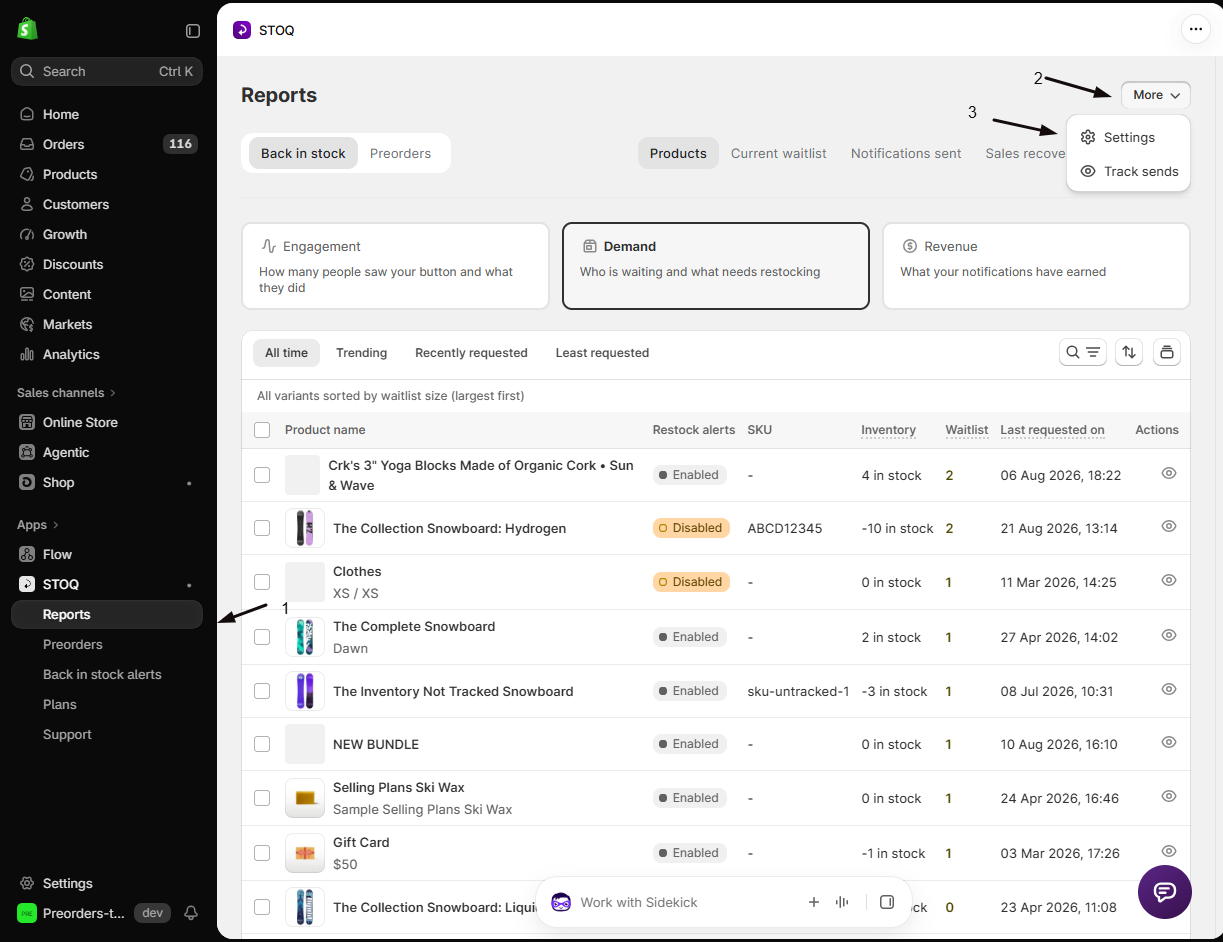
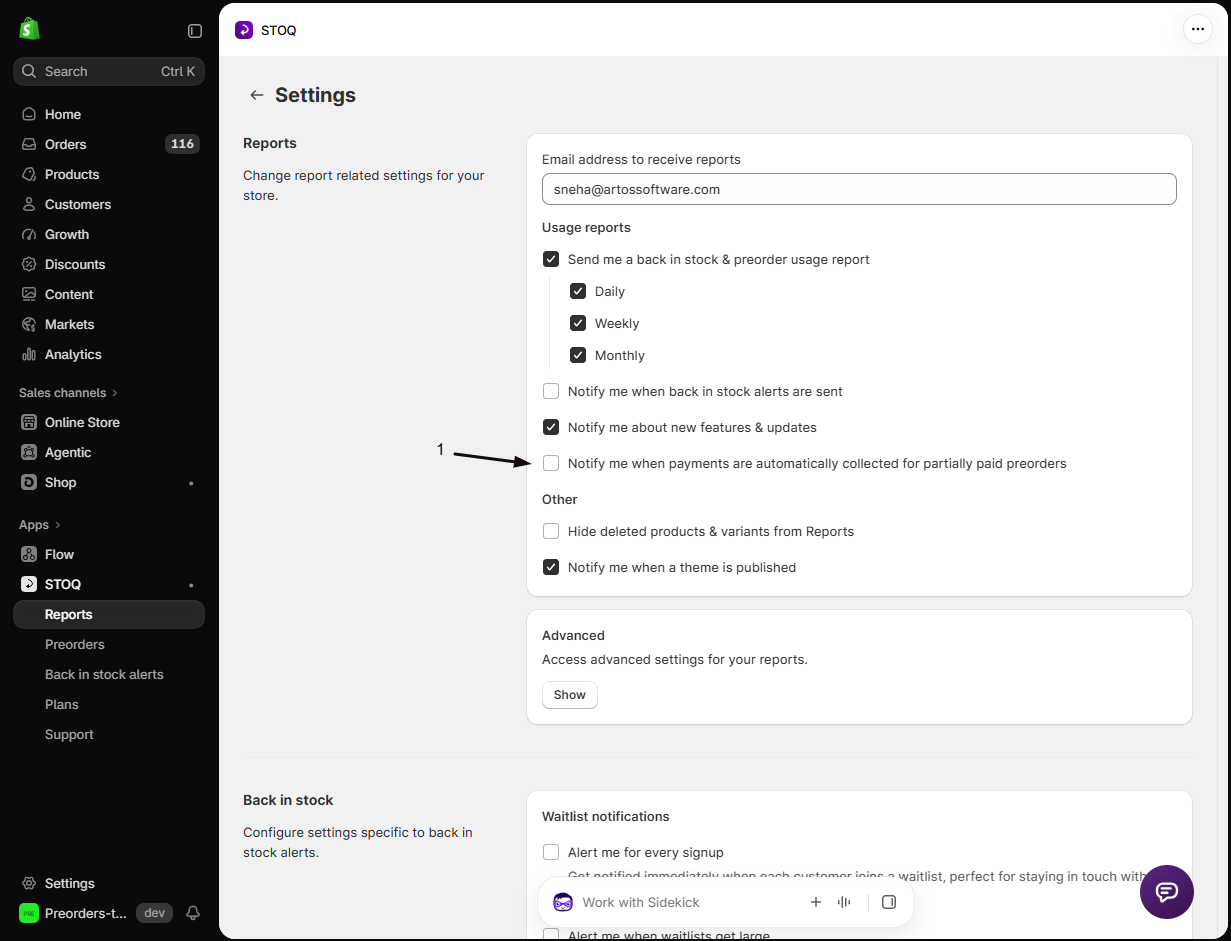
Section titled “Get notified when payments are collected”By default, STOQ doesn’t email you when a collection succeeds; it only alerts you on failure. To also get a confirmation each time a balance is collected, turn on Notify me when payments are automatically collected for partially paid preorders:
- In the left menu bar of the STOQ app, click Reports.
- Click More in the top right, then click Settings.
- Turn on Notify me when payments are automatically collected for partially paid preorders, then click Save.
With it on, STOQ emails a “Payment Successfully Collected” summary to your report address whenever it collects a preorder balance. This is a merchant notification only; it doesn’t change anything customers receive.
Set it up
Section titled “Set it up”On a phone, this menu is collapsed. In the Shopify mobile app, tap the STOQ logo at the top of the screen to open it, then choose the section named below. There is no hamburger icon. See Finding the STOQ menu.
Collect for many orders at once
Section titled “Collect for many orders at once”Use this to charge across all your preorder orders.
-
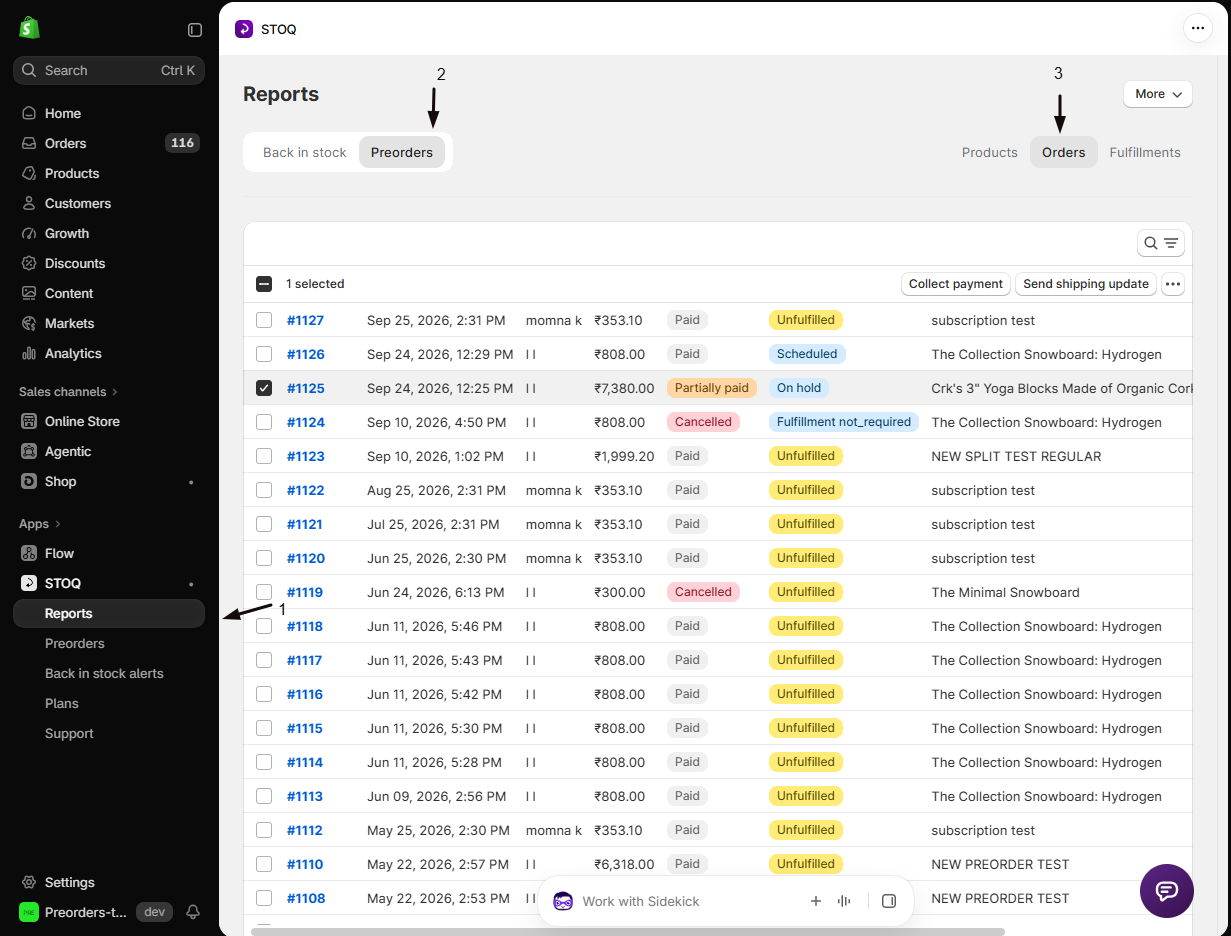
Open the preorder orders report
- Open the STOQ app.
- Click Reports.
- Click Preorders.
- Click Orders.
-
Select the orders
Tick the checkbox on each order, or the header checkbox to select all. Only orders with a balance can be charged.
-
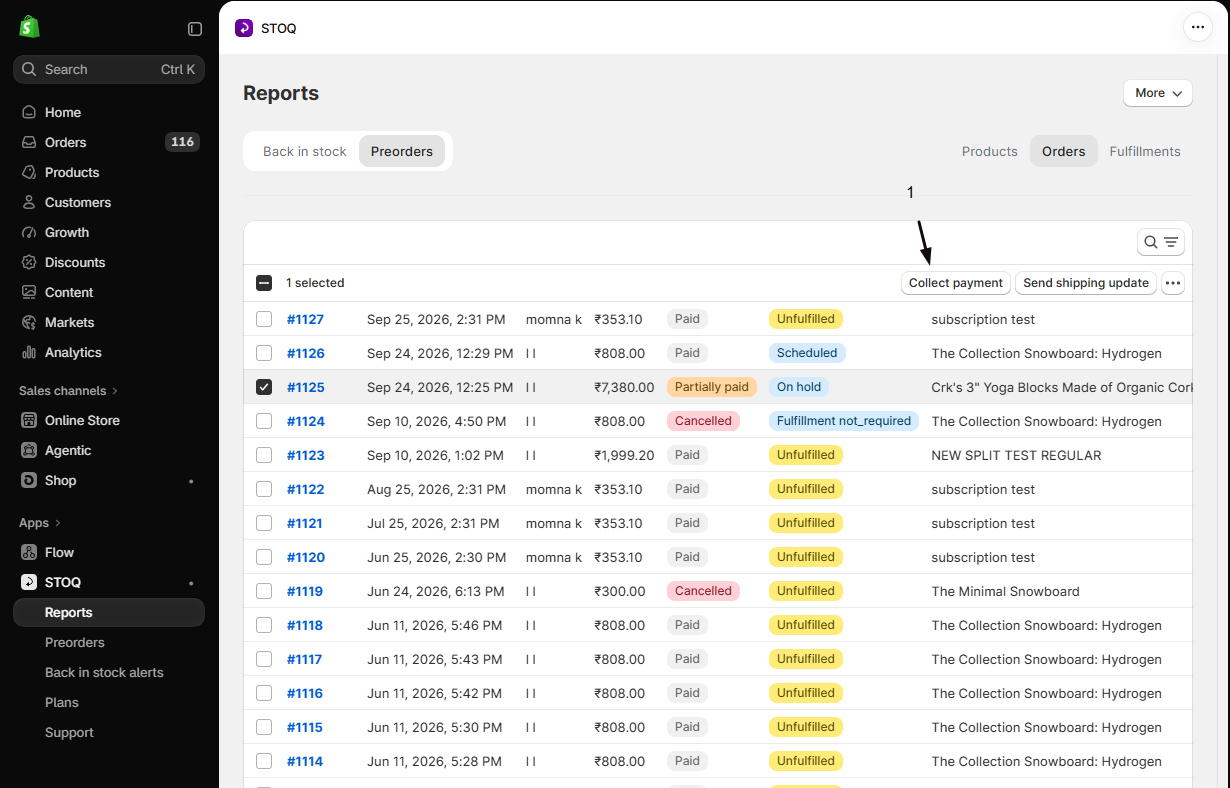
Click Collect payment
With orders selected, Collect payment appears in the action bar at the top. Click it.
-
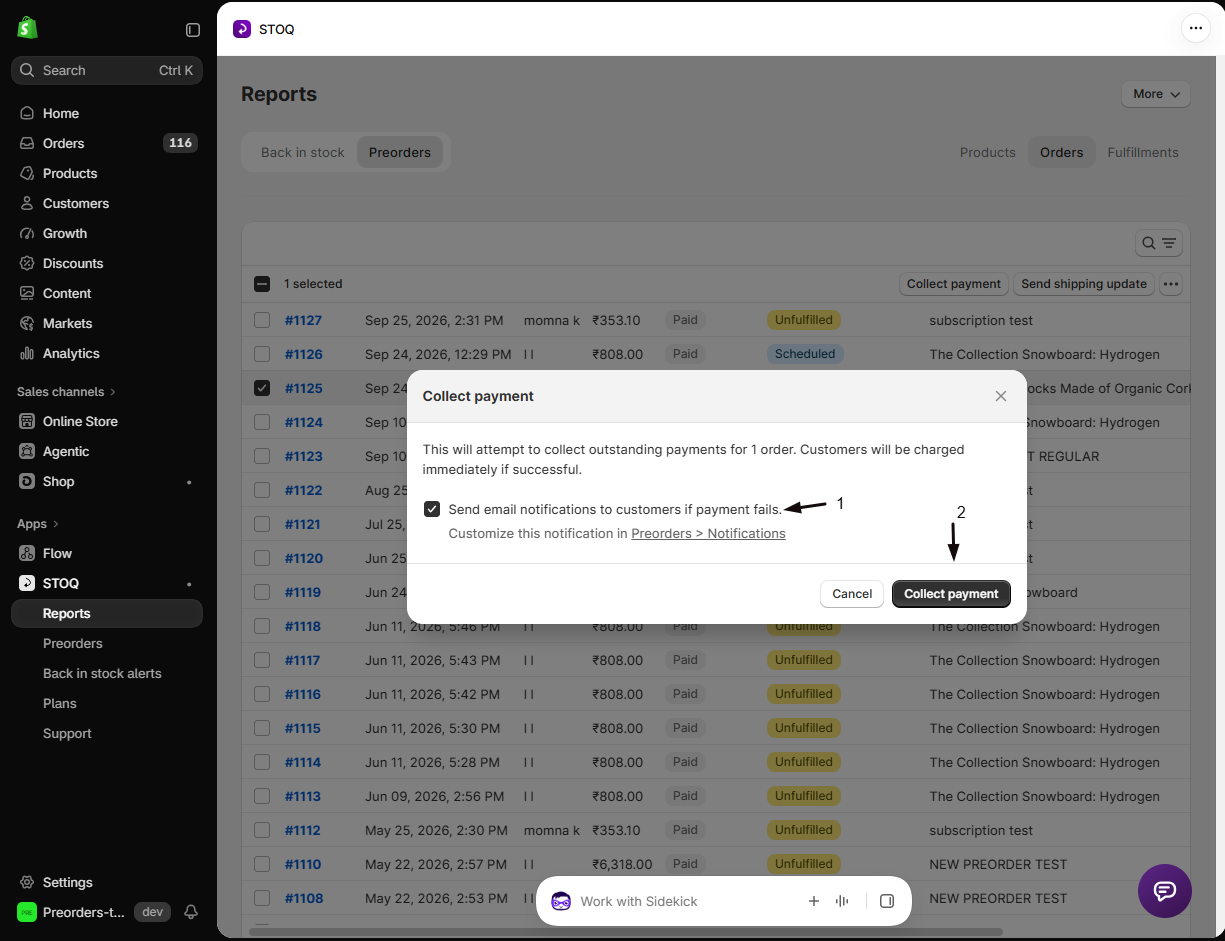
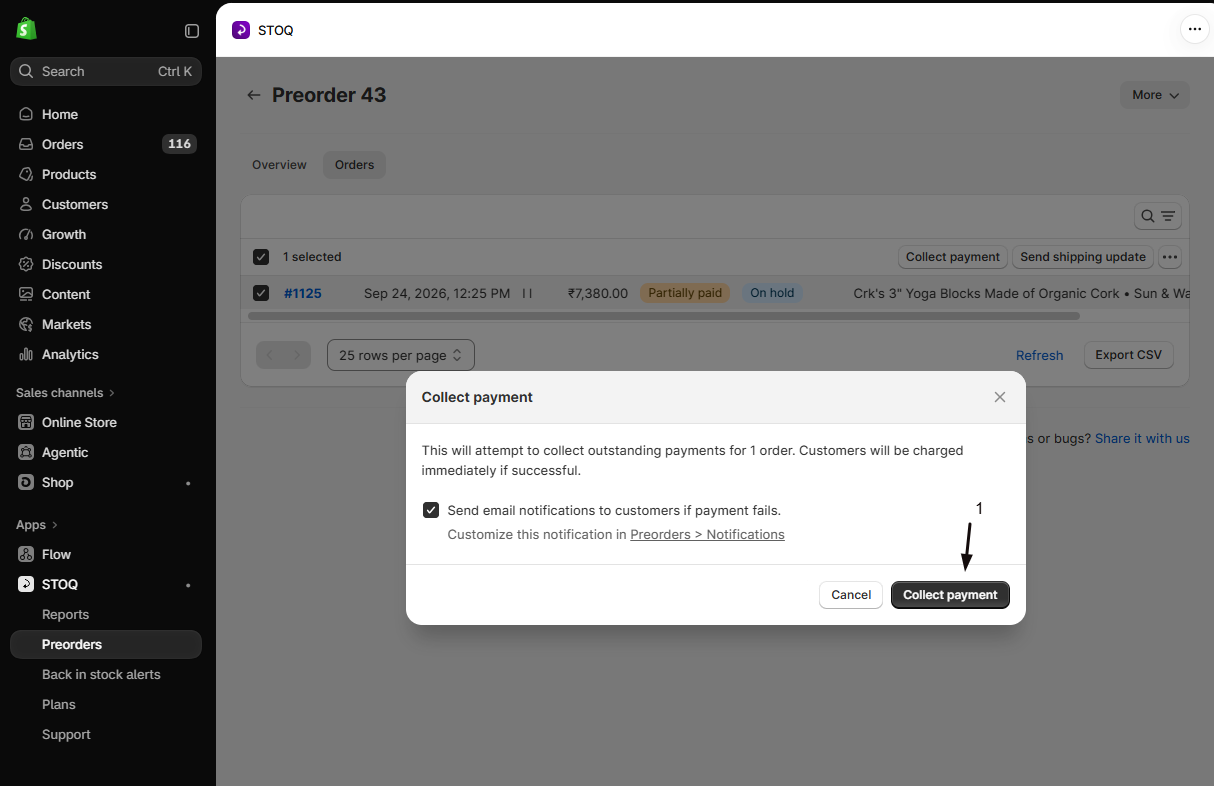
Confirm in the popup
- Leave Send email notifications to customers if payment fails ticked, or untick it if you don’t want failure emails sent.
- Confirm the charge (a short countdown on the button helps prevent charging the wrong orders).
STOQ then charges each customer’s saved payment method and the orders update to Paid.
Collect for one offer
Section titled “Collect for one offer”Use this to charge only the orders from a single offer.
-
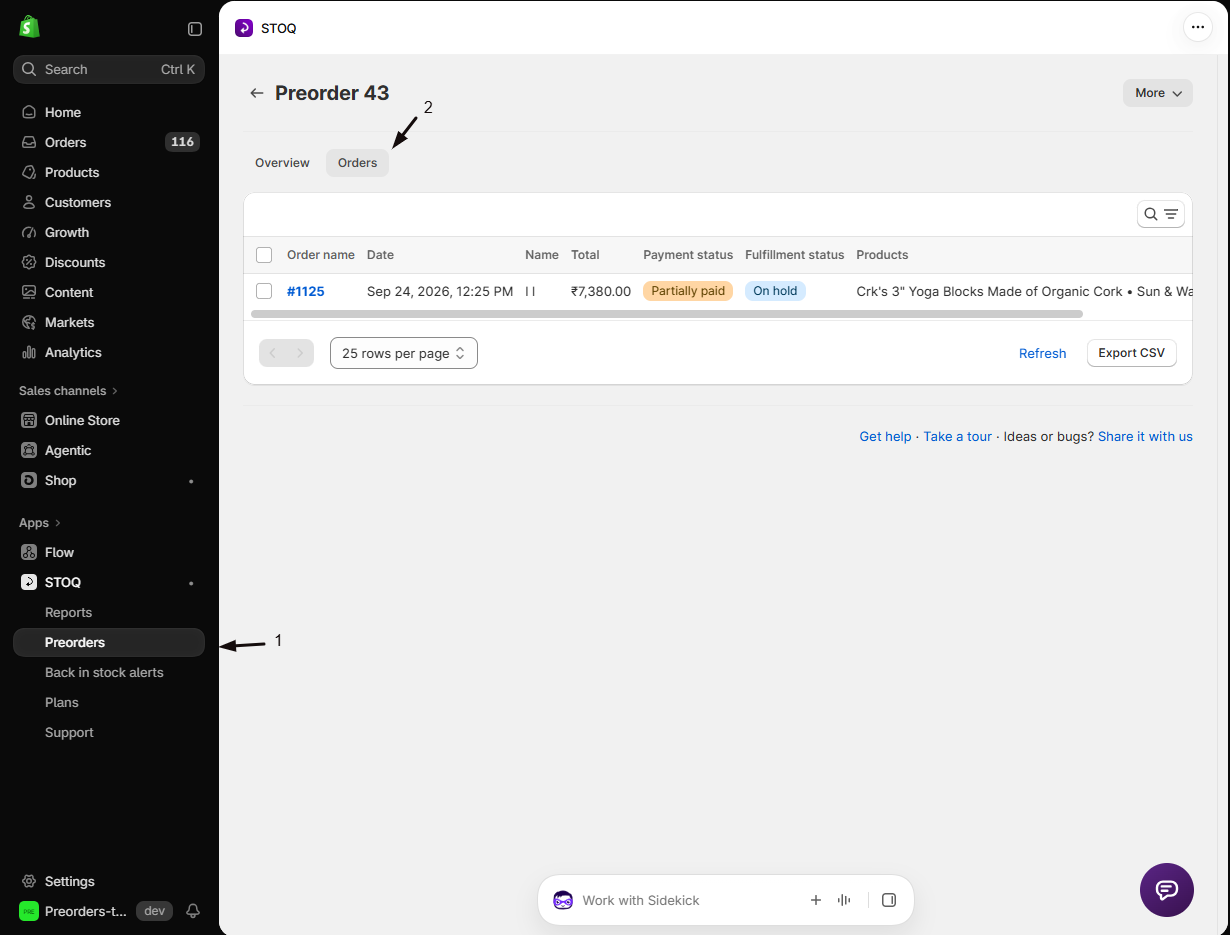
Open the offer’s orders
- From the left menu, click Preorders.
- Choose the offer.
- Open its Orders tab.
-
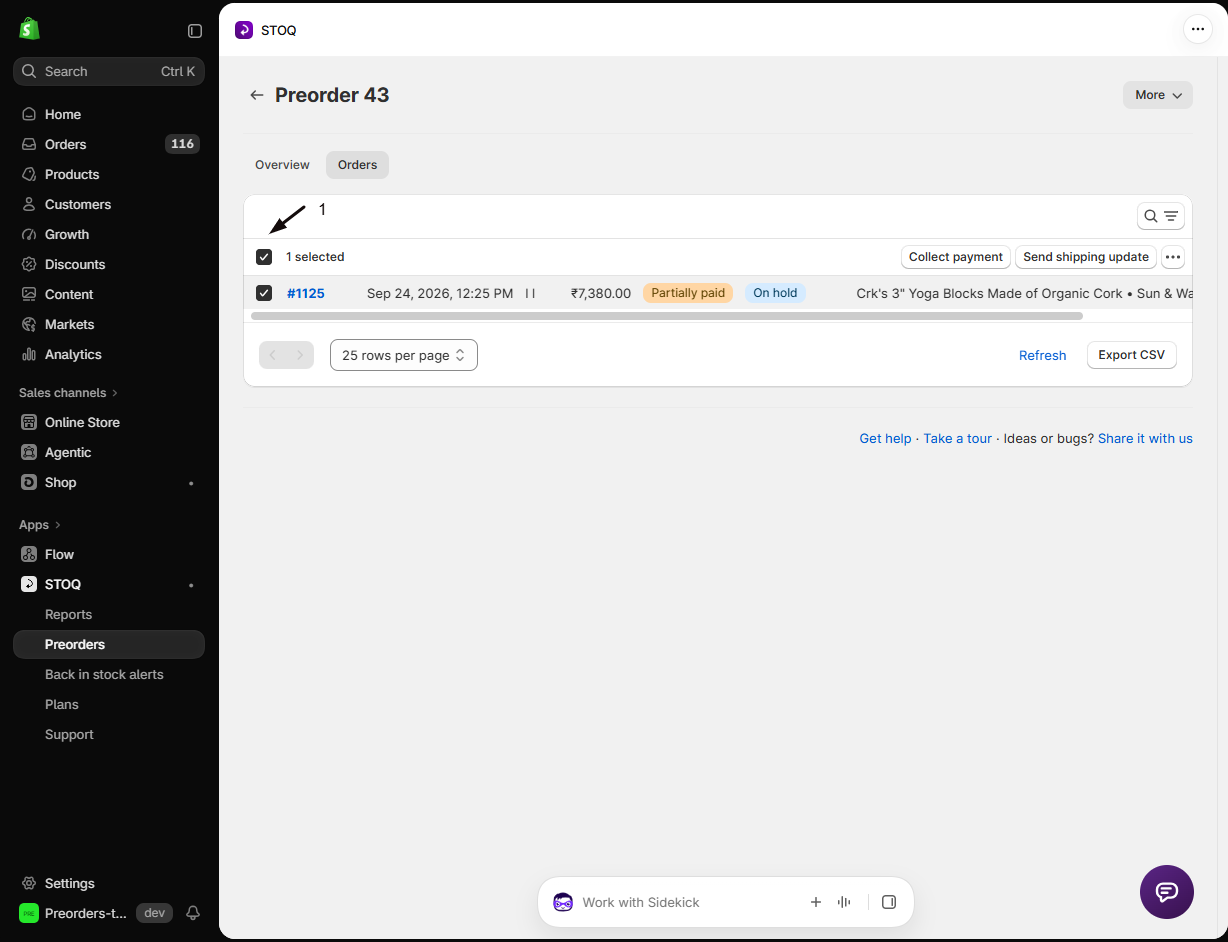
Select the orders
Tick the orders you want to charge.
-
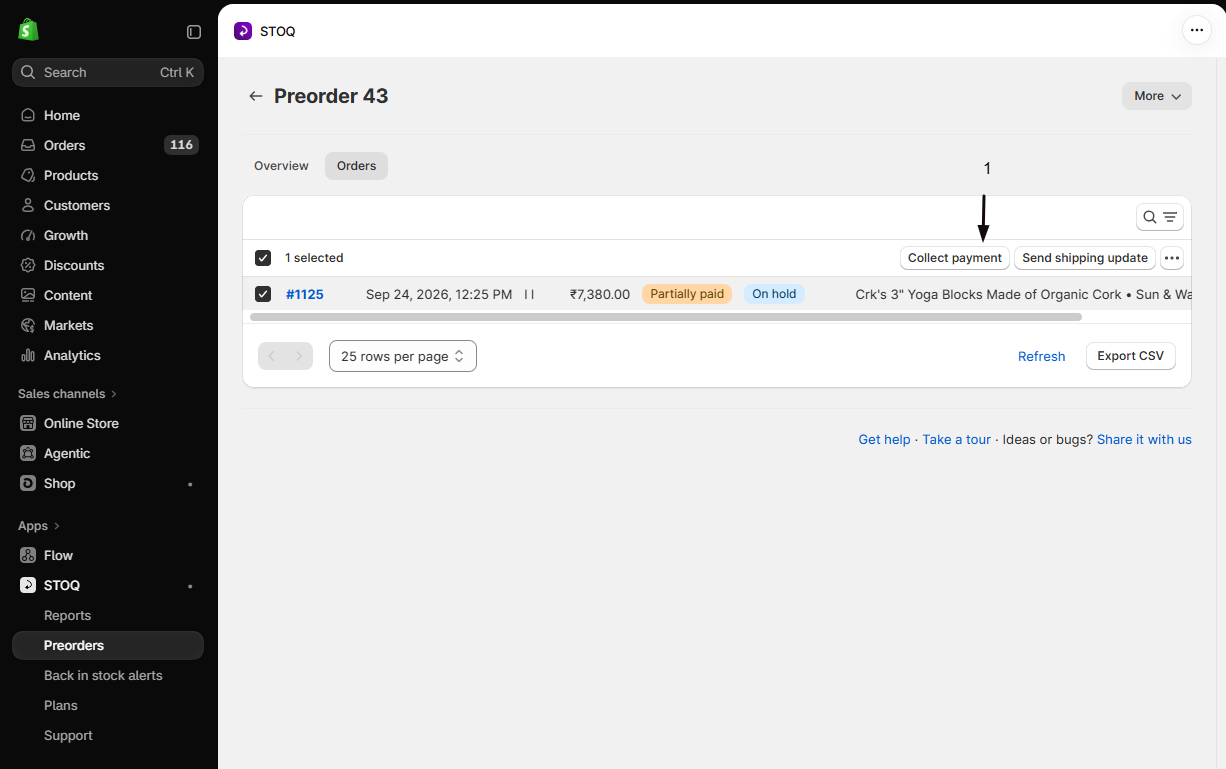
Click Collect payment and confirm
- Click Collect payment.
- Confirm in the popup.
STOQ charges the selected customers.
Collect for a single order
Section titled “Collect for a single order”Opening one order gives you the most control. As well as the full balance, you can collect just part of it: a specific amount, or only the products that are ready to ship.
-
Open the order
Click into the order from Reports → Preorders → Orders or the offer’s Orders tab.
-
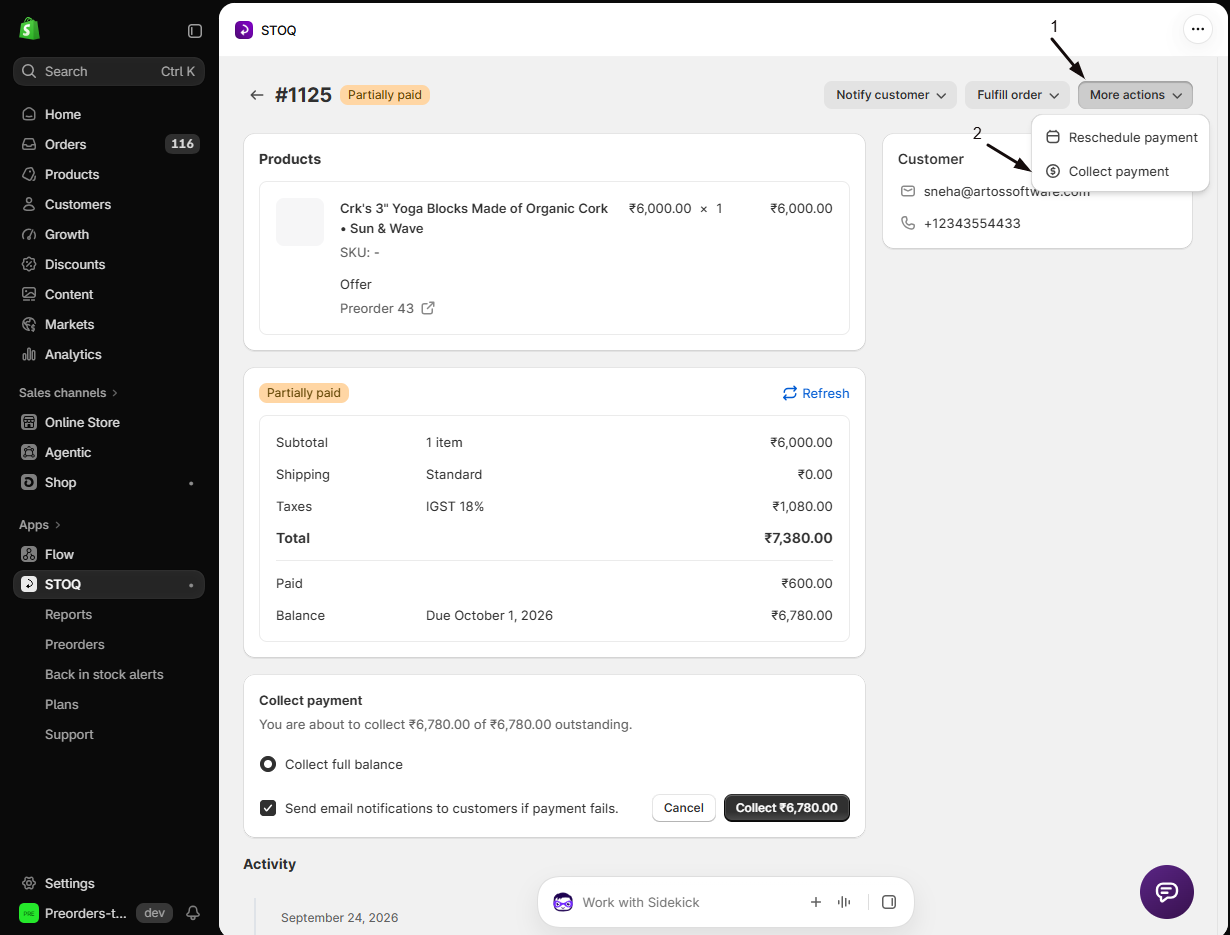
Click Collect payment
Click Collect payment on the order. The Collect payment panel opens on the page, showing how much you’re about to charge (“You are about to collect … of … outstanding”).
-
Choose what to collect
Pick one option:
- Collect full balance: charge the entire outstanding amount. Always available, and the default.
- Collect a specific amount: enter a figure in the amount field to charge only part of the balance.
- Collect for specific products: tick the line items you want to charge for, for example the ones ready to ship. STOQ adds up their totals for you.
-
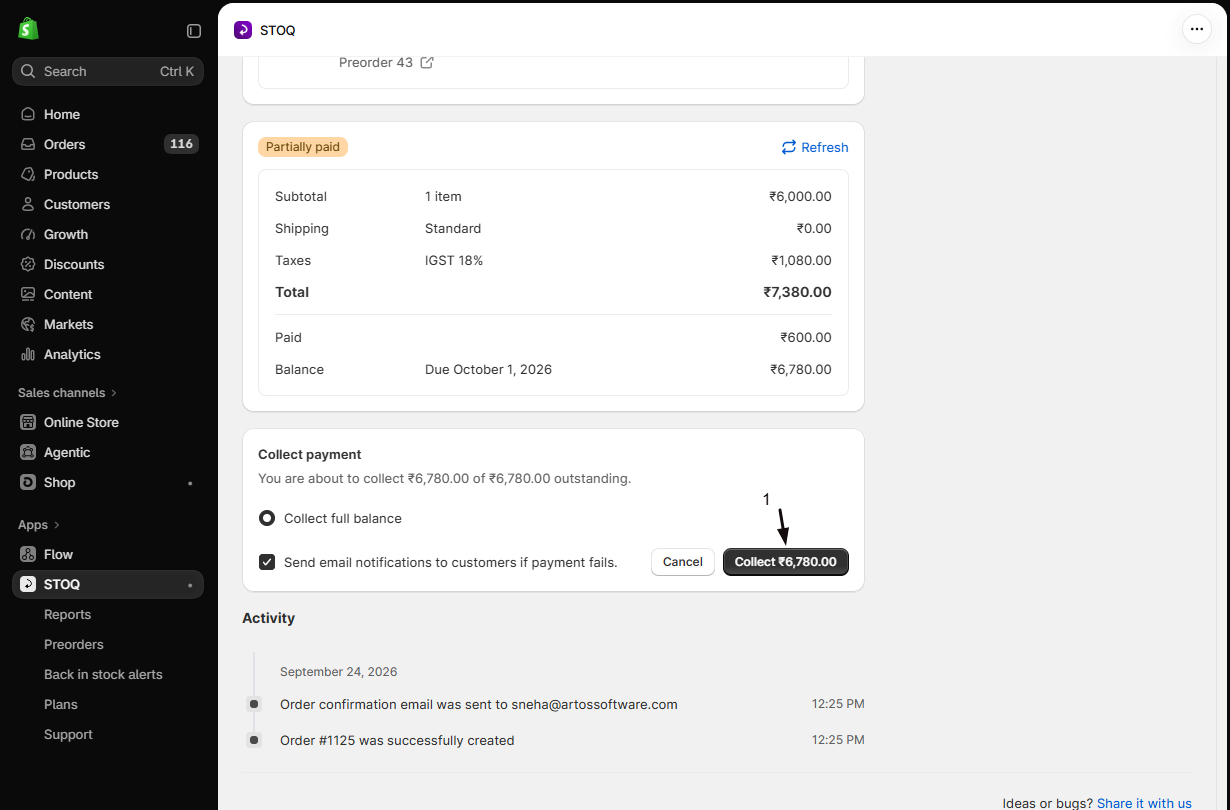
Confirm the charge
- Leave Send email notifications to customers if payment fails ticked, or untick it.
- Click Collect [amount]. The button stays disabled until the amount is more than 0 and no more than the outstanding balance.
STOQ requests the charge from Shopify in the background. Click Refresh on the order once it settles to see the updated balance and status.
Collect a specific amount and Collect for specific products are partial-collection options. They need Shopify Plus and are switched on per store on request, so contact support if you’d like them and currently only see Collect full balance. Partial collection is per order; the many-orders and one-offer flows above always charge the full balance.
Every collection is recorded on the order’s timeline, for example “Payment of $20.00 was successfully collected (collected manually)”, and a failed attempt is logged there too. A charge made with Collect for specific products also names the products it paid for.
Check your setup
Section titled “Check your setup”Select an unpaid preorder order and click Collect payment. Confirm in the popup and check that the order updates to Paid. If you left the notification checkbox ticked, force a failure with a test card to confirm the merchant alert and customer email arrive as expected.
Troubleshooting
Section titled “Troubleshooting”Collect payment is greyed out
The selected orders don’t have an outstanding balance. Already-paid orders can’t be charged.
A charge fails
The customer’s saved card was expired, declined, or removed. The order stays unpaid so you can retry or send the customer a link to pay. See When payment collection fails.
The customer never got a failure email
Shopify didn’t return a payment link for that order. You still received the merchant alert, so follow up with the customer manually.
No one got a failure email
The Send email notifications to customers if payment fails checkbox was unticked when you confirmed the charge.
Limitations
Section titled “Limitations”STOQ makes a single charge attempt per collection action. It doesn’t automatically retry a failed charge.
Can I collect from many orders at once?
Yes. In Reports → Preorders → Orders, or an offer’s Orders tab, select multiple orders (or all of them) and click Collect payment.
Can I collect only part of the balance?
Yes, on a single order. Open the order, click Collect payment, and choose Collect a specific amount or Collect for specific products instead of Collect full balance. These partial options need Shopify Plus and are switched on per store on request, so contact support if you only see Collect full balance.
Can I charge just the products that are ready to ship?
Yes. On a single order, choose Collect for specific products and tick those line items. STOQ charges only their combined total and leaves the rest of the balance outstanding.
Can I collect the balance before the due date?
Yes. In manual mode you can charge whenever you’re ready, the due date is what the customer sees, not a limit on when you collect.
Does collecting payment fulfill or ship the order?
No. It only charges the balance and marks the order Paid. Fulfilling and shipping are separate steps in Shopify.
Do I collect manually if the offer is set to automatic?
No. Automatic-collection offers charge the balance on the due date or at fulfillment on their own. Manual collection is only for offers set to collect manually.
The customer's card won't charge, can they pay themselves?
Yes. If the saved card is expired or declined, send the customer a link to pay the balance. See When payment collection fails.
Related guides
Section titled “Related guides”Thanks for letting us know.
Still stuck? Ask Quinn or chat with support