Let customers cancel preorders
Let customers look up and cancel their own preorder for a full automatic refund.
Last updated
Use this guide if you want customers to cancel their own preorder instead of contacting you. By the end, a link in their preorder emails sends them to a hosted STOQ page where they can look up the order and cancel it for a full refund.

Before you begin
Section titled “Before you begin”| Requirement | Detail |
|---|---|
| Email provider | The cancellation setting only applies when your preorder notifications are sent through STOQ. If you send preorder emails through Klaviyo, the cancellation toggle and link-text field are disabled, since Klaviyo controls that email’s content instead. Shopify Flow can’t be selected as the email provider for preorder confirmation emails. |
| A “Cancel order link” text | The cancel link only renders in the email if this field has text in it. STOQ ships with a default of “Cancel order” already filled in. |
| On by default | Allow customers to cancel preorders is on for all shops out of the box. To stop customers self-cancelling, turn it off. |
What customers will see
Section titled “What customers will see”The cancel link is added to the footer of any preorder notification email sent through STOQ, including the preorder confirmation email, shipping update emails, and payment collection/failure emails, whenever Allow customers to cancel preorders is checked and the Cancel order link text field is not empty. It does not appear in preorder SMS, and it does not appear if the notification’s email provider is Klaviyo.
-
Customer clicks the cancel link in their email
This opens a hosted STOQ page titled “STOQ” with the subtitle “Manage your preorders here.” The page is served from your STOQ app domain, not your storefront.
-
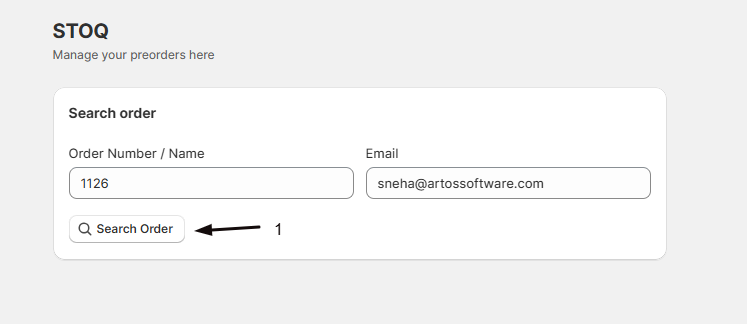
Customer searches for their order
- Enter the Order Number/Name, either the order name like
#1213or the numeric Shopify order ID. - Enter the email the order was placed under.
- Click Search Order.
STOQ only returns the order if the email matches the email on file for that order.
- Enter the Order Number/Name, either the order name like
-
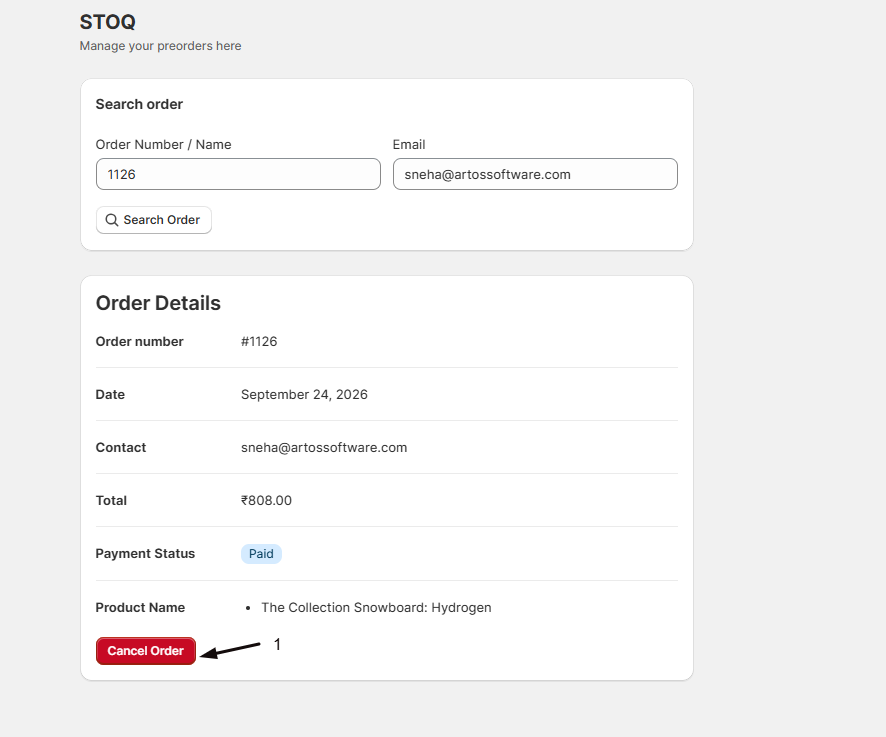
Customer reviews order details
If found, the page shows the order number, date, contact email, total, payment status, and the preorder product name(s). If the order was already cancelled, it shows a “Cancelled” status badge and the Cancel Order button is disabled.
-
Customer confirms cancellation
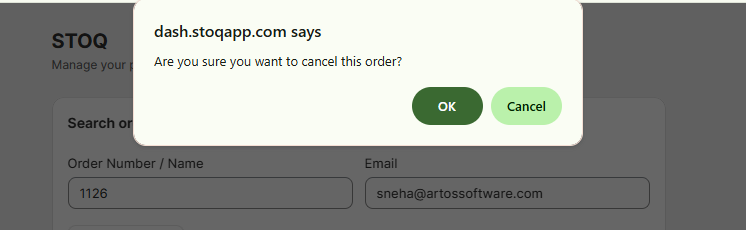
- Click Cancel Order to open a browser confirmation dialog (“Are you sure you want to cancel this order?”).
- Confirm the dialog to send the cancellation request.
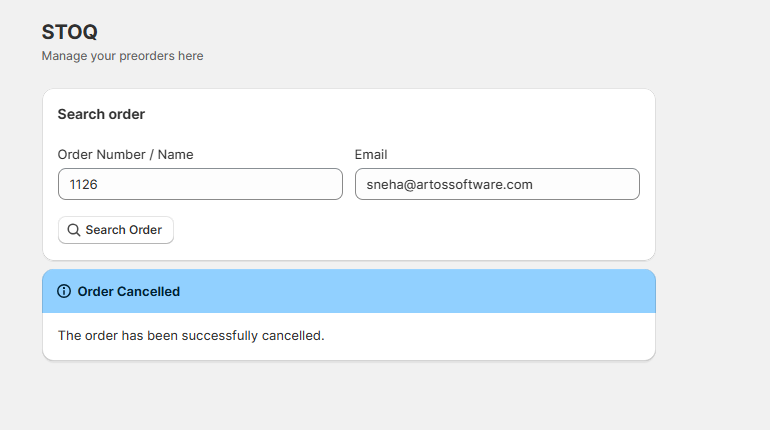
- On success, the page shows an “Order Cancelled” banner.
When the customer confirms, STOQ cancels the order in Shopify, refunds the customer in full, and restocks inventory that was previously deducted. Shopify sends its own cancellation/refund notification to the customer, separate from STOQ’s page.
Set it up
Section titled “Set it up”On a phone, this menu is collapsed. In the Shopify mobile app, tap the STOQ logo at the top of the screen to open it, then choose the section named below. There is no hamburger icon. See Finding the STOQ menu.
-
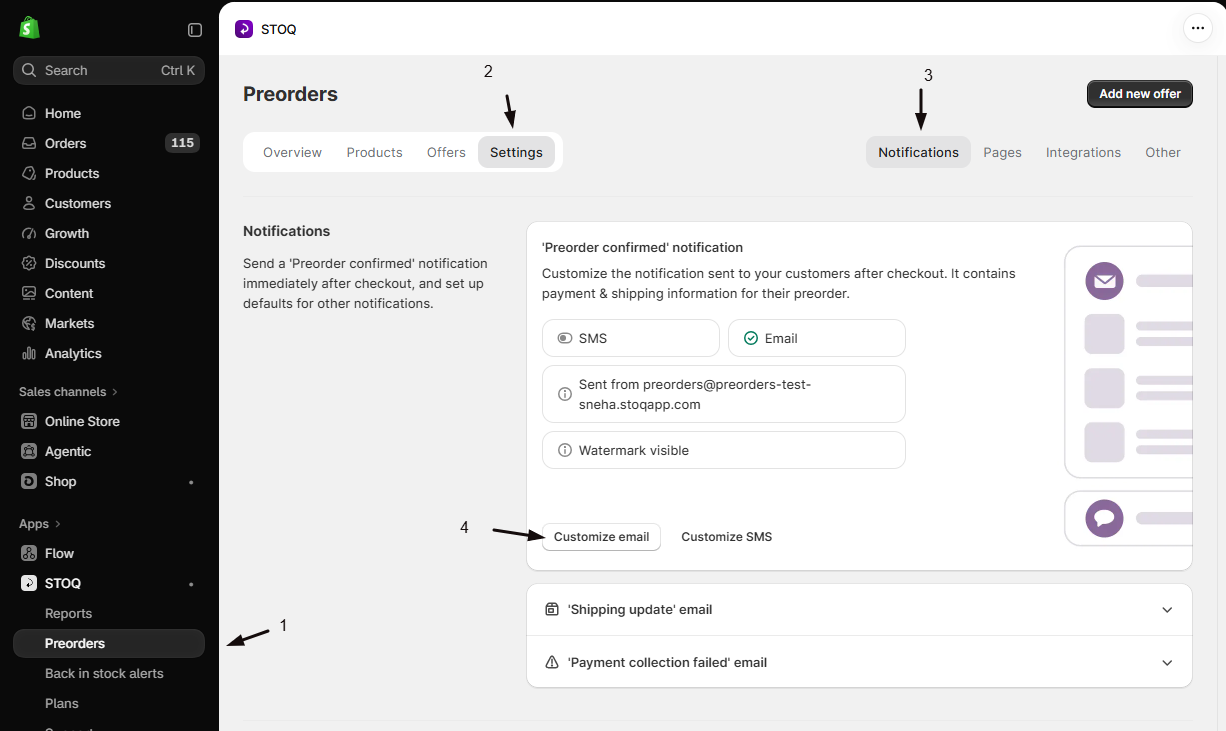
Open the preorder confirmation email editor
- In the left menu bar of the STOQ app, click Preorders.
- Click the Settings tab.
- Open the Notifications sub-tab.
- On the ‘Preorder confirmed’ notification card, click Customize email.
-
Find the Cancellation section
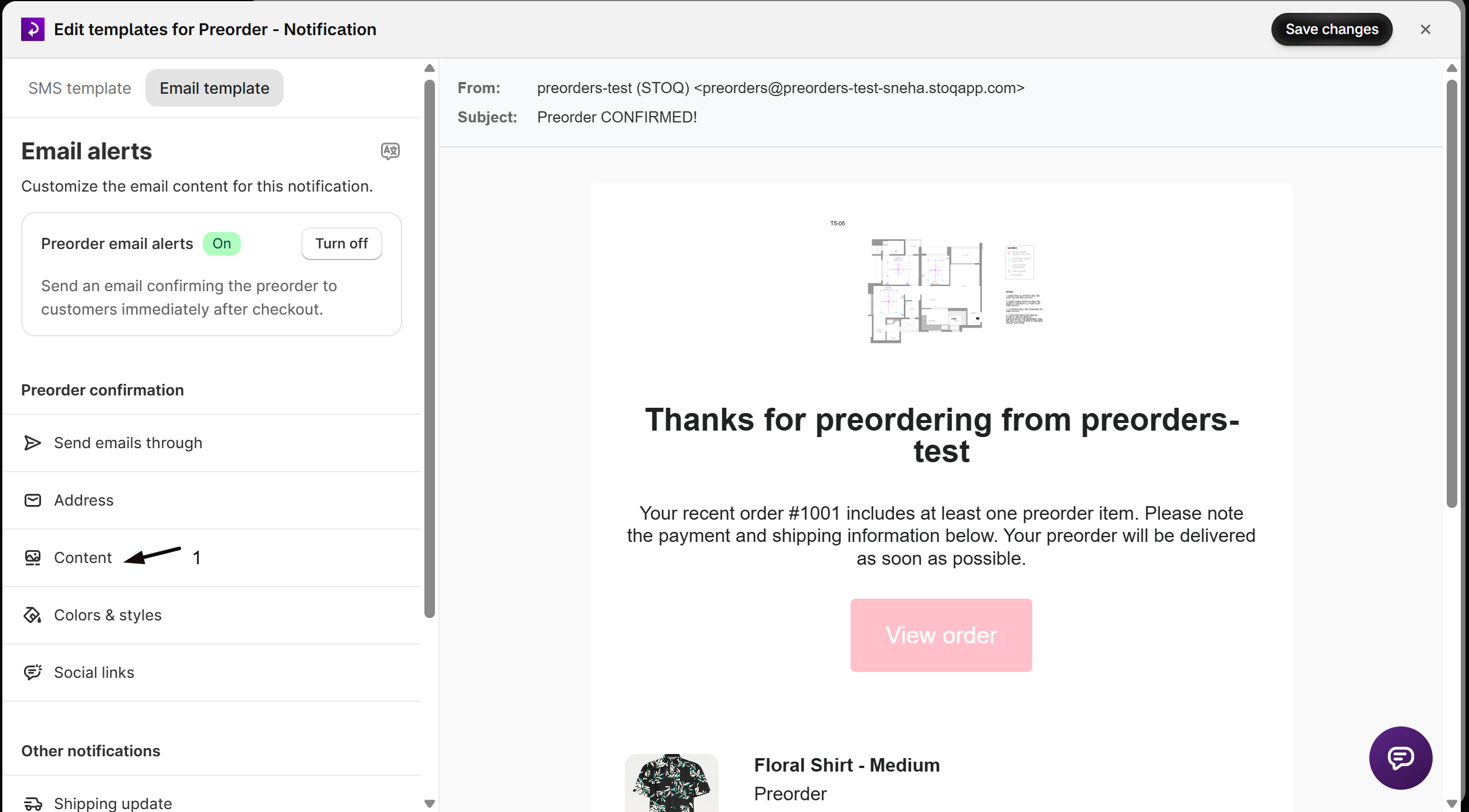
In the side panel, scroll to the Content section. If your email provider is STOQ, you’ll see a Cancellation group with:
- Allow customers to cancel preorders, a checkbox.
- Cancel order link, a text field for the link’s visible text, such as “Cancel order” or “Need to cancel?”.
-
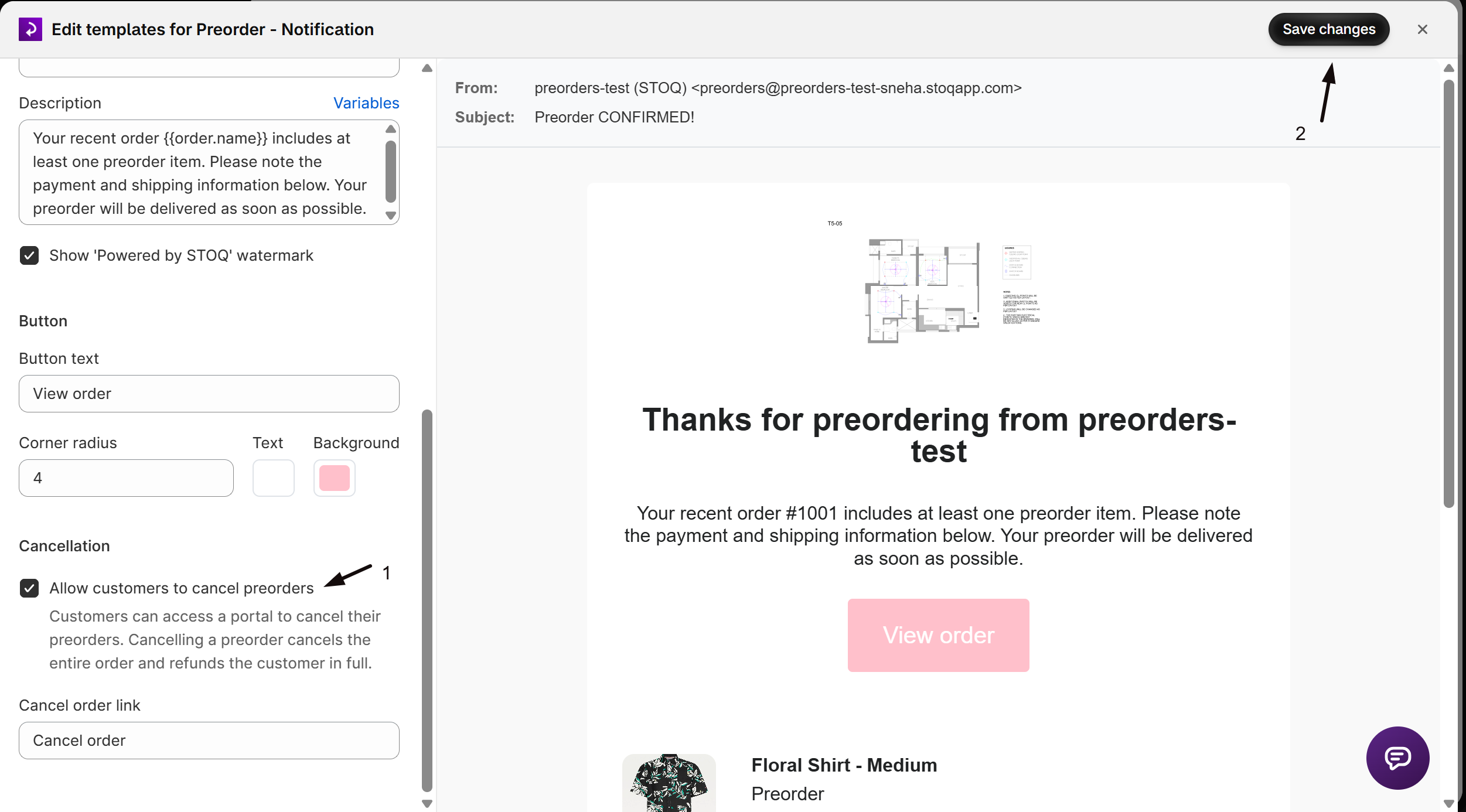
Toggle the checkbox
Check Allow customers to cancel preorders to turn the feature on, or uncheck it to turn it off. Both the checkbox and the link-text field are disabled if your notification’s email provider isn’t STOQ.
-
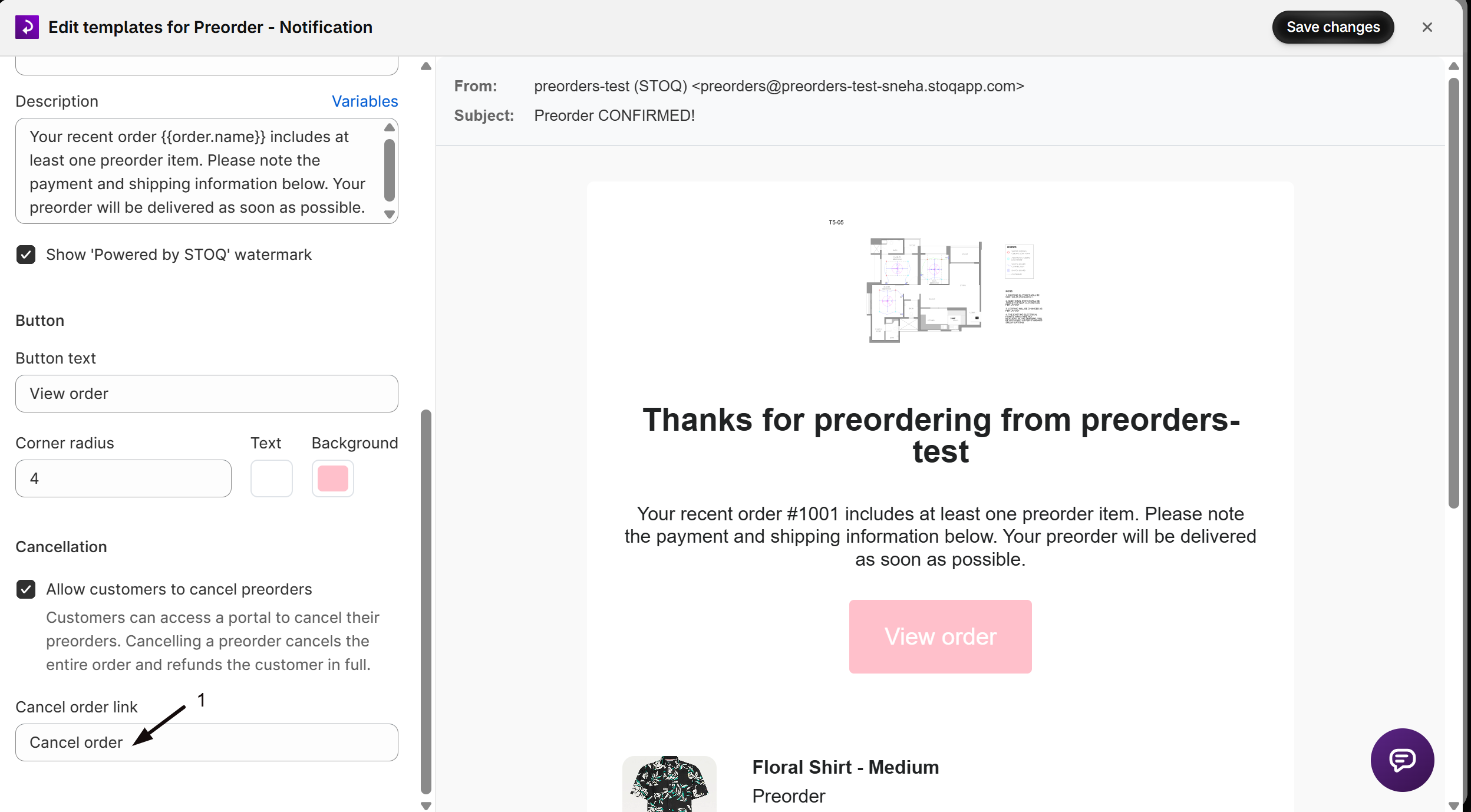
Customize the link text (optional)
Edit the Cancel order link field to change the wording customers see. Leaving this field blank hides the link entirely, even if the checkbox above is checked.
-
Save
Click Save. The setting is shop-wide: it applies to every preorder email, not just the confirmation.
Check your setup
Section titled “Check your setup”- Place a test preorder order, or use an existing unpaid one, with Allow customers to cancel preorders checked and the Cancel order link field filled in.
- Open the preorder confirmation email and click the cancel link, then search for the order and click Cancel Order on the hosted page.
- In Shopify admin, open the order and confirm it now shows as Cancelled and Refunded. Its timeline shows two STOQ entries: “Stoq sent an order canceled email to you” (with a View email link), and “Stoq canceled this order”, which expands to show the Reason (“Customer changed/canceled order”) and a staff note attributing the cancellation to STOQ’s self-service page.
- In STOQ, go to Reports → Preorders → Orders and confirm the order shows a Cancelled badge in the Payment status column. (For a single offer, you can also check this under Preorders → Offers → open the offer → Orders tab. The cancellation itself doesn’t appear in the order’s Activity timeline in STOQ.)
Troubleshooting
Section titled “Troubleshooting”The checkbox and link-text field are greyed out
Your preorder confirmation email’s provider isn’t STOQ, most likely Klaviyo. Switch the confirmation email’s provider to STOQ to use this setting, or manage cancellation through your own Klaviyo template.
The cancel link isn't showing up in customer emails
Check that Cancel order link has text in it. Leaving it blank hides the link even when the checkbox is checked.
A customer says the link shows "Preorder cancellation is currently disabled"
The setting was turned off after that email was sent. The page checks the live setting, not a snapshot from when the email went out, so they can no longer cancel through it. Cancel the order for them manually in Shopify admin if needed.
A customer can't find their order on the cancellation page
They’re likely entering an email that doesn’t match the one on the order. STOQ only returns a result on an exact match, so a mismatch shows an error with no order details.
A customer wants to cancel just one item from a mixed order
This flow doesn’t support partial or line-item cancellation. Cancel the item for them manually in Shopify admin, or set up separate orders for mixed preorders so cancelling the preorder order doesn’t touch the in-stock items.
Limitations
Section titled “Limitations”Cancelling through this page always cancels the entire Shopify order, not an individual line item. If the order contains other, non-preorder products alongside the preorder item, those are cancelled and refunded too. STOQ doesn’t support partial-order or line-item-level cancellation through this flow.
Is this feature paid-plan only?
No. Unlike some other preorder notification features, cancellation isn’t gated by plan. It’s only gated by using STOQ as your email provider for that notification.
Can a customer cancel just one item from a mixed order?
No. The cancel action cancels the whole Shopify order and refunds it in full. If you split preorder and in-stock items into separate orders (see Separate orders for mixed preorders), a customer could still only cancel the preorder-only order through this page, leaving the other order untouched.
Can I turn this off after enabling it?
Yes. Uncheck Allow customers to cancel preorders in the confirmation email editor (Preorders in the left menu → Settings tab → Notifications sub-tab → Customize email on the ‘Preorder confirmed’ card → Content). Anyone who already got an email with the cancel link sees a “Preorder cancellation is currently disabled” message if they click it afterward, and won’t be able to cancel through the page. You can always cancel the order for them manually in Shopify admin.
Does this affect orders that were placed before I turned the setting on?
The setting controls whether the link appears in new emails going forward, and whether the cancellation page will still process a request at all. It checks the live setting, not a snapshot from when the email was sent, so an old email’s link only works if the setting is currently on.
Does cancelling this way notify me, the merchant?
Yes. STOQ sends you an “order canceled” email, the Shopify order timeline logs it, the order itself shows as cancelled and refunded with a staff note attributing it to STOQ, and Reports → Preorders → Orders shows a Cancelled badge in the Payment status column.
Can I customize what the confirmation page looks like, beyond the link text?
Not beyond the Cancel order link wording. The hosted search-and-cancel page itself (title, layout, field labels, and confirmation banner) is a fixed STOQ-branded page and isn’t customizable from the template editor.
Related guides
Section titled “Related guides”Thanks for letting us know.
Still stuck? Ask Quinn or chat with support