Find and view your offers
Search, filter, and read the Offers list, export it to CSV, and import products into offers.
Last updated
The Offers tab on the Preorders page lists every preorder offer you’ve created. Use this guide to find a specific offer, understand what each row is telling you, and import or export with CSV.
To act on an offer, see Turn offers on or off, Duplicate an offer, or Delete an offer.
Open the Offers list
Section titled “Open the Offers list”On a phone, this menu is collapsed. In the Shopify mobile app, tap the STOQ logo at the top of the screen to open it, then choose the section named below. There is no hamburger icon. See Finding the STOQ menu.
In the left menu bar of the STOQ app, click Preorders, then click the Offers tab.
Find an offer
Section titled “Find an offer”| Control | What it does |
|---|---|
| Search bar | Finds offers by offer name or product name |
| Status filter | Shows only Live, Scheduled, Off, or All offers |
| Markets filter | Narrows to offers active in specific markets. Only appears if your store has multiple Shopify markets |
| Sort | Date created, Offer name (A-Z or Z-A), or Revenue (high to low or low to high) |
Show and hide columns
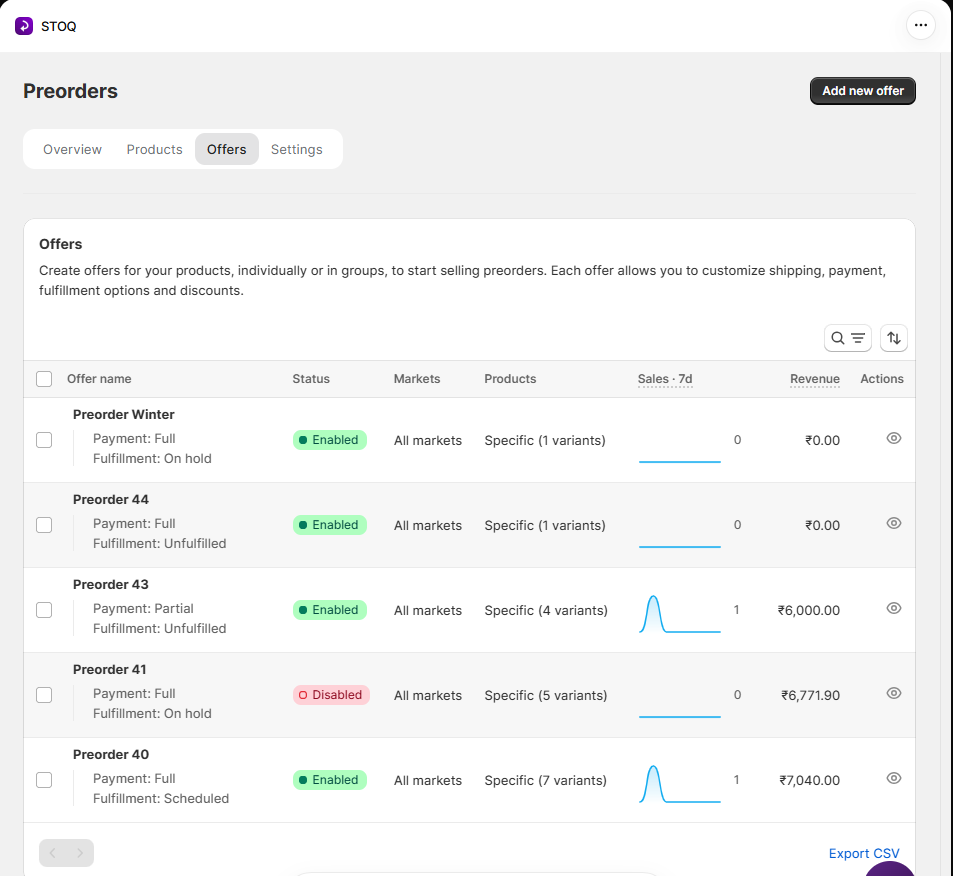
Section titled “Show and hide columns”Offer name, Status, and Products always show. Markets, Sales · 7d, and Revenue can be toggled. Markets is hidden until one of your offers uses markets, then it shows on its own.
Click the Columns filter above the list and tick or untick the ones you want. Your choice is saved in your browser, so the same columns appear next time.
What each row shows
Section titled “What each row shows”The Status badge reads Live (customers can preorder now), Scheduled (preorders open on the offer’s start date) or Off (customers can’t preorder under this offer). The offer editor shows the same status.
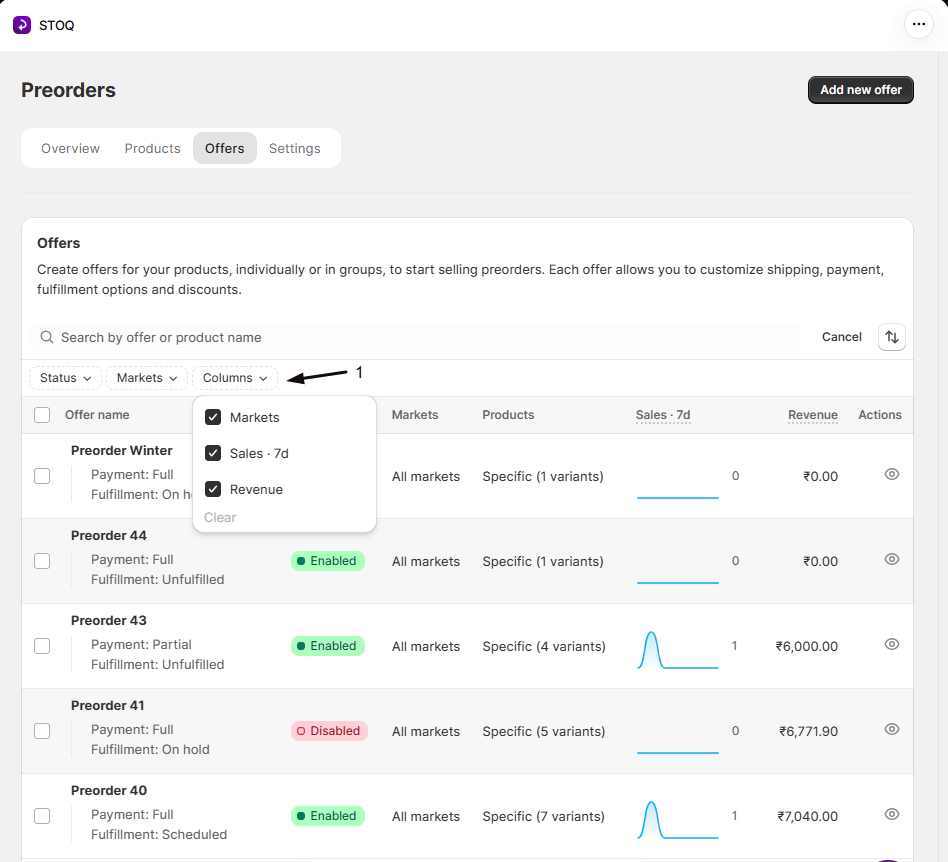
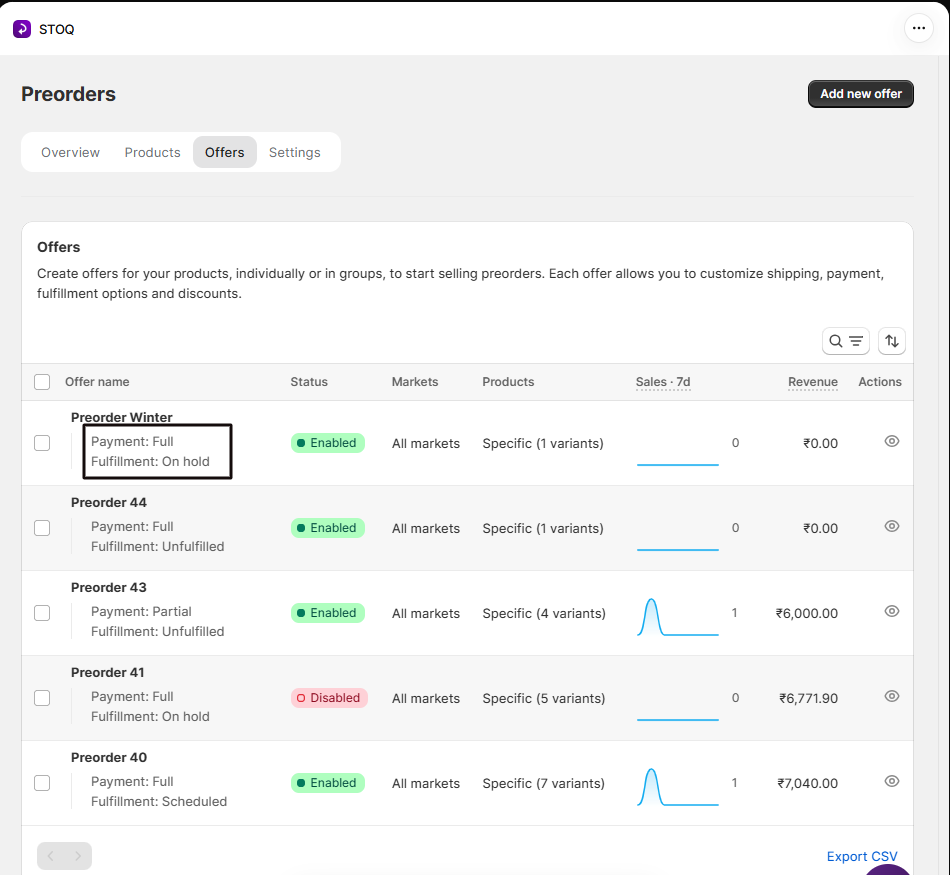
Each row shows the offer name in bold with two smaller labels underneath:
Customer pays, how customers are charged at checkout:
| Value | Meaning |
|---|---|
| Full | The full amount is collected at checkout |
| Partial | A deposit is collected at checkout, the rest billed later |
| Full and Partial | Some variants charge in full, others take a deposit |
| No upfront payment | A partial plan with a 0% deposit, so nothing is charged at checkout |
Shopify order status, how the order shows in your Shopify admin:
| Value | Meaning |
|---|---|
| Unfulfilled | STOQ fulfills as soon as inventory is ready |
| Scheduled | Fulfillment is set for a number of days after checkout or a fixed date |
| On hold | The date isn’t decided yet and orders are held |
To change either, open the offer’s Customize editor and click Payment or Shipping in the sidebar. See Set up payment for preorders and Choose a fulfillment setup.
With the optional columns on, Sales · 7d shows a sparkline of preorder units sold per day over the last 7 days with the total beside it, and Revenue shows total revenue from that offer’s preorder products.
Quick-view an offer’s products
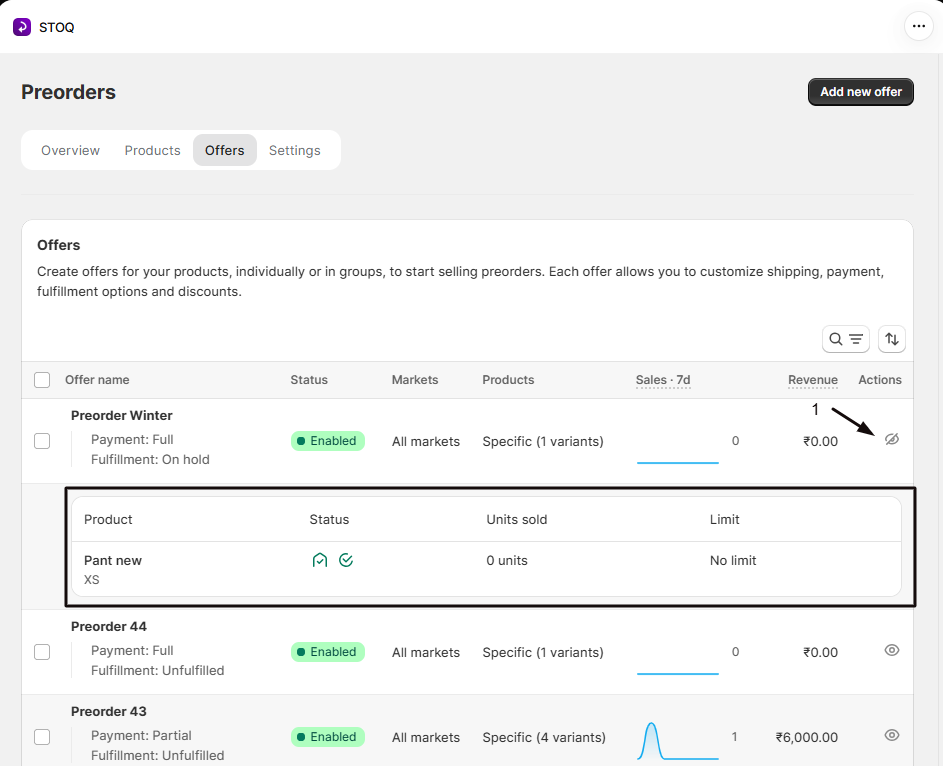
Section titled “Quick-view an offer’s products”You can check an offer’s products without leaving the list.
-
Expand the row
In the Actions column at the end of a row, click the eye icon. Click it again to collapse.
-
Read the product status
Each product and variant shows:
- An inventory icon for in or out of stock.
- A Continue selling and quantity-limit icon.
- Units sold.
- The per-variant quantity limit, if set.
-
Page through
The quick view shows 20 products per page. Use Previous and Next for the rest.
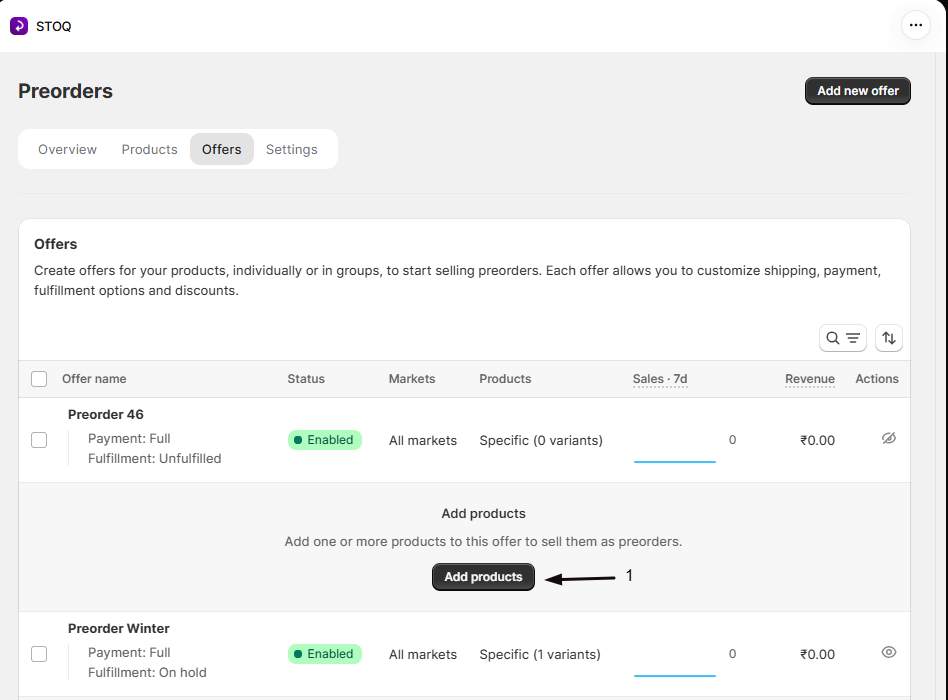
If the offer has no products yet, the quick view shows an Add products prompt that takes you to its Products section.
Import and export
Section titled “Import and export”Scroll to the bottom of the Offers list. Below the last row is a footer with the Previous and Next pagination arrows on the left and Import CSV and Export CSV on the right. Click Export CSV, and STOQ queues a background job and emails the file to your account’s report address.
The export reflects whatever filters you currently have applied.
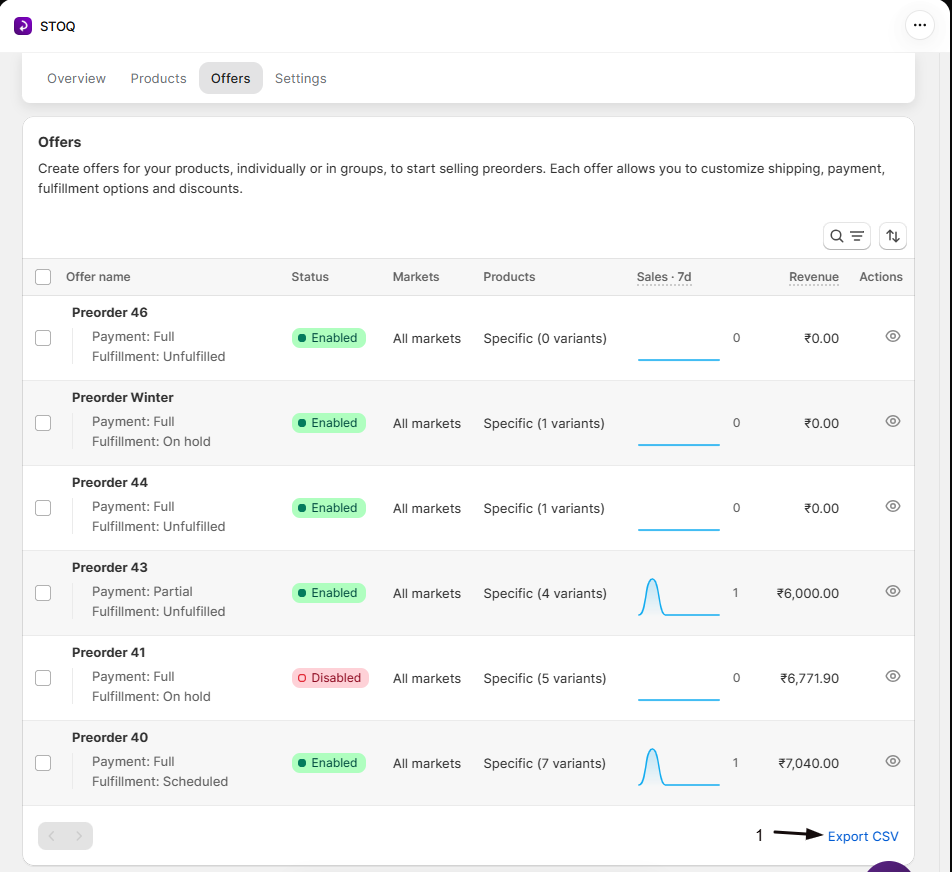
Click Import CSV to add or remove products across several offers with one file. See Import products with a CSV.
Why doesn't the Markets filter or column appear?
The filter only shows if your store has more than one Shopify market set up. The Markets column stays hidden until an offer uses markets, and you can turn it on any time from Columns. See Preorders and Shopify Markets.
An offer shows Scheduled instead of Live
Its start date is still in the future. It goes Live on its own at the scheduled time. See Schedule when an offer runs.
My CSV export hasn't arrived
It’s emailed to your account’s report address, so check that address and its spam folder. Large stores can take a few minutes.
Related guides
Section titled “Related guides”Thanks for letting us know.
Still stuck? Ask Quinn or chat with support