Set up payment
Choose how customers pay for preorders and when the remaining balance is collected.
Last updated
Use this guide to choose how customers pay for a preorder, in full or as a deposit, and when you collect the remaining balance. By the end, customers will see the payment terms you chose on the product page and at checkout.

Before you begin
Section titled “Before you begin”- Partial payment (a deposit) requires Shopify Payments and the Shopify purchase option turned on, because STOQ charges the customer’s saved card for the balance later. Without them, only full payment is available.
- Letting customers choose between full and partial payment, and collecting balances automatically, both require a paid plan.
Choose your setup
Section titled “Choose your setup”STOQ offers three payment types for a preorder offer:
- Full payment: the customer pays the full price at checkout, like a normal order. This is the default and needs no extra setup.
- Partial payment or deposit: the customer pays a deposit now and the remaining balance later.
- Full payment & partial payment: the offer shows both options at checkout and the customer chooses. Requires a paid plan.
If you offer partial payment, also choose how the remaining balance gets collected:
- Manually: available on all plans. You charge customers yourself from STOQ → Reports, in bulk or one at a time, whenever you’re ready. The balance due date is only what the customer sees; it doesn’t charge them on its own.
- Automatically: requires a paid plan. STOQ charges the customer’s saved card for you, either on the scheduled balance due date or when the order ships. Each method makes a single charge attempt per line item, with no automatic retry.
What customers will see
Section titled “What customers will see”When Show payment & discount savings is enabled, the product page shows a payment-breakdown widget so customers see the terms before checkout.
| Where | What appears |
|---|---|
| Product page | The widget shows your option title and description with the deposit and remaining balance filled in |
| Product page (Full payment & partial payment) | Two selectable radio options, each with its own title, description, and optional discount badge |
| Checkout | Only the deposit is charged; the balance is not |
| After purchase | The order is created with an outstanding balance and the saved card on file, so STOQ can charge the rest later |
Exact placement and styling depend on your theme and where the app embed block sits.
Set it up
Section titled “Set it up”On a phone, this menu is collapsed. In the Shopify mobile app, tap the STOQ logo at the top of the screen to open it, then choose the section named below. There is no hamburger icon. See Finding the STOQ menu.
-
Open the Payment section
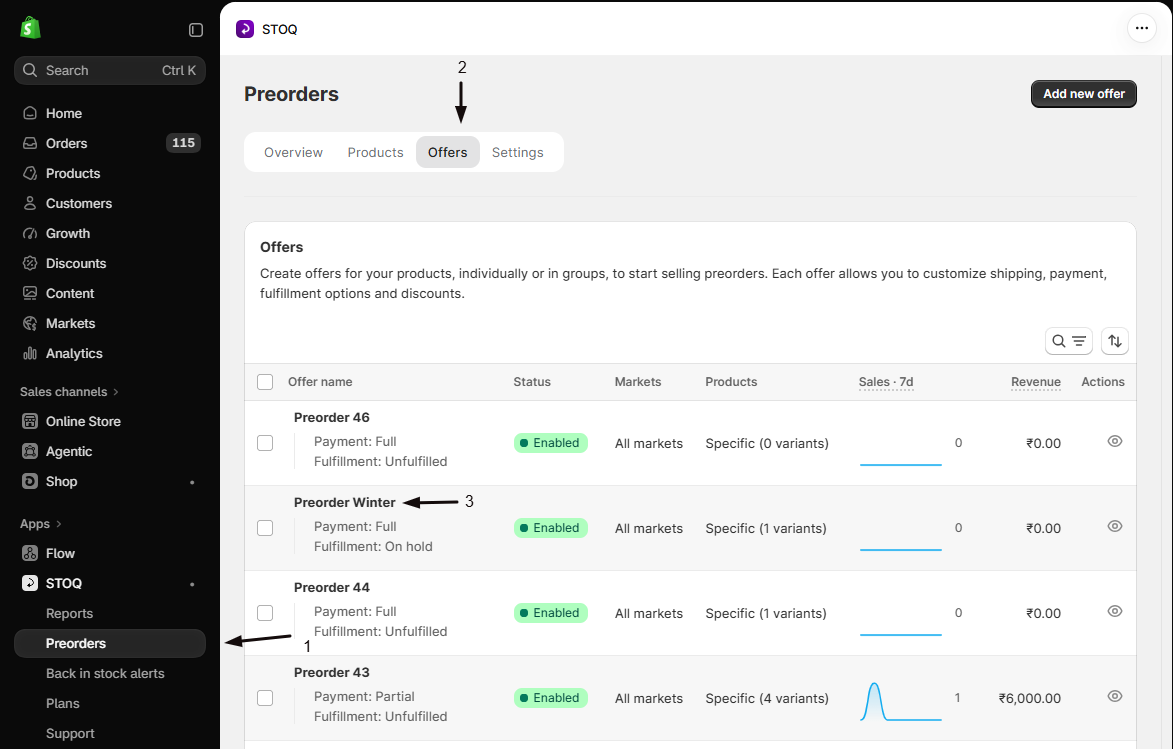
- In the left menu bar of the STOQ app, click Preorders.
- Click the Offers tab at the top.
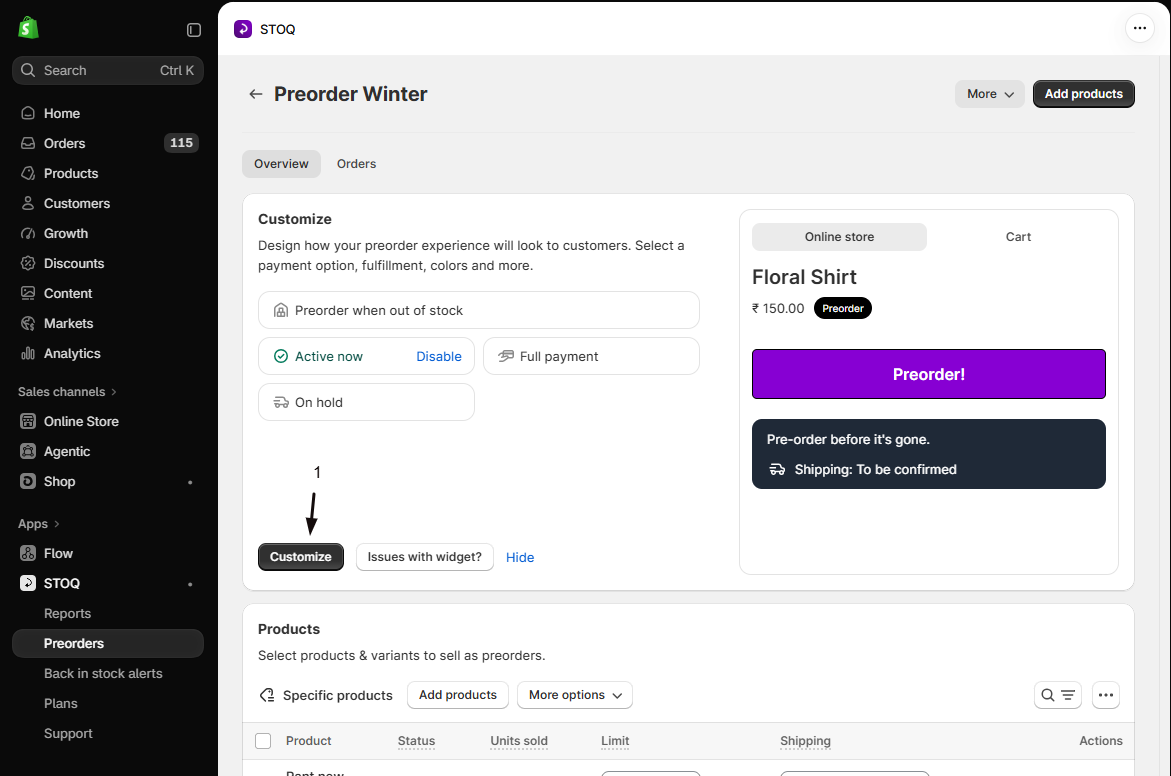
- Click the offer you want to edit to open its Overview tab (this shows the Customize button, a live preview, and the offer’s Products section).
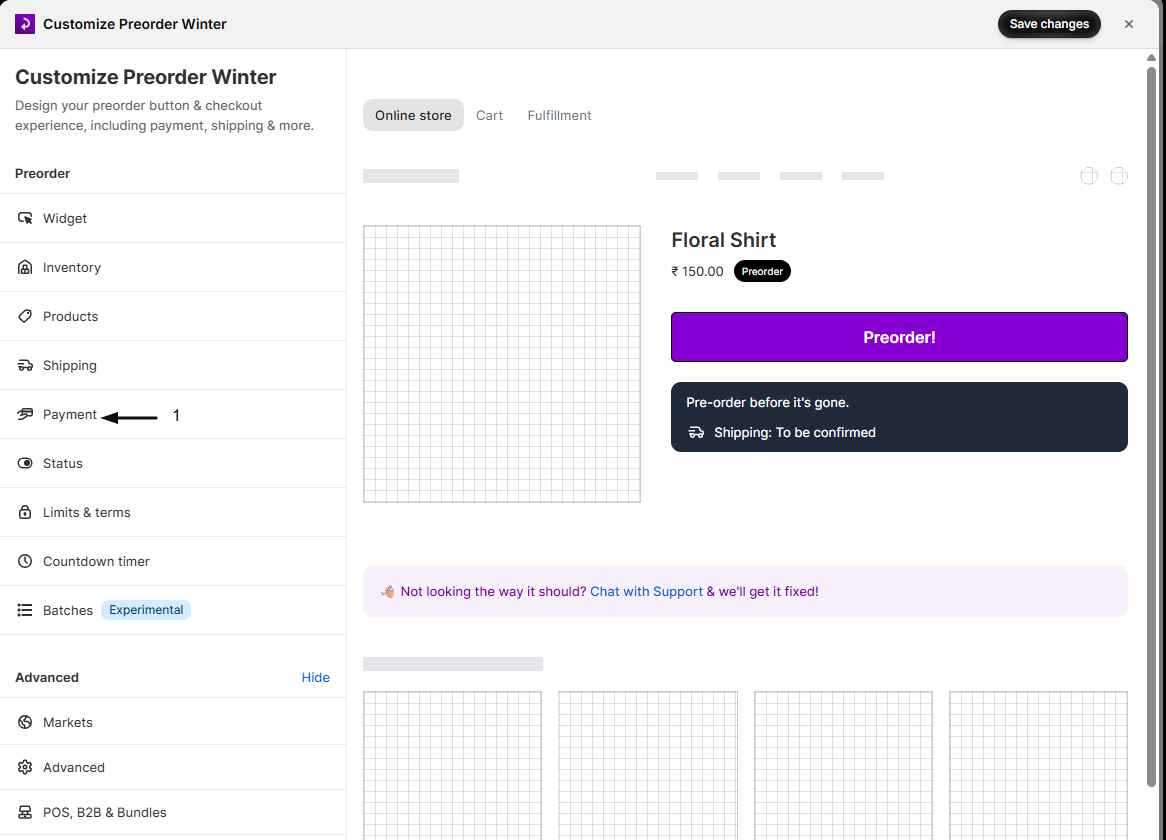
- Click Customize to open the offer editor.
- In the editor’s sidebar, click Payment.
-
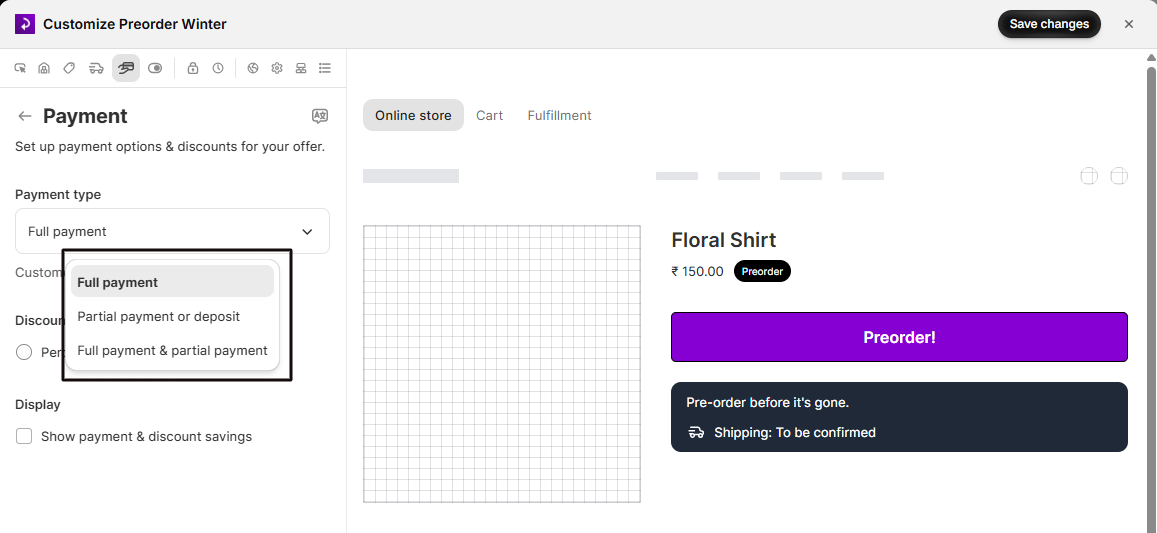
Choose the payment type
Select Full payment, Partial payment or deposit, or Full payment & partial payment. For full payment, save the offer here, you’re done. The remaining steps apply to partial payment.
-
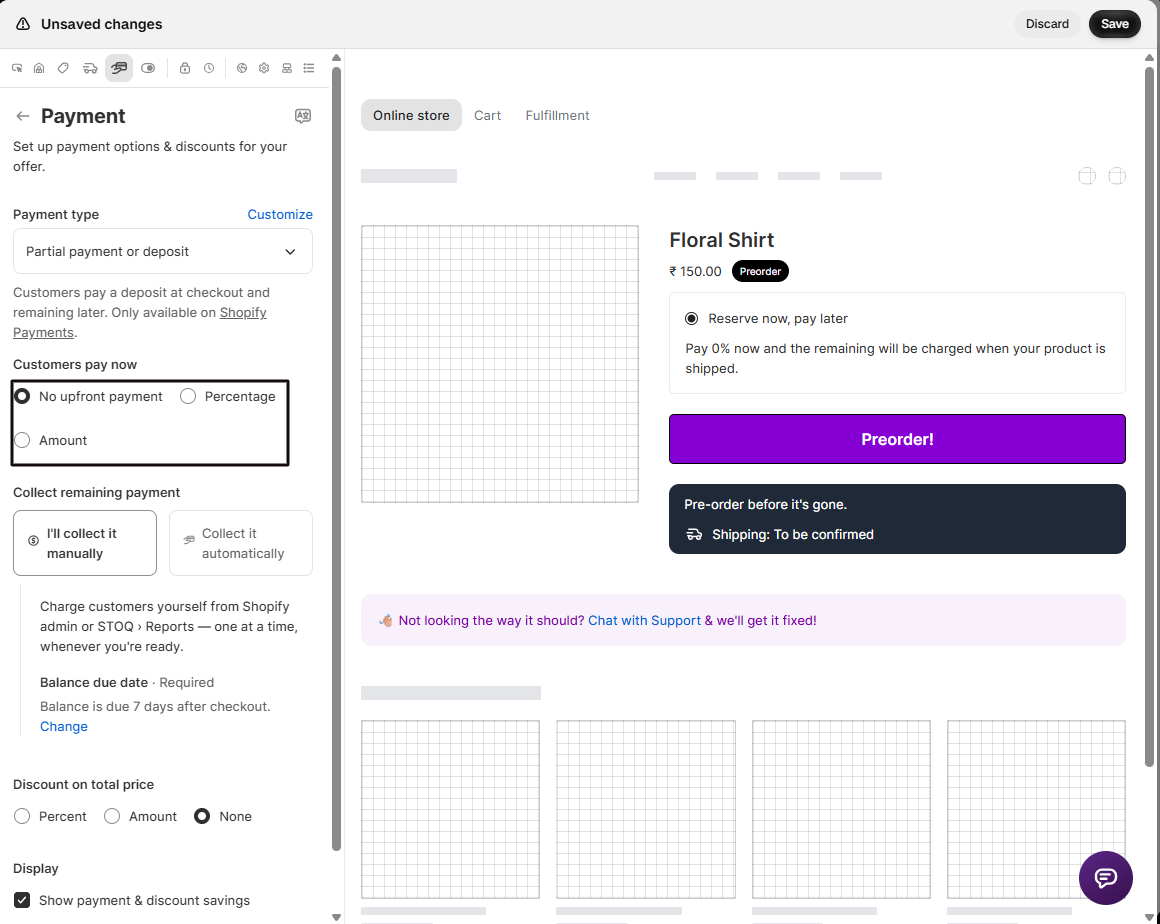
Set the deposit
Under Customers pay now, choose No upfront payment, or enter a percentage or fixed amount to charge at checkout, for example 10%.
-
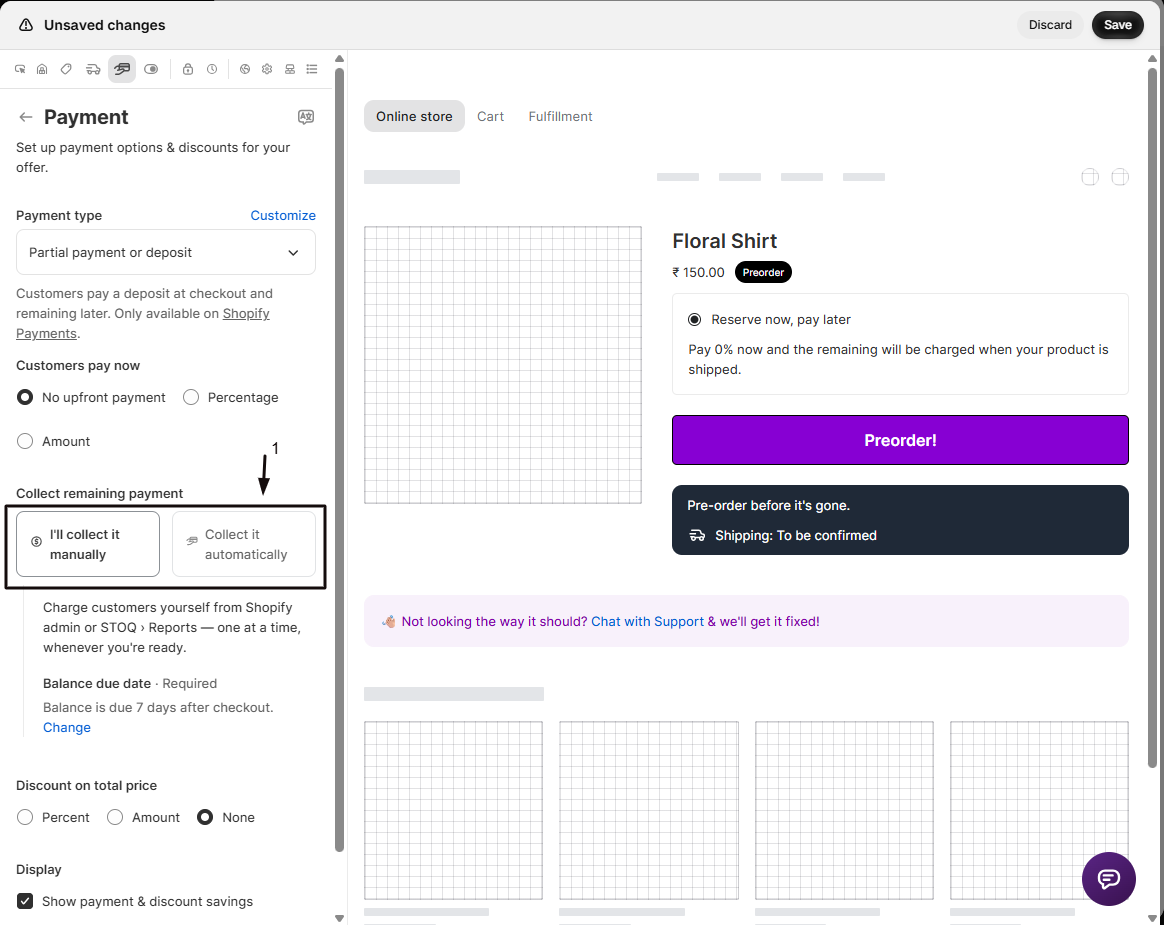
Choose how to collect the balance
- Select I’ll collect it manually or Collect it automatically.
- Then pick On the scheduled date or When the order ships.
See Choose your setup above for how these differ.
-
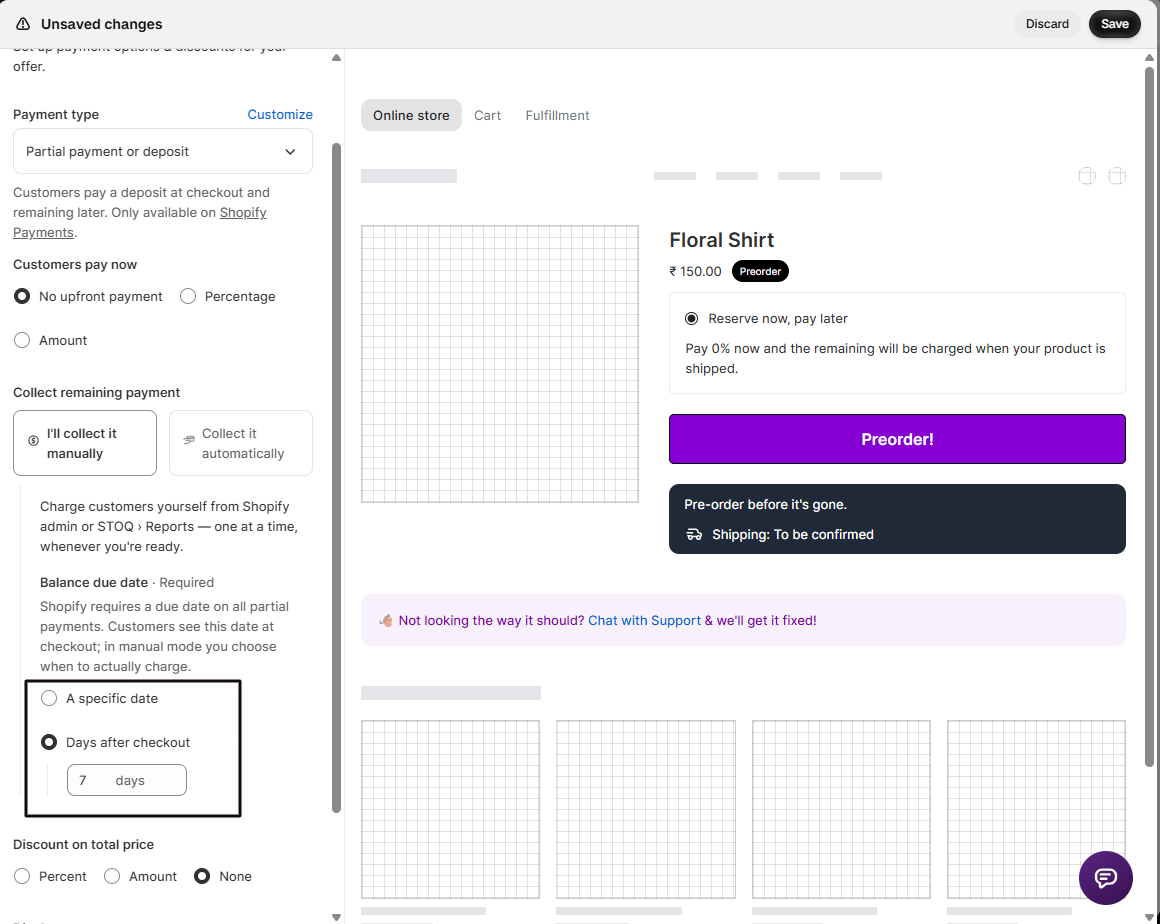
Set the balance due date
Under Balance due date, choose A specific date or Days after checkout, for example 7. This is required for partial payments and is shown to the customer at checkout.
-
(Optional) Show the breakdown
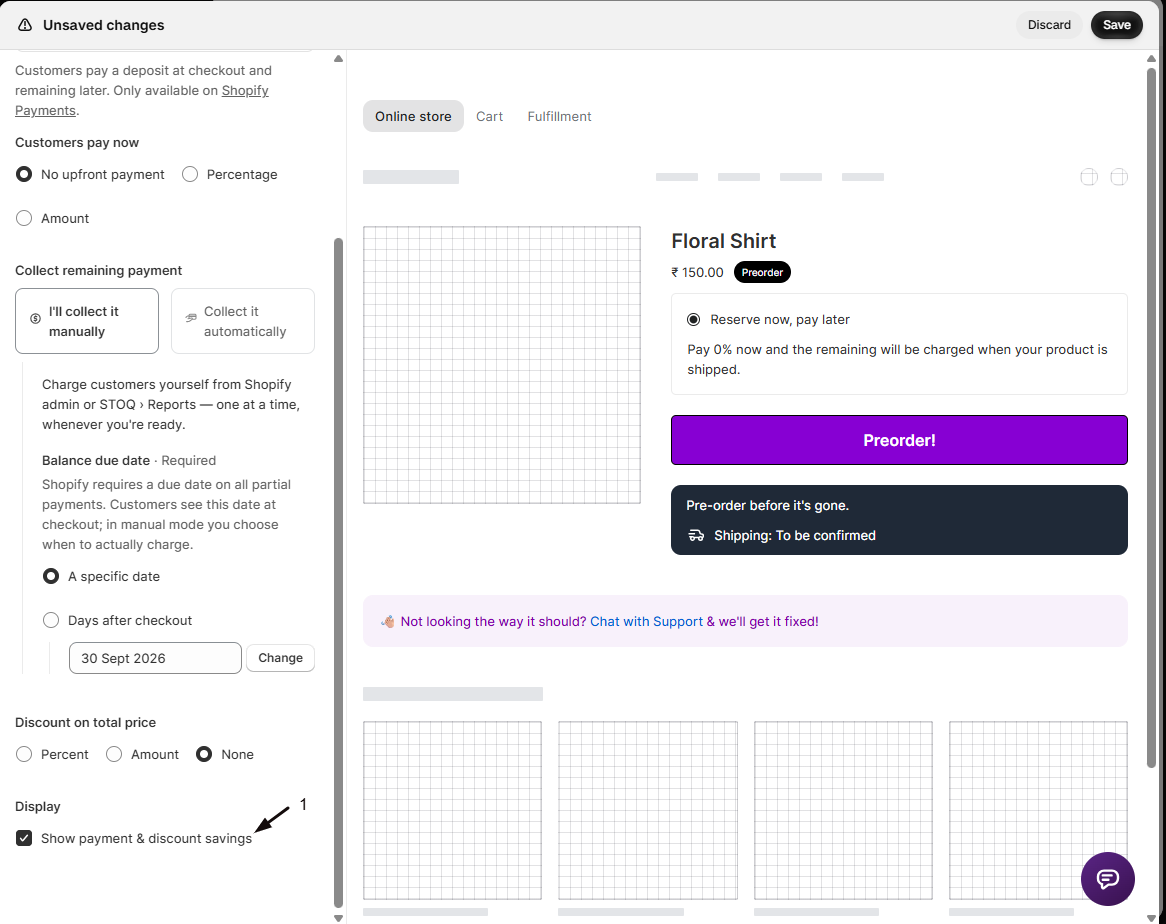
Under Display, enable Show payment & discount savings so customers see the deposit, the remaining balance, and any discount on the product page.
-
Save changes
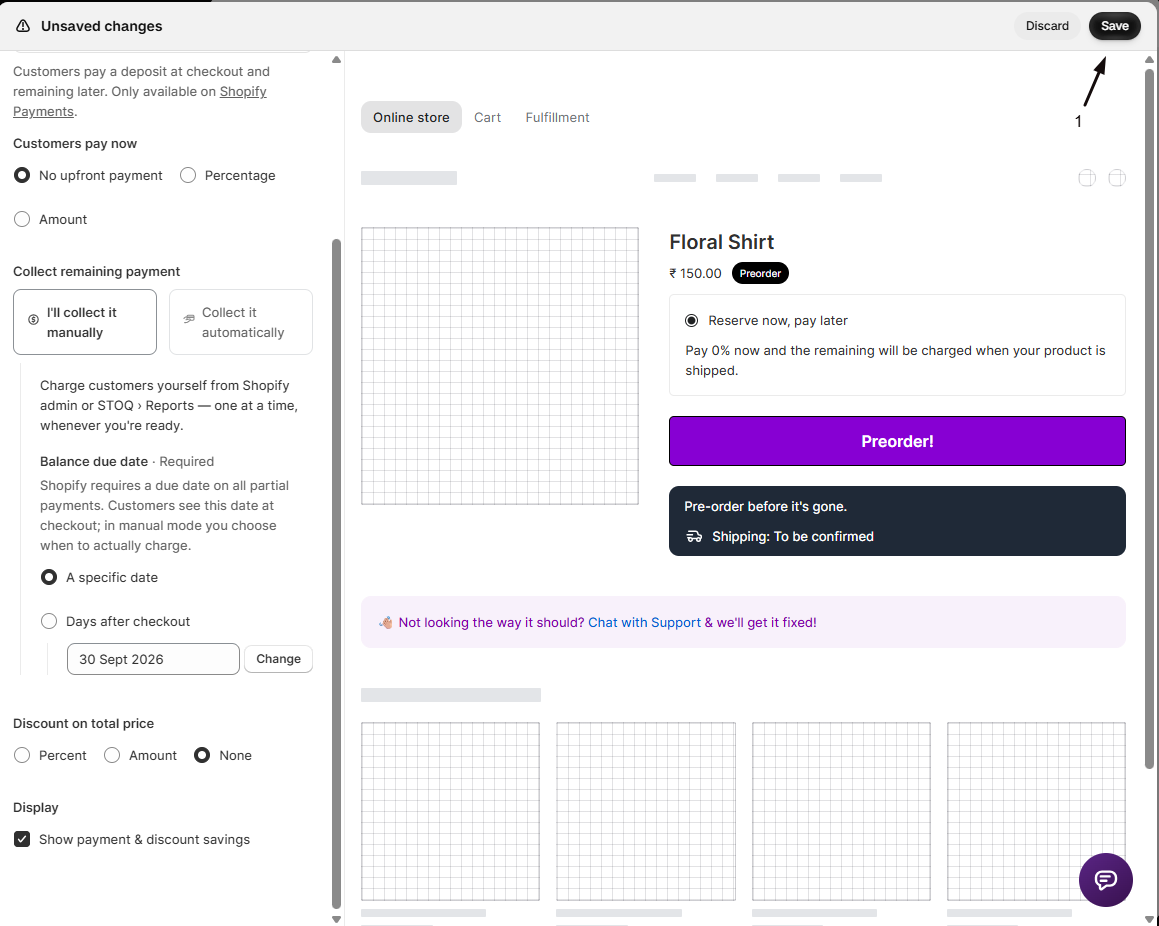
Click Save changes at the top right of the editor. Changes apply to orders placed after you save; existing orders keep their original terms.
Customize the payment widget
Section titled “Customize the payment widget”The default copy works out of the box, but you can adjust it from the Payment section:
Turning the widget on or off
Show payment & discount savings (under Display) controls whether the payment-breakdown block appears. It turns on automatically when you choose Partial payment or deposit or Full payment & partial payment. For a pure full-payment offer it defaults to off, and you can enable it yourself.
Title and description (single-option offers)
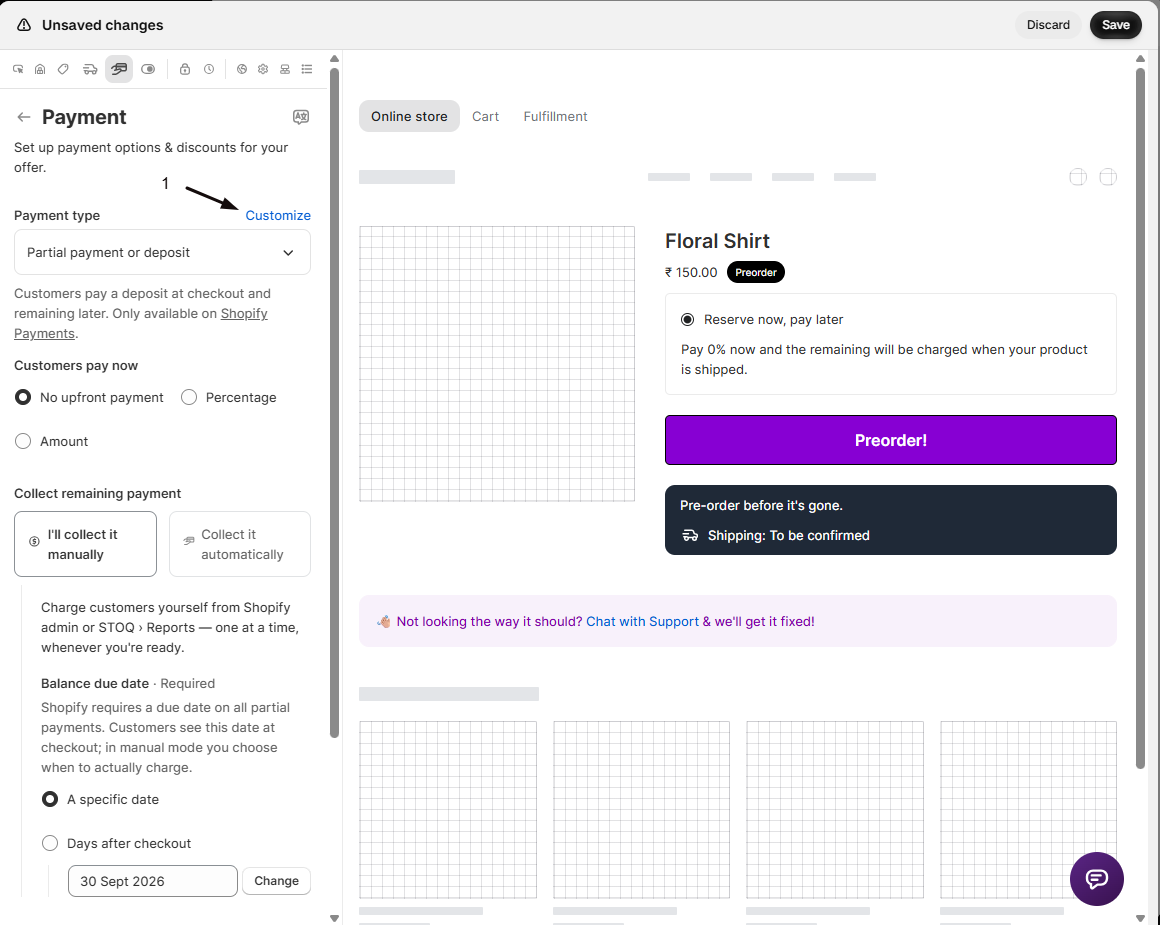
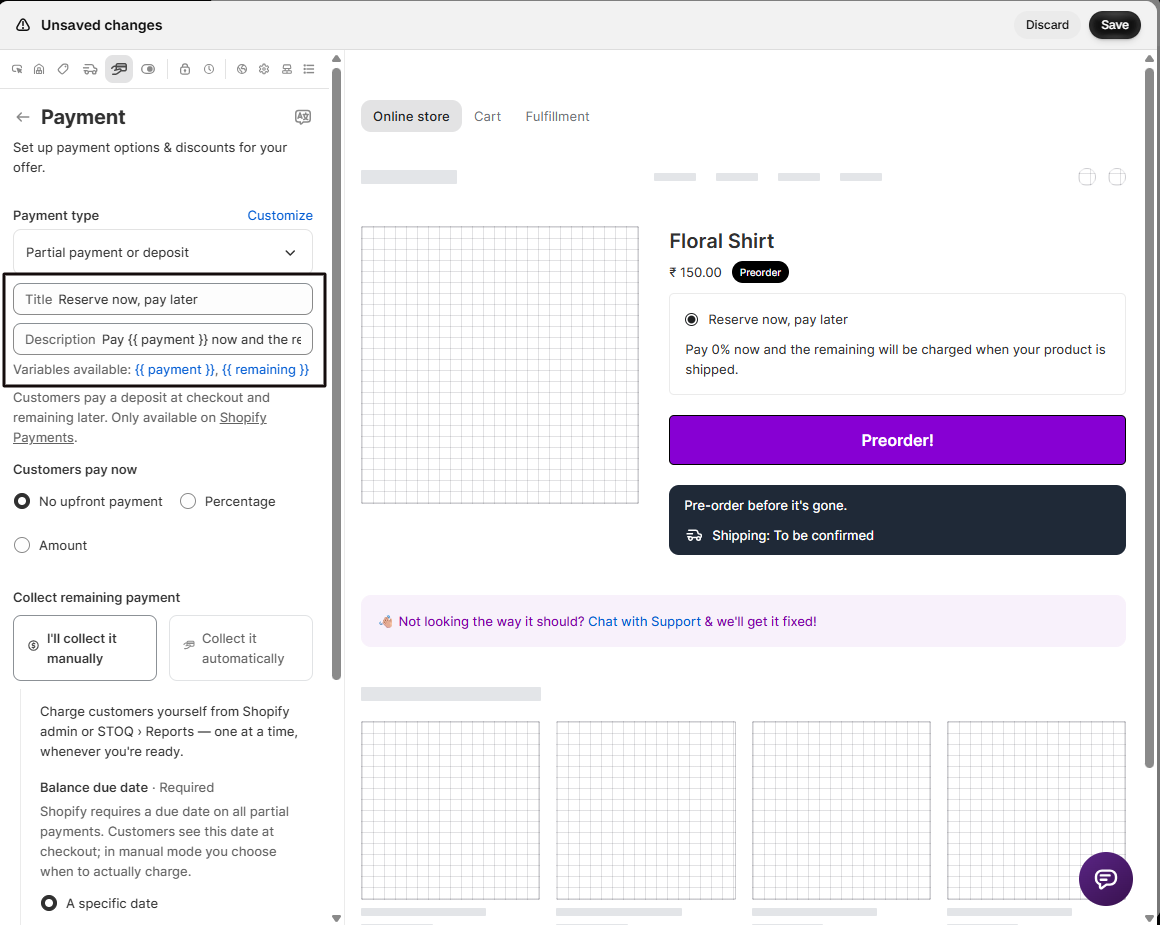
For Full payment or Partial payment or deposit, click Customize next to the Payment type selector to edit one title and one description.
- Default title: “Full payment”, or “Reserve now, pay later” for a deposit.
- Default description: “Pay the full price now”, or “Pay {{ payment }} now and the remaining will be charged when your product is shipped.”
- Insertable variables:
{{ payment }}(deposit paid now) and{{ remaining }}(balance due later).
Two-radio layout (Full payment & partial payment)
The widget renders two options side by side. Each option has its own title, description, and discount, set in the Full payment and Partial payment sections. Under Display, Show partial payment option first controls which radio is pre-selected when a customer lands on the page.
Discount badge text
When you add a percentage or fixed-amount discount to a payment option, a Customize link appears next to the Discount heading. It reveals a Badge field (one per option in the two-option layout) that supports the {{ discount }} variable, for example “Save {{ discount }}” becomes “Save 10%”.
STOQ and Shopify’s native preorders and deposits
Section titled “STOQ and Shopify’s native preorders and deposits”Shopify has no built-in preorder switch or deposit setting. What it offers is selling plans (deferred purchase options), which an app has to create and manage. STOQ builds on them.
| STOQ | What this means | |
|---|---|---|
| Deposit at checkout | Yes, with the Shopify purchase option on | Needs Shopify Payments. Other gateways get full payment only. |
| Balance later | STOQ charges the customer’s saved card | This is why the card has to be on Shopify Payments. |
| Online Store | Yes | |
| Shopify POS | Yes, with the Add preorder to cart tile | POS collects full payment. No deposit at POS. |
| B2B | Yes, per offer | Full payment only. |
If you read that “deposits only work with certain gateways” or “preorders aren’t possible on POS”, that describes Shopify’s own limits for selling plans in general. See Preorders on Shopify POS and Preorders on POS, B2B, and bundles.
Check your setup
Section titled “Check your setup”Open a preorder product on your live storefront, add it to cart, and go to checkout. With partial payment you should see the deposit charged now and the remaining balance with its due date. Place a test order (a 100% discount code or Shopify’s Bogus Gateway avoids a real charge) and confirm it appears under STOQ → Reports → Preorders with the balance recorded.
Troubleshooting
Section titled “Troubleshooting”Partial payment or deposit is unavailable
You need Shopify Payments and the Shopify purchase option turned on. Without them, only full payment works.
An order shows as paid but the customer's card was never charged
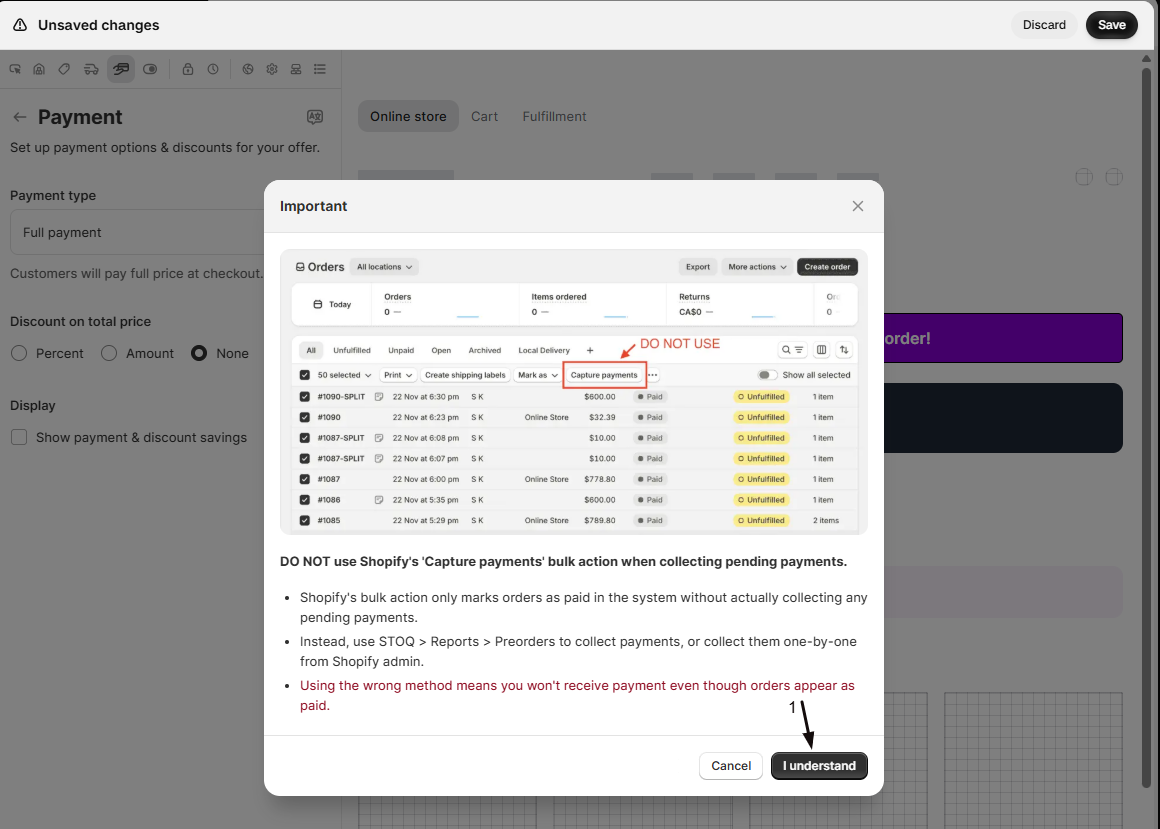
Someone likely used Shopify’s Capture payments bulk action to try to collect the balance. It marks the order paid without charging the card. Collect the balance from STOQ -> Reports -> Preorders instead. See Collect remaining preorder payments.
An automatic balance charge fails (declined, expired, or insufficient funds)
STOQ leaves the balance outstanding, notifies you, and emails the customer a link to pay. It doesn’t retry automatically. See When payment collection fails.
The payment breakdown widget isn't showing on the product page
Check that Show payment & discount savings is enabled under Display. It turns on automatically for partial payment offers, but defaults to off for a pure full-payment offer.
Limitations
Section titled “Limitations”Customizing the title and description text for each option in Full payment & partial payment requires a paid plan. Without it, the default copy is used.
What's the difference between a deposit and No upfront payment?
A deposit charges a percentage or fixed amount at checkout, with the rest due later. No upfront payment charges nothing at checkout: the full amount is collected on the due date.
Does changing the payment type affect existing orders?
No. Changes apply only to orders placed after you save; orders already placed keep the payment terms they were created with.
What do customers see at checkout with a partial payment?
Only the deposit is charged at checkout. The remaining balance isn’t charged until you collect it manually or STOQ collects it automatically, depending on your setup.
Can I change the balance due date after orders are placed?
Yes, reschedule it for one order or in bulk. See Reschedule preorder payments. If automatic collection is on, the charge moves to the new date.
Can I switch from manual to automatic collection later?
Yes. Change it in the offer’s Payment section; the new setting applies to orders placed after you save.
Related guides
Section titled “Related guides”Thanks for letting us know.
Still stuck? Ask Quinn or chat with support