Use Shopify split shipping for preorders
Charge shipping separately for preorder and in-stock items at checkout with Shopify's native split shipping.
Last updated
When a customer’s cart contains items from different shipping profiles, different locations, or if the fulfillment status of the preorder product is set to ‘On hold’ or ‘Scheduled’, Shopify can split the order into multiple shipments at checkout and charge shipping separately for each. This is Shopify’s native split shipping feature. Enabling it gives customers transparency into shipping costs and lets you collect shipping twice.
How split shipping works with preorders
Section titled “How split shipping works with preorders”Split shipping applies at checkout when:
- Items in the cart belong to different shipping profiles or ship from different location groups, or
- The fulfillment status of your preorder products is set to ‘On hold’ or ‘Scheduled’.
See Set up fulfillment and shipping options for preorders to understand more.
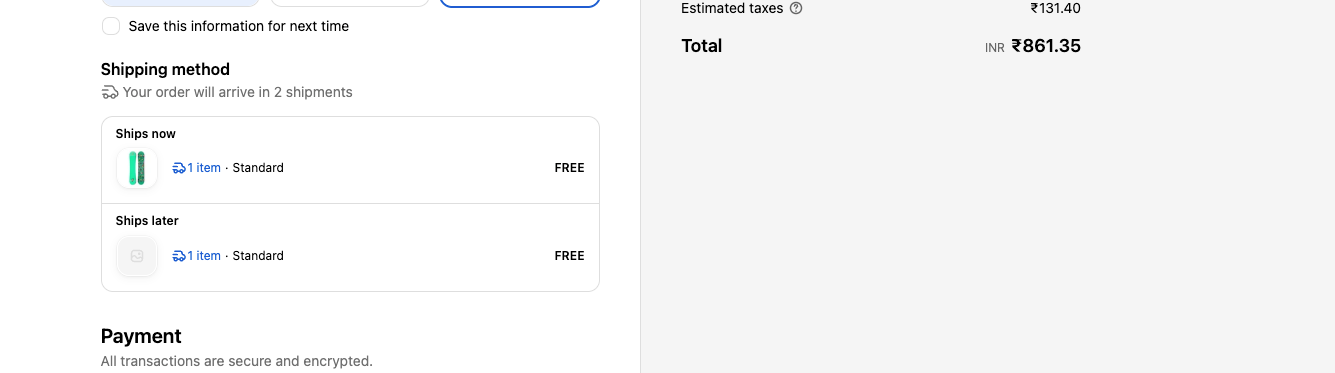
Shopify splits the products into multiple shipments. Each shipment gets its own shipping rate selection, and the customer is charged for each one individually.
Shopify pre-decides this split, based on your existing settings.
Example
Section titled “Example”A customer adds two items to their cart:
- T-shirt (in stock)
- Limited edition hoodie (preorder), set with the ‘On hold’ fulfillment status
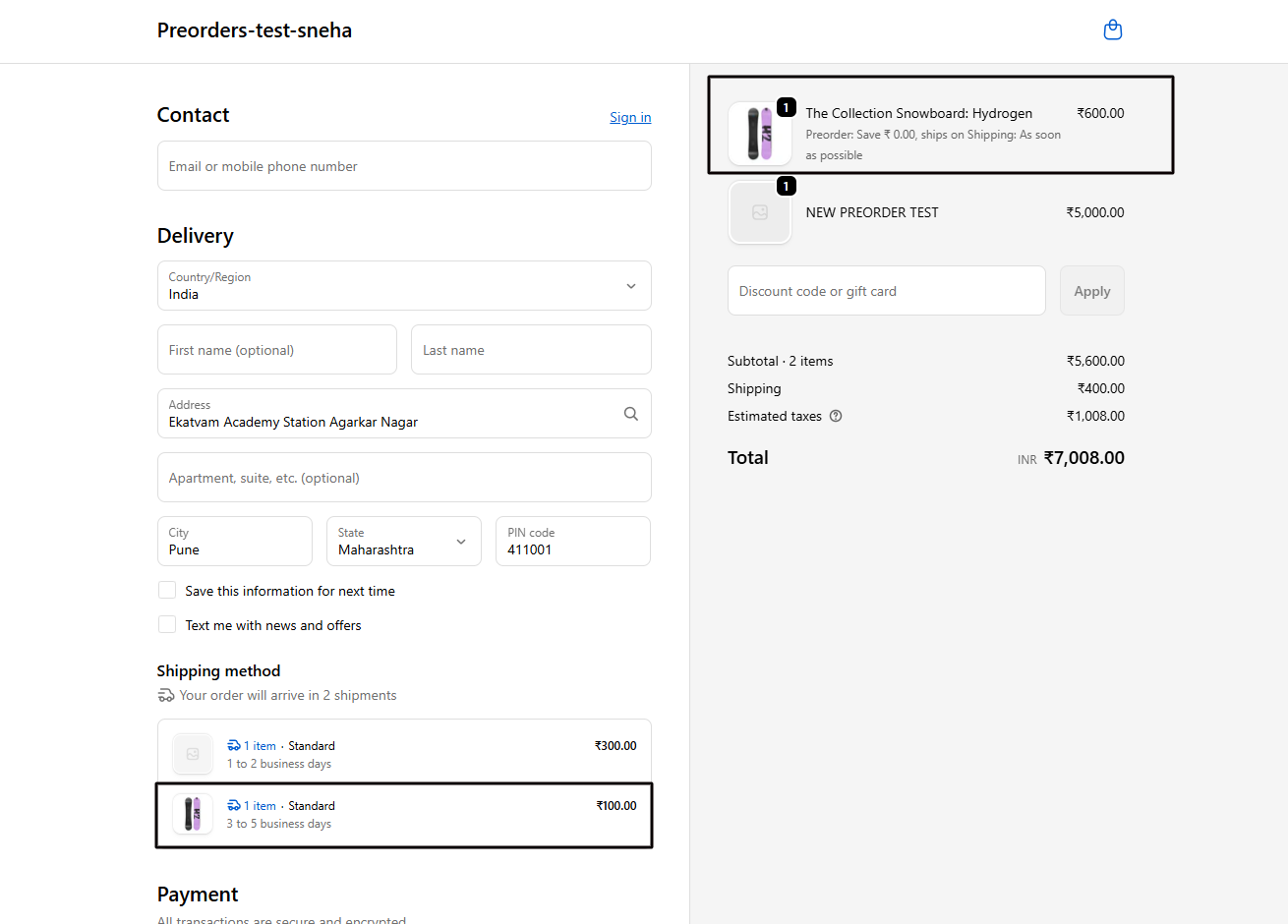
At checkout, the customer sees two separate shipments that clearly show that the in-stock product will ship now, and the preorder product will ship later.
Activate split shipping in Shopify
Section titled “Activate split shipping in Shopify”Split shipping is a native Shopify setting. You enable it from your Shopify admin. No configuration is needed inside STOQ.
Turn it on
Section titled “Turn it on”-
Open Shipping and delivery
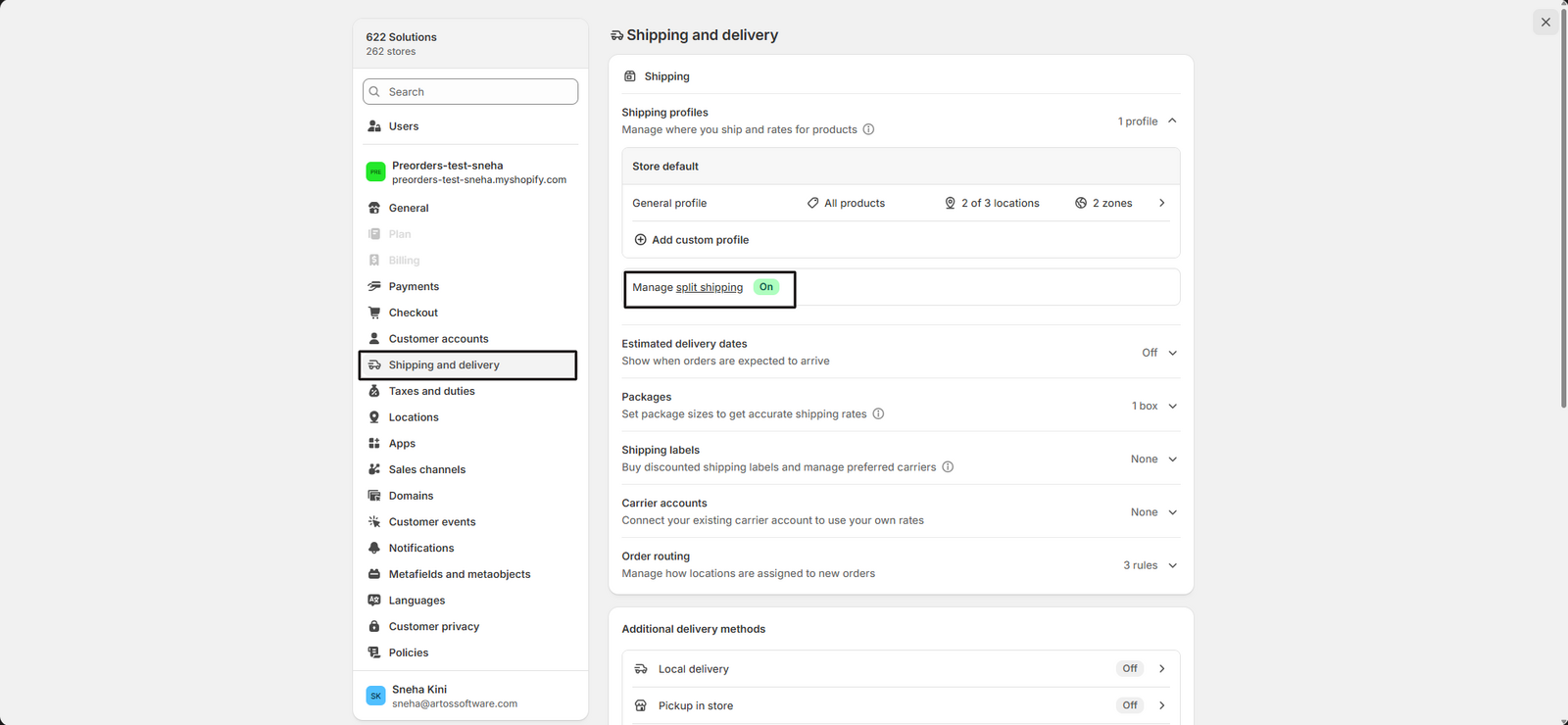
From your Shopify admin, go to Settings > Shipping and delivery.
-
Open split shipping
In the Shipping section, look below your shipping profile list:
- If you have fulfillable inventory settings, click split shipping.
- If you do not have fulfillable inventory settings, click Manage.
-
Enable and save
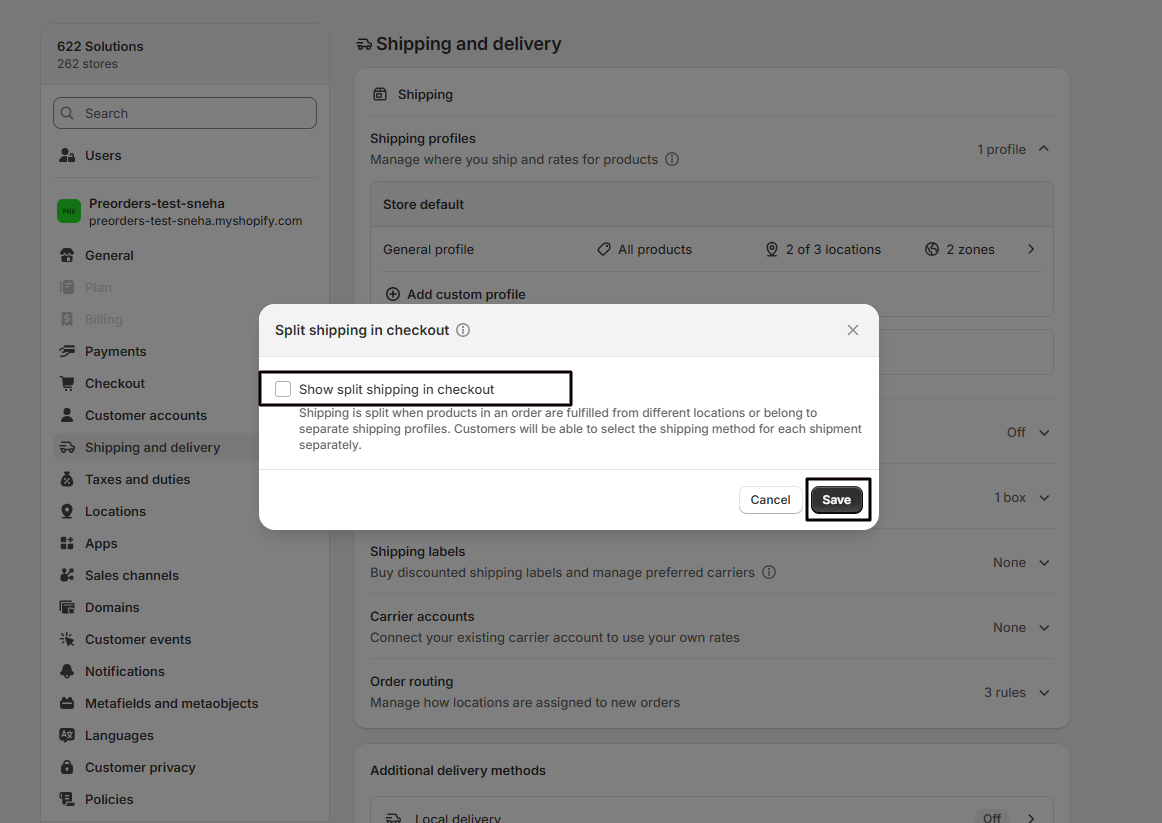
In the Split shipping in checkout modal, check Show split shipping in checkout, then click Save.
Turn it off
Section titled “Turn it off”-
Open Shipping and delivery
Go to Settings > Shipping and delivery.
-
Open split shipping
Click split shipping or Manage (the same place as above).
-
Disable and save
Uncheck Show split shipping in checkout, then click Save.
Settings that trigger the split
Section titled “Settings that trigger the split”Set up preorders on hold
Section titled “Set up preorders on hold”To place preorders on hold, set the fulfillment status in the preorder offer:
-
Open the offer
In the STOQ app, select Preorders from the left menu, go to Offers in the top menu, and select the offer.
-
Set the fulfillment status
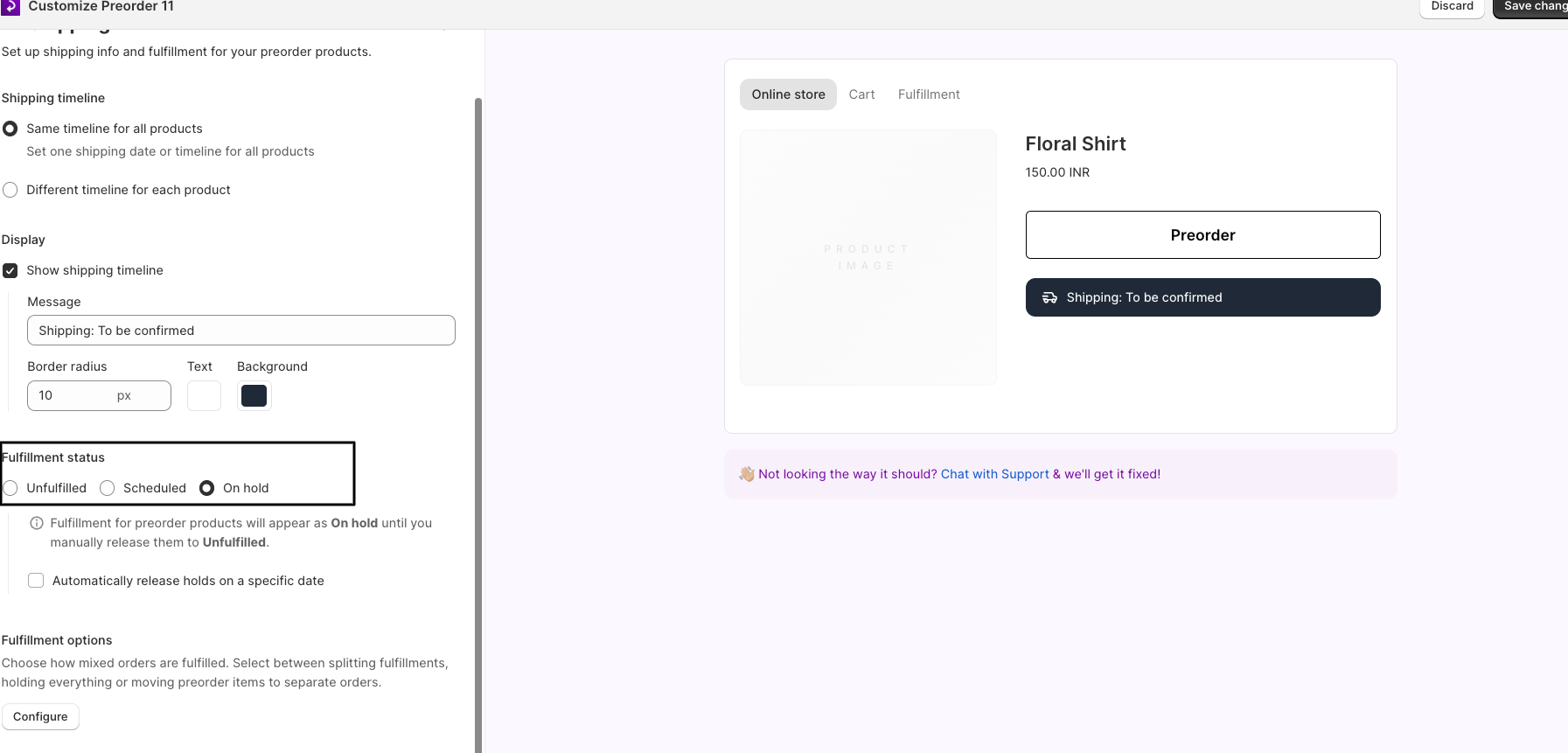
Click into the Shipping section, and under Fulfillment options, choose On hold.
-
Save
Save your changes.
Set up separate shipping profiles for preorder products
Section titled “Set up separate shipping profiles for preorder products”To charge customers separate shipping rates for preorder items, place those products in their own shipping profile.
-
Open Shipping and delivery
From your Shopify admin, go to Settings > Shipping and delivery.
-
Add a custom profile
Click Add custom profile and name it (for example, “Preorder shipping”).
-
Add your preorder products
Add the products that are on preorder to this profile.
-
Set zones and rates, then save
Set up shipping zones and rates that match your preorder fulfillment timelines, then click Save.
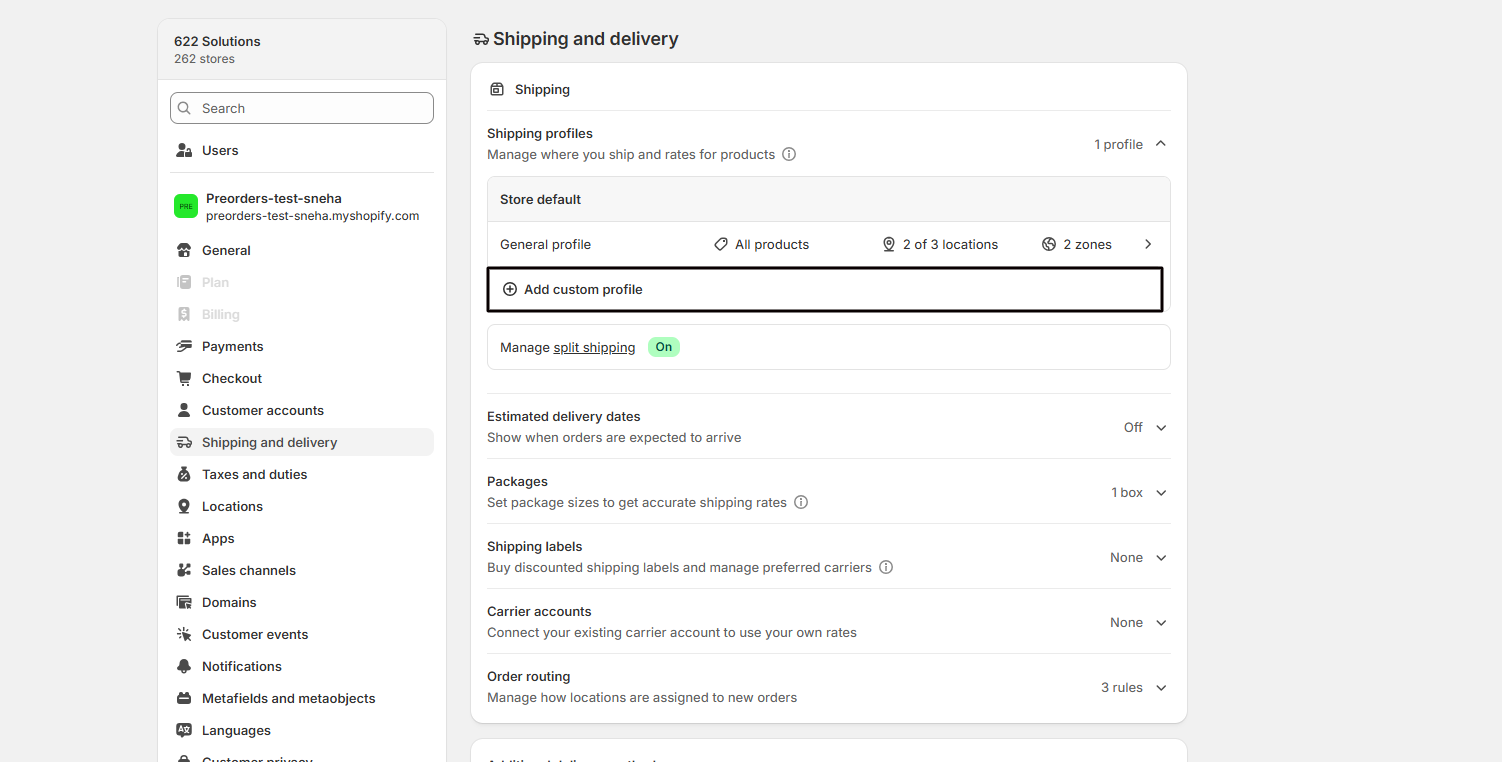
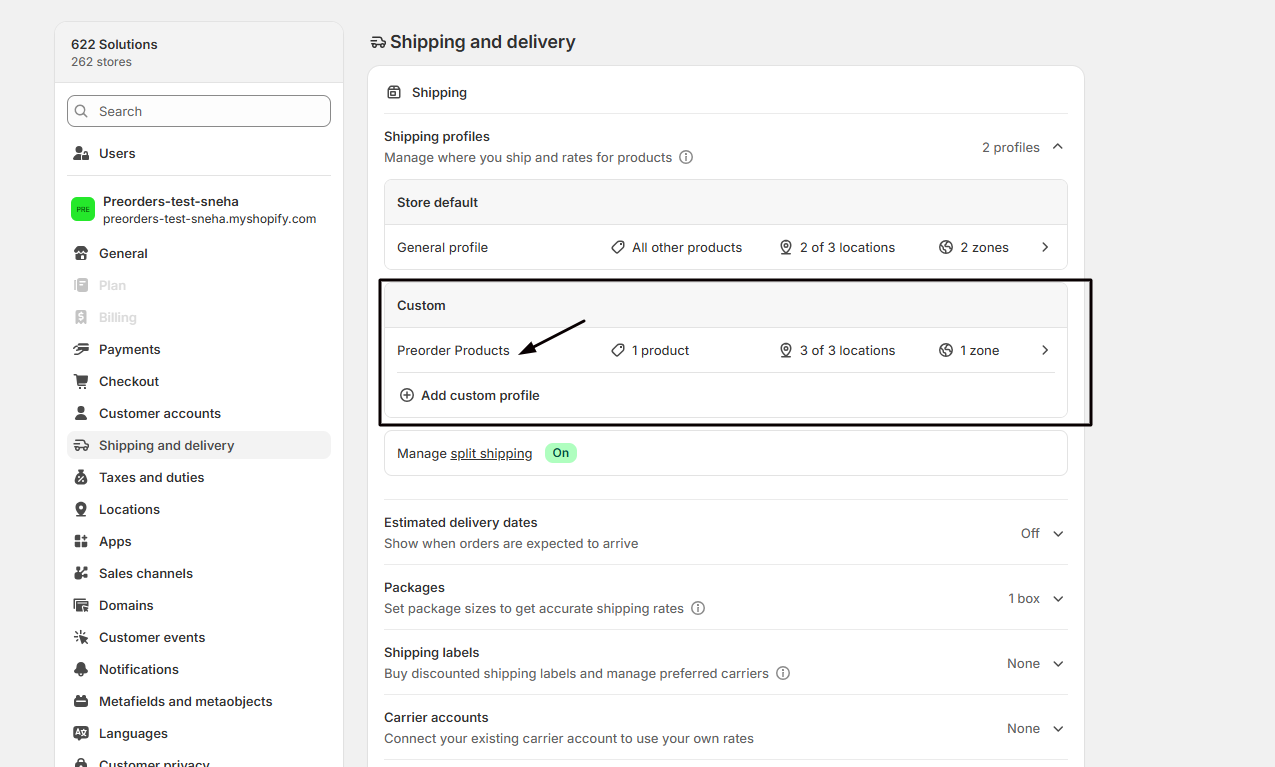
Once your preorder products are in a separate profile and split shipping is enabled, customers will see individual shipping options for each group at checkout.
What customers see at checkout
Section titled “What customers see at checkout”When split shipping is active and the cart contains items from different profiles, the checkout Shipping method section displays:
- Number of shipments: how many groups the order is split into.
- Grouped shipping options: pre-selected options labeled “Lowest price” (default) and “Fastest”.
- Per-shipment details: shipping method name, estimated delivery time, rate, and number of items per shipment.
- More shipping options: a link to view and select different shipping methods per shipment.
How this relates to STOQ’s split fulfillments
Section titled “How this relates to STOQ’s split fulfillments”STOQ offers a Split fulfillments feature that separates in-stock and preorder products into different fulfillments after checkout. This is different from Shopify’s split shipping.
| Feature | What it does | Where to configure |
|---|---|---|
| Shopify split shipping | Charges separate shipping rates at checkout when items are in different shipping profiles | Shopify admin > Settings > Shipping and delivery |
| STOQ split fulfillments | Splits the order into separate fulfillments after checkout so in-stock items ship immediately | STOQ > Preorders > edit offer > Fulfillment settings |
The two features complement each other:
- Split shipping ensures customers pay appropriate shipping rates for each group at checkout.
- Split fulfillments ensures in-stock items are shipped immediately while preorder items are held.
Known limitations
Section titled “Known limitations”Most of these limitations come from Shopify itself. See Shopify’s split shipping documentation for details.
- Not available for accelerated checkouts: split shipping does not work with accelerated checkout buttons (Shop Pay express, Apple Pay, Google Pay).
- Not available for draft order checkouts: if a shipping line is already set on a draft order, split shipping will not apply.
- Not available for B2B draft order checkouts: B2B checkouts that require draft orders are not supported.
- Local delivery disables split shipping: if you have local delivery activated, checkout will not display multiple shipments.
- Customers cannot choose the split: the split is determined by your shipping profiles and location settings. Adjust profiles to control which products ship together.
- Same line item cannot split across locations: if a customer orders 5 of the same item and no single location has all 5, split shipping will not apply to that item.
- Shipping Scripts are not supported: legacy Shipping Scripts cannot access split shipping. Migrate to Shopify Functions if needed.
- Managed Markets partial support: Managed Markets supports split shipping, but third-party shipping services may not display customer-selected shipping options.
Troubleshooting
Section titled “Troubleshooting”No split shipping option in Shopify settings
You have only one shipping profile and one location. Create a second shipping profile for your preorder products, then the option will appear.
Customer sees one shipping rate for all items
All items are in the same shipping profile. Move preorder products to a separate shipping profile.
Split shipping not appearing at checkout
The setting is not activated. Go to Settings > Shipping and delivery > Manage, check Show split shipping in checkout, and click Save.
Accelerated checkout bypasses split shipping
This is expected behavior. Split shipping does not apply to accelerated checkout buttons: customers using Shop Pay express, Apple Pay, or Google Pay will not see split options.
Preorder and in-stock items not splitting
The items ship from the same location within the same location group. Assign preorder products to a different shipping profile or location group.
Do I need to configure anything inside STOQ to enable split shipping?
No. Split shipping is a native Shopify setting. You enable it in Settings > Shipping and delivery in your Shopify admin. STOQ does not control this setting.
Will split shipping work if I use STOQ's split fulfillments feature?
Yes. They work independently. Shopify’s split shipping handles checkout shipping rates, while STOQ’s split fulfillments handles post-checkout fulfillment separation. You can use both together.
Does the customer pay shipping twice?
The customer pays one shipping rate per shipment group. If there are two shipments (for example, preorder and in-stock), they pay two separate shipping rates, one for each group. The total is shown clearly at checkout.
What if I want all items to ship together with one shipping charge?
Keep all products in the same shipping profile and the same location group. Alternatively, deactivate split shipping in Settings > Shipping and delivery.
Can I set different delivery estimates for preorder shipments?
Yes. When you create a separate shipping profile for preorder products, you can set different delivery time ranges (for example, “3 to 6 weeks”) for each shipping rate in that profile.
Does this affect the preorder selling plan in STOQ?
No. The selling plan (payment terms, deposit settings) is separate from shipping. Split shipping only affects how shipping rates are displayed and charged at checkout.
Related guides
Section titled “Related guides”Thanks for letting us know.
Still stuck? Ask Quinn or chat with support