Show preorder details on the order confirmation email
Add your preorder offer details to Shopify's own order confirmation email with a small template edit.
Last updated
STOQ can display preorder offer information throughout the purchase flow. To also show it in Shopify’s built-in order confirmation email, add a short snippet to that email template, since Shopify’s default template doesn’t print line-item preorder properties on its own.
Before you begin
Section titled “Before you begin”- Turn on preorder offer information in the purchase flow in STOQ first, so the details are attached to the order line items.
- You’ll edit a Shopify email template, so you need admin access. This is a Liquid edit, so paste carefully.
Add the snippet
Section titled “Add the snippet”-
Open the order confirmation template
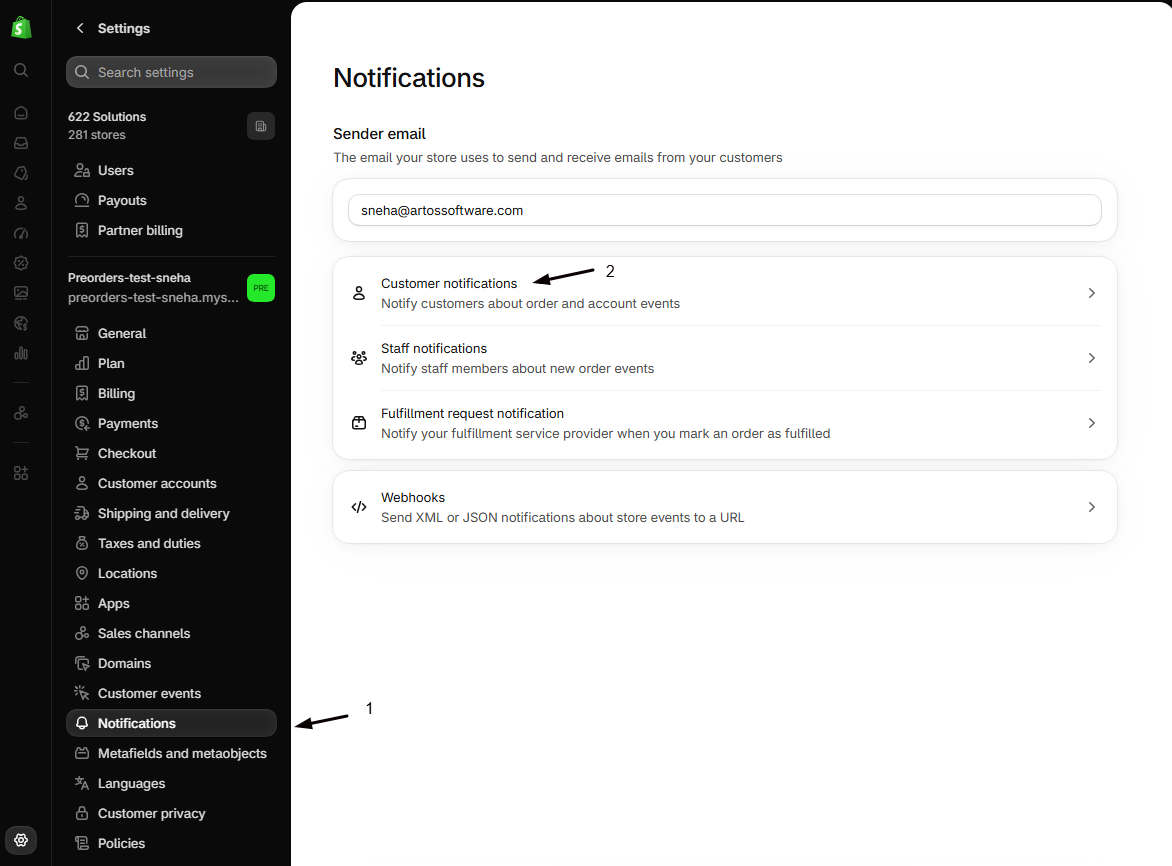
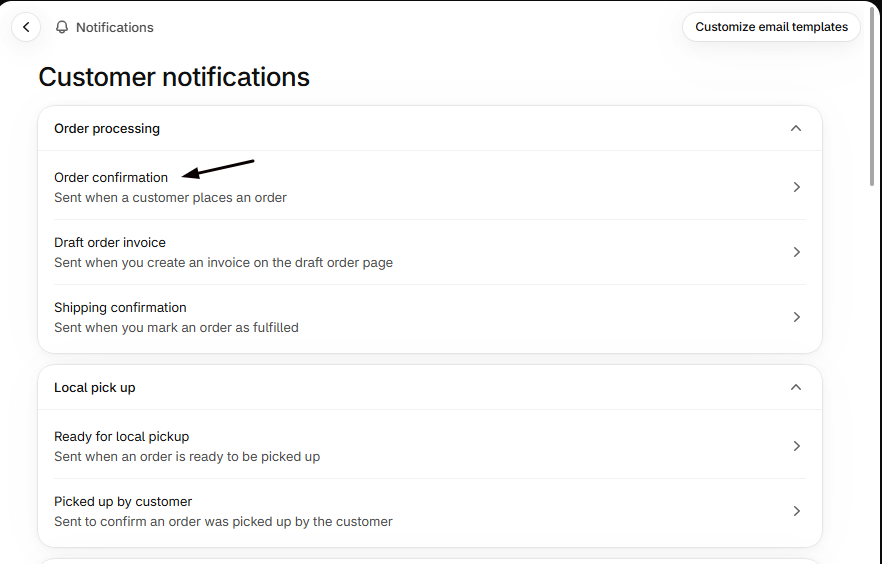
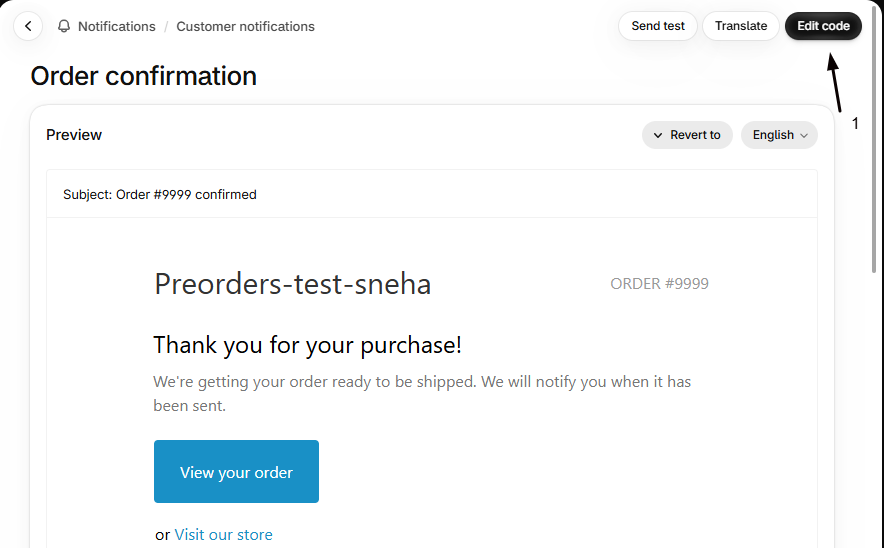
In Shopify admin, go to Settings > Notifications > Customer notifications, open Order confirmation, and click Edit code.
-
Find the selling plan block
Search the template for
{% if line.selling_plan_allocation %}. Scroll to the third occurrence of this line.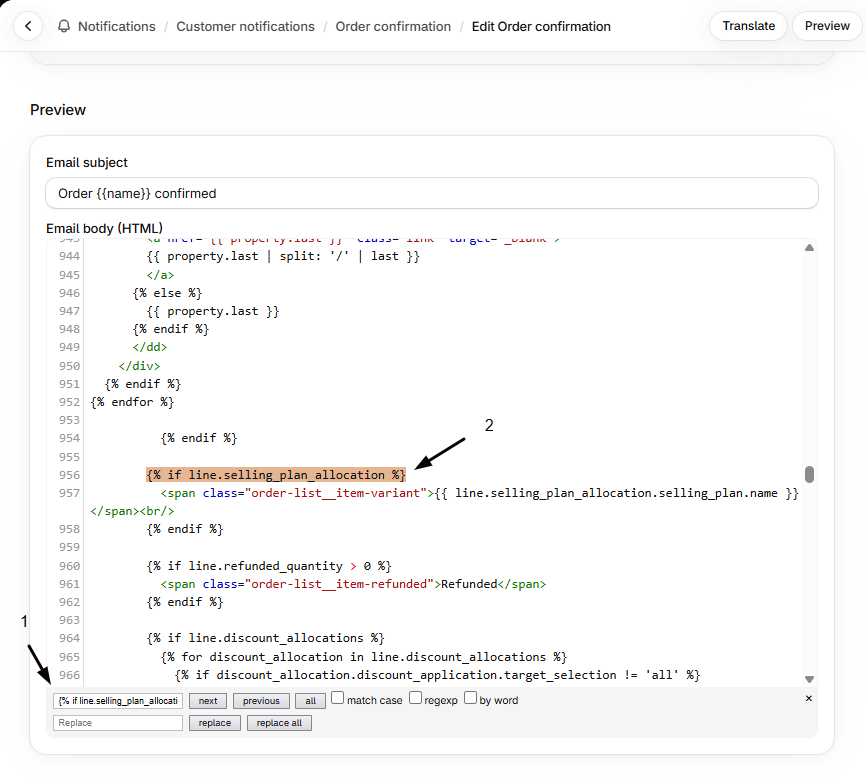
-
Insert the properties loop
Directly below that third block, paste:
{% if line.properties %}{% for property in line.properties %}<span class="order-list__item-variant">{{ property.first }}: {{ property.last }}</span><br/>{% endfor %}{% endif %}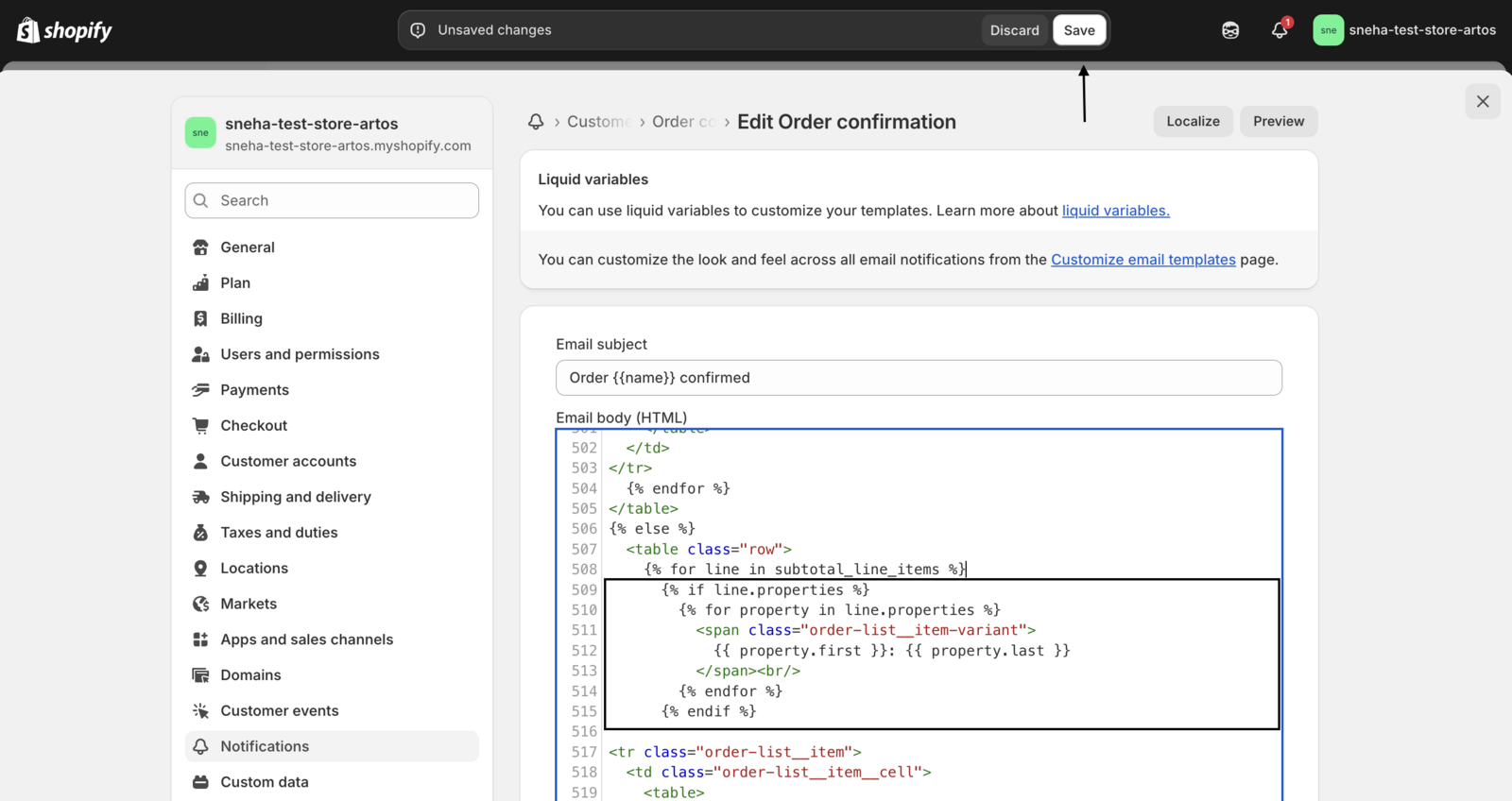
-
Save
Click Save. New preorder order confirmations now show the offer details you’ve enabled.
Check your setup
Section titled “Check your setup”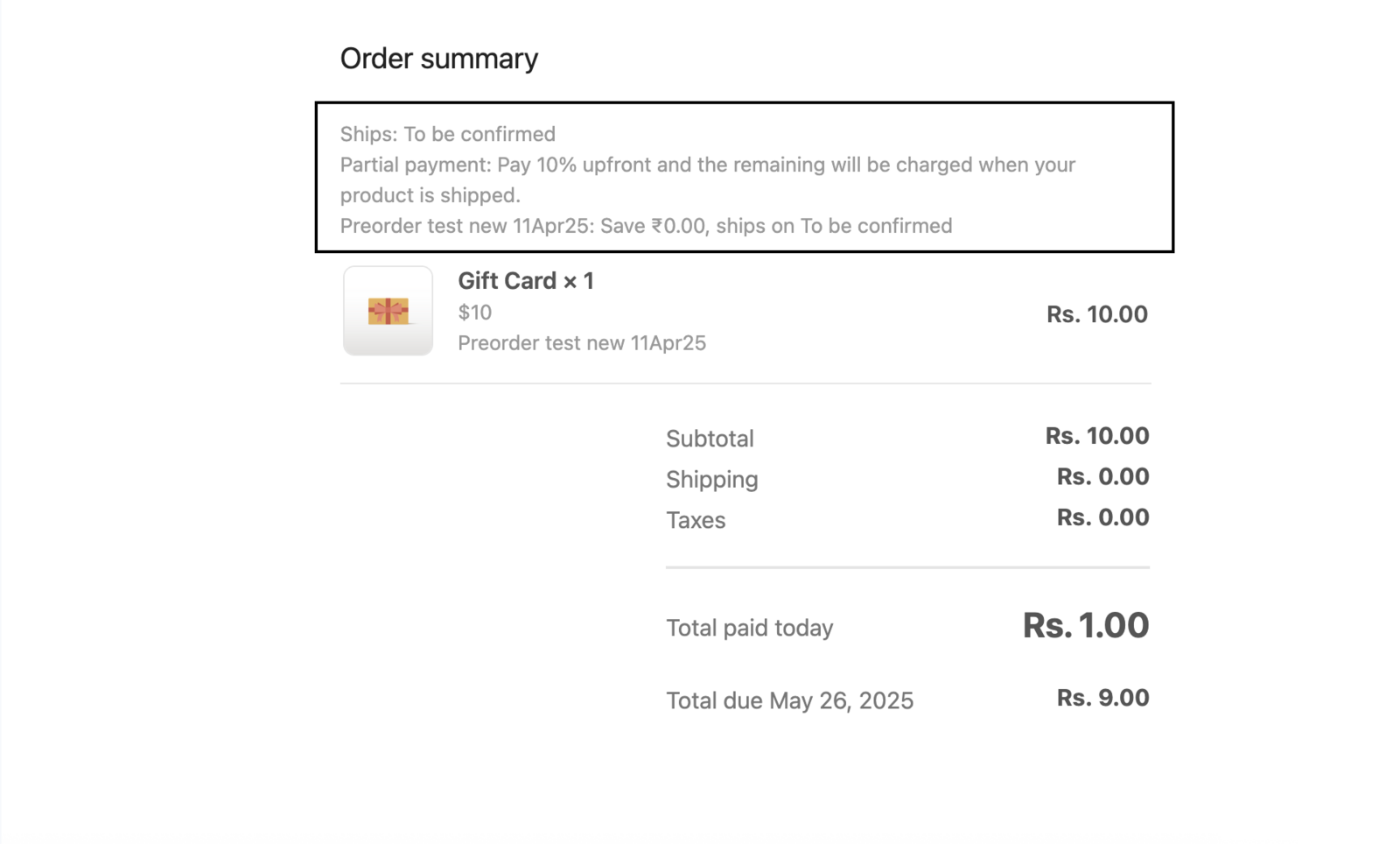
Place a test preorder and open the order confirmation email Shopify sends. Confirm the preorder details appear under the line item.
Nothing shows up in the email
Confirm you enabled preorder information in the purchase flow (so the properties exist on the line item), and that you inserted the snippet below the third {% if line.selling_plan_allocation %} block, not the first.
Will this change non-preorder confirmation emails?
No. The snippet only prints line-item properties, which regular products don’t carry, so those emails are unaffected.
Related guides
Section titled “Related guides”Thanks for letting us know.
Still stuck? Ask Quinn or chat with support