Reschedule fulfillments
Change the scheduled fulfillment date on preorder orders, one at a time or in bulk.
Last updated
Reschedule fulfillments changes the scheduled fulfillment date on preorder orders that have already come in, whether you’re pushing back one order or an entire offer. It only updates orders held with the Scheduled fulfillment status, where Shopify holds the fulfillment until a set date. The order itself, its items, and payment are untouched, only the scheduled fulfill-at date moves, and orders without a scheduled fulfillment are left unchanged.
Before you begin
Section titled “Before you begin”| Requirement | Detail |
|---|---|
| Plan | Rescheduling existing orders from the offer (the Reschedule existing orders to this date checkbox) works on any plan. Rescheduling from the orders report, single or bulk, requires a paid plan |
| Scheduled fulfillments | Only orders with a scheduled fulfillment date are affected |
| New date | The new date must be today or later, past dates can’t be selected |
Choose your setup
Section titled “Choose your setup”There are three ways to reschedule, depending on how many orders you’re moving:
- From the offer: change a Scheduled offer’s fulfillment date and move the orders you’ve already taken to the new date, in the same step, with one checkbox. Fastest way to push a whole offer’s ship date.
- A single order: reschedule one order from the orders report, when it needs a different date than the rest.
- In bulk: reschedule many orders at once from the orders report, whether or not they came from the same offer.
Find the orders report at Reports → Preorders → Orders (or, for a single offer, check its orders in the offer itself: Preorders in the left menu → Offers tab → open your offer → Orders tab).
Set it up
Section titled “Set it up”On a phone, this menu is collapsed. In the Shopify mobile app, tap the STOQ logo at the top of the screen to open it, then choose the section named below. There is no hamburger icon. See Finding the STOQ menu.
From the offer
Section titled “From the offer”The Reschedule existing orders to this date checkbox appears under either Scheduled sub-option, in both shipping layouts:
- Scheduled → On a specific date: reschedules existing orders to the new fixed date.
- Scheduled → Set number of days after purchase: reschedules existing orders using the new number of days, calculated from each order’s own purchase date, not one shared date.
- It shows up whether the offer uses one shipping timeline for all products or a shipping timeline set per product.
-
Open the offer’s Shipping settings
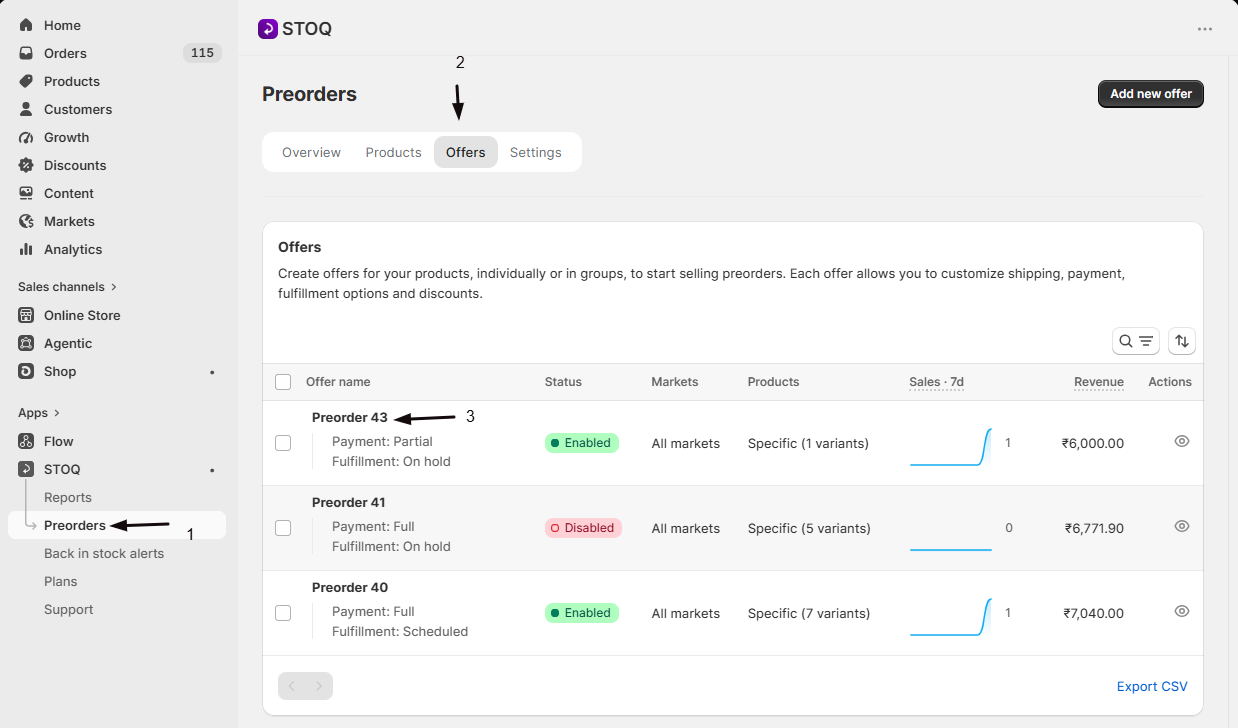
- In the left menu bar of the STOQ app, click Preorders.
- Click the Offers tab.
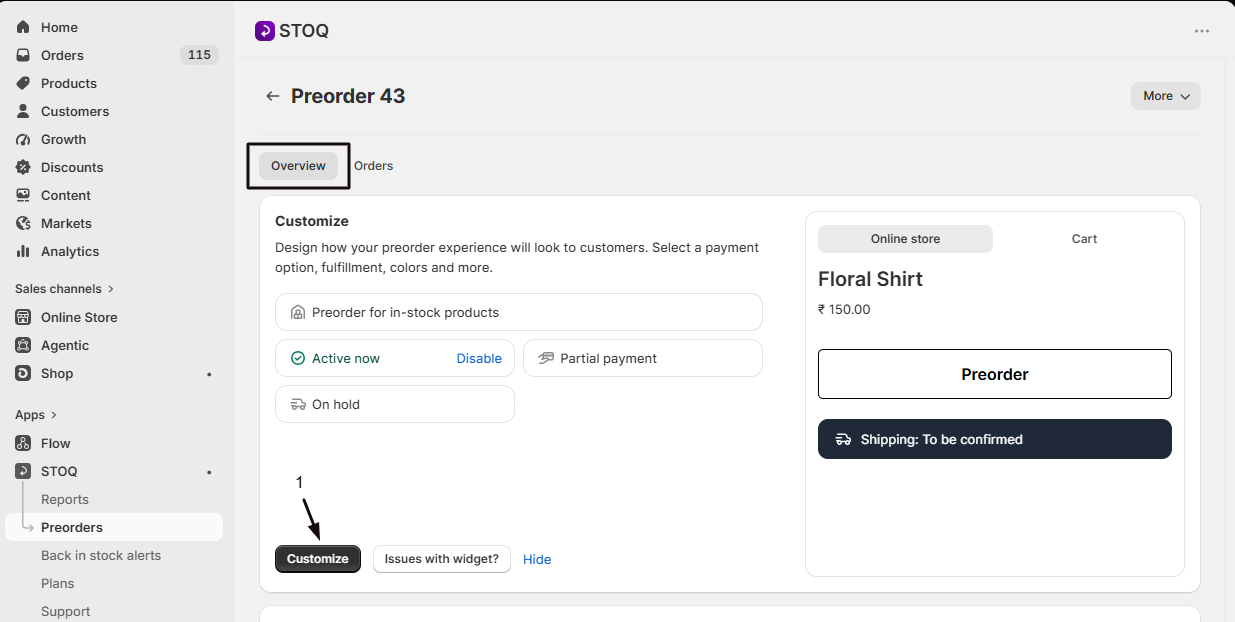
- Click the offer you’d like to edit. Its Overview tab opens, showing the Customize button, a live preview, and the offer’s Products section.
- Click the Customize button to open the editor.
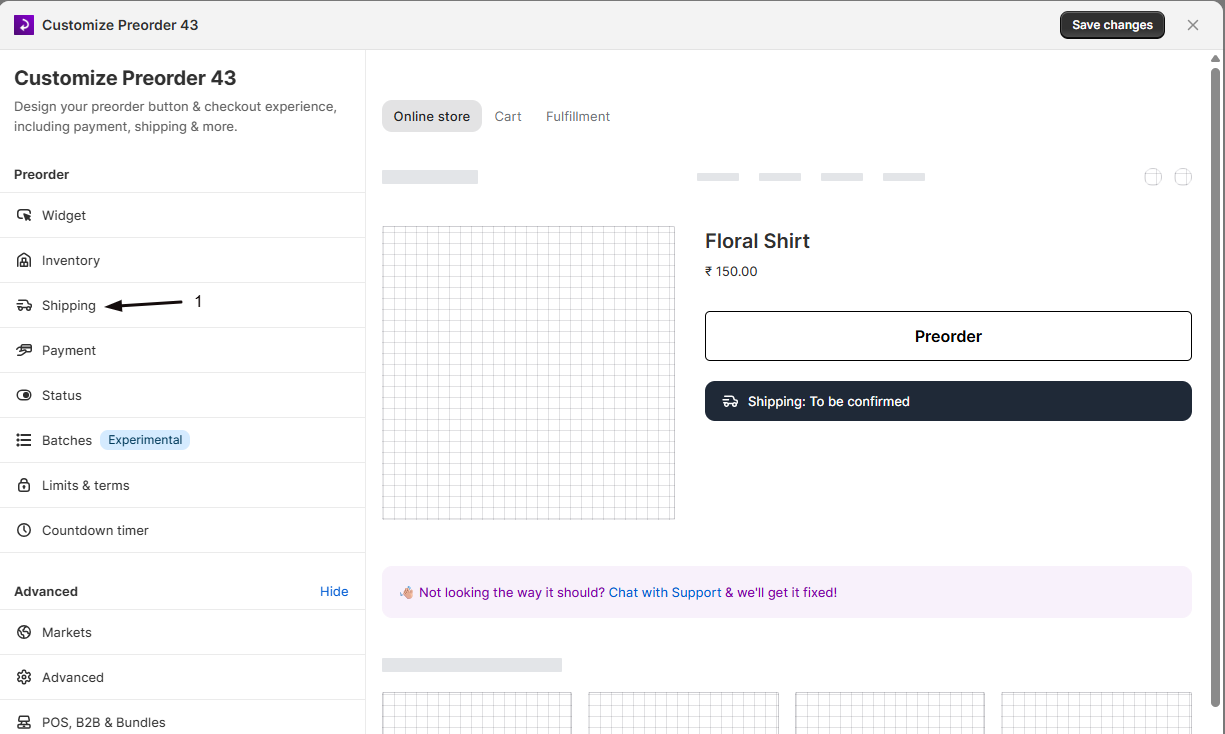
- In the sidebar, click Shipping.
-
Change the scheduled date
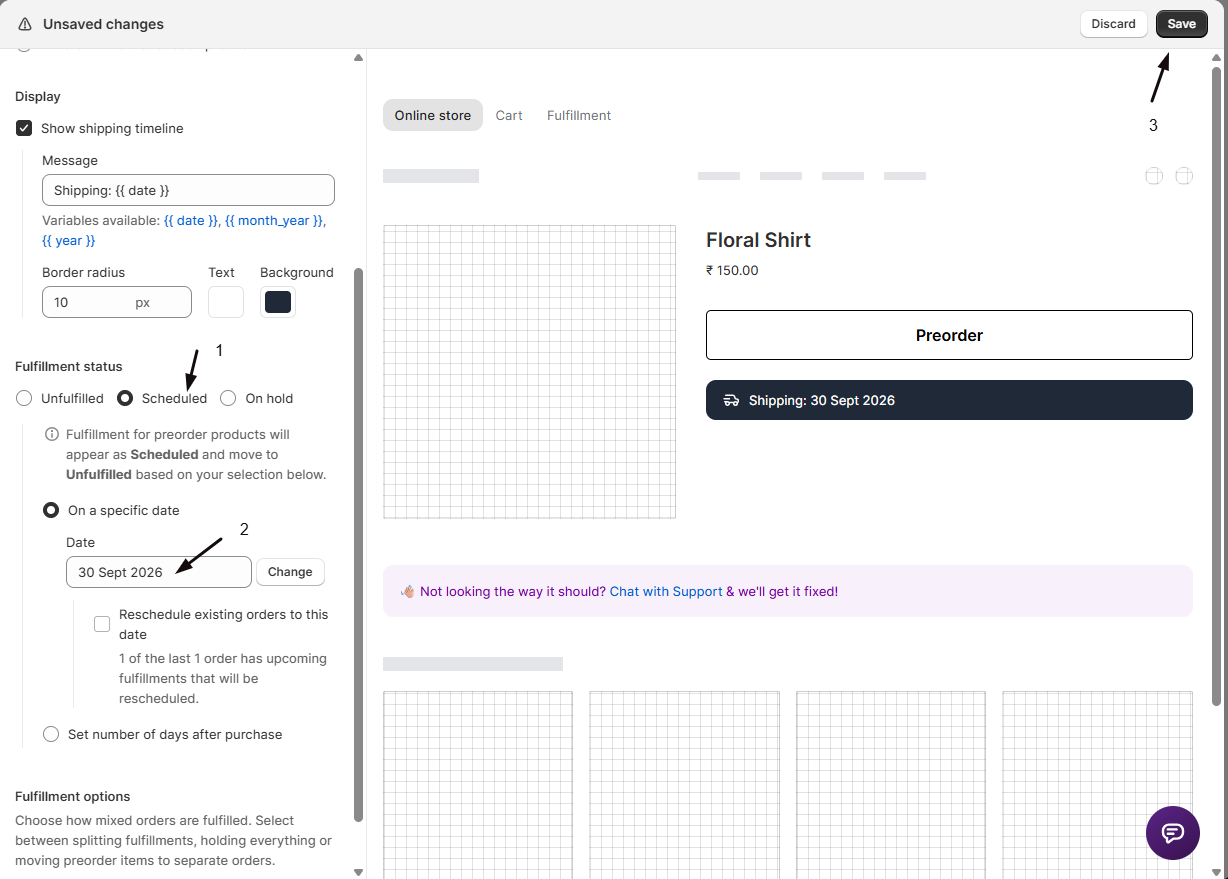
- With fulfillment status set to Scheduled, choose On a specific date or Set number of days after purchase.
- Update the date (click Change and pick a new date) or the number of days.
-
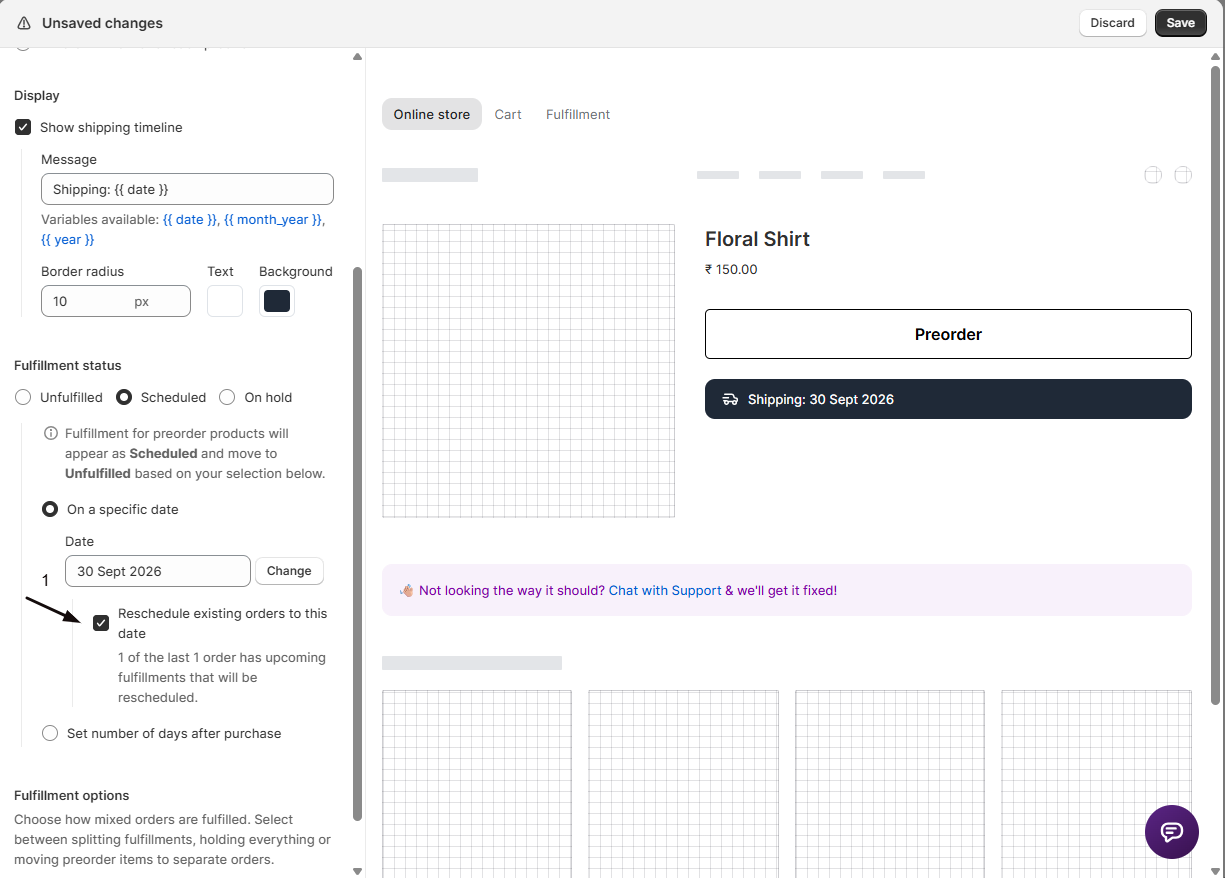
Reschedule existing orders to this date
Tick Reschedule existing orders to this date.
- STOQ shows how many recent orders are affected, for example, “3 of the last 3 orders have upcoming fulfillments that will be rescheduled.”
- Only orders that still have an upcoming, not-yet-fulfilled scheduled fulfillment are moved.
-
Save changes
Click Save changes at the top right of the editor. The new date (or day count) applies to future orders and, because you ticked the box, to those existing orders too.
A single order
Section titled “A single order”-
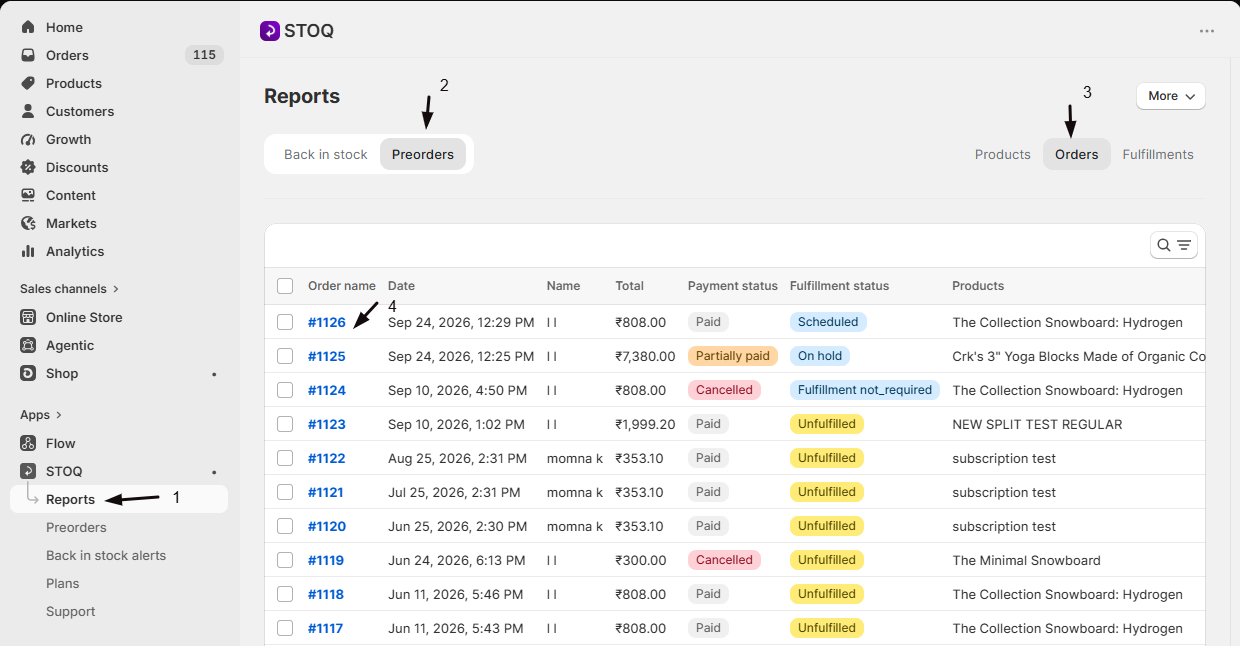
Open the order
- Go to STOQ → Reports → Preorders → Orders.
- Open the order you want to reschedule.
-
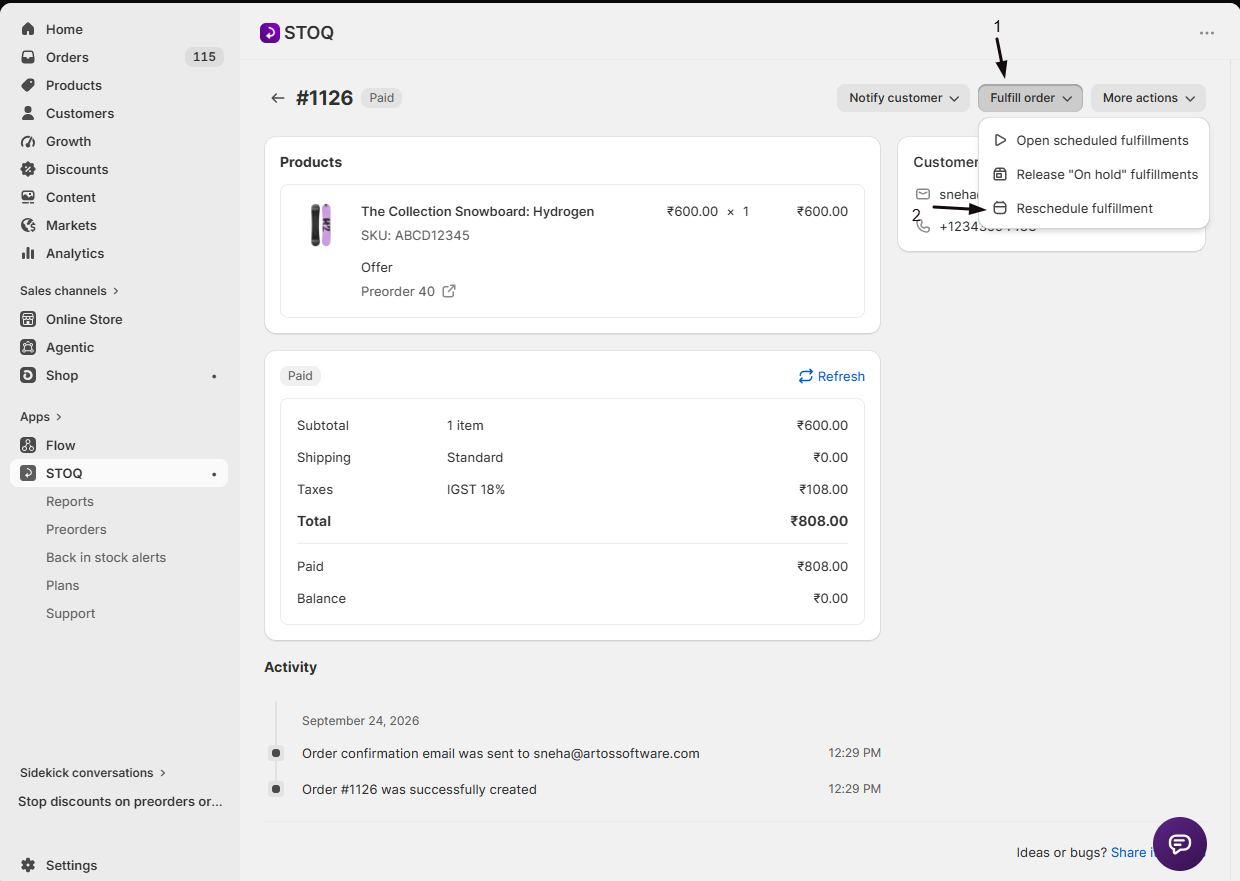
Choose Reschedule fulfillment
- Open the order’s actions menu.
- Select Reschedule fulfillment.
-
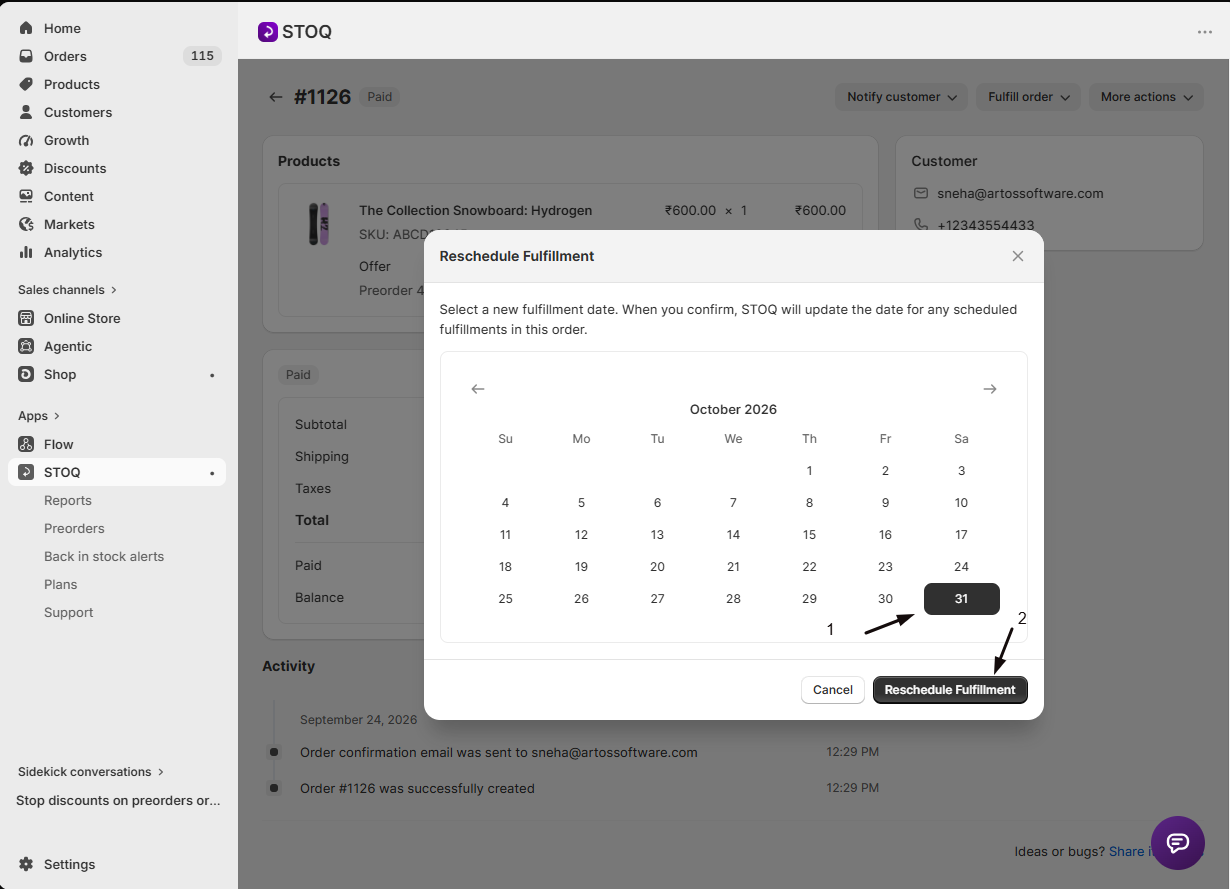
Pick a new date
In the modal, select a new fulfillment date. Dates before today are disabled.
-
(Optional) Email the customer
To tell the customer about the new date, tick Send customers a shipping update, then click Next: review email. The Send shipping update window opens with “Your preorder is now scheduled to ship on [date].” added to the start of the Description. Edit the email if you like, then click Send email. STOQ reschedules the order and sends the email together, and you can skip the next step.
-
Confirm
Click Reschedule Fulfillment.
- The button enables after a short countdown (a safeguard against accidental clicks).
- STOQ updates the scheduled fulfillments in that order and shows a “Fulfillment rescheduled” confirmation.
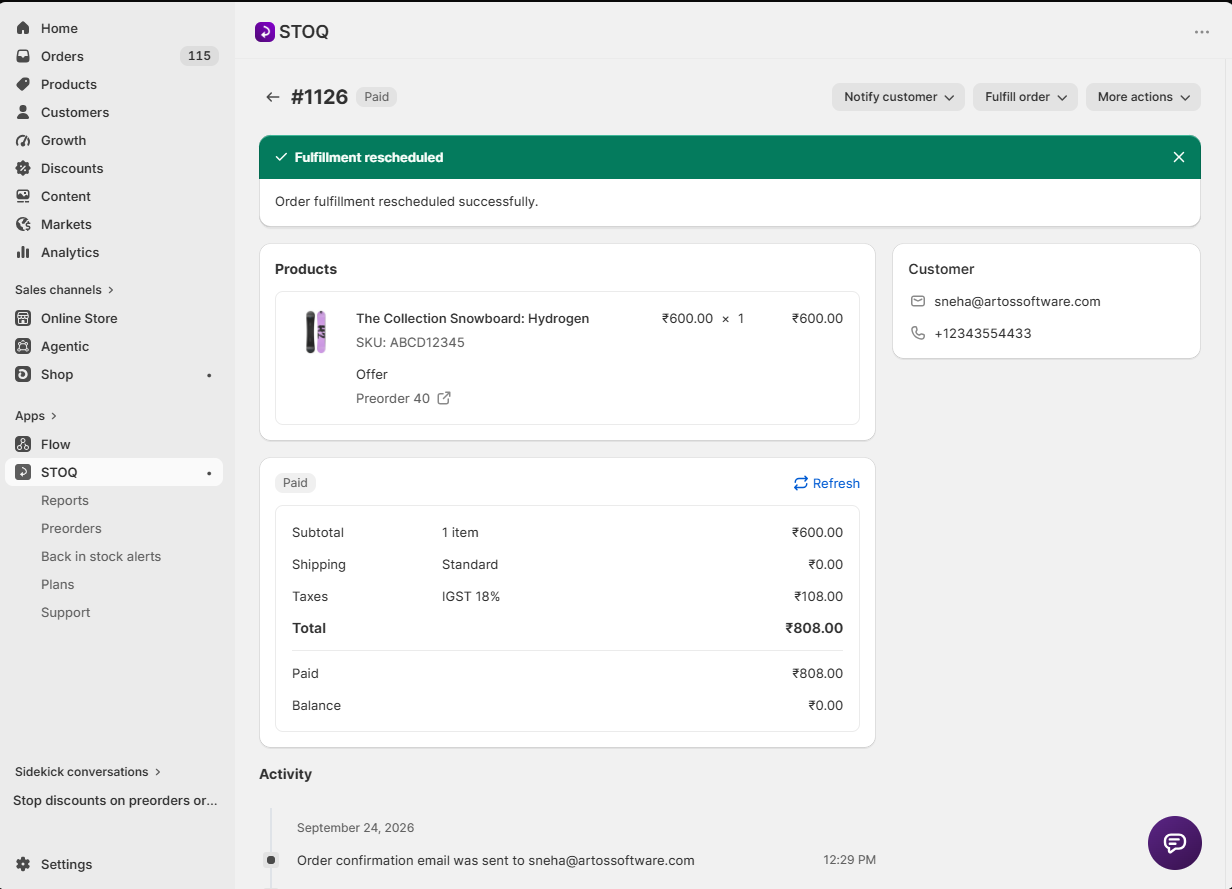
In bulk
Section titled “In bulk”-
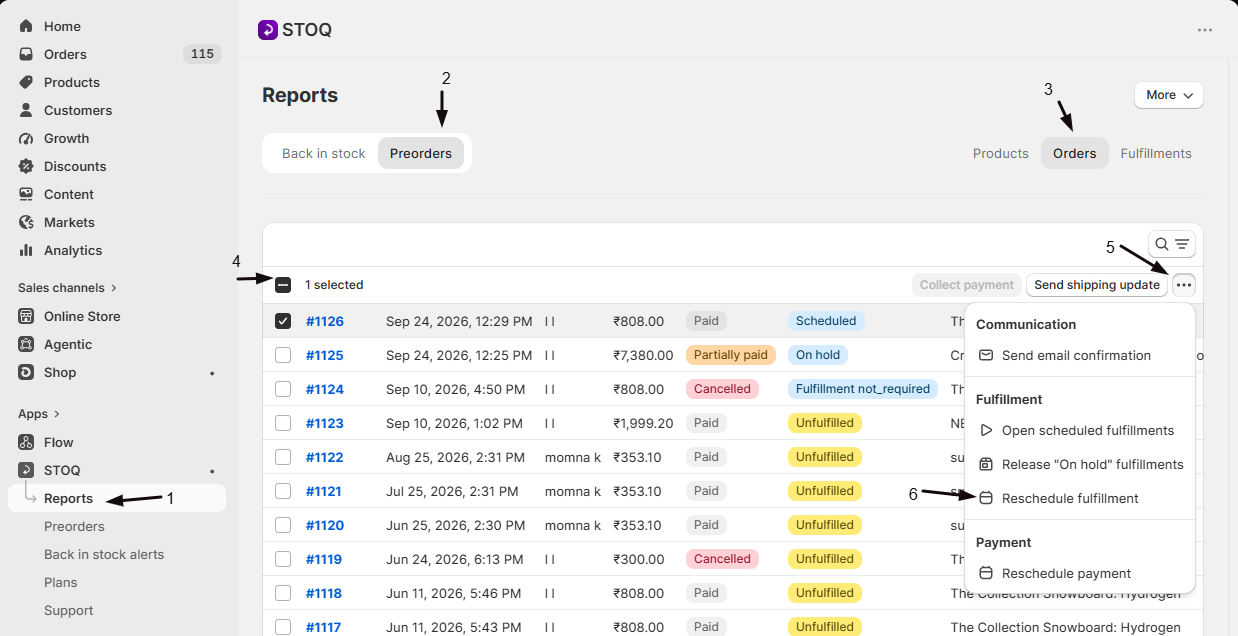
Select the orders
- Go to Reports → Preorders → Orders.
- Check the orders you want to reschedule (or use Select all matching to reschedule every order matching your current filters).
-
Open the bulk action
- Open the bulk actions menu.
- Under Fulfillment, choose Reschedule fulfillment.
-
Pick a new date and confirm
- Select the new fulfillment date.
- Click Reschedule Fulfillment (after the brief countdown). The modal shows how many orders will be rescheduled.
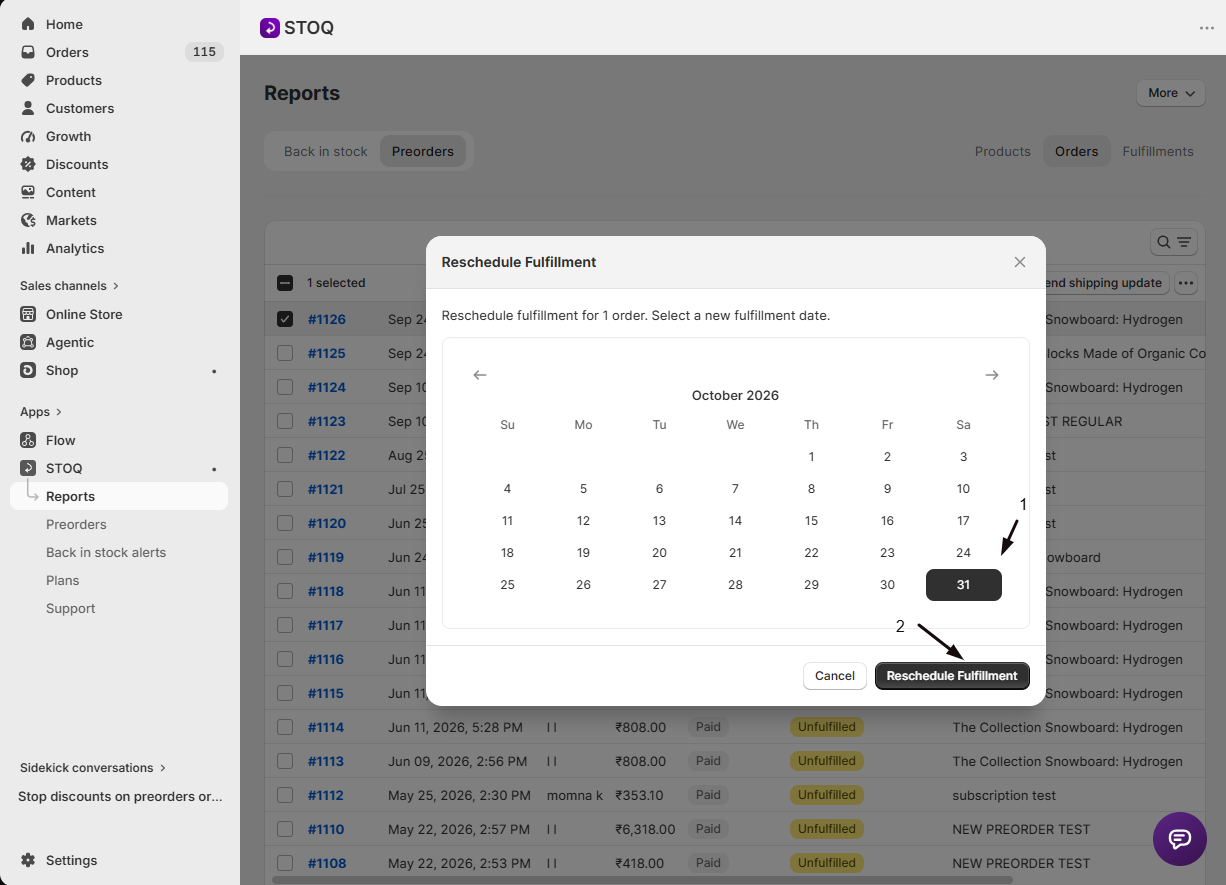
To email customers about the new date, tick Send customers a shipping update before you confirm, then click Next: review email. Review the email, which starts with “Your preorder is now scheduled to ship on [date].”, and click Send email. Only customers whose order was actually rescheduled are emailed.
-
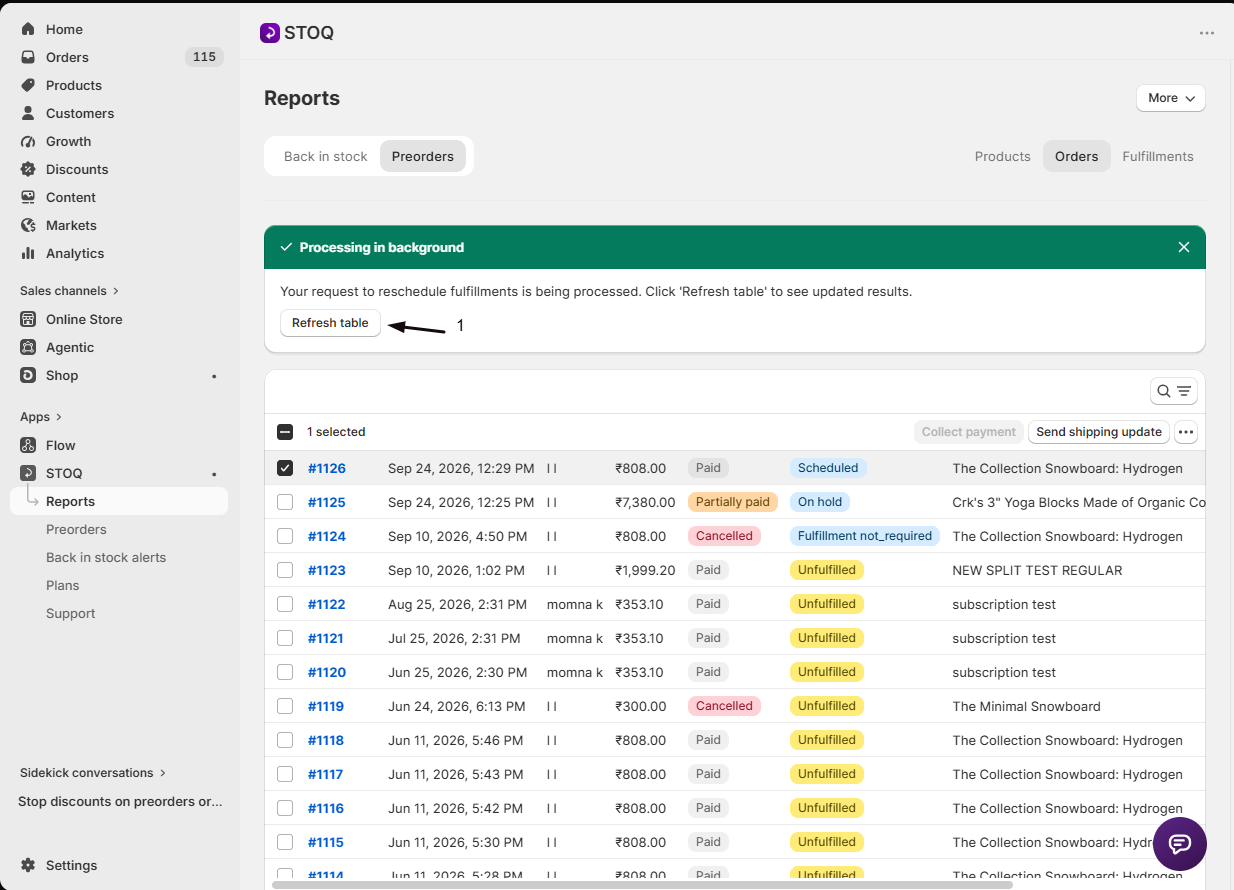
Wait for background processing
Bulk reschedules run in the background.
- STOQ shows a banner that your request is processing.
- Click Refresh table to see the updated dates.
Check your setup
Section titled “Check your setup”Open a rescheduled order in STOQ or in the Shopify admin and confirm the scheduled fulfillment date now shows the new date. After a bulk reschedule, click Refresh table and check the dates in the Orders list.
Troubleshooting
Section titled “Troubleshooting”An order has no Reschedule fulfillment option
It doesn’t have a scheduled fulfillment. Only orders held with the Scheduled fulfillment status can be rescheduled; Unfulfilled and On hold orders aren’t affected.
The Reschedule Fulfillment button won't click
Wait a moment, it enables after a short countdown that guards against accidental clicks.
A bulk reschedule doesn't show updated dates yet
It runs in the background. Click Refresh table to see the change.
Ticking "Reschedule existing orders to this date" did not move an order
Only orders with an upcoming, not-yet-fulfilled scheduled fulfillment are moved. Already-fulfilled orders are never changed.
You can't select a certain date
The date picker disables any date before today.
Does this work on Unfulfilled or On hold orders?
No. Reschedule only updates scheduled fulfillments, so Unfulfilled and On hold orders don’t have a scheduled fulfillment date and are left unchanged. Use it with orders placed under the Scheduled fulfillment status.
Should I reschedule from the offer or from the report?
Use the offer when you’re moving a whole offer’s date and want existing orders to follow: it’s one checkbox. Use the orders report when you only want to move certain orders, or to a date that’s different from the offer’s date.
Does the offer checkbox work for 'days after purchase' offers too?
Yes. The Reschedule existing orders to this date checkbox appears whether the offer’s Scheduled fulfillment is set to a specific date or to a number of days after purchase. For a days-after-purchase offer, STOQ recalculates each order’s new fulfillment date from its own purchase date plus the updated day count, rather than moving every order to one shared date.
Are customers told when I reschedule their order?
Only if you tick Send customers a shipping update in the reschedule window on the orders report. You then review and send a shipping update email with the new date filled in. Without the checkbox, rescheduling doesn’t email anyone.
How is rescheduling fulfillment different from rescheduling payment?
Rescheduling fulfillment changes the date an order is scheduled to ship. Rescheduling payment changes the date a remaining balance is due. They’re separate actions.
Can I set a date in the past?
No. The date picker disables any date before today.
Can I reschedule every matching order at once?
Yes. Select all matching orders for your current filters, then use the bulk Reschedule fulfillment action. The reschedule runs in the background.
Related guides
Section titled “Related guides”Thanks for letting us know.
Still stuck? Ask Quinn or chat with support