Set up discounts
Offer a percentage or fixed-amount discount on preorder products, and show the savings.
Last updated
Use this guide to add a discount to a preorder offer. By the end, your preorder products carry the discount with no separate Shopify discount code, and you can choose to show the reduced price on the product page.
Before you begin
Section titled “Before you begin”- Discounts require the Shopify purchase option, which is on by default. Turning it off resets the offer to full payment with no discount.
Choose your setup
Section titled “Choose your setup”Under Discount on total price, pick one:
| Type | What it does |
|---|---|
| Percent | Takes a percentage off the price, for example 10% off |
| Amount | Takes a fixed value off the price, for example $5 off |
| None | No discount. This is the default |
For Full payment & partial payment, the discount is set separately for the full-payment option and the partial-payment option.
What customers will see
Section titled “What customers will see”Two Display options control how the discount appears, and both are off by default. The amount charged is always discounted at checkout regardless of these, they only change what customers see beforehand:
| Where | What shows | Controlled by |
|---|---|---|
| Product page price | The original price with a strikethrough next to the discounted preorder price | Show discounted price |
| Savings breakdown | The payment and savings shown at each step of the purchase flow | Show payment & discount savings |
With a discount set but neither option on, the product page shows your theme’s regular price and the discount is applied at checkout.
Set it up
Section titled “Set it up”On a phone, this menu is collapsed. In the Shopify mobile app, tap the STOQ logo at the top of the screen to open it, then choose the section named below. There is no hamburger icon. See Finding the STOQ menu.
-
Open the Payment section
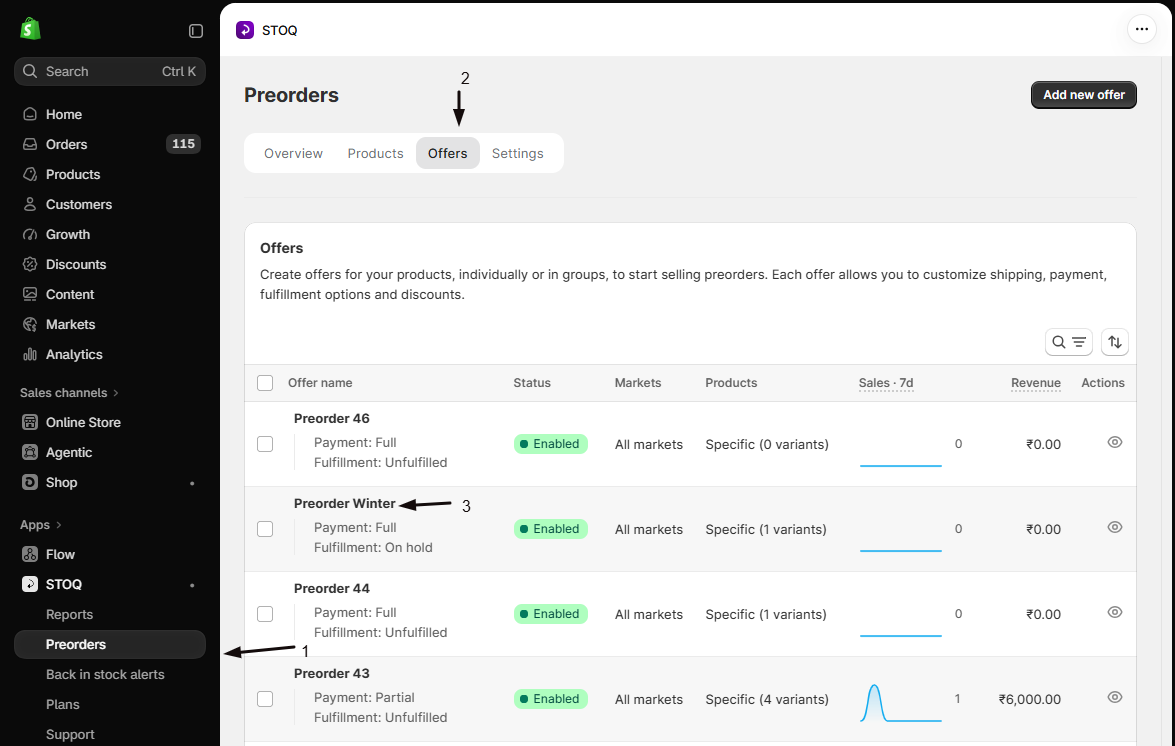
- In the left menu bar of the STOQ app, click Preorders.
- Click the Offers tab.
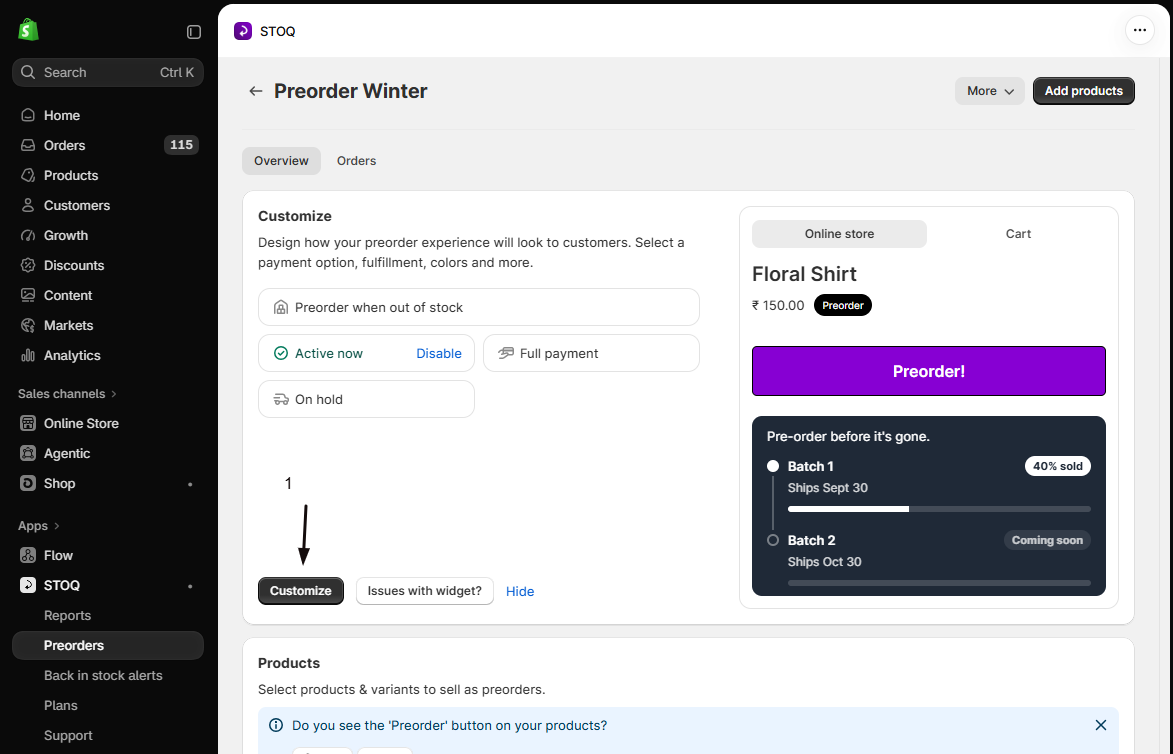
- Click the offer you want to edit to open its Overview tab (this shows the Customize button, a live preview, and the offer’s Products section).
- Click Customize to open the editor.
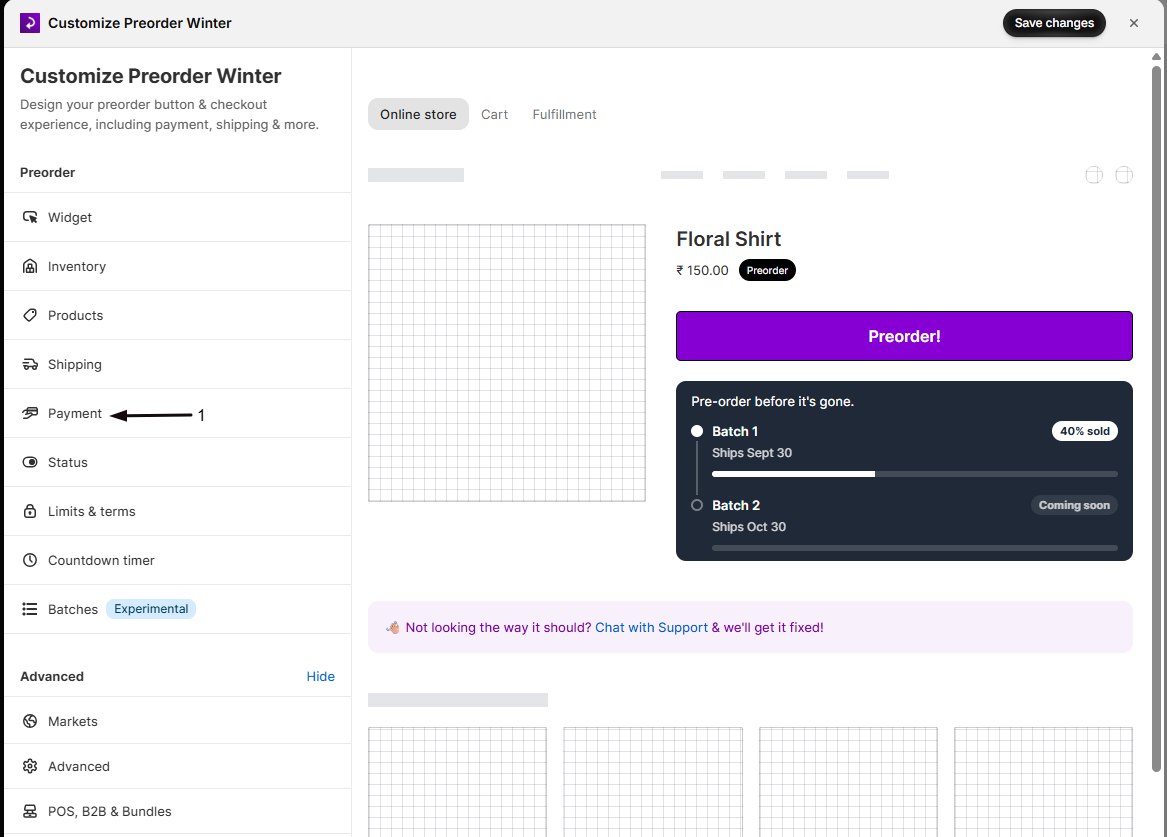
- In the editor’s sidebar, click Payment and find Discount on total price.
-
Choose a discount type
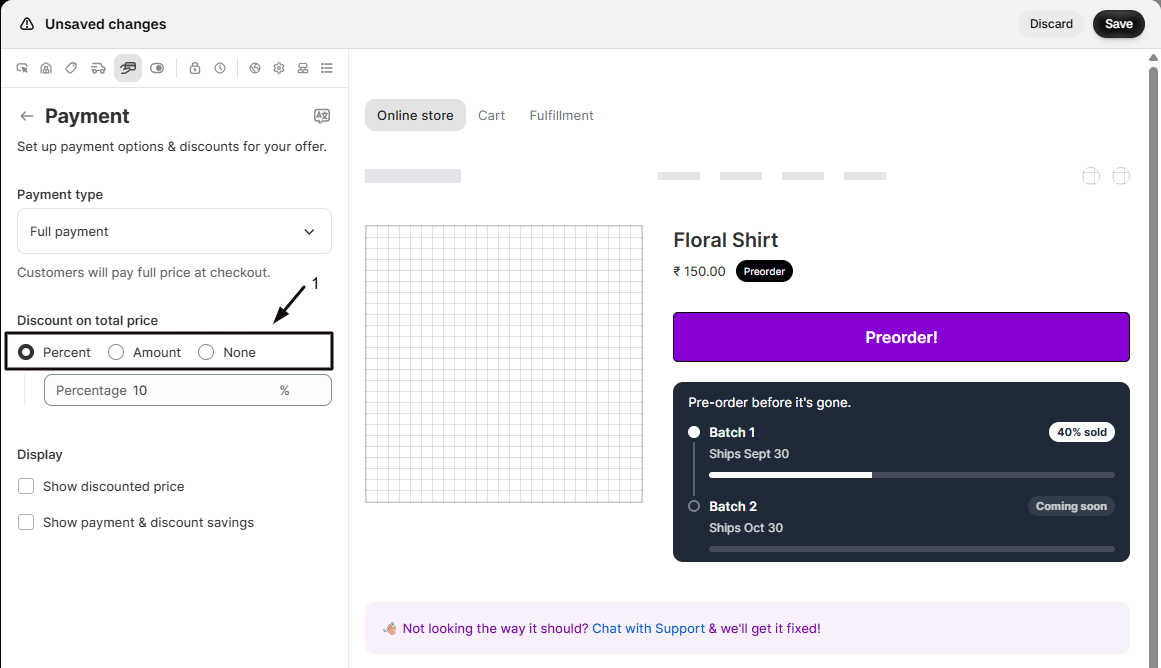
Under Discount on total price, select Percent, Amount, or None. For Full payment & partial payment, set the discount separately for each payment option.
-
Enter the discount
For Percent, enter the percentage off. For Amount, enter the fixed value off.
-
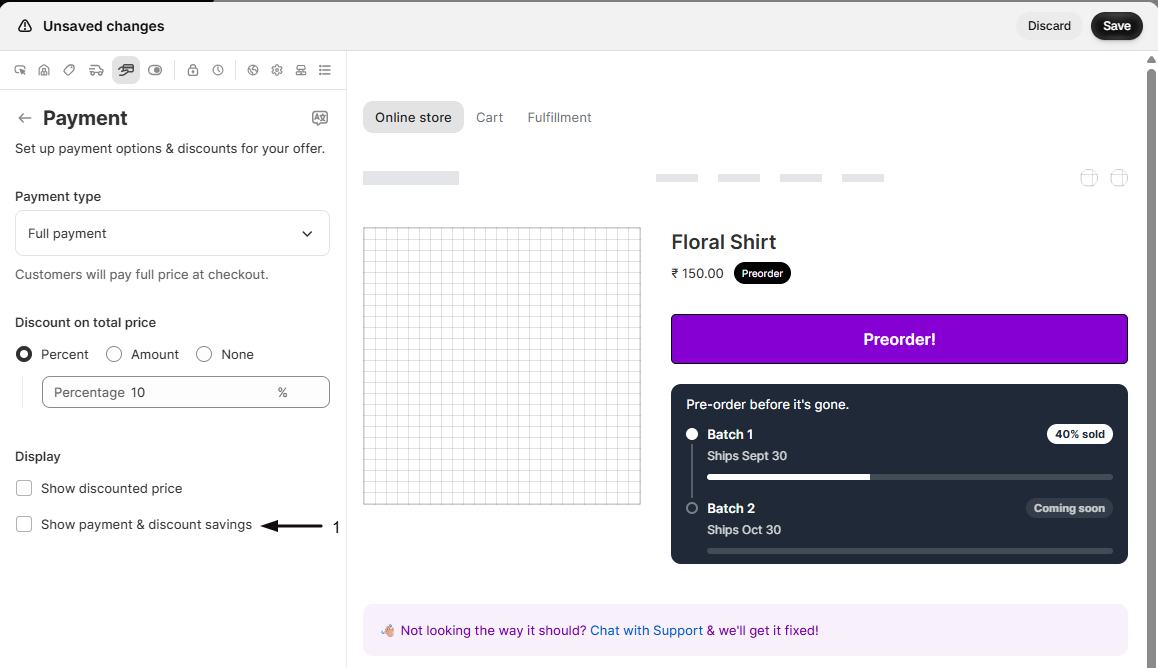
(Optional) Show the discount to customers
Under Display (this section only appears once a discount is set), turn on either or both:
- Show discounted price: shows the final discounted price next to the original (strikethrough) on the product page.
- Show payment & discount savings: shows the payment and savings breakdown at each step of the purchase flow.
Both are off by default. The charge is discounted at checkout either way, these only control what customers see beforehand.
-
Save changes
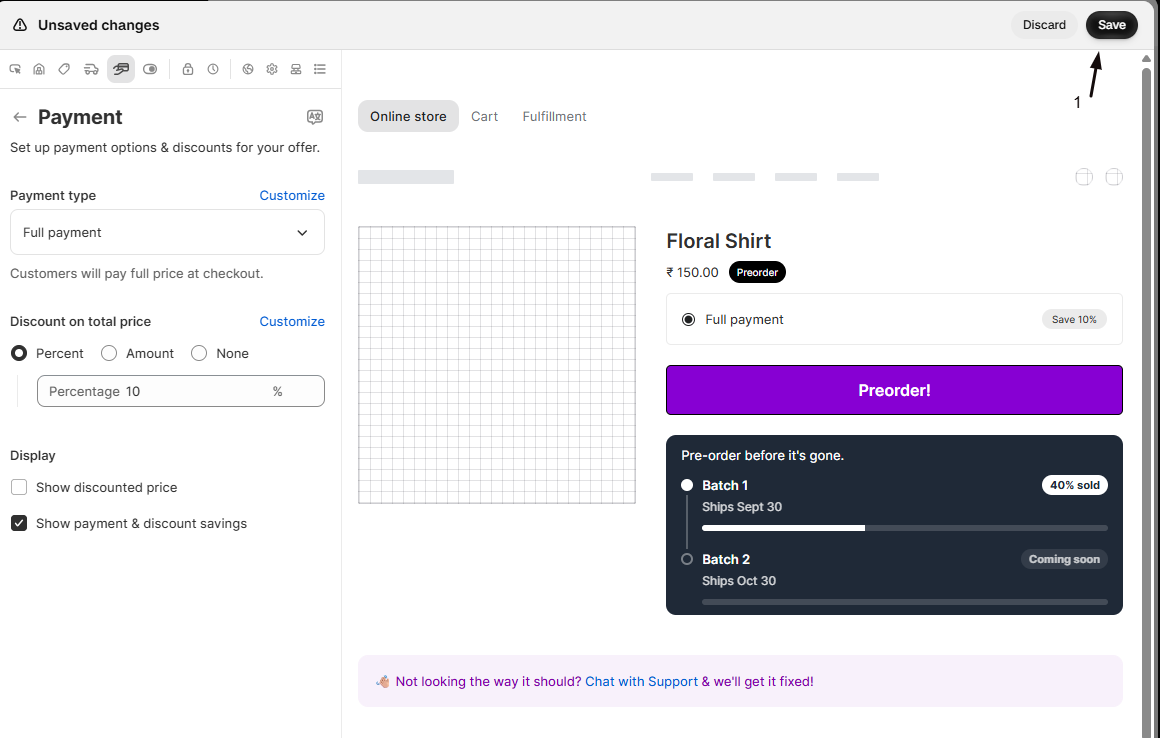
Click Save changes at the top right of the editor. The preview shows the discounted preorder price.
Check your setup
Section titled “Check your setup”Open a preorder product on your live storefront. If you enabled Show discounted price, confirm the original price shows with a strikethrough next to the discounted price. If you enabled Show payment & discount savings, confirm the savings breakdown also appears.
Troubleshooting
Section titled “Troubleshooting”The discount disappeared
Turning off the Shopify purchase option resets the offer to full payment with no discount. Re-enable the purchase option to restore it.
Customers don't see the discounted price on the product page
Turn on Show discounted price under Display. Without it, the product page shows your theme’s regular price and the discount is applied at checkout instead.
Customers don't see a savings breakdown
Enable Show payment & discount savings under Display. This is separate from Show discounted price: one shows the strikethrough price, the other shows the payment and savings breakdown.
Discount on total price isn't available
Confirm the Shopify purchase option is turned on for the offer.
The discount only applies to one payment option
With Full payment & partial payment, set the discount separately under each option’s own section.
Limitations
Section titled “Limitations”You can’t combine a percentage and a fixed-amount discount on the same payment option. Pick one discount type per option.
Does the customer need to enter a code?
No. The discount is built into the preorder offer, with no code to enter.
Will customers see the discount at checkout?
The amount charged at checkout is always the discounted price. What customers see beforehand depends on two Display settings: Show discounted price puts the strikethrough discounted price on the product page, and Show payment & discount savings shows the payment and savings breakdown in the purchase flow. Both are off by default.
Can I stack this with a Shopify discount code?
It depends on the code. Some Shopify discounts combine with preorder pricing and some don’t. See Which Shopify discounts work with preorders.
Does changing the discount affect existing orders?
No. Discount changes apply to orders placed after you save; existing orders keep their original price.
Related guides
Section titled “Related guides”Thanks for letting us know.
Still stuck? Ask Quinn or chat with support