Find and read preorder orders
Find, filter, and review preorder orders, then act on payment, fulfillment, and notifications.
Last updated
Use this guide to find a customer’s preorder order, see what’s happened to it, and take action, like collecting payment or sending an update. It covers the account-wide orders list, the single-offer view, and the order detail page for an individual order.
Before you begin
Section titled “Before you begin”- Most actions on the order detail page, and all bulk actions on the orders list, require a paid plan. Free-plan shops see an upgrade prompt when they try to use them.
- Exporting the orders list as a CSV also requires a paid plan.
- Actions are hidden entirely on orders that are cancelled or refunded.
What customers will see
Section titled “What customers will see”Several actions on the order detail page communicate directly with the customer:
| Action | What the customer sees |
|---|---|
| Send email confirmation | Resends the preorder confirmation email immediately. |
| Send SMS confirmation | Texts a confirmation to the phone number on the order. Only available if a phone number is on file and SMS is enabled for your shop. |
| Send shipping update | Sends a shipping update email you customize (subject, header, description). Supports {{order.name}} and {{shop.name}} template variables. |
| Collect payment (failed attempt) | If you opt in on the confirmation modal, the customer gets a payment-failed email with a link to complete payment. |
Send email confirmation and Send shipping update are also available as bulk actions from the orders list, with the same effect on each selected order.
The orders list
Section titled “The orders list”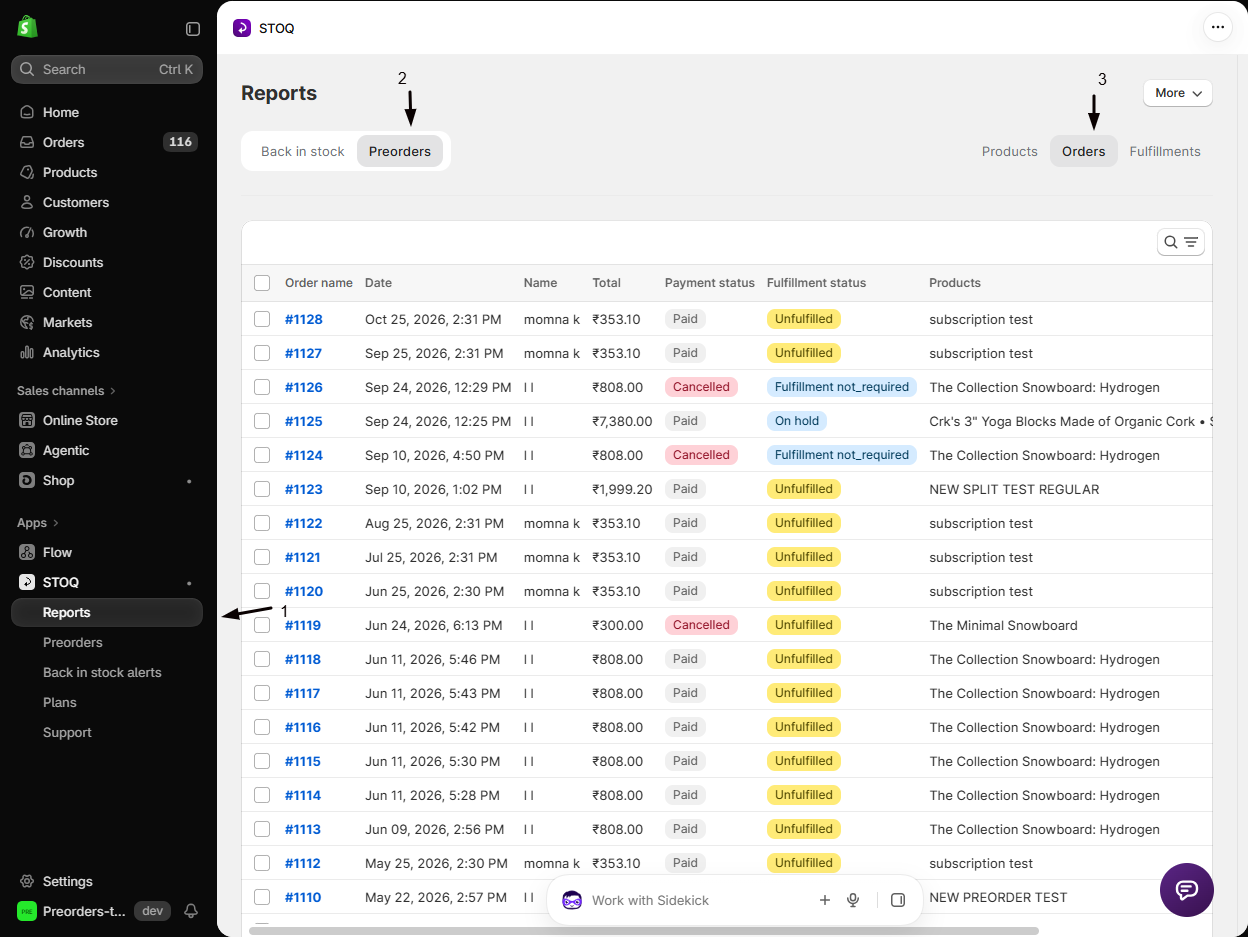
There are two ways to open the orders list:
- All preorder orders: go to Reports → Preorders → Orders in the STOQ dashboard.
- Orders for one offer: go to Preorders → Offers, open the offer, and select the Orders tab. This shows the same list, already limited to that offer’s orders.
Both open the same table, with the same columns, filters, and actions described below; the per-offer view simply starts pre-filtered to the offer you opened.
Columns
Section titled “Columns”| Column | What it shows |
|---|---|
| Order name | Shopify order name (e.g. #1001). Click to open the order detail page. |
| Date | When the order was placed, displayed in your browser’s local timezone. |
| Name | Customer’s full name. Hover the name to see their email address (or phone number if no email is on record). |
| Total | Order total in the order’s currency. |
| Payment status | Financial status badge (see the status badges below). A red Due badge appears alongside Partially paid when the payment due date has passed. |
| Fulfillment status | Fulfillment status badge, see tones below. Shows “-” if Shopify has not returned a fulfillment status for the order. |
| Products | First preorder line item name, plus a count if there are more (e.g. “Blue T-Shirt and 2 more”). |
| Offers linked | The internal name of the preorder offer(s) associated with this order. Deleted offers are shown in red with a tooltip. |
Fulfillment status badge tones:
| Badge | Color | Meaning |
|---|---|---|
| Fulfilled | Success (green) | All fulfillments for the order are complete |
| Partially fulfilled | Warning (yellow) | Some but not all line items have been fulfilled |
| Unfulfilled | Attention (yellow/orange) | No line items have been fulfilled yet |
| Scheduled / On hold / In progress / Open / Pending fulfillment / Restocked | Info (blue) | Other fulfillment states reported by Shopify: the label is shown as-is (e.g. “On hold”, “Pending fulfillment”) |
| (none) | (none) | A dash (“-”) is shown when the order has no fulfillment status |
Filters
Section titled “Filters”Use the filter bar to narrow the list. Filters can be combined.
| Filter | Options |
|---|---|
| Payment status | Paid, Partially paid, Unpaid, Authorized, Refunded, Partially refunded, Voided |
| Order fulfillment status | Fulfilled, Partially fulfilled, Unfulfilled, Scheduled, On hold, In progress, Open, Pending fulfillment, Restocked. This is the order’s overall status, as Shopify reports it |
| Preorder fulfillment status | On hold, Scheduled, Unfulfilled. Reflects only the preorder item’s own fulfillment status |
| Cancelled status | All, Not cancelled, Cancelled |
| Payment collection | Failed, Successful, Couldn’t verify |
| Active offer | Filter by a preorder offer that is live now, including a scheduled offer that has started |
| Inactive offer | Filter by an offer that is turned off, past its end date, or scheduled but not started yet |
| Deleted offer | Filter by an offer that has been deleted |
| Product | Select one or more product variants using the Shopify resource picker |
| Vendor | Type in Search vendors and tick one or more vendors to show orders whose preorder items come from them. Only on Reports > Preorders > Orders, not on an offer’s Orders tab |
| Date range | Last 7/30/60/90 days, Last 6/12 months, All time, or a custom date range |
| Per page | 25, 50, or 100 rows per page |
When an order has both a preorder item and a regular item, Shopify holds only the preorder item but shows the order’s overall status as Unfulfilled. Order fulfillment status follows that overall status, so a partly-held mixed order won’t show under Order fulfillment status → On hold. Use Preorder fulfillment status → On hold to catch those orders, since it looks at the preorder item itself.
Search by order name using the search box (e.g. #1001).
Filter and page state persists in the URL, so you can bookmark or share a filtered view.
Bulk actions
Section titled “Bulk actions”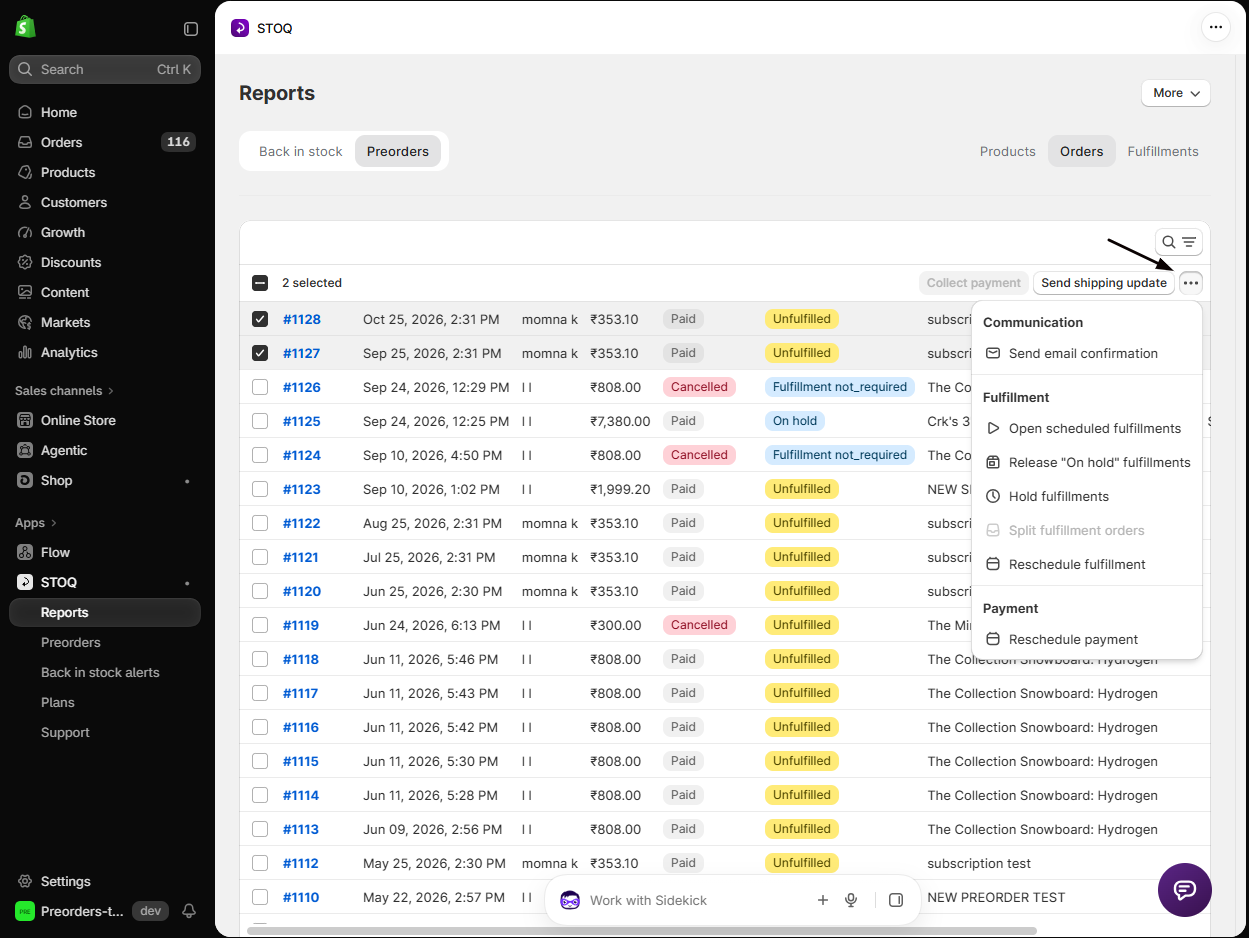
Select one or more rows, or select all rows on the page and then click Select all N orders to extend the selection across all matching results, to access bulk actions. Bulk actions run in the background; a banner confirms the request and includes a Refresh table button to reload results when processing is complete.
Promoted bulk actions (always visible when a selection is active):
| Action | Notes |
|---|---|
| Collect payment | Attempts to collect outstanding payment for selected unpaid orders. Active only when at least one selected order is not fully paid. |
| Send shipping update | Opens a modal to compose and send a shipping update email to selected orders. |
Communication group:
| Action | Notes |
|---|---|
| Send email confirmation | Resends the preorder confirmation email to selected orders. |
Fulfillment group:
| Action | Notes |
|---|---|
| Open scheduled fulfillments | Moves scheduled fulfillments to open, immediately fulfillable, for selected orders. |
| Release “On hold” fulfillments | Releases held fulfillments for selected orders. |
| Hold fulfillments | Puts every open or scheduled fulfillment of the selected orders on hold in Shopify, with an optional reason. See Hold the entire order. |
| Split fulfillment orders | Moves the preorder items of the selected orders into their own fulfillment orders, so in-stock items can ship first. Only for offers with split fulfillments on. See Split fulfillments. |
| Reschedule fulfillment | Sets a new fulfillment date for selected orders. |
Payment group:
| Action | Notes |
|---|---|
| Reschedule payment | Sets a new payment due date for selected orders. |
Export CSV
Section titled “Export CSV”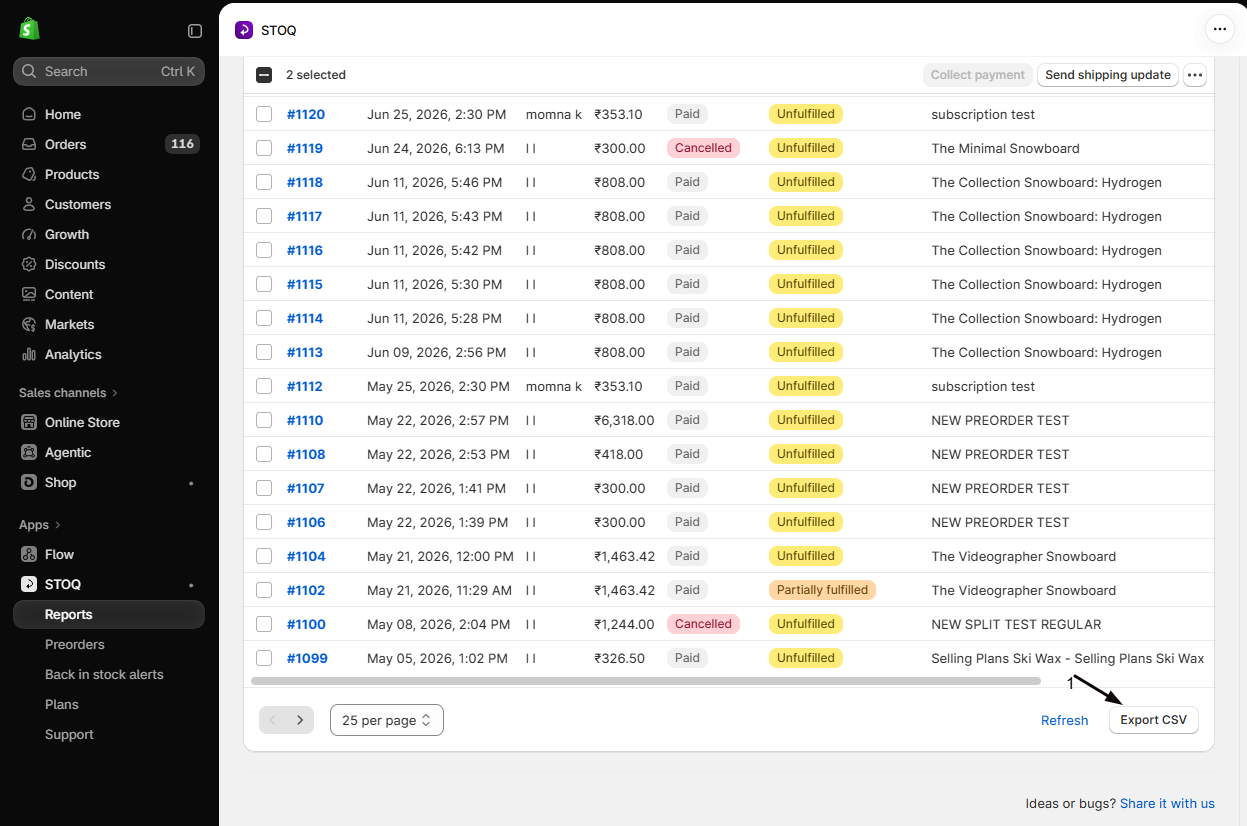
Click Export CSV at the bottom right of the table. STOQ processes the export in the background and emails the CSV file to the email address configured in your settings.
The order detail page
Section titled “The order detail page”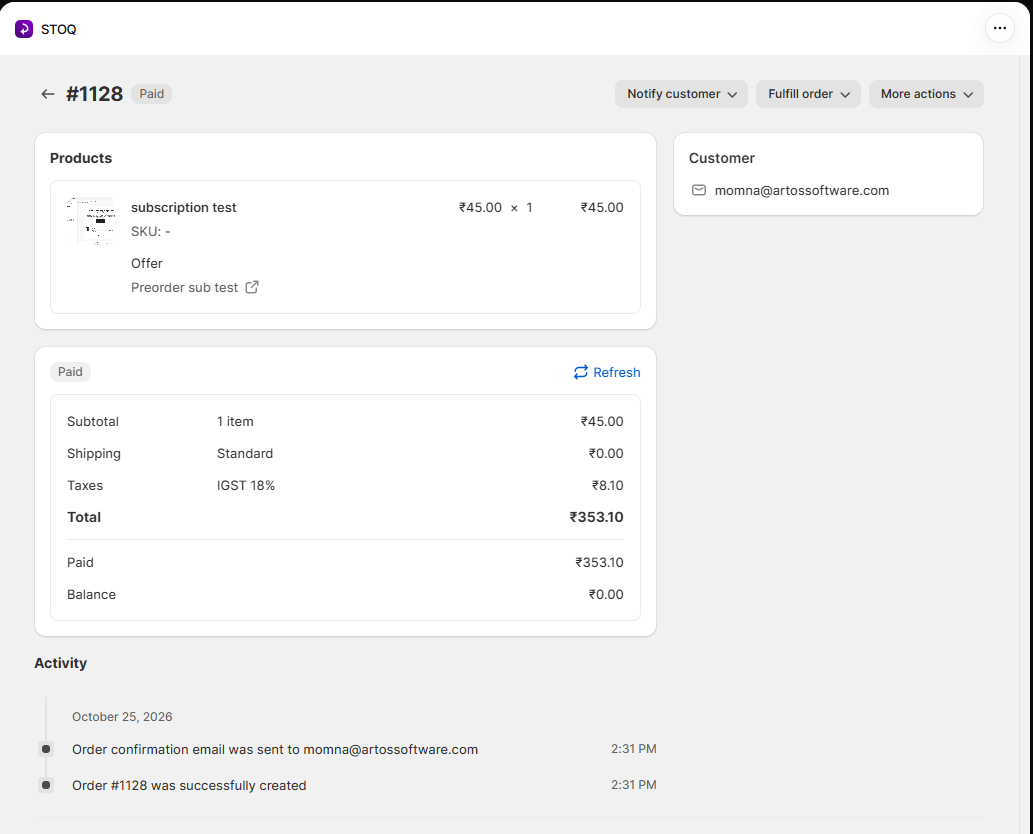
Click any order name in the list to open the order detail page.
Page title and status badges
Section titled “Page title and status badges”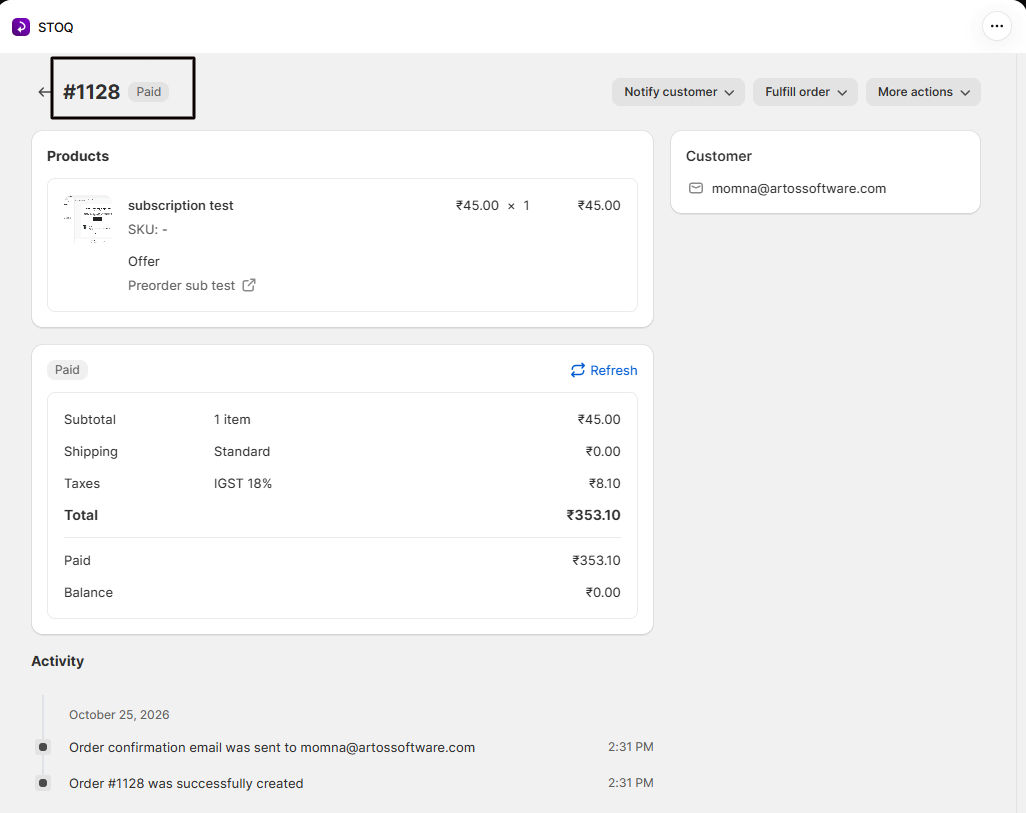
The page title shows the Shopify order name (e.g. #1001). Status badges appear next to the title:
Payment status badges:
| Badge | Color | Meaning |
|---|---|---|
| Paid | Default (grey) | Payment fully collected |
| Partially paid | Warning (yellow) | Deposit collected, balance outstanding |
| Partially paid + Due | Warning + Critical (red) | Balance is past the due date |
| Pending / Authorized / etc. | Info (blue) | Other financial statuses from Shopify |
| Refunded | Critical (red) | Order refunded |
| Cancelled | Critical (red) | Order was cancelled in Shopify |
The header shows only the payment and cancellation badges above; check the Fulfillment status column in the orders list for fulfillment state.
Products card
Section titled “Products card”Lists each line item in the order with its product image (fetched from Shopify), product name, variant, SKU, unit price, quantity, and line total. If the item belongs to a preorder offer, the offer name is shown with a link that opens the offer in STOQ.
Payment breakdown card
Section titled “Payment breakdown card”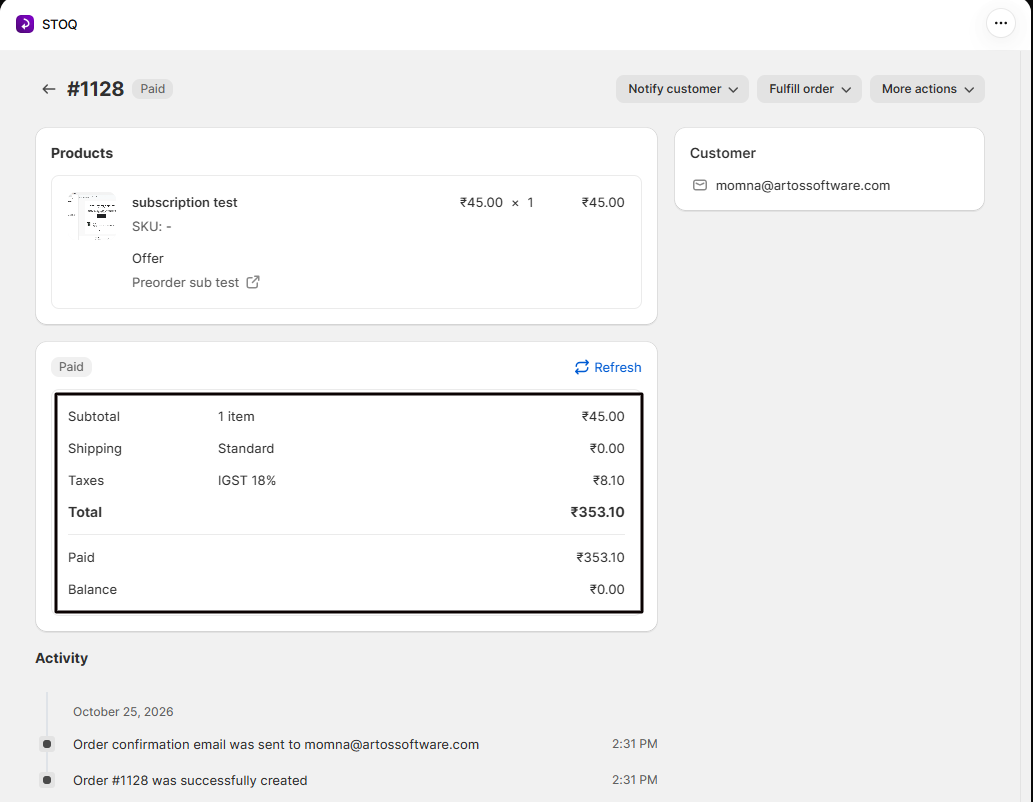
Shows the full financial picture for the order.
| Row | What it shows |
|---|---|
| Subtotal | Current subtotal price and item count |
| Shipping | Shipping line label (currently always shows “Standard” at $0.00; see Limitations below) |
| Taxes | Each tax line with title and rate |
| Total | Order total |
| Paid | Amount already collected (total minus outstanding) |
| Balance | Outstanding amount, with payment due date if one is set |
Customer card
Section titled “Customer card”Shows the customer’s email address and, if present, their phone number.
Activity timeline
Section titled “Activity timeline”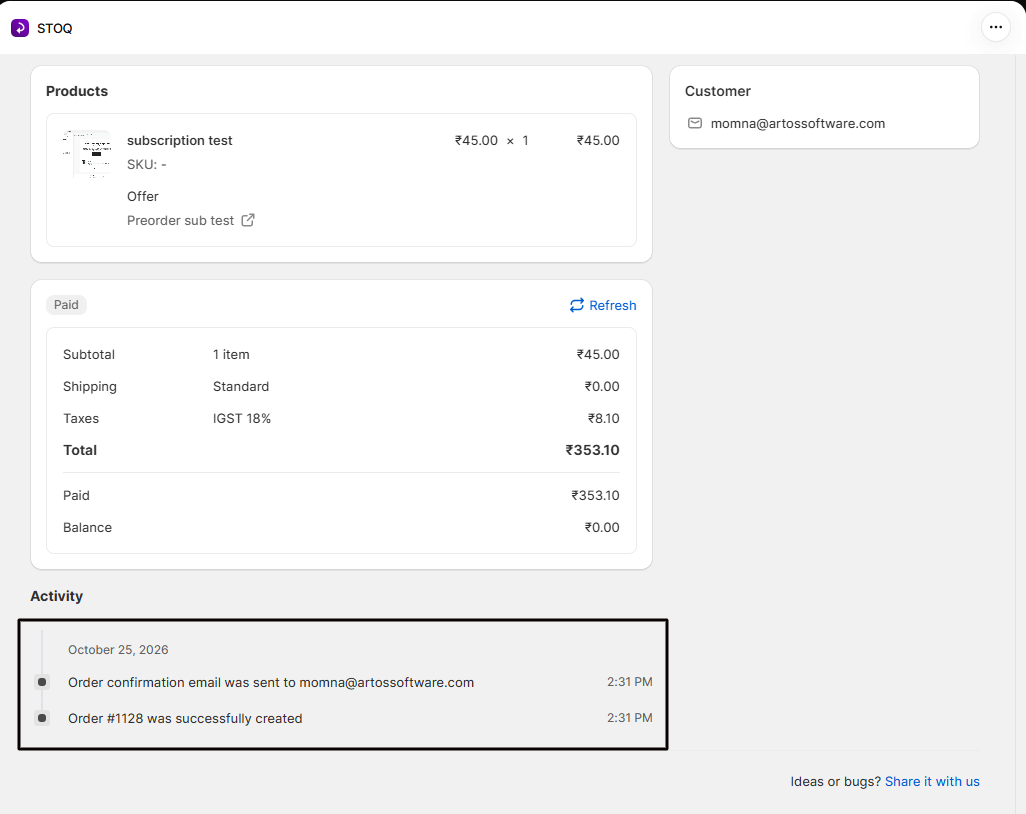
The Activity section below the payment breakdown shows a chronological log of all STOQ actions on this order, newest first.
| Event | Badge color |
|---|---|
| Order created | Green (success) |
| Order confirmation email sent | Grey (base); labeled “(sent manually)” if triggered by you |
| Shipping update email sent | Grey (base); labeled “(sent manually)” if triggered by you |
| SMS confirmation sent | Grey (base); labeled “(sent manually)” if triggered by you |
| Fulfillment hold applied | Yellow (warning), includes counts of total / held / failed / skipped |
| Fulfillment split applied | Green (success), includes counts of total / split / failed |
| Payment collected | Green (success); labeled “(collected manually)” if triggered by you |
| Payment collection failed | Red (critical); shows error message; labeled “(attempted manually)” if triggered by you |
| Payment due date rescheduled | Blue (info), shows old date and new date |
| Order split (preorder items moved to new order) | Green (success), shows new order name(s) |
| Order split failed | Red (critical), shows error message |
Actions on an individual order
Section titled “Actions on an individual order”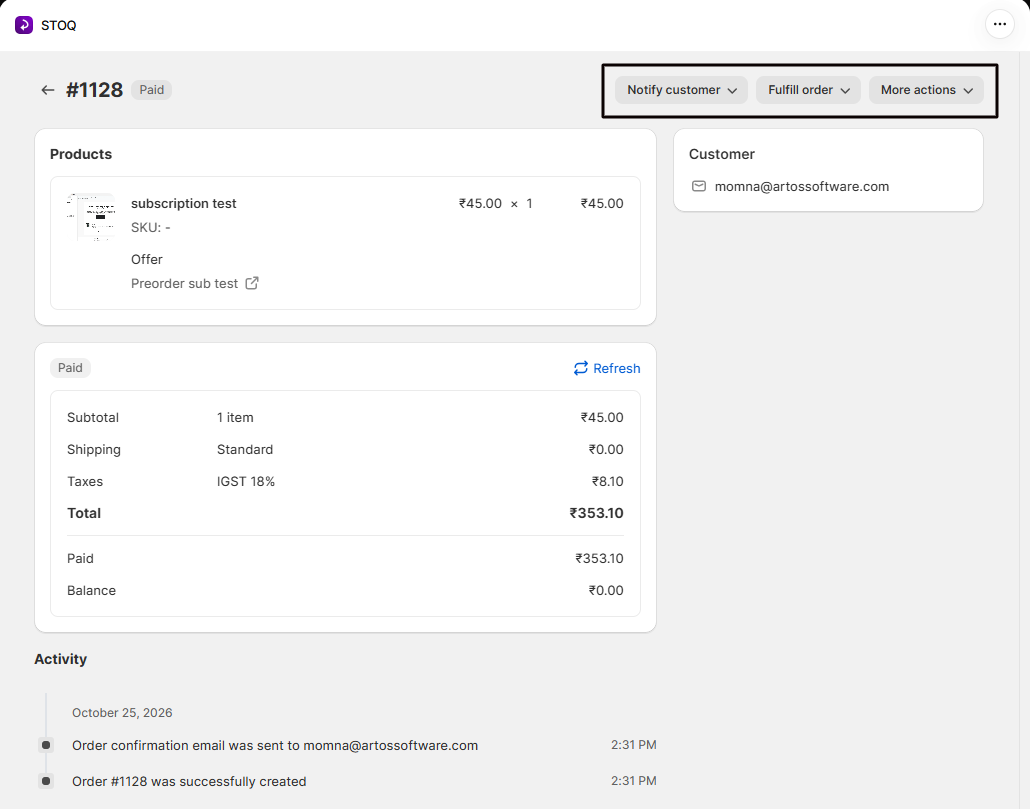
The page header contains three action groups: Notify customer, Fulfill order, and More actions. See What customers will see above for the Notify customer actions.
Fulfill order
Section titled “Fulfill order”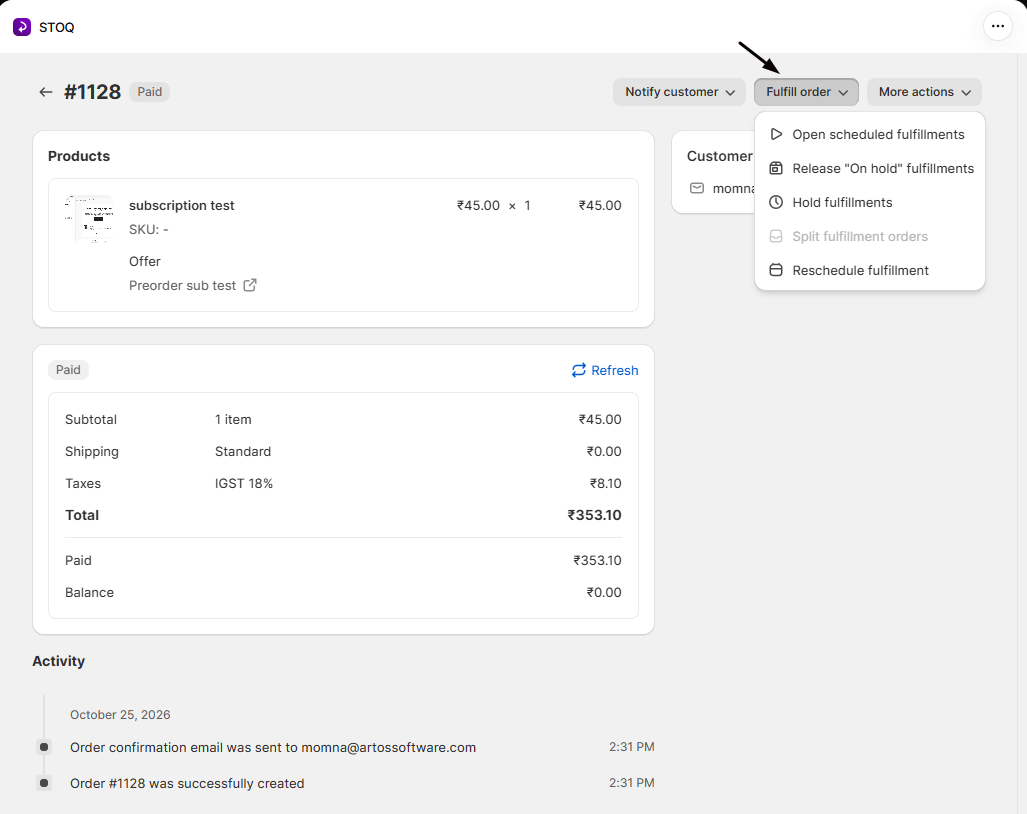
| Action | What it does |
|---|---|
| Open scheduled fulfillments | Moves scheduled fulfillments to open so the order can be fulfilled immediately. Requires confirmation. |
| Release “On hold” fulfillments | Releases held fulfillments so the order can be fulfilled immediately. Requires confirmation. |
| Hold fulfillments | Puts every fulfillment of the order on hold in Shopify, in-stock items included, with an optional Reason (optional) note. Disabled once the order is fulfilled. |
| Split fulfillment orders | Moves the order’s preorder items into their own fulfillment orders so in-stock items can ship first. Disabled unless the order’s offer has split fulfillments on, or once the order is fulfilled. |
| Reschedule fulfillment | Opens a date picker to set a new fulfillment date for this order. |
More actions
Section titled “More actions”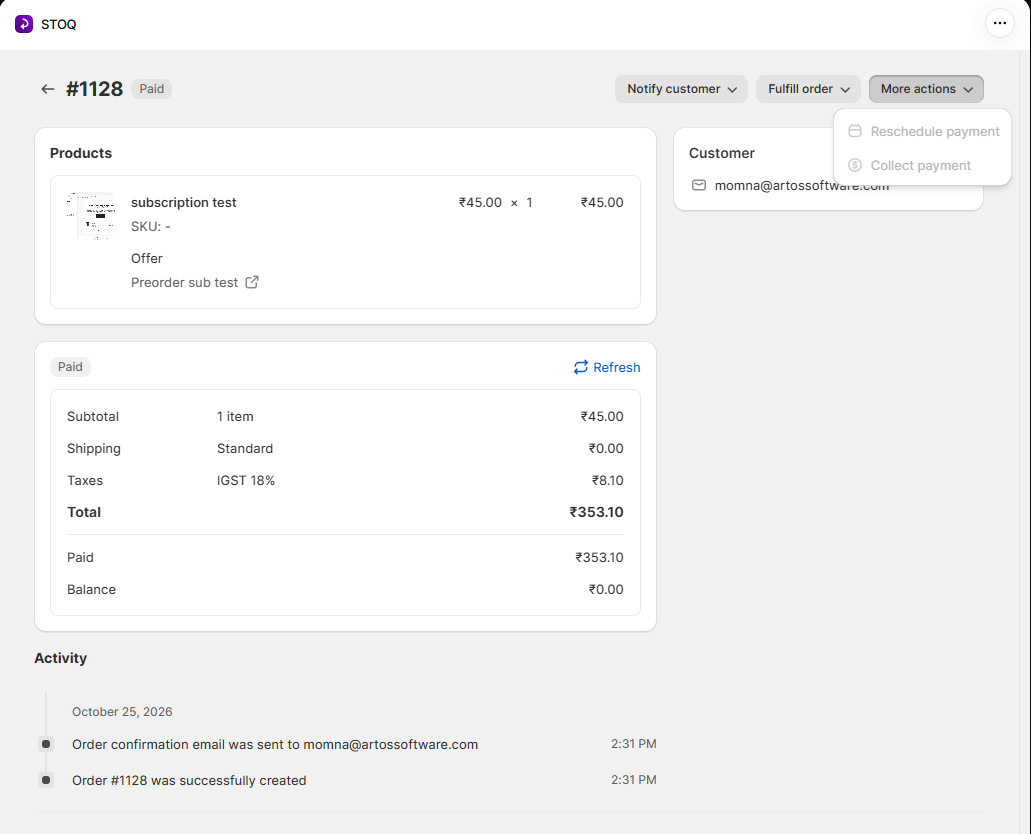
| Action | What it does | Availability |
|---|---|---|
| Reschedule payment | Opens a date picker to set a new payment due date. | Disabled for orders that are already paid, refunded, voided, or cancelled. |
| Collect payment | Attempts to collect the outstanding balance via Shopify. A confirmation modal lets you opt in to sending a payment-failed email notification to the customer if the charge is unsuccessful. | Disabled if the order is already paid, cancelled, or refunded. |
STOQ requests payment through Shopify’s API; Shopify performs the actual charge. STOQ does not store or process card details.
Troubleshooting
Section titled “Troubleshooting”An order doesn't appear in the list
The orders list only shows orders STOQ has attributed to a preorder offer, placed through a product associated with an active or past preorder selling plan. Check that the product was added to the offer and that the customer completed checkout through the preorder widget.
You need to find and retry orders with a failed payment attempt
- Apply Payment collection -> Failed in the filter bar.
- Check the Payment status column for orders still Partially paid or Unpaid.
- Select them and use Collect payment from the bulk actions, or open an individual order and use More actions -> Collect payment.
If retries keep failing, see Preorder payment collection fails.
A payment shows "Couldn't verify" in the Payment collection filter
STOQ requested payment but couldn’t confirm the outcome from Shopify within 24 hours, usually because settlement is delayed. Open the order and check the current Payment status badge; if it’s still Partially paid or Unpaid, try Collect payment again. For orders that consistently show “Couldn’t verify,” see Preorder payment collection fails.
Send SMS confirmation isn't showing on an order
It only appears when STOQ has a phone number on record for that order, SMS is enabled for your shop, and the customer hasn’t unsubscribed from SMS marketing.
A bulk action seems stuck
Bulk actions (open, release, hold, split, reschedule, collect, and shipping update) process in the background. Click Refresh table in the confirmation banner to reload the list and see updated statuses, and avoid triggering the same action again while it’s still processing.
Limitations
Section titled “Limitations”The payment breakdown’s shipping line currently always shows “Standard” at $0.00; the full shipping title and rate will be available in a future update.
Can I see the orders for just one preorder offer?
Yes.
- To see orders for one offer, go to Preorders → Offers, open the offer, and select the Orders tab. This is the same orders list, automatically limited to that offer’s orders, handy when you’re managing a single drop or campaign.
- To see orders across every offer, use Reports → Preorders → Orders instead.
- You can also narrow the account-wide list to a specific offer with the Active offer, Inactive offer, or Deleted offer filters.
What does the red 'Due' badge mean?
The Due badge appears alongside Partially paid when the payment due date recorded by STOQ has already passed and the order’s balance has not yet been collected. You can collect it manually from the More actions → Collect payment menu, or reschedule the due date via More actions → Reschedule payment.
Does collecting payment here charge the customer immediately?
Yes. When you trigger Collect payment, STOQ asks Shopify to capture the outstanding balance right away using the payment method the customer provided at checkout.
- If the charge succeeds, the order’s financial status updates to Paid.
- If it fails, the failure is logged in the Activity timeline and, if the option was enabled, the customer receives a payment-failed email with a link to complete payment.
What is the difference between 'Open scheduled fulfillments' and 'Release On hold fulfillments'?
These target different fulfillment states.
- Open scheduled fulfillments changes Shopify fulfillment orders in the Scheduled state to Open so they can be fulfilled immediately, before their original scheduled date.
- Release “On hold” fulfillments removes the fulfillment hold STOQ applied (for On hold or Hold-all-fulfillments setups), allowing the order to be picked up and shipped.
- If you are unsure which applies, check the Fulfillment status column in the list: Scheduled orders need “Open”, On hold orders need “Release”.
Can I send a shipping update to all matching orders at once?
Yes.
- Apply the filters you need (for example, a specific offer or a date range).
- Select all rows on the page and click Select all N orders to extend the selection to all matching results.
- Use Send shipping update from the bulk actions. You can customize the subject, header, and description before confirming.
- The email is sent in the background.
Related articles
Section titled “Related articles”Thanks for letting us know.
Still stuck? Ask Quinn or chat with support