Hold fulfillments
Hold preorder fulfillments until you're ready to ship, then release them manually or on a set date.
Last updated
Use this guide if you want to control exactly when preorder fulfillments become fulfillable, without changing anything customers see. By the end, preorder items in an order show as On hold in Shopify until you release them, manually or on a date you set, while in-stock items in the same order ship right away.
Before you begin
Section titled “Before you begin”- On hold requires the Shopify purchase option (selling plan), which is on by default. If you turn it off later, for example for separate preorder orders or Managed Markets, the status resets to Unfulfilled and On hold becomes unavailable; use Hold preorders without the purchase option instead.
- You set the status on the preorder offer, not on individual orders.
- On hold and automatically releasing holds on a set date are available on all plans. Holding the whole order with Hold all fulfillments, and releasing held orders in bulk, require a paid plan (Lite and above).
Choose your setup
Section titled “Choose your setup”Hold scope: decide whether the hold should cover only the preorder items or the whole order.
| Holds preorder items | Holds in-stock items in the same order | |
|---|---|---|
| On hold (default) | Yes | No, they ship right away |
| Hold all fulfillments (paid plan, Lite and above) | Yes | Yes, the whole order is held |
Use On hold alone when in-stock items should ship now. Enable Hold all fulfillments when nothing in the order should ship until you release it. See Place the entire order on hold.
Release method: decide how the hold gets lifted.
- Manually: available on all plans. You, or a Shopify Flow you set up, release the hold whenever you’re ready.
- Automatically on a set date: available on all plans. STOQ releases the hold for you once the release date is reached, optionally waiting until any outstanding balance is paid.
What customers will see
Section titled “What customers will see”On hold is an internal fulfillment state: it changes nothing about the storefront or checkout experience.
- Product page and cart: no preorder-specific “on hold” messaging is added. The customer sees your usual preorder button/badge and any shipping text you’ve configured, the same as with any other fulfillment status.
- Checkout: normal checkout. The customer pays as usual; nothing indicates that fulfillment will be held.
- After purchase: the order is placed normally. The hold only affects the fulfillment’s state in Shopify admin (shows as On hold, not fulfillable); the customer isn’t notified of the hold itself.
Set it up
Section titled “Set it up”On a phone, this menu is collapsed. In the Shopify mobile app, tap the STOQ logo at the top of the screen to open it, then choose the section named below. There is no hamburger icon. See Finding the STOQ menu.
-
Open the offer’s Shipping section
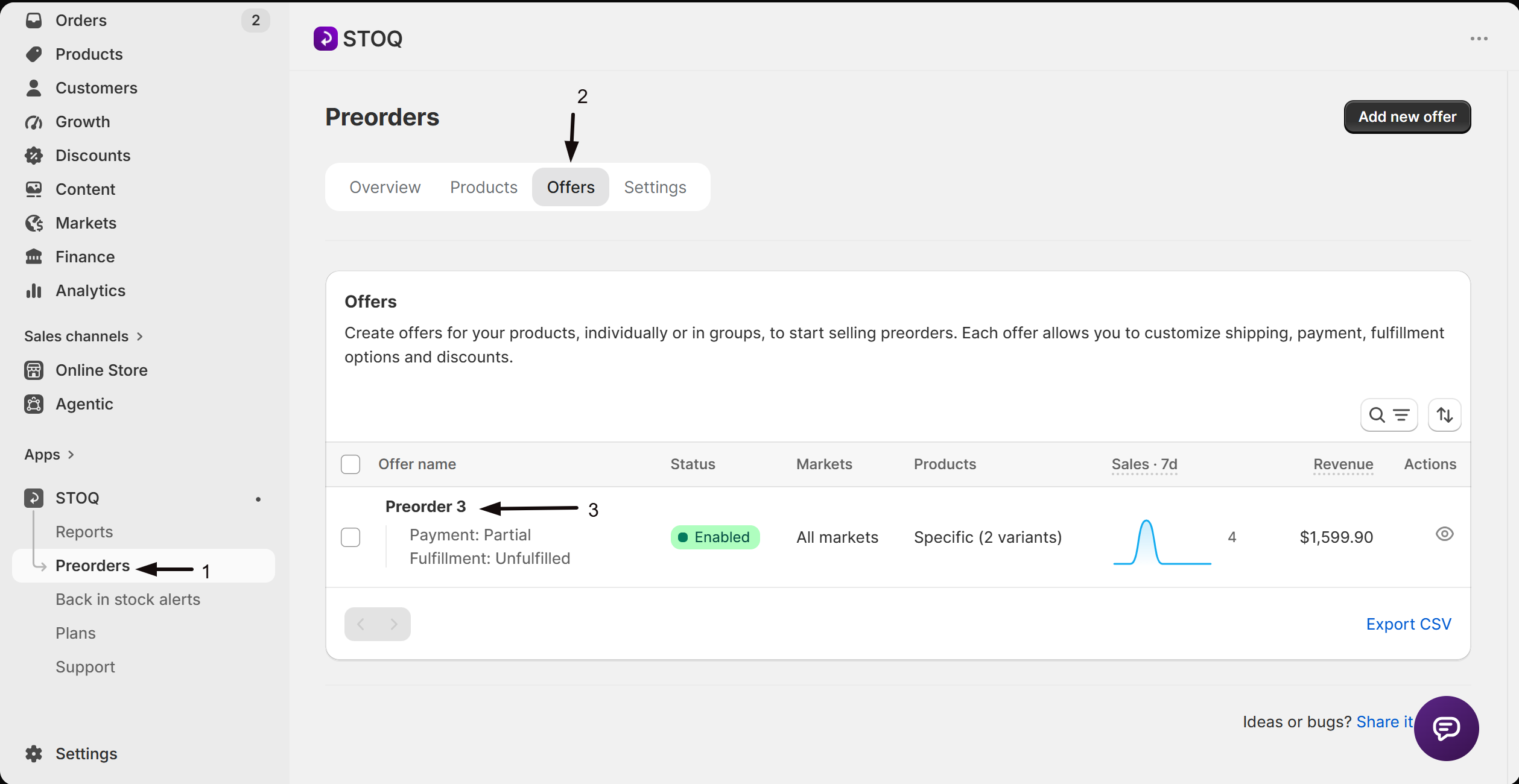
- In the left menu bar of the STOQ app, click Preorders.
- Click the Offers tab.
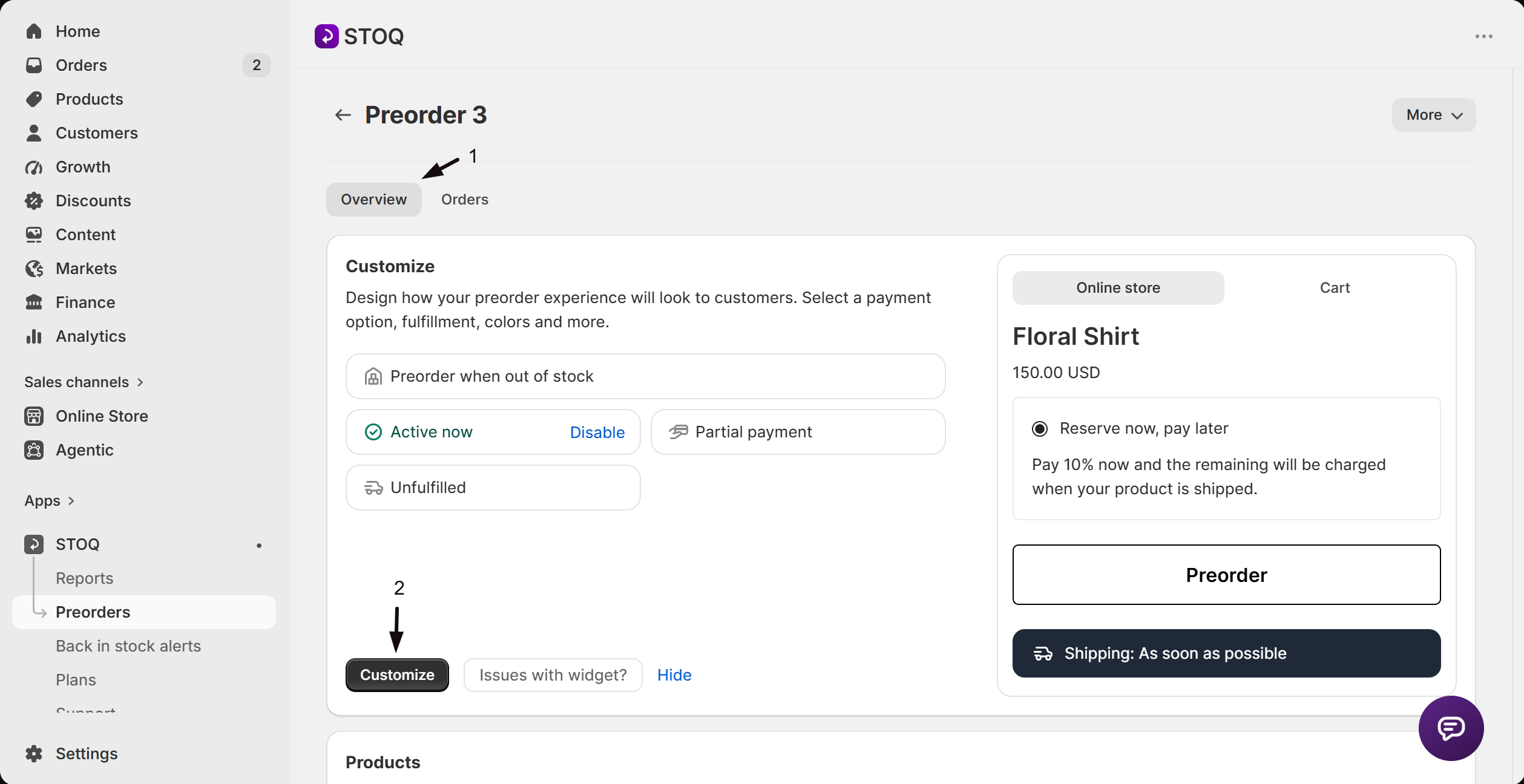
- Click the offer you’d like to edit. Its Overview tab opens, showing the Customize button, a live preview, and the offer’s Products section.
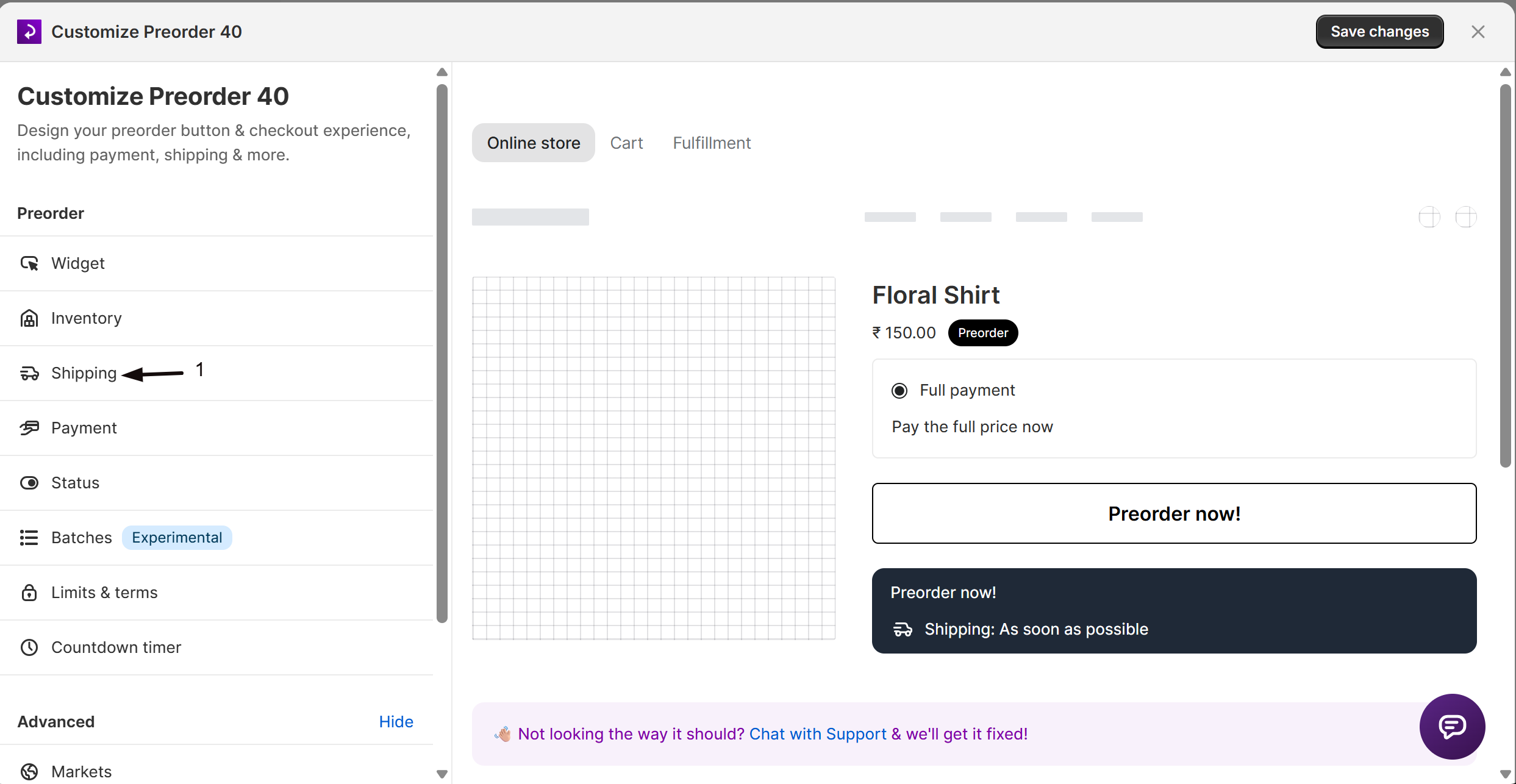
- Click the Customize button to open the editor.
- In the sidebar, click Shipping.
-
Set the fulfillment status
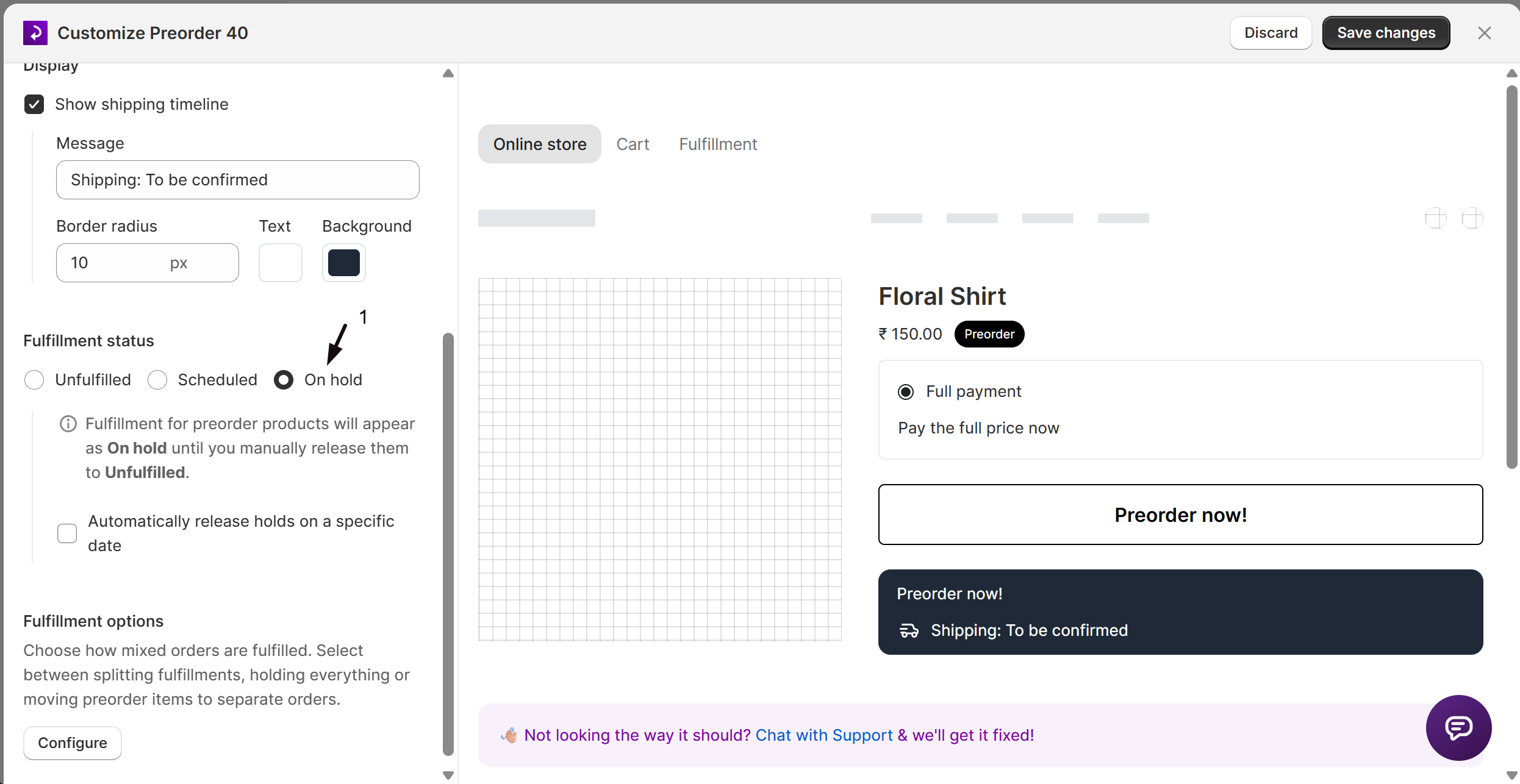
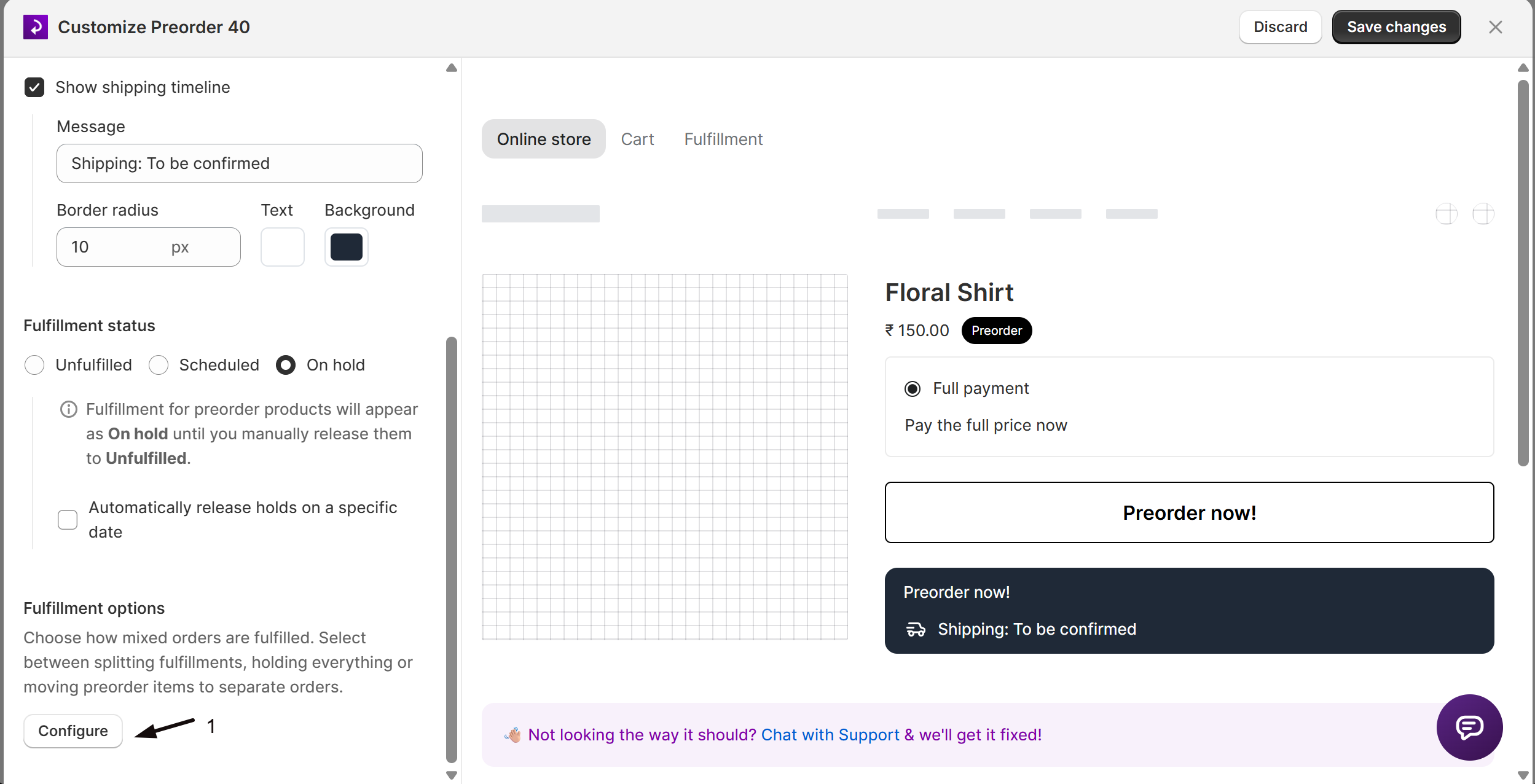
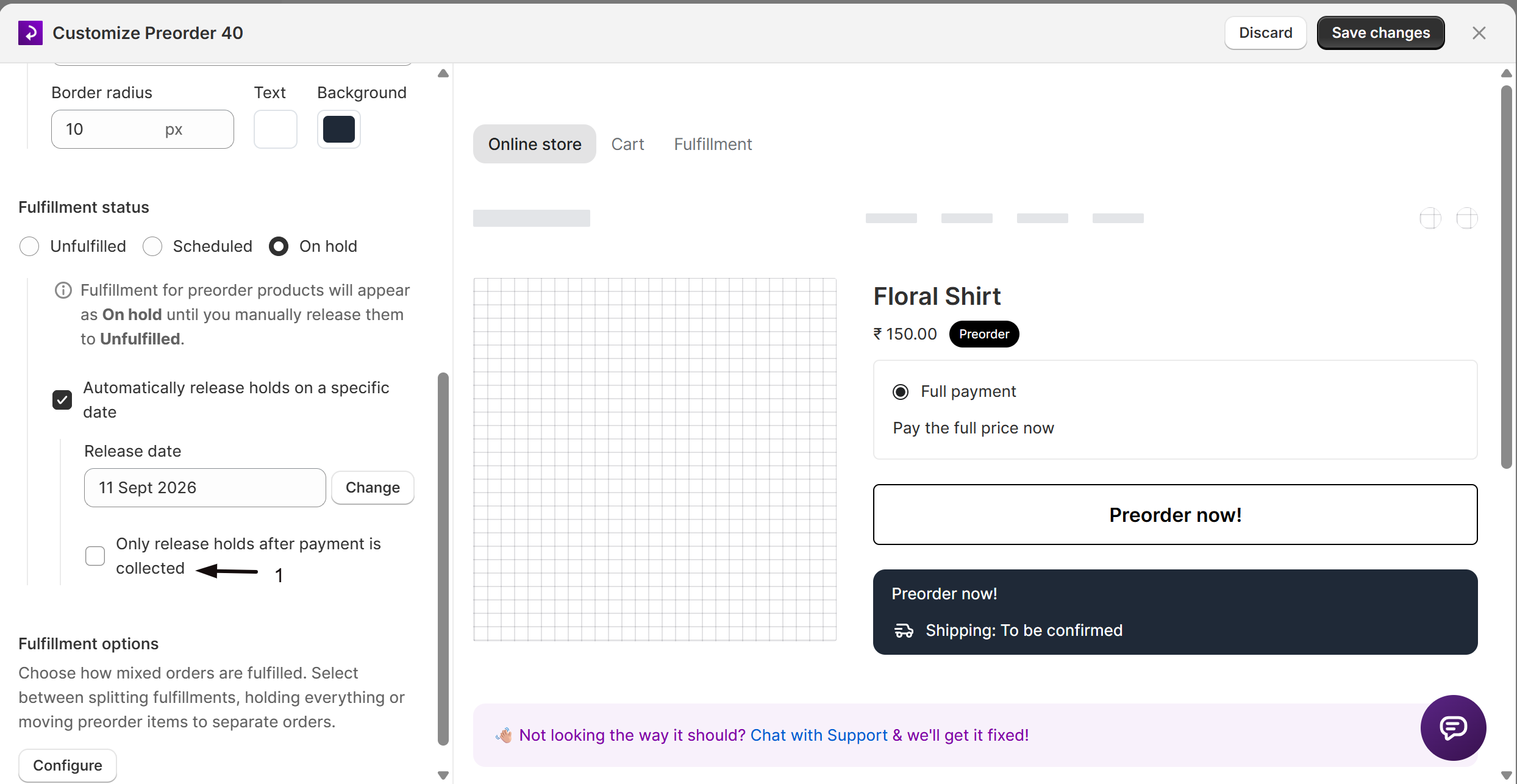
Under Fulfillment status, select On hold. A note confirms that preorder fulfillments will appear as On hold until released to Unfulfilled.
-
Choose whether to hold in-stock items too
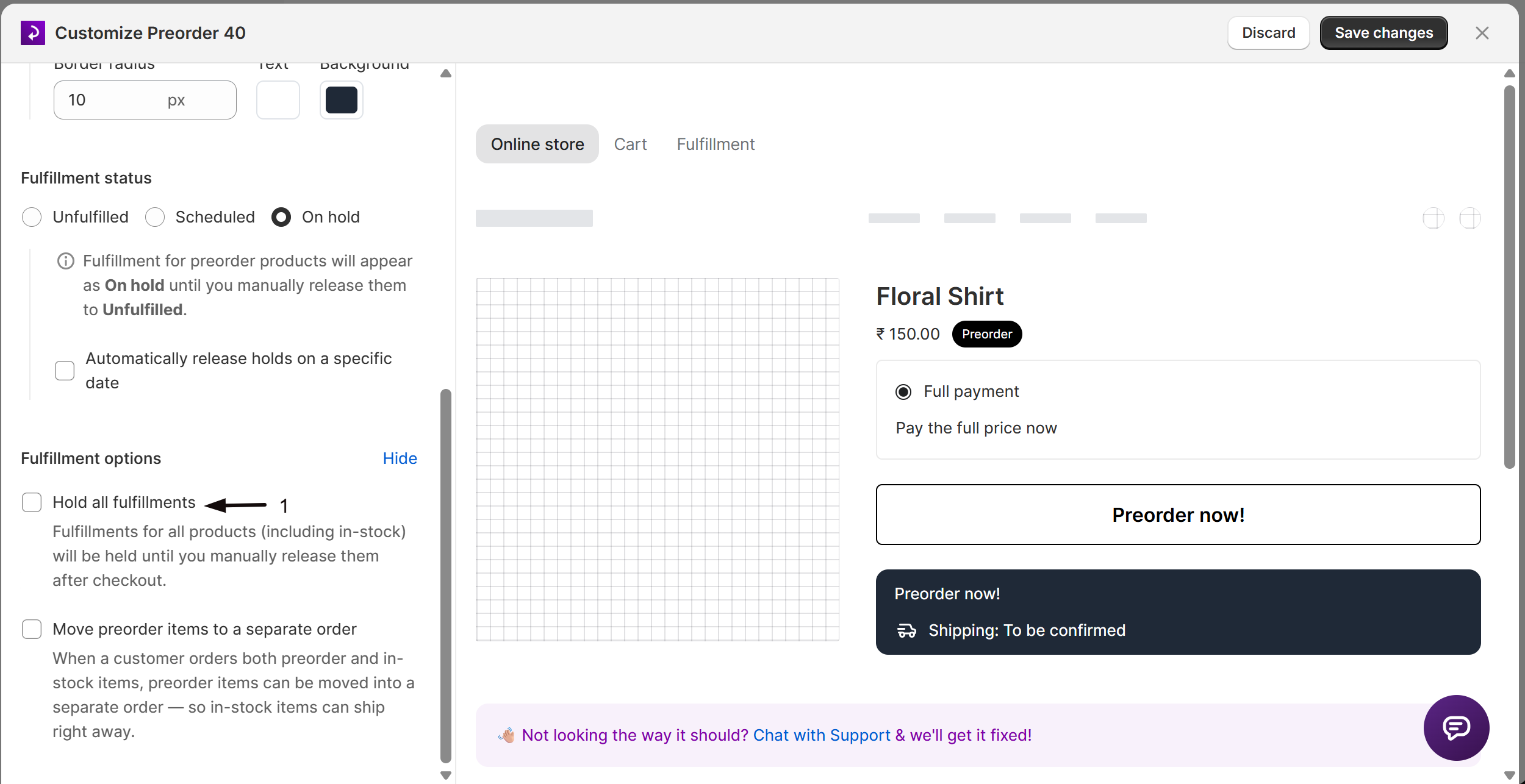
Under Fulfillment options, click Configure to expand the options, then leave it off to hold only the preorder items, or enable Hold all fulfillments to hold the entire order (paid plan, Lite and above). See Choose your setup above.
-
Optional: turn on automatic release
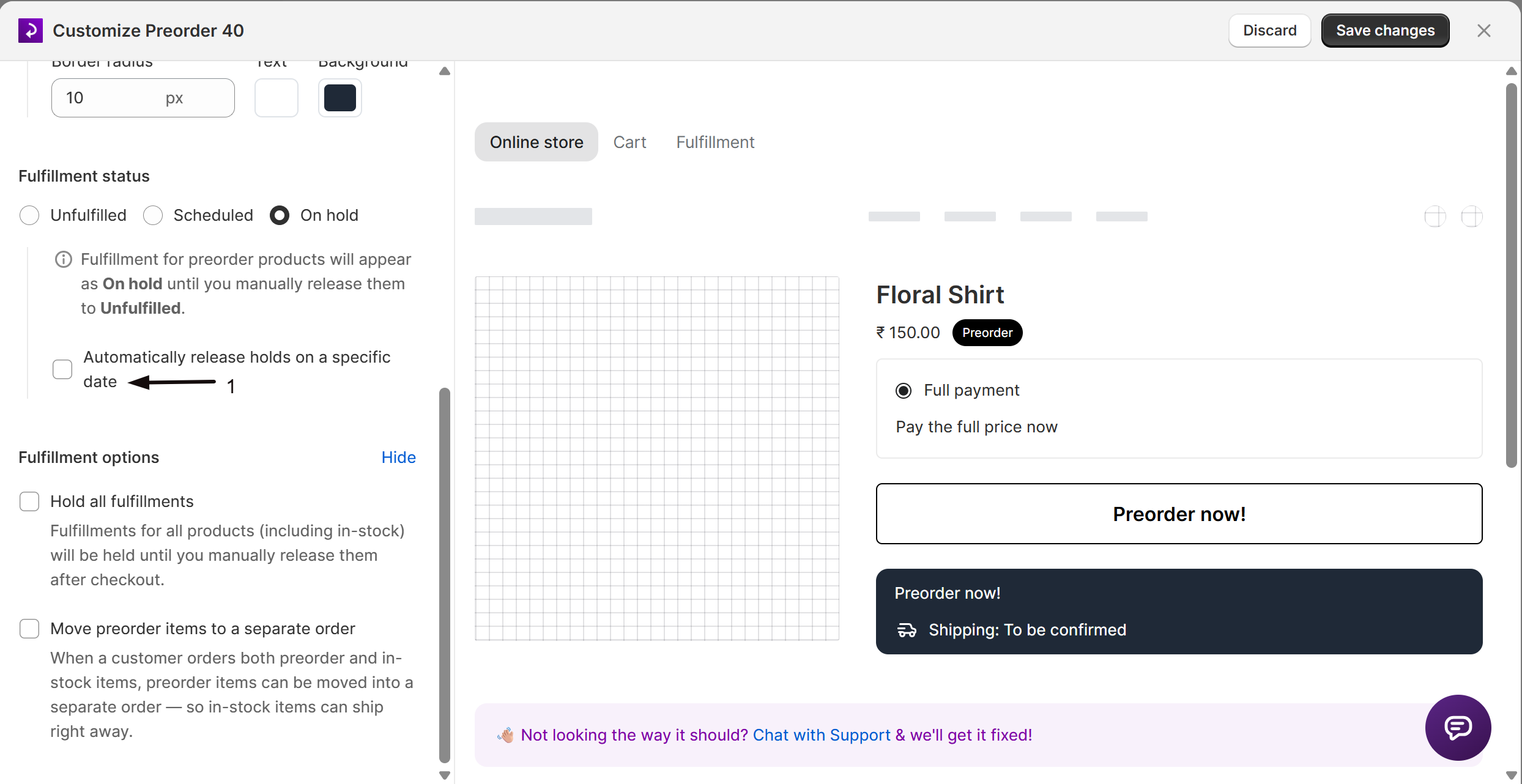
- Check Automatically release holds on a specific date.
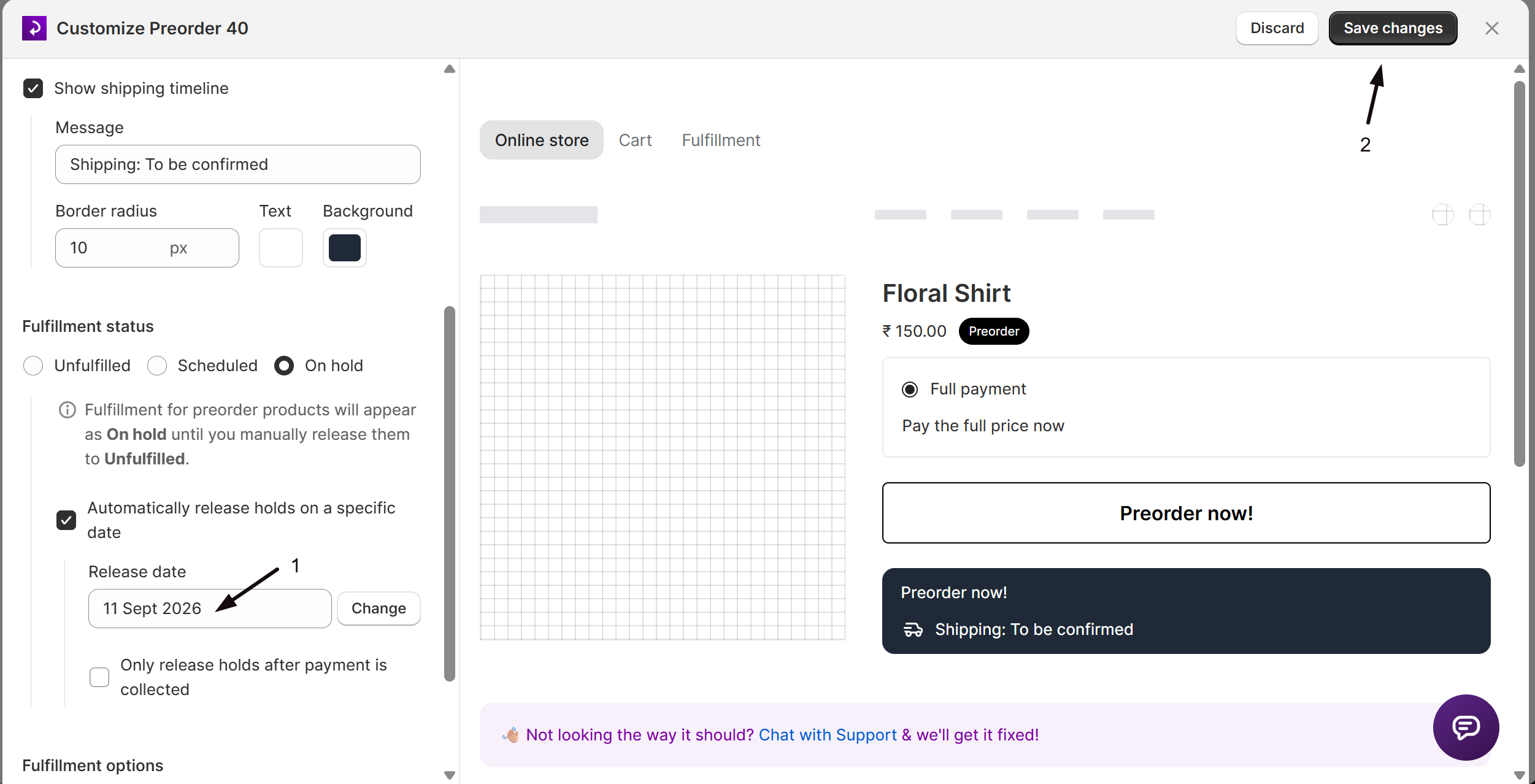
- Pick a Release date. STOQ releases the hold for you on that date; see Release the hold below for how this works.
-
Save changes
Click Save changes at the top right of the editor. The On hold status applies to orders placed after you save: holds are placed at checkout, so existing orders aren’t held retroactively. Automatic release works the other way, a release date you set applies to this offer’s held orders whenever they were placed. See Release the hold below.
Release the hold
Section titled “Release the hold”Release the preorder fulfillment when you are ready to ship: automatically on a date you set, or manually in STOQ, Shopify admin, or with Shopify Flow.
Automatically release holds
Section titled “Automatically release holds”With Fulfillment status set to On hold in the offer editor, check Automatically release holds on a specific date and choose a Release date.
The release date is set on the offer, not on each order. A background task runs once a day and, when the offer’s release date is reached (compared in your shop’s timezone), releases every held order on that offer, so you don’t need to come back and release them yourself.
This includes orders that were already on hold before you set the date, and held split orders STOQ created with Move preorder items to a separate order. Setting or changing the release date on an offer applies to all of its currently held orders, not just new ones. The check is idempotent: if a fulfillment was already released by you, Shopify admin, or Flow, the automatic release skips it.
Optionally check Only release holds after payment is collected. With this on, STOQ holds the fulfillment even after the release date has passed until the order’s outstanding balance reaches zero, useful for offers with a deposit or balance due later. Leave it unchecked to release strictly on the date regardless of payment status. The checkbox is greyed out on offers where customers pay the full amount at checkout, since there’s no balance left to collect.
In STOQ
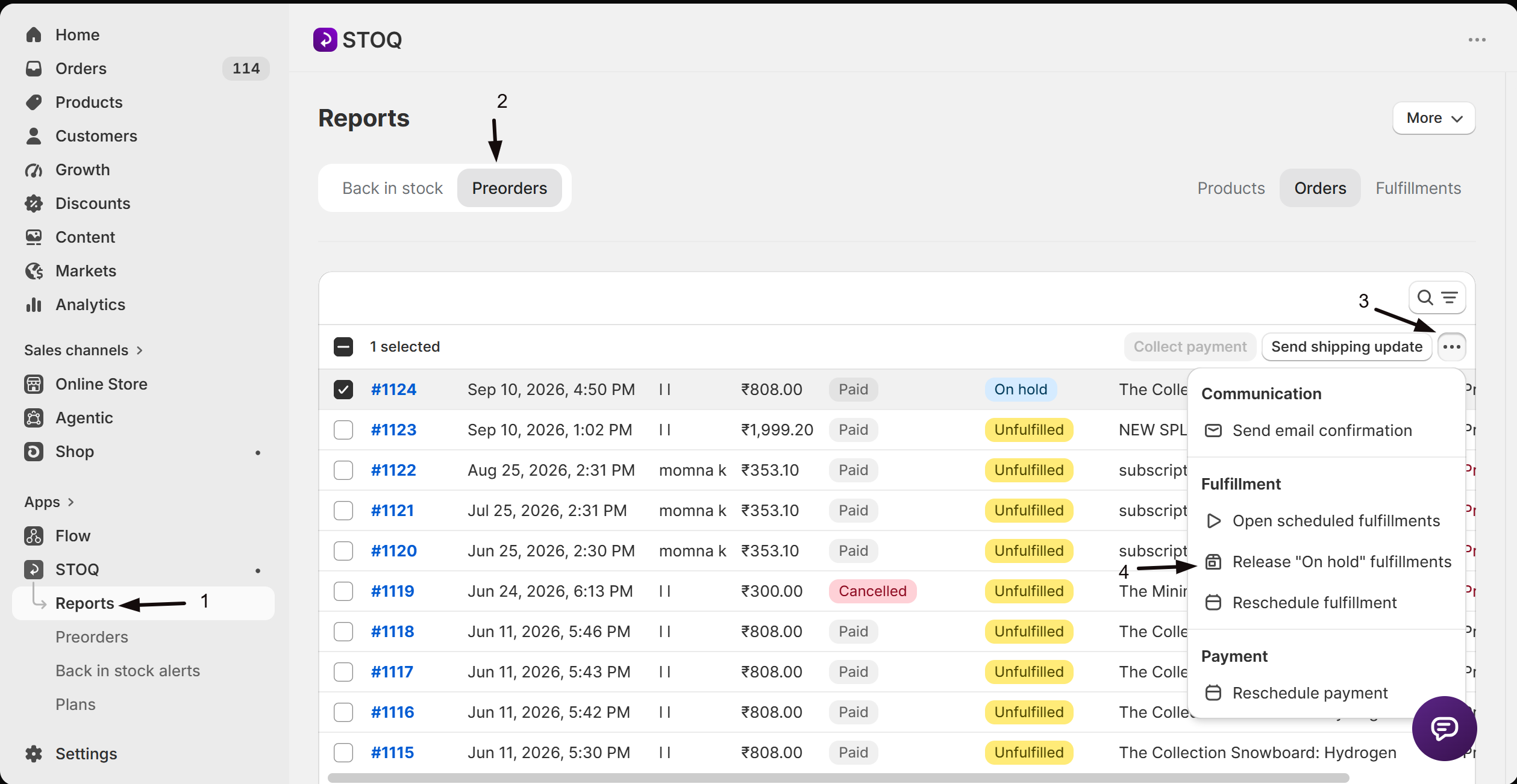
Section titled “In STOQ”In Reports → Preorders → Orders, select the held orders and use the Release “On hold” fulfillments action (one order or in bulk). Bulk release requires a paid plan (Lite and above).
In Shopify admin
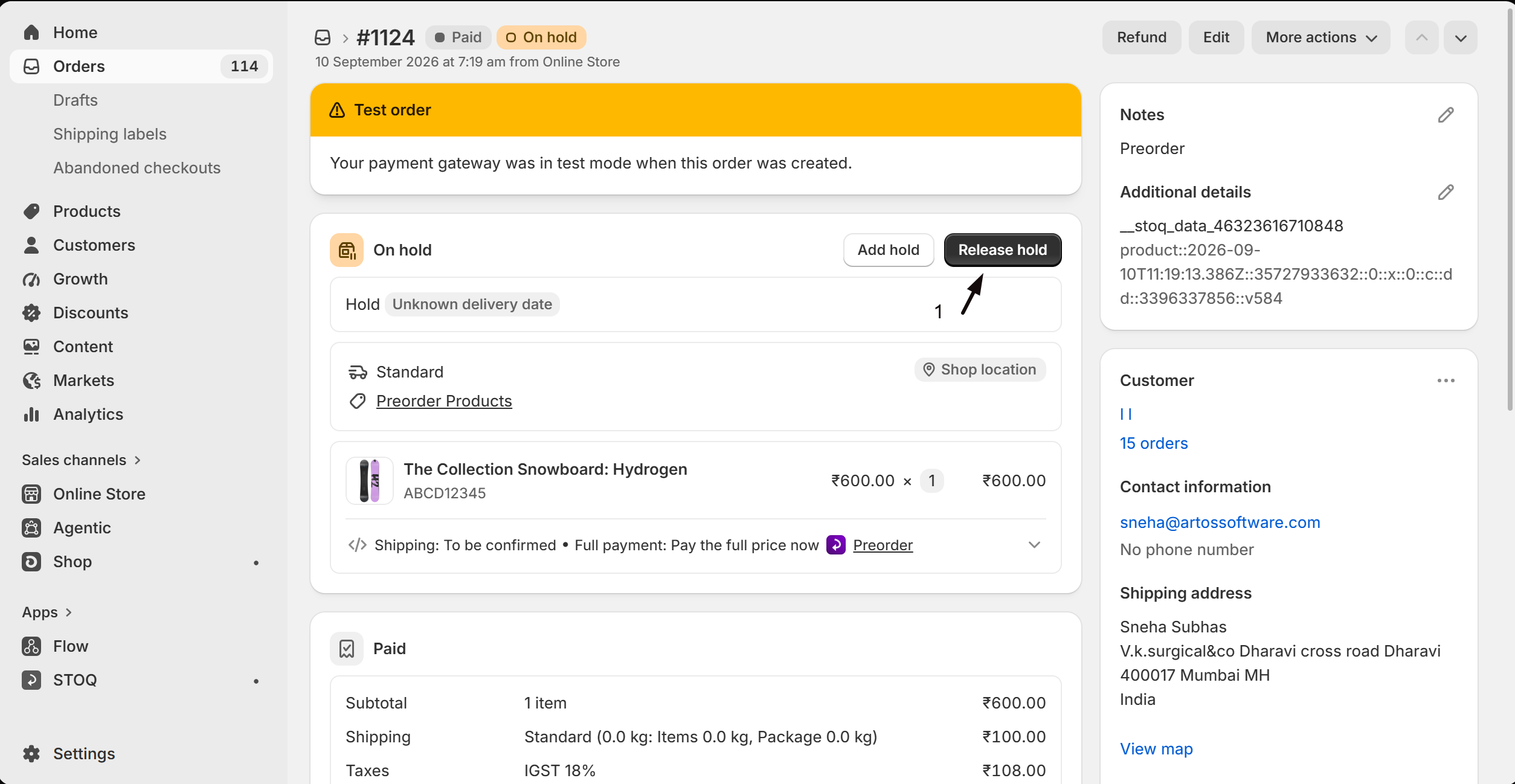
Section titled “In Shopify admin”Open the order, go to the fulfillment section, and click Release hold. The fulfillment moves to Unfulfilled.
With Shopify Flow
Section titled “With Shopify Flow”Automate release with a release fulfillment hold action, for example, release when an order is tagged. Use this for release conditions other than a fixed date, such as tag-based triggers.
Once released, automatically or manually, the fulfillment becomes Unfulfilled and you fulfill and ship it like any normal order.
Check your setup
Section titled “Check your setup”Place a test order with a preorder item from this offer (a 100% discount code or Shopify’s Bogus Gateway avoids a real charge). In the order’s fulfillment section in Shopify admin, confirm it shows On hold, not fulfillable, while any in-stock items in the same order stay fulfillable. Then check Reports → Preorders → Orders in STOQ, filter by fulfillment status, and confirm the order appears there too.
Troubleshooting
Section titled “Troubleshooting”On hold isn't available as a fulfillment status option
The Shopify purchase option is off. Turn it back on, or use Hold preorders without the purchase option instead.
Held fulfillments aren't showing up in your warehouse or 3PL system
Some WMS and 3PL systems only import Unfulfilled orders, so held fulfillments may not sync until you release them. Confirm how your provider handles held fulfillments before going live.
An automatic release didn't happen on the date you expected
Check whether Only release holds after payment is collected is on and the order still has an outstanding balance. The daily check also isn’t instant, so allow up to a day past the release date.
You can't find your held orders in STOQ
Go to Reports -> Preorders -> Orders and filter by fulfillment status to show only On hold orders.
I changed the status to On hold, why aren't my existing orders held?
The status applies only to orders placed after you save. Existing orders keep the status they had when they were placed, because a hold is placed at checkout, not retroactively. To hold an existing order, open it in Reports > Preorders > Orders and click Fulfill order, then Hold fulfillments. This holds the whole order, in-stock items included. See Hold an order that’s already placed.
If I set a release date, will orders already on hold be released too?
Yes. The release date is set on the offer, so when the date is reached the daily task releases every held order on that offer, including ones placed before you set the date. The one exception is Only release holds after payment is collected: if that’s on and an order still has an outstanding balance, that order stays held until the balance is paid.
Will customers see anything about the hold at checkout or after purchase?
No. On hold doesn’t change the product page, checkout, or order confirmation. It only changes the fulfillment’s state in Shopify admin, the customer isn’t notified of the hold itself.
Does putting an order on hold affect in-stock items in the same order?
No, unless you also enabled Hold all fulfillments. With On hold alone, only the preorder items are held; in-stock items stay fulfillable and ship right away.
Does releasing a hold charge the customer or ship the order?
No. Releasing only makes the fulfillment available to fulfill. Collect any remaining balance separately, and ship the order in Shopify when you’re ready.
How do I release many held orders at once?
Select them in Reports → Preorders → Orders (or use Select all matching) and run the bulk Release “On hold” fulfillments action. This requires a paid plan (Lite and above). See Release held fulfillments.
My stock arrives in batches over several days. How should I release holds?
Release in waves as each batch lands. In Reports → Preorders → Orders, filter Preorder fulfillment status to On hold, select the orders you can now fill, and run the bulk Release “On hold” fulfillments action. Repeat as more stock arrives. Don’t rely on a single Release date for this, because it releases every held order on the offer at once, set one only for when you expect to fulfill them all together. For a staged rollout where each wave of buyers is released in turn, use Preorder batches instead.
Related guides
Section titled “Related guides”Thanks for letting us know.
Still stuck? Ask Quinn or chat with support