Restrict a preorder offer to specific markets
Show a preorder offer only in the Shopify markets you choose.
Last updated
Use this guide if you sell in multiple Shopify markets and want a preorder offer to show only in some of them, for example a specific region, or a market with different stock or shipping needs. By the end, the preorder button will show only in the markets you select; customers in every other market see the standard product experience instead.
Before you begin
Section titled “Before you begin”| Requirement | Detail |
|---|---|
| Active preorder offer | You need at least one offer. See Set up preorders. |
| Paid STOQ plan | The Specific markets option is disabled on free plans. An upgrade prompt appears in the section when you’re on a free plan. |
| Shopify Markets configured | Markets listed here are pulled from your Shopify admin (Settings > Markets). Only markets that exist in Shopify appear in the picker. |
Choose your setup
Section titled “Choose your setup”The Markets section of a preorder offer has two options:
| Option | Behavior |
|---|---|
| All markets | The preorder button shows to customers in every Shopify market. This is the default. |
| Specific markets | The preorder button shows only in the markets you select. Requires a paid plan. |
Markets in STOQ: three different settings
Section titled “Markets in STOQ: three different settings”“Markets” can mean three separate things in STOQ. This article covers the second one.
| Setting | Where it lives | What it controls |
|---|---|---|
| Shopify Markets | Shopify admin, Settings > Markets | The markets your store sells to. STOQ reads these; it doesn’t set them. |
| Offer market availability | A preorder offer’s Markets section (this article) | Which of your Shopify markets show this offer’s Preorder button. All markets means every market you already sell to. |
| Restock alert locations | Back in stock alerts > Settings > Delivery settings | Which locations or markets trigger a back in stock alert. See Back in stock locations and markets. |
What customers will see
Section titled “What customers will see”Customers browsing from a market you selected see the preorder button as normal. Customers browsing from any other market see the standard product experience instead: an Add to cart button if the product is in stock, or a sold-out button if it isn’t. STOQ controls only the preorder button and its widget; Shopify controls the rest of the product page and checkout.
When a variant is out of stock and on preorder only in other markets, customers in the excluded market also see a Notify me button, so they can sign up for a back in stock alert instead. It shows on the product page, in the Notify me form’s variant list, and in quick-add and featured product sections. It works whether or not Show ‘Notify me’ widget on preorder products is on, but the ‘Notify me’ widget toggle must be on and your product tag rules still apply.
Set it up
Section titled “Set it up”On a phone, this menu is collapsed. In the Shopify mobile app, tap the STOQ logo at the top of the screen to open it, then choose the section named below. There is no hamburger icon. See Finding the STOQ menu.
-
Open the offer’s Markets section
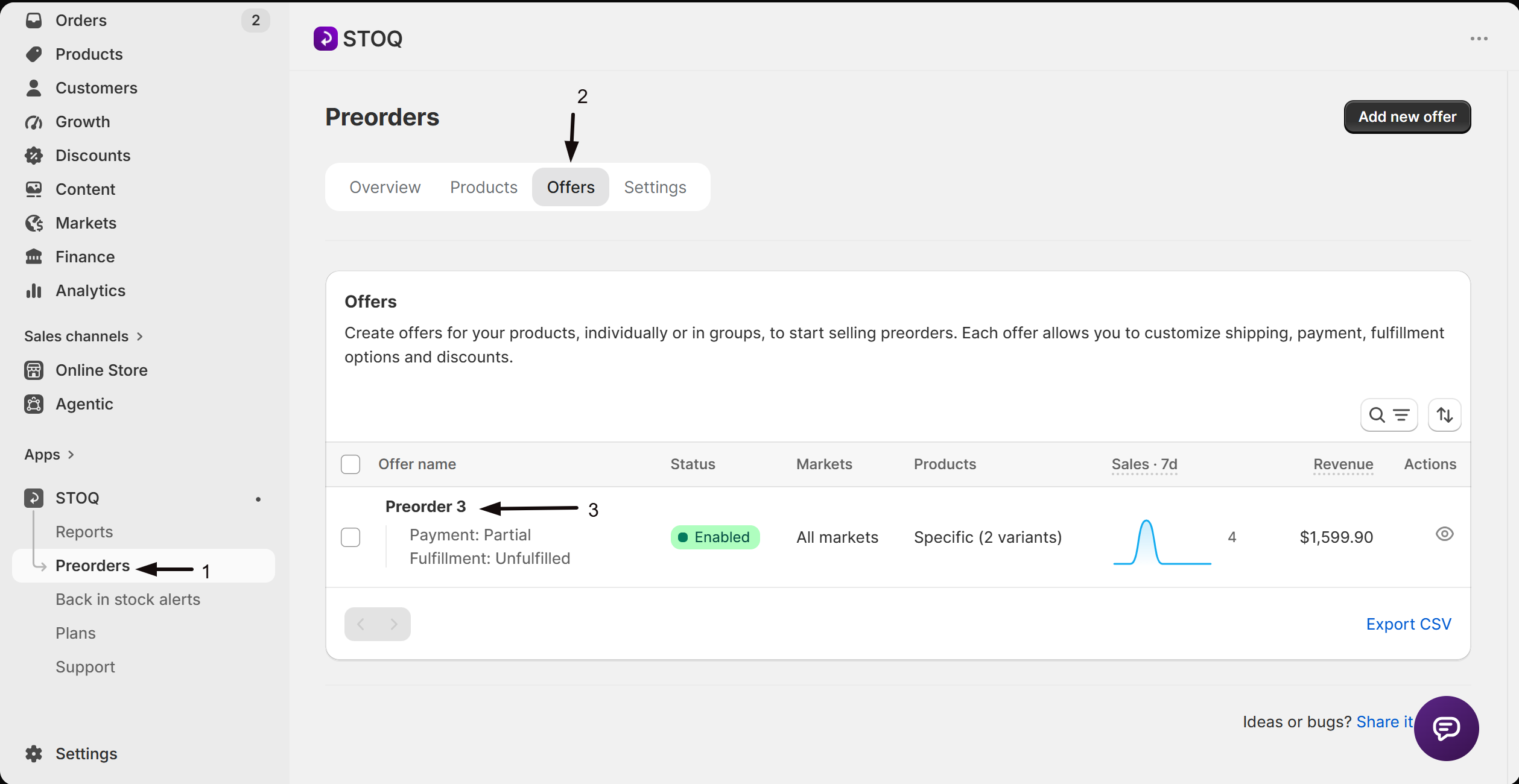
- In the left menu bar of the STOQ app, click Preorders.
- Click the Offers tab.
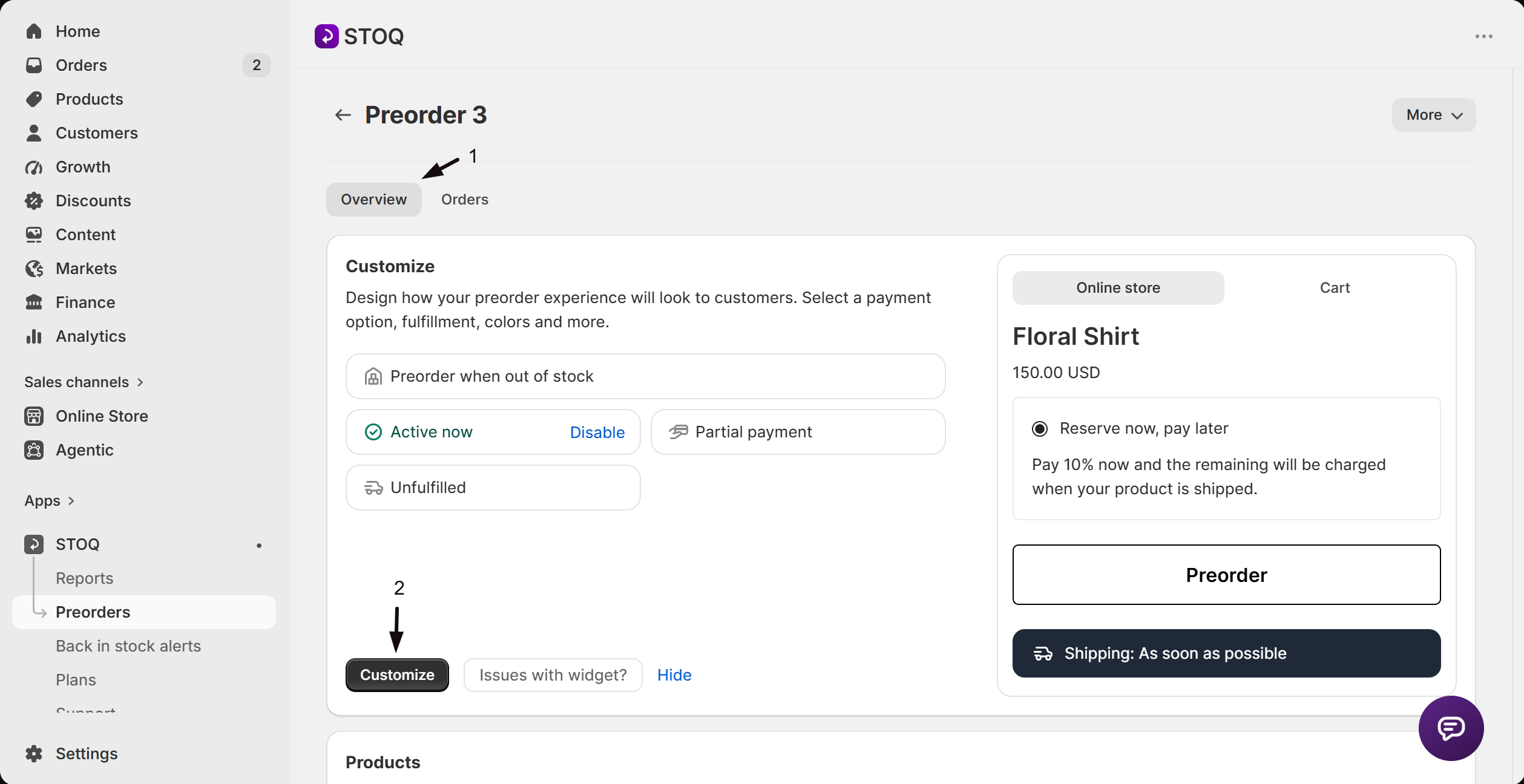
- Click the offer you want to edit. Its Overview tab opens, showing the Customize button, a live preview, and the offer’s Products section.
- Click Customize to open the editor.
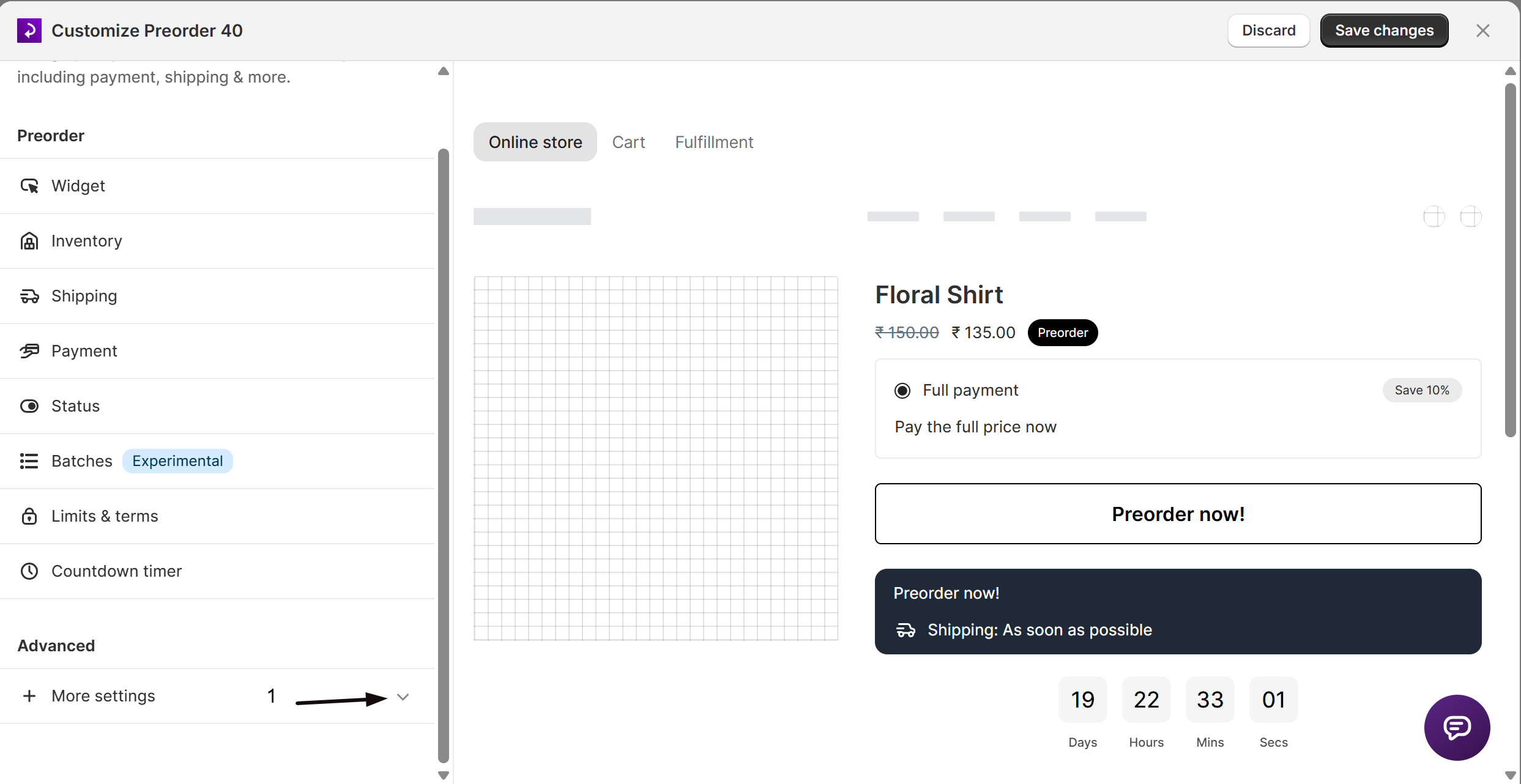
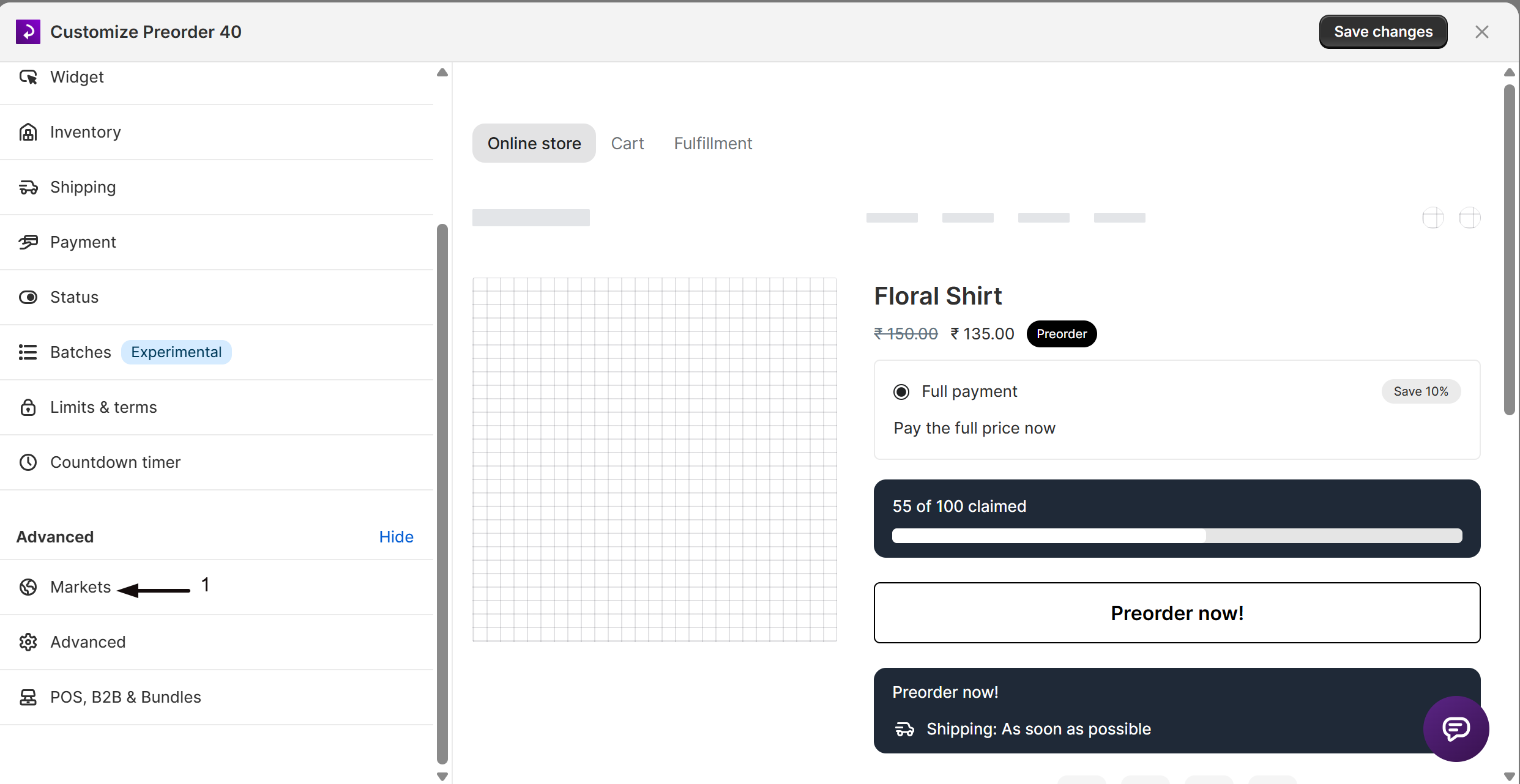
- In the settings list, click More settings to expand it, then click Markets (globe icon).
-
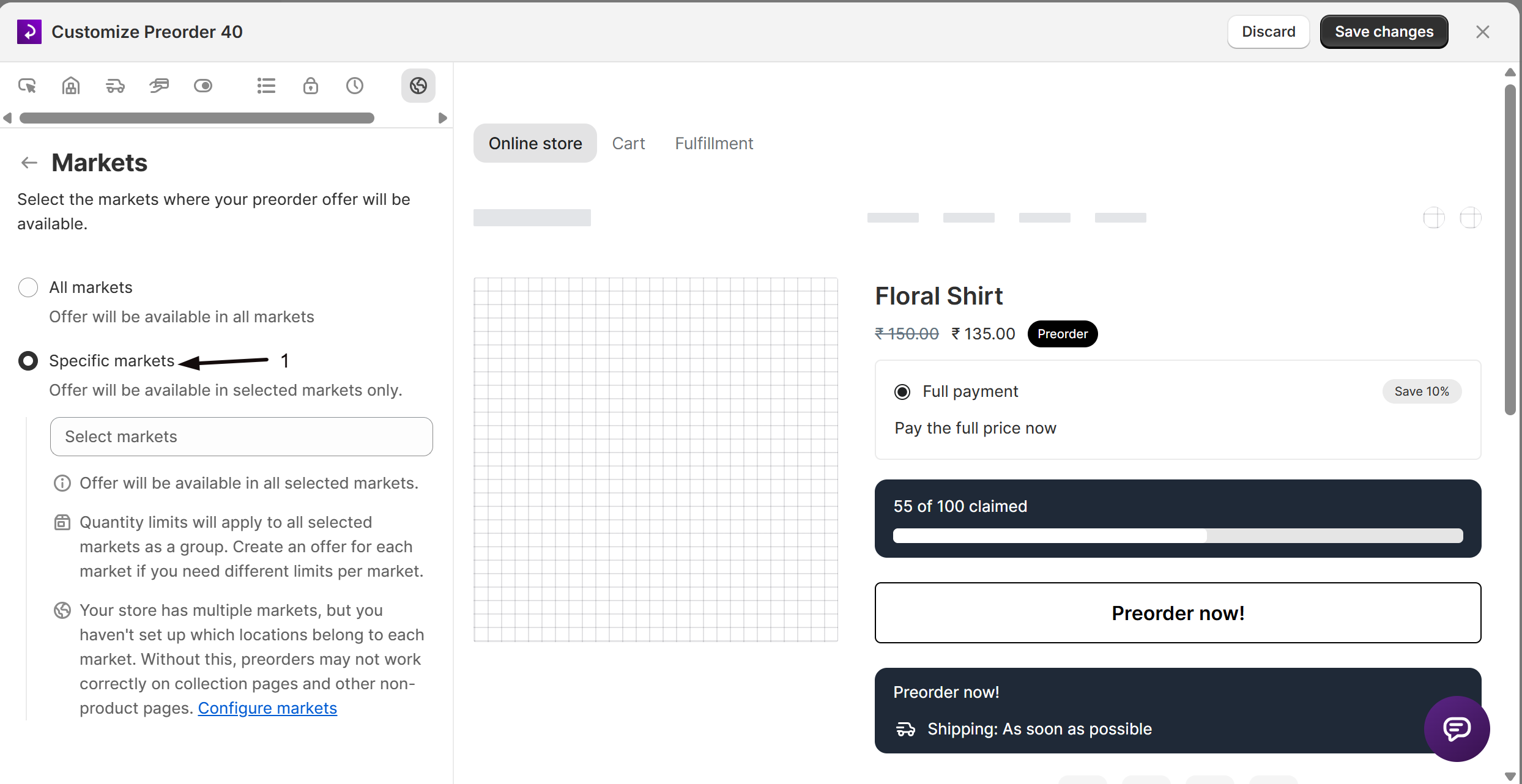
Select Specific markets
Choose Specific markets. See Choose your setup above for how this differs from All markets.
-
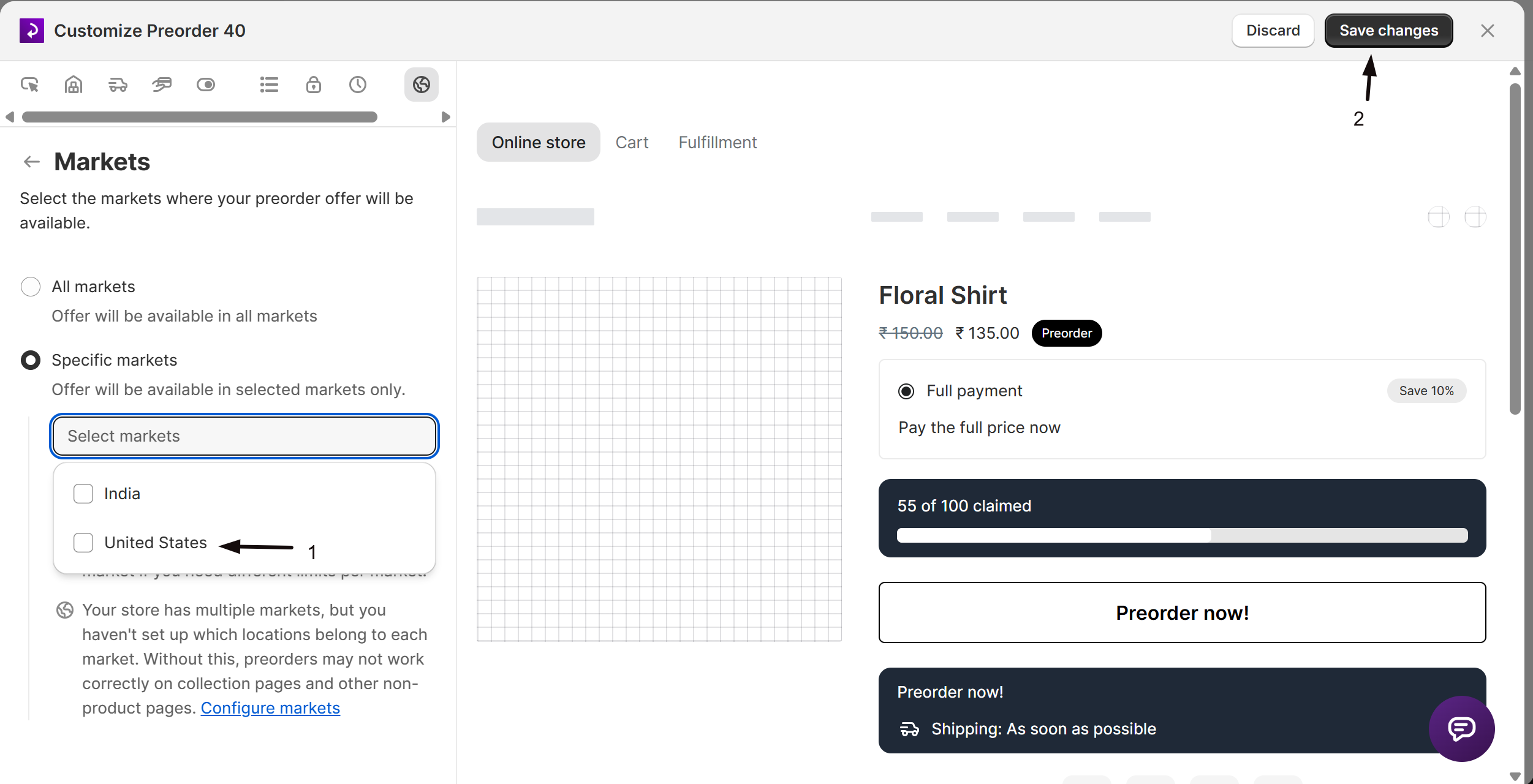
Select markets from the picker
- Click inside the search field that appears and start typing a market name.
- Select one or more markets from the dropdown (selected markets appear as removable tags above the search field; click the x on a tag to remove it).
At least one market must be selected to save; saving with none shows a validation error.
-
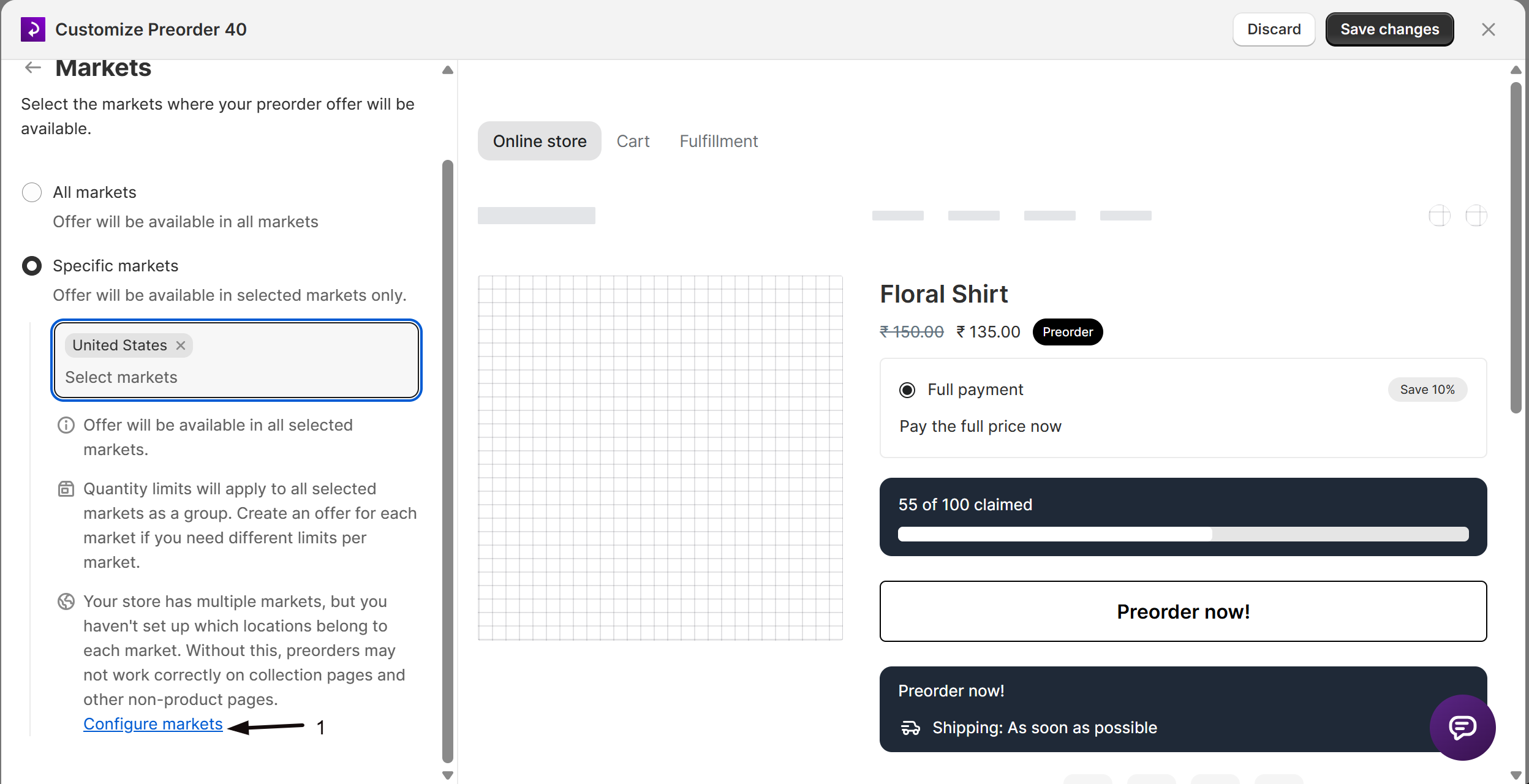
Configure market locations when prompted
Click Configure markets to open the Locations & Markets settings and map each market to its fulfillment locations.
-
Save changes
Click Save changes at the top right of the editor. The market selection takes effect immediately on the online storefront.
Check your setup
Section titled “Check your setup”- Visit a product page linked to this offer while browsing from a market you selected. The preorder button should appear.
- Visit the same product page while browsing from a market that isn’t in your selection. The preorder button should not appear. If the selected variant is out of stock, a Notify me button should appear instead.
Check product status by market
Section titled “Check product status by market”When an offer covers more than one market, the offer’s Products section can show each variant’s status for a specific market, so you can confirm the offer behaves the way you expect region by region without leaving STOQ.
-
Open the offer’s Products section
Open the offer (Preorders in the left menu, then the Offers tab, then open your offer) and go to its Products section.
-
Filter by market
Click the globe icon at the top of the products list (labeled Market). Under Product status by market, choose a market to see each variant’s status for that region, or All markets for the combined view.
Each variant’s status reflects the inventory at the locations mapped to the market you pick, so the same variant can read differently from one market to the next. The globe filter appears only when the offer has more than one market assigned.
Products shared between offers
Section titled “Products shared between offers”If you run one offer per market, for example a US offer and an Australia offer, the same products are often in both. Continue selling when out of stock is one Shopify setting per product, shared by every offer that includes it. If you turn it off from one offer, customers can no longer preorder that product in the other offer either.
STOQ warns you before this happens. When you choose to turn Continue selling off, and another enabled offer set to Show “Preorder” when product is out of stock still includes some of the products, a warning appears at the top of the same box. This works whether the offers use Specific markets or All markets. Offers set to Show “Preorder” for in-stock products don’t count, because they sell from stock and don’t need Continue selling. The warning shows:
- How many of the products are also in another active preorder offer.
- Each affected offer by name, with how many of its products are affected.
The warning can appear in any box where you can turn Continue selling off:
- Disable offer?, when you disable an offer and keep Yes selected.
- Schedule offer, when you schedule an offer to start later and keep Yes selected.
- Disable preorder offers, after you select offers on the Offers tab and click Disable offers.
- Toggle ‘Continue selling’, from an offer’s Products section or from the Products tab. On the Products tab, every enabled out-of-stock offer that includes the selected products is listed.
- Remove variants, when you remove variants from an offer’s Products section.
- Continue selling setting, when you change the offer’s products between Specific products, Collection, Product tags and All products.
The warning only shows while the turn-off option is selected. If you pick the option that keeps Continue selling on, or leaves it unchanged, the warning disappears. STOQ doesn’t block anything and applies exactly what you choose. To keep taking preorders in the other market, keep Continue selling on for those products.
If you disable several offers together with Disable offers, the offers you’re disabling don’t count against each other.
STOQ applies the same rule when it changes Continue selling on its own. When a variant reaches its quantity limit, or sells out its last batch, STOQ normally turns Continue selling off. If another enabled out-of-stock offer still includes that variant, STOQ leaves Continue selling on so the other offer keeps taking preorders.
Troubleshooting
Section titled “Troubleshooting”The preorder button isn't showing on collection, home, or search pages for some markets
This is usually missing location-to-market mapping.
- Open the pages editor: Preorders in the left menu -> Settings tab -> Pages sub-tab -> Customize.
- Open Locations & Markets under Advanced.
- Switch to Multiple markets.
- Map each market to its locations.
Saving shows "At least one market must be selected when specific markets is enabled"
Select at least one market from the picker before saving.
Specific markets is disabled
You’re on a free plan. Click the Upgrade link next to the option to unlock market-level control.
Preorders stopped in one market after changing another market's offer
Continue selling was probably turned off for products that both offers share, for example when you disabled or removed products from one offer and chose to turn it off. Turn it back on from the offer that is still active:
- In the left menu of the STOQ app, click Preorders.
- Click the Offers tab.
- Click the offer that is still active.
- In its Products section, select the affected variants.
- Click Toggle ‘Continue selling’.
- Choose Turn on ‘Continue selling’ for selected variants, then click Update.
Limitations
Section titled “Limitations”- Shipping text is shared across all markets. The Shipping section (Preorders > Offers > your offer > Customize > Shipping) sets one default shipping message for every market; you can’t set different shipping text per market.
- Quantity limits (total preorder limit and per-variant limits) apply across all your selected markets as a group, not per individual market. For separate limits per market, create a dedicated offer for each market.
- In excluded markets, the Notify me button doesn’t show on collection page product cards. Customers can sign up from the product page, or from quick-add and featured product sections.
Does removing a market affect existing preorders?
No. Removing a market only stops new preorders in that market going forward. Orders placed before the change are unaffected and follow their normal fulfillment flow.
What do customers in other markets see instead of the preorder button?
An Add to cart button if the product is in stock. If it’s out of stock, they see a sold-out button and a Notify me button, so they can sign up for a back in stock alert. STOQ’s preorder button and widget aren’t shown in those markets.
When do customers in other markets get their restock alert?
When real stock arrives for the variant. If preorders in the markets where the offer is live have already oversold the variant, the incoming stock covers those preorders first. In that case, customers who signed up in other markets can be notified later than you expect.
How long does it take for market changes to go live?
The preorder button appears or disappears for the selected markets as soon as you save the offer. Shipping text and quantity limits update shortly after, typically within a few seconds to a minute.
Why did turning off Continue selling in one offer stop preorders in another?
Because Continue selling is one Shopify setting per product, not per offer. Every offer that includes the product uses the same setting, so turning it off anywhere turns it off everywhere. STOQ warns you first when both offers use Specific markets.
Does STOQ stop me from turning off Continue selling on shared products?
No. The warning only tells you which offers will be affected. STOQ applies whichever option you choose.
Why don't I see the shared-product warning?
The warning only counts other enabled offers set to Show “Preorder” when product is out of stock. It doesn’t appear if no such offer includes those products, if the other offers use Show “Preorder” for in-stock products, or if the option to turn Continue selling off isn’t selected.
Does turning off Continue selling affect orders already placed?
No. It only stops new checkouts once the product is out of stock. Orders already placed in any market are unaffected.
Related guides
Section titled “Related guides”Thanks for letting us know.
Still stuck? Ask Quinn or chat with support