
Import products with a CSV
Adding products to a preorder offer one at a time is slow when you have many. With a CSV you can add or remove variants in bulk, and a single file can update more than one offer at once. You upload your file, map its columns to STOQ's fields, and STOQ applies the changes in the background.
Before you begin
| Requirement | Detail |
|---|---|
| App and an offer | STOQ is installed and you have at least one preorder offer. See Add products to an offer. |
| Variant identifiers | Each variant's SKU or Shopify variant ID, so STOQ can match the row to the right product. |
| Offer internal names | The internal name of each offer you're importing into. Every row names its offer, so one file can target several offers. |
| Report email | A report email address in your STOQ settings, if you want the status report emailed to you. |
What goes in the CSV
You don't need a specially formatted file. Upload any CSV and map its columns to STOQ's fields in the import step. Two fields are required, the rest are optional.
| Column | Required | What to put |
|---|---|---|
| Internal name | Yes | The internal name of the offer this row applies to. STOQ uses it to find the offer to add to or remove from. |
| SKU (or Variant ID) | Yes | The variant's SKU, or its Shopify variant ID. |
| Quantity limit | No | The most units a customer can preorder of this variant. Leave blank for no limit. |
| Shipping text | No | The expected shipping or availability text shown for this variant. |
| Action | No | add or remove. Blank rows default to add. |
If you'd rather start from a ready-made file, the import panel links a STOQ Preorder Import Template (a Google Sheet with these columns, plus a Continue Selling column for the out-of-stock inventory policy). Make your own copy, fill it in, and export it to CSV. The template is a convenience, not a requirement.
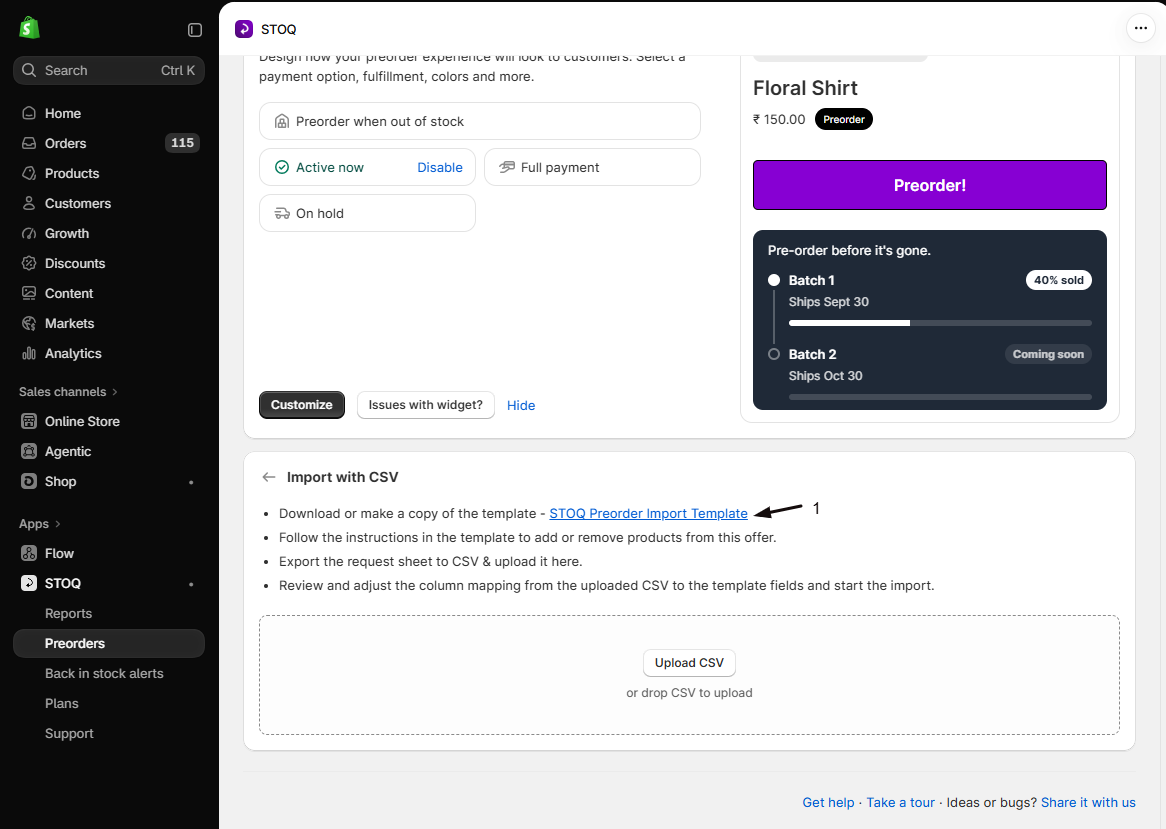
Import your products
Open the offer's Products section
- In the left menu, click Preorders.
- Open the Offers tab.
- Click the offer to open its Overview tab, then scroll to the Products section.
Open Import with CSV
In the Products section header, click More options and choose Import with CSV.
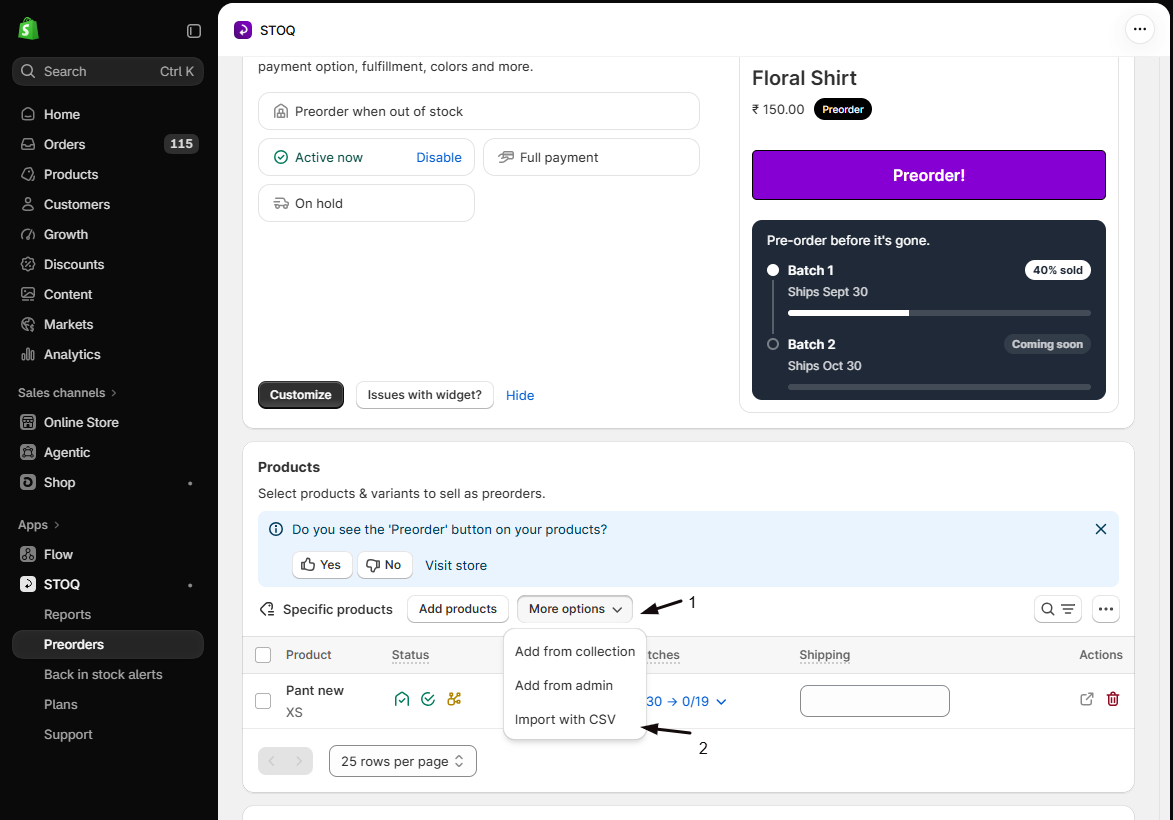
Upload your CSV
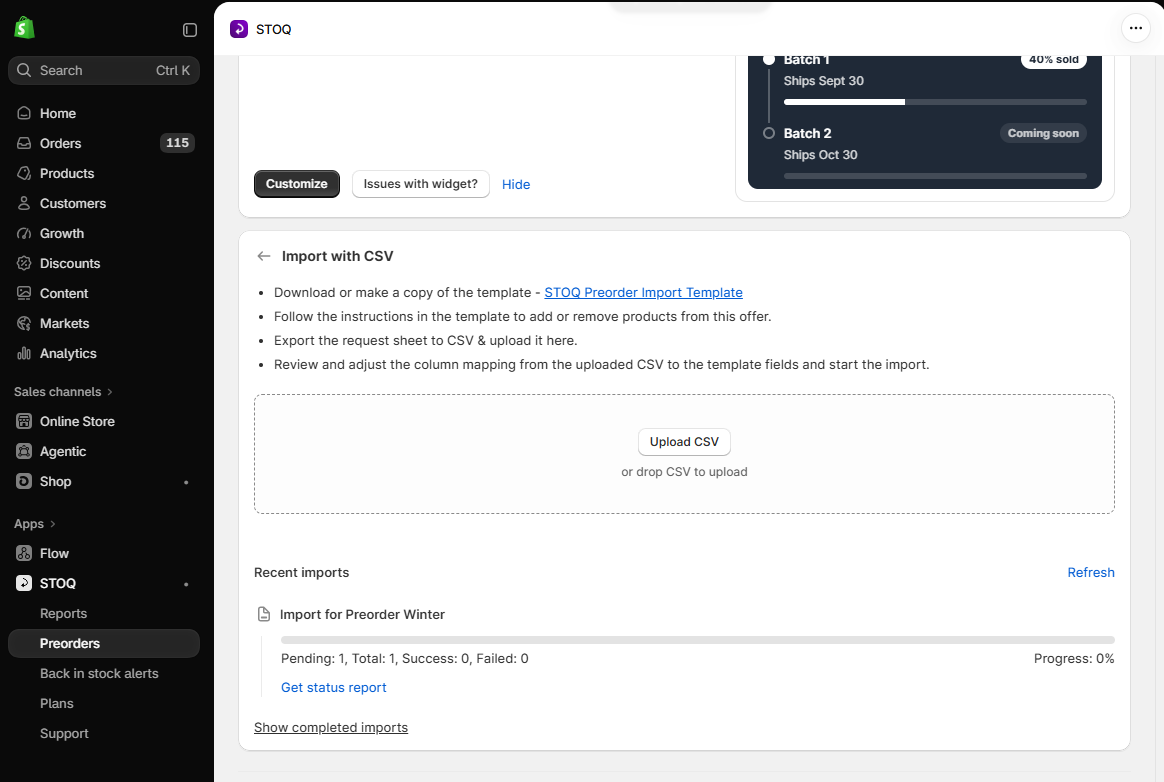
Drag your file into the upload area, or click Upload CSV and choose it. The file must be a CSV (.csv), not an Excel file.
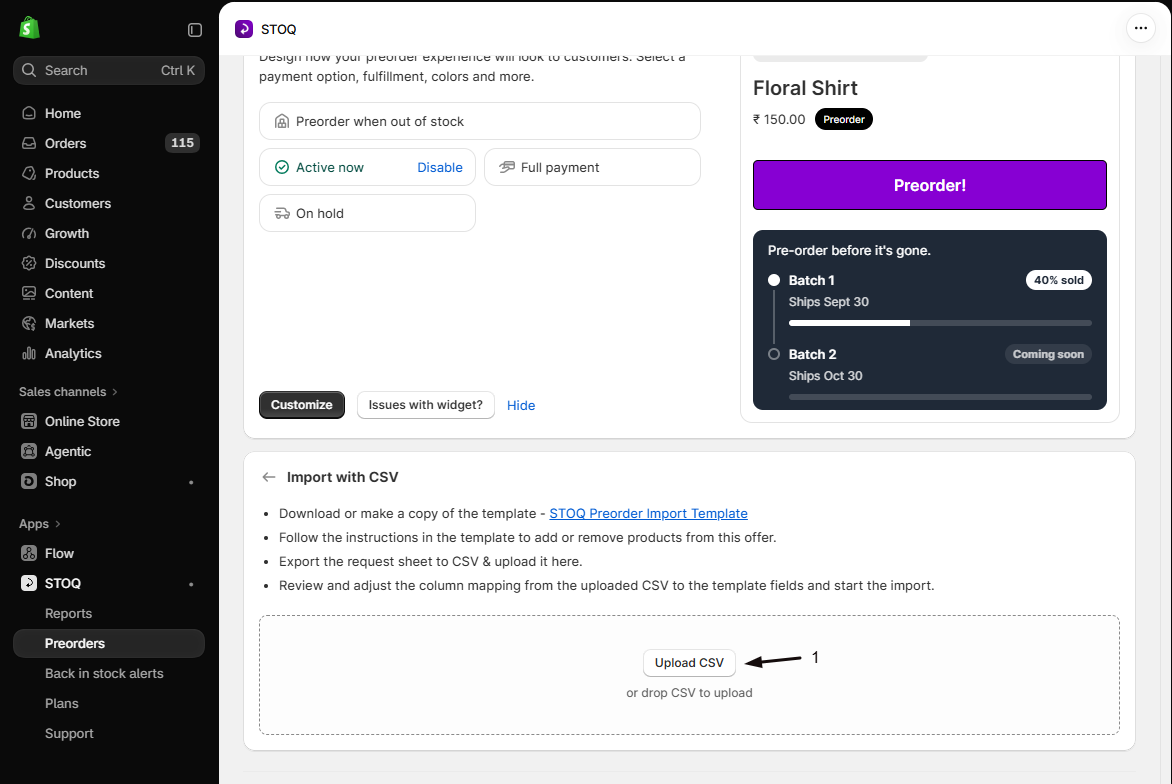
Map the columns
STOQ shows a preview and lines your columns up against its fields. Check each one, fix any that didn't match, and make sure Internal name and SKU (or Variant ID) are mapped.
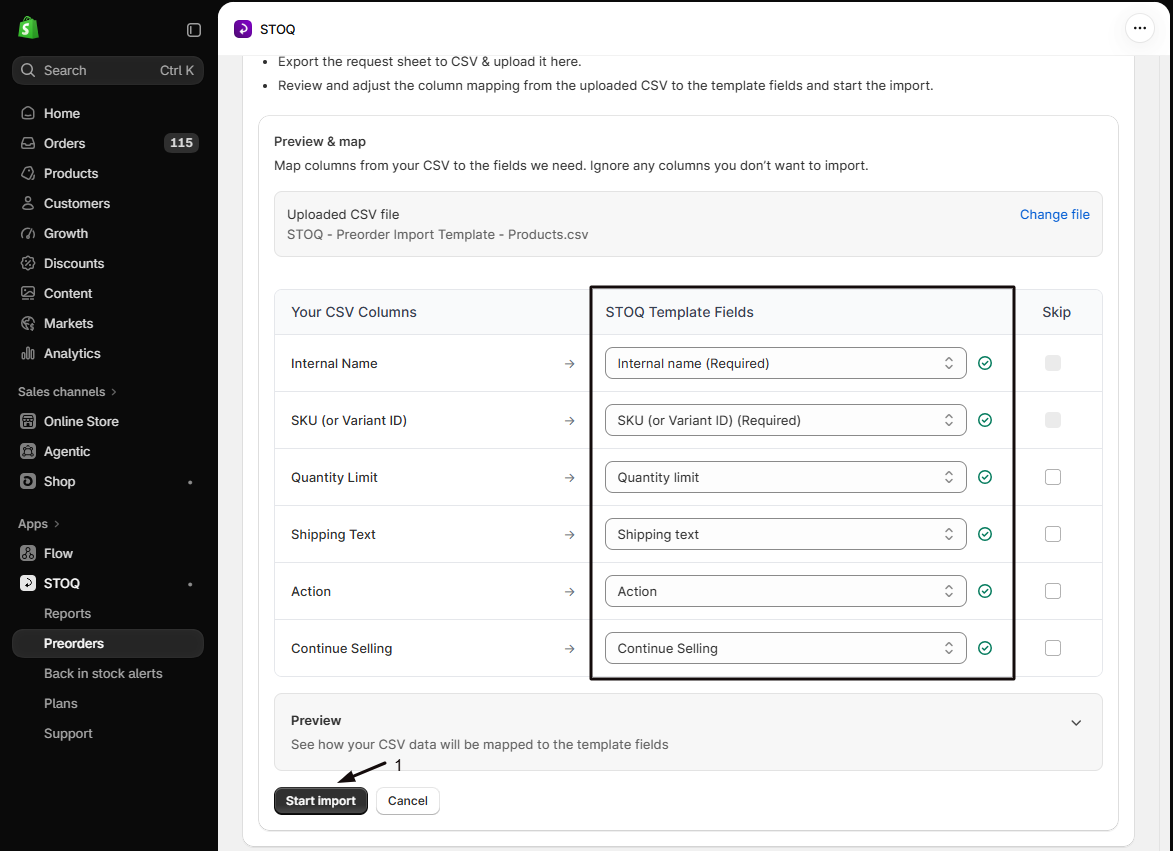
Start the import
Click Start import. If STOQ finds rows it can't read, it shows a warning with a count. You can download the error report, fix those rows, or proceed and import the rest. STOQ then processes the import in the background.
Track the import
The import appears under Recent imports with its name, date, status (Not started, In progress, Success, or Failure), and how many rows were processed. Click Refresh to update it, and Show completed imports to see the last 30 days. To get the details emailed to you, click Get status report on the import row and STOQ sends it to your report email address.
Verify it worked
Open the offer's Products section and confirm the variants you added now appear, and that any you removed are gone. If some rows failed, the status report lists which ones and why.
Good to know
- Imports run in the background, so you can keep working while STOQ processes the file.
- Failed rows are skipped so the rest still import, and the status report lists what failed.
- Import history is kept for the last 30 days.
FAQ
Do I have to use the STOQ template?
No. The template is just a convenience. You can upload any CSV and map its columns to STOQ's fields. Only Internal name and SKU (or Variant ID) have to be present.
Can one file update more than one offer?
Yes. Each row names its offer in the Internal name column, so a single CSV can add or remove products across several offers in one import.
How do I remove products instead of adding them?
Put remove in the Action column for those rows. Rows with a blank Action default to add, so you can mix adds and removes in the same file.
Why did some rows fail?
Usually a SKU or variant ID that doesn't match a variant in your catalog, an offer internal name that doesn't exist, or an unreadable quantity. The status report lists each failed row and the reason, and the rest of the file still imports.
Does importing change my offer right away?
The changes apply as the import processes in the background. Refresh Recent imports to see when it finishes, then check the offer's Products section.
