Translate into other languages
Translate your preorder button, badge, disclaimer, and other customer-facing strings into your store's languages.
Last updated
Use this guide if you want preorder customers to see your button, badge, disclaimer, and other storefront strings in their own language. By the end, when a shopper’s browser or Shopify market matches a language you’ve configured, they’ll see that translated copy instead of your default-language text.
Before you begin
Section titled “Before you begin”- You need a paid STOQ plan. The Multi-language support toggle and the Save changes button in the translator are disabled on the free plan.
- You need at least one existing preorder offer to translate. See Set up preorders.
- Your Shopify store must have the languages you want configured first. The language selector in STOQ is populated from your Shopify store languages (Shopify admin > Settings > Languages); only languages you’ve added there appear in the STOQ translator.
What customers will see
Section titled “What customers will see”When a shopper’s browser or Shopify market matches a language you’ve configured, the preorder button, badge, disclaimer, countdown timer, and progress bar show your translated strings for that language. Any field you leave untranslated automatically falls back to your store’s default-language text, so the storefront always has something to display.
Preorder emails and SMS are translated separately from the storefront strings above. The preorder confirmation, shipping update, and payment collection emails (and the confirmation SMS) use the customer’s locale automatically when multi-language support is on, and you edit each language’s content in the notification template editors, not in the translator described below.
Set it up
Section titled “Set it up”On a phone, this menu is collapsed. In the Shopify mobile app, tap the STOQ logo at the top of the screen to open it, then choose the section named below. There is no hamburger icon. See Finding the STOQ menu.
Enable multi-language support
Section titled “Enable multi-language support”-
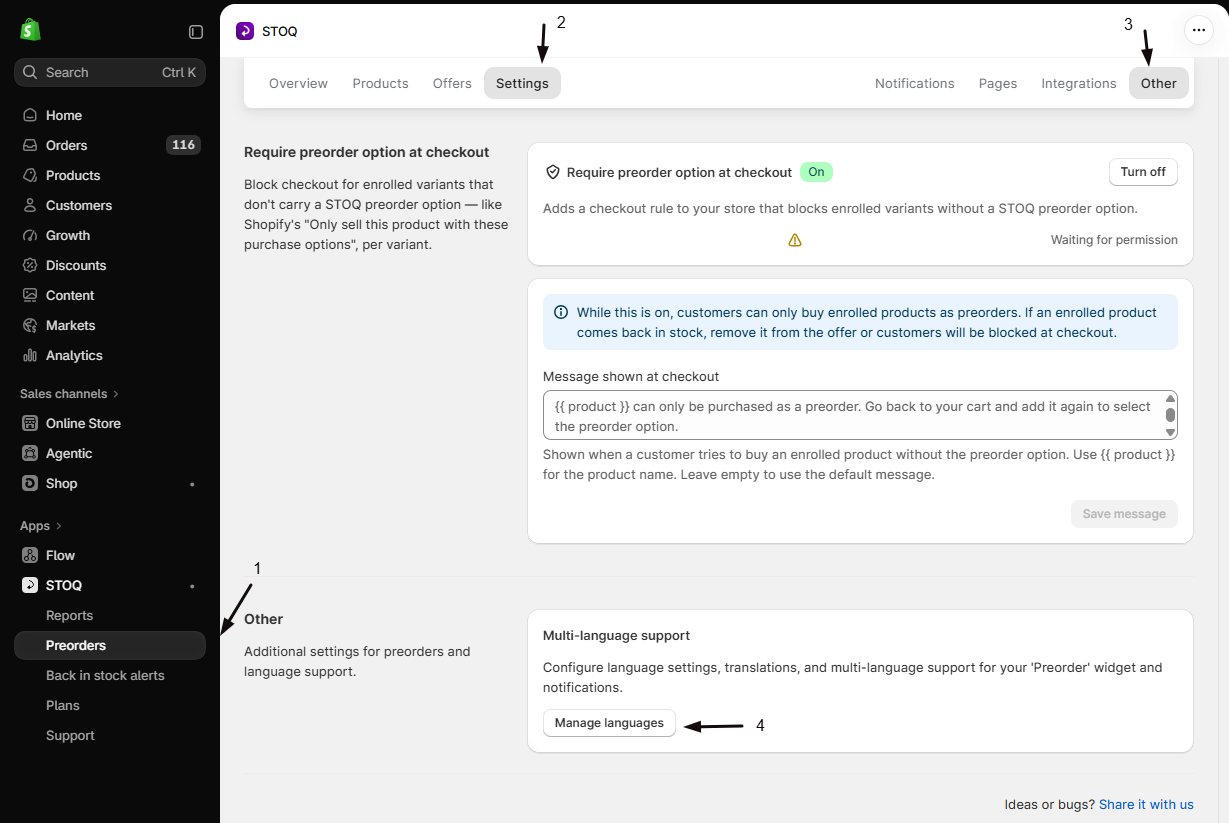
Open Manage languages
- In the left menu bar of the STOQ app, click Preorders.
- Click the Settings tab.
- Open the Other sub-tab.
- Click Manage languages.
-
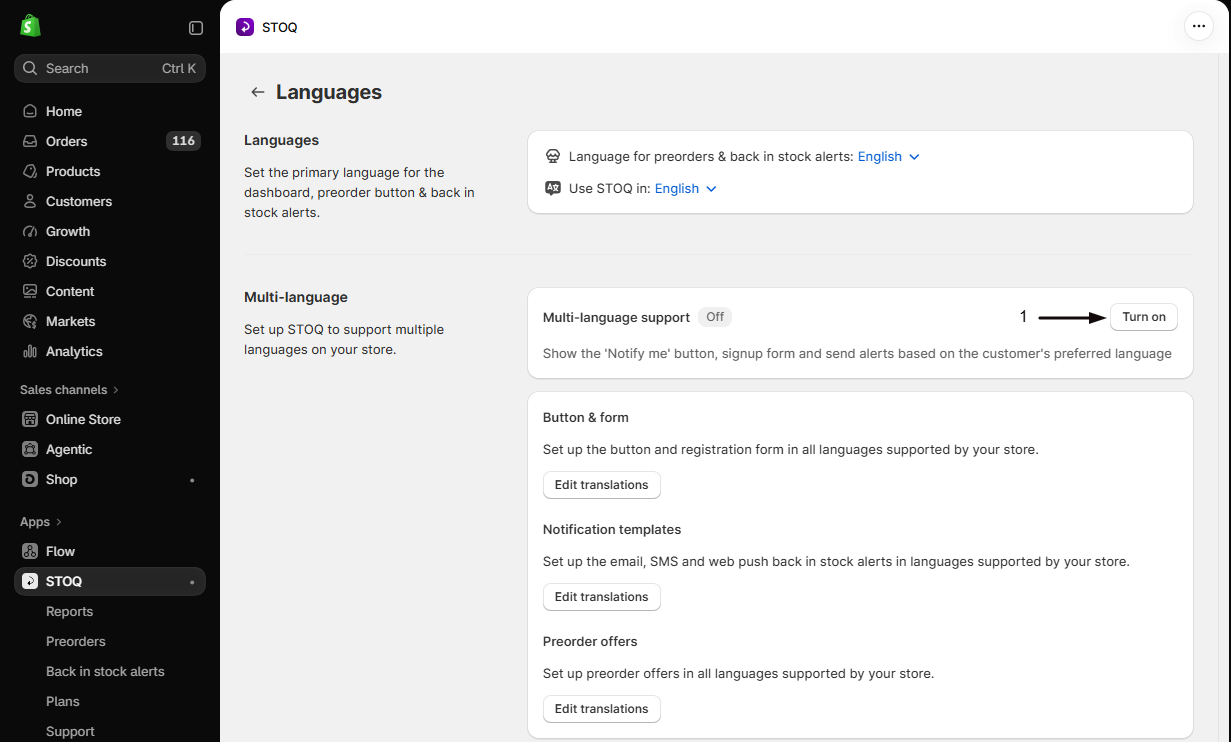
Turn on Multi-language support
In the Multi-language section, enable the Multi-language support toggle. This toggle is disabled on free plans: an upgrade link appears if your plan doesn’t include it.
Turning it on saves the setting and makes the preorder offer translator active, but it does not automatically populate translated strings. You populate translations manually, or with Load default translations, in the offer translator you reach in the next step.
-
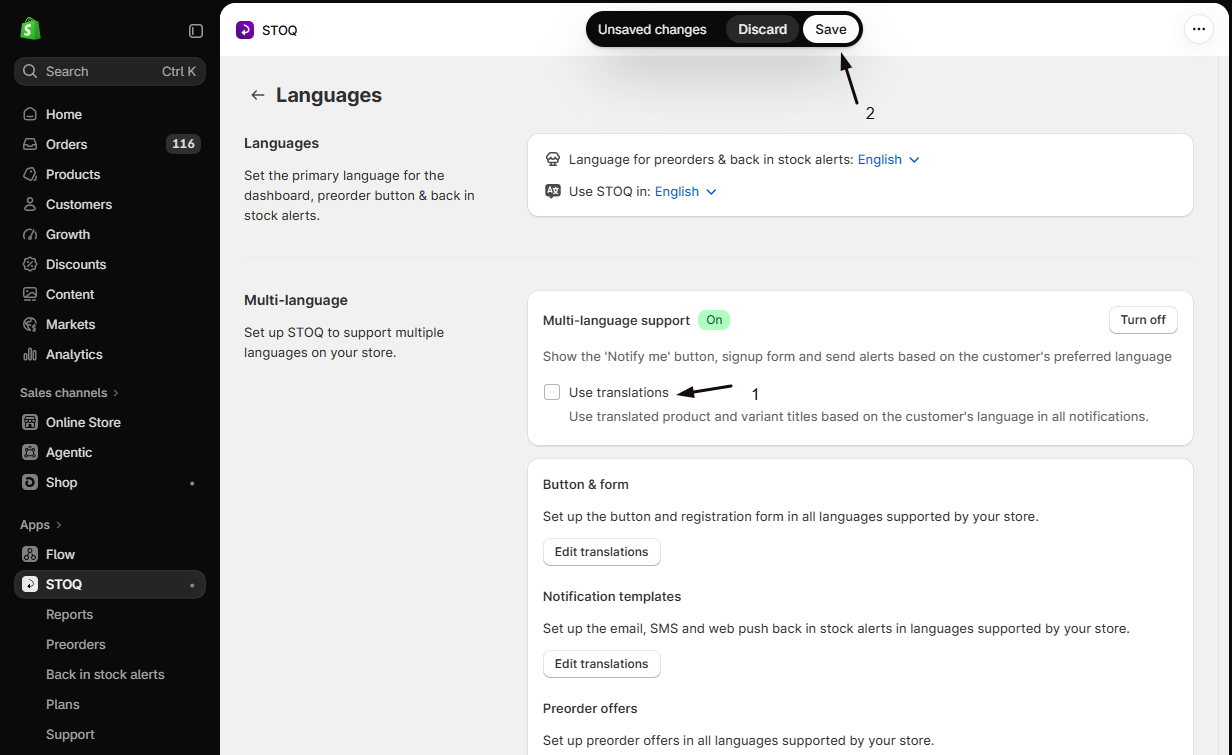
(Optional) Enable product title translations
After turning on multi-language support, a Use translations checkbox appears. Enable it if you want STOQ to pull translated product and variant titles, set in Shopify’s translation layer, into preorder confirmation emails and SMS notifications. This requires the Shopify Translations scope.
-
Save
Click Save to apply the setting.
Translate a preorder offer
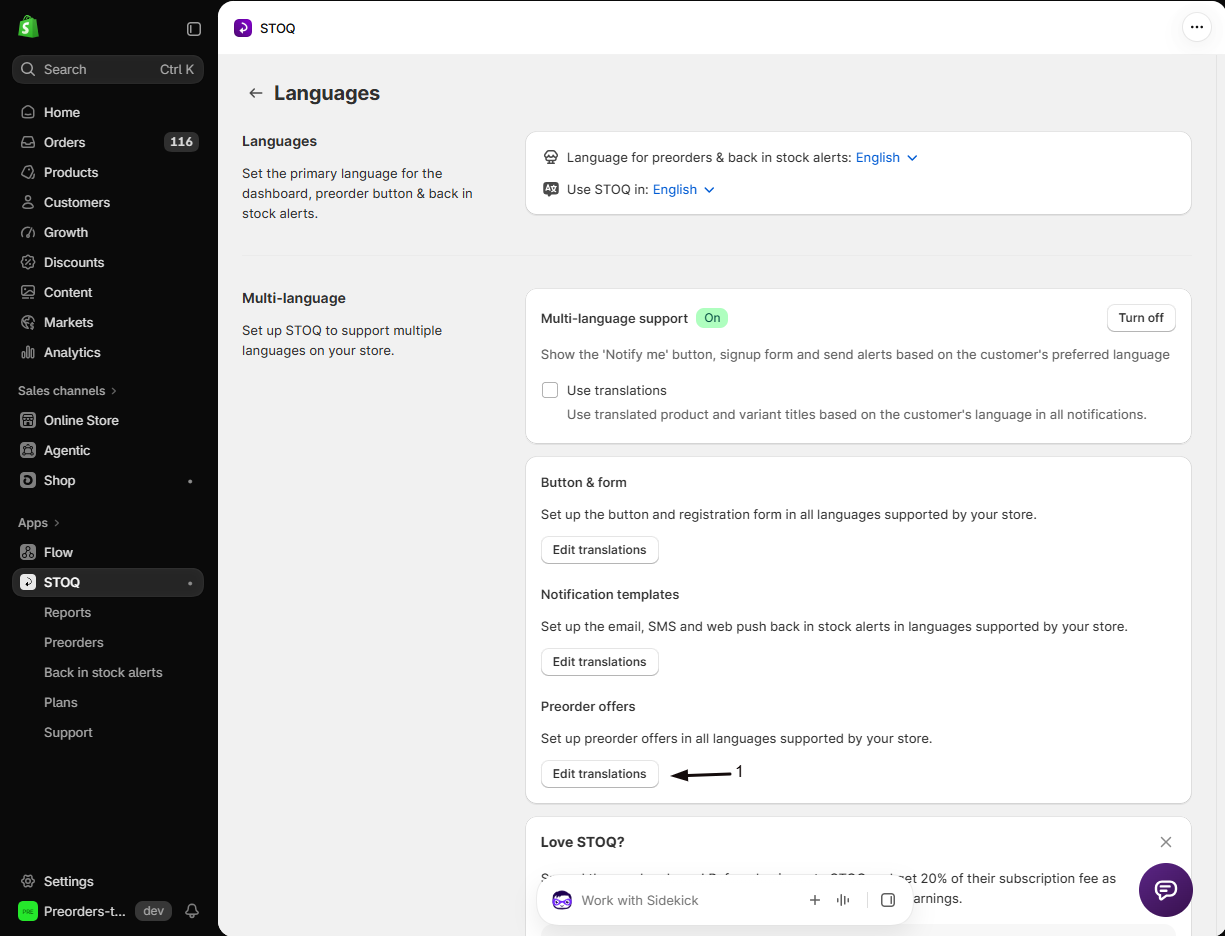
Section titled “Translate a preorder offer”Each preorder offer has its own set of translatable strings. Reach the offer translator two ways: from Manage languages (Preorders → Settings tab → Other sub-tab → Manage languages), in the Preorder offers card, click Edit translations; or from the offer itself, click Preorders in the left menu, open the Offers tab, click the offer to open its Overview tab, then open the More action menu in the top right and click Edit translations. Either route opens the Preorder offer translations page.
-
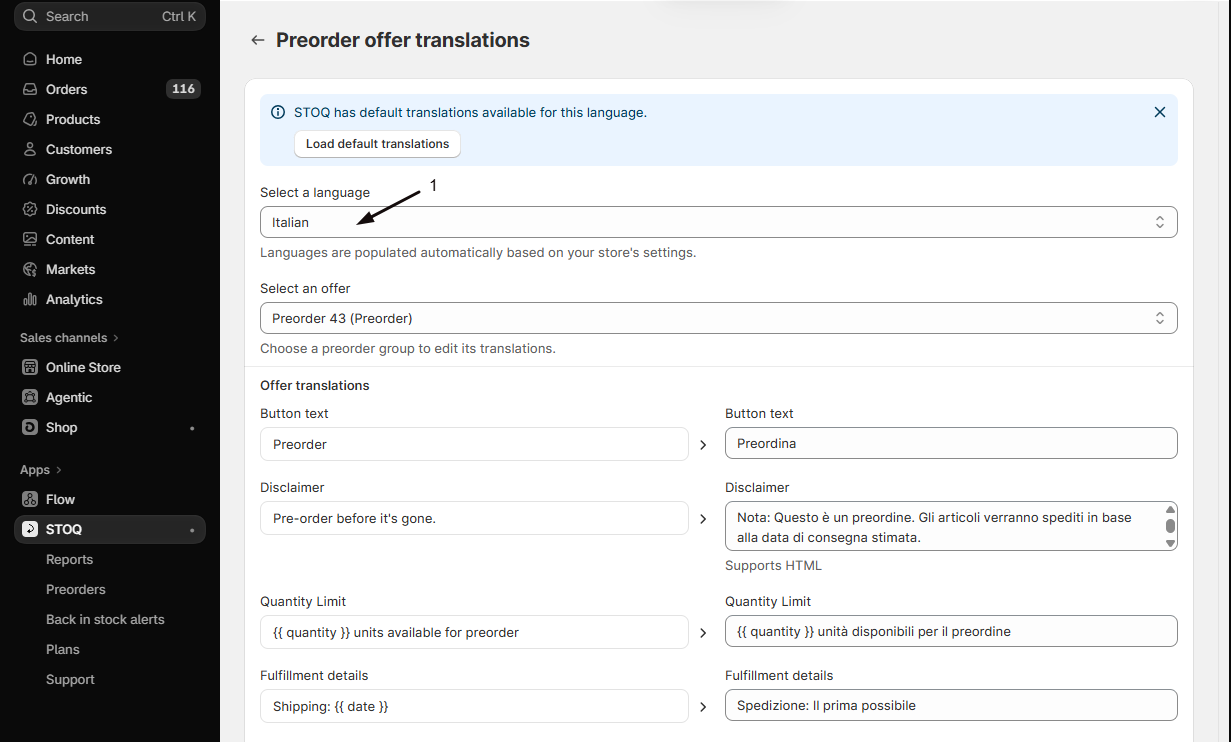
Select the language
In the Select a language dropdown, pick the language you want to translate. The dropdown is populated from your Shopify store languages, and it’s disabled if multi-language support is off, with a warning banner linking to enable it.
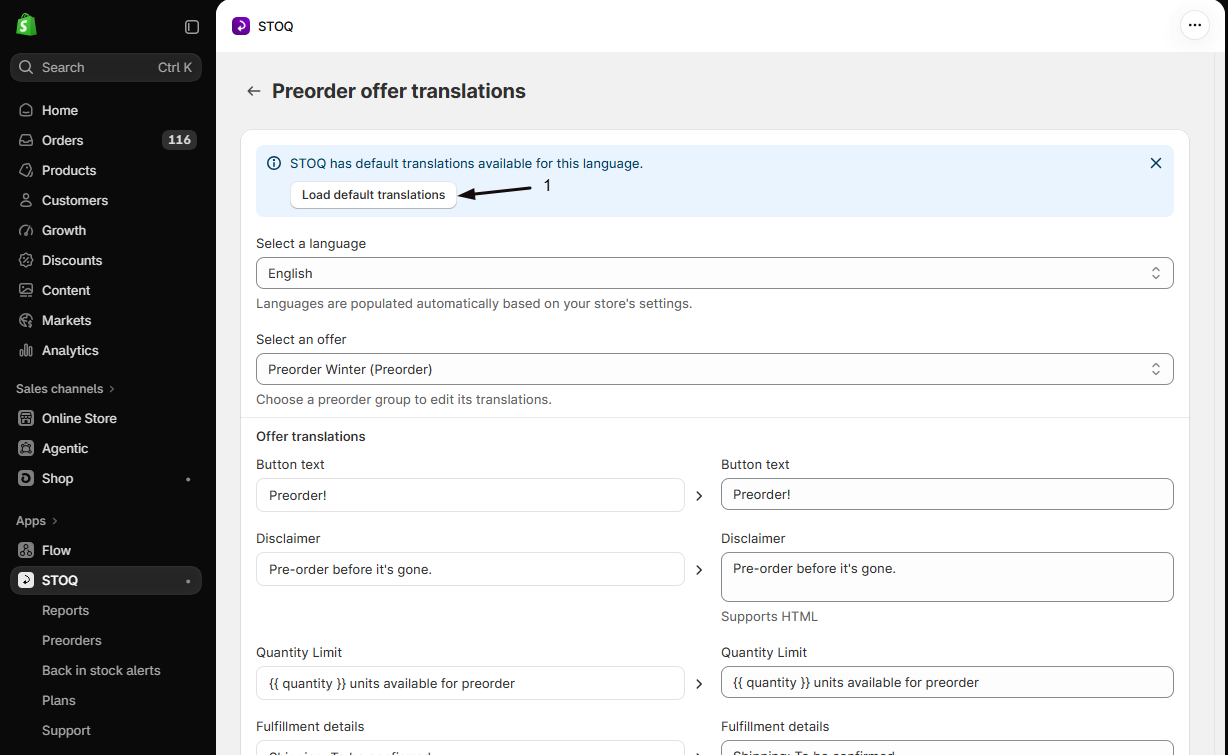
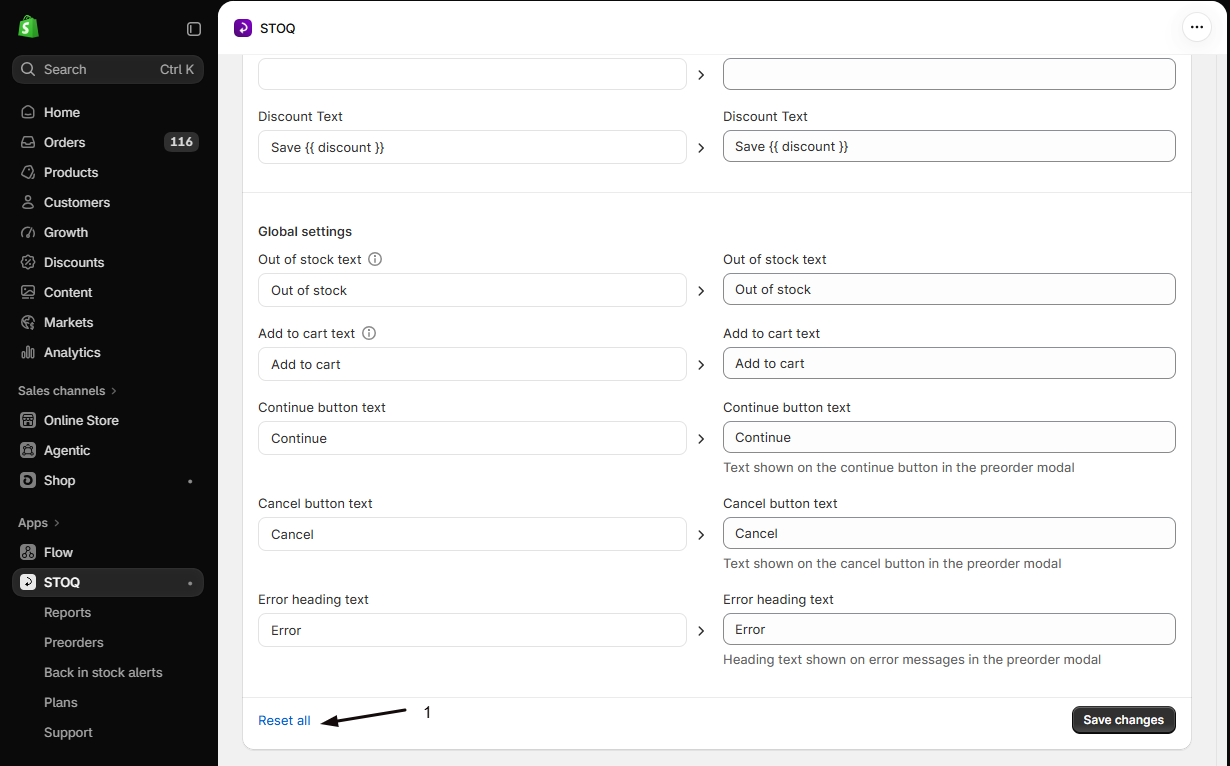
If STOQ has default translations for this language, an info banner appears. Click Load default translations to pre-fill all fields with STOQ’s built-in strings, then edit individual fields as needed. Click Reset all to reload the defaults.
-
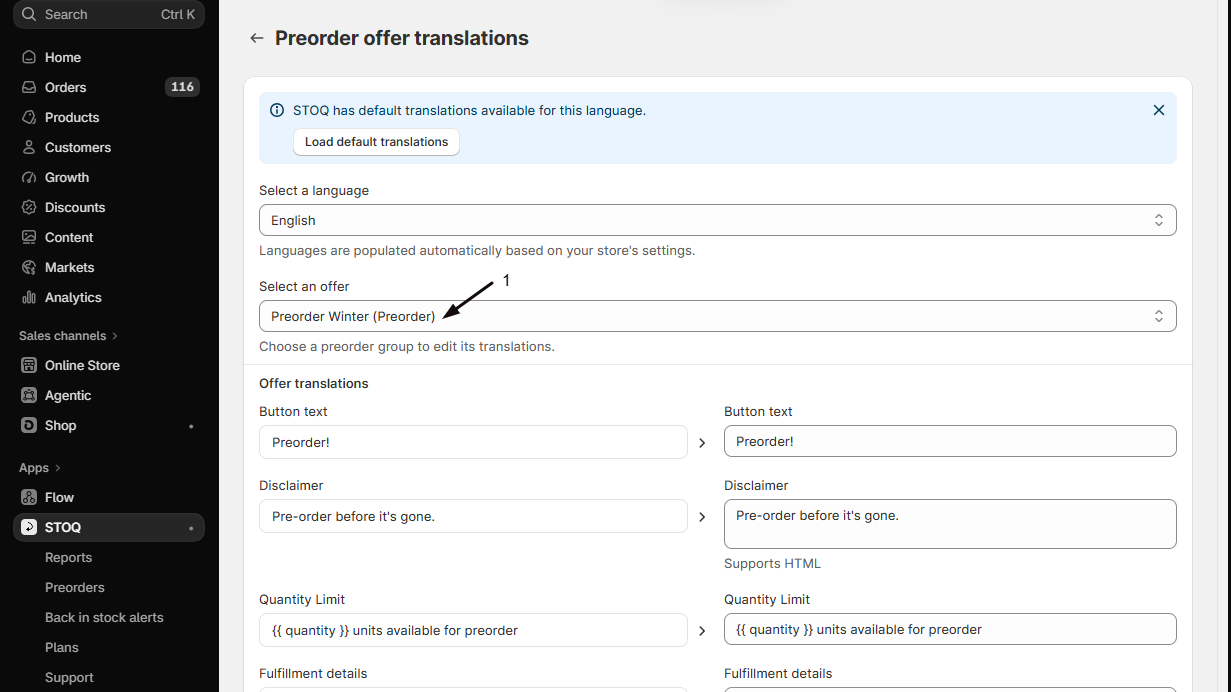
Select the offer
If you have multiple preorder offers, use the Select an offer dropdown to choose which offer to translate. Each offer is translated independently.
-
Translate offer strings
Each field shows the current default value on the left and an editable translation field on the right. Fields showing “No translation set, using default” fall back to the default-language text at runtime.
Field What it controls Button text Text on the preorder button (e.g. “Preorder”) Disclaimer Note shown below the button; supports HTML Quantity Limit Text showing how many units are available (supports {{ quantity }})Fulfillment details Shipping date line shown on the product page (supports {{ date }})Badge Badge label on the product (e.g. “Preorder”) Customer-facing fulfillment info “As soon as possible” or date text shown in checkout selling plan info Custom attribute Line-item property key:value; supports {{ name }},{{ payment }},{{ discount }},{{ date }}Acknowledgement text Checkbox text customers must agree to before placing a preorder Mixed cart error message Error shown when a customer tries to mix preorder and regular items Countdown timer starts text Label prefix when the preorder hasn’t started yet; supports {{ days }},{{ hours }},{{ minutes }},{{ seconds }}Countdown timer ends text Label prefix when the preorder is ending soon; same variables Countdown timer days/hours/minutes/seconds labels Unit labels displayed in the countdown timer Progress bar text Text on the inventory progress bar; supports {{ sold }}and{{ total }} -
Translate payment option strings
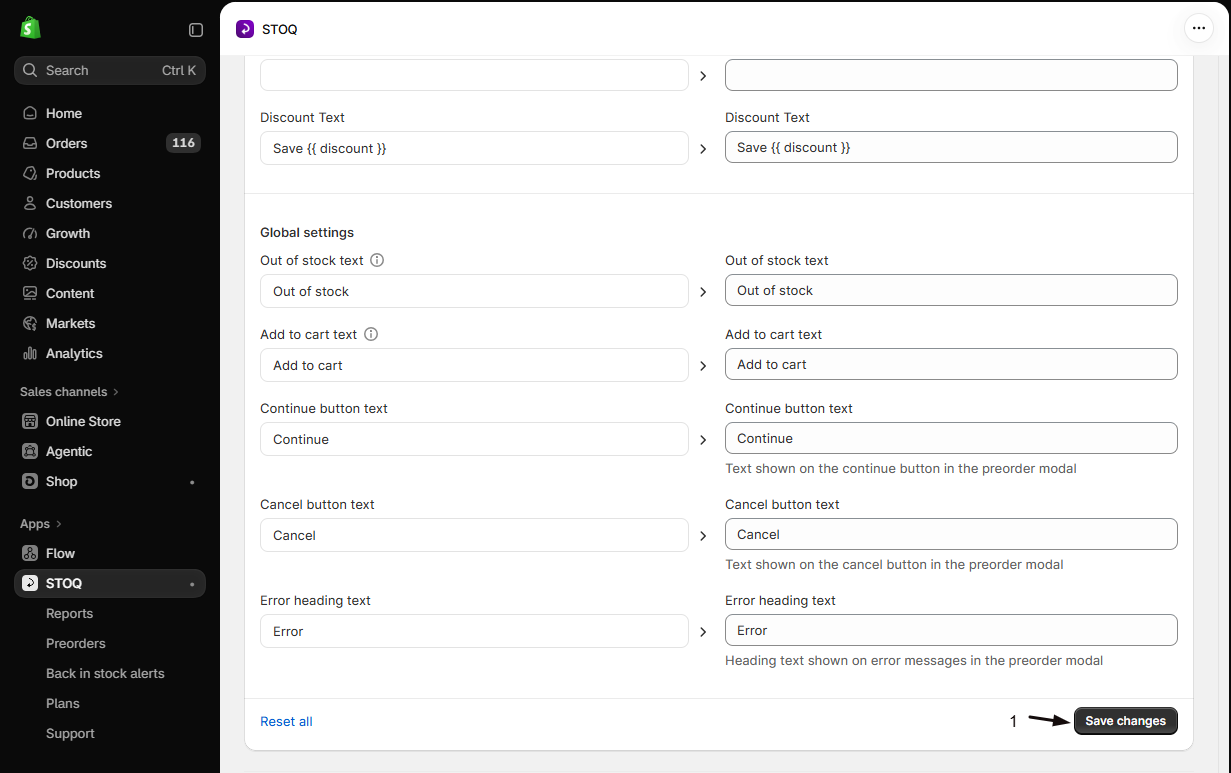
Below the offer strings you’ll find a Full payment option translations or Partial payment option translations section, depending on your offer’s payment type. Translate the Billing Title, Billing Description, and Discount Text for each payment option. If your offer has multiple payment options, for example full payment and a deposit option, each appears in its own subsection.
-
Translate global preorder strings
A Global settings section at the bottom of the page contains strings shared across all offers, translated once and applied everywhere:
Field What it controls Out of stock text Button text when the preorder offer is sold out or unavailable Add to cart text Default button text when no preorder is active Continue button text Button in the preorder confirmation modal Cancel button text Cancel button in the preorder confirmation modal Error heading text Heading on storefront error messages -
Save changes
Click Save changes. Translations are saved, then synced to your Shopify storefront in the background; changes typically appear on the storefront within a few seconds after that sync completes. The button is disabled on the free plan.
Other language settings on this page
Section titled “Other language settings on this page”The same Manage languages page (Preorders → Settings tab → Other sub-tab → Manage languages) has two more language dropdowns that look similar to the translator but do very different things:
| Setting | Label in STOQ | What it does |
|---|---|---|
| Default language | Language for preorders & back in stock alerts: | Sets the primary language for all customer-facing copy: button text, popup text, email and SMS alert content. Changing it triggers a browser confirmation prompt and, if confirmed, immediately overwrites all customer-facing content with the built-in defaults for the selected language. |
| Dashboard language | Use STOQ in: | Changes the language of the STOQ merchant dashboard UI only. Has no effect on anything customers see. |
The browser’s confirmation prompt reads exactly: “Are you sure? This will overwrite all content including button text, popup text and alerts.” Click Cancel to abort without making changes. The Use STOQ in dropdown, by contrast, only saves your own dashboard language preference and reloads the dashboard; it’s safe to change any time.
Check your setup
Section titled “Check your setup”- Open your storefront in a browser set to the translated language, or use a Shopify preview with that language selected.
- Navigate to a product page that has an active preorder offer.
- Confirm the preorder button, badge, disclaimer, and any countdown timer or progress bar show the translated strings you saved.
Troubleshooting
Section titled “Troubleshooting”The Multi-language support toggle or Save changes button is disabled
You’re on the free plan. Upgrade to a paid plan to enable them.
The language dropdown in Manage languages or the offer translator is empty
No languages are configured in Shopify yet. Add them in Shopify admin -> Settings > Languages, then reload the STOQ translator.
Translations don't appear on the storefront right after saving
STOQ syncs saved translations to Shopify in the background. This usually completes within seconds and retries automatically if it fails; the storefront may briefly show the previous translation while it’s pending.
Load default translations leaves some fields blank
STOQ has built-in defaults for 26 languages, so a language outside that set has none. Certain fields, like Custom attribute and the Countdown timer starts/ends text, have no built-in default even in supported languages, since they’re typically store-specific; enter those manually.
Translations don't carry over after duplicating a preorder offer
The new offer starts with empty translation slots. Open its translator and re-enter or reload translations for each language.
You accidentally changed the default language and it overwrote your customized copy
There’s no one-click undo. Re-enter your customizations manually in the offer editor (via Customize), in Manage languages, and in each notification template editor.
The preorder popup's quantity messages stay in English
Some of the preorder modal’s quantity validation messages aren’t translatable yet, so they show in English even with multi-language support on:
- “You can only preorder N units”
- “No units available for preorder”
- “Maximum quantity is N units per order”
- “Minimum quantity is N units per order”
The Quantity Limit string you translate in the offer translator is a separate one (the units-available line on the product page), and it does translate. The validation popups above don’t yet.
What happens if I don't translate a field? Will it break the storefront?
No. Any field left blank, or showing “No translation set, using default”, falls back to the value stored for your store’s default language. The storefront always has something to display.
Does translating offer strings affect the order confirmation email or SMS sent to the customer?
No. The strings translated in the offer translator control only the storefront widget: button, badge, disclaimer, countdown, and so on. Preorder notification emails and SMS messages are translated separately, using the customer’s locale automatically when multi-language support is on. You edit that content in the notification template editors instead.
Does the 'Use translations' checkbox affect the preorder widget?
No. It only controls whether STOQ pulls translated product and variant titles, from Shopify’s translations layer, into preorder confirmation emails and notifications. The storefront widget strings are always served in the customer’s language based on what you’ve entered in the offer translator.
If I duplicate a preorder offer, do translations carry over?
No. Duplicating an offer creates a new offer with its own translation slots, which start empty. Open the translator for the new offer and re-enter or reload translations for each language.
Related guides
Section titled “Related guides”Thanks for letting us know.
Still stuck? Ask Quinn or chat with support