Send a shipping update email
Notify customers about a preorder timing or status change, for one order or in bulk.
Last updated
Send a shipping update email to let customers know something’s changed with the timing or status of their preorder, for example a delay. STOQ doesn’t send this automatically, you choose when to send it and what it says, to a single order or to many customers at once.
Before you begin
Section titled “Before you begin”| Requirement | Notes |
|---|---|
| Paid STOQ plan | Bulk send from the orders list requires a paid plan. Sending from an individual order detail page has no plan restriction. |
| Active preorder order | The email is skipped automatically for cancelled or refunded orders. |
| Customer email on file | The email is sent to the customer’s email address stored on the order. |
Choose your setup
Section titled “Choose your setup”- One customer: send from an individual order detail page when a single order needs a direct, personal message.
- Multiple customers in bulk: send from the preorder orders list when many customers need the same update, for example when a product line is delayed across all open preorders. Requires a paid plan.
What customers will see
Section titled “What customers will see”Customers receive a single email with the Subject, Header, and Description you provide, or your saved defaults, sent to the email address on their order. It’s purely informational: sending a shipping update never collects payment, changes the order status, or affects the fulfillment hold.
You can personalize the subject, header, and body with merge tags. The quick send dialog offers Order name and Store name under Insert:; the template editor’s Variables button offers the full set, listed under Email variables below.
Set it up
Section titled “Set it up”On a phone, this menu is collapsed. In the Shopify mobile app, tap the STOQ logo at the top of the screen to open it, then choose the section named below. There is no hamburger icon. See Finding the STOQ menu.
Send to one customer
Section titled “Send to one customer”-
Open the order detail page
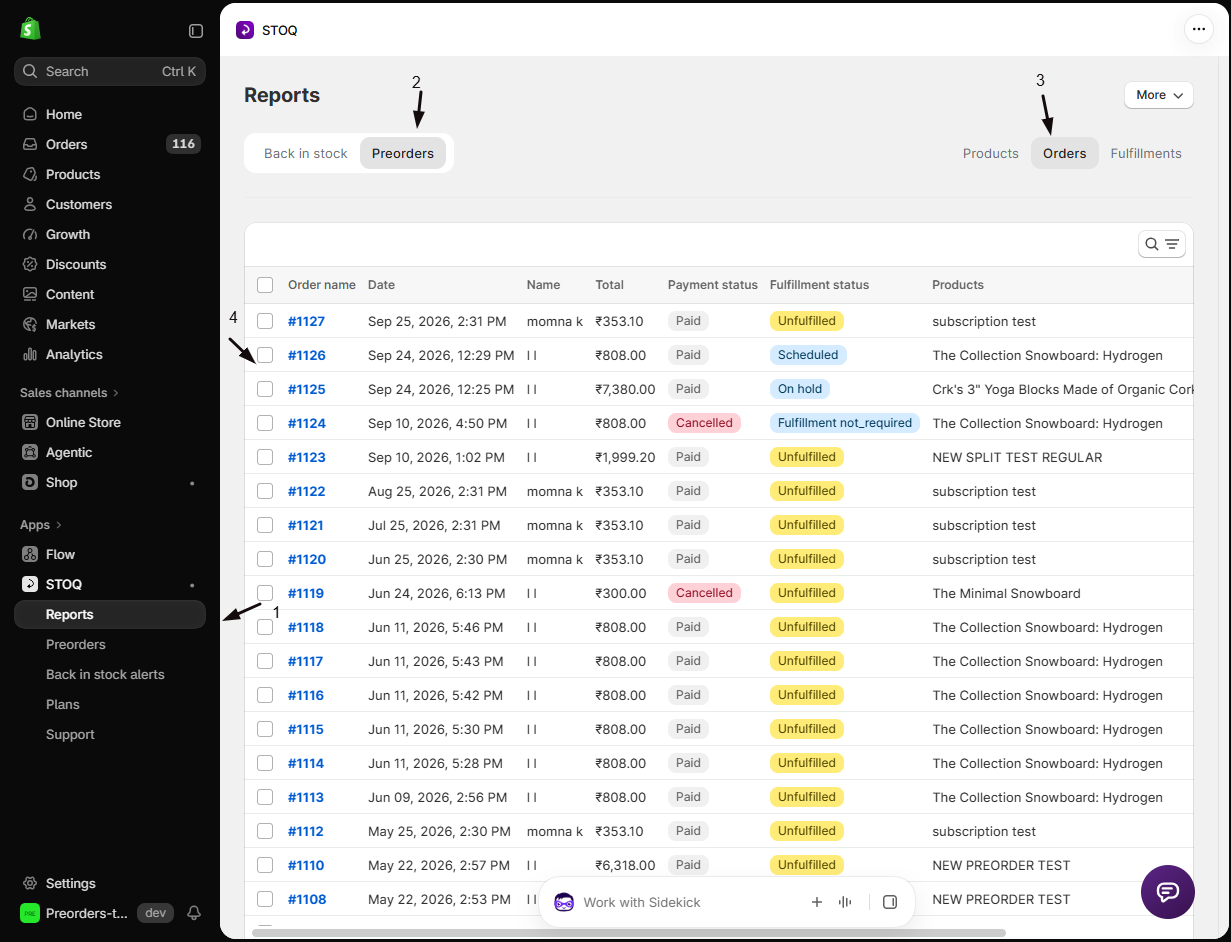
- Go to Reports → Preorders → Orders.
- From the orders list, click the order you want to notify.
-
Open the Notify customer menu
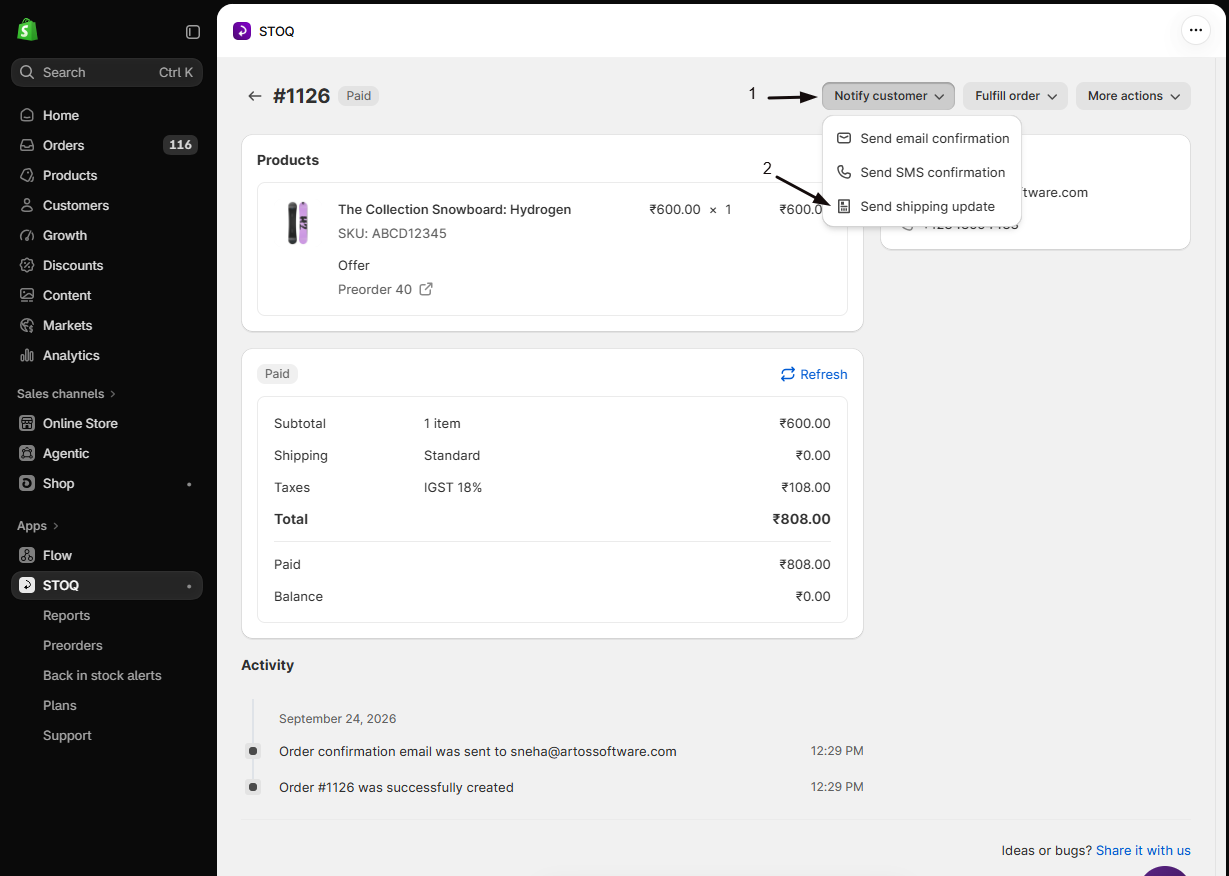
- On the order detail page, click the Notify customer dropdown in the page header.
- Select Send shipping update.
-
Edit and send
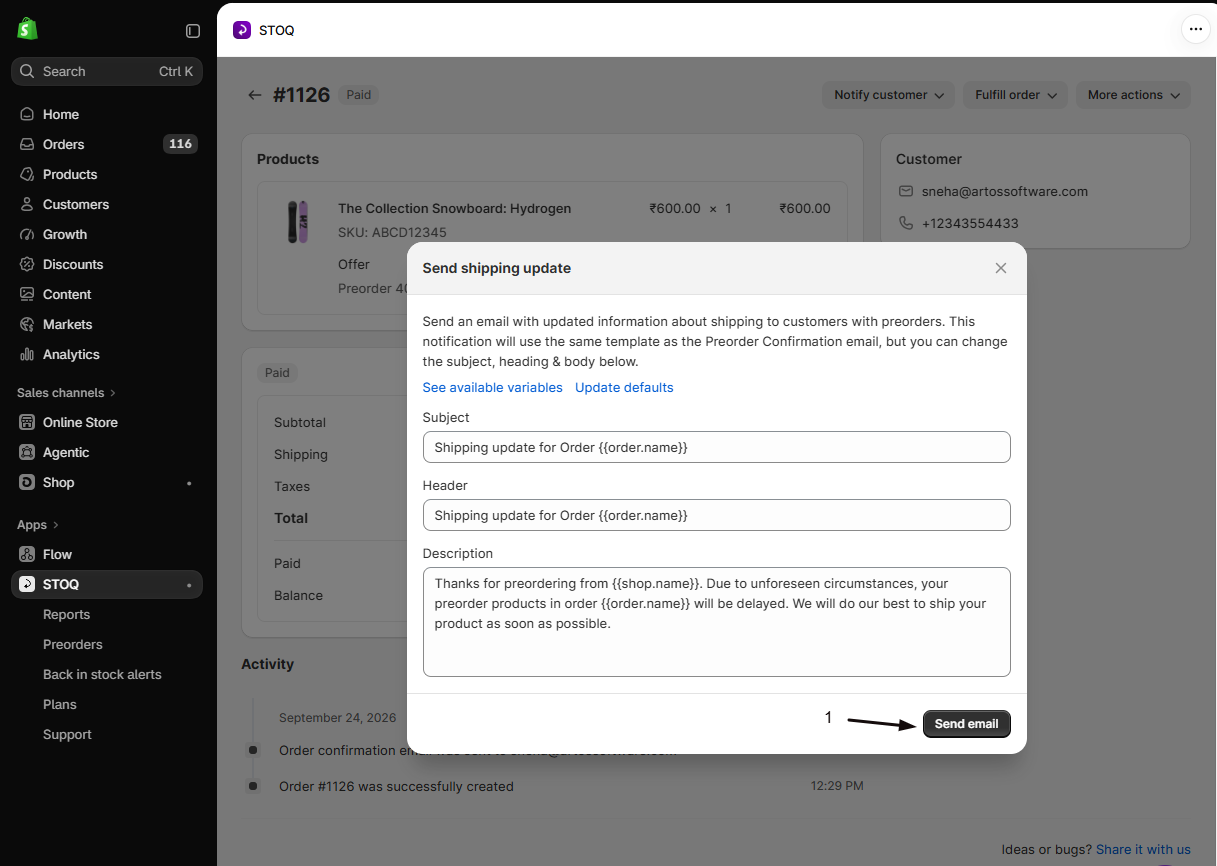
A modal titled Send shipping update opens. Review or edit the three fields:
Field Description Subject The email subject line (required) Header The large heading inside the email body (required) Description The body paragraph (required, multiline) - To add the order name or your store name, click in a field, then click + Order name or + Store name next to Insert: under it. The variable shows as a pill in the field and is replaced with the real value in each email.
- Optionally, click Save as default to keep this subject, header and description as the starting text for future sends.
- Click Send email to deliver it immediately.
Send to multiple customers in bulk
Section titled “Send to multiple customers in bulk”-
Go to the preorder orders list
Go to Reports → Preorders → Orders.
-
Select orders
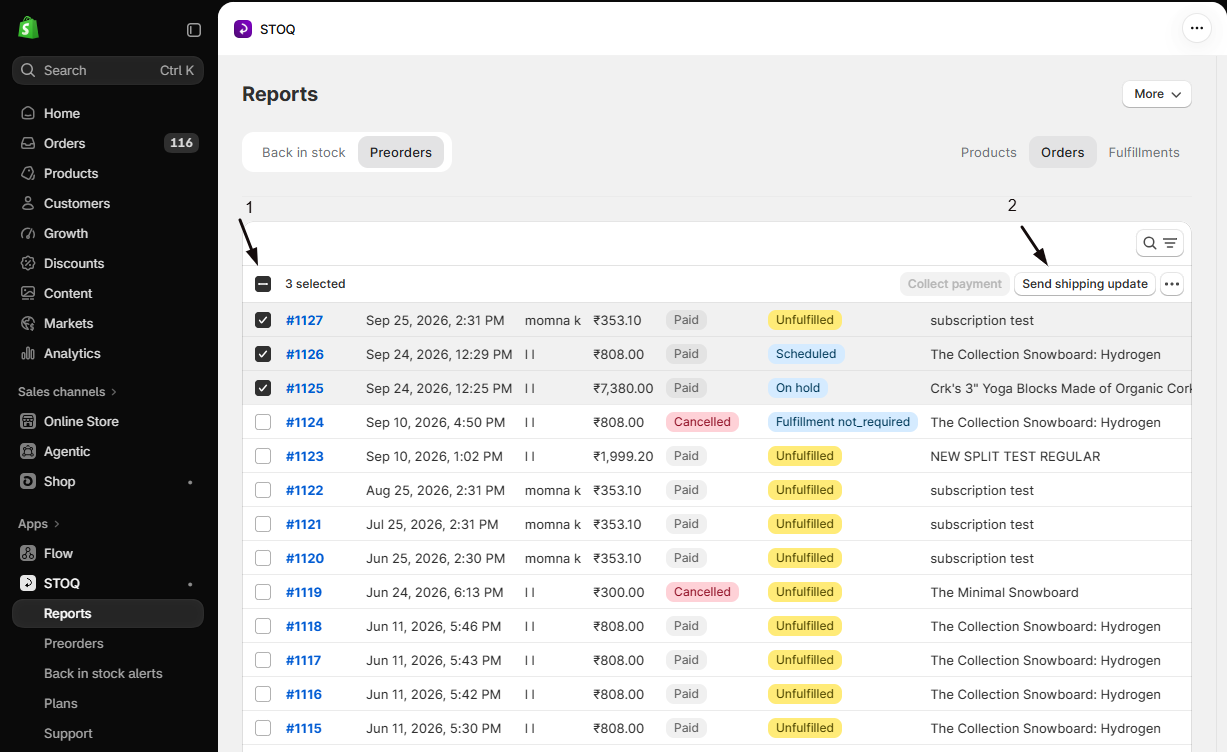
Check the checkbox next to each order you want to notify. To notify all orders matching your current filters instead:
- Select all on the page.
- Click the Select all link in the banner that appears.
-
Choose Send shipping update from bulk actions
With at least one order selected, click Send shipping update in the bulk actions toolbar.
-
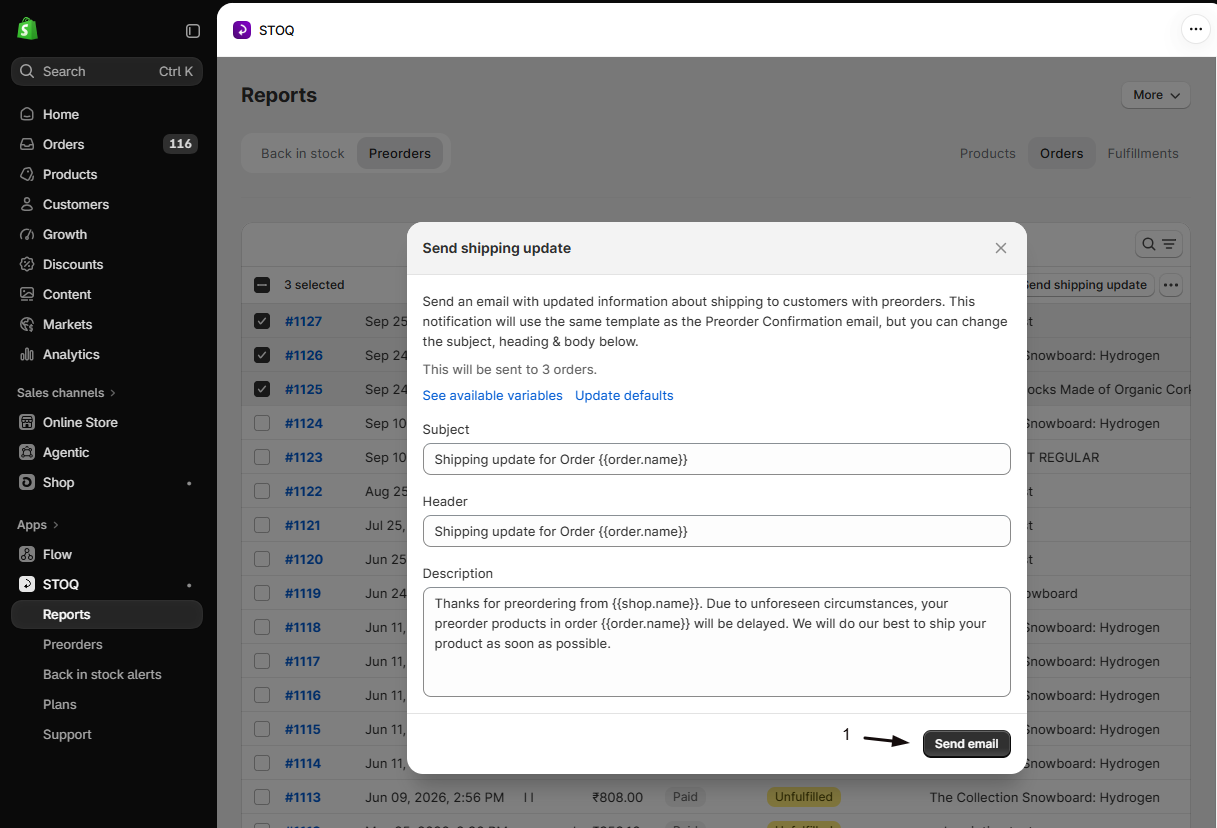
Review and send
A modal titled Send shipping update opens with the same Subject, Header, and Description fields as the single-order flow, pre-filled with your saved defaults.
- Review the content.
- Click Send email (the button has a short countdown before it becomes active, which prevents accidental sends to a large group).
Click Save as default at the bottom of the modal to keep the current text as the default for future sends. The modal stays open.
Customize the default template
Section titled “Customize the default template”Before sending, you can update the default subject, header, and body text that pre-fills every time you open the send dialog. These defaults are stored per shop and can be changed at any time; changes don’t affect emails already sent.
-
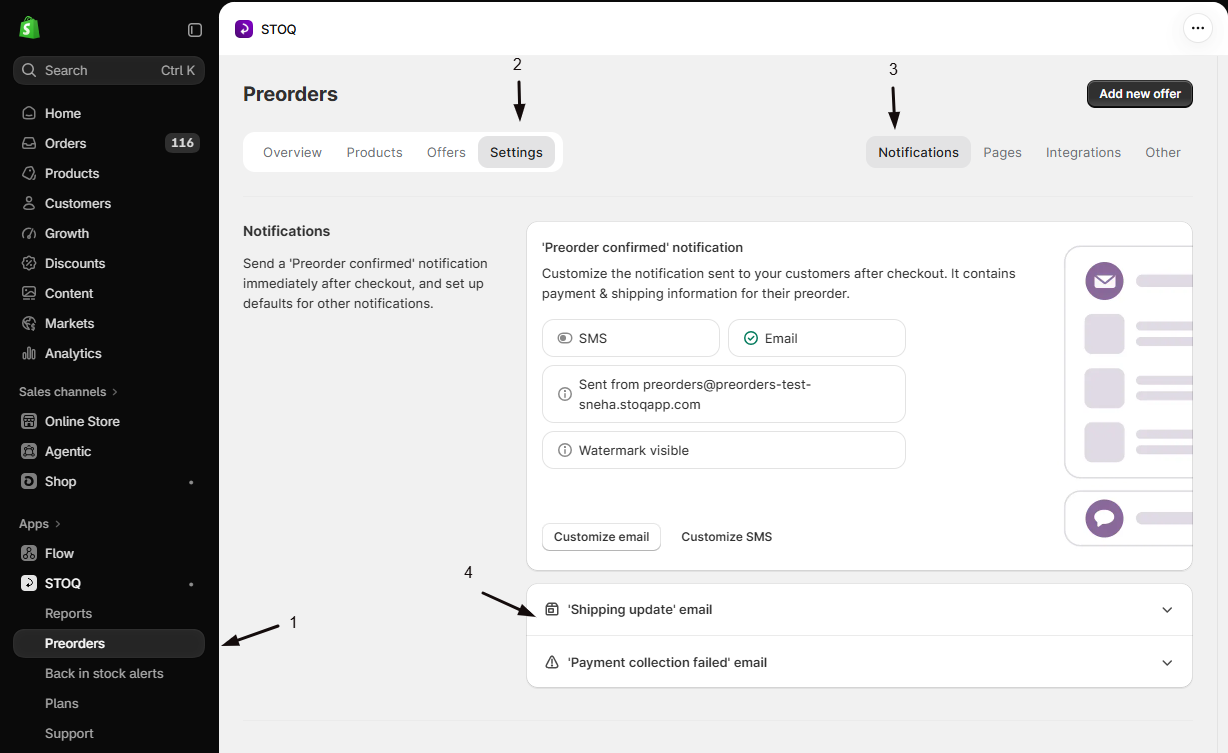
Open the Notifications settings
- In the left menu bar of the STOQ app, click Preorders.
- Click the Settings tab.
- Open the Notifications sub-tab.
-
Find the Shipping update email section
Locate the ‘Shipping update’ email card.
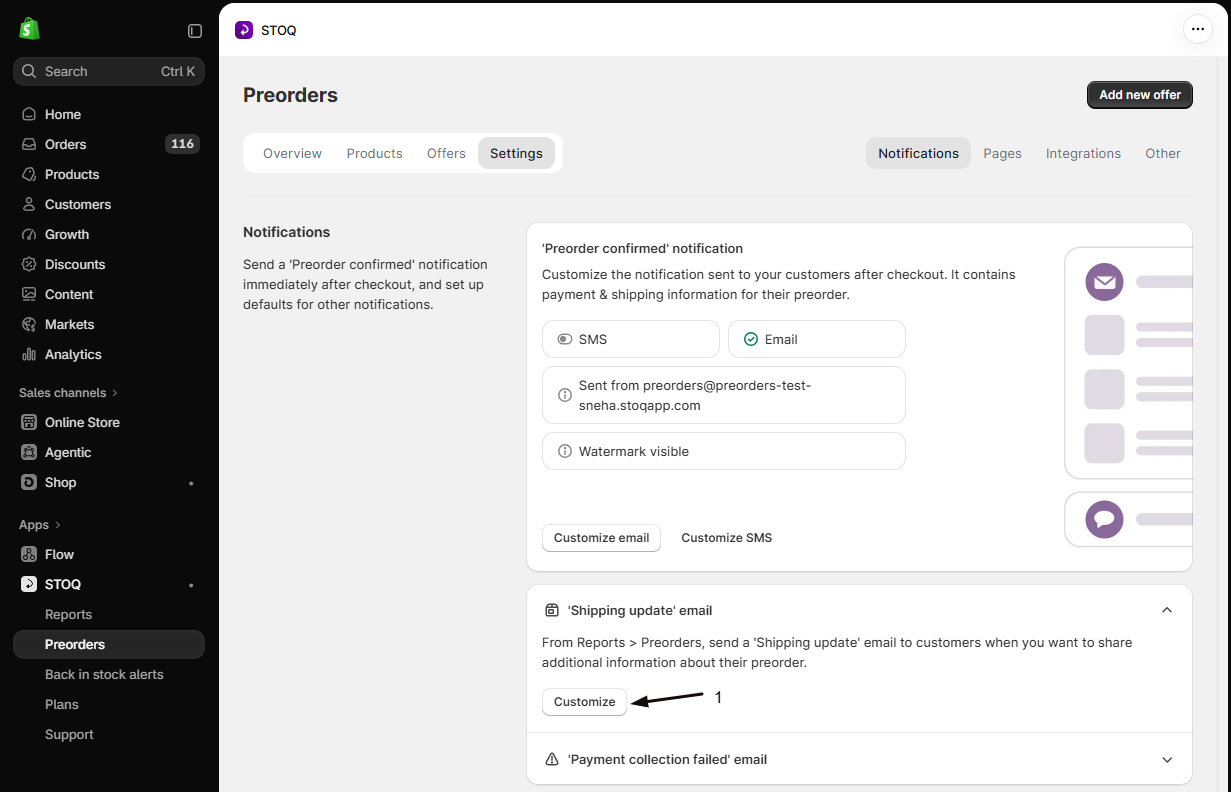
-
Open the template editor
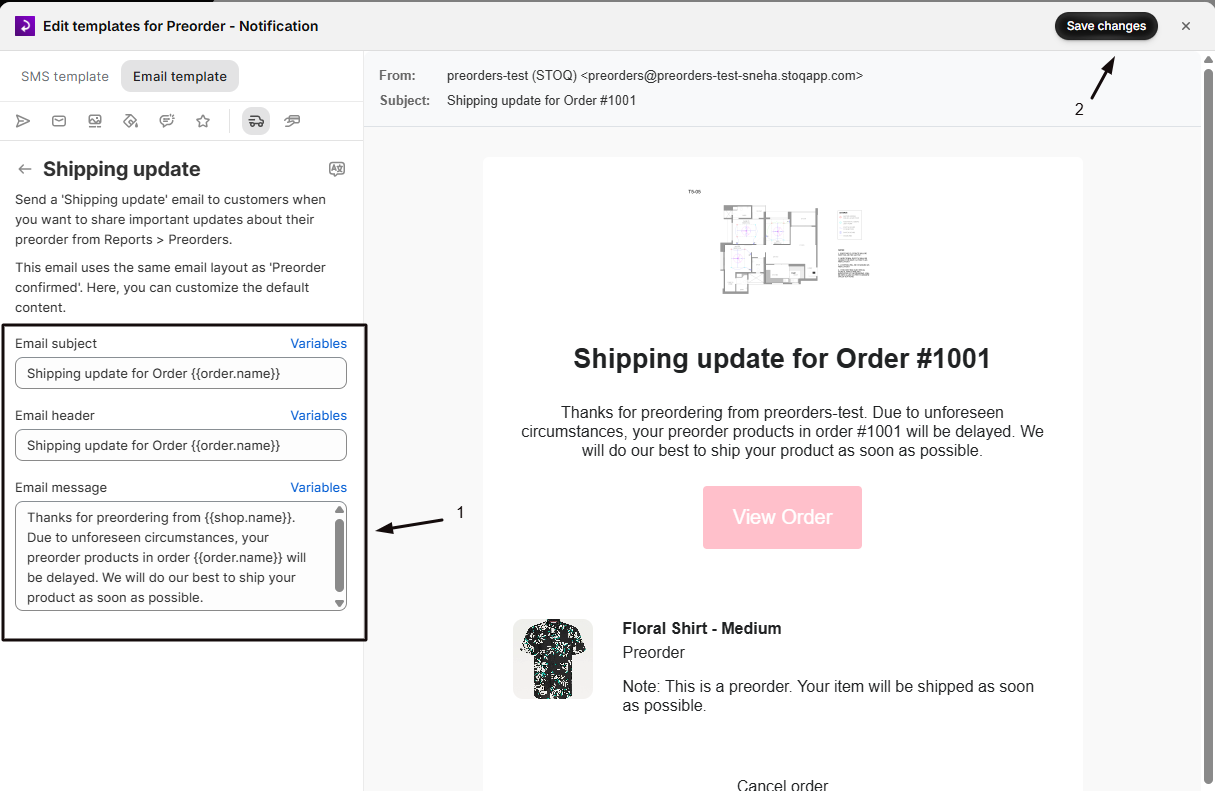
Click Customize to open the embedded template editor, where you can edit the email’s visual design and the default content fields: Email subject, Email header, and Email message.
Changes you save here become the new defaults that pre-fill the Subject, Header, and Description fields whenever you open the send dialog.
Email variables
Section titled “Email variables”The template editor’s Variables button, next to the Email subject, Email header, and Email message fields, offers the same preorder merge tags as the confirmation email. Click Variables, then Add to field next to the one you want. Variable names are lowercase and must match exactly.
| Variable | What it shows |
|---|---|
{{shop.name}} |
Your store name |
{{shop.domain}} |
Your store’s domain |
{{customer.name}} |
The customer’s full name |
{{customer.first_name}} |
The customer’s first name |
{{order.name}} |
The order number, like #1001 |
{{products_list}} |
The preorder product names, separated by commas |
{{first_product}} |
The name of the first preorder product |
{{products_count}} |
The total number of preorder products in the order |
{{other_count}} |
The number of preorder products beyond the first |
{{shipping_timeline}} |
The shipping timeline of the first preorder product |
The quick send dialog’s Insert: option only offers Order name and Store name. To use the product variables above, set them as defaults in the template editor.
Check your setup
Section titled “Check your setup”After sending, a toast confirms it: “Notifications sent” for a bulk send, or “Shipping email sent” for a single order.
To confirm delivery for a specific order, open the order detail page and check the order’s activity log. An event is recorded for every successful send, showing the delivery email address; manually triggered sends are labelled “(sent manually)” in the timeline.
Troubleshooting
Section titled “Troubleshooting”The Send shipping update option doesn't appear in Notify customer
The entire dropdown is hidden for cancelled or refunded orders. Confirm:
- The order isn’t cancelled or refunded.
- It’s a preorder order tracked by STOQ, not a standard Shopify order; the option only appears on the preorder order detail page within STOQ.
Send shipping update in bulk actions prompts you to upgrade
Bulk sending requires a paid plan. Send from the individual order detail page instead, or upgrade your plan.
You don't see confirmation that a bulk send finished
Bulk sends run in the background, so the app returns immediately. When the run finishes, STOQ emails your store’s owner address a CSV report titled “Bulk Send Shipping Updates Results CSV” with a row for every order showing success or failure.
Does sending a shipping update charge or change the customer's order in any way?
No. Sending a shipping update email only sends a notification. It doesn’t collect payment, change the order status, update the fulfillment hold, or modify anything else in Shopify. It’s purely informational.
Can I send the shipping update email more than once to the same customer?
Yes. There’s no limit on how many times you can send a shipping update to the same order from the individual order page. In a bulk send, each run is deduplicated so it won’t send twice to the same order, but you can run separate bulk sends for the same set of orders at different times.
Can I customize the email design beyond the subject, header, and description?
Yes. In the Notifications sub-tab (Preorders in the left menu → Settings tab → Notifications), click Customize on the ‘Shipping update’ email card. The embedded template editor lets you change branding, colors, layout, and other visual elements. The Subject, Header, and Description you set there become the pre-filled defaults in the send dialog; you can still override them each time you send.
Can I trigger the shipping update email automatically through Shopify Flow?
Yes. STOQ exposes a Send shipping update notification action in Shopify Flow, which you can use to trigger the email from a workflow using an order ID. You can enter custom Subject, Header, and Description values in the action; if you leave them blank, Flow uses your saved defaults from Settings. See Preorders with Shopify Flow for the full list of available actions.
What's the difference between the Shipping update email and the Preorder confirmation email?
The Preorder confirmation is sent automatically when a customer places a preorder, or you manually re-send it. The Shipping update is only sent manually, by you, and is intended for mid-preorder communication, such as a delay or timeline change. Both share the same template design, but their default Subject, Header, and Description are configured separately in Settings.
Related guides
Section titled “Related guides”Thanks for letting us know.
Still stuck? Ask Quinn or chat with support