Add a preorder progress bar
Show how many units are claimed on your preorder product page to build urgency and social proof.
Last updated
Use this guide to replace the preorder limit disclaimer with a visual progress bar, like “12 of 50 claimed”. It works well for hype drops and crowdfunding-style campaigns. By the end, customers will see a filling bar with a claimed versus total count on the product page.
Before you begin
Section titled “Before you begin”| Requirement | Detail |
|---|---|
| Paid STOQ plan | The Show as counter/progress bar option is greyed out on the free plan. See Plans and billing. |
| A quantity limit on each variant | The bar counts toward the Quantity limit you set per variant in the offer’s Products tab. See Set order limits. |
What customers will see
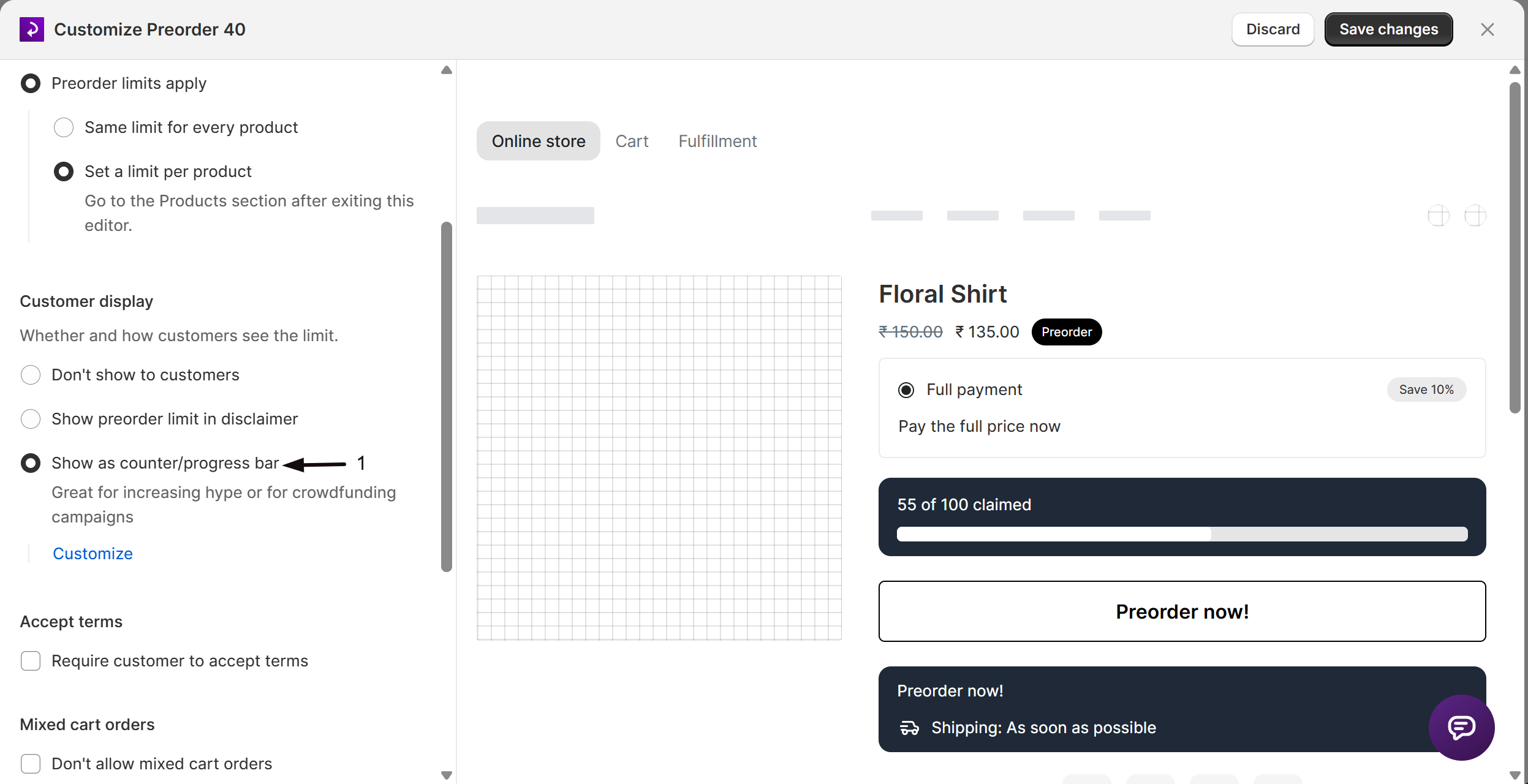
Section titled “What customers will see”The bar sits directly above the preorder button, or just below the payment options when partial payments are on.
It shows the selected variant’s numbers only. When a shopper switches variant, the bar redraws with that variant’s count, so a product with three variants shows three separate totals rather than one shared one. A variant with no Quantity limit shows no bar at all, even when other variants on the same product do.
Turn on the progress bar
Section titled “Turn on the progress bar”On a phone, this menu is collapsed. In the Shopify mobile app, tap the STOQ logo at the top of the screen to open it, then choose the section named below. There is no hamburger icon. See Finding the STOQ menu.
-
Open the offer editor
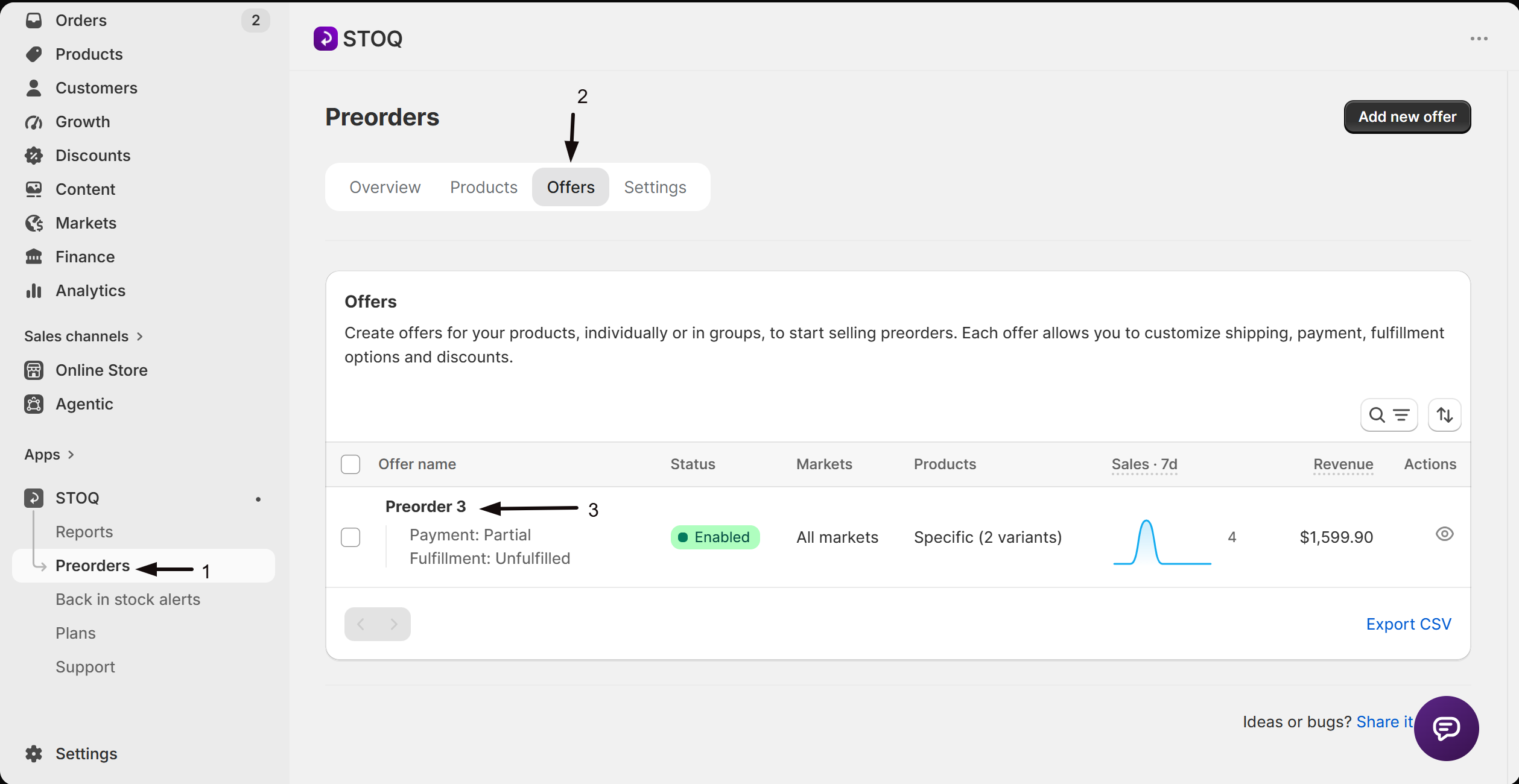
- In the left menu bar of the STOQ app, click Preorders.
- Click the Offers tab, then click the offer you want to edit.
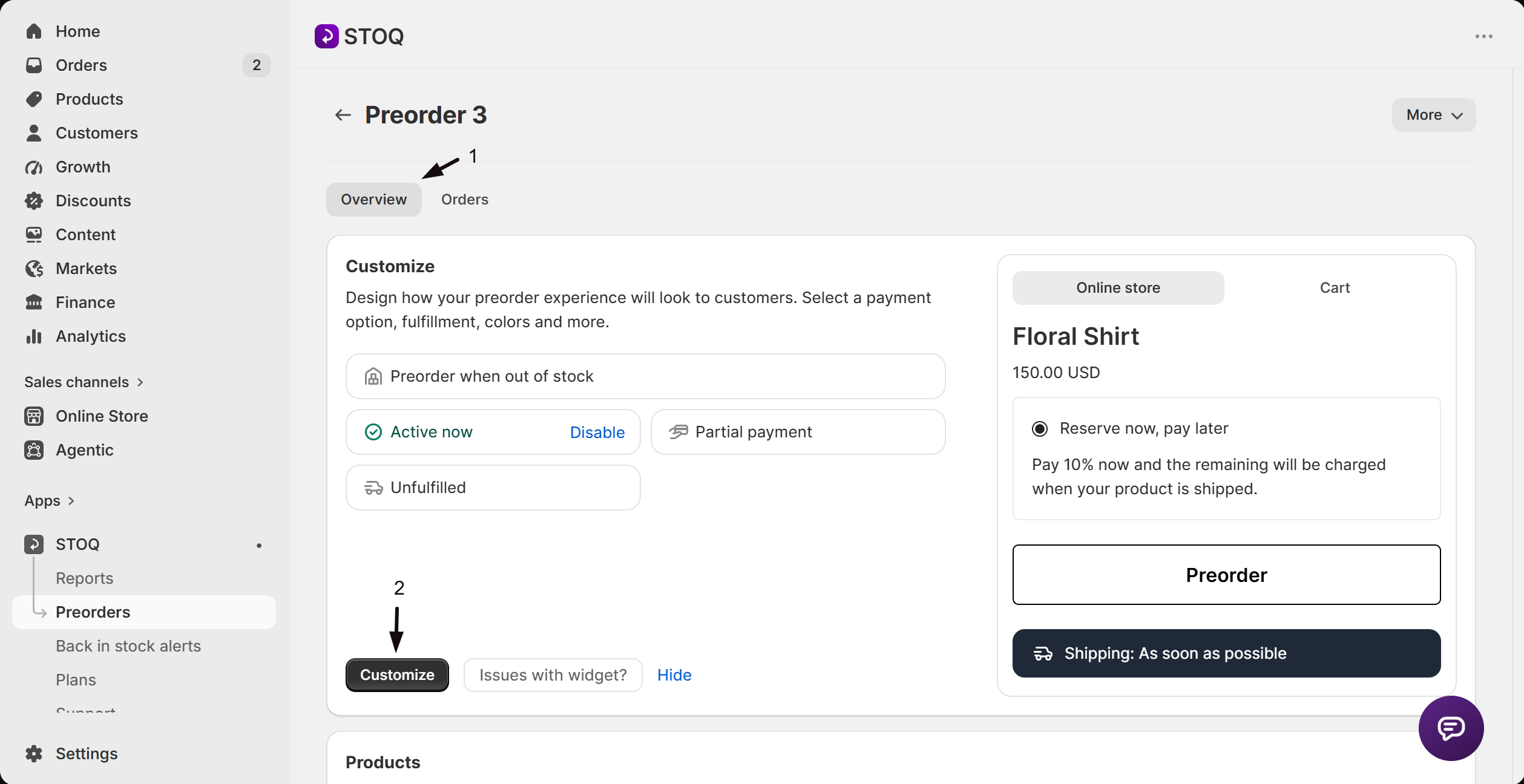
- On the offer’s Overview tab, click Customize to open the editor.
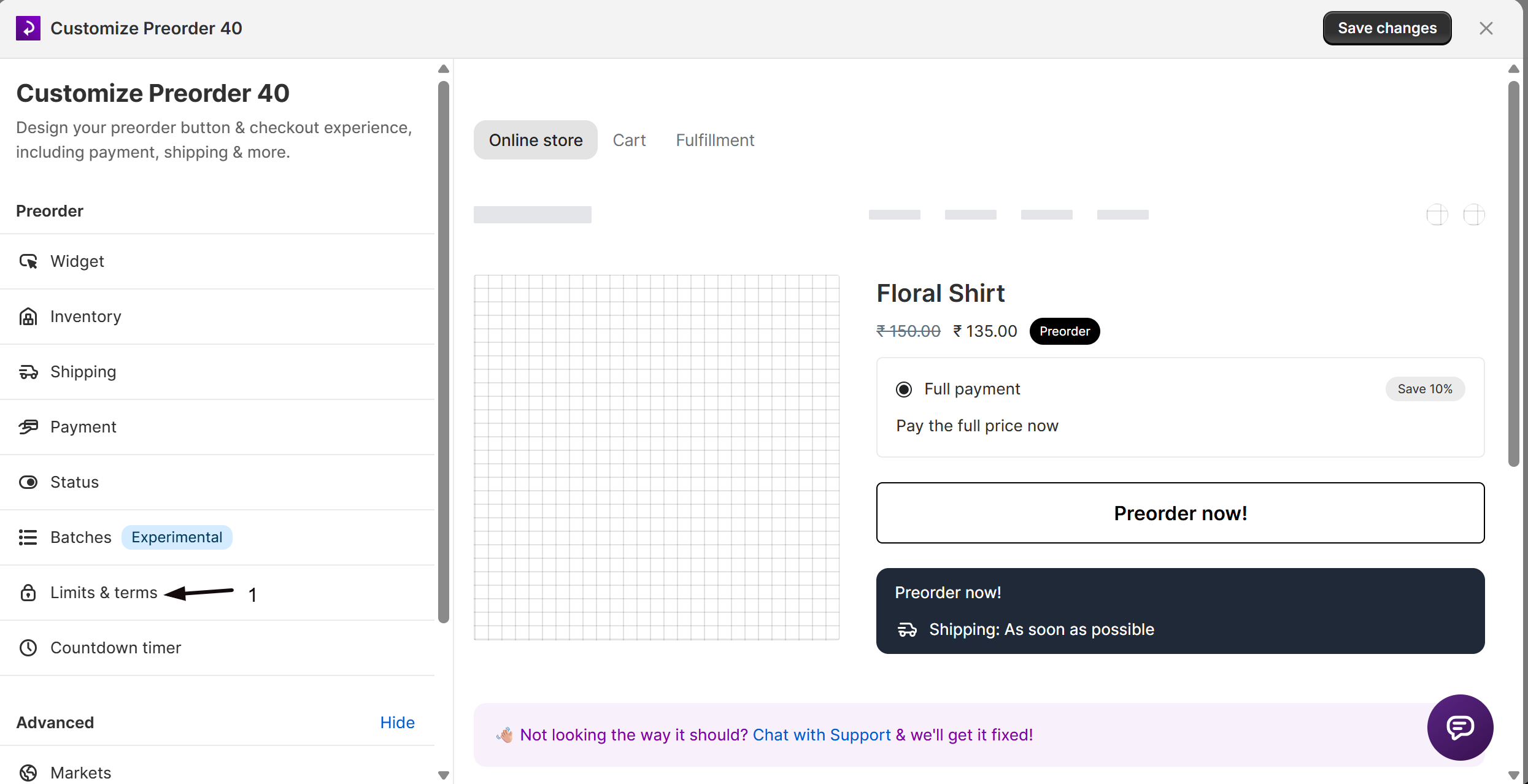
- In the editor’s sidebar, click Limits & terms.
-
Switch the display to the bar
Under Total preorder limit, select Show as counter/progress bar. The disclaimer text and the bar are alternatives, so choosing the bar turns the disclaimer line off.
-
Set the bar text
Click Customize, then edit Progress bar text. The default is
{{ sold }} of {{ total }} claimed. Use the variables below to write your own wording.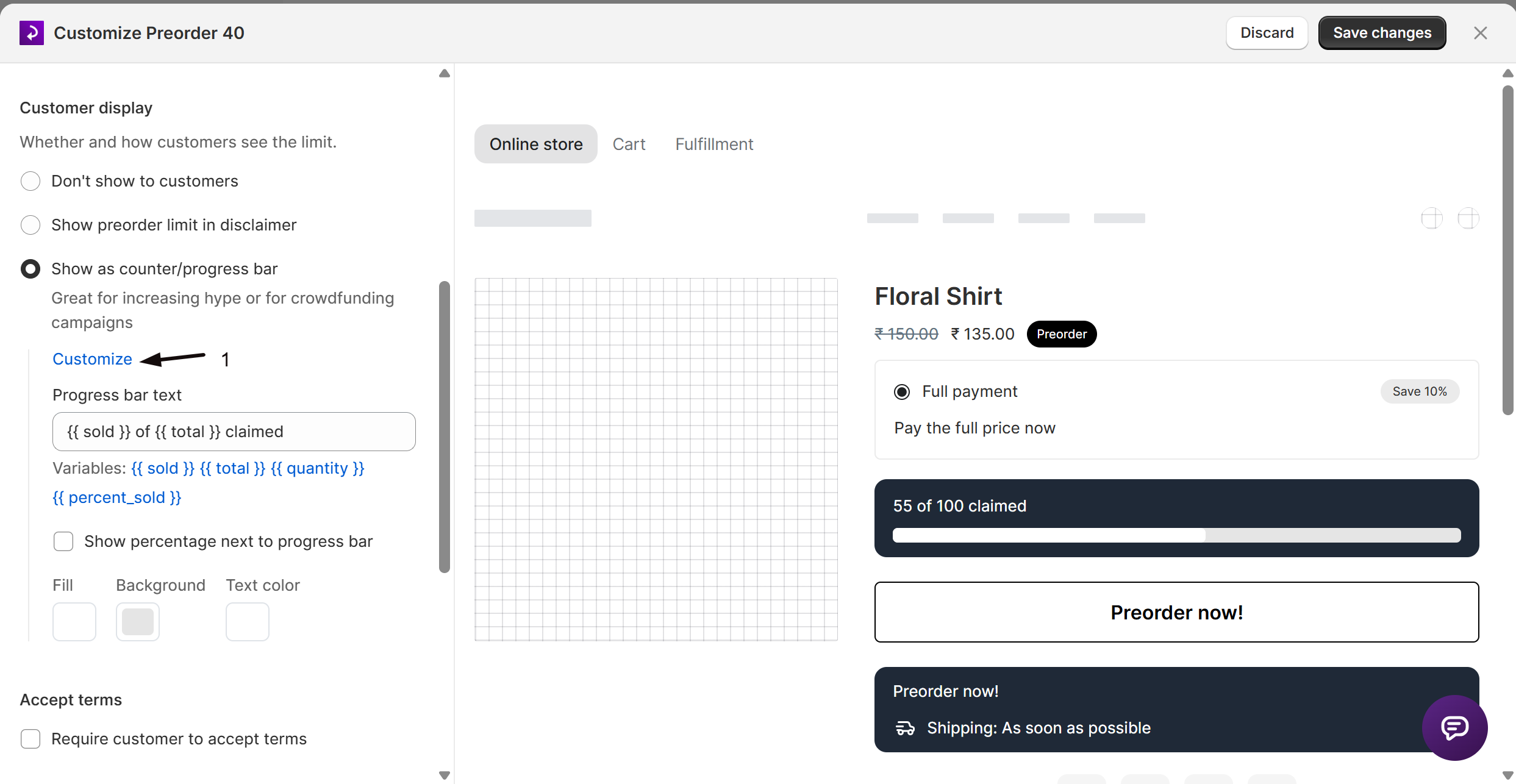
-
(Optional) Add a percentage and set colors
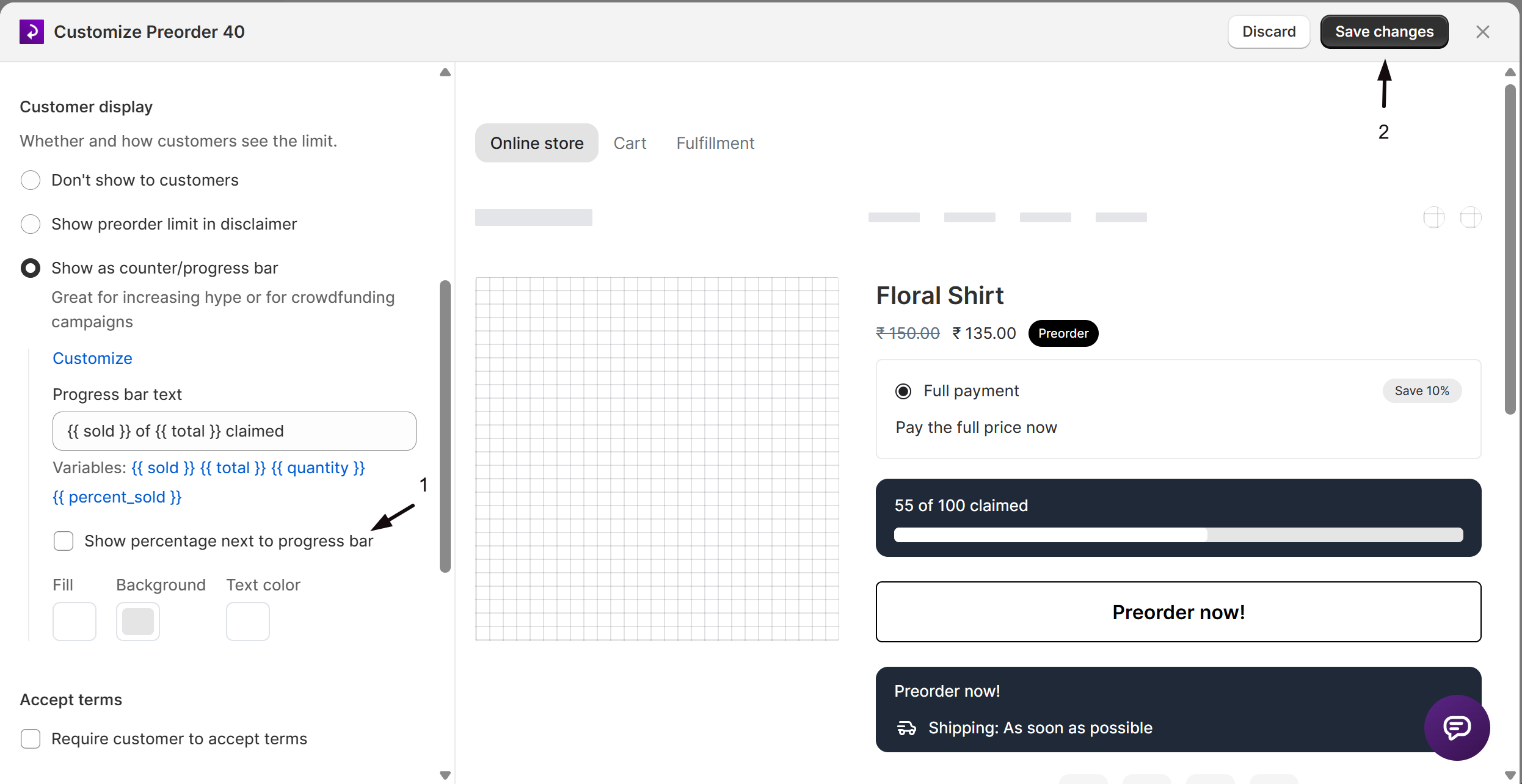
Check Show percentage next to progress bar to show the percent figure beside the bar. Use the Fill, Background, and Text color pickers to style the bar itself, and Box background to color the rectangle behind it.
-
Save, then set a limit on each variant
- Click Save changes at the top right of the editor.
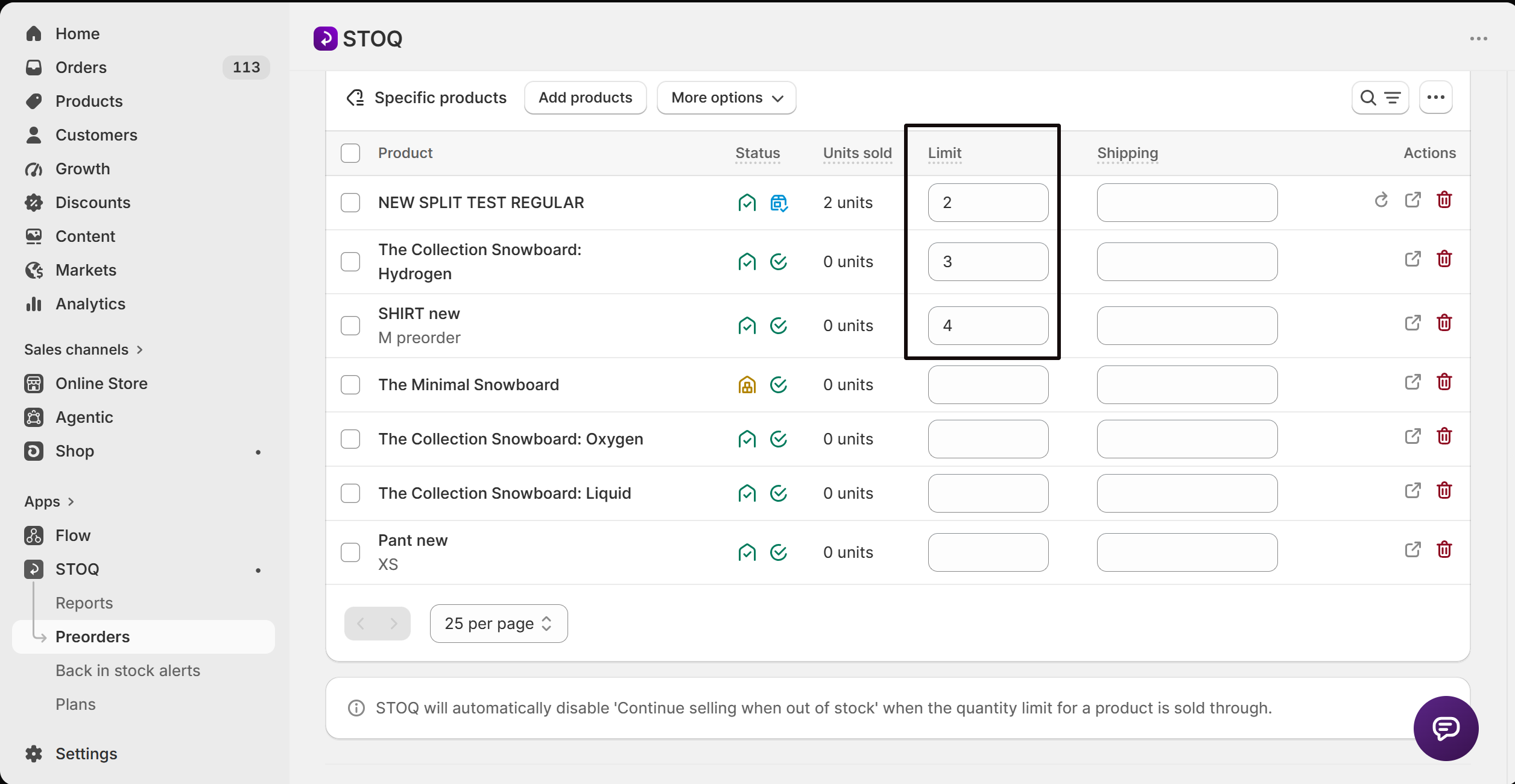
- Go to the offer’s Products tab and click the edit icon next to a variant.
- Enter a number in Quantity limit, then save. Repeat for every variant that should show a bar.
Variables you can use in the bar text
Section titled “Variables you can use in the bar text”| Variable | What it inserts |
|---|---|
{{ sold }} |
Units already sold or preordered for the selected variant |
{{ total }} |
The variant’s Quantity limit |
{{ quantity }} |
Units still available, the limit minus units sold |
{{ percent_sold }} |
Percent of units sold, including the percent sign, for example 55% |
Change where the bar appears
Section titled “Change where the bar appears”By default the bar appears above the preorder button. To place it somewhere else, expand More settings in the editor and click Advanced, enter a CSS selector for the theme element you want to attach it to in Progress bar position, then choose where to attach it in Insertion type. See Advanced settings.
Check your setup
Section titled “Check your setup”Open a preorder product on your live storefront and confirm the bar shows the right count for the selected variant, then switch variants and confirm the numbers change. Place a test preorder and reload the page to confirm the count moves up.
Does the bar show one total for the whole product?
No. The bar is per variant, so it shows the count for whichever variant the shopper has selected and redraws when they switch. There’s no combined product-level total, so a campaign that needs one shared number has to run on a single-variant product.
Why isn't the bar showing on my product page?
Check these in order:
- The variant has a Quantity limit in the offer’s Products tab. Without a limit there’s no total to count toward, so nothing renders.
- Show as counter/progress bar is selected under Total preorder limit, not the disclaimer option.
- Your shop is on a paid plan. The option is greyed out on the free plan.
Why does the bar show a total I never set?
The offer’s Inventory setting is Show ‘Preorder’ for in-stock products. On those offers the Quantity limit field is disabled, and the bar counts toward the variant’s current Shopify stock plus the units already preordered.
Does the count update in real time?
The count is read when the product page loads, so a shopper who already has the page open won’t see it move until they reload. New preorders are reflected on the next page load.
Do different markets share one count?
No, when the offer is restricted to specific markets. Each market tracks its own sold count and limit, so the same variant can show different progress to shoppers in different markets. See Restrict a preorder offer to specific markets.
Can I translate the bar text?
Yes. Translate Progress bar text the same way you translate other offer text. See Translate into other languages.
Related guides
Section titled “Related guides”Thanks for letting us know.
Still stuck? Ask Quinn or chat with support