Schedule when an offer runs
Set a preorder offer's status mode and schedule it to go live and stop automatically on dates and times you choose.
Last updated
Use this guide to schedule a preorder offer to start and stop automatically at dates and times you choose, and to understand what each status mode does. By the end, the preorder button on your storefront will appear and disappear exactly when you intend, without you needing to return to the dashboard.
Before you begin
Section titled “Before you begin”- An existing preorder offer. Create one first: Preorders in the left menu → Offers tab → Add new offer. See Set up preorders.
- Scheduling (a start date, end date, or date range) requires a paid plan. Manually enabling or disabling an offer works on every plan.
Choose your setup
Section titled “Choose your setup”Select one of five modes in the offer’s Status section to control when it’s open for preorders:
- Available now: the offer goes live immediately and stays live until you manually turn it off. No start or end date is stored. Choose this for open-ended campaigns with no planned end date.
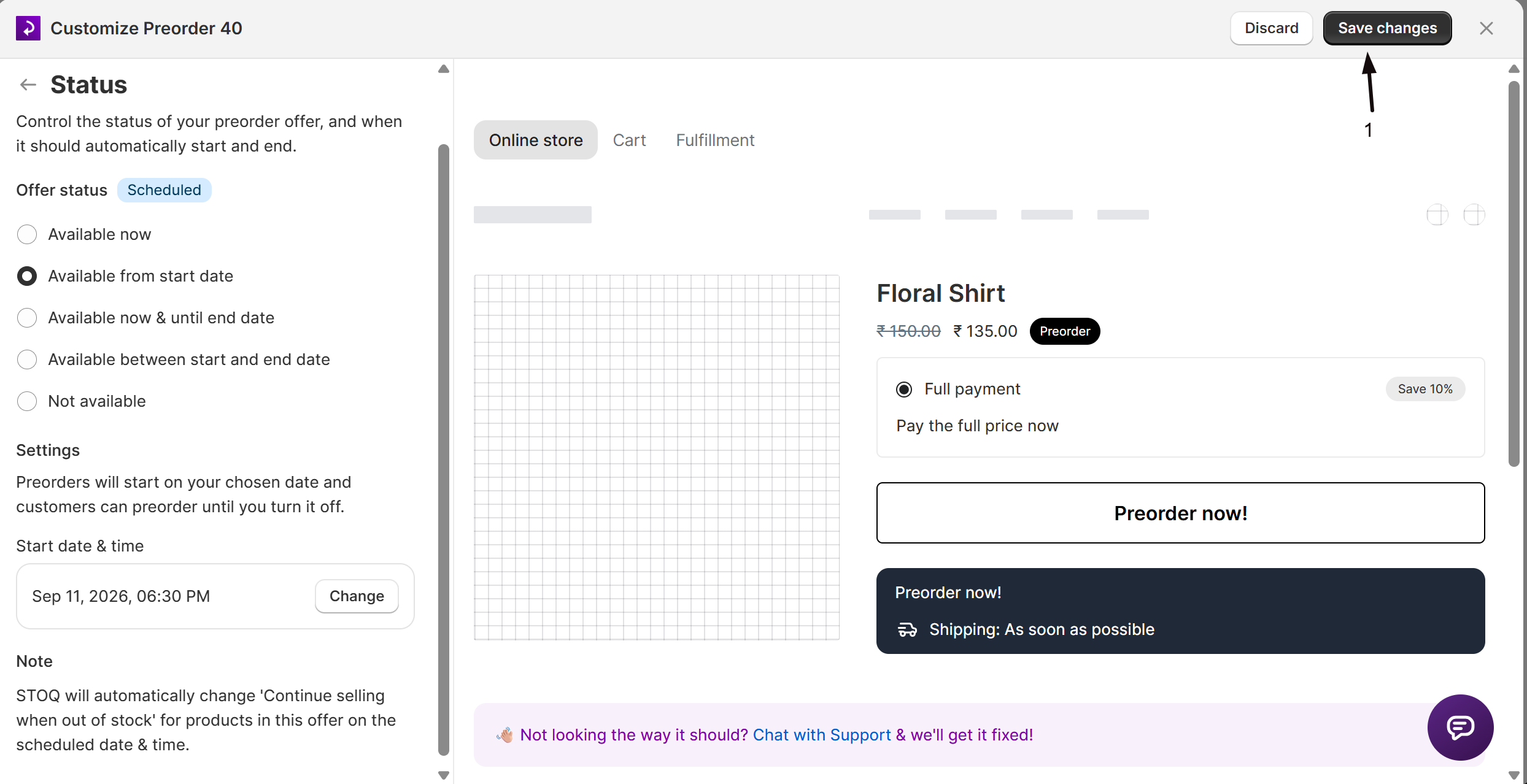
- Available from start date: the offer stays off until the date and time you set, then goes live automatically and stays live until you turn it off manually. Defaults to tomorrow at noon. At the scheduled start time, STOQ also turns on Continue selling when out of stock for the offer’s variants (STOQ inventory provider only).
- Available now & until end date: the offer is live immediately and turns off automatically at the date and time you set. Defaults to seven days from today at noon. At the scheduled end time, STOQ turns Continue selling back off (STOQ inventory provider only) and clears the schedule dates.
- Available between start and end date: the offer turns on at the start date and off at the end date, both automatically, with no manual step in between. The end date must be after the start date.
- Not available: the offer is off and the preorder button doesn’t appear on the storefront. Existing preorder orders aren’t affected.
What customers will see
Section titled “What customers will see”| Status | Storefront |
|---|---|
| Live | The preorder button appears on eligible products |
| Scheduled or Off | The preorder button doesn’t appear |
Set it up
Section titled “Set it up”On a phone, this menu is collapsed. In the Shopify mobile app, tap the STOQ logo at the top of the screen to open it, then choose the section named below. There is no hamburger icon. See Finding the STOQ menu.
-
Open the offer editor
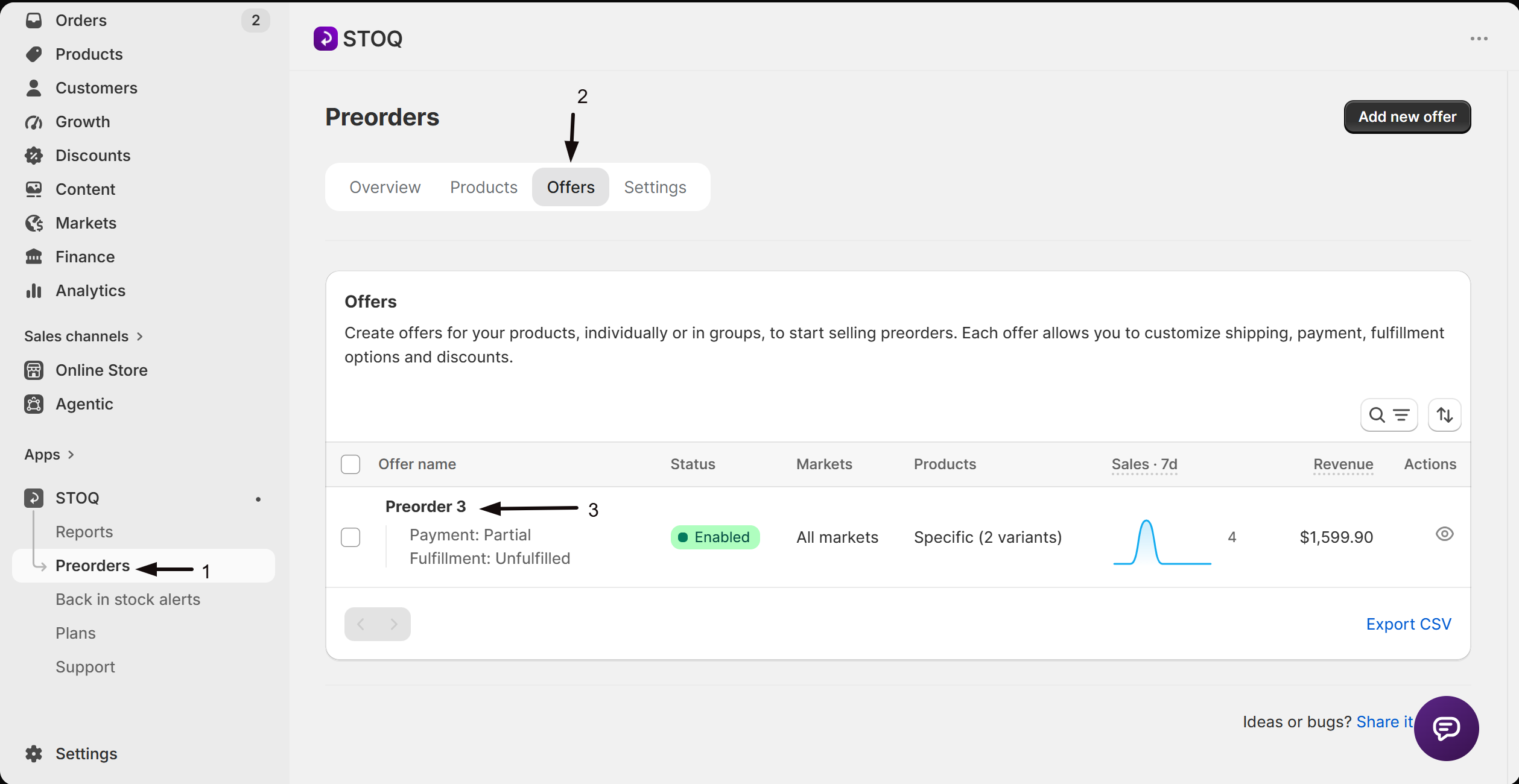
- In the left menu bar of the STOQ app, click Preorders.
- Click the Offers tab at the top.
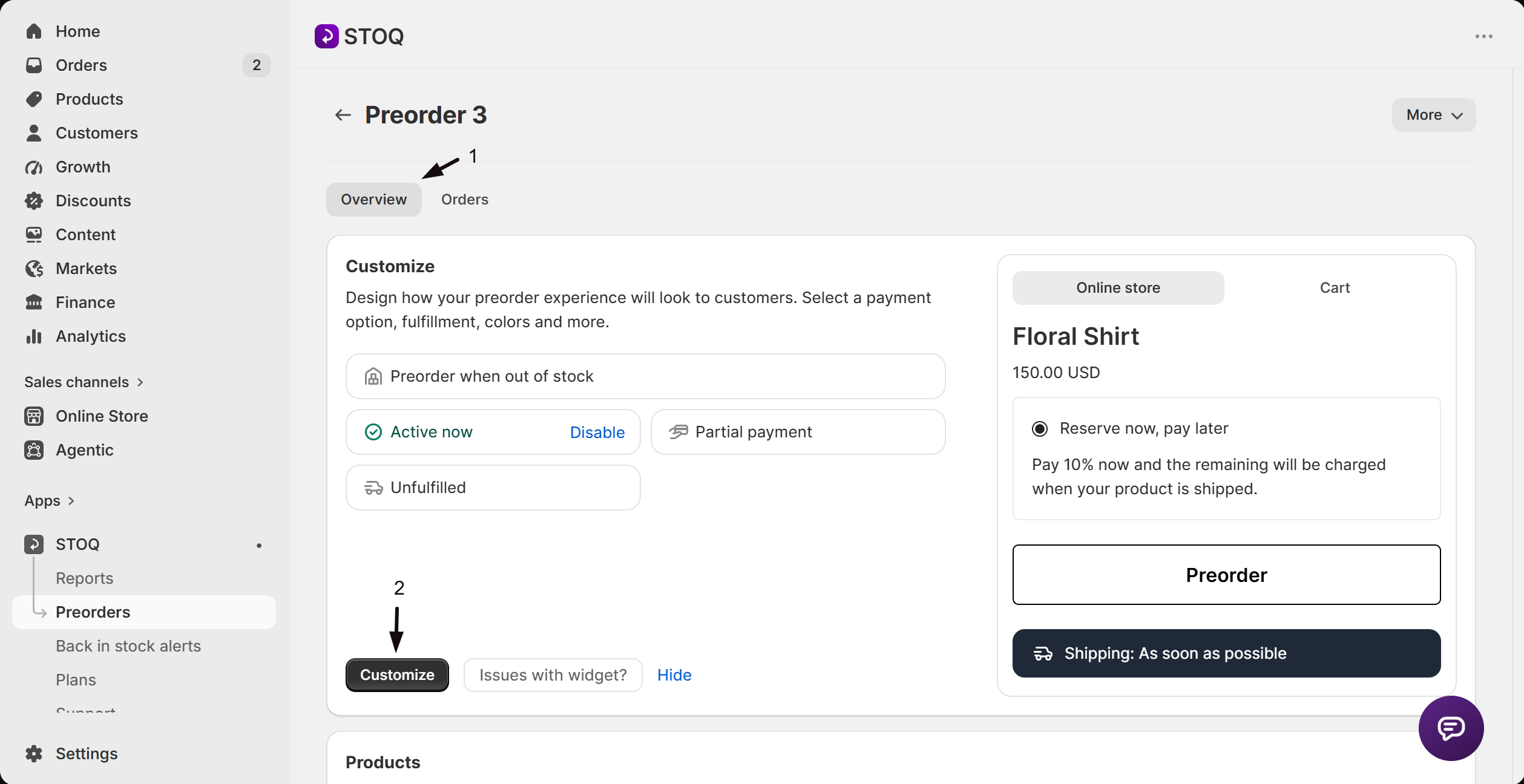
- Click the offer you want to edit to open its Overview tab (this shows the Customize button, a live preview, and the offer’s Products section).
- Click Customize to open the editor.
-
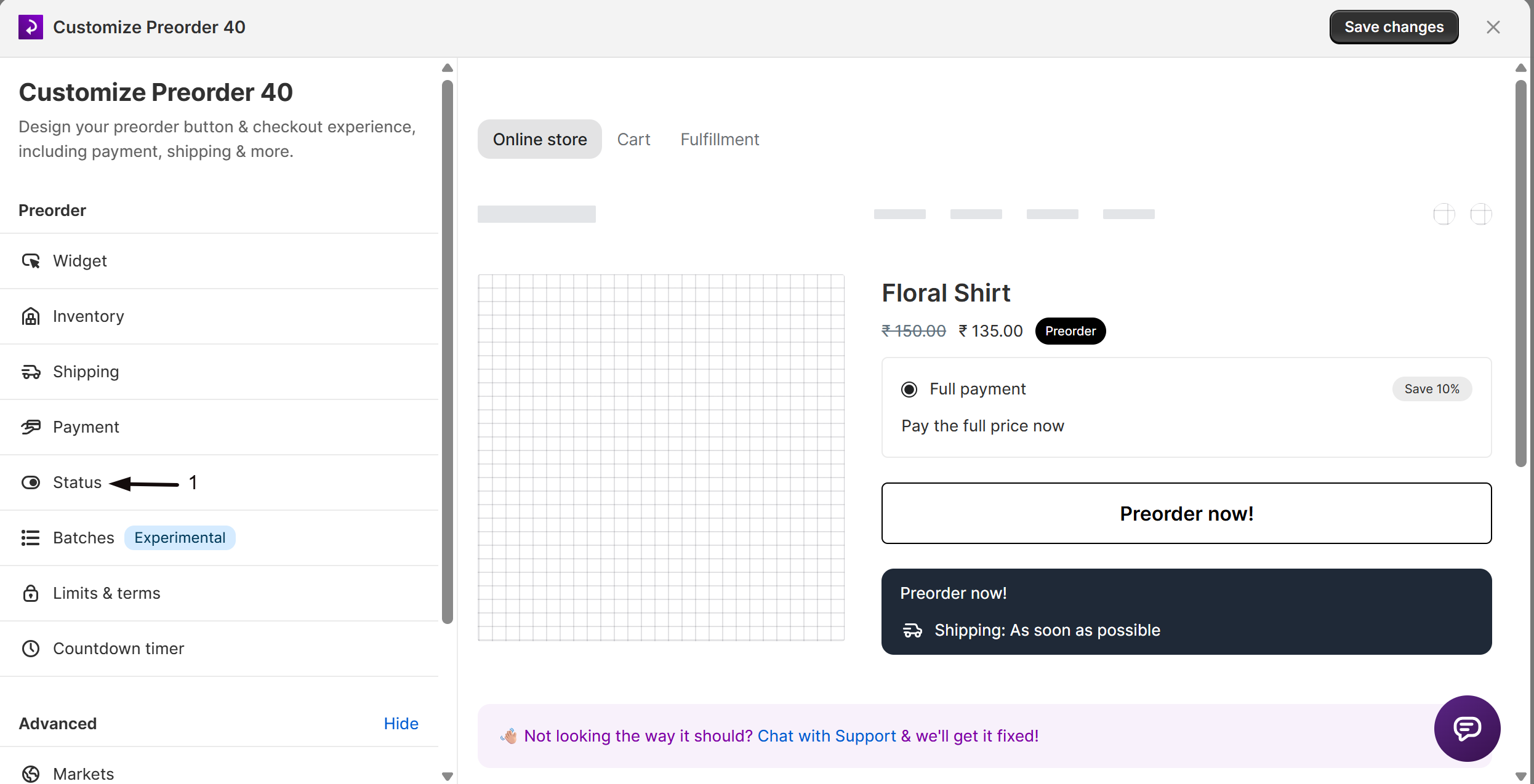
Open Status
In the editor’s sidebar, click Status. The panel shows the Offer status options and a badge with the saved offer’s status right now: Live (green), Scheduled (blue), or Off (no color). The Offers list and the editor sidebar show the same status.
-
Choose an availability mode
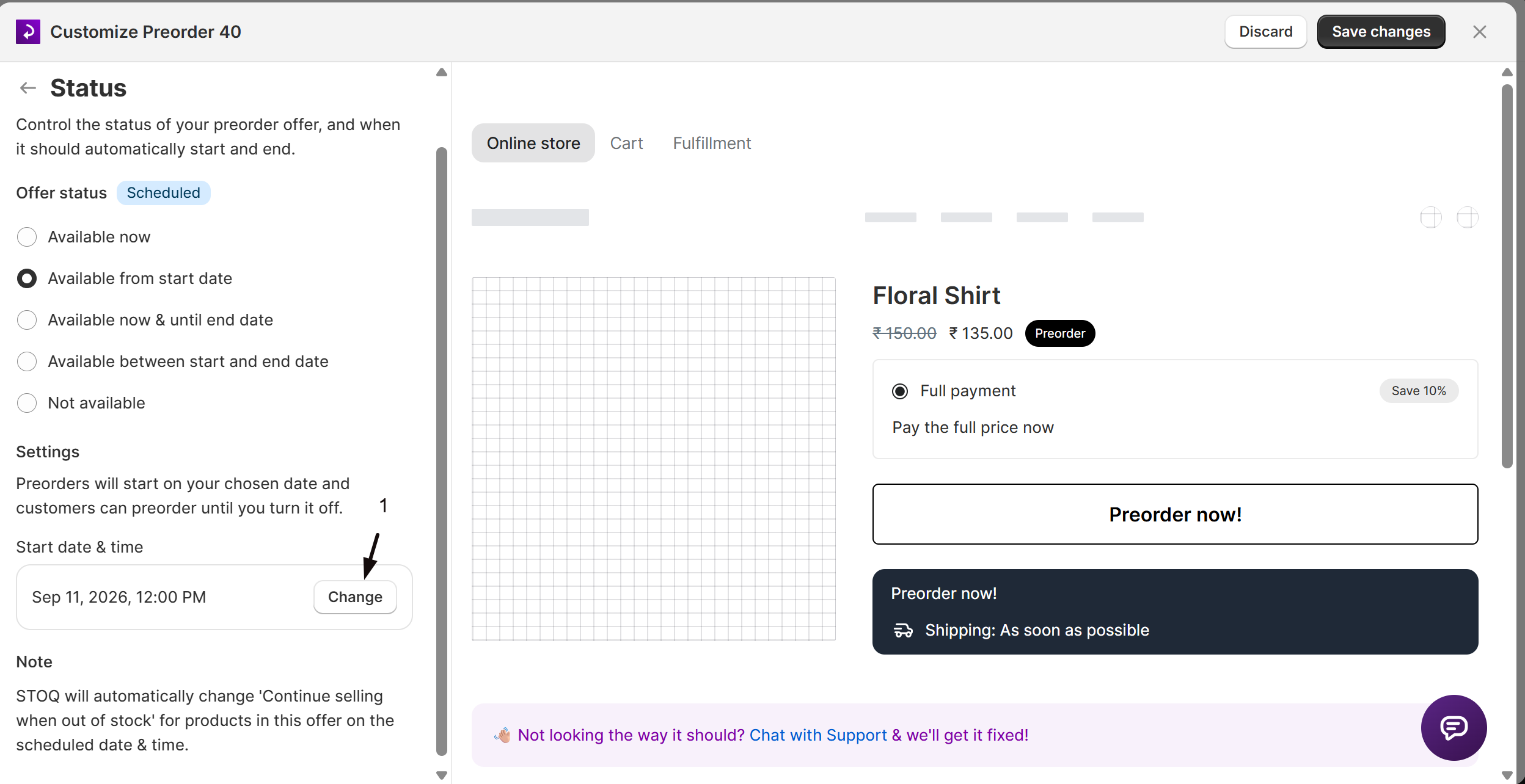
Select Available now, Available from start date, Available now & until end date, Available between start and end date, or Not available. See Choose your setup above for how these differ.
-
Set the date and time
If your mode shows a date picker:
- Click Change next to the date.
- Pick a date from the calendar.
- Pick a time from the Time dropdown (listed in 30-minute increments in your browser’s local timezone).
For a start-and-end range, the end date must be after the start date.
-
Save changes
Click Save changes in the offer editor. The status badge updates immediately to reflect the new effective state.
Check your setup
Section titled “Check your setup”After saving, confirm the change took effect:
- For Available now, visit a product in the offer on your storefront and confirm the Preorder button appears.
- For a scheduled mode, check the status badge: Scheduled if the start date is still in the future, or Live if it has already passed.
- Re-open the Status panel to confirm the dates you set were saved correctly.
Troubleshooting
Section titled “Troubleshooting”The Preorder button isn't showing even though the badge reads Live
Status is only one of several conditions that must be true. Also check:
- The STOQ app embed is enabled in your Shopify theme.
- The product is added to this offer.
- Continue selling when out of stock is on for the product in Shopify if it’s out of stock.
See Show the preorder button on store pages for the full checklist.
The scheduling options are greyed out
Scheduling (a start date, end date, or date range) requires a paid STOQ plan. You can still manually enable or disable the offer on the free plan.
The end date has passed and you want to run the offer again
Open the offer’s Status section and either switch to Available now, or set a new date range with a future start date, then save.
Saving a start-and-end date range fails
The end date must be after the start date. Adjust one of the dates and save again.
Limitations
Section titled “Limitations”Changing the availability mode while the offer’s countdown timer is active turns the timer off and clears its custom dates. Set your schedule first, then configure the countdown timer. See Preorder countdown timer.
Does the schedule activate and deactivate the offer automatically, or do I need to do anything?
The schedule is automatic. STOQ runs a background process that enables or disables the offer when the scheduled time is reached. You don’t need to return to the dashboard to flip it on or off.
What timezone are the start and end times in?
You set them in your browser’s local timezone. STOQ stores and enforces the times as UTC on the server, so if your team is spread across timezones, double check the displayed time in the dashboard after saving.
Will customers who already placed preorders be affected when I disable or end an offer?
No. Disabling an offer or letting its end date pass only stops new preorder orders from being placed. Existing orders keep their preorder status, fulfillment hold, and payment settings.
What exactly happens when a scheduled offer's end date passes?
STOQ disables the offer so the preorder button no longer appears, turns “Continue selling when out of stock” back off for all variants (STOQ inventory provider only), and clears the schedule dates. The status badge switches to Off. Existing preorder orders aren’t cancelled or changed.
Does STOQ automatically enable 'Continue selling when out of stock' when a scheduled offer starts?
Yes, but only for offers using the STOQ inventory provider. At the scheduled start time, STOQ enables the offer and turns the setting on for every variant in it; when the offer ends, STOQ turns it back off. If your offer uses Shopify as the inventory provider, you manage that setting yourself.
Why does the Products tab show a Clock icon instead of a warning icon for some variants?
Because a scheduled offer’s future start date means STOQ will turn on “Continue selling when out of stock” automatically once it goes live, so a warning icon would be misleading before that point. The Clock icon (blue) shows a tooltip with the scheduled date; no action is needed, it switches once the offer activates. This only applies when the offer uses the STOQ inventory provider. See Preorder inventory settings.
Related guides
Section titled “Related guides”Thanks for letting us know.
Still stuck? Ask Quinn or chat with support