Configure inventory settings
Choose when the Preorder button shows, when inventory is deducted, and which products an offer covers.
Last updated
Use this guide to control when the Preorder button appears on a product, when Shopify deducts inventory for a preorder, and which products a preorder offer covers. By the end, customers will see the Preorder button only under the conditions you choose, and your inventory counts will update on the schedule you pick.
These settings live in two places: the offer’s Inventory panel (button visibility and deduction timing) and its Products section (which products are included). For the step-by-step process of adding products, see Add products to an offer.
Before you begin
Section titled “Before you begin”| Requirement | Detail |
|---|---|
| An existing offer | Create one first, see How to set up preorders |
| Collection, Product tags, or All products tracking | Requires a paid STOQ plan |
Choose your setup
Section titled “Choose your setup”When the Preorder button appears:
| Option | Button appears when | Requirement |
|---|---|---|
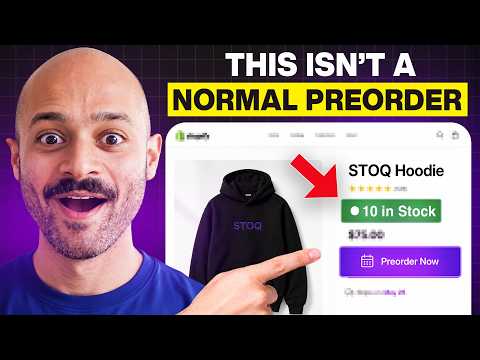
| Show “Preorder” when product is out of stock (default) | Inventory is 0 or less | Continue selling when out of stock must be enabled in Shopify for the variant |
| Show “Preorder” for in-stock products | Inventory is greater than 0 | No Continue selling requirement, but only available with the Specific products type |
| Always show ‘Preorder’ | Always, in stock or not, so every order for these products is a preorder | Only available with the Specific products type. Customers can order more than you have only if Continue selling when out of stock is enabled |
When inventory is deducted (out-of-stock offers only; the other two options always deduct at checkout):
| Option | When stock is reduced | Shopify default? |
|---|---|---|
| At checkout | As soon as the customer places the order | Yes |
| At fulfillment | Only when you mark the order as fulfilled | No |
Choose At fulfillment if you want to hold inventory until you’re ready to ship, for example while waiting on a supplier shipment.
Which products the offer covers:
- Specific products: you pick individual products or variants. Required for the in-stock and Always button options, and works with out-of-stock too.
- Collection: STOQ tracks out-of-stock products in one Shopify collection, checking every 15 minutes. Requires a paid plan; not available with specific Shopify markets or the in-stock provider.
- Product tags: STOQ tracks out-of-stock products carrying any of the tags you choose. Tag a product in Shopify to add it, remove the tag to take it out. Requires a paid plan; not available with specific Shopify markets or the in-stock provider.
- All products: STOQ tracks out-of-stock products store-wide on the same 15-minute cycle. Requires a paid plan; not available with specific Shopify markets or the in-stock provider.
What customers will see
Section titled “What customers will see”| Setting | What customers see |
|---|---|
| Out-of-stock preorders | The Preorder button appears once a variant’s inventory reaches zero; it’s hidden while stock remains |
| In-stock preorders | The Preorder button appears while the variant has stock, and disappears once inventory reaches zero |
| Always preorders | The Preorder button shows on every order for these products, in stock or out |
| Track all products / Track all collection products | Right after you turn tracking on, customers may briefly see Add to cart instead of Preorder until STOQ’s next 15-minute check completes |
Set it up
Section titled “Set it up”On a phone, this menu is collapsed. In the Shopify mobile app, tap the STOQ logo at the top of the screen to open it, then choose the section named below. There is no hamburger icon. See Finding the STOQ menu.
Show the Preorder button and choose deduction timing
Section titled “Show the Preorder button and choose deduction timing”-
Open the offer’s Inventory panel
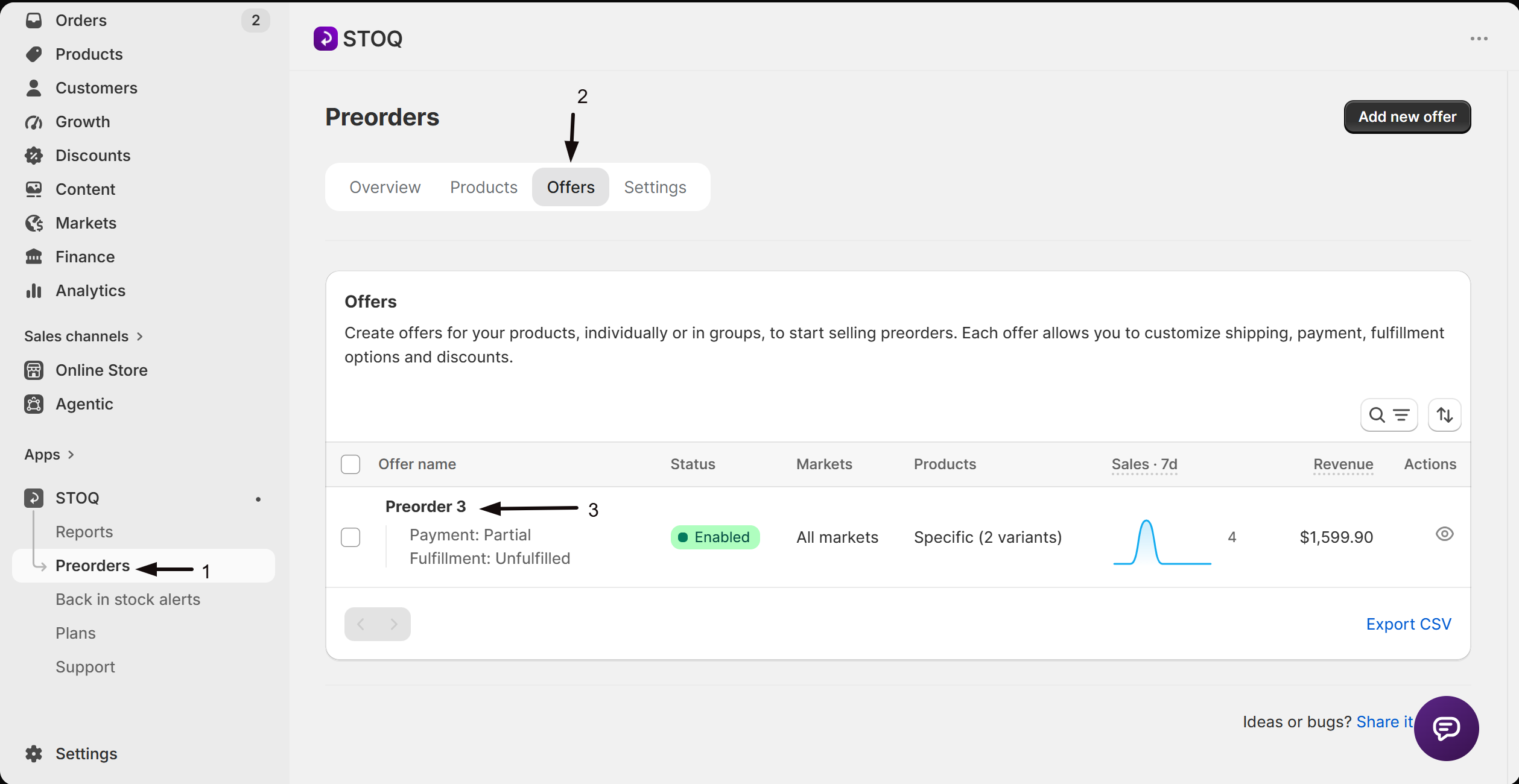
- In the left menu bar of the STOQ app, click Preorders.
- Click the Offers tab at the top.
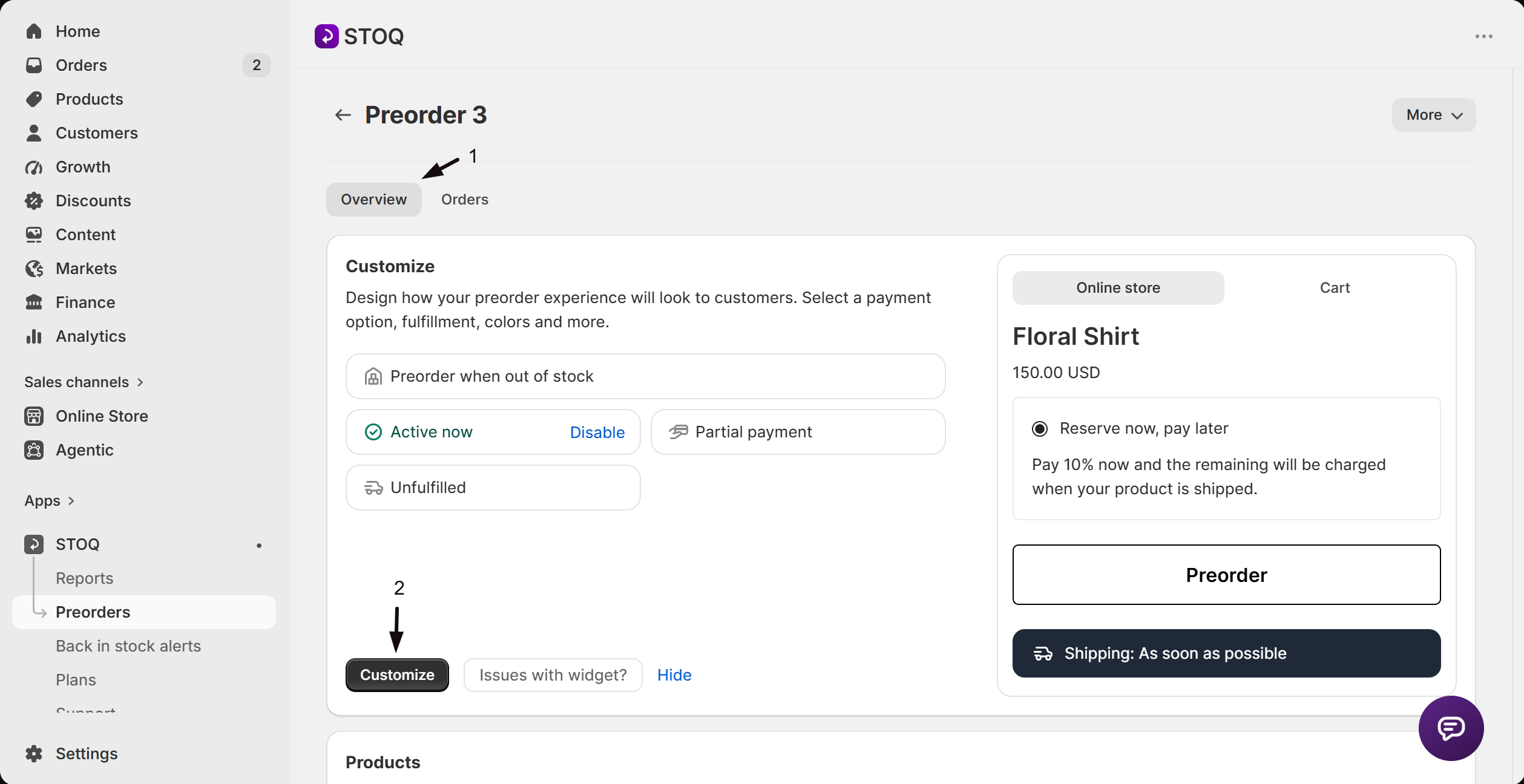
- Click the offer you want to edit to open its Overview tab.
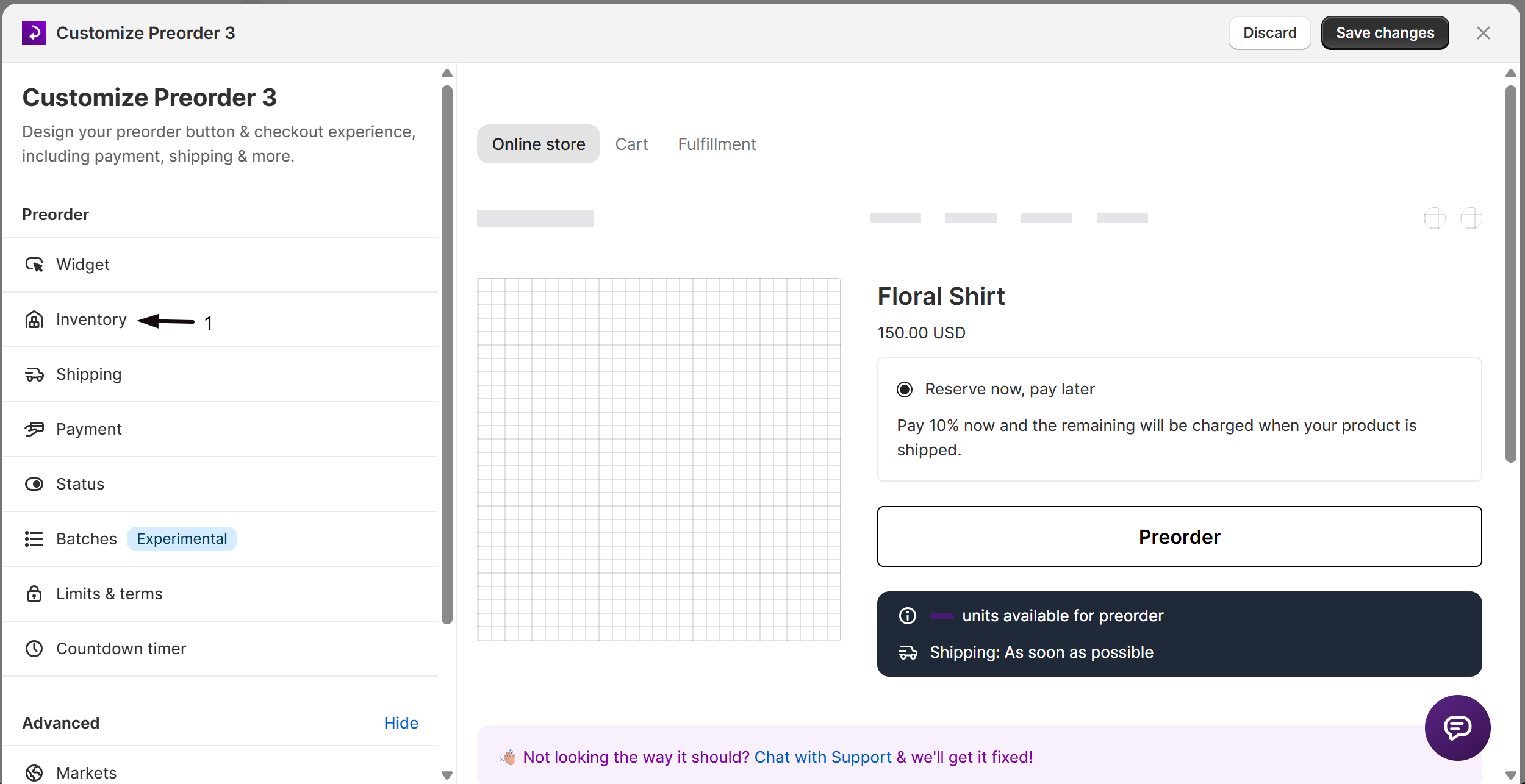
- Click Customize to open the editor.
- In the editor’s sidebar, click Inventory.
-
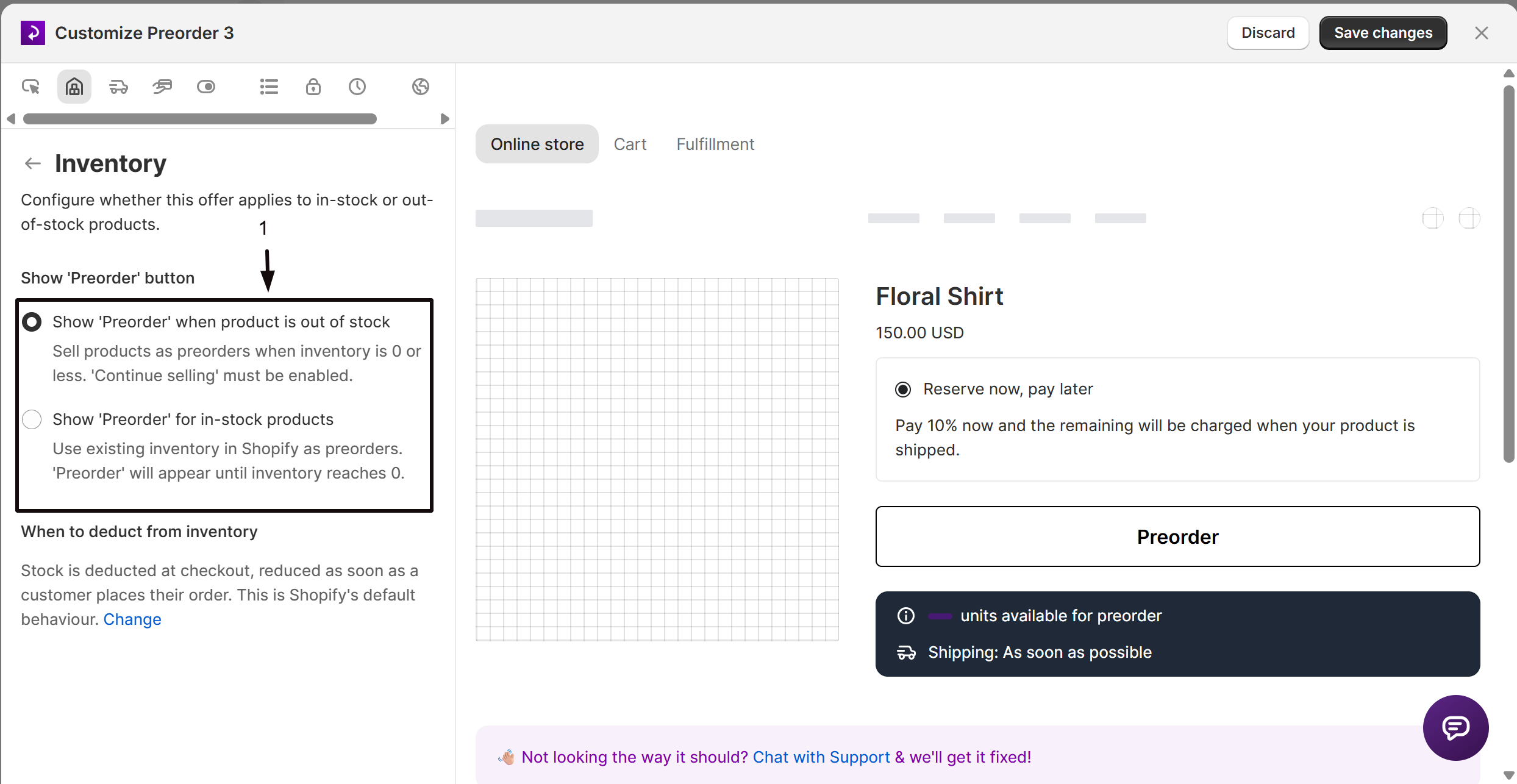
Choose when the Preorder button appears
Select Show “Preorder” when product is out of stock, Show “Preorder” for in-stock products, or Always show ‘Preorder’. See Choose your setup above for how these differ. The in-stock and Always options are greyed out unless the offer uses the Specific products type.
-
Choose when inventory is deducted
For out-of-stock offers, the current setting shows under When to deduct from inventory. Click Change in that section to reveal the options, then select At checkout or At fulfillment.
-
Save changes
Click Save changes at the top right of the editor.
Choose which products the offer covers
Section titled “Choose which products the offer covers”-
Open the offer’s Products section
- In the left menu bar of the STOQ app, click Preorders.
- Click the Offers tab at the top.
- Click the offer you want to edit (its Overview tab opens, showing the Customize button, a live preview, and the offer’s Products section).
-
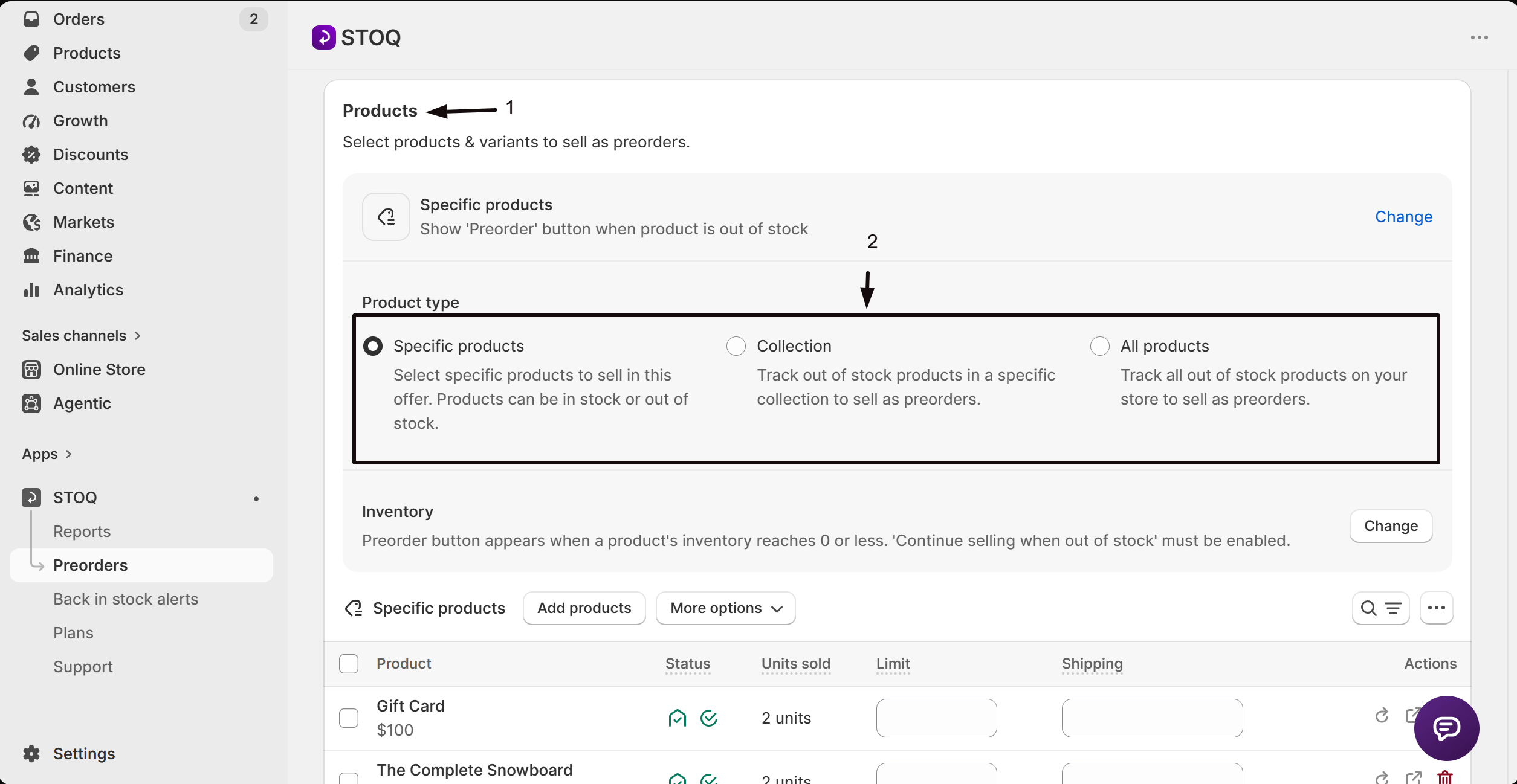
Locate the Product type selector
Under Products, click the source indicator (it shows the current mode, for example “Specific products”) to expand the Product type settings panel.
-
Choose a source
Select Specific products, Collection, Product tags, or All products. If the offer already has products, STOQ asks you to confirm the change and choose what to do with Continue selling on the products being removed.
-
Confirm the change
The change saves immediately when you confirm. For Product tags, the change saves when you pick your tags and click Select in the Select tags window. For Collection, Product tags, and All products, STOQ begins scanning for eligible products in the background.
Specific products
Section titled “Specific products”You pick individual products or variants; the offer only applies to what you’ve added, and both inventory providers work with this type.
The first time you add products to a brand-new offer using Specific products, STOQ shows a one-time “Confirm inventory setting” modal asking you to choose out-of-stock, in-stock or Always show ‘Preorder’ before it adds anything; your choice locks in the offer’s inventory provider. See the FAQ below for details.
Collection
Section titled “Collection”STOQ tracks out-of-stock products in a single Shopify collection you choose from a picker. After choosing the collection, pick a tracking mode:
| Tracking mode | STOQ behavior |
|---|---|
| Track all collection products | STOQ automatically enables Continue selling for collection products when they go out of stock |
| Only track products with ‘Continue selling’ enabled | STOQ doesn’t change Continue selling; only collection products that already have it on will get the Preorder button |
Click Add collection products to start tracking.
Variants with Track quantity turned off in Shopify are always available to buy, so STOQ skips them and they don’t get the Preorder button. To take preorders on one of these, turn on Track quantity for it in Shopify.
Product tags
Section titled “Product tags”STOQ tracks out-of-stock products that carry any of the Shopify product tags you choose. When you select Product tags, a Select tags window opens:
- Type in Search tags to find a tag, check each tag you want, or click Add “your-tag” to use a tag you typed that no product has yet. The window shows how many products match, so a mistyped tag reads as No products have these tags.
- Click Select.
The offer’s Products section then shows your tags, with Change to edit them. Pick a tracking mode, Track all tagged products or Only track products with ‘Continue selling’ enabled (they work like the collection modes above), then click Add tagged products.
Tags match the whole tag, not part of it, and capitalization doesn’t matter. When you add a tag to a product in Shopify, STOQ picks it up, and when you remove the tag, the product leaves the offer. To leave out a tagged product, use Exclude specific products in the same section.
All products
Section titled “All products”STOQ tracks all out-of-stock products on your store on the same schedule. Choose a tracking mode:
| Tracking mode | STOQ behavior |
|---|---|
| Track all products | STOQ automatically enables Continue selling for products when they go out of stock |
| Only track products with “Continue selling” enabled | STOQ doesn’t change Continue selling; you must enable it manually in Shopify admin for variants you want to sell as preorders |
Click Add all products to start tracking.
Variants with Track quantity turned off in Shopify are always available to buy, so STOQ skips them and they don’t get the Preorder button. To take preorders on one of these, turn on Track quantity for it in Shopify.
Confirming a tracking change
Section titled “Confirming a tracking change”When you click Add all products or Add collection products, STOQ shows a confirmation modal with a 5-second delay before the confirm button becomes active. The modal’s wording matches the tracking mode you chose (see the tables above).
Exclude products (All products and Product tags)
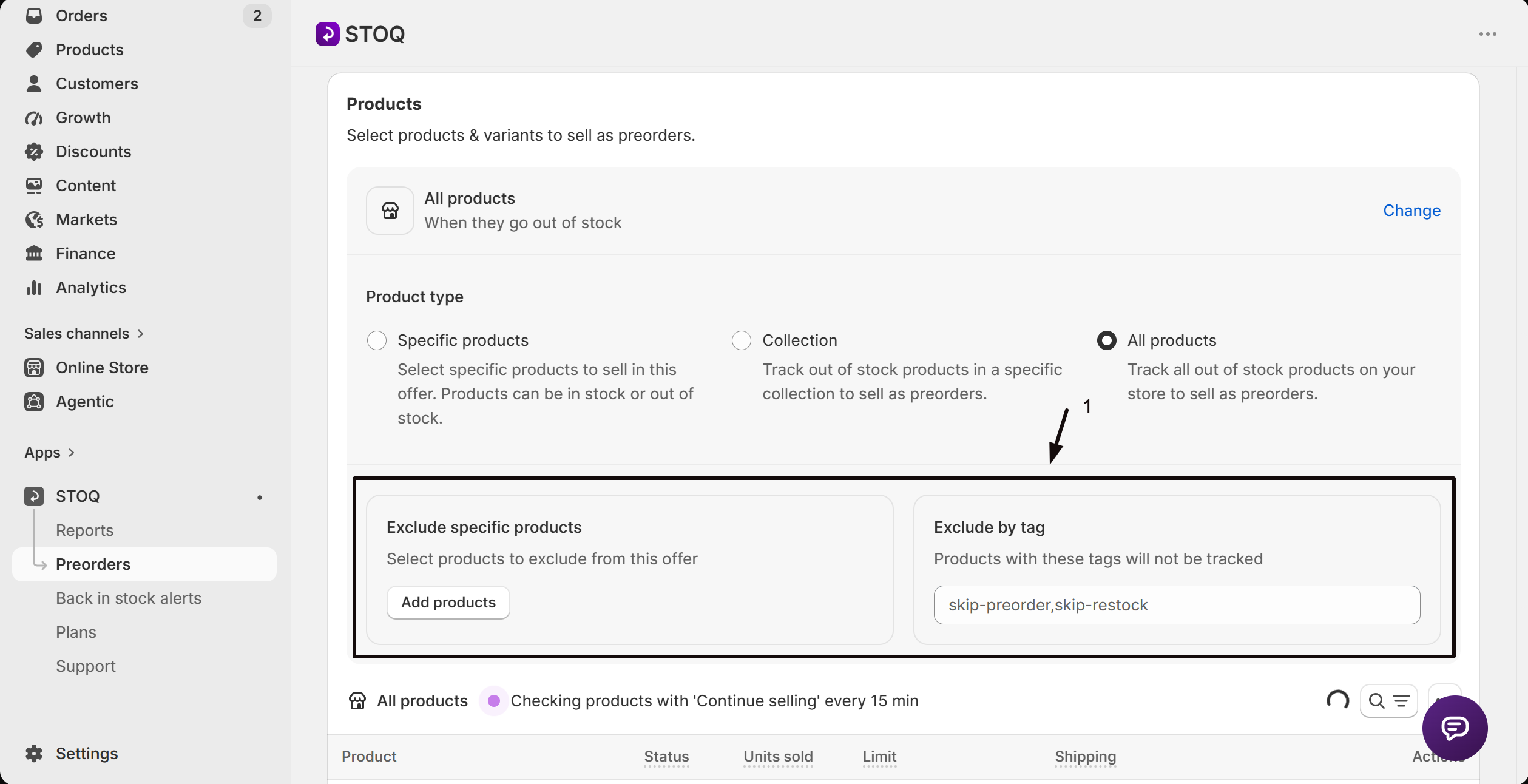
Section titled “Exclude products (All products and Product tags)”When the offer uses All products, an Exclusions section appears so you can stop specific products from being tracked. A Product tags offer has Exclude specific products only.
| Exclusion method | How it works |
|---|---|
| Exclude specific products | Opens a Shopify product picker; the selected variants are stored and skipped during tracking |
| Exclude by tag | Enter one or more product tags (comma-separated, for example skip-preorder,sale); any product with a matching tag is skipped |
Once you’ve excluded variants, a View link appears next to the Add products button. It opens the “Excluded products” modal, listing every excluded variant with a Remove button, plus a Clear all button in the footer. To add more exclusions, close the modal and use Add products.
Exclusions are cleared automatically when you switch the product type away from All products.
Check your setup
Section titled “Check your setup”- Out-of-stock offers: open a product on your storefront with inventory at or below zero and Continue selling enabled. You should see the Preorder button (the offer must also be enabled).
- In-stock offers: open a product with inventory above zero. You should see the Preorder button; once inventory reaches 0, it should disappear.
- Always offers: open one of the offer’s products at any stock level. You should see the Preorder button whether it’s in stock or out.
- Collection / All products: after clicking Add all products or Add collection products, a progress indicator appears. Refresh the Products list after a few minutes; tracked products should appear.
Troubleshooting
Section titled “Troubleshooting”"At fulfillment" is greyed out
The offer is using the in-stock or Always provider. Both sell in-stock units, which Shopify deducts at checkout, so At fulfillment isn’t available. Switch to Show “Preorder” when product is out of stock if you need At fulfillment deduction.
The Preorder button isn't showing on an out-of-stock product
Confirm Continue selling when out of stock is enabled for that variant in Shopify, and that the offer itself is enabled.
Customers briefly see "Add to cart" instead of "Preorder" after adding all products
STOQ enables Continue selling immediately, but the button only appears after the next 15-minute check cycle. This resolves on its own; contact STOQ support if it persists past 30 minutes.
Tracked products haven't appeared yet after adding a Collection or All products source
STOQ checks every 15 minutes, so there can be a short delay. Wait for the next cycle and refresh the Products list.
Limitations
Section titled “Limitations”Switching an offer’s product type away from All products clears any exclusions you’ve set up.
What is 'Continue selling when out of stock' and why does STOQ need it?
It’s a per-variant setting in Shopify’s admin that lets customers buy a product even when its inventory reaches zero. Without it, Shopify blocks the purchase at checkout no matter what the Preorder button shows. STOQ can turn it on for you when you add products to an out-of-stock offer, or you can enable it yourself in Shopify.
What's the difference between the inventory provider options?
Out-of-stock activates the Preorder button only once inventory hits 0 or less. In-stock activates the button while inventory is above 0 and deactivates it at zero. Always keeps the button on, in stock or not, so every order is a preorder, and STOQ never changes the products’ Continue selling setting, so stock changes, such as an inventory sync from a 3PL, can’t switch the preorder off. Use out-of-stock for the classic backorder scenario, in-stock to take advance orders while you still have stock, and Always for bulk or made-to-order products, or when a warehouse system keeps changing your stock numbers.
When should I use "Always show Preorder"?
Use it when every order for these products should be a preorder no matter the stock level, for example bulk or made-to-order items, or when your warehouse system keeps changing inventory numbers. Every order follows the offer’s payment, shipping, limits, and counts, exactly like any other preorder. It’s available only with the Specific products type, inventory is deducted at checkout, and customers can order more than you have in stock only if Continue selling when out of stock is enabled in Shopify. STOQ doesn’t change that setting for you. Put any wording you want customers to see, such as “Ships on the next restock”, in the offer’s preorder message and shipping text.
Can I switch between out-of-stock, in-stock, and Always after adding products?
Yes, in the Inventory panel. The in-stock and Always options are only available with the Specific products type (Collection, Product tags, and All products support out-of-stock only), and selecting either sets deduction timing to At checkout.
What happens to 'Continue selling' when I remove products or change the product type?
STOQ asks whether to turn Continue selling off (so the product shows as sold out), leave it on, or leave it unchanged. This only applies to out-of-stock offers; with the in-stock and Always providers, STOQ never manages Continue selling. If another enabled out-of-stock offer still includes some of the products, a warning names those offers, because turning Continue selling off stops preorders there too. See Products shared between offers.
How often does STOQ check for out-of-stock products with Collection or All products?
Every 15 minutes, so there can be up to a 15-minute delay between a product going out of stock and the Preorder button appearing.
Why did I see a 'Confirm inventory setting' popup when I added my first products?
The first time you add products to a brand-new offer using Specific products, STOQ asks you to choose Show “Preorder” when product is out of stock, Show “Preorder” for in-stock products or Always show ‘Preorder’ before adding anything. That choice sets the offer’s inventory provider, and the modal doesn’t appear again for the same offer.
Related guides
Section titled “Related guides”Thanks for letting us know.
Still stuck? Ask Quinn or chat with support