Set preorder quantity limits
Cap how many units of a preorder variant can be sold. STOQ stops preorders automatically when the cap is reached.
Last updated
Use this guide to cap how many units of a preorder variant can be sold across all customers, for example when you have limited stock to allocate or want a fixed-size preorder run. You can set one limit that applies to every product in the offer at once, or a different cap per variant. By the end, the variant stops accepting preorders on its own once the cap is reached.

Before you begin
Section titled “Before you begin”| Requirement | Detail |
|---|---|
| Active preorder offer | You need at least one offer. See Set up preorders. |
| Products added to the offer | Set one limit for the whole offer in Limits & terms, or a per-variant limit on the offer’s Products section. See Add products to an offer. |
| Inventory setting | Quantity limits only work when the offer’s Inventory setting is Show ‘Preorder’ when product is out of stock. The per-variant Limit field on the Products section is disabled under Show ‘Preorder’ for in-stock products. See Preorder inventory settings. |
| Paid plan (progress bar) | Showing the limit as a counter/progress bar needs a paid plan. Showing it as a disclaimer line works on all plans. |
| Not with batched delivery | Preorder limits and their display are turned off while the offer uses batched delivery. |
How the limit works
Section titled “How the limit works”- A limit is the total units that can be preordered for a variant across all customers, counted per variant, per offer.
- You set it in one of two ways: one shared limit applied to every product in the offer at once, or a per-variant limit on the Products section. Either way, each variant tracks and caps its own count.
- Counts don’t add up across offers. If the same variant is on two offers, each has its own independent limit.
- Units from a cancelled order, or units you refund in Shopify before they ship, stop counting toward the limit.
- When the sold count reaches the limit, STOQ turns off Continue selling when out of stock for that variant, so the Preorder button stops accepting new orders. STOQ doesn’t show a “sold out” message of its own; the product falls back to your theme’s normal out-of-stock state.
- Whether customers see the limit is a separate choice from enforcing it, so you can cap preorders without showing anything on the storefront.
What customers will see
Section titled “What customers will see”You control this under Customer display in Limits & terms, separately from the cap itself. Choose Don’t show to customers to enforce the limit silently.
| Element | When it appears | What the customer sees |
|---|---|---|
| Nothing | Don’t show to customers is selected | No mention of the limit; the cap still applies in the background |
| Quantity remaining text | Show preorder limit in disclaimer is selected | A text line below the preorder button, for example “12 left for preorder”, using your template |
| Progress/counter bar | Show as counter/progress bar is selected | A visual bar of sold vs. total. See Preorder progress bar |
| Preorder button stops | The variant’s limit is reached | The Preorder button no longer accepts orders, since Continue selling is turned off for that variant |
Set it up
Section titled “Set it up”On a phone, this menu is collapsed. In the Shopify mobile app, tap the STOQ logo at the top of the screen to open it, then choose the section named below. There is no hamburger icon. See Finding the STOQ menu.
-
Open Limits & terms
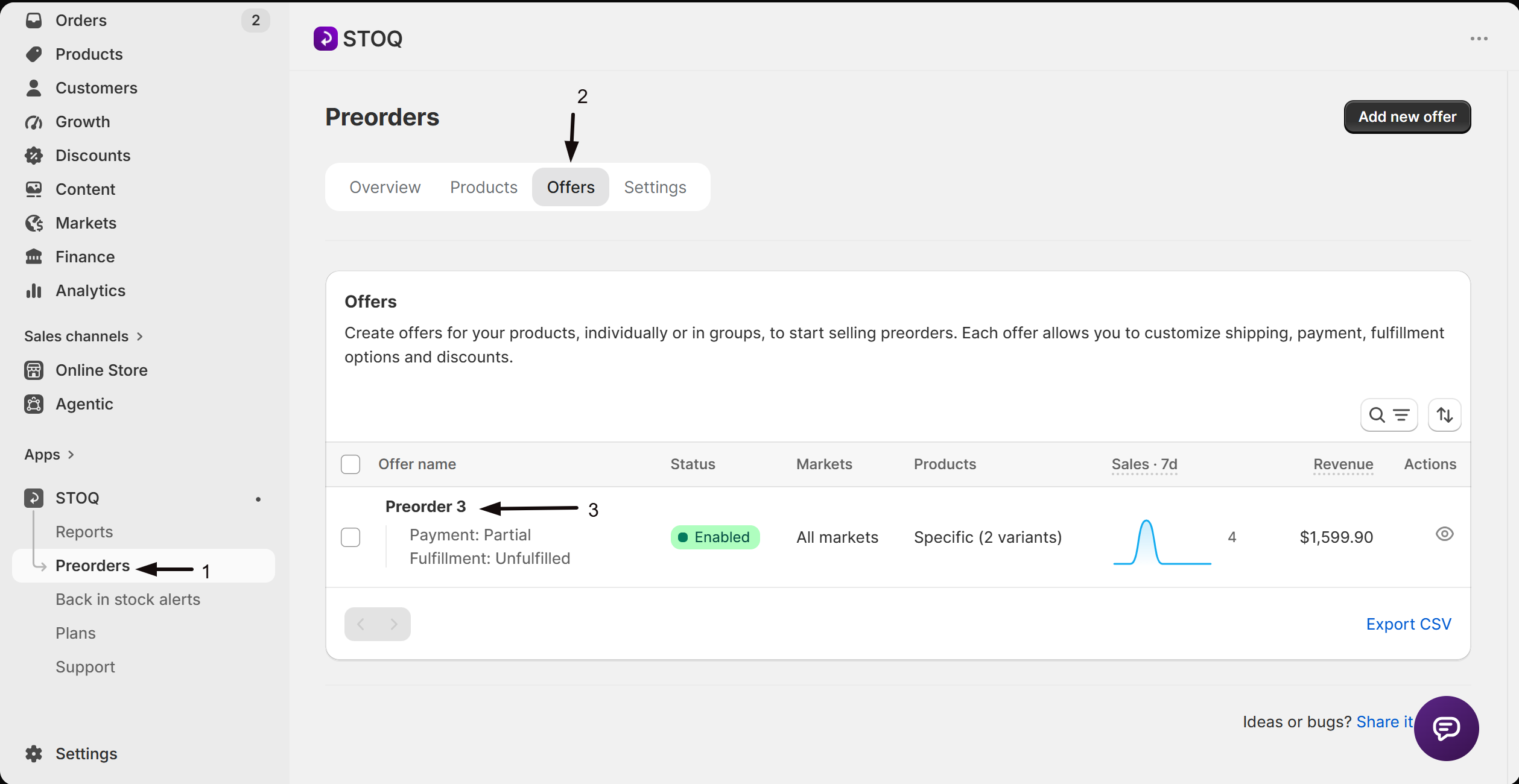
- In the left menu bar of the STOQ app, click Preorders, then the Offers tab.
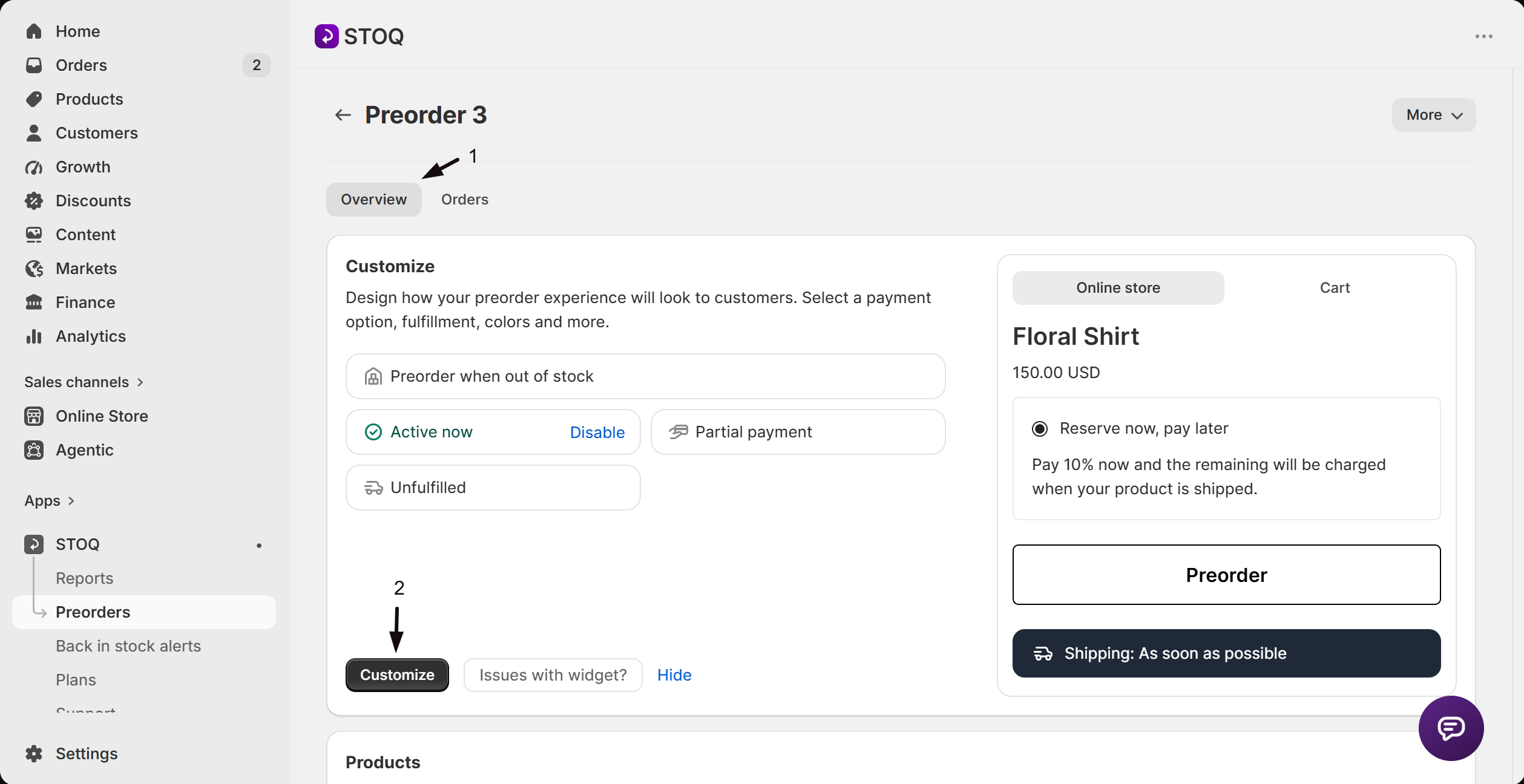
- Click the offer to open its Overview tab, then click Customize.
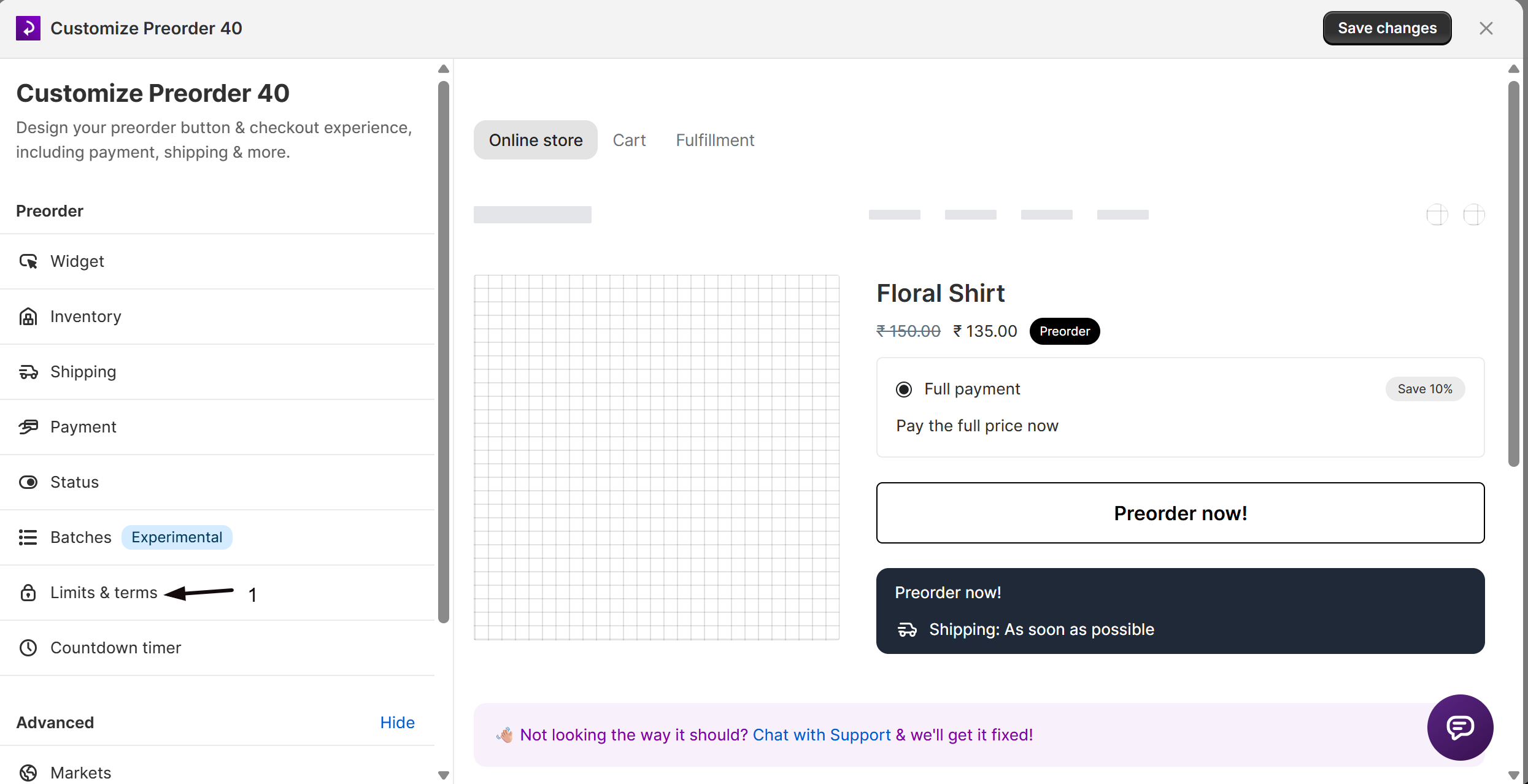
- In the editor sidebar, click Limits & terms.
-
Turn preorder limits on
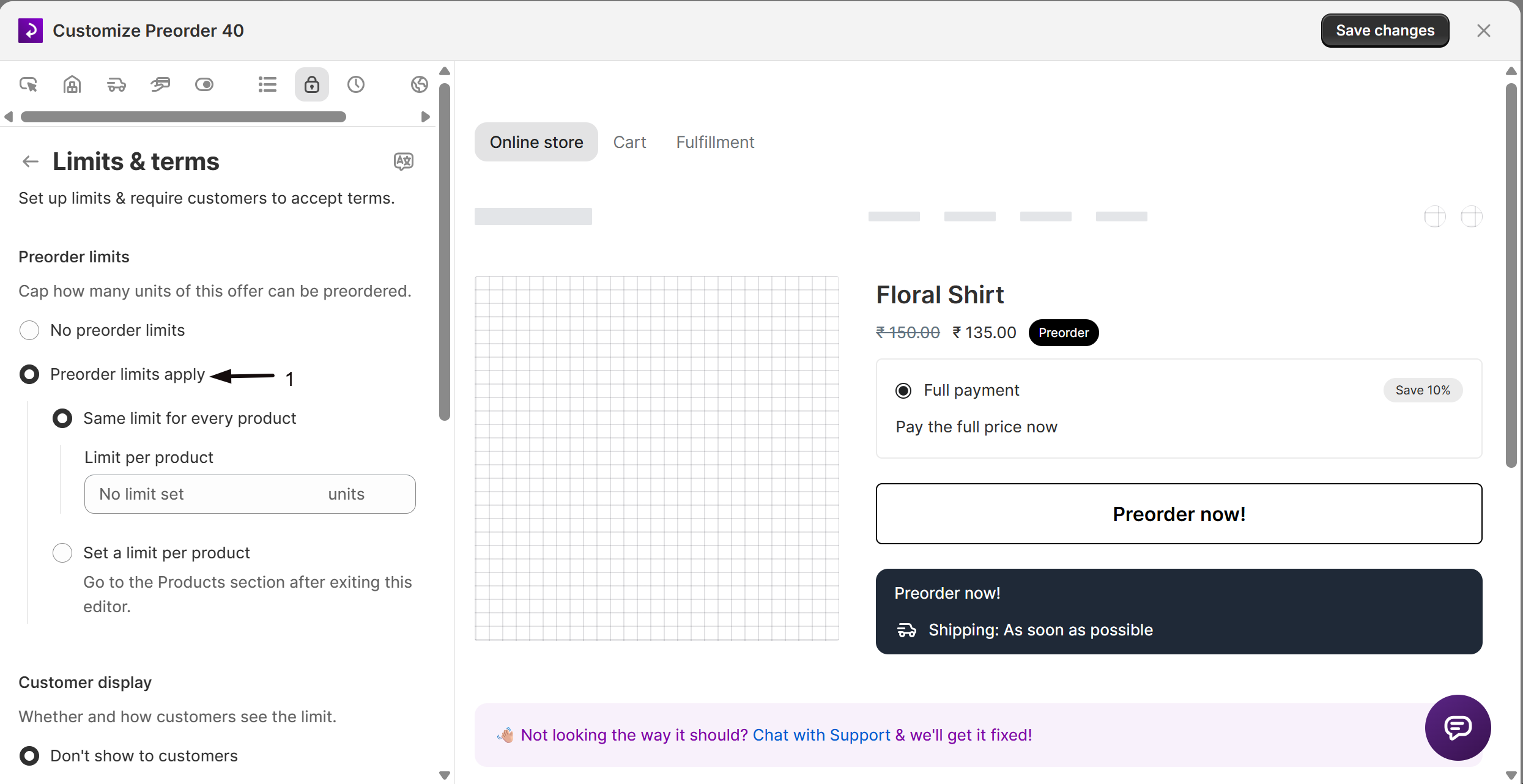
Under Preorder limits, choose Preorder limits apply. The default is No preorder limits.
-
Choose how the limit is set
Then pick a scope:
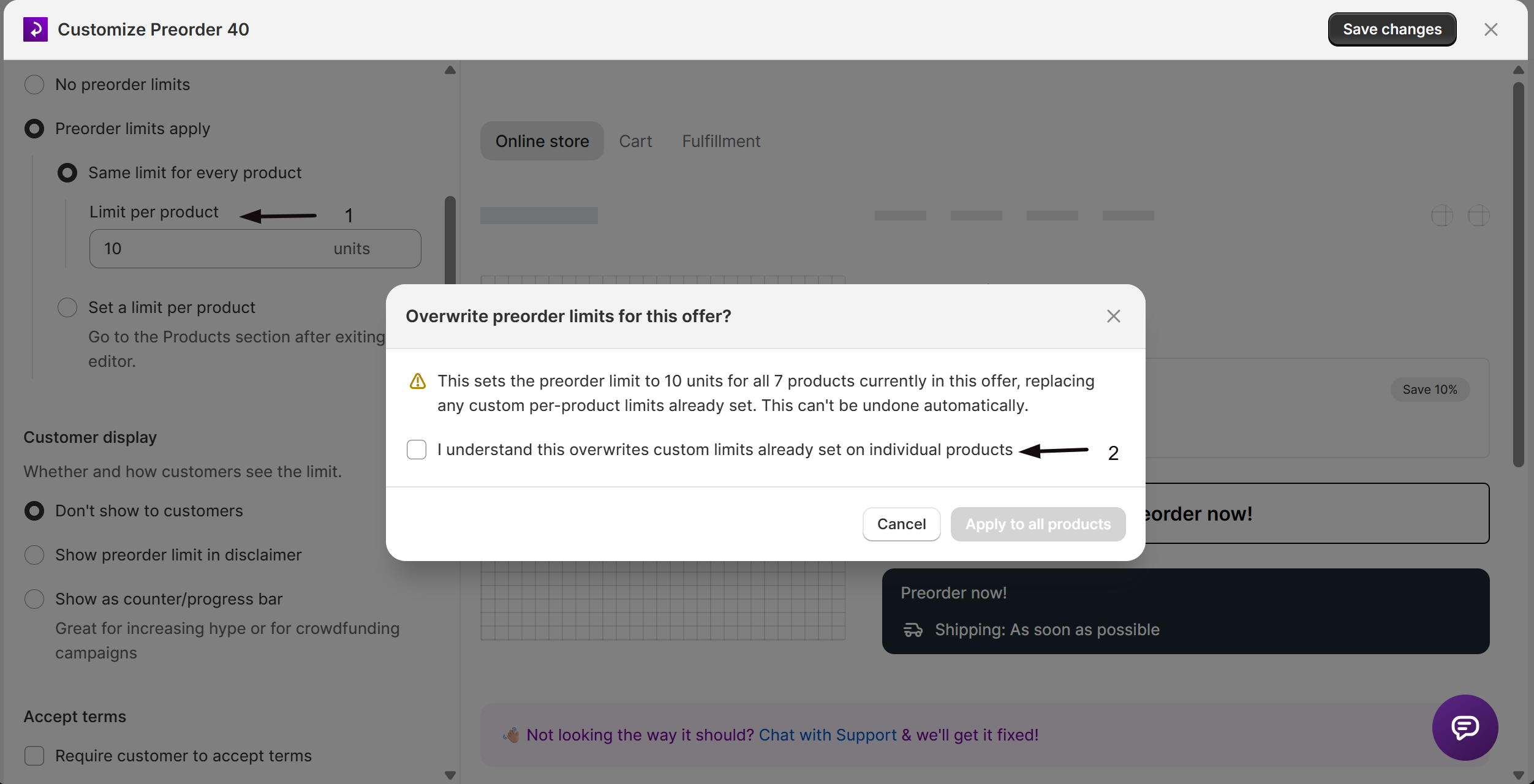
- Same limit for every product: enter the cap in Limit per product (in units). STOQ applies that one number to every product in the offer, so you don’t have to edit them one at a time.
- Set a limit per product: leave this selected to set each variant’s cap yourself on the Products section, using the steps below.
-
Confirm applying a shared limit
If the offer already has products, changing Limit per product opens Overwrite preorder limits for this offer?. Tick I understand this overwrites custom limits already set on individual products, then click Apply to all products. This sets that limit on every product in the offer and replaces any per-variant limits you’d set, and it can’t be undone automatically.
-
Choose what customers see
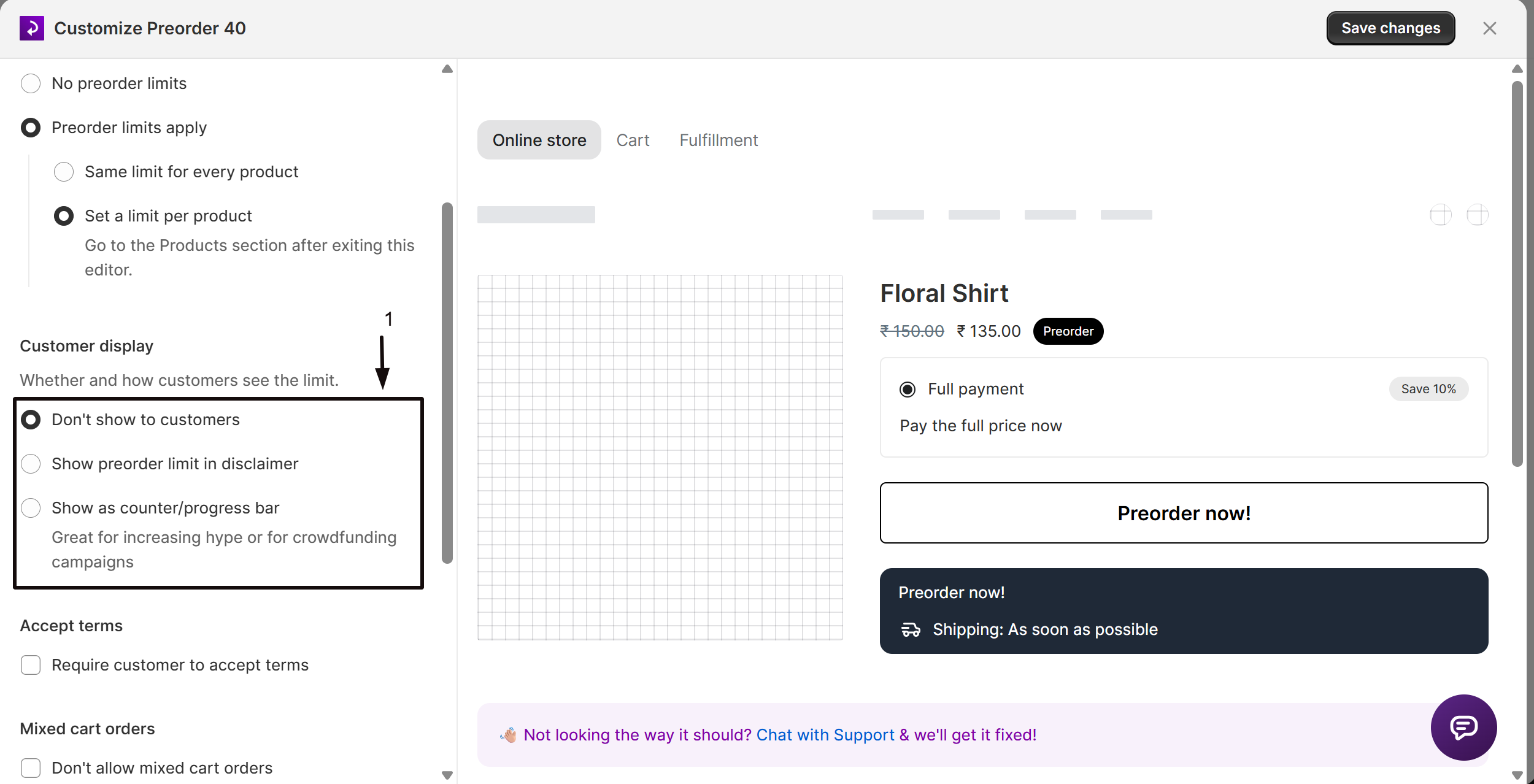
Under Customer display, choose whether and how the limit shows on the storefront. These options are only available while Preorder limits apply is on:
- Don’t show to customers: enforce the cap without mentioning it on the product page.
- Show preorder limit in disclaimer: a text line below the button (all plans). Click Customize to edit the message, using
{{ quantity }}(units remaining),{{ sold }}, and{{ total }}. - Show as counter/progress bar: a visual bar (paid plan). See Preorder progress bar.
-
Set or override limits on the Products section
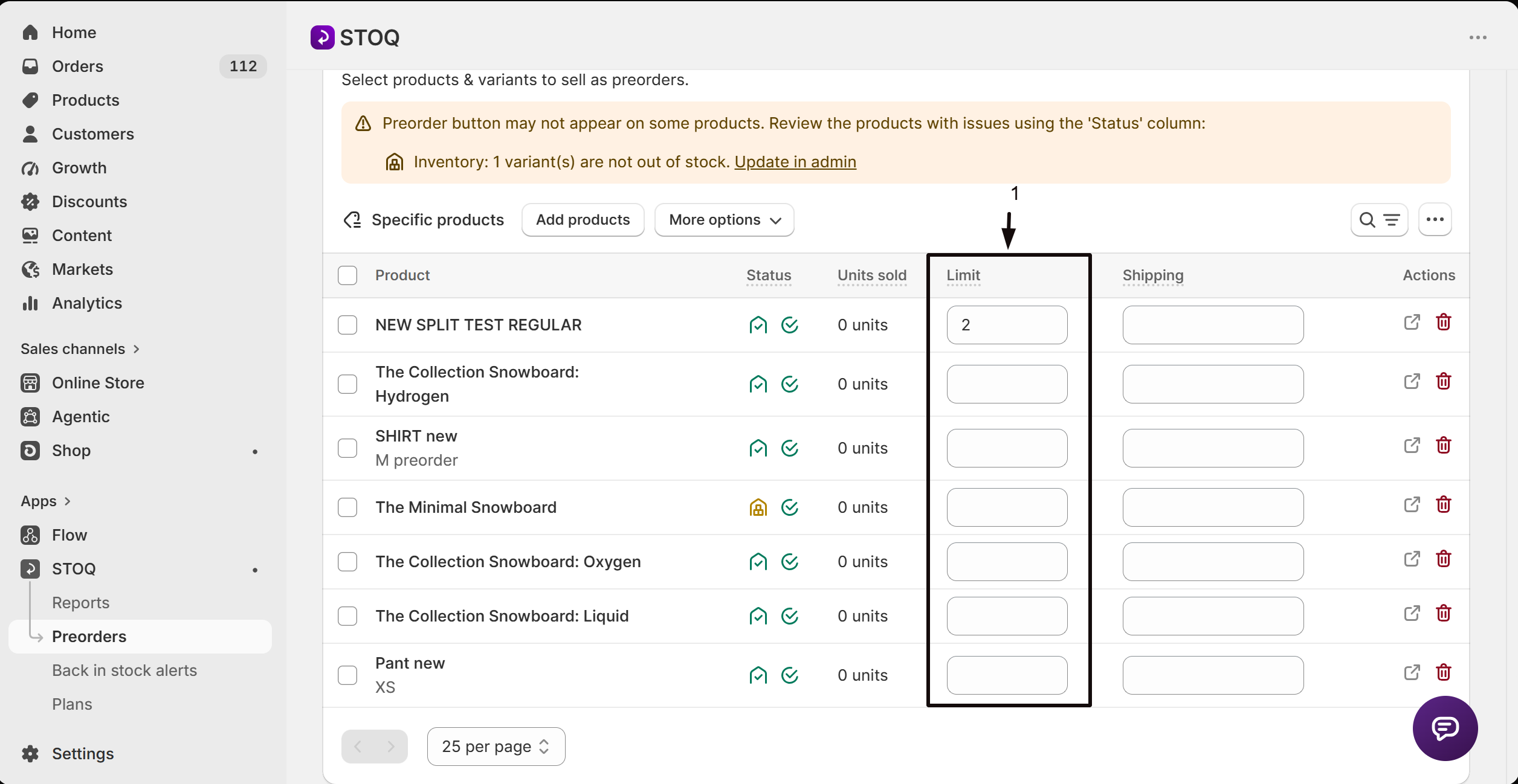
For Set a limit per product, or to give one product a different cap from a shared limit, save your changes and open the offer’s Products section. It lists every product and variant, with a Units sold column and a Limit column.
The Limit column may be hidden by default depending on the offer’s inventory setting; if you don’t see it, show it from Column visibility in the search and filter button above the table.
Each row’s Limit field holds that variant’s cap. Type the maximum number of units for each variant you want to cap:
- Single-variant product: enter the number in the Limit field on the product’s row.
- Multi-variant product: click the product to expand its variants, then set a Limit on each one. There’s no single limit for the whole product.
- Leave a Limit blank for no cap on that variant. STOQ won’t accept 0, so use blank instead of zero.
STOQ starts counting preordered units against each limit from now on. Applying a Same limit for every product value again later overwrites these per-variant limits, so set your overrides after any shared limit.
When the limit is reached
Section titled “When the limit is reached”Once a variant’s sold count reaches its limit:
- STOQ automatically turns off Continue selling when out of stock for that variant, which stops the Preorder button from taking new orders.
- On the offer’s Products section, that variant shows a package icon whose tooltip reads “Quantity limit reached ({count}/{limit} sold). ‘Continue selling’ was automatically disabled.”
- No notification is sent to you or the customer.
To sell more of that variant after it hits the limit:
- On the Products section, raise that variant’s Limit to a higher number, or clear it for unlimited.
- Re-enable Continue selling when out of stock for that variant, in Shopify or with the bulk toggle on STOQ’s Products section. STOQ doesn’t turn it back on automatically when you raise the limit.
Reset the units-sold count
Section titled “Reset the units-sold count”Each variant tracks how many units have been preordered toward its limit. To start that count over for a variant, go to the offer’s Products section, find the variant’s row, and in the Actions column click the Reset icon (a circular replay arrow). Its tooltip reads “Reset: This will restart the count of units sold towards the quantity limit.” The icon only appears once a variant has preorders counted. If the variant had already hit its limit, resetting the count alone doesn’t reopen it; re-enable Continue selling when out of stock for that variant afterward.
There is no bulk reset. The Reset icon works one variant at a time, and CSV import can’t reset counts, it only adds or removes products from the offer. The only way to clear counts for many variants at once is to remove them from the offer and add them back, which also clears their limits and any per-variant settings, so treat it as a last resort.
Check your setup
Section titled “Check your setup”- Visit a product page for the offer and confirm your limit display (disclaimer or progress bar) shows below the Preorder button.
- Add the limit quantity plus one to the cart and confirm the button stops accepting orders once the limit is reached.
- On the Products section, confirm variants at their limit show the package icon and the “Continue selling was automatically disabled” tooltip.
Troubleshooting
Section titled “Troubleshooting”The Limit field is greyed out for a variant
The offer’s Inventory setting is Show ‘Preorder’ for in-stock products. Quantity limits only work when the offer shows the Preorder button for out-of-stock products. Open Customize -> Inventory and switch to Show ‘Preorder’ when product is out of stock.
I can't see the Limit column on the Products section
It’s hidden when the offer’s inventory setting is Always show ‘Preorder’. To show it, click the search and filter button above the table, then Column visibility, then tick Limit. On a narrow screen, you may also need to scroll the table sideways.
A variant stopped accepting preorders unexpectedly
It most likely reached its preorder limit, which automatically turns off Continue selling when out of stock for that variant. Check the Products section for the package icon tooltip, then raise or clear that variant’s Limit and re-enable Continue selling to reopen it.
I raised the limit but the variant still won't sell
Raising the limit doesn’t turn Continue selling when out of stock back on by itself. Re-enable it for that variant in Shopify, or with the bulk toggle on STOQ’s Products section.
I chose No preorder limits but a variant still stopped at its limit
No preorder limits doesn’t remove per-variant limits. Open the offer’s Products section and clear that variant’s Limit field. Then re-enable Continue selling when out of stock for it, since STOQ doesn’t turn that back on by itself.
The Preorder limits options are greyed out
The offer uses batched delivery, which turns off preorder limits and their display. Turn batched delivery off if you need a limit on this offer.
Can I set one limit for all products at once?
Yes. In Limits & terms, choose Preorder limits apply, then Same limit for every product, and enter a Limit per product. STOQ applies that number to every product in the offer, so you don’t have to edit them one by one on the Products section.
One product needs a different cap from the shared limit
Set the shared limit first, then open the offer’s Products section and change that variant’s Limit field. Just note that applying a Same limit for every product value again later overwrites your per-variant changes, so make overrides last.
Can I enforce a limit without showing it to customers?
Yes. Enforcing the cap and displaying it are separate choices. Turn on Preorder limits apply, and under Customer display choose Don’t show to customers. The cap still stops preorders once it’s reached.
Can I reset the sold count for many variants at once?
No. Resetting the units-sold count is a per-variant action, done with the Reset icon on each row, and there’s no bulk reset. CSV import doesn’t reset counts either; it only adds or removes products from the offer. Removing variants and re-adding them does clear their counts, but it also clears their limits and other per-variant settings, so use that only as a last resort.
Does the limit reset if I remove and re-add a variant?
Yes. Removing a variant from an offer clears its preorder count and limit; re-adding it starts counting from zero.
If the same variant is on two offers, do the limits add up?
No. The limit is per offer. Each offer counts and caps that variant independently.
Does changing the limit affect orders already placed?
No. It only controls what happens going forward. Orders already placed keep their quantities.
Does STOQ notify me when a variant hits its limit?
No. There’s no email or SMS. You can see which variants have reached their limit on the offer’s Products section, marked with the package icon. To list only those variants, open the offer and, in its Products table, click the search and filter button, click Selling limit, and tick Limit reached.
Do regular in-stock orders count toward the limit?
No. The limit counts only units bought through the preorder selling plan. When a variant has stock, Shopify sells it as a normal order with no preorder, and those sales don’t reduce the limit. Your stock count and the preorder limit aren’t a shared pool: a limit of 2 still allows 2 preorder purchases even if restocked units were sold as regular orders in between.
Related guides
Section titled “Related guides”Thanks for letting us know.
Still stuck? Ask Quinn or chat with support