Automate with Shopify Flow
Use STOQ's Shopify Flow triggers and actions to automate your preorder and back-in-stock workflows.
Last updated
STOQ integrates with Shopify Flow so you can build automated workflows around your preorder and back-in-stock activity. STOQ fires triggers when key events happen (a customer places a preorder, a payment fails, an offer turns on), and it exposes actions you invoke from a Flow workflow (release fulfillment holds, capture a pending payment, notify a waitlist, and more).
Use this integration when you want to: tag or notify customers automatically at preorder time, chain STOQ actions with other Shopify apps, or orchestrate multi-step fulfillment sequences without manual intervention.
Before you begin
Section titled “Before you begin”| Requirement | Details |
|---|---|
| Shopify Flow installed | Flow is a free Shopify app available in the Shopify App Store. It must be installed on your store before you can build workflows. |
| STOQ app open in Shopify admin | Open it from Apps > STOQ in your Shopify admin. |
| Paid STOQ plan for triggers | Turning on Flow triggers in STOQ needs a paid plan. On a free plan, the Turn on button is greyed out and an Upgrade link appears. |
What customers will see
Section titled “What customers will see”Some Flow actions notify the customer directly:
- Collect pending payment: emails a payment confirmation unless you set Send notifications to no.
- Send shipping update notification: emails the customer a shipping update, using your default STOQ notification text unless you override the subject, header, or body.
- Notify customers in waitlist: sends back-in-stock notifications by email, SMS, or both to everyone waiting on the variant.
Other actions, such as tagging orders, holding or releasing fulfillments, splitting fulfillments, and changing offer membership, don’t notify the customer.
Set it up
Section titled “Set it up”Enable Flow triggers in STOQ
Section titled “Enable Flow triggers in STOQ”-
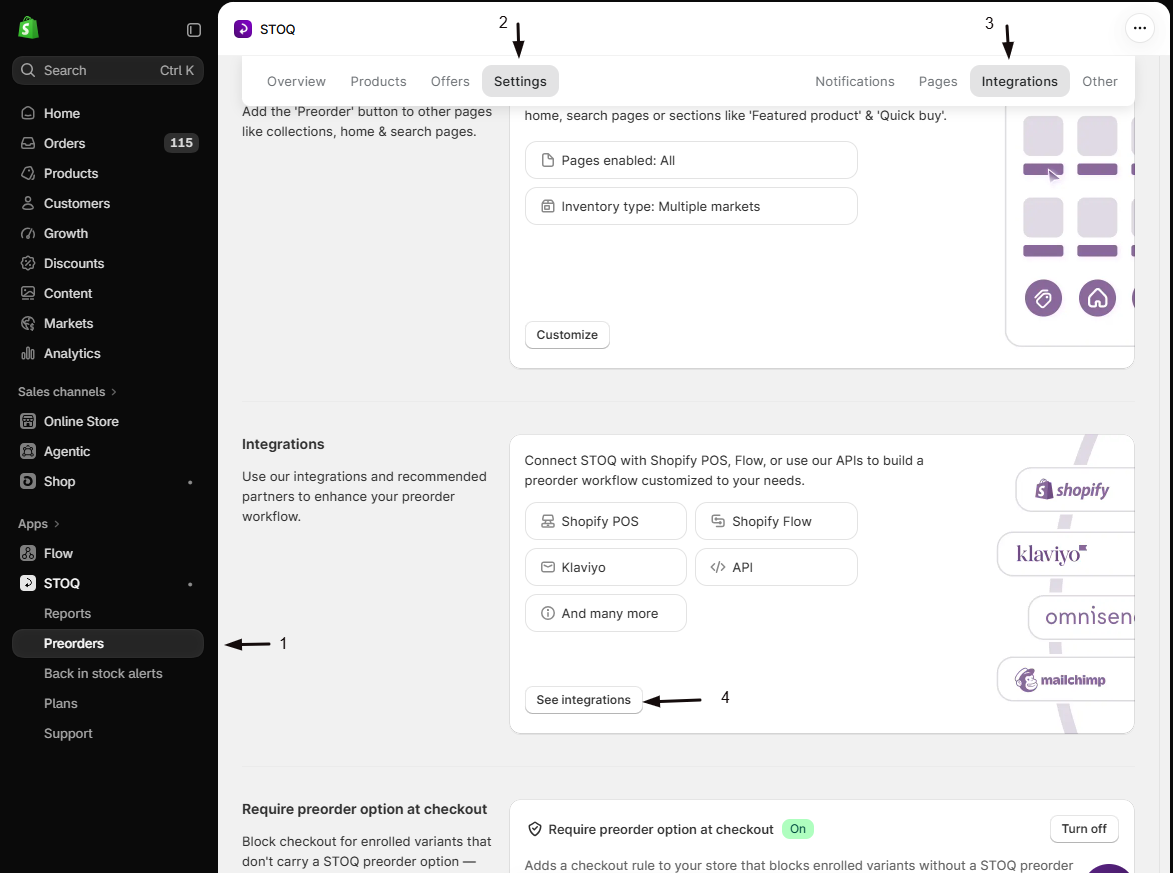
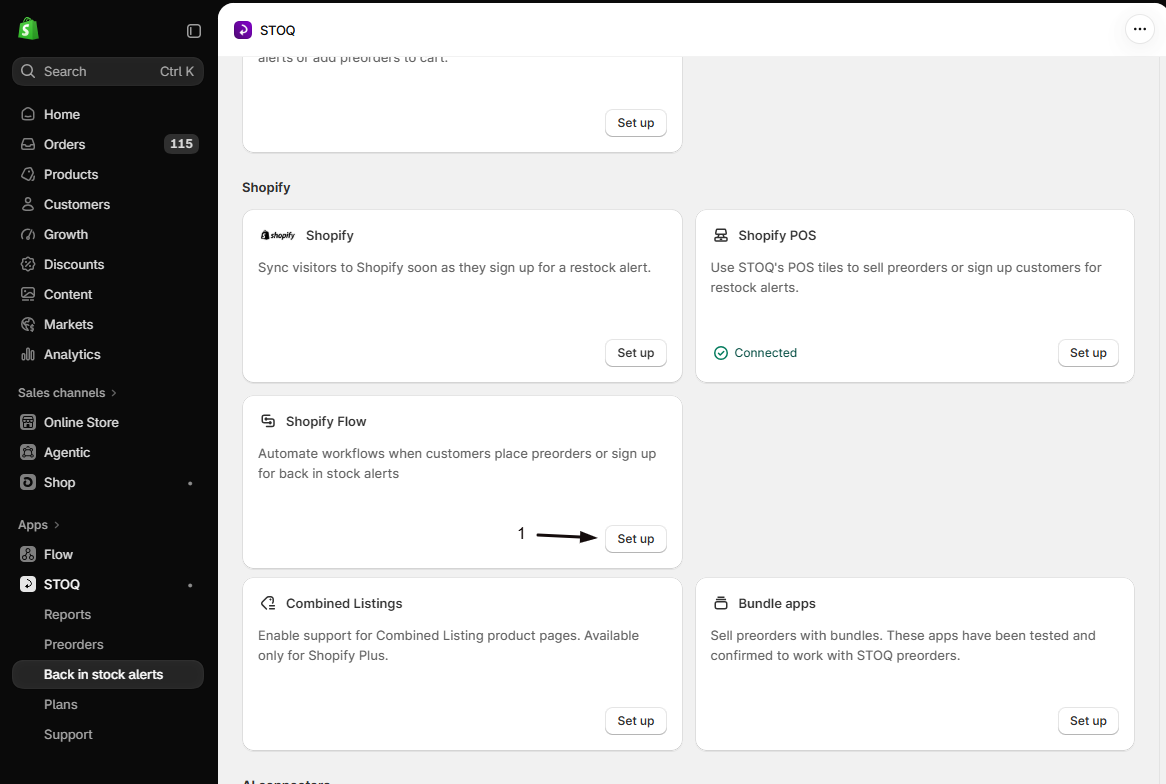
Open the Shopify Flow integration in STOQ
- In the left menu bar of STOQ, click Preorders.
- Open the Settings tab.
- Open the Integrations sub-tab.
- In the Integrations section, click See integrations to open the full Integrations page.
- Under the Shopify section, find the Shopify Flow card and click Set up to expand its settings.
-
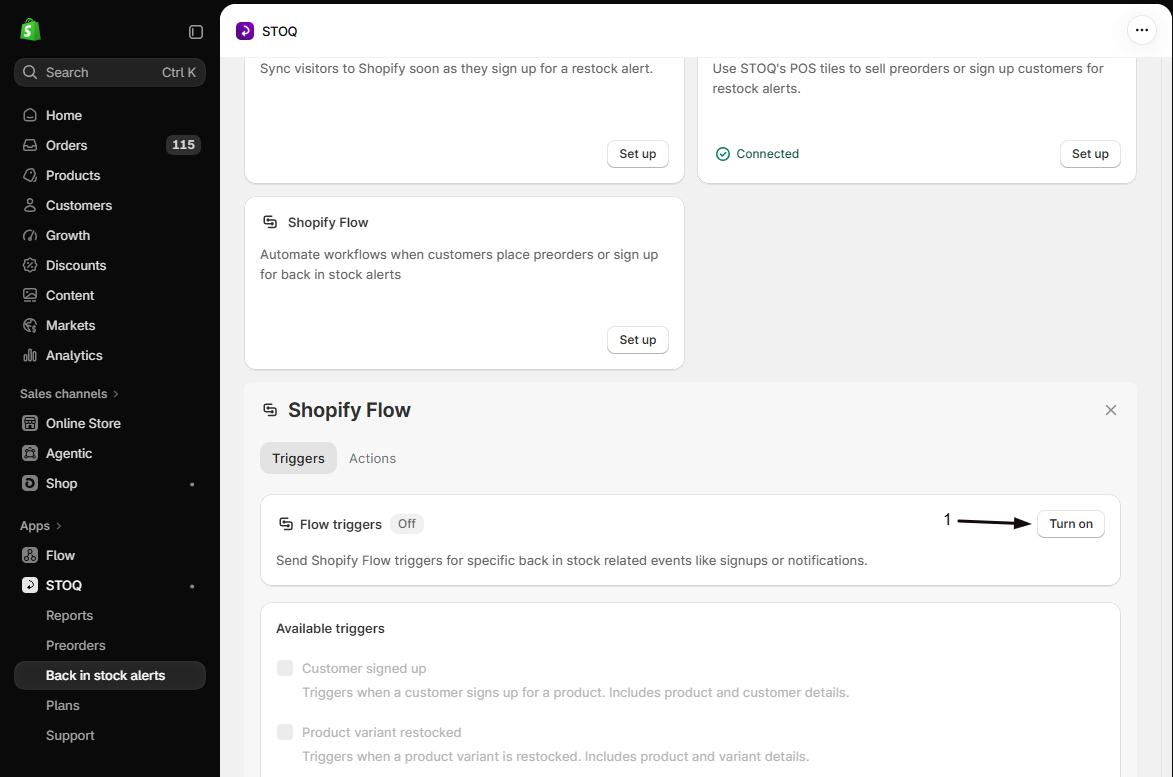
Turn on the Flow triggers master switch
On the Triggers tab, click Turn on next to Flow triggers.
The badge next to Flow triggers changes to On, and the checkboxes under Available triggers become clickable.
-
Check the triggers you want to send
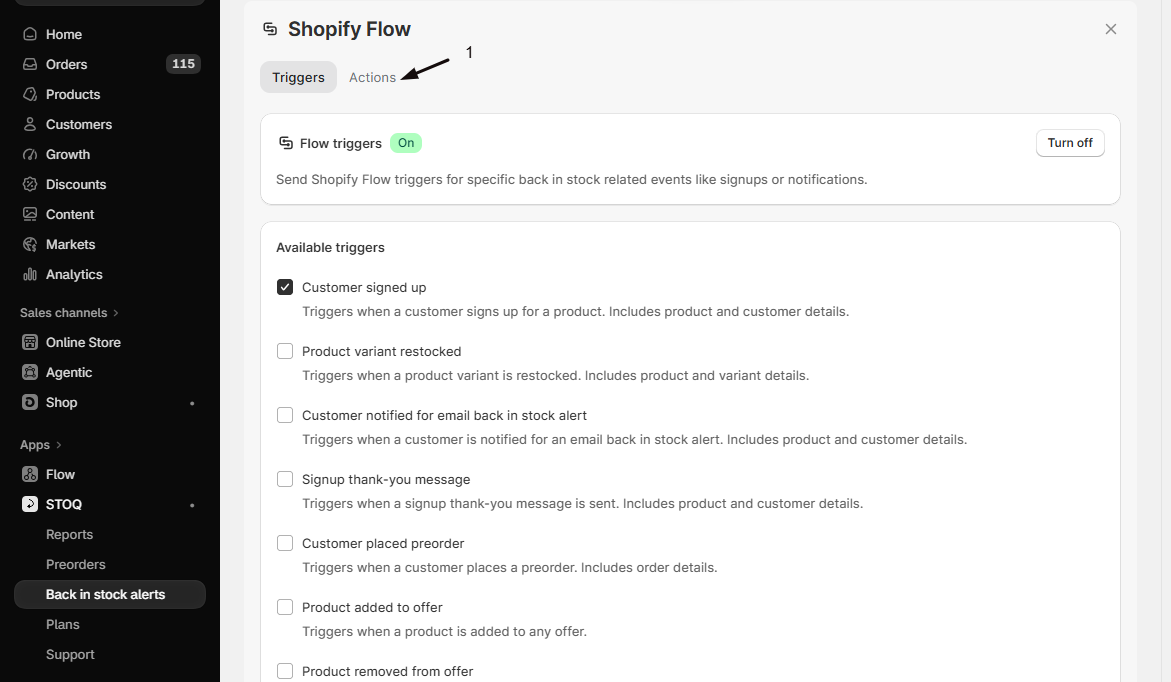
Under Available triggers, check each event you want STOQ to send to Shopify Flow, for example Payment collection failed. Check only the events you use in a workflow: unused triggers generate extra API calls with no benefit.
Trigger label in STOQ When it fires Key payload fields Customer signed up A customer registers for a back-in-stock alert Customer name, email, phone, locale; product, variant name; Signed up at; Market Customer notified for email back in stock alert STOQ sends a back-in-stock email notification Customer name, email, phone, locale; product, variant name; Market; Checkout link, Product page link, Unsubscribe link; Notification type Customer placed preorder A customer completes a preorder purchase Order Number, Order Name Product variant restocked A tracked variant’s inventory is replenished Product, Variant, Markets Product added to offer A variant is added to a preorder offer Product, Variant, Offer Name, Offer Order Tags Product removed from offer A variant is removed from a preorder offer Product, Variant, Offer Name, Offer Order Tags Preorder offer enabled A preorder offer is activated Offer Name, Offer Internal Name, Offer Order Tags Preorder offer disabled A preorder offer is deactivated Offer Name, Offer Internal Name, Offer Order Tags Payment collection failed A preorder balance charge fails, whether STOQ collected it automatically, you clicked Collect payment, or a workflow ran Collect pending payment Order, Order Number, Order Name, Error Message 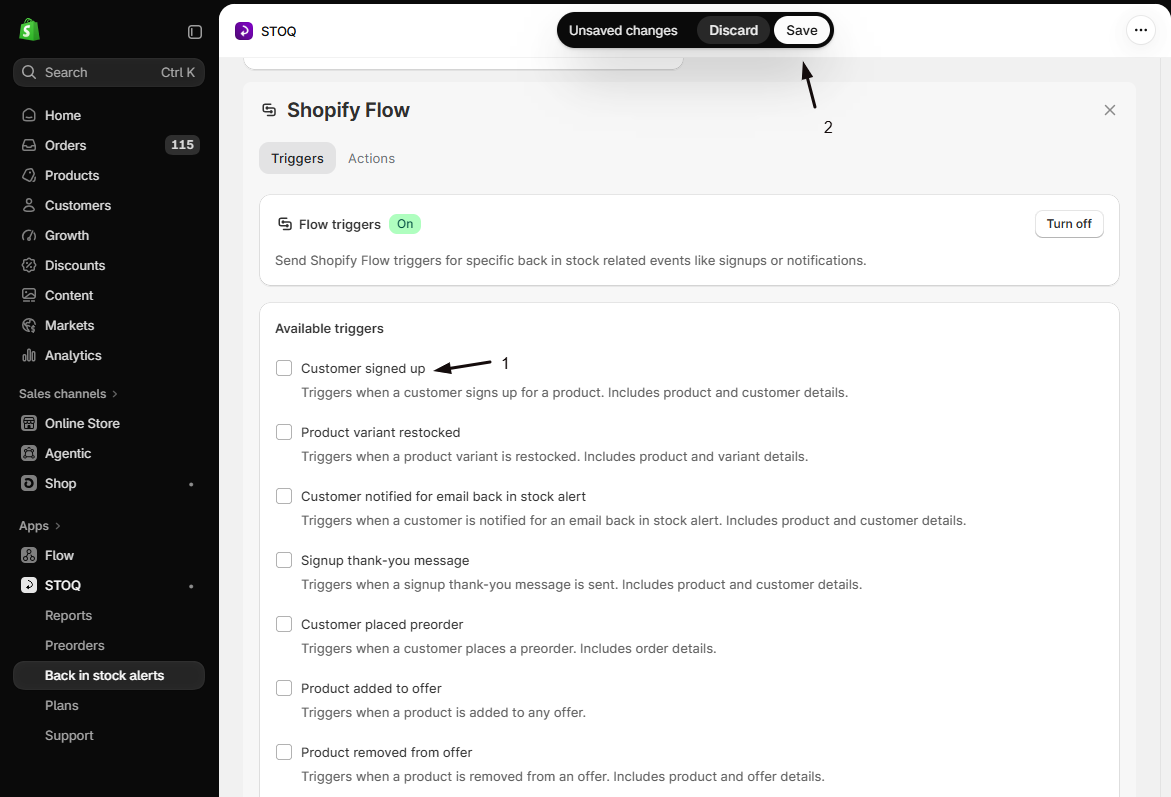
-
Save your settings
Click Save in the save bar at the top of the page. From then on, STOQ sends each checked trigger to Shopify Flow as the event happens.
Available Flow actions
Section titled “Available Flow actions”STOQ’s Flow actions are available in Shopify Flow without any additional setup in STOQ. You select them when building a workflow inside the Shopify Flow app. Switch to the Actions tab in the STOQ Shopify Flow card to see a quick reference of all available actions grouped by category.
Preorders, Payments
| Action | What it does | Key inputs |
|---|---|---|
| Collect pending payment | Captures the remaining balance on a preorder that used partial payment or a deposit. Optionally suppresses the payment-confirmation notification. | Order; Send notifications (yes/no, defaults to yes) |
Preorders, Fulfillments
| Action | What it does | Key inputs |
|---|---|---|
| Hold all fulfillments | Places a fulfillment hold on every fulfillment order for a preorder. Optionally adds a reason note visible in Shopify admin. | Order; Reason notes (optional) |
| Release all fulfillments | Releases all held fulfillments and moves them to Unfulfilled status so they can be picked and shipped. | Order |
| Open scheduled fulfillments | Converts Scheduled fulfillments to Unfulfilled, useful when you use STOQ’s scheduled fulfillment setup and want to trigger that transition via Flow. | Order |
| Split preorder fulfillments | Splits preorder line items into their own fulfillment order, separate from any in-stock items on the same order. The split runs even if the offer’s built-in split setting is off. | Order |
| Send shipping update notification | Sends a shipping-update email to the customer. You can override the subject, header, and body; if you omit them, the email uses the text configured in STOQ’s notification settings. | Order; Subject, header, description (all optional) |
Preorders, Offers
| Action | What it does | Key inputs |
|---|---|---|
| Add product variant to offer | Adds a variant to a STOQ preorder offer and syncs the change to Shopify. | Product variant; Offer identifier (internal name or Shopify selling plan) |
| Remove product variant from offer | Removes a variant from a STOQ preorder offer and optionally sets the inventory policy to Deny so the variant cannot be oversold. | Product variant; Offer identifier; Disable continue selling (yes/no) |
Back in stock
| Action | What it does | Key inputs |
|---|---|---|
| Notify customers in waitlist | Triggers back-in-stock notifications (email, SMS, or both) for all customers waiting on a specific variant. Optionally scoped to a single market. | Product variant; Channel (email or SMS, omit for both); Market |
Build a workflow in Shopify Flow
Section titled “Build a workflow in Shopify Flow”-
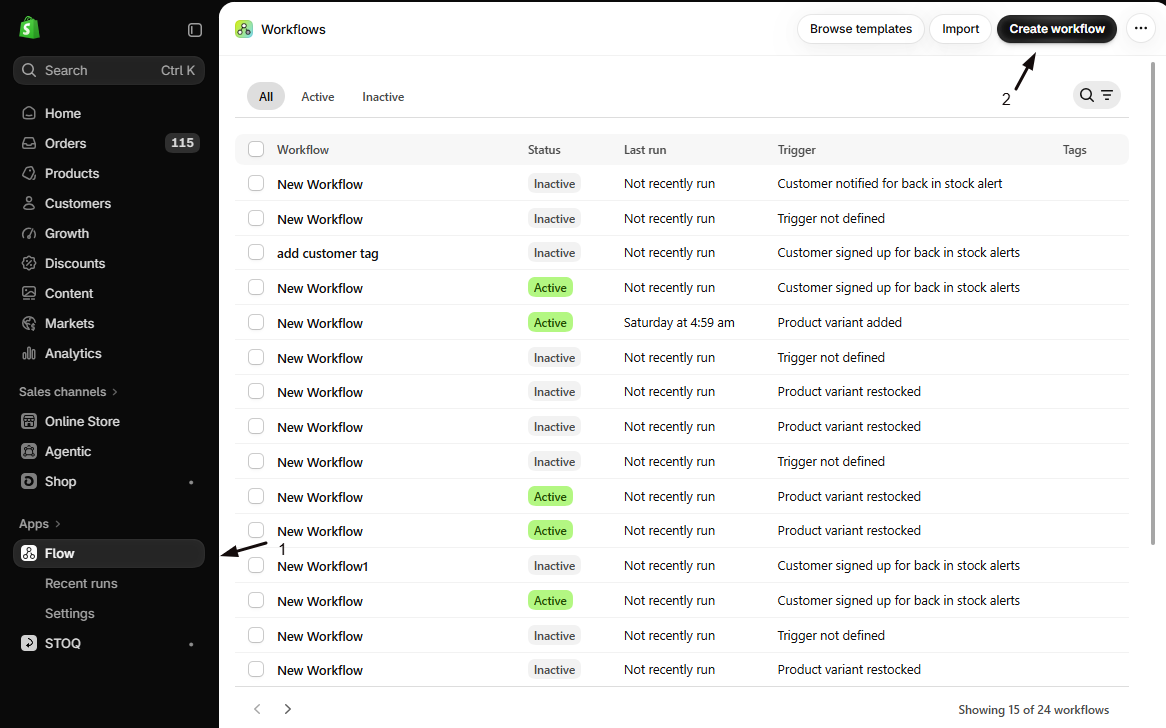
Open Shopify Flow
- In Shopify admin, go to Apps > Flow.
- Click Create workflow.
-
Select a trigger
Choose STOQ from the app list and pick the trigger that should start your workflow (for example, Customer placed preorder or Payment collection failed).
-
Add conditions and actions
- Add any Shopify Flow conditions you need (for example, filter by order tag or order value).
- Add a STOQ action or any other app action.
Pass the order or variant from the trigger into the action inputs. Shopify Flow surfaces the available fields from the STOQ trigger as variables you can insert.
-
Activate the workflow
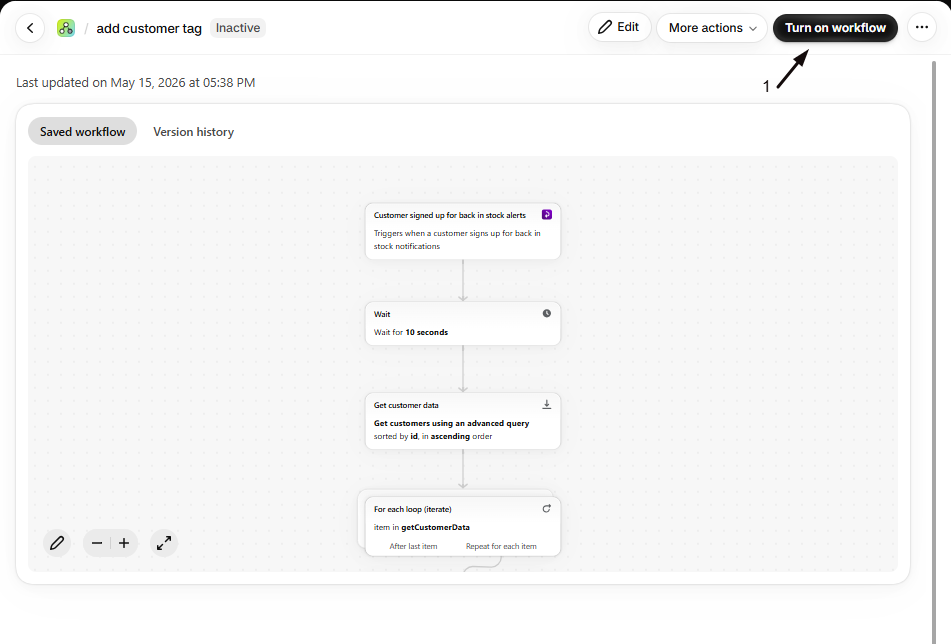
Click Turn on workflow. From this point, every matching STOQ event fires the workflow automatically. If the workflow starts with a STOQ trigger you haven’t checked in STOQ, STOQ checks it and turns on Flow triggers for you. Turning off the last workflow that uses a trigger unchecks it again.
Example automations
Section titled “Example automations”Tag products automatically while they’re on preorder
Add a product tag while a product is on preorder, then remove it when it leaves the offer, so other apps (a product feed, a shipping app, a theme filter) can hide or exclude products that can’t ship immediately. It takes two workflows, built on STOQ’s offer-membership triggers:
- Trigger: Product added to offer (STOQ). Action: Add product tags (Shopify), for example
preorder. - Trigger: Product removed from offer (STOQ). Action: Remove product tags (Shopify), the same
preordertag.
The tag goes on when a variant joins the offer and comes off when it leaves, so removing the product from the offer once it’s back in stock also clears the tag. Product tags apply to the whole product, so if only some of a product’s variants are on preorder, add a Flow condition before the remove-tag action to avoid untagging too early.
Tag orders and send an internal Slack notification when a preorder is placed
- Trigger: Customer placed preorder (STOQ)
- Action 1: Add order tag “preorder” (Shopify)
- Action 2: Send Slack message with the order name and customer email
Automatically collect payment when an order is marked as fulfilled
- Trigger: Order fulfilled (Shopify)
- Condition: Order tag contains “preorder”
- Action: Collect pending payment (STOQ)
Release fulfillment holds on a specific date
- Trigger: Scheduled time (Shopify Flow)
- Action: Release all fulfillments (STOQ), one action per order, or chain with a Shopify For each loop over a saved order list
Add new inventory arrivals to a preorder offer automatically
- Trigger: Inventory level updated (Shopify)
- Condition: Inventory quantity greater than 0
- Action: Add product variant to offer (STOQ)
Notify waitlist customers when stock is received
- Trigger: Product variant restocked (STOQ)
- Action: Notify customers in waitlist (STOQ) with channel set to email
Tag the order and alert your team when a balance charge fails
- Trigger: Payment collection failed (STOQ)
- Action 1: Add an order tag such as “payment-failed” (Shopify)
- Action 2: Send your team an internal email or Slack message with the Order Name and Error Message
Check your setup
Section titled “Check your setup”- In Shopify Flow, open your workflow and click Run history to see recent executions and any errors.
- In STOQ, go to Reports → Preorders → Orders and check that the order you tested has the expected status (fulfilled, held, payment captured, etc.). You can also check just one offer’s orders: Preorders in the left menu → Offers tab → open the offer → its Orders tab.
- For the Notify customers in waitlist action, go to Reports to confirm notifications were sent.
Troubleshooting
Section titled “Troubleshooting”The "Customer placed preorder" trigger is not firing
Check these:
- The Flow triggers master switch is on in STOQ’s Integrations settings.
- The Customer placed preorder checkbox is checked.
- If both are on, check the Shopify Flow Run history for your workflow to see whether Shopify received the event.
STOQ also prevents duplicate delivery, so a trigger won’t fire again for an order it already fired for.
The "Payment collection failed" trigger is not firing
Check these:
- Flow triggers shows On and Payment collection failed is checked under Available triggers.
- A charge actually failed. Nothing fires when STOQ skips the charge because the balance isn’t due yet or is already paid.
- If Shopify accepted the charge and declined it later, give it time. STOQ checks pending charges from 10 minutes after the attempt, and the trigger fires once it finds the decline.
- In the preorder orders report, set the Payment collection filter to Couldn’t verify. Orders listed there never settled in Shopify within 24 hours, so no failure was recorded and the trigger didn’t fire.
- Check the workflow’s Run history in Shopify Flow to see whether the event arrived.
"Release all fulfillments" fails on an order
It most likely has no active holds. Shopify’s release-hold API returns an error when there’s nothing to release, which fails the Flow action run. Add a Shopify Flow condition before this action (for example, checking an order tag or metafield) to confirm the order is still on hold.
A Flow action fails with a not-found error
Order-level actions (collect payment, hold/release fulfillments, split fulfillments, send shipping update) only work on orders in STOQ’s preorder records. If the order wasn’t placed through a STOQ preorder offer, the action fails.
The "Customer notified for email back in stock alert" trigger does not fire
It requires a Shopify customer record. STOQ tries to sync the customer first; if that sync fails, the trigger is skipped for that customer.
Limitations
Section titled “Limitations”- Order-level actions (collect payment, hold, release, split, send shipping update) run one order at a time. Use a Shopify Flow loop or separate workflow runs for batch processing.
- The Notify customers in waitlist action supports email or SMS only.
Do I need to configure anything in Shopify Flow before STOQ actions appear?
No. STOQ’s Flow actions require no setup in Shopify Flow: they’re registered with Shopify automatically when STOQ is installed, and they appear in the Shopify Flow action picker under the STOQ app. You only need to enable triggers in STOQ if you want STOQ to fire events into Flow; actions are always available regardless of your trigger settings.
Can I retry a failed charge automatically with Flow?
Yes. Add STOQ’s Collect pending payment action to a workflow that starts with Payment collection failed. Each retry that fails fires the trigger again, so add a condition that stops repeat runs: for example, tag the order when the workflow retries, and skip orders that already have that tag. See When payment collection fails for other ways to recover the balance.
Will the trigger fire for charges that failed before I turned it on?
No. It only fires for charges that fail after the trigger is on. To find earlier failures, open the preorder orders report and set the Payment collection filter to Failed.
Does the 'Collect pending payment' action send the customer a payment confirmation email?
Yes, by default. The action includes an optional Send notifications setting. If you set it to no, STOQ captures the payment silently without emailing the customer. Leave it at the default (yes) if you want the customer to receive a confirmation.
What is the 'offer identifier' field on the add/remove variant actions?
It’s a flexible lookup key that accepts either the offer’s internal name (set in STOQ when you create the offer) or the Shopify selling plan it corresponds to. Using the internal name is usually the most readable option in a Flow workflow.
Will 'Split preorder fulfillments' work even if I haven't enabled split fulfillment on the offer itself?
Yes. When you invoke Split preorder fulfillments via a Flow action, STOQ skips the offer-level enabled check and performs the split regardless of the offer’s built-in split fulfillment setting. This lets you trigger a one-off split from Flow without changing your default offer configuration.
Related guides
Section titled “Related guides”Thanks for letting us know.
Still stuck? Ask Quinn or chat with support