Reschedule payments
Move the due date for a preorder's remaining balance, for one order or many at once.
Last updated
Use this guide to move the due date for a preorder’s remaining balance, for one order or many at once, from Reports → Preorders → Orders. By the end, the customer sees the new due date on their order, and rescheduling by itself doesn’t charge anything.
Before you begin
Section titled “Before you begin”| Requirement | Detail |
|---|---|
| Paid plan | Available on Lite and above |
| Outstanding balance | Only orders with a remaining balance and a due date can be rescheduled |
| New date | The new date must be today or later; past dates can’t be selected |
What customers will see
Section titled “What customers will see”The customer sees the new due date in their order summary. If automatic payment collection is enabled, rescheduling also moves the auto-charge date, so the customer is charged automatically on the new date instead of the old one. Nothing is charged at the moment you reschedule; that only happens when the balance is actually collected.
Set it up
Section titled “Set it up”Reschedule a single order
Section titled “Reschedule a single order”-
Open the order
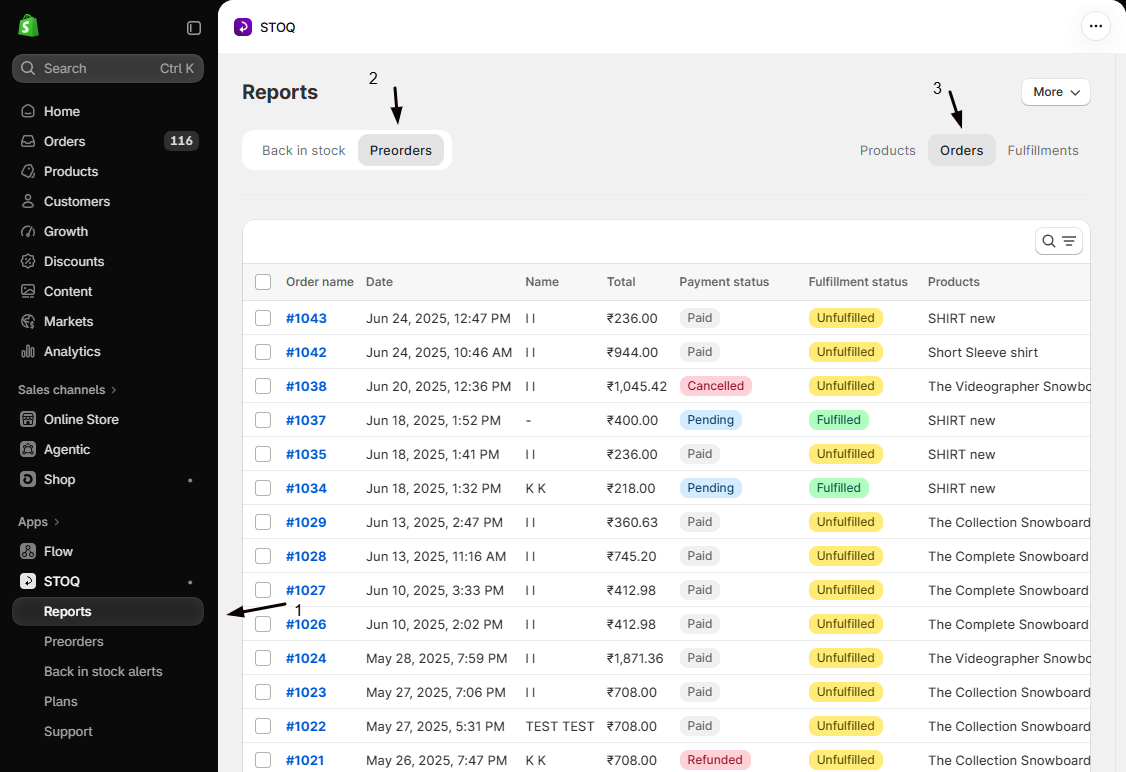
- Go to STOQ → Reports → Preorders → Orders.
- Open the order you want to reschedule (or, for a single offer, open it under Preorders → Offers and use its Orders tab).
-
Choose Reschedule payment
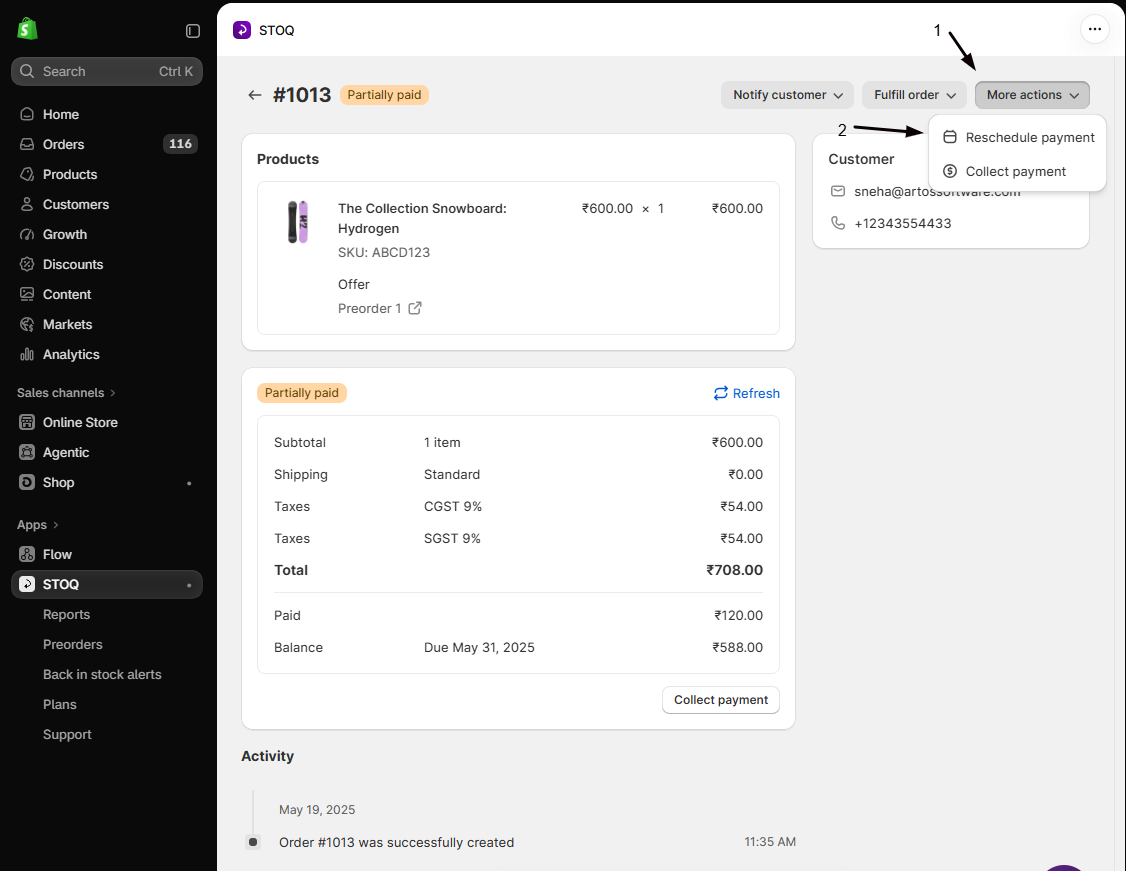
- On the order’s detail page, click More actions at the top right, then choose Reschedule payment.
- On the Reports → Preorders → Orders list, tick the checkbox next to the order, click the ⋯ (three dots) on the right of that row, then choose Reschedule payment.
-
Pick a new due date
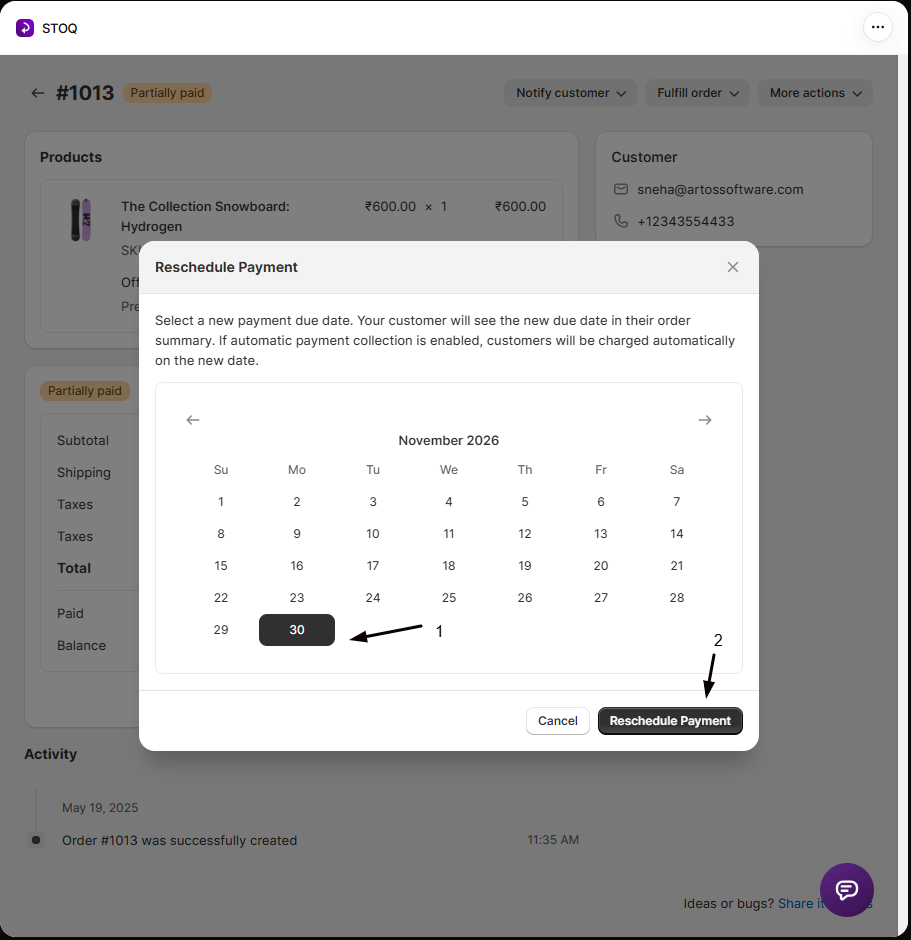
In the modal, select a new payment due date. Dates before today are disabled.
-
Confirm
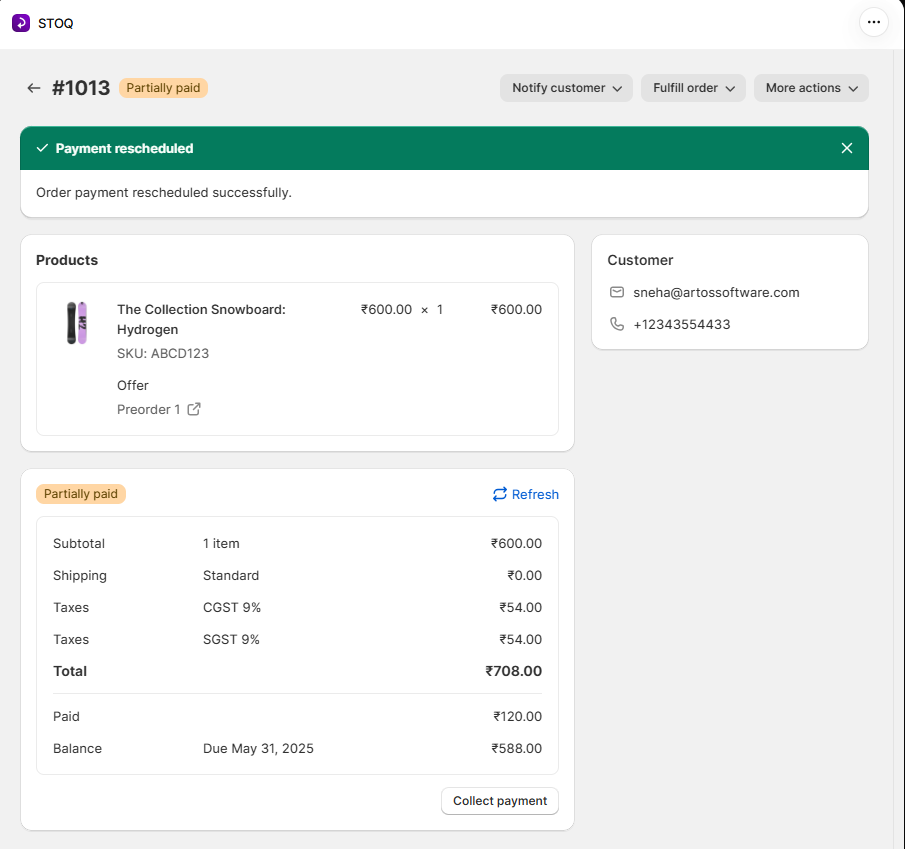
Click Reschedule Payment. The button enables after a short countdown that guards against accidental clicks. STOQ updates the due date and shows a “Payment rescheduled” confirmation.
Reschedule in bulk
Section titled “Reschedule in bulk”-
Select the orders
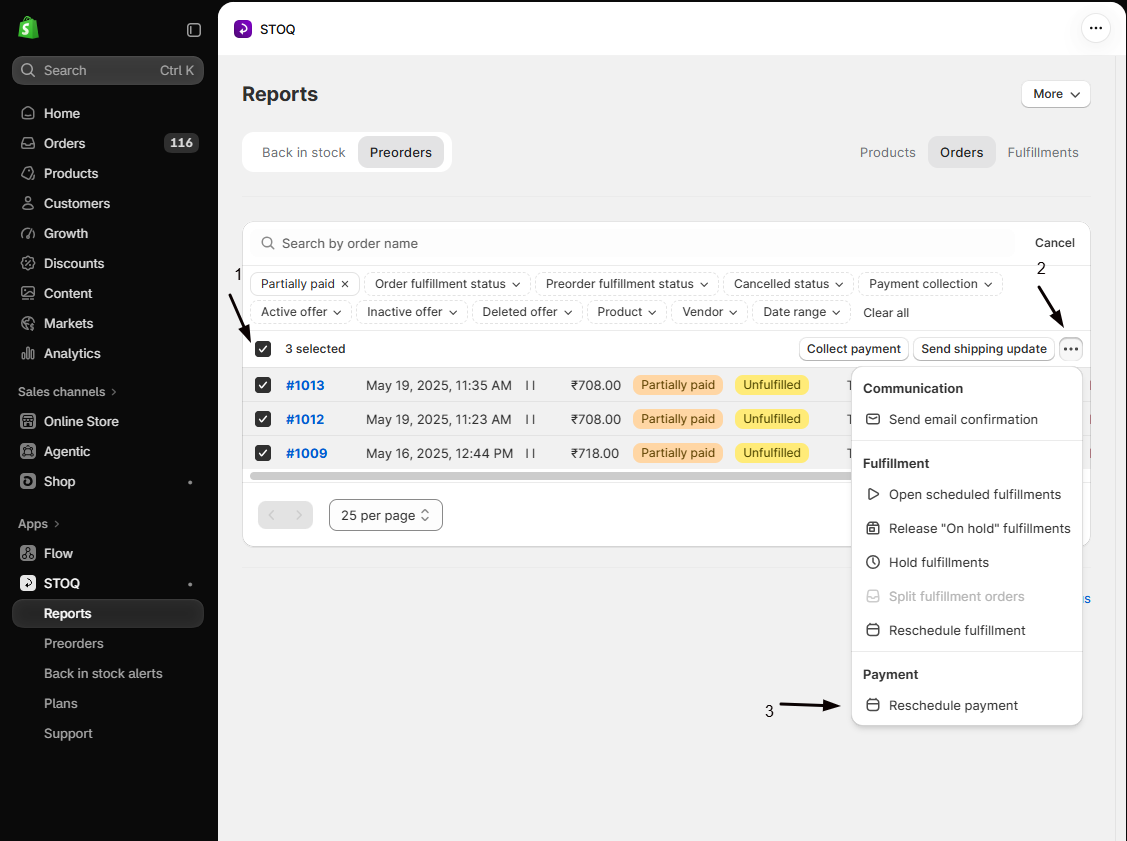
- In Reports → Preorders → Orders, check the orders you want to reschedule.
- To reschedule every order matching your current filters instead, use Select all matching.
-
Open the bulk action
- Open the bulk actions menu.
- Under Payment, choose Reschedule payment.
-
Pick a new due date and confirm
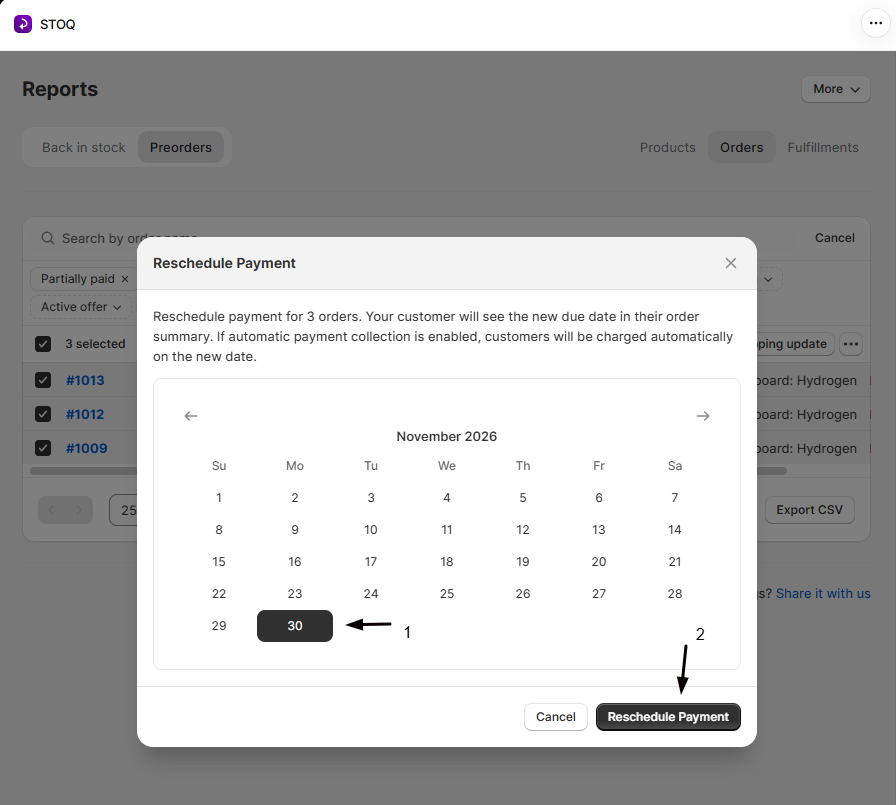
- Select the new due date.
- Click Reschedule Payment after the brief countdown (the modal shows how many orders will be rescheduled).
-
Wait for background processing
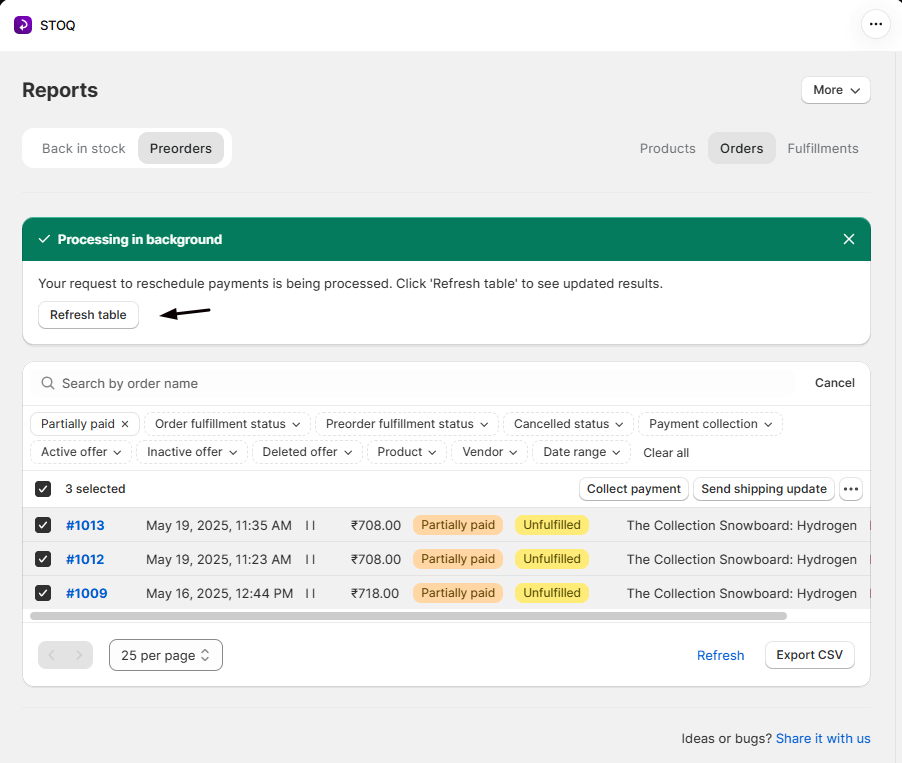
Bulk reschedules run in the background. STOQ shows a banner that your request is processing; click Refresh table to see the updated due dates.
Check your setup
Section titled “Check your setup”Open a rescheduled order in STOQ and confirm the payment due date now shows the new date. After a bulk reschedule, click Refresh table and check the due dates in the Orders list.
Troubleshooting
Section titled “Troubleshooting”You don't see Reschedule payment in the actions menu
The order has no remaining balance or due date to reschedule, for example it’s already fully paid. Only orders with an outstanding balance and a due date can be rescheduled.
You can't select the date you want
Dates before today are disabled. Pick today or a later date.
The Reschedule Payment button won't respond
It enables after a short countdown that guards against accidental clicks. Wait a moment and try again.
A bulk reschedule doesn't show updated due dates
Bulk reschedules run in the background. Click Refresh table to see the updated dates.
Does rescheduling charge the customer now?
No. It only moves the due date. If automatic payment collection is enabled, the customer is charged on the new date; otherwise you collect the balance yourself when you’re ready.
How is this different from collecting remaining payments?
Rescheduling moves when the balance is due. Collecting remaining payments charges the balance now.
How is this different from rescheduling fulfillment?
Rescheduling payment changes the date a balance is due. Rescheduling fulfillment changes the date an order is scheduled to ship. They’re separate actions.
Related guides
Section titled “Related guides”Thanks for letting us know.
Still stuck? Ask Quinn or chat with support