Prevent preorder overselling with Shopify Flow
Use Shopify Flow to keep Continue selling off until stock hits zero, so STOQ preorders take over without overselling.
Last updated
STOQ starts a preorder on a product only once it is completely out of stock (inventory reaches zero), not partway through its remaining stock. If a product still has stock left, is enrolled in a preorder offer, and has Continue selling when out of stock enabled, a customer can order more than the real available quantity. For example, if 3 units are in stock and a customer orders 4, the extra unit does not automatically become a preorder, and the product oversells.
Use this guide if you run specific-products preorder offers and want the out-of-stock to preorder handoff to happen automatically without overselling. The two Shopify Flow workflows below keep Continue selling off while real stock is available, then enable it the moment inventory hits zero, so STOQ preorders take over cleanly. A second workflow turns it back off when you restock.
Before you begin
Section titled “Before you begin”| Requirement | Details |
|---|---|
| Specific-products offer type | This workaround is for offers that target individually selected products. If you use an All products or Collection offer, you don’t need it: those offer types already auto-enable Continue selling on stockout. See Add products to an offer. |
| Shopify Flow installed | Flow is a free app in the Shopify App Store. Install it before importing the workflows. |
| Continue selling disabled by default | On the relevant products, Continue selling when out of stock must start off. This keeps normal cart purchases decrementing inventory so the product goes genuinely out of stock instead of overselling, until Flow 1 re-enables it. |
| Products enrolled in a STOQ offer | Both workflows act only on variants that carry a selling plan, meaning they are part of an active STOQ preorder offer. |
How it works
Section titled “How it works”The two workflows toggle one Shopify setting, Continue selling when out of stock, based on live inventory:
- Inventory reaches zero, Continue selling turns on, and STOQ starts accepting preorders.
- You restock, Continue selling turns off, and the product resumes normal in-stock selling until it sells out again.
Together they make the out-of-stock to preorder transition automatic, with no manual toggling.
Set it up
Section titled “Set it up”Import both workflows so the transition works in both directions. Flow 1 enables preorders at stockout; Flow 2 restores normal selling on restock.
Flow 1: enable Continue selling on stockout
Section titled “Flow 1: enable Continue selling on stockout”This workflow enables Continue selling the moment a variant hits zero, so STOQ can immediately accept preorders on it.
- Trigger: Inventory quantity changed. This tracks the inventory level directly, so it is not tied to order creation.
- Condition: the variant has a selling plan attached (it is part of an active preorder offer) and its available inventory equals 0.
- Action: enable Continue selling when out of stock on that variant.
What happens once it is on:
- A customer buys the product and inventory decreases.
- Inventory reaches 0.
- The workflow enables Continue selling on that variant.
- Preorder purchasing becomes available immediately for the sold-out variant.
Download the workflow file: Update product when variant inventory reaches zero with selling plans.flow
Flow 2: disable Continue selling on restock
Section titled “Flow 2: disable Continue selling on restock”This reverse workflow turns Continue selling back off after a restock, so the product returns to normal selling instead of accepting preorders indefinitely.
- Trigger: Inventory quantity changed (a restock).
- Action: disable Continue selling when out of stock on the affected variant.
What happens once it is on:
- You restock the product or update its inventory.
- The workflow disables Continue selling.
- The product resumes normal in-stock selling until it sells out again, at which point Flow 1 re-triggers.
Download the workflow file: Disable continue selling.flow
Import a workflow file
Section titled “Import a workflow file”Repeat these steps for each of the two files.
-
Open Shopify Flow
- In your Shopify admin, go to Apps > Shopify Flow.
- Open the Workflows section.
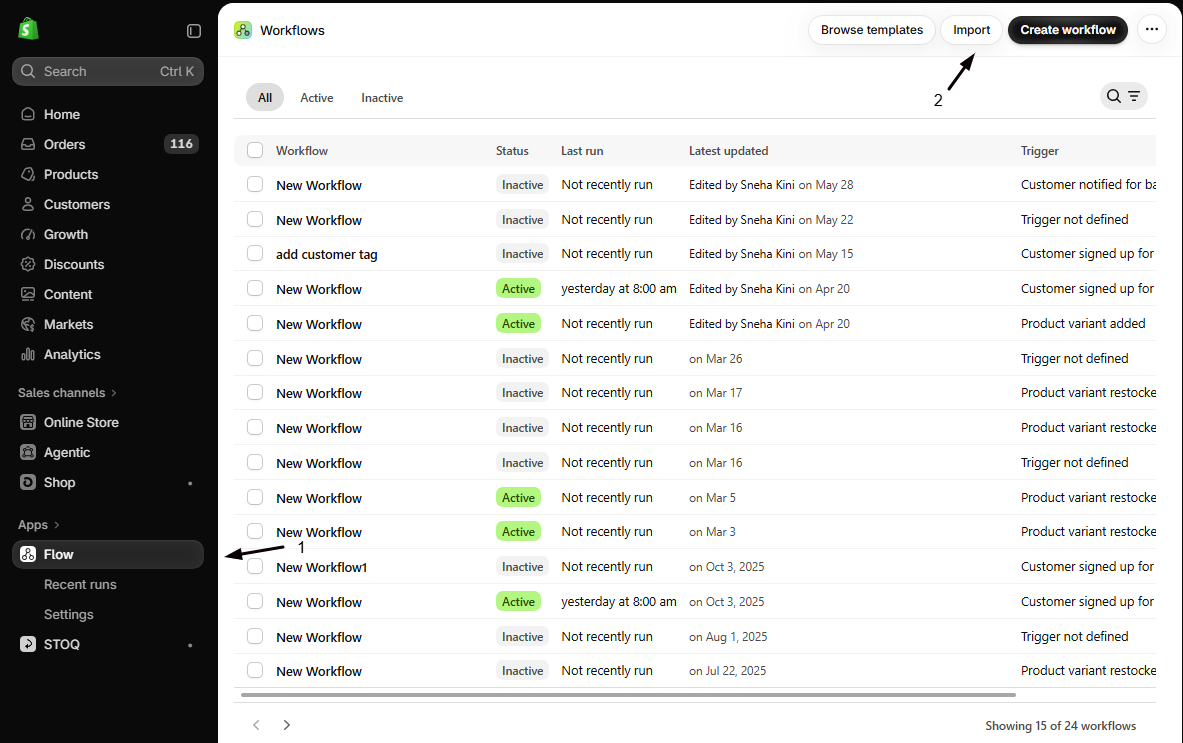
-
Import the file
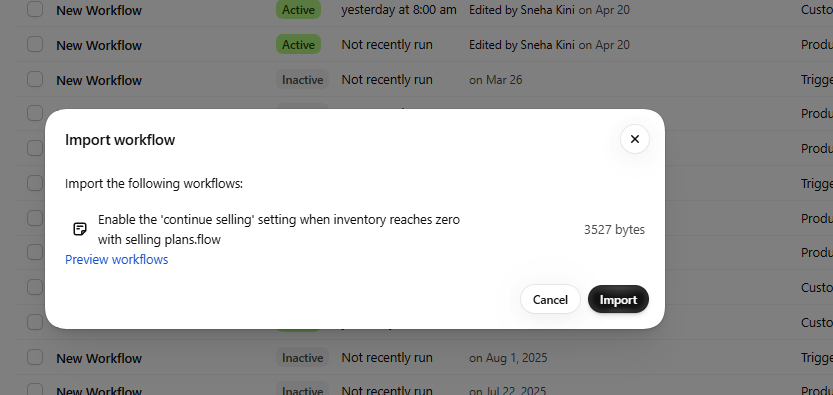
- Click Import.
- Select the downloaded
.flowfile: Update product when variant inventory reaches zero with selling plans.flow, or Disable continue selling.flow for the reverse workflow.
-
Review the workflow
Open the imported workflow and confirm its trigger, conditions, and actions all loaded correctly.
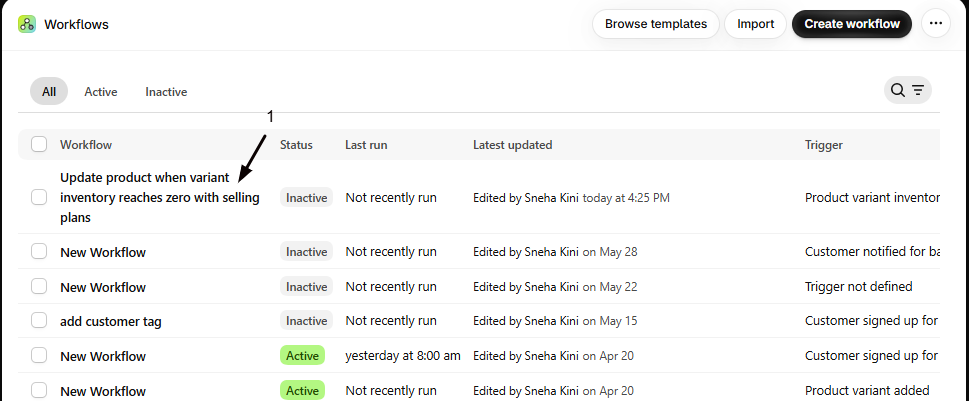
-
Turn it on
Click Turn on workflow to activate it.
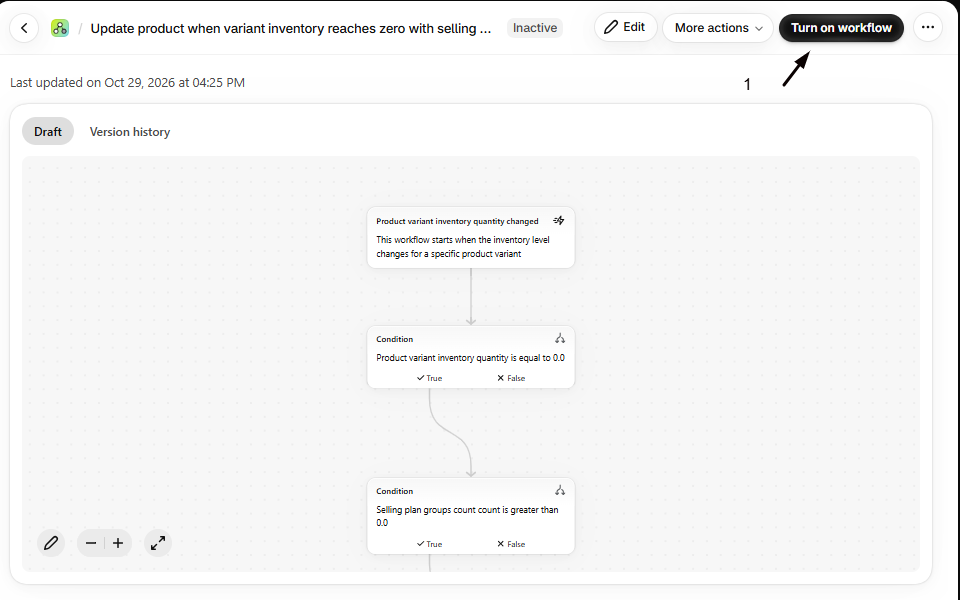
Check your setup
Section titled “Check your setup”- On a test product with a small stock count that is enrolled in a preorder offer, place orders until inventory reaches 0.
- Open the product in Shopify admin and confirm Continue selling when out of stock is now enabled, and that the preorder button appears on the live storefront.
- Restock the product and confirm Continue selling switches back off and the product sells normally again.
- In Shopify Flow, open each workflow and click Run history to see recent runs and any errors.
Troubleshooting
Section titled “Troubleshooting”A product still oversells before it hits zero
Confirm Continue selling when out of stock starts disabled on that product. If it is left on, customers can buy past the real stock count before Flow 1 is meant to act.
Continue selling did not turn on at zero stock
Check that Flow 1 is turned on, that the variant is part of an active STOQ preorder offer (it must carry a selling plan for the condition to match), and that its available inventory is exactly 0. Open the workflow’s Run history to see whether the inventory event arrived.
Continue selling did not turn off after a restock
Confirm Flow 2 is turned on and imported correctly, and that the restock actually changed the tracked inventory level. Check the workflow’s Run history.
The workflows are not needed on some products
These workflows only affect variants that carry a selling plan. Products that are not in a preorder offer are unaffected, so both workflows can stay on across your catalog.
Do I need this if I use an All products or Collection offer?
No. All-products and collection offers already auto-enable Continue selling when out of stock as products sell out, so the handoff to preorders is built in. This workaround is only for specific-products offers, where STOQ does not toggle the setting for you.
Why not just leave Continue selling on all the time?
Because STOQ only starts a preorder at zero inventory. With Continue selling on while stock remains, customers can order more than the real available quantity, which oversells the in-stock units instead of turning the excess into preorders.
Will these workflows touch products that are not on preorder?
No. Both act only on variants with a selling plan attached, meaning variants in an active STOQ preorder offer. Everything else is left alone.
Does this change existing orders?
No. The workflows only change the Continue selling setting on the product going forward. Orders already placed are unaffected.
Related guides
Section titled “Related guides”Thanks for letting us know.
Still stuck? Ask Quinn or chat with support