Preorders on POS, B2B, and bundles
Enable preorders on Shopify POS and for B2B customers, and find bundle apps that are confirmed to work with STOQ preorders.
Last updated
Use this guide if you want to make a preorder offer available on Shopify POS or to B2B customers, or check which bundle apps work with STOQ preorders. By the end, POS staff can sell preorders from a POS device and B2B customers can place preorders through their own checkout, on the terms you choose per offer.
Before you begin
Section titled “Before you begin”| Prerequisite | Details |
|---|---|
| Active preorder offer | You must have at least one offer set up. See Set up preorders. |
| Shopify POS (for POS steps) | Requires the Shopify POS app installed on your device and the STOQ preorder tile added. See Preorders on Shopify POS for the full POS setup guide. |
What customers will see
Section titled “What customers will see”- POS: when a staff member uses STOQ’s Add preorder to cart tile, they search for a product and STOQ checks eligibility (offer enabled for POS, inventory condition met, preorder limit not exceeded). If eligible, the item is added to the POS cart with the preorder selling plan attached and any line item properties, including shipping details you’ve configured on the offer. The cashier then completes checkout normally: Shopify handles payment, receipts, and tax, while STOQ controls the preorder designation.
- B2B: with the toggle enabled, B2B customers see the preorder button and can place preorders like retail customers, except they’re always charged the full amount at Shopify’s B2B checkout, since partial payment isn’t available to them. With the toggle disabled, B2B customers don’t see the preorder button at all.
Set it up
Section titled “Set it up”On a phone, this menu is collapsed. In the Shopify mobile app, tap the STOQ logo at the top of the screen to open it, then choose the section named below. There is no hamburger icon. See Finding the STOQ menu.
You configure Point of Sale, B2B, and Bundles per preorder offer, from the same settings page.
-
Open POS, B2B & Bundles
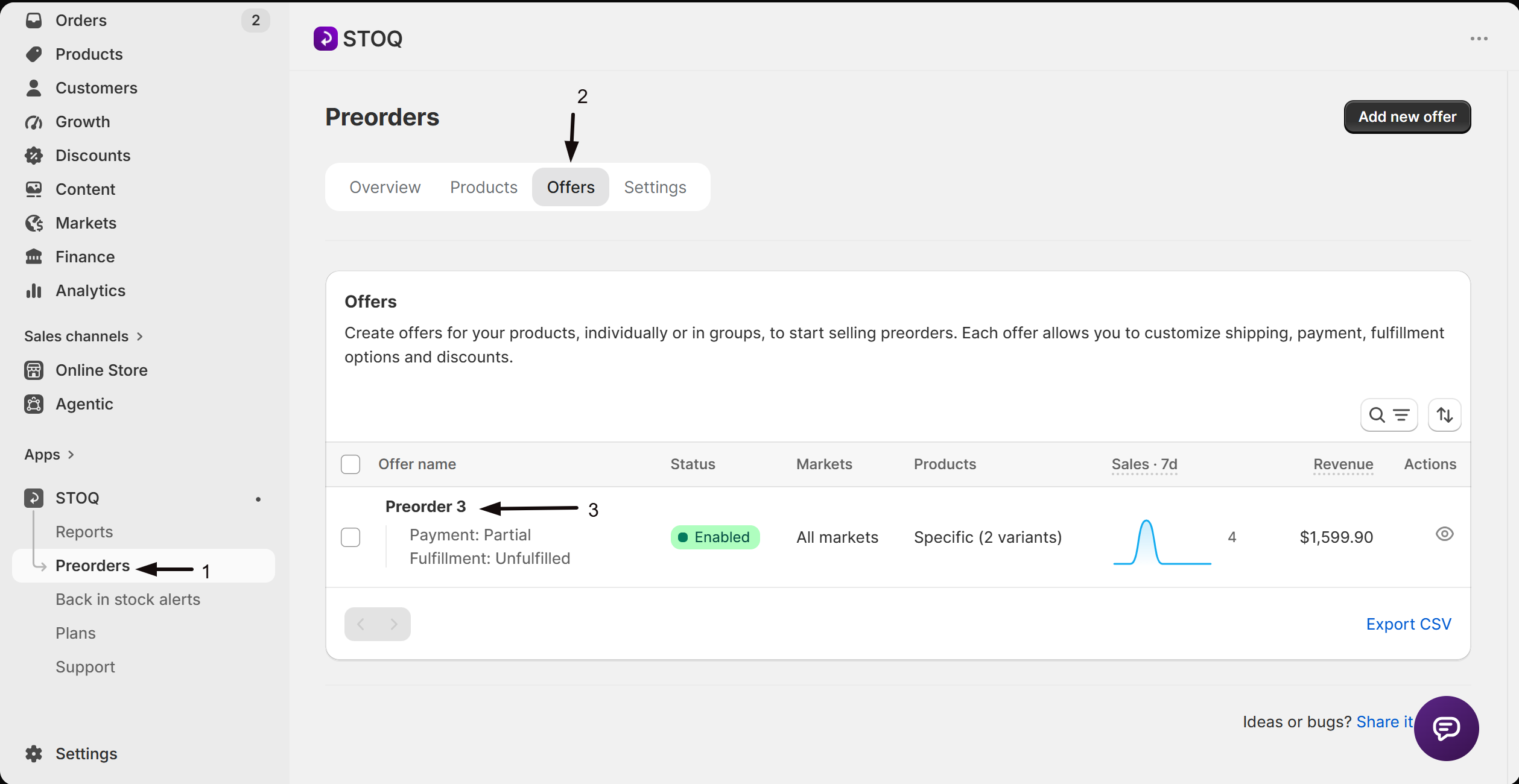
- In the left menu bar of the STOQ app, click Preorders.
- Click the Offers tab.
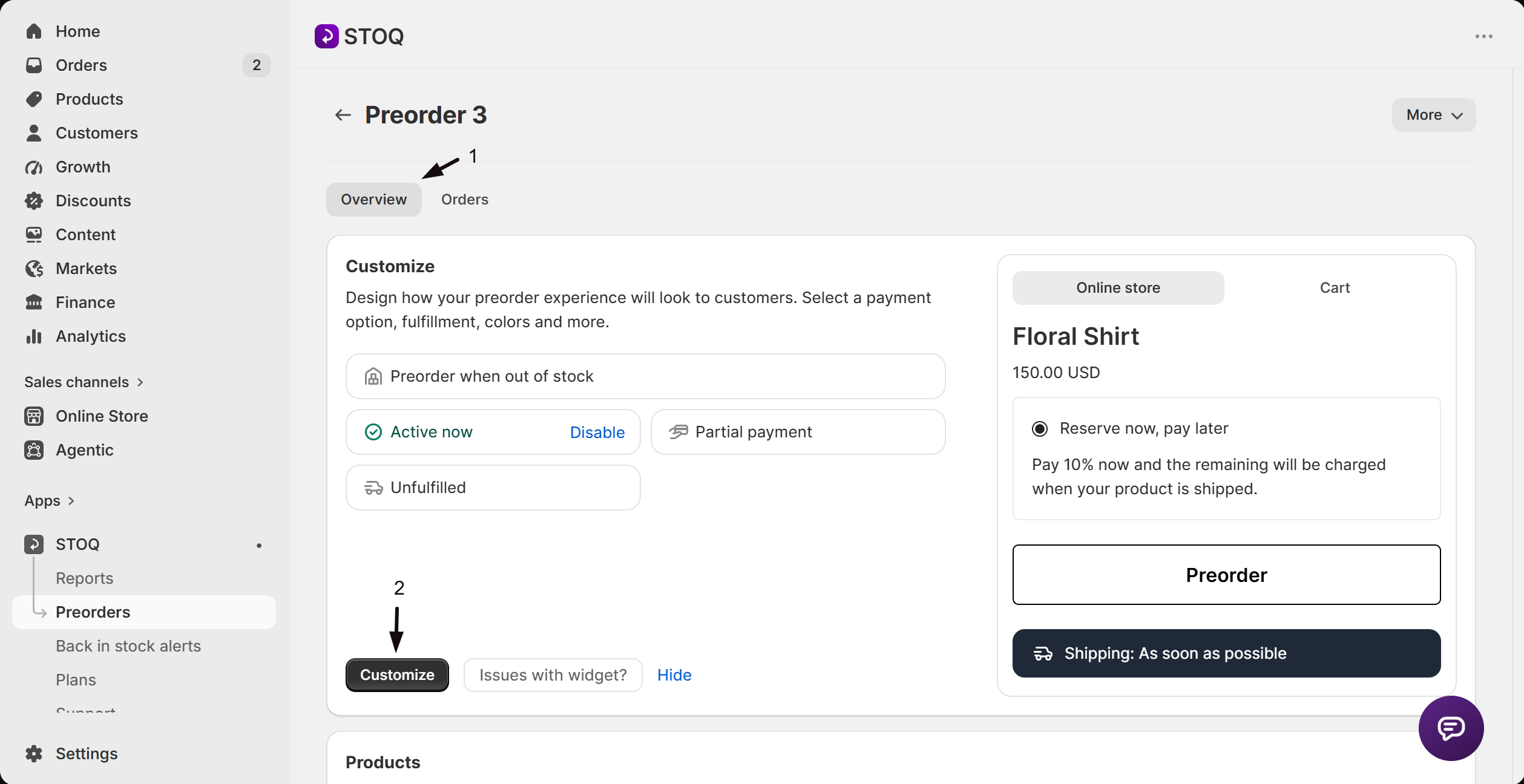
- Click the offer you want to configure to open its Overview tab.
- Click Customize to open the editor.
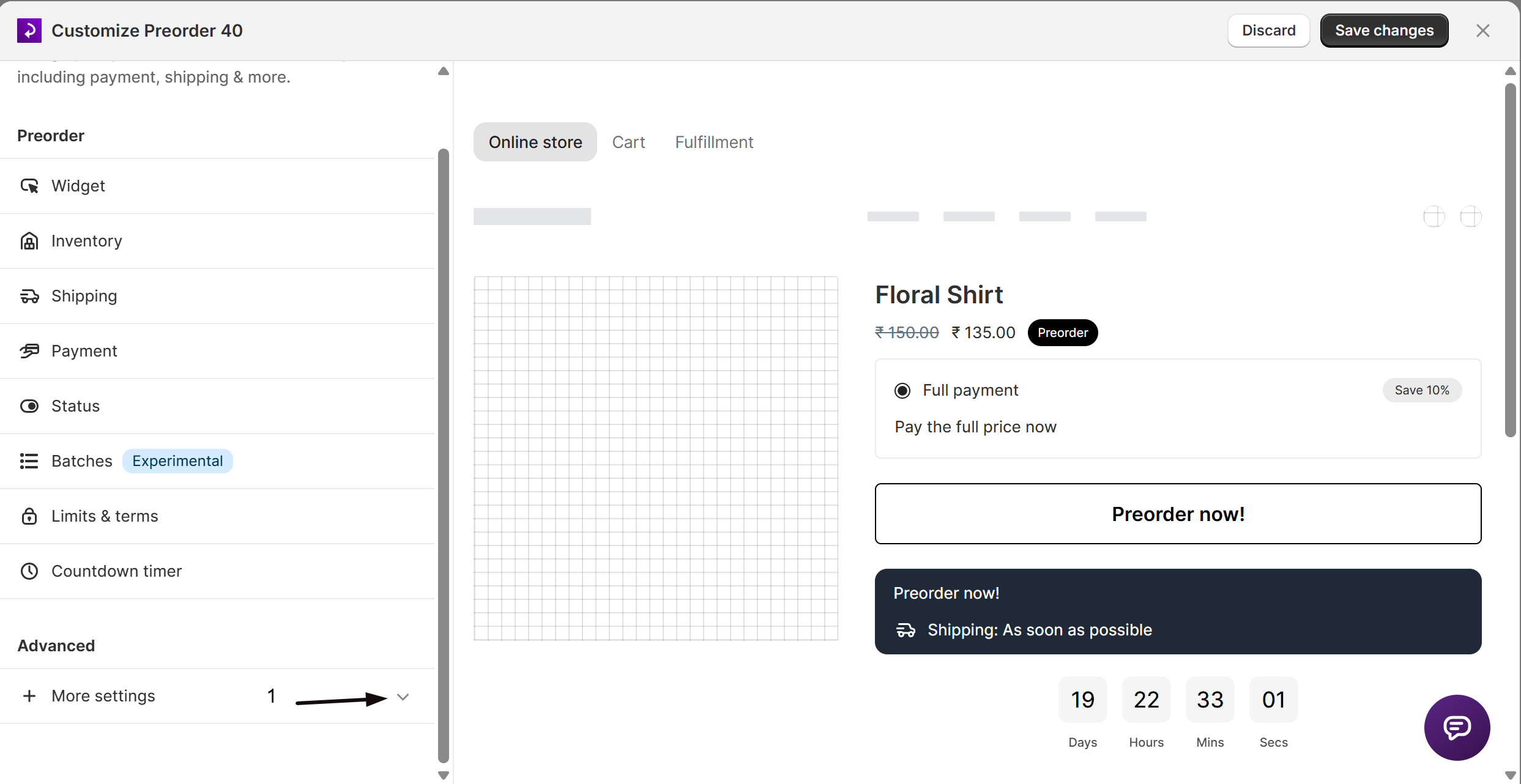
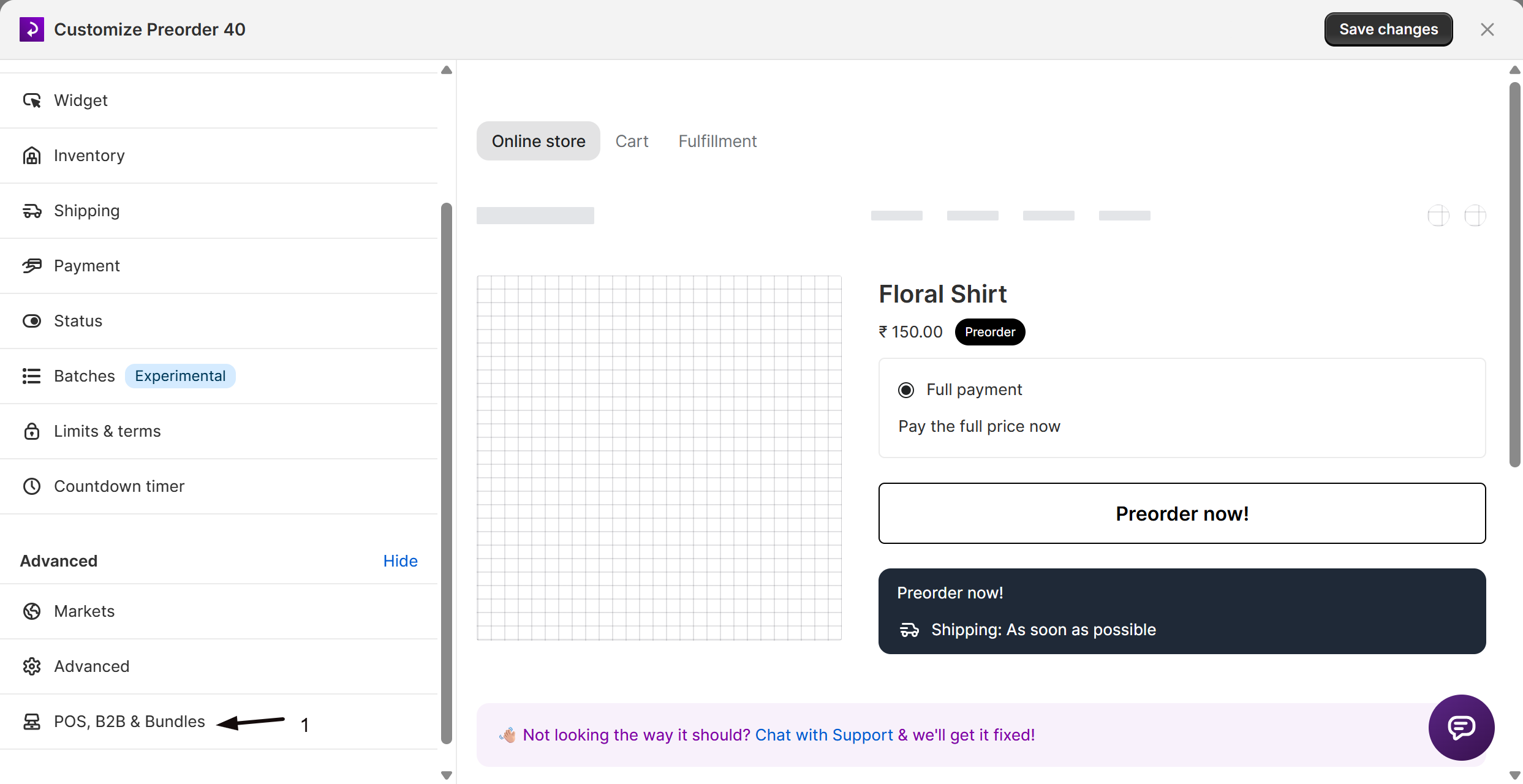
- In the settings list, click More settings to expand it, then click POS, B2B & Bundles.
Point of Sale
Section titled “Point of Sale”-
Enable the POS toggle
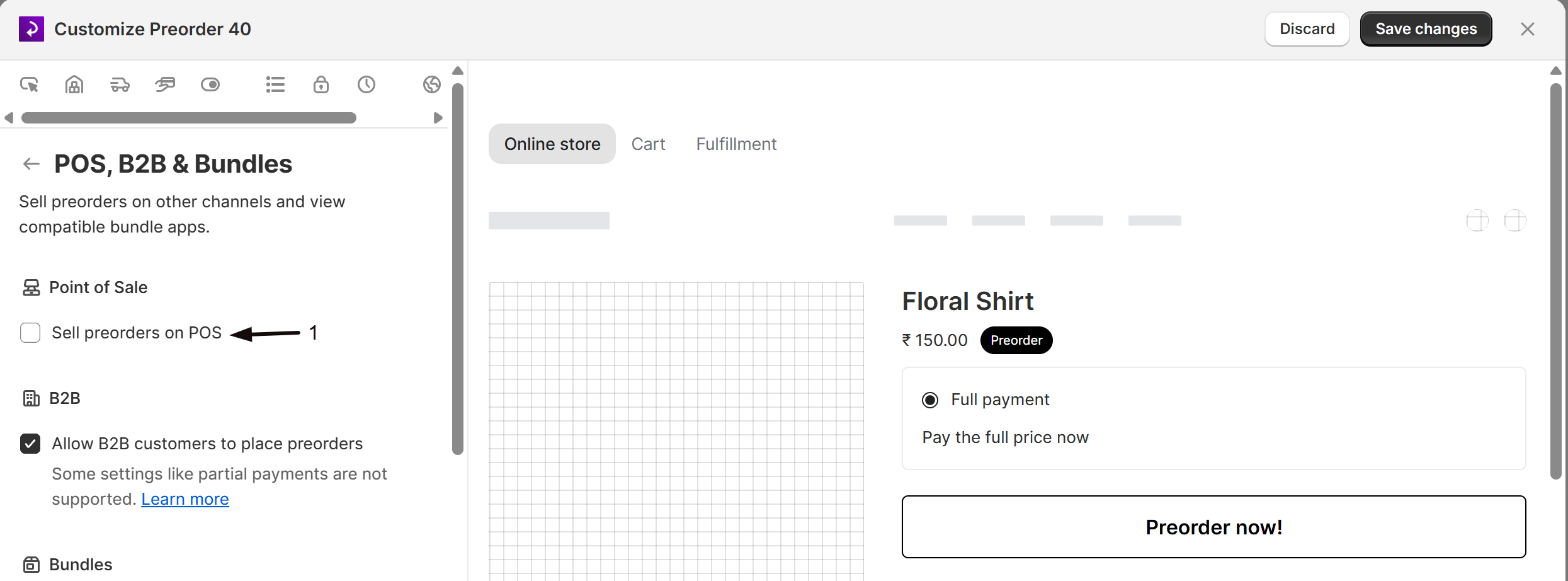
Under Point of Sale, check Sell preorders on POS. Products in this offer become available through STOQ’s POS tile (“Add preorder to cart”) on Shopify POS devices; leave it unchecked and the tile won’t return them as eligible.
-
Set the inventory check (optional)
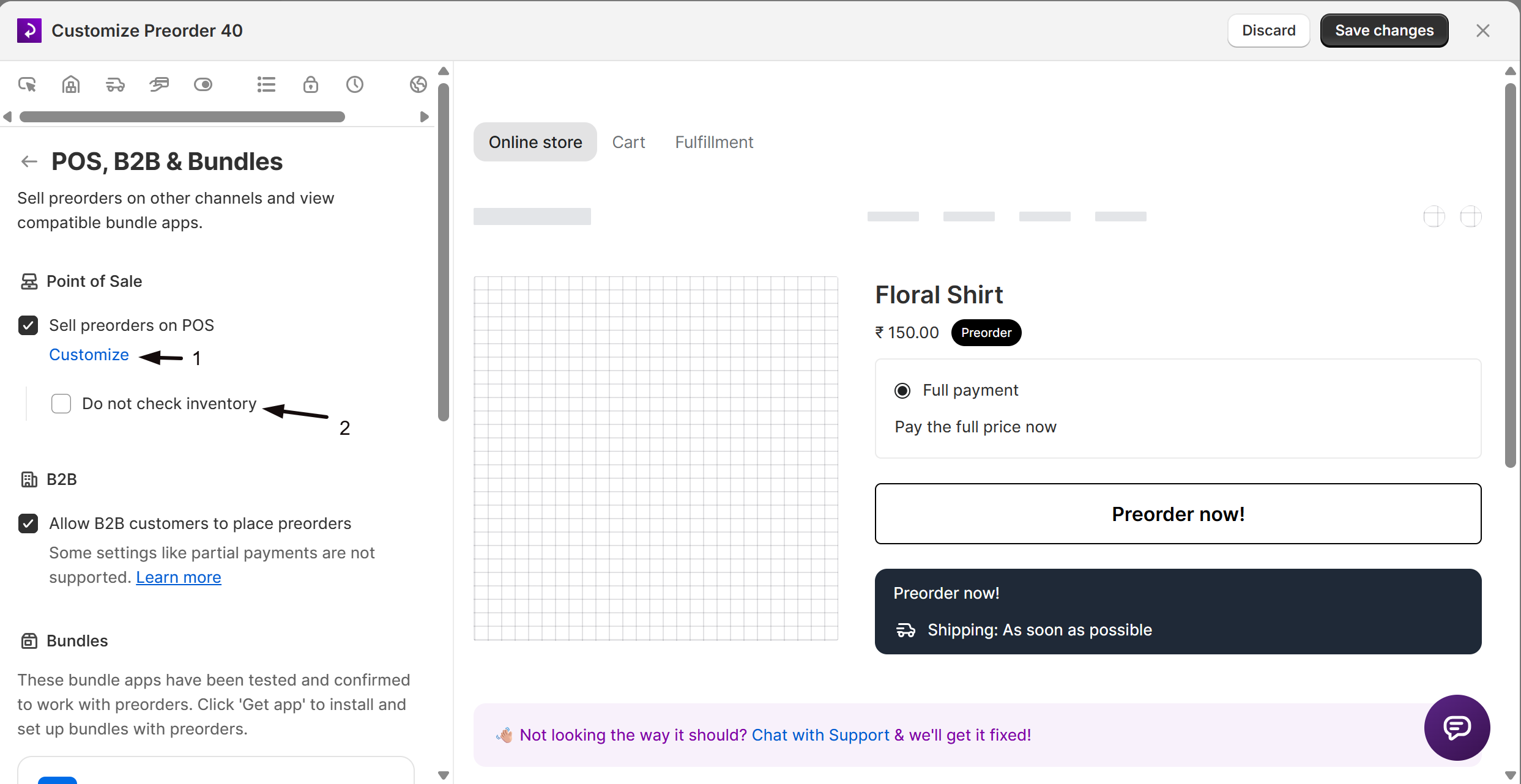
Once Sell preorders on POS is checked, a Customize link appears next to it. Click it to reveal Do not check inventory.
- Unchecked (default): the STOQ POS tile only allows a preorder if the variant is actually out of stock at the POS location.
- Checked: preorders are allowed on POS even when the variant has stock. Use this if your Online Store and POS share the same inventory pool and you want staff to take preorders regardless of current stock. Any preorder limit you set on the offer still applies.
-
Save the offer
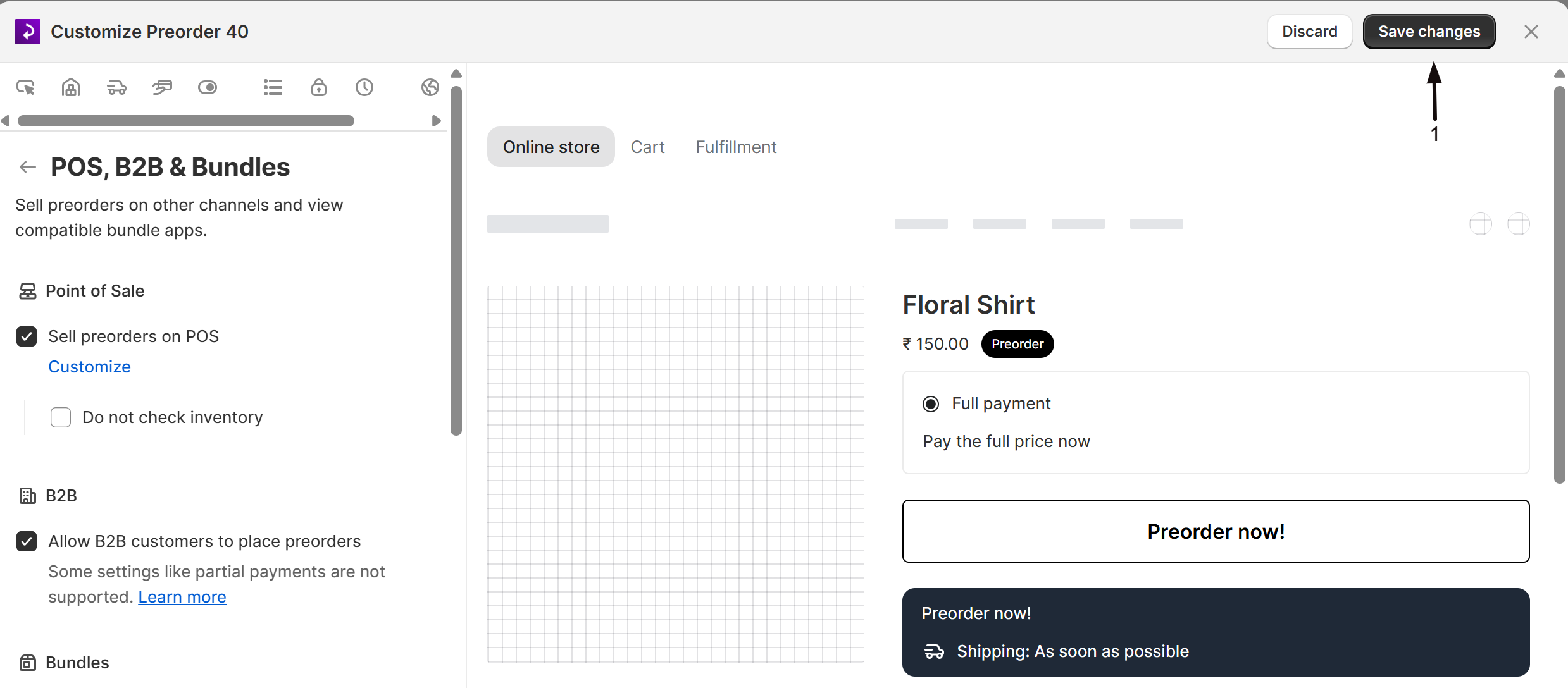
Click Save changes at the top right of the editor.
Each offer has its own B2B toggle. B2B customers are companies using Shopify’s native B2B and wholesale features.
-
Configure the B2B toggle
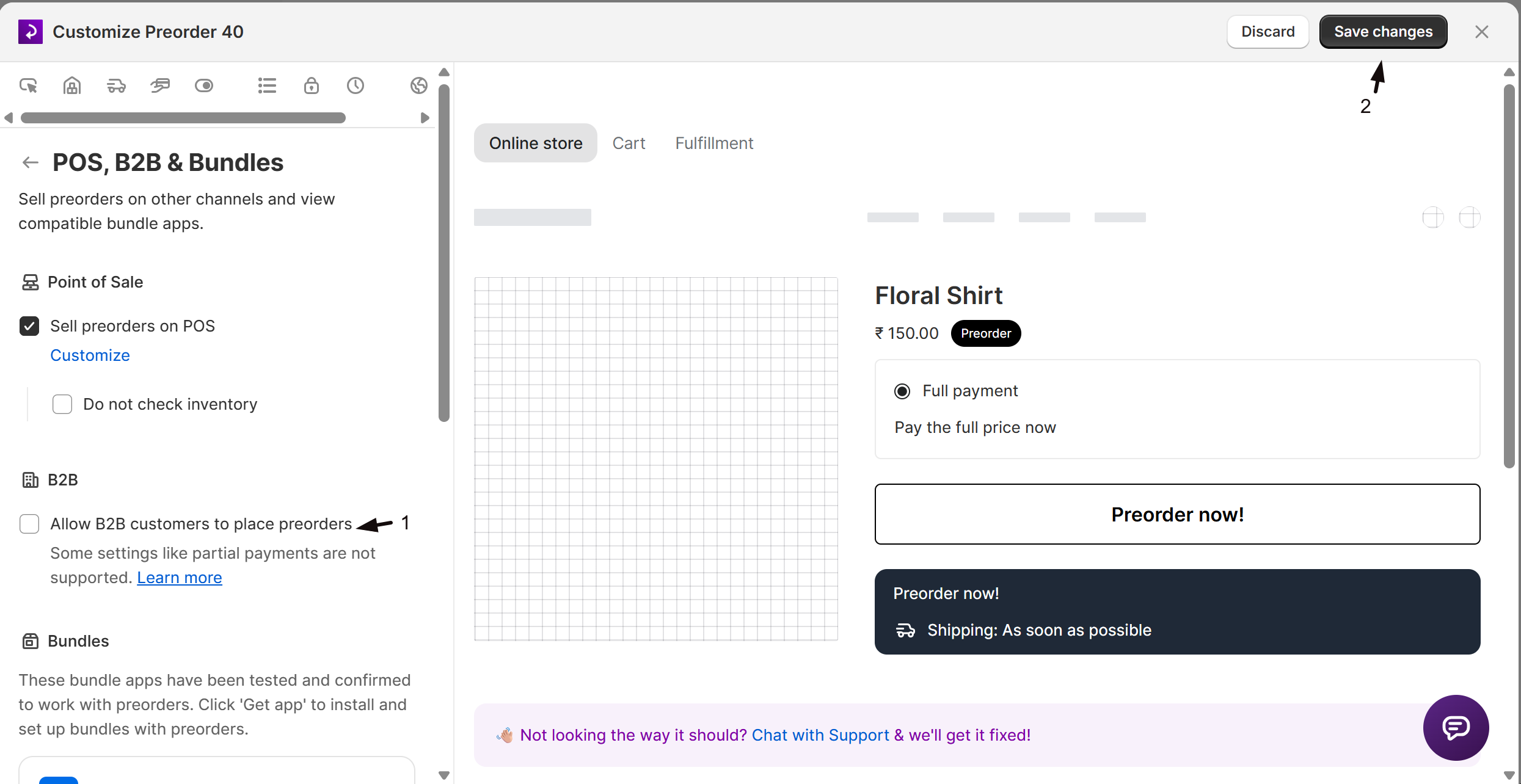
Under B2B, check or uncheck Allow B2B customers to place preorders. Checked (default) shows the preorder button to B2B customers for products in this offer; unchecked hides it before they reach checkout.
-
Save the offer
Click Save changes at the top right of the editor.
Bundles
Section titled “Bundles”The Bundles section lists bundle apps that have been tested and confirmed to work with STOQ preorders. These aren’t made by STOQ, they’re separate Shopify apps you install independently. At the time of writing:
| App | Description |
|---|---|
| Shopify Bundles (Recommended) | Shopify’s own free bundles app |
| Adoric Bundles | Product bundle orders, smart upsells, and free gifts |
| Fast Bundle | Mix and match, BOGO, add-ons |
| MBC Bundles | Product bundles, volume discounts, Buy X Get Y, mix and match |
| Easy Bundles | Quantity breaks, fixed bundles, bundle landing pages |
Click Get app on any listed app to open its Shopify App Store page.
Sell a Shopify bundle as a preorder
Section titled “Sell a Shopify bundle as a preorder”Shopify’s own Shopify Bundles work with STOQ preorders in one configuration: an in-stock offer with the Shopify purchase option turned off. A bundle has no stock of its own and can’t use Continue selling when out of stock, so an out-of-stock (backorder) preorder can’t work for it. Add the bundle product to the offer, not the products inside it, and STOQ counts the sale once on the bundle product. For the full setup, the “cannot be added to the cart” fix, and why the out-of-stock route can’t work, see Use STOQ preorders with Shopify Bundles.
Check your setup
Section titled “Check your setup”- POS: on a Shopify POS device, search for a product in this offer using STOQ’s Add preorder to cart tile and confirm it shows as eligible (or not), matching your inventory setting. If you just saved the toggle, wait a moment before searching again.
- B2B: log into your storefront as a B2B company account and confirm the preorder button shows or is hidden, matching your Allow B2B customers to place preorders setting.
- Bundles: after installing a bundle app, place a test preorder through it to confirm it processes correctly. For a Shopify bundle, confirm the order is counted once, as the bundle product at the quantity ordered, not as the separate products inside it.
Troubleshooting
Section titled “Troubleshooting”Staff can't find a product in the STOQ POS tile
Check these:
- The offer’s status is Live (not Off or Scheduled).
- The variant is added to the offer.
- The preorder limit hasn’t been reached.
- For STOQ-managed inventory: the variant quantity is below 1 and its Shopify inventory policy is Continue selling when out of stock, unless you’ve enabled Do not check inventory.
If you just saved the POS toggle, wait a moment and search again.
A B2B customer can't see the preorder button
Check that Allow B2B customers to place preorders is enabled on the offer. If it’s enabled and the button is still missing, confirm the customer is logged into a recognized Shopify B2B company account; STOQ relies on Shopify to identify B2B customers, and anyone Shopify doesn’t recognize as B2B is treated as a retail customer, unaffected by the toggle.
A bundle app causes issues after installing it
Place a test preorder without the bundle first to check whether the issue is bundle-related, since bundle apps vary in how they build carts and submit orders.
A bundle shows Preorder but checkout says it's sold out
A component is out of stock, so the bundle reads as sold out. Bundles can only take preorders on the in-stock route, so restock the component. See Use STOQ preorders with Shopify Bundles.
A Shopify bundle sale isn't counted as a preorder
Check these:
- The bundle product itself is in the offer’s Products section. Adding just the products inside the bundle isn’t enough.
- The customer bought the bundle with the preorder button on the bundle’s product page.
Orders placed before the bundle product was in the offer aren’t counted. After fixing the setup, place a new test order.
Limitations
Section titled “Limitations”- B2B notifications or flows that depend on Shopify selling plan webhooks may behave differently, because B2B checkout doesn’t attach a native Shopify selling plan. Test your notification setup with a B2B test order.
- Bundle app compatibility is tested at a point in time, not guaranteed against future updates to either app.
- Adding a whole collection to an offer skips bundle products. Add bundle products on their own.
Does enabling POS preorders charge the customer automatically?
No. The STOQ tile adds the item to the POS cart with preorder properties; the cashier still completes checkout through Shopify POS in the normal way, and Shopify controls payment processing.
Does turning off POS or B2B for an offer affect orders already placed?
No. It only stops new preorders through that channel going forward; orders customers already placed keep their original terms.
Can B2B customers use partial payment?
No. Partial payment relies on Shopify selling plans, which aren’t applied through Shopify’s B2B checkout, so B2B preorders are always charged in full at checkout.
Do B2B customers get the same preorder emails as retail customers?
Mostly yes. B2B customers who place a preorder get the same STOQ notifications as retail customers, since STOQ processes the order the same way. The exception is any flow that depends on a Shopify selling plan webhook, since B2B checkout doesn’t attach one; test with a B2B test order to confirm.
Can I sell a Shopify bundle as a preorder?
Yes. Create the bundle with the free Shopify Bundles app and add the bundle product to your offer. STOQ counts each sale once on the bundle product, at the bundle quantity, for units sold, quantity limits, batches, and revenue.
Will the products inside a bundle be double counted?
No. If the individual products are also in the offer, a bundle purchase still counts only once, on the bundle product. Customers who buy those products on their own are counted as usual.
Are bundle apps guaranteed to work with preorders?
They’re tested, not guaranteed. The apps listed in the Bundles section have been confirmed to work by the STOQ team, but updates to either app can affect compatibility. If you see issues, test a simple preorder without the bundle first to isolate the cause.
Related guides
Section titled “Related guides”Thanks for letting us know.
Still stuck? Ask Quinn or chat with support