Add products to an offer
Add specific products, a collection, tagged products, or all products to a preorder offer.
Last updated
Use this guide to add products to a preorder offer, whether you’re picking individual products, importing a spreadsheet, adding a whole collection, linking products by tag, or applying the offer to your entire catalog. By the end, the Preorder button will appear on out-of-stock products that are in an enabled offer.
Before you begin
Section titled “Before you begin”| Requirement | Detail |
|---|---|
| An offer to add to | Create one first: see How to set up preorders |
| Continue selling | Out-of-stock products need Continue selling when out of stock on; STOQ can enable it during the add |
Choose your setup
Section titled “Choose your setup”In the offer, the product type decides which products it covers:
| Source | Use it when |
|---|---|
| Specific products | You want to hand-pick individual products or variants |
| Collection | You want the offer to cover everything in a Shopify collection |
| Product tags | You want to decide which products are in the offer by tagging them in Shopify. Tag a product to add it, remove the tag to take it out |
| All products | You want the offer to apply store-wide (you can exclude products by tag or selection) |
What customers will see
Section titled “What customers will see”Once a product is in an enabled offer, has Continue selling when out of stock on, and its inventory is at or below zero, the storefront shows a Preorder button in place of Sold out. Removing a product from an offer, or turning continue selling back off, returns it to normal Shopify behavior; orders already placed keep their original terms either way.
Set it up
Section titled “Set it up”On a phone, this menu is collapsed. In the Shopify mobile app, tap the STOQ logo at the top of the screen to open it, then choose the section named below. There is no hamburger icon. See Finding the STOQ menu.
There are several ways to add products to an offer. Use whichever fits your situation.
Add products from the offer
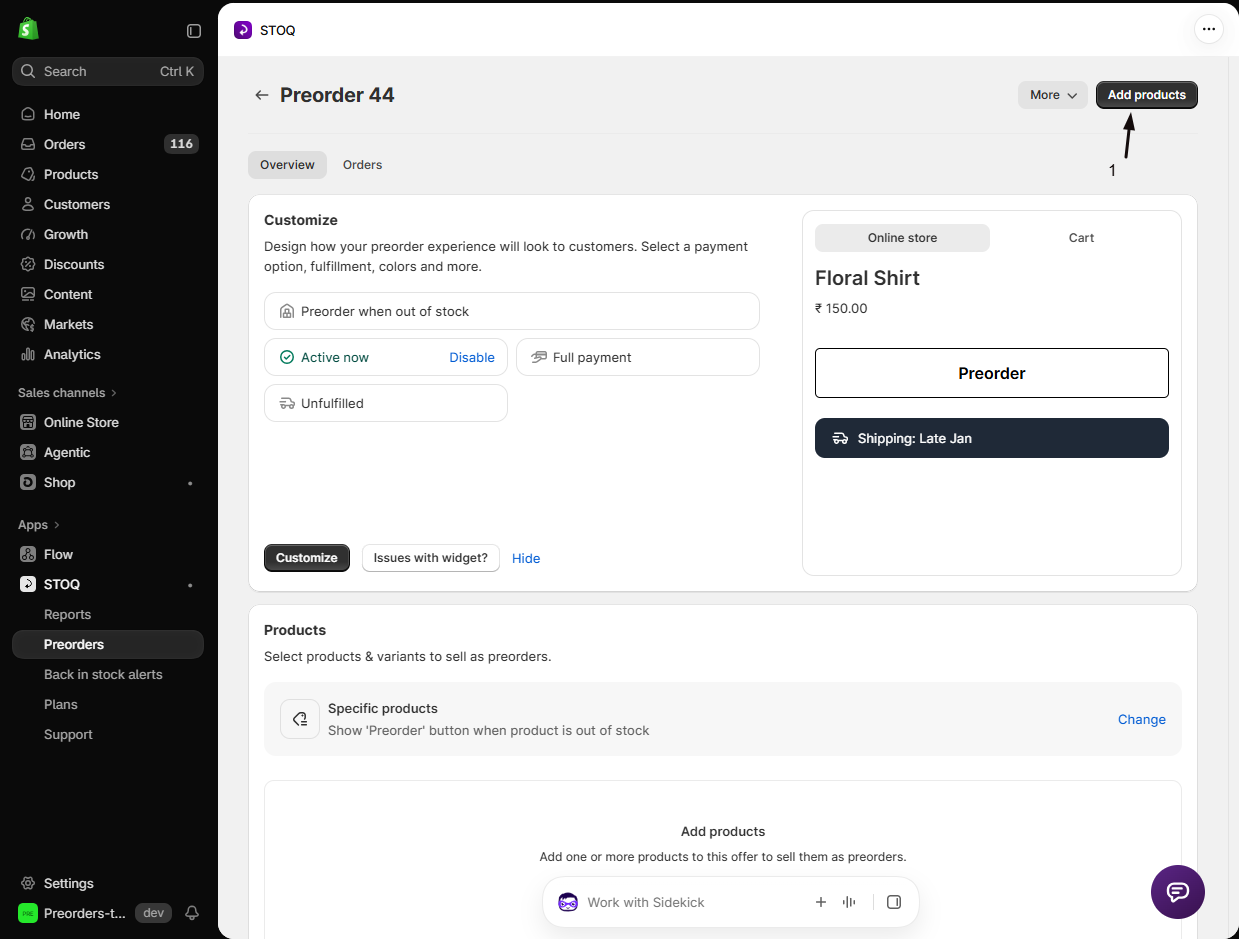
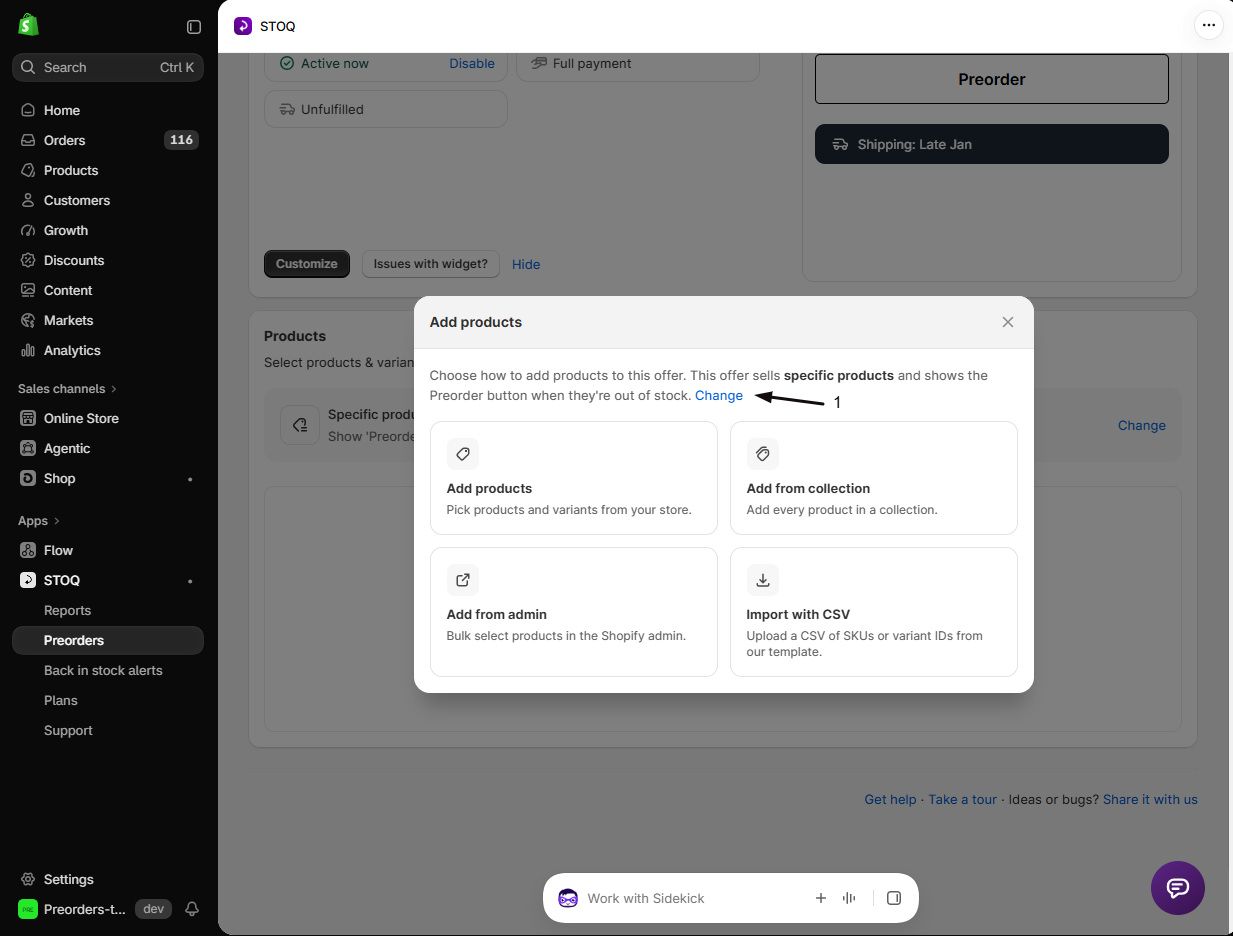
Section titled “Add products from the offer”On an offer’s Overview tab, there’s an Add products button at the top of the page. It scrolls down to the offer’s Products section and opens an Add products window with all four ways to add products:
| Option | What it does |
|---|---|
| Add products | Pick products and variants from your store |
| Add from collection | Add every product in a collection |
| Add from admin | Bulk select products in the Shopify admin |
| Import with CSV | Upload a CSV of SKUs or variant IDs and map its columns (see below) |
The same options are still in the Products section itself: the Add products button, and the other three under More options.
The Add products window works this way when the offer’s product type is Specific products. If the product type is Collection, Product tags or All products, STOQ adds out-of-stock products automatically. In that case the Add products button opens the offer’s product type settings with a Products are added automatically banner. To choose products yourself, switch the product type to Specific products.
-
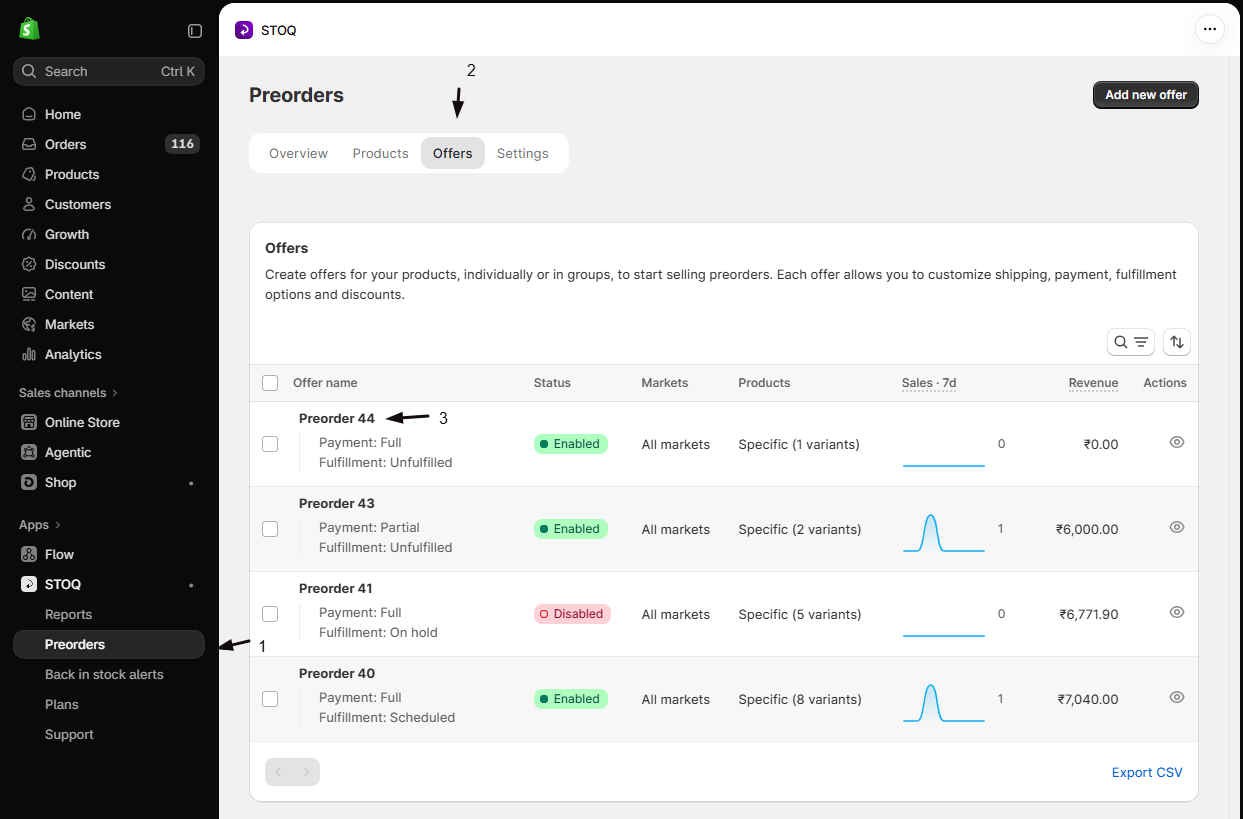
Open the offer
- In the left menu bar of the STOQ app, click Preorders.
- Click the Offers tab.
- Click the offer you’d like to add products to. Its Overview tab opens.
-
Open the Add products window
Click the Add products button at the top of the offer page. STOQ scrolls to the Products section and opens the Add products window.
Under the title, the window says whether this offer shows the Preorder button even when products are in stock, or only when they’re out of stock. To change that, click Change in that sentence. The window closes and the offer’s product type settings open.
-
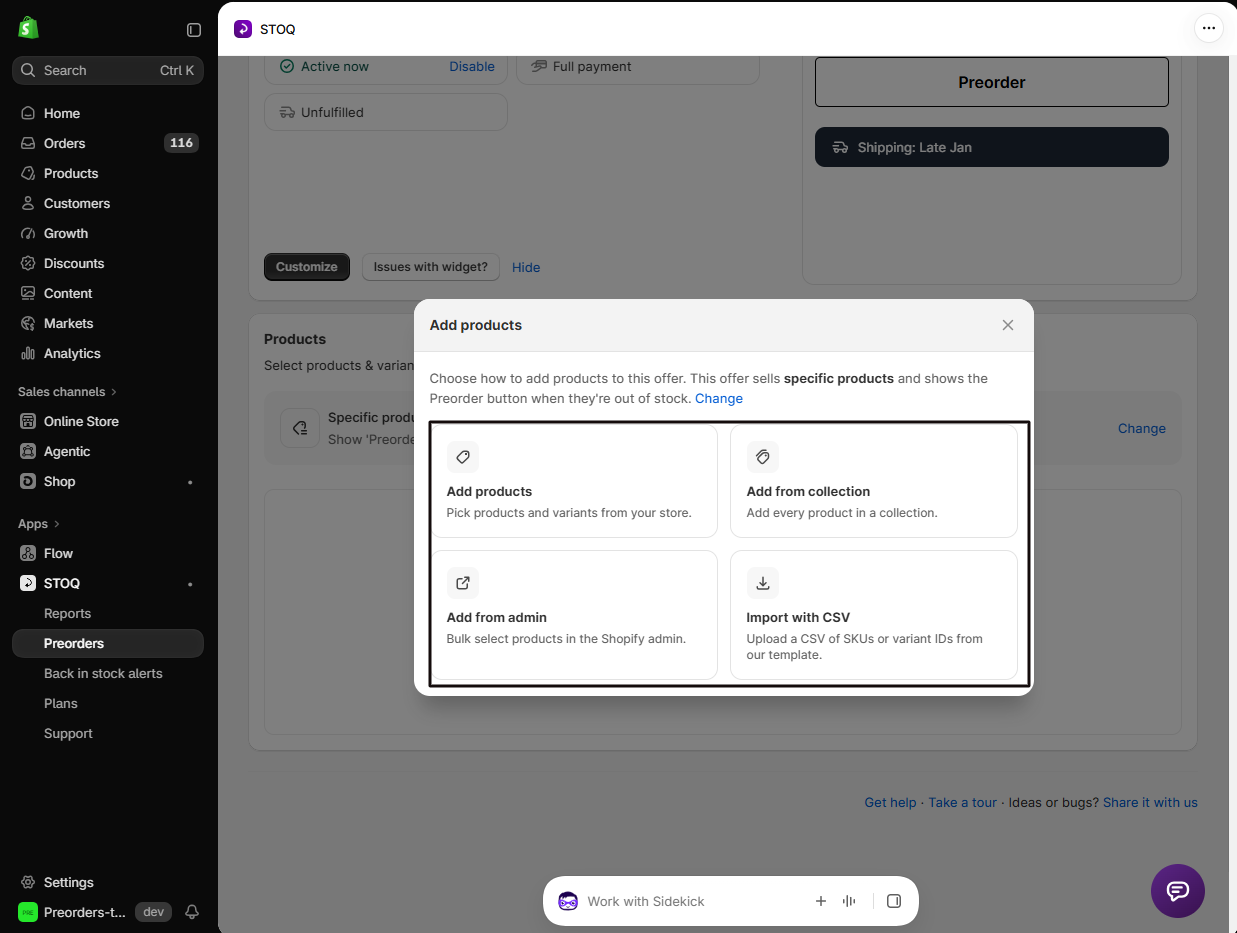
Choose how to add products
Click one of the four options:
- Add products: opens the product picker. Choose products or variants, as many as you need.
- Add from collection: choose a collection and add its products.
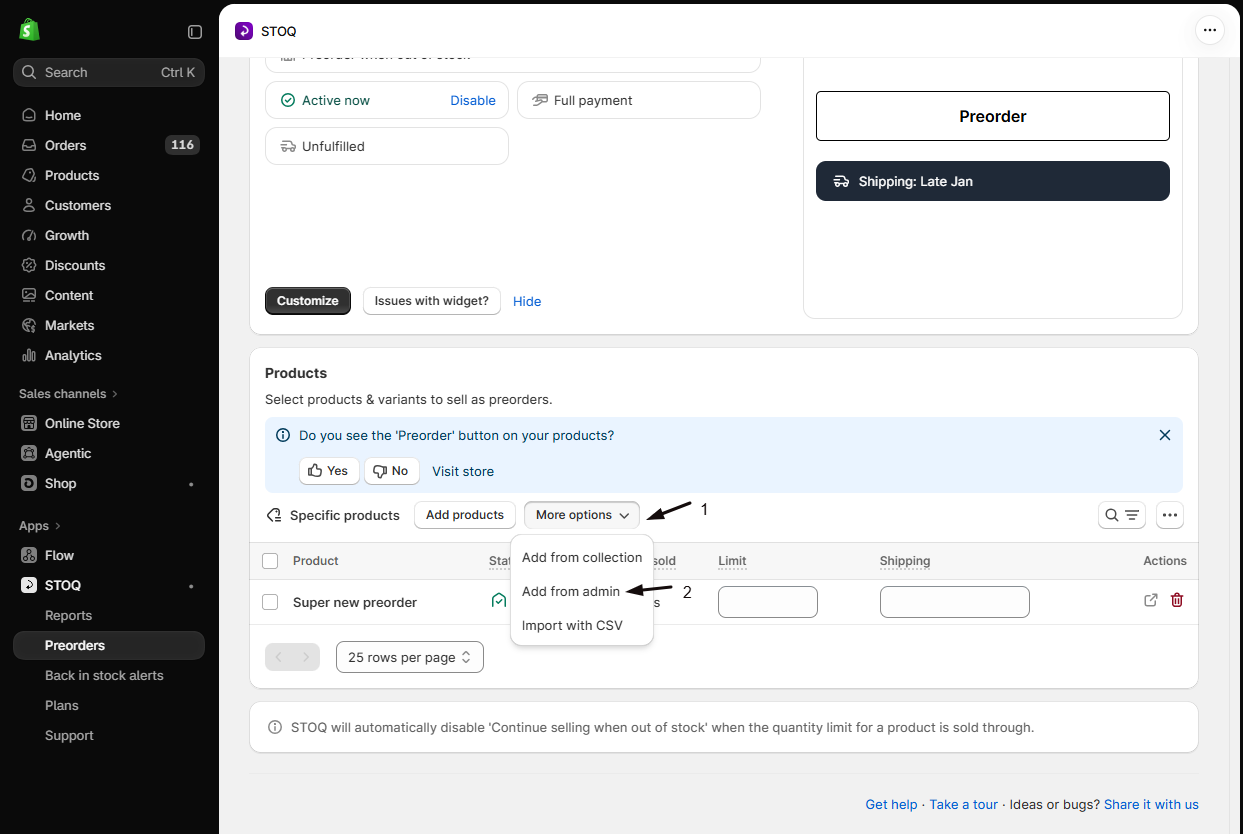
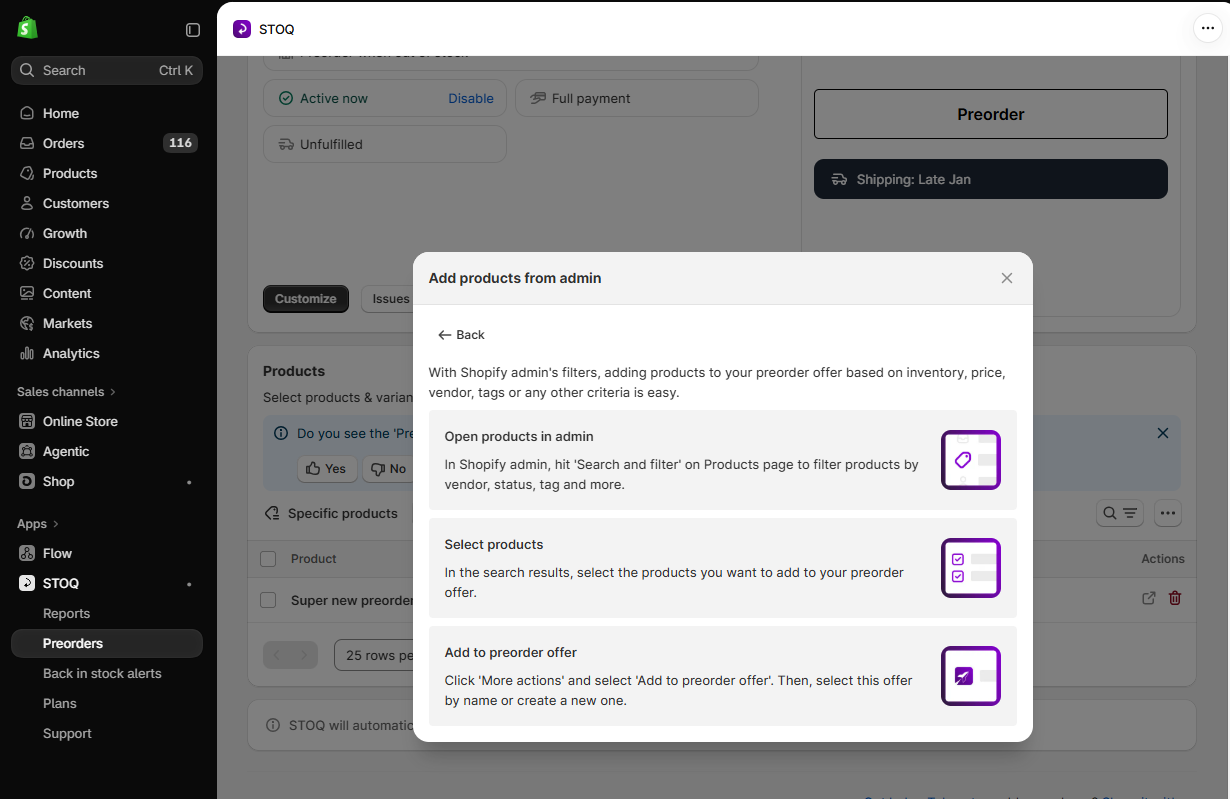
- Add from admin: the window shows the steps for adding products from the Shopify admin (Open products in admin, Select products, Add to preorder offer). Click Back to return to the four options.
- Import with CSV: opens the CSV import (see Import products with CSV).
-
Review the add-products check
When you choose products with Add products, STOQ checks them before anything is added. If something needs a look, a window titled Add N products to your offer opens with one row per finding. Each row says what STOQ will do. To see the affected products or pick a different option, click Change on that row, then click Done. A row you changed shows a Changed badge.
- Continue selling is off: these variants show as sold out at 0 stock and can’t take preorders. Choose Turn it on for me (the default) or I’ll turn it on myself. If the offer is scheduled to start later, STOQ turns it on when the offer starts, and the row shows View instead of Change. This row only appears when STOQ manages the offer’s inventory.
- Products already in other offers: choose Move them to this offer (the default) or Keep them in both.
- Products also on other sales channels, for example “2 products are also on Shop”: these products are also published to a channel where preorder details don’t show, such as Shop or Facebook & Instagram. Customers there see normal stock and can buy without knowing it’s a preorder. Choose Add them anyway (the default) or Don’t add these N (Don’t add this product when there’s one). To fix the channel itself, unlist the products from that channel in Shopify. If Shop is one of the channels, you can instead turn on the Online Store redirect in the Shop app. See Preorders on Google, YouTube, Instagram, and Facebook.
Click Add N products to continue, or Cancel to add nothing. If nothing needs a look, STOQ skips the window and adds the products directly.
The check only runs for products you choose with Add products on a Specific products offer. It doesn’t run for Add from collection or Import with CSV. Shopify bundle products are never flagged for Continue selling, because a bundle’s availability comes from the products inside it.
-
Wait for products to be added
Large additions run in the background (“Adding products to your offer, this may take a while”). The product list refreshes when it’s done.
Add products by tag
Section titled “Add products by tag”Set the offer’s product type to Product tags when you want a Shopify product tag to decide what’s in the offer. Tag a product in Shopify and its out-of-stock variants join the offer. Remove the tag and they leave.
- A product matches when it carries one of your tags as a whole tag. Capital letters don’t matter, so
salematchesSalebut notsummer-sale. - If you pick more than one tag, a product needs any one of them, not all of them.
- STOQ checks tagged products every 15 minutes, so tag changes show up in the offer within about 15 minutes, not instantly.
Product tags needs a paid plan and works only for offers that preorder out-of-stock products. It’s greyed out on an offer that shows the Preorder button for in-stock products, and on an offer set to specific markets (switch the offer to all markets to use it).
-
Open the offer’s product type settings
- In the left menu bar of the STOQ app, click Preorders.
- Click the Offers tab.
- Click the offer. Its Overview tab opens.
- Scroll to the offer’s Products section and click Change next to the current product type.
-
Choose Product tags
Under Product type, select Product tags.
If the offer already has products, a Confirm change window explains that they’ll be removed from the offer and their Units sold and Preorder limit values reset. Click Continue. If a Continue selling setting window opens, choose Turn off ‘Continue selling’, Keep ‘Continue selling’ enabled or Don’t change ‘Continue selling’ setting for the products being removed, then click Continue.
-
Pick your tags
The Select tags window opens.
- Type in the Search tags box to find a tag, then tick its checkbox. Tick as many tags as you need.
- To use a tag that none of your products have yet, type it and click Add “your tag”.
- Check the count at the bottom of the window. It shows how many tags you selected and how many products match. If it says No products have these tags, compare the spelling with the tag in Shopify.
- Click Select.
STOQ saves the tags and starts adding matching out-of-stock products in the background.
-
Choose how STOQ tracks tagged products
While the offer has no products yet, the Products section shows Products tagged followed by your tags. Select one option:
- Track all tagged products: STOQ turns on Continue selling when out of stock for tagged products when they go out of stock, so they sell as preorders.
- Only track products with ‘Continue selling’ enabled: STOQ only sells tagged products as preorders if you’ve already turned on Continue selling when out of stock for them in Shopify.
Click Add tagged products, then click Got it, continue (for Track all tagged products) or Yes, I understand (for Only track products with ‘Continue selling’ enabled).
-
Change tags or exclude products later
Click Change next to the product type again.
- To edit the tag list, click Change next to Tags. The Select tags window opens with your current tags ticked.
- To keep certain tagged products out of the offer, click Add products under Exclude specific products. See Exclude products from a preorder offer.
Above the products table, Checking products every 15 min (or Checking products with ‘Continue selling’ every 15 min) confirms the offer is tracking your tags.
See the offer’s products in the editor
Section titled “See the offer’s products in the editor”The offer editor has a Products section, so you can check which products are in the offer while you design your preorder widget. It shows the offer’s product type and the products in the offer with their variants. For a Collection offer, it also names the collection. For a Tags offer, it lists the offer’s tags.
-
Open the offer editor
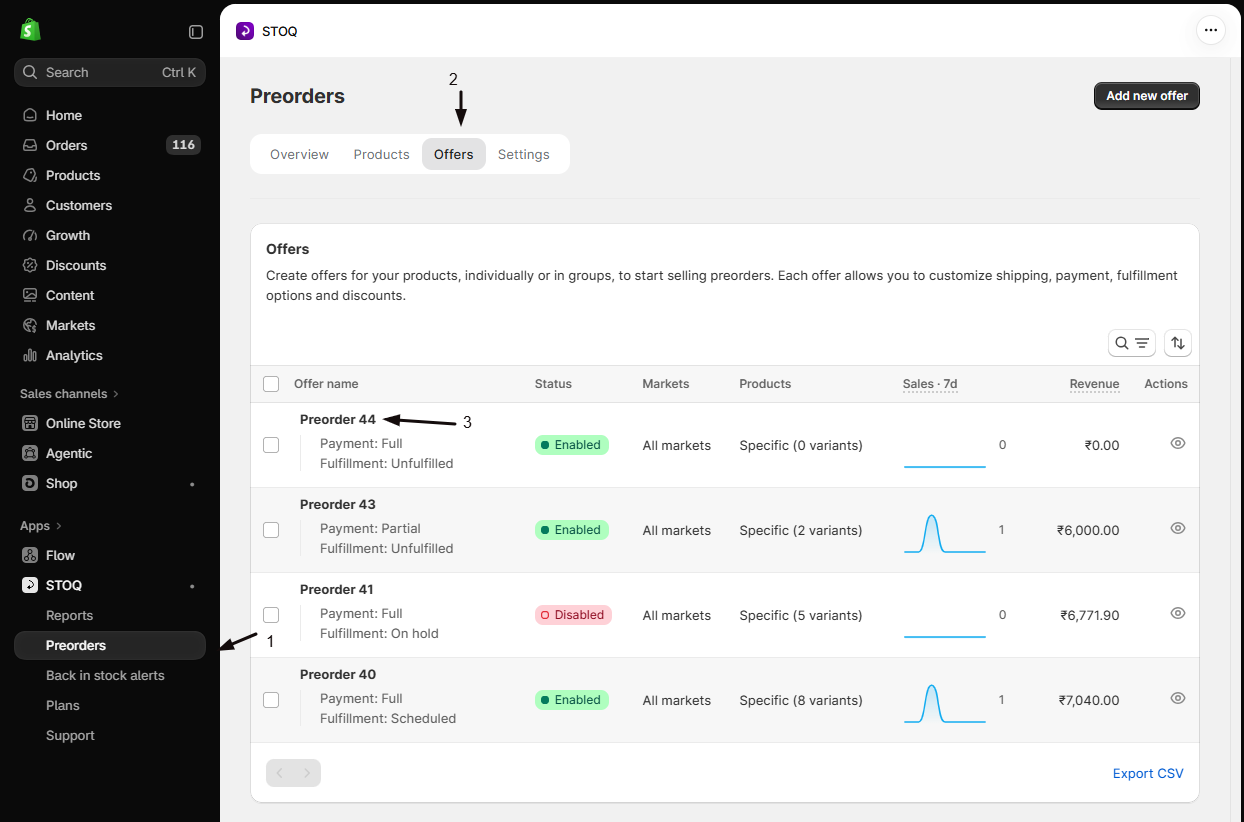
- In the left menu bar of the STOQ app, click Preorders.
- Click the Offers tab.
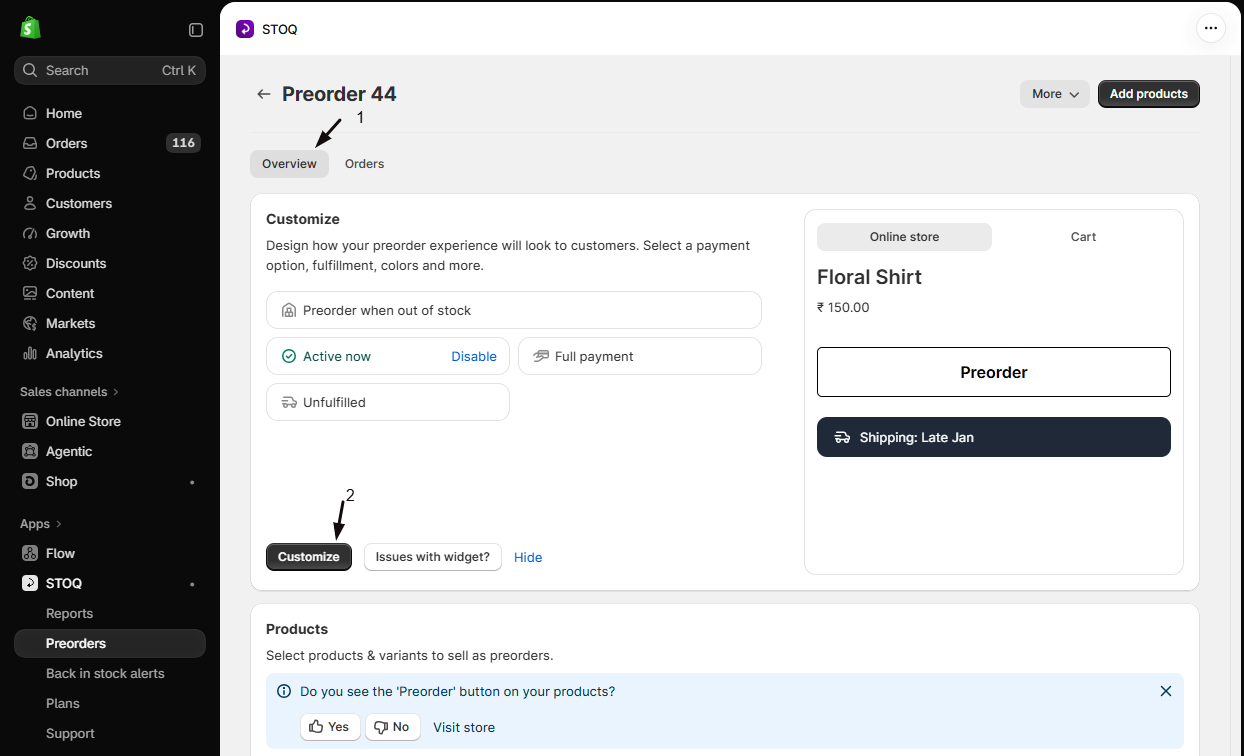
- Click your offer.
- Click Customize.
-
Open the Products section
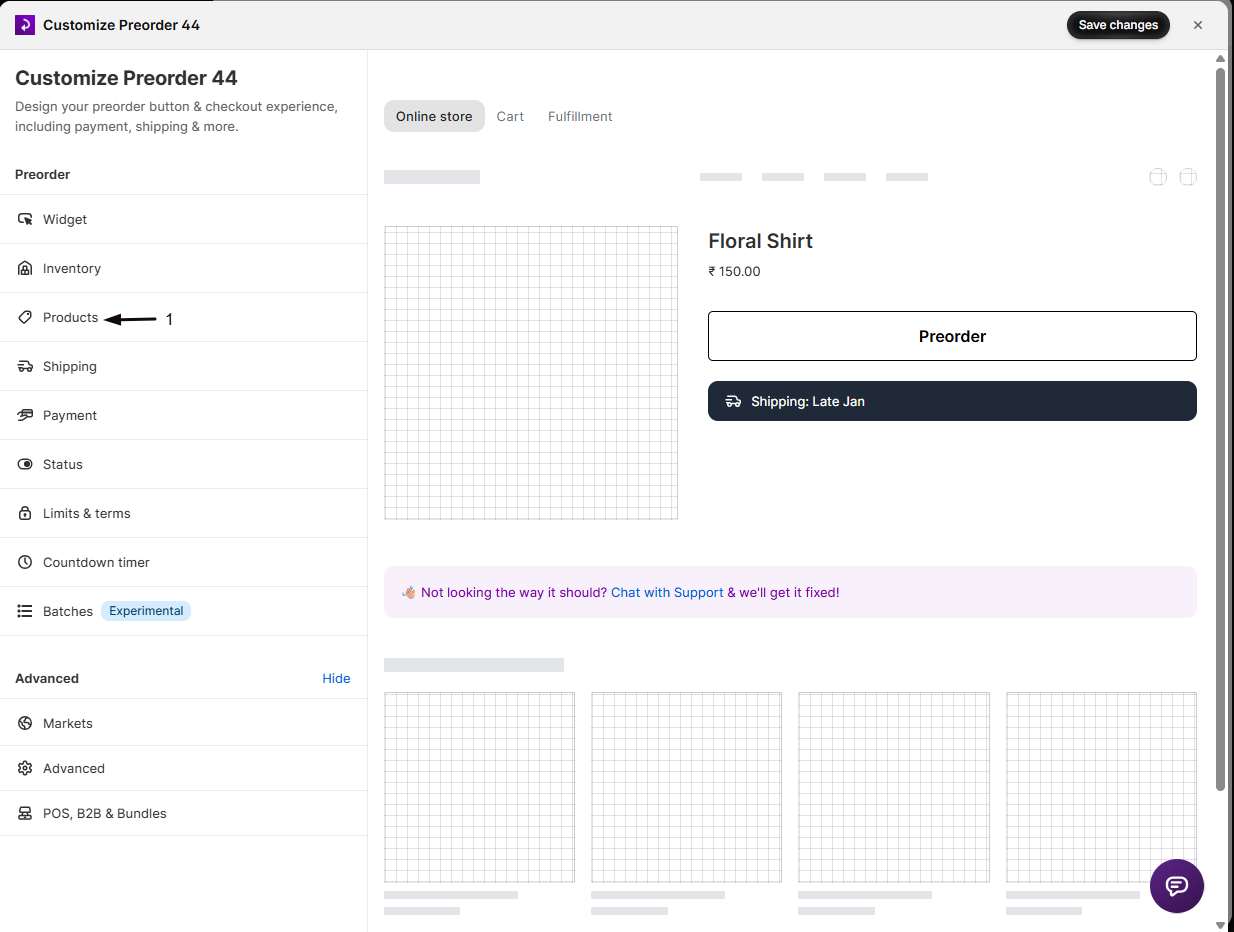
In the editor’s settings list on the left, click Products. To see the product types this offer isn’t using, click the arrow next to the current product type.
-
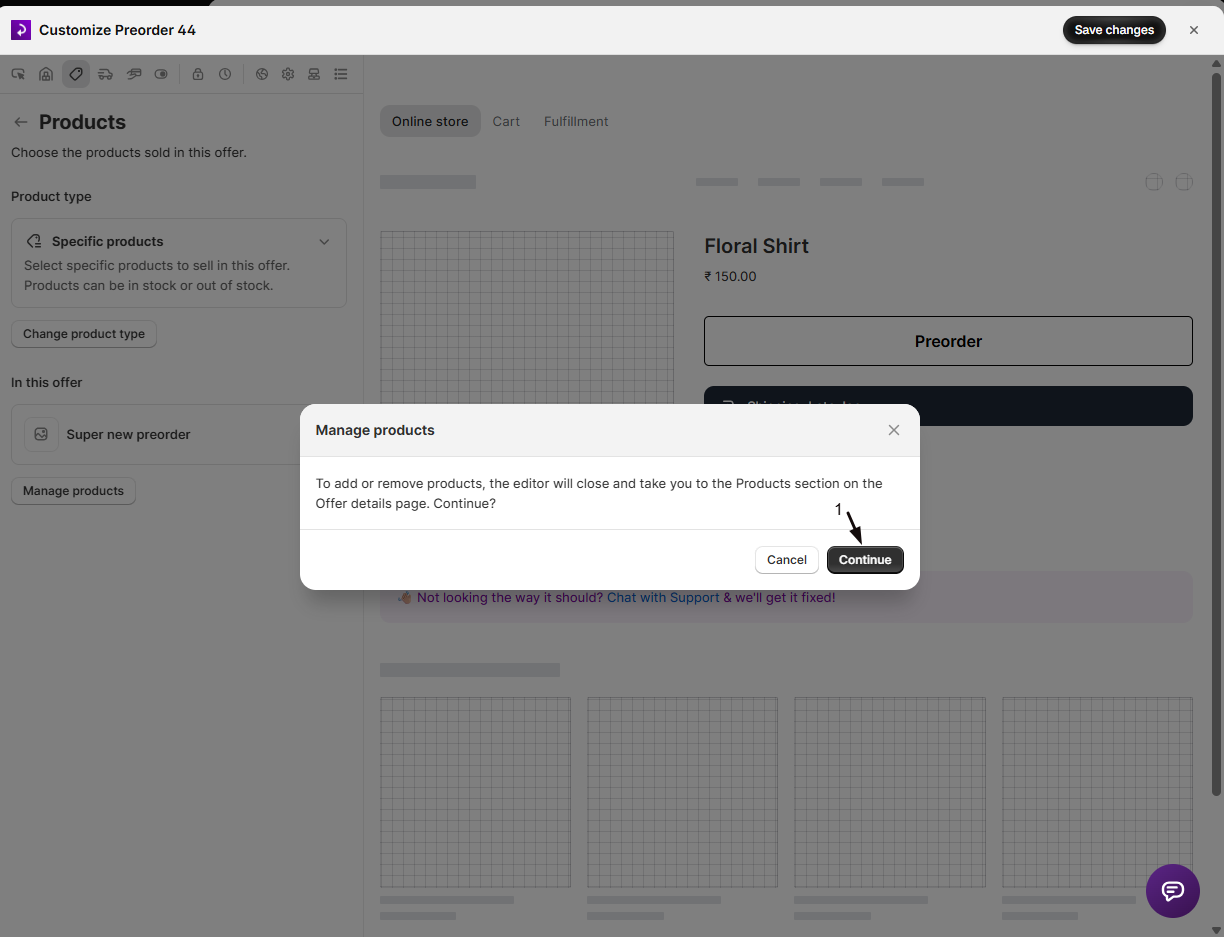
Manage products
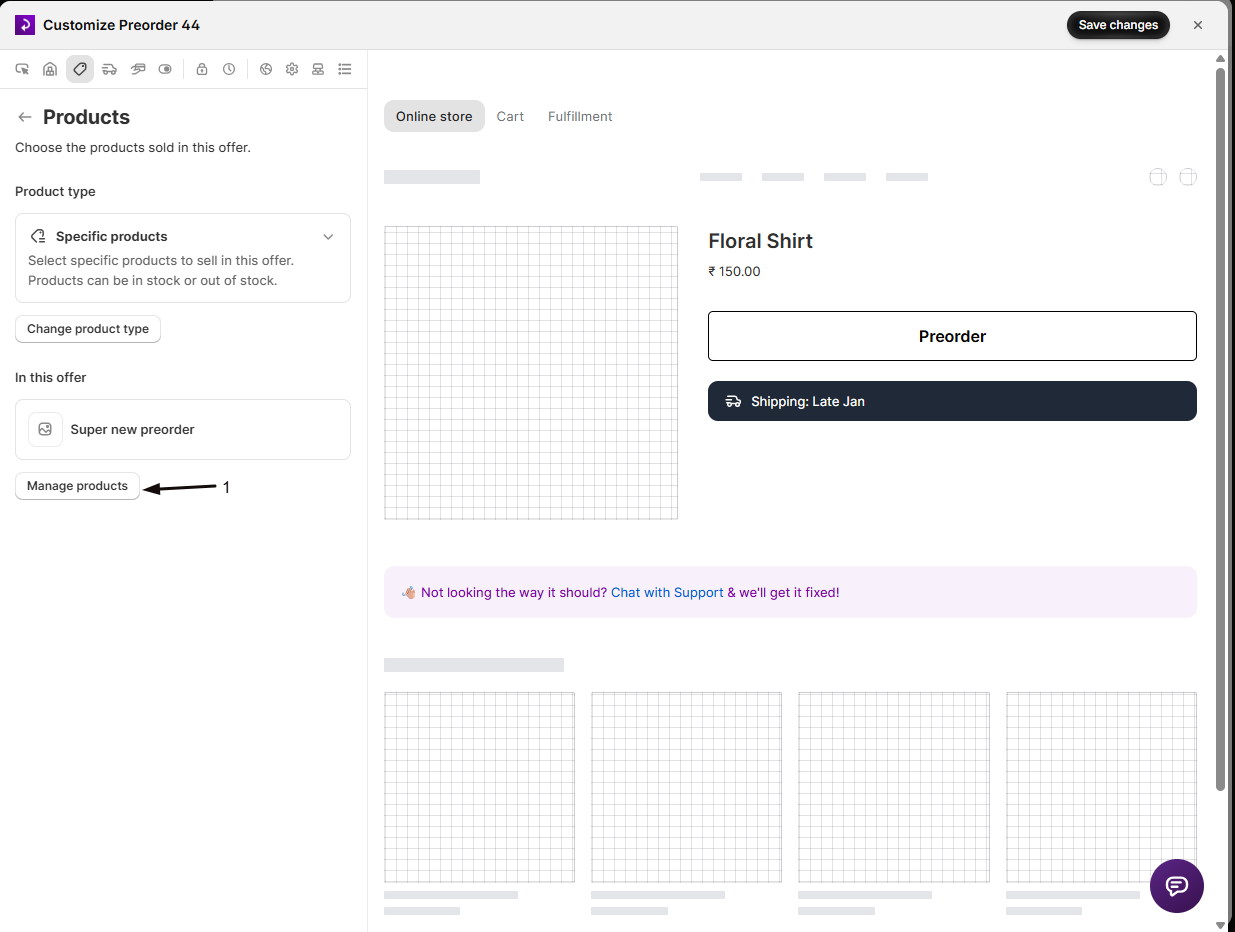
To add or remove products, click Manage products below the product list. To switch the product type, click Change product type. A window explains that the editor will close and take you to the Products section of the offer page:
- With no unsaved changes, click Continue.
- With unsaved changes, click Save and exit to save them and continue.
- Click Cancel to stay in the editor.
Import products with CSV
Section titled “Import products with CSV”For large catalogs, import a spreadsheet to add or remove products in bulk.
-
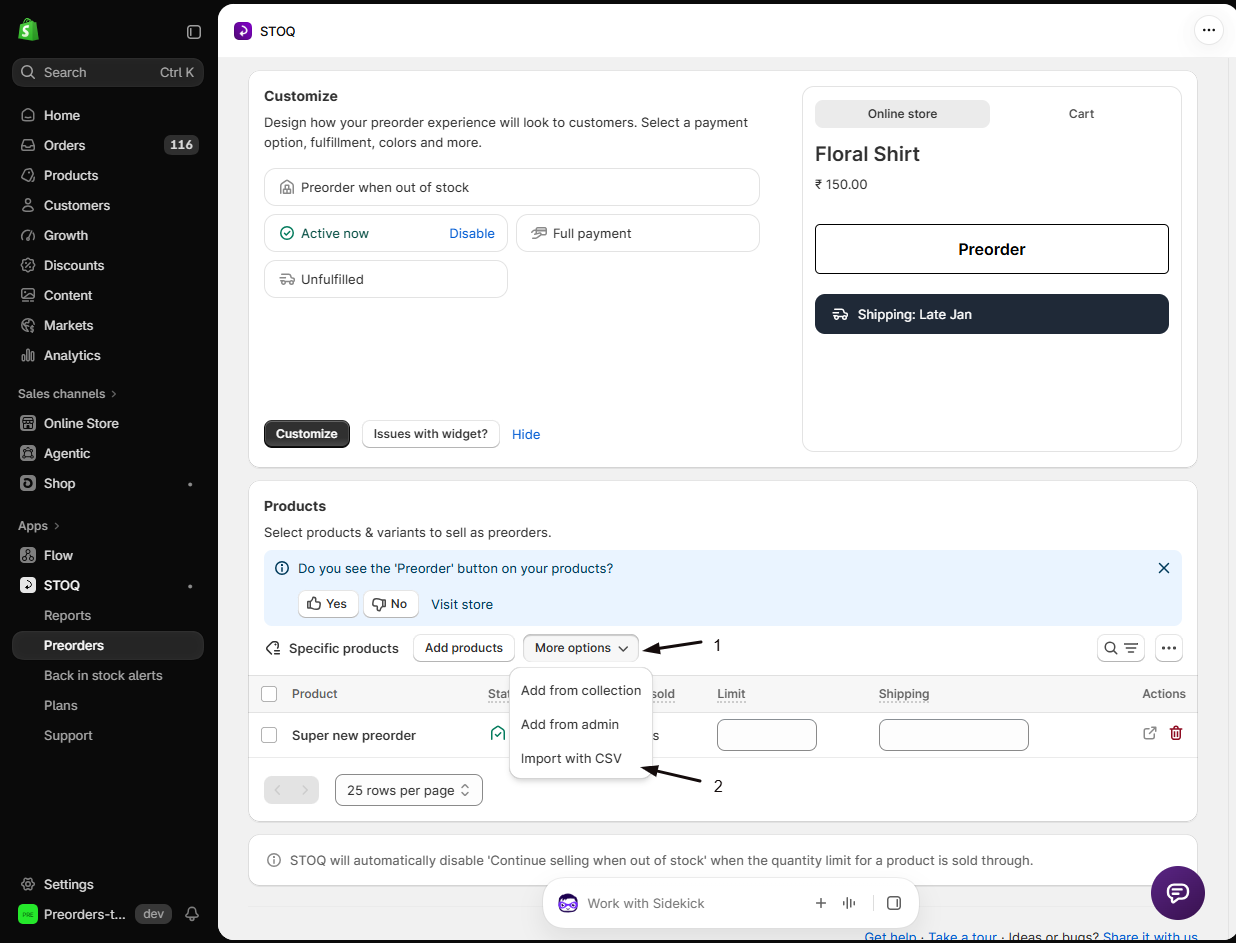
Open Import with CSV
From More options, choose Import with CSV.
-
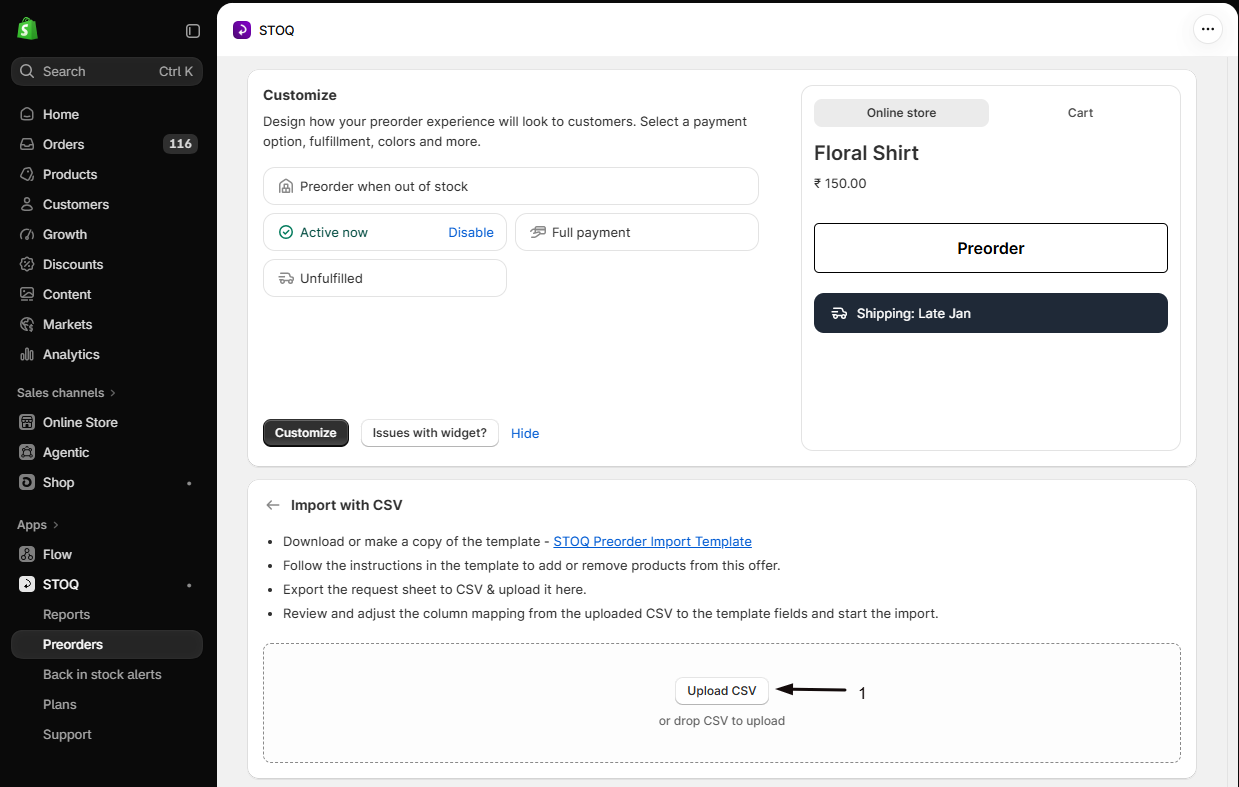
Upload your CSV
Upload your own CSV. It needs an Internal name column (the offer each row belongs to) and a SKU (or Variant ID) column. Other columns and their order don’t matter.
If you’d rather start from a ready-made file, the panel links an optional STOQ Preorder Import Template.
-
Map the columns
Match your columns to STOQ’s fields, then start the import. See Import preorder products with CSV for every column STOQ can read.
-
Track the import
The import runs in the background. Watch its progress under Recent imports (use Refresh to update), and optionally have a status report emailed to you.
Add from the Shopify admin
Section titled “Add from the Shopify admin”If you are browsing your products in the Shopify admin and want to set a product up as a preorder, STOQ can open directly from the product page; you do not need to navigate to the STOQ app first.
When you use the STOQ preorder action on a product (or a selection of products) inside the Shopify admin, STOQ opens the Preorders page and shows the Add products to preorder offer modal automatically. The modal tells you how many products you selected and asks you to choose one of two options:
| Option | What happens |
|---|---|
| Add to existing offer | Choose an offer from the dropdown (each option shows the offer’s internal name, customer-facing name, and how many variants it already contains). STOQ adds the product to that offer and opens the offer’s Products tab. |
| Create new offer | STOQ creates a new offer with default settings and adds the product to it, then opens the new offer so you can configure it. |
Click Continue to confirm. If you close the modal without choosing, no changes are made. After that, the flow is the same as adding products from inside STOQ: the pre-flight check runs, STOQ can enable Continue selling for you, and large additions are processed in the background.
Add from the Purchase options card
Section titled “Add from the Purchase options card”You can add one product or variant to an offer without leaving its page in Shopify admin, from the Purchase options card. STOQ runs the same checks as adding products inside STOQ, and you choose what happens before anything is added. Only offers with the Specific products product type are listed.
-
Open the product in Shopify admin
In Shopify admin, open the product, or one of its variants, that you want to take preorders for.
-
Choose STOQ on the Purchase options card
On the Purchase options card, add a purchase option and choose STOQ preorders. The Add to a preorder offer window opens.
-
Pick an offer
Under Preorder offer, select the offer. Each offer shows its type (Preorder when out of stock or Preorder for in-stock products) and how many variants it holds. An offer that already has this product shows Already in this offer and is greyed out. An offer that’s turned off or has ended shows Off. If you have more than 50 offers, type in Search offers to find one.
-
Click Add
Click Add. STOQ checks the product against the offer. If nothing needs a look, it’s added straight away.
-
Review what STOQ found
If something needs a look, STOQ lists it. Click Change (or View) on a row to see your choices, then Done:
- Continue selling is off: choose Turn it on for me (recommended), or I’ll turn it on myself in Shopify. If the offer starts on a later date, there’s nothing to choose: STOQ turns it on when the offer starts.
- The product is in Other offers: choose Move it to this offer (recommended), or Keep it in both (Keep it in all of them when there are several).
- The product is also on other sales channels: nothing to choose. It’s still added, but customers on those channels can’t tell it’s a preorder.
Click Add product to add it, or Cancel to go back.
-
Check the result
STOQ shows Added to your offer and says whether the product shows Preorder now. Click Open offer in STOQ to open the offer in STOQ, or Done to close the window.
To start a new offer from here, click Create new offer instead of picking one. STOQ creates the offer with this product in it and leaves it turned off, so nothing changes for customers. Click Finish setup to open it in STOQ, set it up, then turn it on.
See an offer’s summary on the card
Section titled “See an offer’s summary on the card”Once a product is in an offer, open the STOQ purchase option on its Purchase options card to see a summary without opening STOQ:
- This product: each variant’s Preorder status (for example Taking preorders or When it sells out) and its Inventory.
- Offer: the offer’s Status, plus Payment, Discount, Shipping, Fulfillment and Markets.
If some variants have Continue selling off, a banner says they can’t take preorders. Click Turn on Continue selling to fix them from the card. Click Open offer in STOQ to edit the offer.
Add from the Products tab
Section titled “Add from the Products tab”-
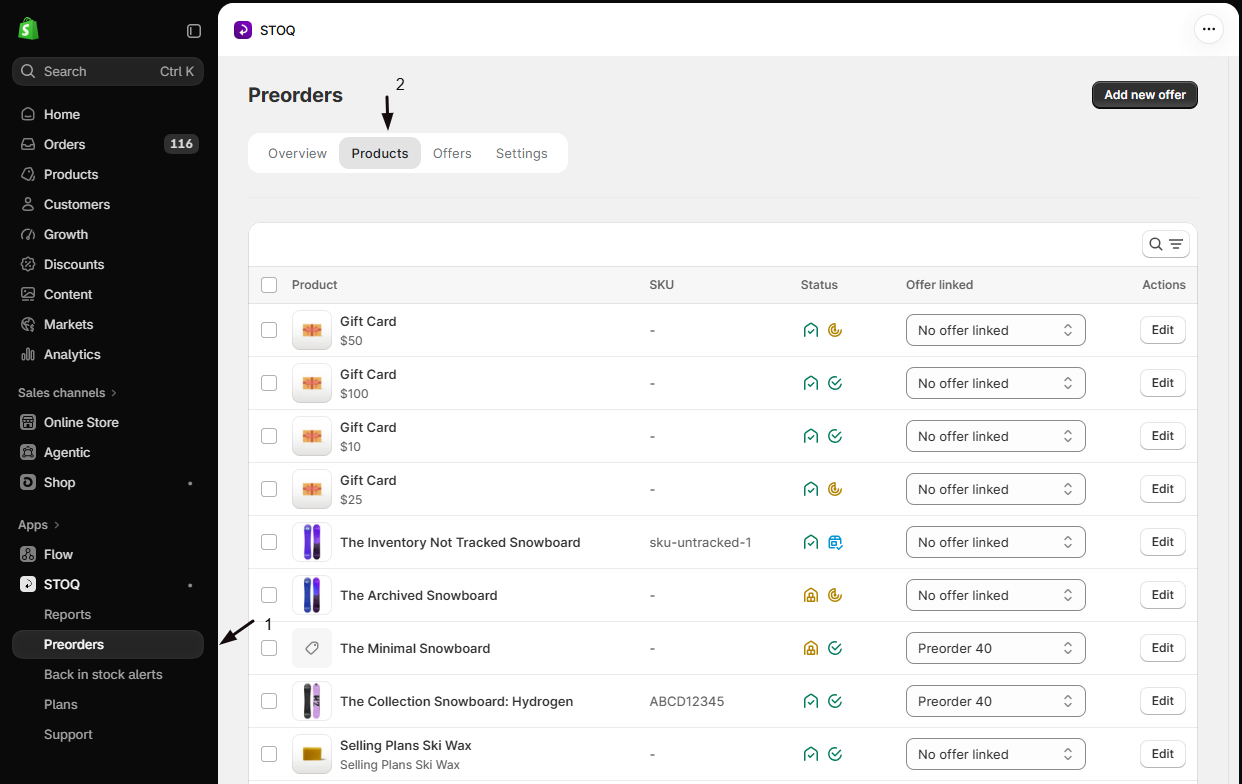
Open the Products tab
- In the left menu bar of the STOQ app, click Preorders.
- Click the Products tab.
The tab lists only the products that are already in an offer, including offers that are turned off (these show as (Disabled) after the offer name). To see the rest of your variants, choose No offer linked in the Filter by offer filter.
To reorder the list, click the sort button at the top right of the table and choose Product title (A-Z or Z-A) or Date created (Newest first or Oldest first). To show only some products, click the search and filter button, click Product status, and tick Active, Draft, Archived or Unlisted.
-
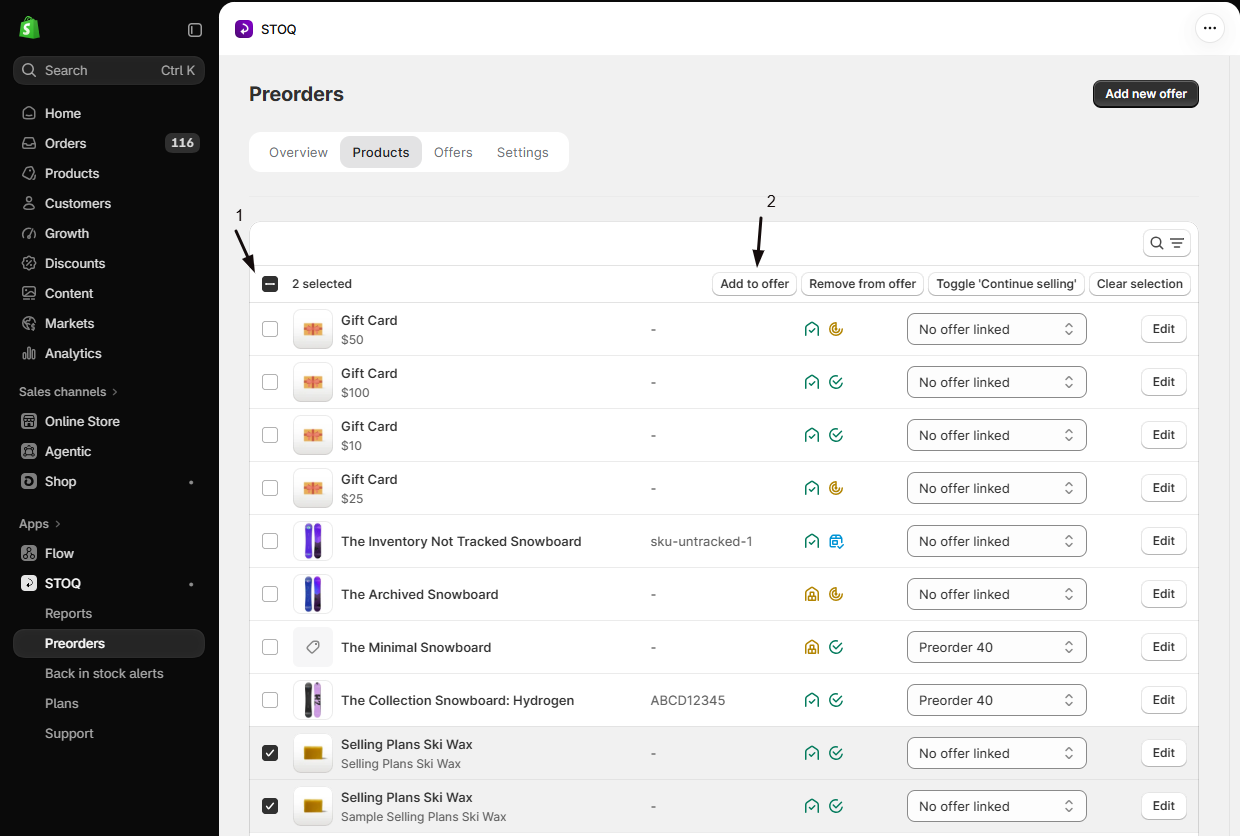
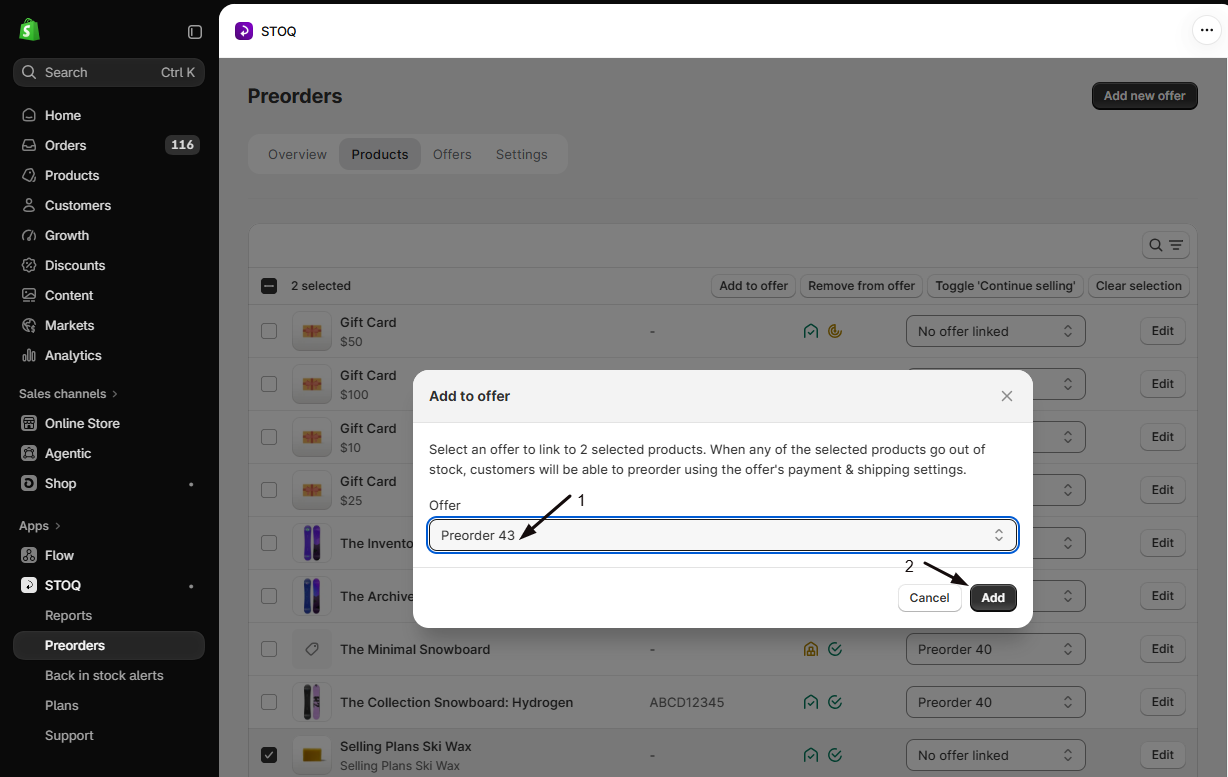
Select variants and add them
Click Add products above the table, pick products in the Shopify product picker, then choose the offer in the Add to offer window and click Add.
You can also tick variants in the table and use Add to offer, or use the per-row Offer linked dropdown to link a variant to an offer.
-
Turn on Continue selling if needed
Use Toggle ‘Continue selling’ on the selected variants so out-of-stock products can still be bought.
View, filter, and export the products table
Section titled “View, filter, and export the products table”Once products are in the offer, the Products table gives you several ways to view and export them.
View modes: the Group by filter in the table search bar lets you switch between two layouts:
| Mode | What it shows |
|---|---|
| Variant (default) | One row per variant, useful for managing limits and shipping text at the variant level |
| Product | Rows grouped by product with expandable variant rows, useful for reviewing a large catalog at the product level |
Your selection is remembered across sessions.
Sort: click the sort button at the top right of the table, choose Product title, Created, Date added or Units sold, then pick the direction (for example Newest first or Most first). Created is when the product was created in Shopify. Date added is when it was added to this offer.
Product status: click the search and filter button, click Product status, and tick Active, Draft, Archived or Unlisted. Draft and archived products can’t be bought on your storefront, so this is a quick way to find products to remove from the offer.
Column visibility: the table always shows Product, Status, Units sold, and Actions. You can show or hide optional columns using the filter popover:
| Optional column | What it contains |
|---|---|
| SKU | The variant’s SKU |
| Vendor | The product vendor |
| Product status | The product’s Shopify status: Active, Draft, Archived or Unlisted (shown by default on desktop) |
| Limit | The per-variant preorder cap (shown by default when the offer uses STOQ inventory tracking) |
| Shipping | Per-variant shipping date or note (shown by default when the offer uses per-product shipping info) |
| Added on | The date the variant was added to the offer |
Column preferences are saved locally in your browser.
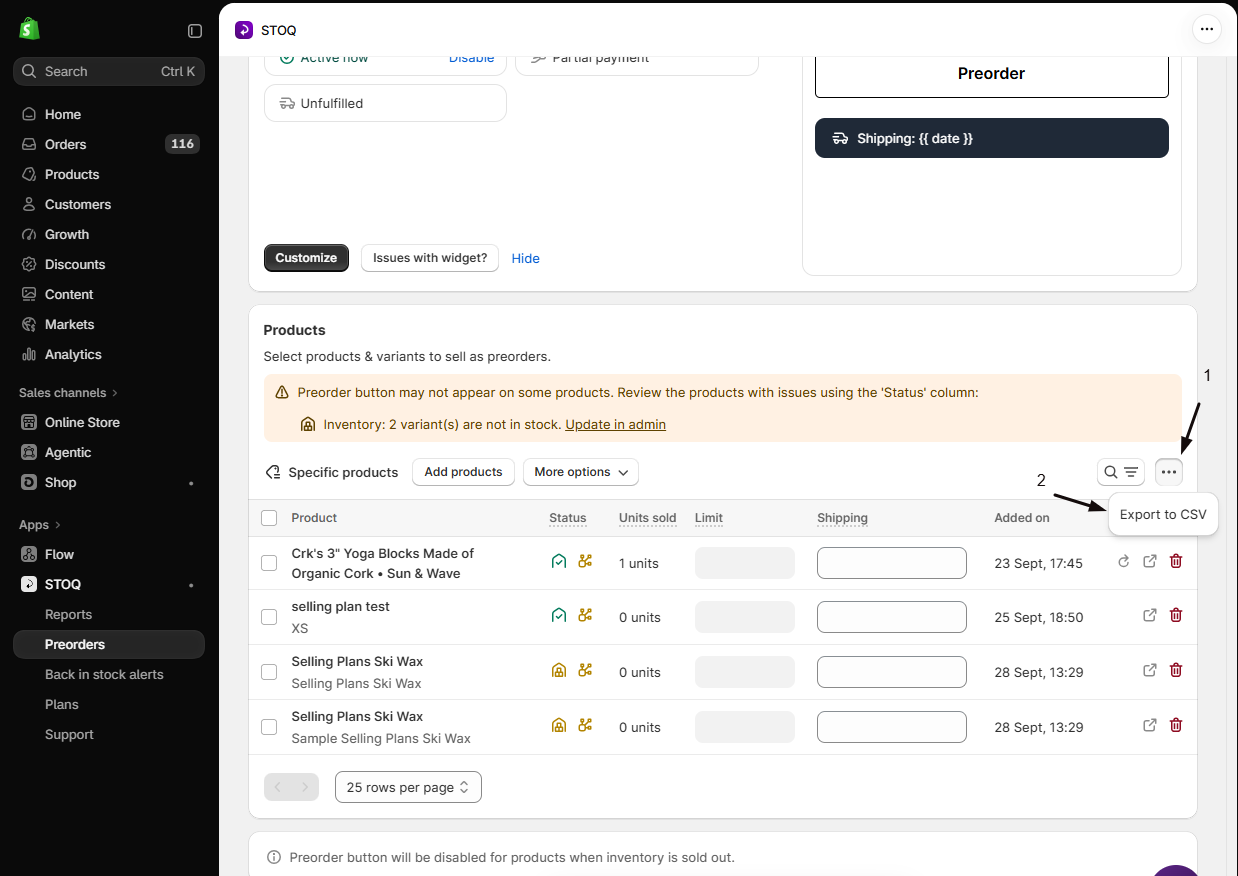
Export to CSV: click the ••• (more options) button at the top right of the table and choose Export to CSV to download all products currently in the offer as a spreadsheet. This is separate from the CSV import; it exports what is already in the offer.
Per-variant settings
Section titled “Per-variant settings”Once products are in the offer, each variant can have:
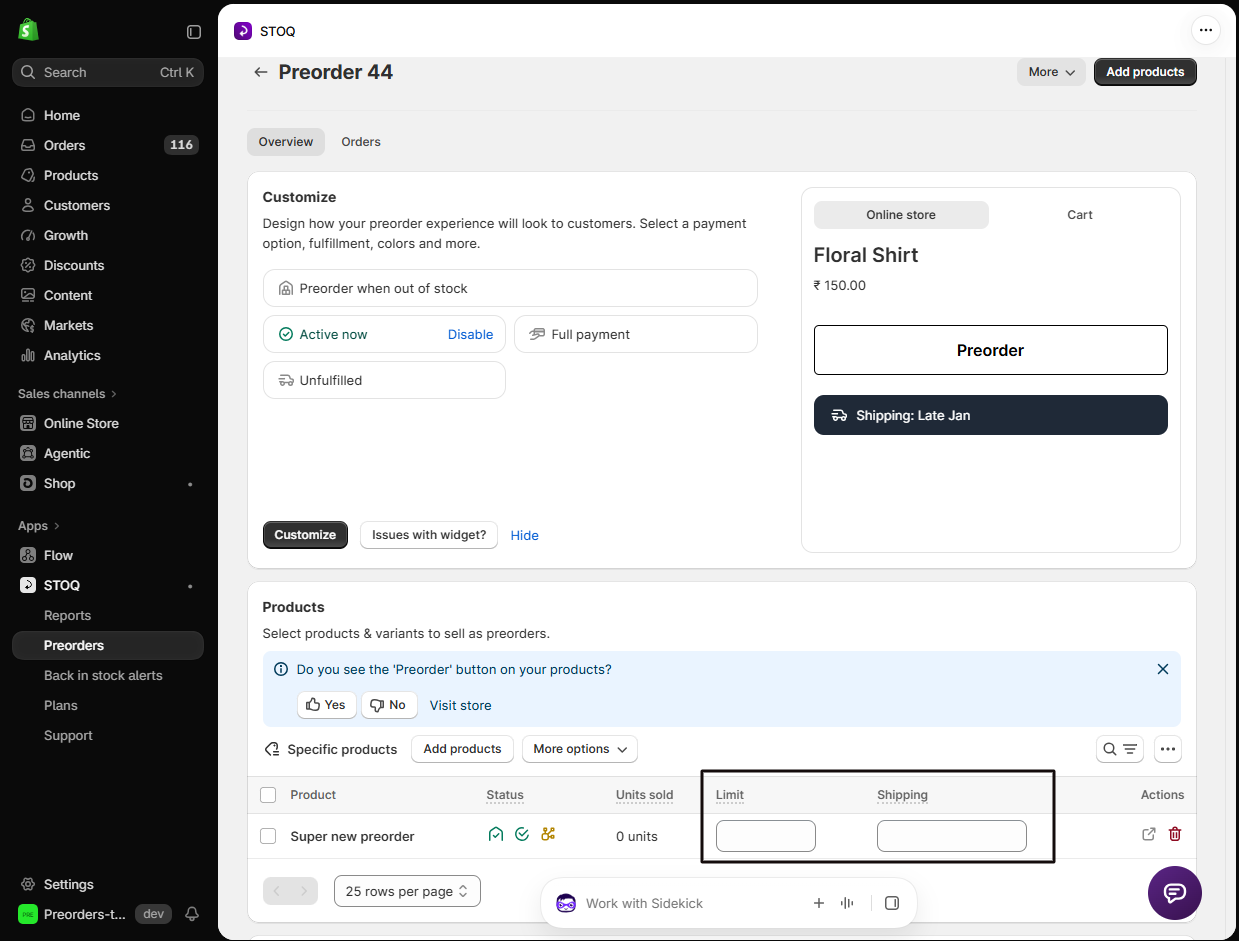
- Limit: the maximum number of preorder units to sell for that variant (leave blank for unlimited). When a variant sells through its limit, STOQ automatically turns off Continue selling when out of stock for it, so it stops taking preorders.
- Shipping: a shipping date, timeline, or note for that variant (when the offer uses per-product shipping info).
Use the row’s Edit action to set these, then save.
Remove products
Section titled “Remove products”There are two places to remove a product from an offer:
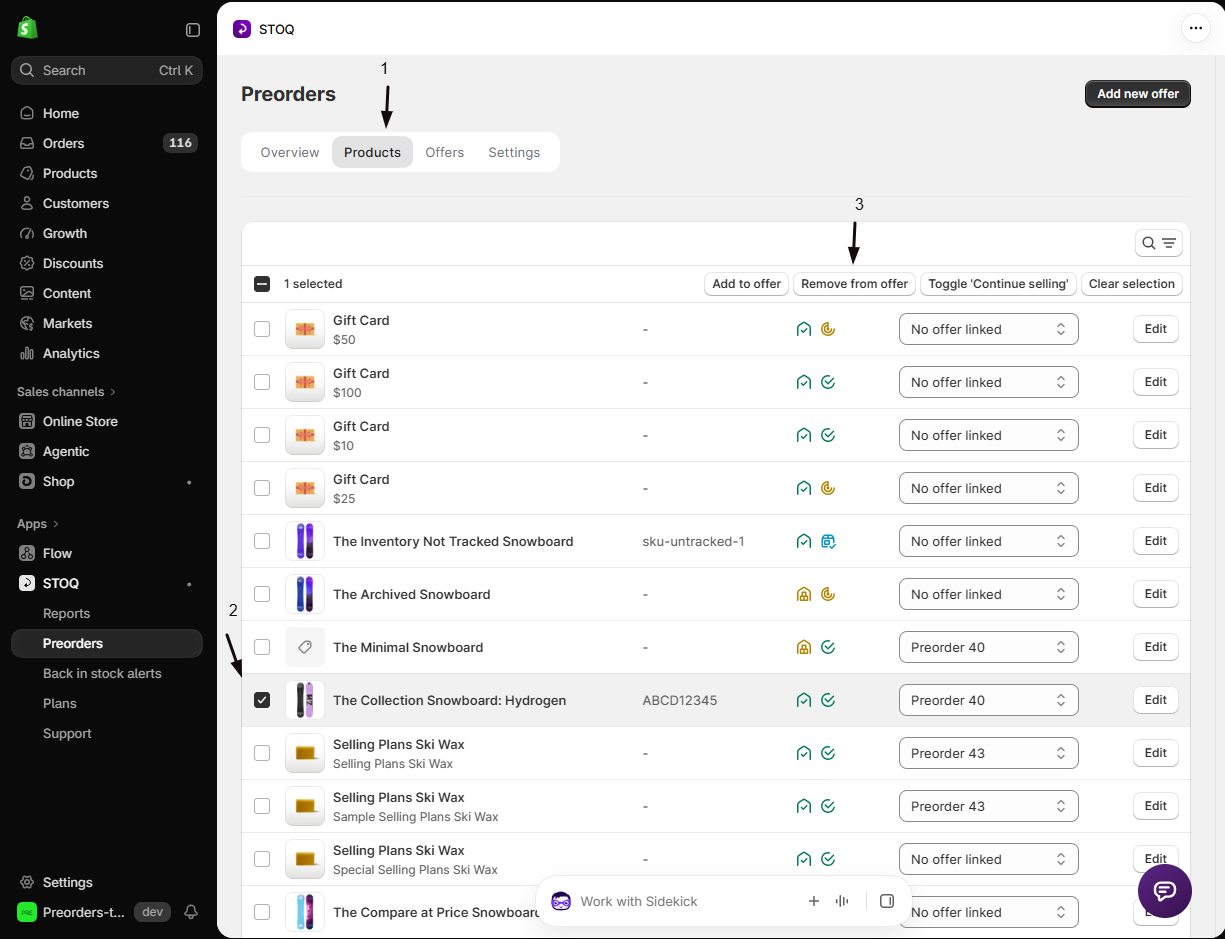
- From the Products tab: in the left menu click Preorders, then the Products tab. Select a product that’s already in an offer and a Remove from offer action appears; use it to take the product out of its offer.
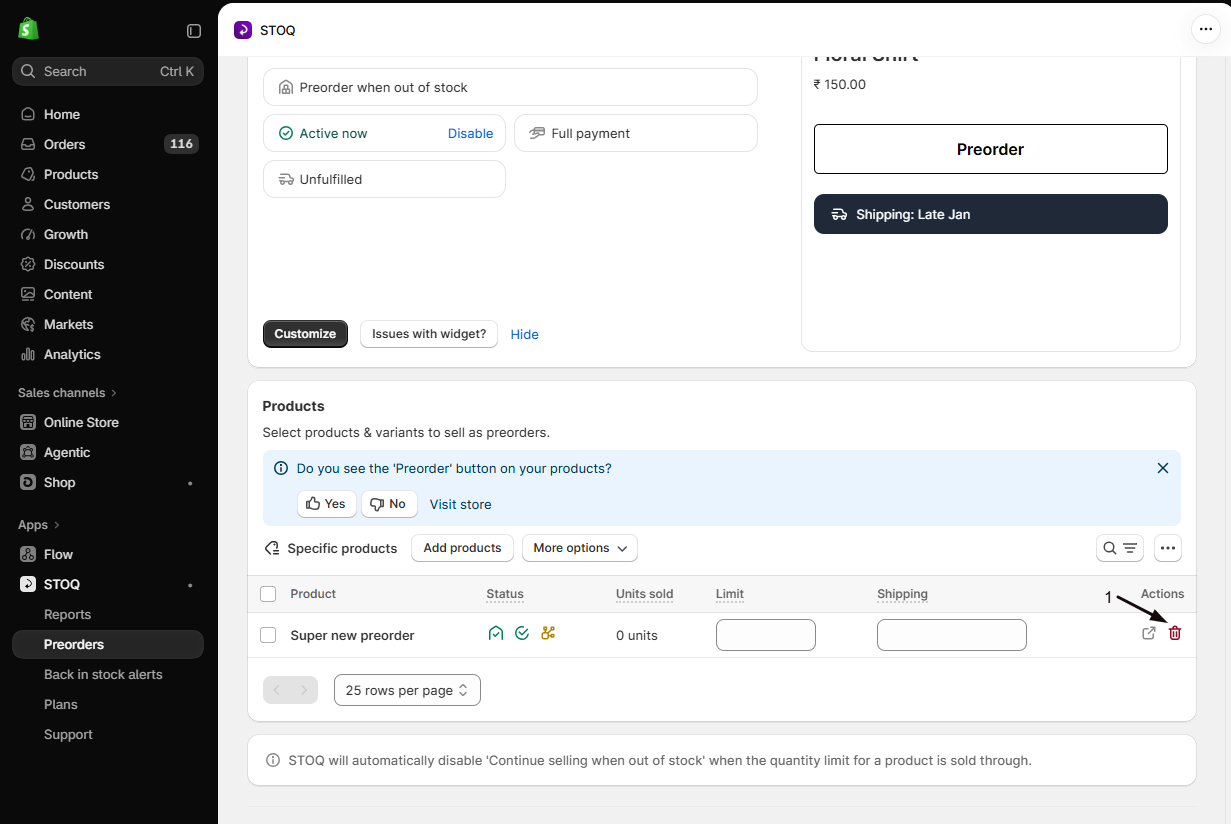
- From the offer: in the left menu click Preorders, open the Offers tab, open your offer, and go to its Products section. Select a product, and a Remove variants action appears at the top right of the section.
Either way, STOQ asks what to do with Continue selling when out of stock on the removed variants: turn it off, leave it on, or don’t change it. If you remove variants from the Products section and choose to turn it off, STOQ warns you when another enabled out-of-stock offer still includes some of them. Continue selling is shared by every offer, so turning it off also stops preorders there. See Products shared between offers.
Check your setup
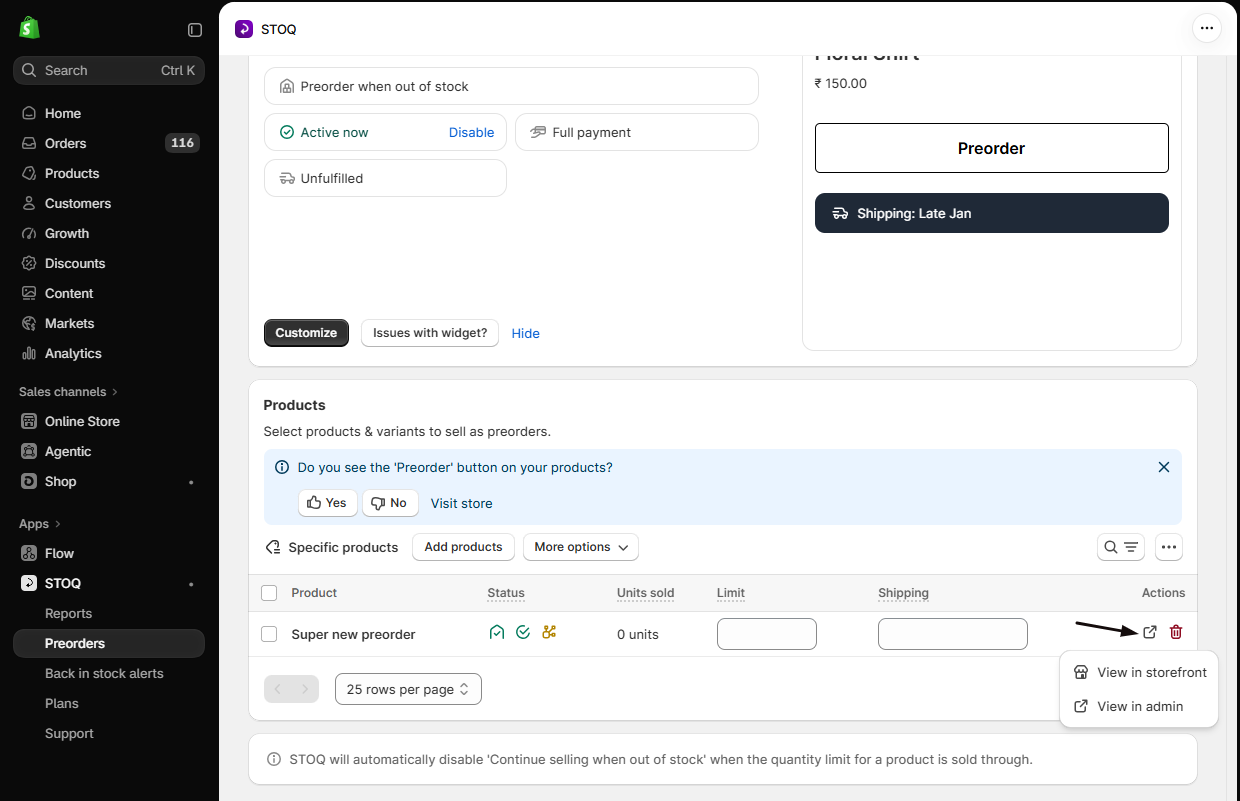
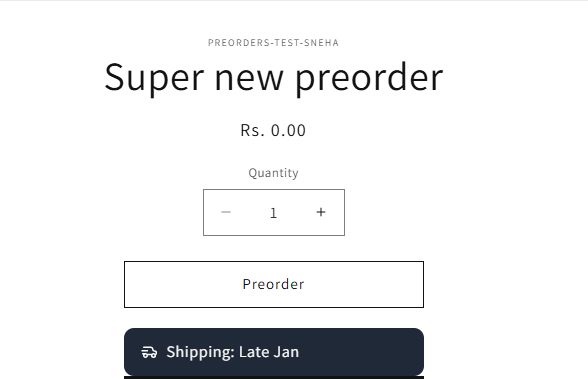
Section titled “Check your setup”A product is ready to take preorders when it’s in the offer, its inventory is at or below zero, and Continue selling is on. Open the product on your storefront and confirm the Preorder button appears (the offer must also be Enabled).
Troubleshooting
Section titled “Troubleshooting”The Preorder button isn't showing after you add a product
Check the following:
- Continue selling when out of stock is on.
- The product is in an offer that’s Enabled.
- The STOQ app embed is enabled in your theme.
- Inventory is at or below zero.
For the full checklist (including market and multiple-offer conflicts), see Troubleshooting the Preorder button.
A bundle product didn't show up after adding a collection
Add all products in the collection window skips Shopify bundle products. Select the bundle product in that window and click Add products, or add it on its own from the offer’s Add products button. STOQ counts bundle sales on the bundle product. See Sell a Shopify bundle as a preorder.
A large addition is taking a while
That’s normal. Large additions process in the background, and the product list refreshes once the job finishes.
A product you just tagged isn't in the offer yet
STOQ checks tagged products every 15 minutes, so wait up to 15 minutes. If it’s still missing, check:
- The tag matches one of the offer’s tags as a whole word.
saledoesn’t matchsummer-sale. - The product is out of stock. Tag offers only pick up out-of-stock variants.
- The offer uses Track all tagged products, or Continue selling when out of stock is already on for the product.
- The product isn’t on the offer’s Exclude specific products list.
Product tags is greyed out
Check:
- You’re on a paid plan.
- The offer preorders out-of-stock products. Tag tracking isn’t available when the offer shows the Preorder button for in-stock products.
- The offer is set to all markets. Tag tracking isn’t available when specific markets are selected.
The Select tags window says No products have these tags
No product in your store has that exact tag. Compare the spelling with the tag in Shopify admin, or tag the products in Shopify first.
You need to move a variant to a different offer
A variant is linked to one offer at a time. Use the Offer linked dropdown on the Products tab to move it.
A variant stops taking preorders on its own
It likely sold through its per-variant Limit, which turns off Continue selling when out of stock automatically. Raise or clear the limit to resume.
A product is missing from the Products tab
The Products tab under Preorders lists only products that are in an offer. Products that only have back in stock signups, or that were never added to an offer, are hidden by default. To see them:
- Click the search and filter button above the table.
- Click Filter by offer.
- Tick No offer linked.
If a Product status filter is applied, clear it too, or click Clear all.
A too many products notice appears when you filter by status
The list has too many products to check their status in one go, so STOQ skips the status filter and shows every product. Narrow the list first, then filter again:
- Type a product name or SKU in the search field.
- On the Products tab under Preorders, you can also tick a single offer under Filter by offer.
- Apply the Product status filter again.
Limitations
Section titled “Limitations”A product variant can only belong to one offer at a time. Adding it to a different offer moves it there; use the Offer linked dropdown on the Products tab to do this deliberately.
Why does Continue selling when out of stock have to be on?
It’s the Shopify setting that lets an out-of-stock product still be purchased. Without it, the product shows as sold out and the Preorder button can’t appear. STOQ can turn it on for you as you add products.
Can a product be in more than one offer?
A variant is linked to one offer at a time. Use the Offer linked dropdown on the Products tab to move a variant to a different offer.
How do I preorder a whole collection?
Use Add from collection (a one-time import) or set the offer’s product type to Collection (stays in sync automatically) to pull in everything in that Shopify collection.
How quickly does a product join or leave a tag offer after I change its tags?
Within about 15 minutes. STOQ checks tagged products every 15 minutes rather than instantly. When you first save the tags, STOQ starts adding matching products right away.
Does the tag have to match exactly?
It has to match a whole tag, but capital letters don’t matter. Preorder matches preorder, but sale doesn’t match summer-sale.
If I pick several tags, does a product need all of them?
No. A product joins the offer if it carries any one of the tags you picked.
Does removing a tag cancel orders already placed?
No. Removing the tag takes the product out of the offer for future purchases. Preorders already placed keep their original terms.
Does STOQ turn on Continue selling for tagged products?
Only if you choose Track all tagged products. With Only track products with ‘Continue selling’ enabled, you turn it on yourself in Shopify for each product you want to sell as a preorder.
Can I leave one tagged product out of the offer?
Yes. Add it under Exclude specific products in the offer’s product type settings, or remove the tag in Shopify. See Exclude products from a preorder offer.
Can I cap how many preorders I take?
Yes. Set a per-variant Limit for the maximum number of preorder units. When a variant sells through its limit, STOQ automatically turns off Continue selling for it.
Does removing a product from an offer affect orders that were already placed?
No. Removing a product only affects future purchases; orders already placed keep their original terms. STOQ asks whether to turn off, leave on, or not change Continue selling when out of stock for the removed variant going forward.
Why doesn't Add products show the add options for my offer?
Your offer’s product type is Collection, Product tags or All products, so STOQ adds out-of-stock products automatically. The Add products button shows a Products are added automatically banner instead. To pick products yourself, switch the product type to Specific products.
Can I add products from inside the offer editor?
Not directly. The editor’s Products section shows what’s in the offer. Click Manage products there and STOQ closes the editor and takes you to the offer’s Products section, where you add or remove products.
Will I lose my editor changes if I click Manage products?
No. If you have unsaved changes, STOQ asks first. Click Save and exit to save them before it takes you to the products, or Cancel to stay in the editor.
STOQ says my products are also on other channels. Do I have to fix that first?
No. The warning is advice only, and the products are added unless you choose Don’t add these N. Preorders still work on your Online Store and POS. On the other channels, customers see normal stock with no preorder details. To change that, unlist the products from those channels in Shopify. If the channel is Shop, you can turn on the Online Store redirect in the Shop app instead.
Will STOQ remove my products from the Shop app or other channels?
No. STOQ never changes where your products are published. You make that change in Shopify admin.
Why isn't my offer listed on the Purchase options card?
The card only lists offers that use the Specific products product type. Offers that use Collection, Product tags or All products pick their own products, so add products to those in STOQ or change the product in Shopify (for example, its tags or collection).
Why is an offer greyed out on the Purchase options card?
That offer already has this product. It shows Already in this offer. To see its settings, open the STOQ purchase option on the card, or open the offer in STOQ.
Does adding from the Purchase options card turn the offer on?
No. Adding a product doesn’t change the offer’s status. If the offer is off, the product won’t show Preorder until you turn the offer on. A new offer made with Create new offer always starts turned off.
Why didn't I see the sales channel warning when I added a collection?
The add-products check only runs for products you choose with Add products on a Specific products offer. It doesn’t run for Add from collection, Import with CSV, or offers whose product type adds products automatically. Products already in an offer still show an orange sales channel icon in the Status column of the Products section. See Find affected products in STOQ.
How do I find draft or archived products in my offer?
Open the offer’s Products section, click the search and filter button, click Product status, and tick Draft and Archived. These products can’t be bought on your storefront until you set them to Active in Shopify.
Does sorting or filtering the table change my offer or my store?
No. Sorting and filtering only change what you see in the table. Your offer, product order on the storefront and Shopify product status stay the same.
Related guides
Section titled “Related guides”Thanks for letting us know.
Still stuck? Ask Quinn or chat with support