Personalize Klaviyo preorder emails with variables
The order, customer, product, and shipping details STOQ sends with each preorder event, and how to use them in your Klaviyo template.
Last updated
When you send preorder notifications through Klaviyo, STOQ passes order, customer, product, and shipping details as properties on the preorder event. This is the full reference of what’s available, so you can personalize your Klaviyo flow’s email or SMS beyond the basics.
Before you begin
Section titled “Before you begin”| Requirement | Detail |
|---|---|
| Preorders routed through Klaviyo | This applies once you’ve connected Klaviyo and set up the preorder flows. See Send preorder notifications through Klaviyo. |
| A verified flow | Each preorder notification has its own Klaviyo metric and flow: Preorder confirmed (STOQ), the shipping update, and the payment failed notification. Open the flow’s action in your Klaviyo dashboard to edit its template. |
Insert a variable
Section titled “Insert a variable”-
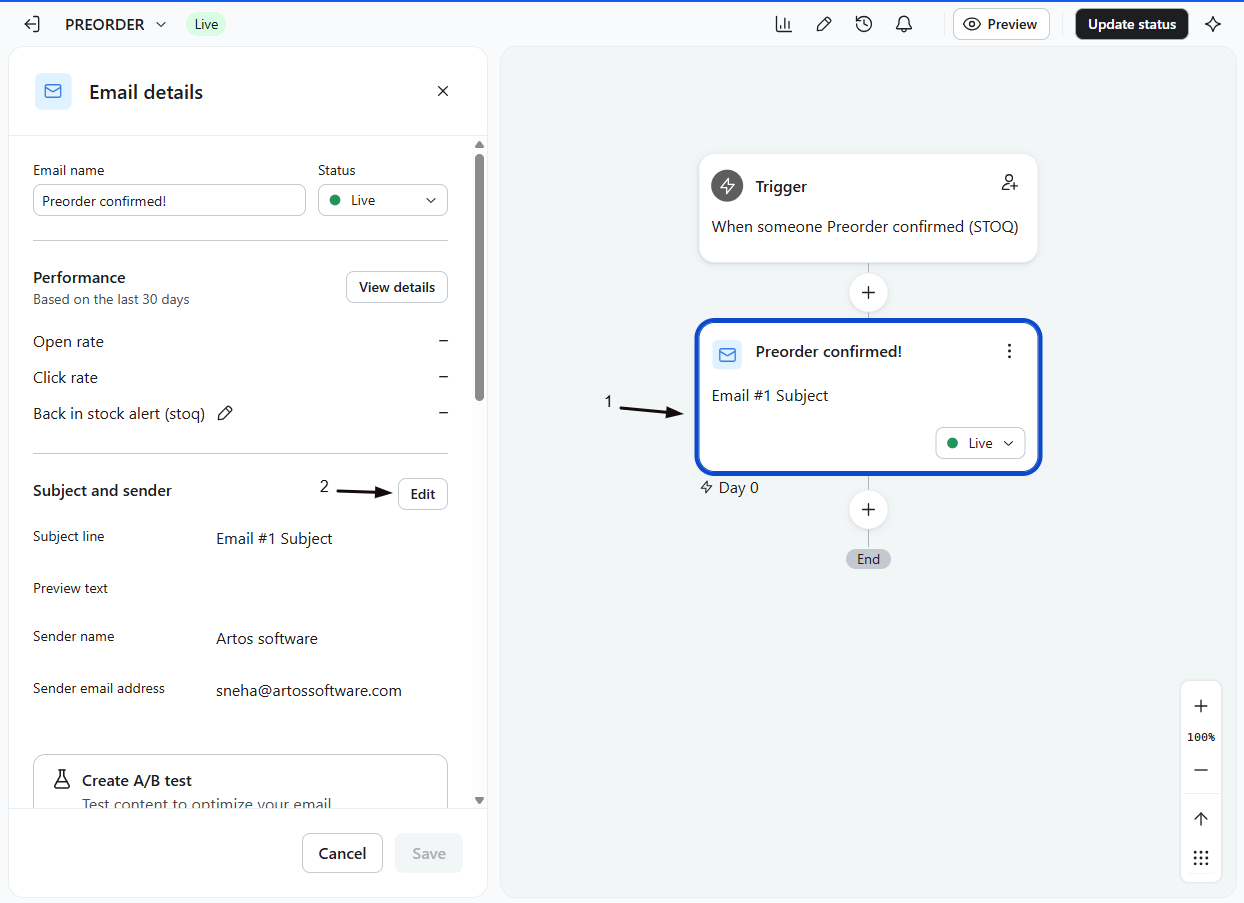
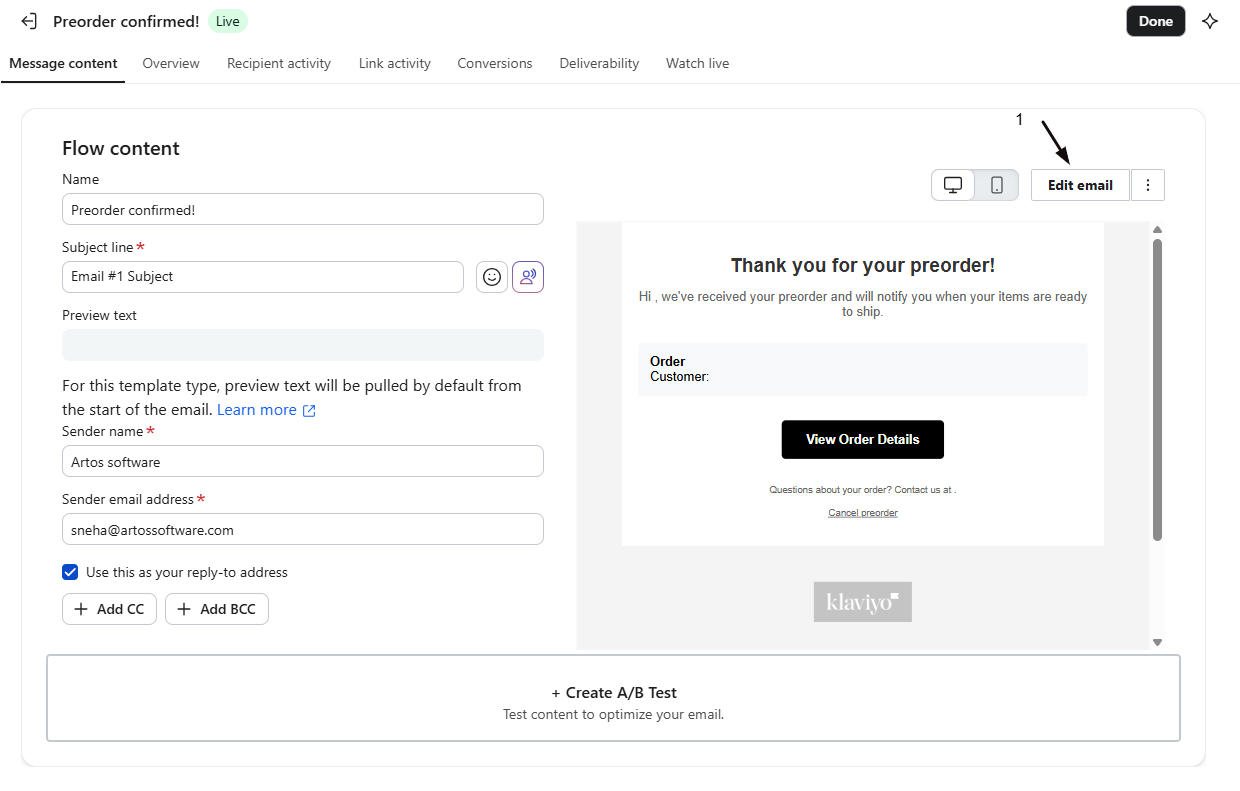
Open the flow template in Klaviyo
In your Klaviyo dashboard, open the flow for the preorder notification you want, then open its Email (or SMS) action to edit the template.
-
Add the variable to a block
Click into a text block and type the variable using its property name from the tables below, for example
{{ event.order.name }}. The same properties are available whether the action sends email or SMS.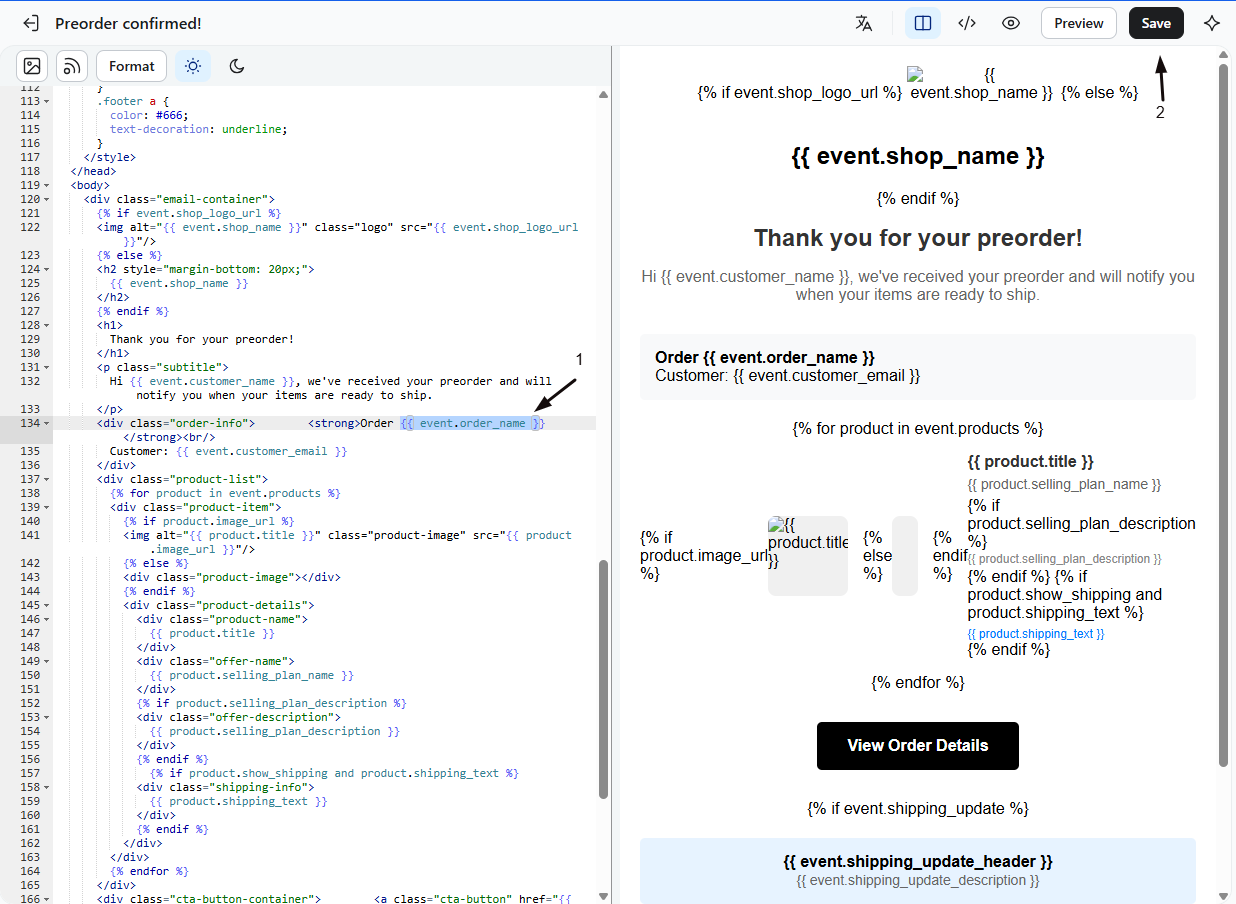
Order variables
Section titled “Order variables”| Variable | What it is |
|---|---|
{{ event.order.name }} |
The order name, like #1001 |
{{ event.order.number }} |
The order number |
{{ event.order.id }} |
The Shopify order ID |
Product variables
Section titled “Product variables”A preorder can contain more than one product, so STOQ sends both summary fields and a list you can loop over.
| Variable | What it is |
|---|---|
{{ event.products }} |
All preordered product titles as one comma-separated string |
{{ event.first_product }} |
The first preordered product’s title |
{{ event.products_count }} |
How many preordered products are in the order |
{{ event.other_count }} |
The count beyond the first product, for wording like “and 2 others” |
{{ event.price }} |
The price the customer paid for the first preordered product, like 29.99 |
{{ event.currency }} |
The order’s currency code, like USD |
{{ event.products_data }} |
A list of each product, for looping (fields below) |
To loop over each product in Klaviyo:
{% for product in event.products_data %} {{ product.title }}{% endfor %}Each item in products_data has: title, product_title, variant_title, image_url, product_handle, product_id, variant_id, price (the price the customer paid for that product), and currency.
Shipping variable
Section titled “Shipping variable”| Variable | What it is |
|---|---|
{{ event.shipping_timeline }} |
The offer’s shipping timeline message, like “As soon as possible” or a date |
Customer variables
Section titled “Customer variables”| Variable | What it is |
|---|---|
{{ event.customer.name }} |
The customer’s full name |
{{ event.customer.first_name }} |
The customer’s first name |
{{ event.customer.last_name }} |
The customer’s last name |
{{ event.customer.phone }} |
The customer’s phone number |
{{ event.customer.locale }} |
The customer’s locale code, like en |
{{ event.customer.country }} |
The customer’s country code |
Shop variables
Section titled “Shop variables”| Variable | What it is |
|---|---|
{{ event.shop.name }} |
Your store’s name |
{{ event.shop.domain }} |
Your store’s domain |
Check your setup
Section titled “Check your setup”In your flow’s action, use Klaviyo’s preview or send yourself a test to confirm each variable renders with real data instead of literal text. If a variable prints as {{ event.property_name }}, double check the name matches one of the tables above exactly.
Why is a variable showing up blank?
The property may be empty for that event, or the name may be misspelled. Compare it against the tables above, and remember nested names use a dot, like event.customer.name.
How do I list every product in a multi-item preorder?
Loop over event.products_data as shown above, or use event.products for a simple comma-separated string of titles.
Do these work in the subject line and SMS too?
Yes. The same event properties are available in the subject line, preview text, email body, and SMS action of the flow.
Are these the same as STOQ's built-in preorder template variables?
They carry the same data, but Klaviyo templates read them as event properties with the event. prefix. STOQ’s built-in editor uses its own variable set. See Send preorder confirmation and update emails.
Related guides
Section titled “Related guides”Thanks for letting us know.
Still stuck? Ask Quinn or chat with support