Sell a preorder in batches
Release one preorder offer in sequential waves, each with its own quantity limit and ship date, and let STOQ move customers through the schedule.
Last updated
Batches let you sell a single preorder offer in sequential waves, each with its own quantity limit and ship date. Instead of building a separate offer per tranche and swapping them by hand, you define the whole schedule up front on one offer, and STOQ moves customers through it. A fast-selling variant can be on a later batch while a slow one is still on the first.
Before you begin
Section titled “Before you begin”Batches is in beta and needs a paid plan.
Turning batches on changes two things about the offer, so it doesn’t combine with:
- Market-specific offers. You can’t turn batches on while the offer targets specific markets.
- Per-product ship dates. Batches use one shared shipping schedule, so turning them on switches the offer to a single shipping setting for all its products. Each batch then carries its own ship date instead.
Batches also replace the offer’s single quantity limit: each batch sets its own limit, so the standard Preorder limits setting doesn’t apply while batches are on.
Set it up
Section titled “Set it up”On a phone, this menu is collapsed. In the Shopify mobile app, tap the STOQ logo at the top of the screen to open it, then choose the section named below. There is no hamburger icon. See Finding the STOQ menu.
-
Open Batches
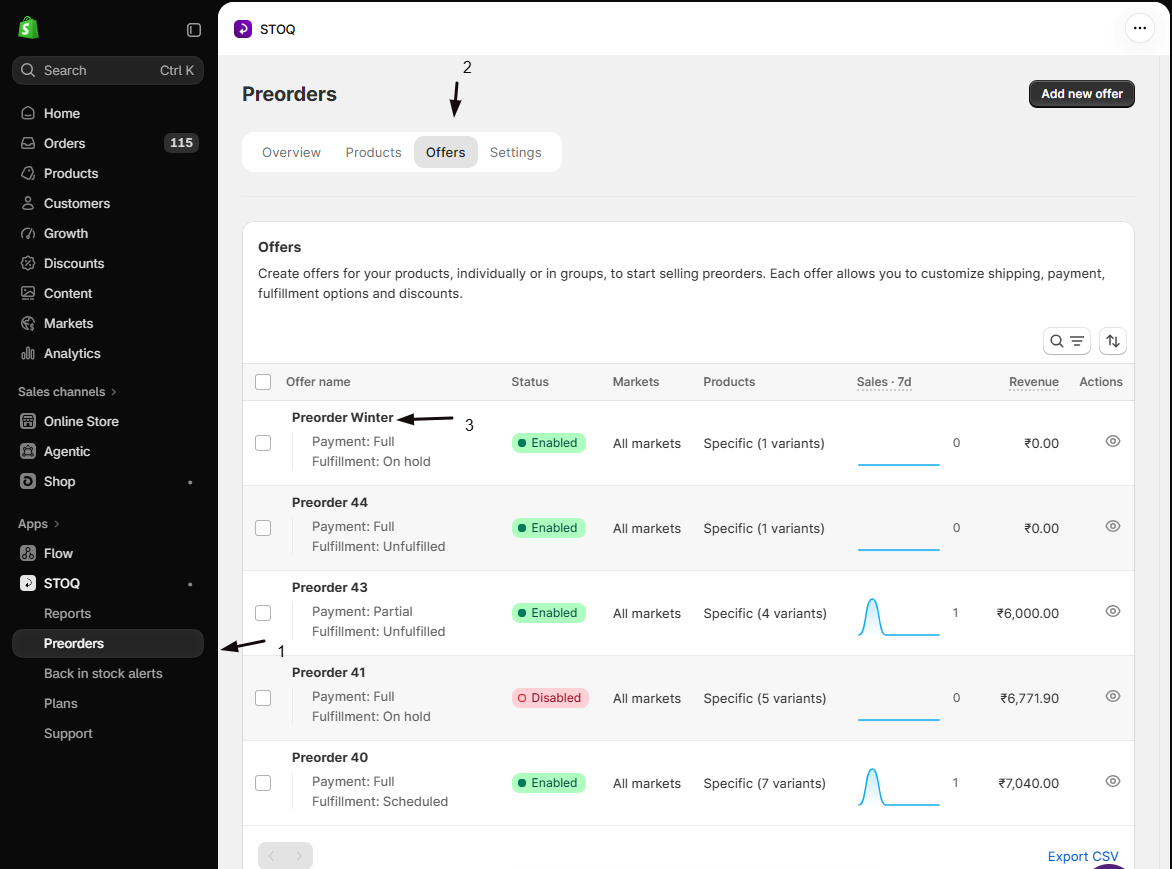
- In the left menu bar of the STOQ app, click Preorders, then the Offers tab.
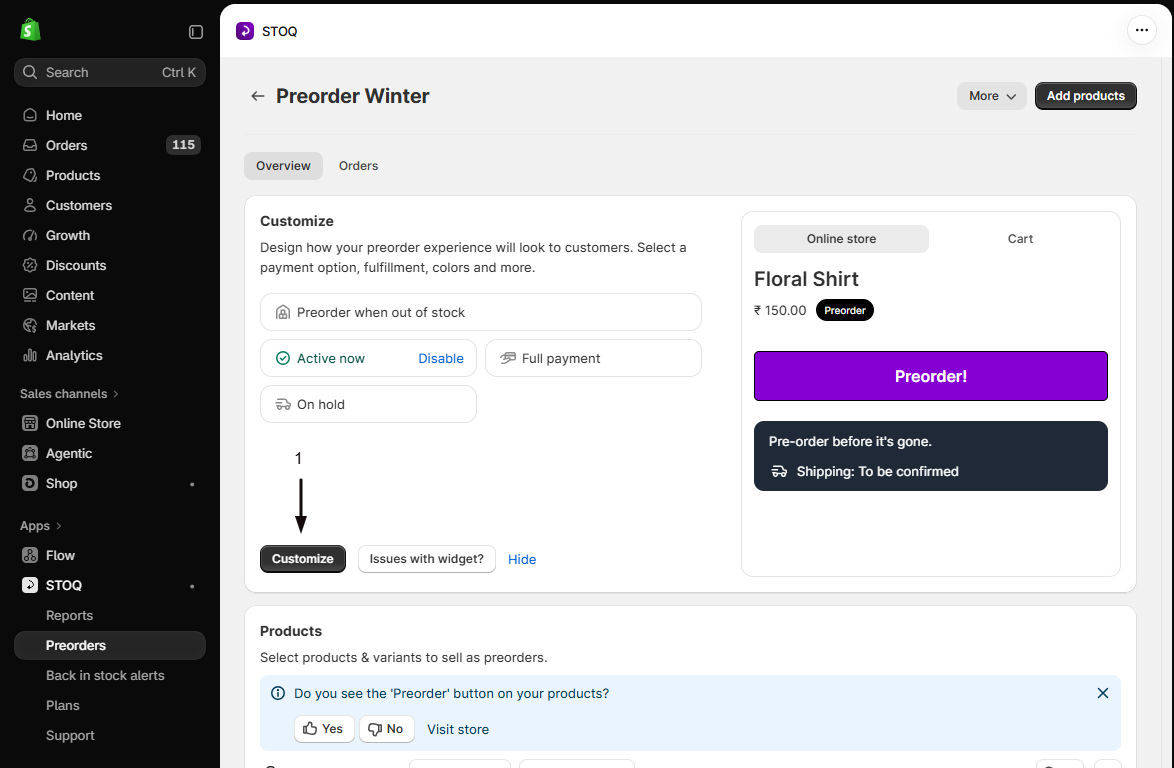
- Click the offer to open its Overview tab, then click Customize.
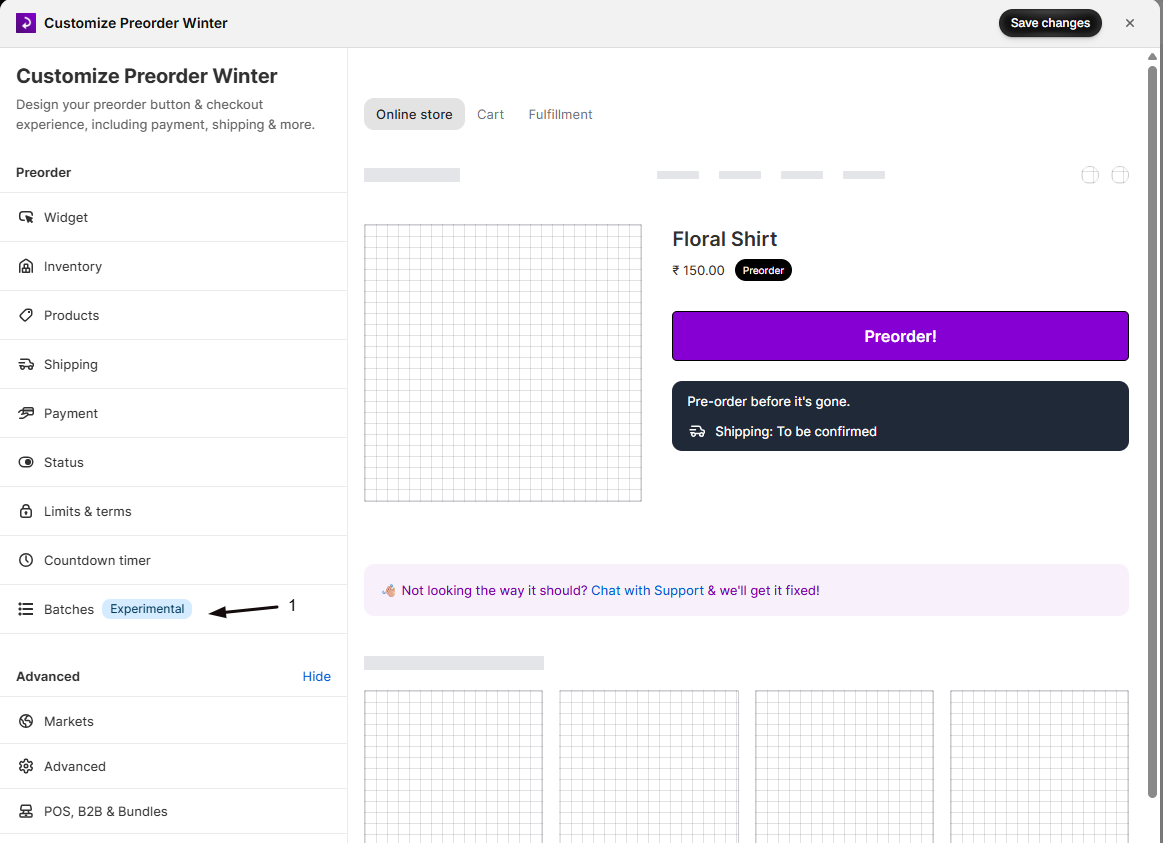
- In the editor sidebar, click Batches.
-
Choose a selling mode
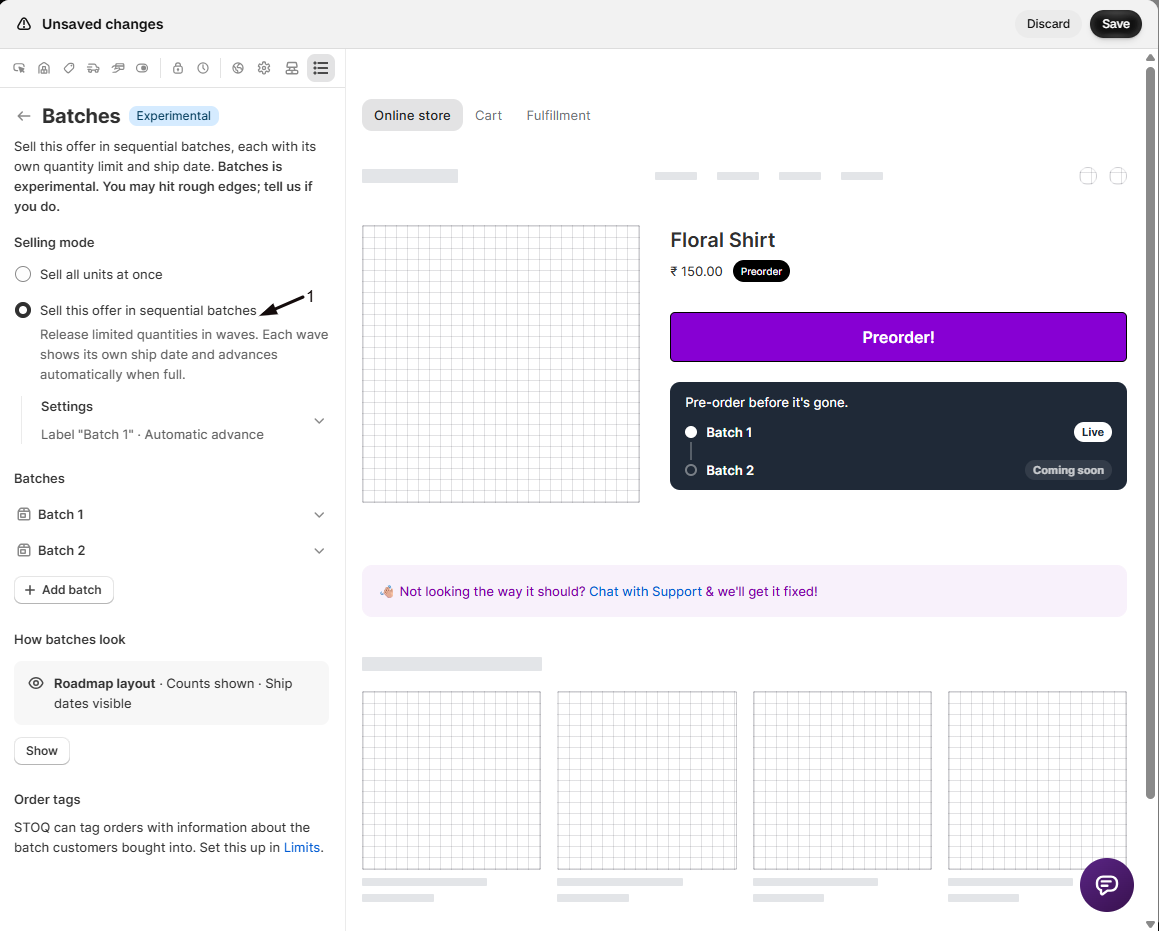
Under Selling mode, choose one:
- Sell all units at once: the standard behaviour, using your normal quantity and shipping settings. This is the default.
- Sell this offer in sequential batches: turn batches on. STOQ starts you with two batches.
-
Set up each batch
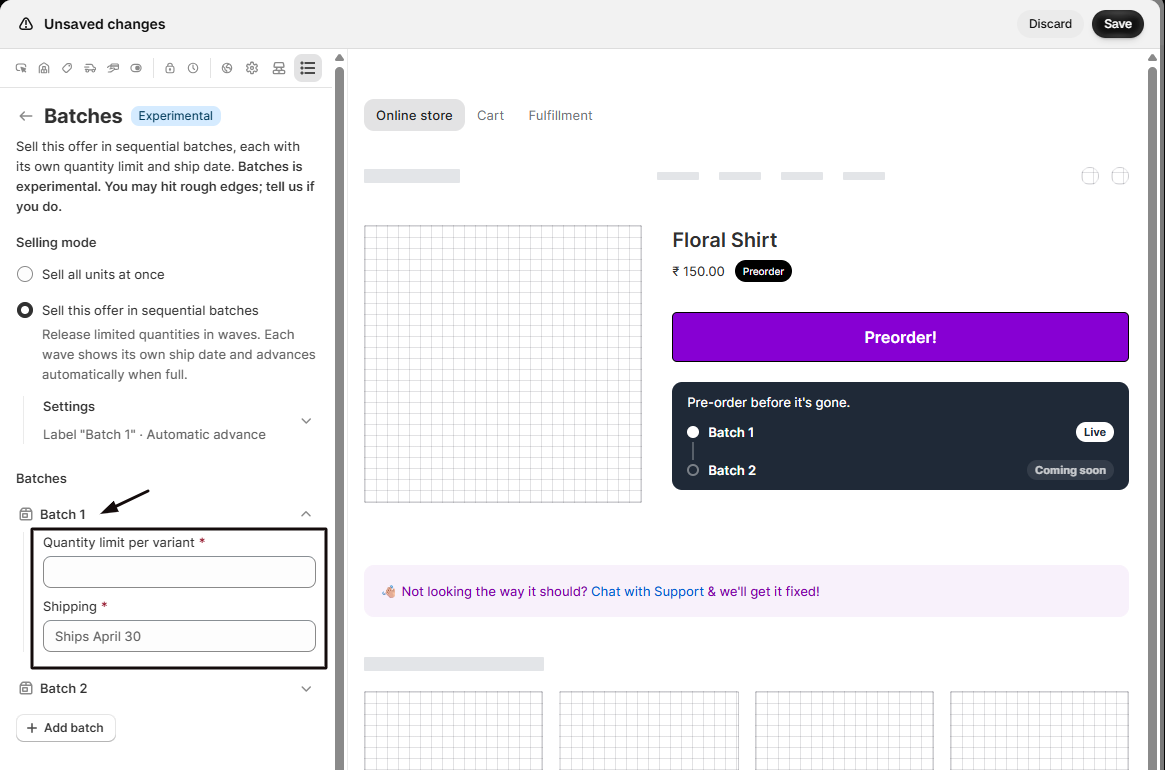
For each batch, fill in:
- Quantity limit per variant: how many units each variant sells in this batch before moving on. The limit is per variant, not per offer, so a limit of 50 across three variants means each variant sells 50 in that batch. (This field only appears in automatic mode, below.)
- Shipping: the shipping text customers see for this batch, for example “Ships April 30”.
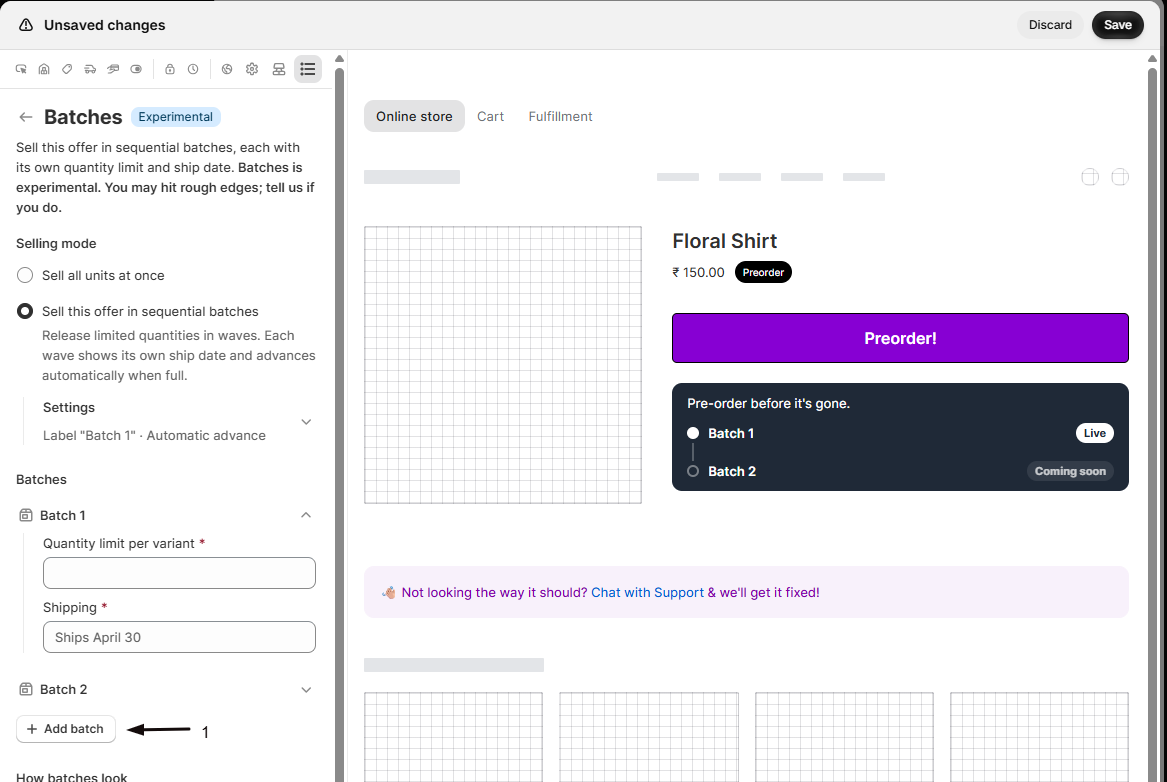
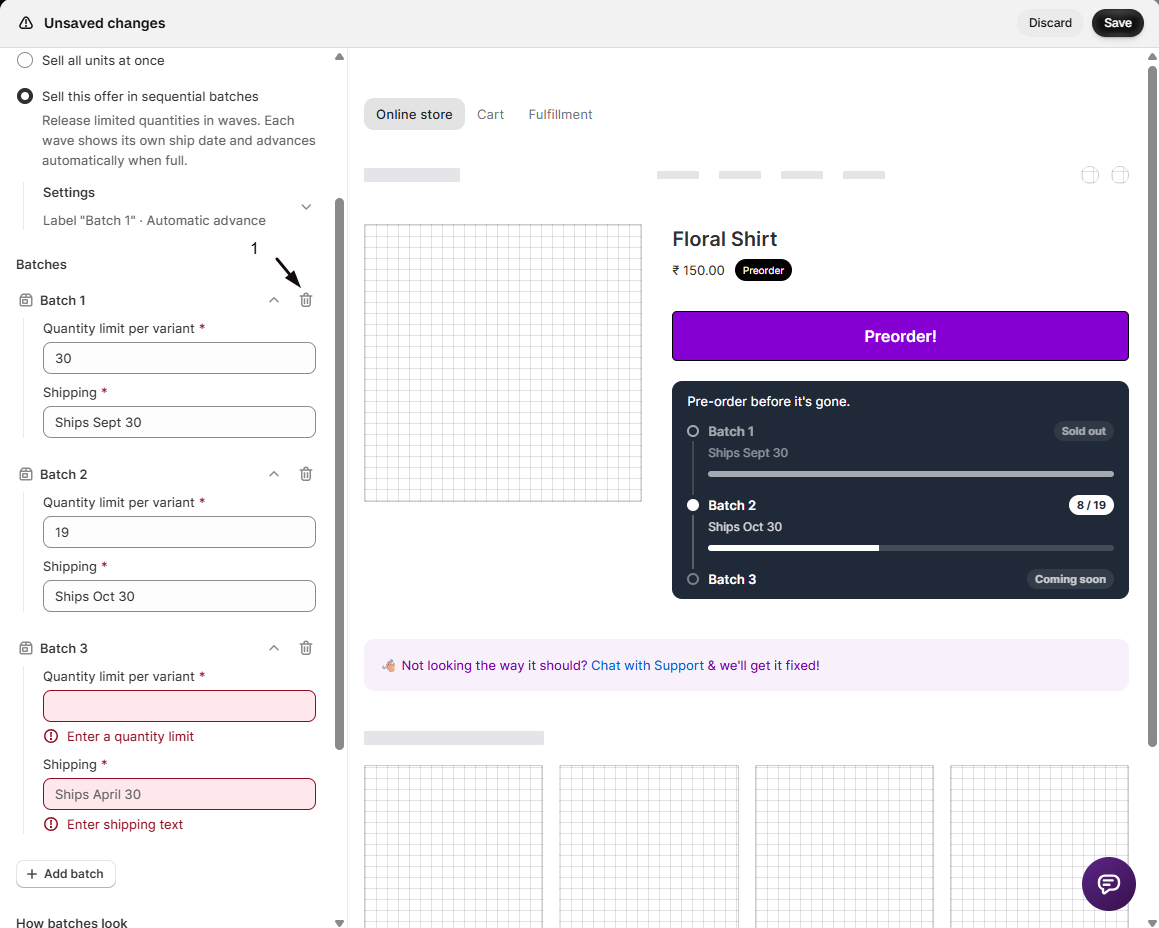
Click Add batch to add more, or the delete icon to remove one (you always keep at least two).
Name your batches
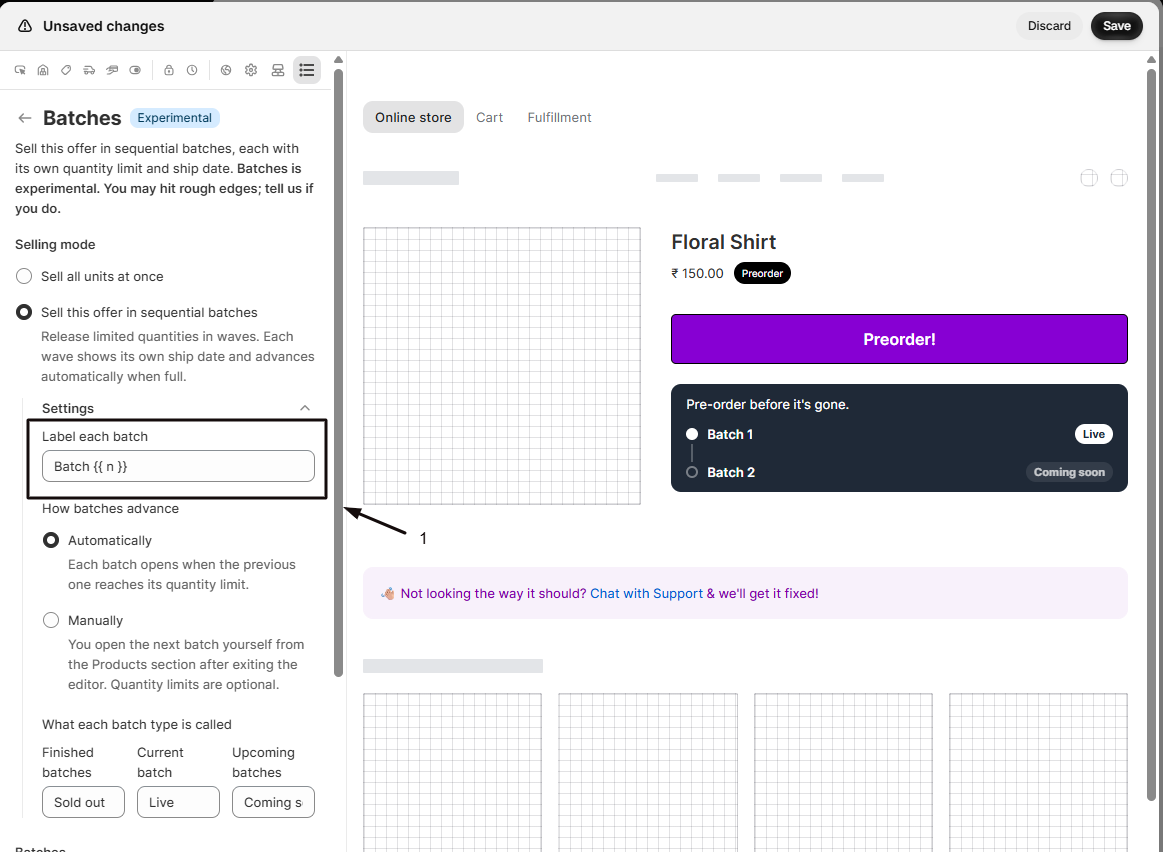
Section titled “Name your batches”Batches are called Batch 1, Batch 2 by default. In the batch Settings, change Label each batch to anything you like, using {{ n }} where the number goes, for example Wave {{ n }} or Drop {{ n }}. The new name shows everywhere: the storefront, the admin, POS, and order tags.
How batches advance
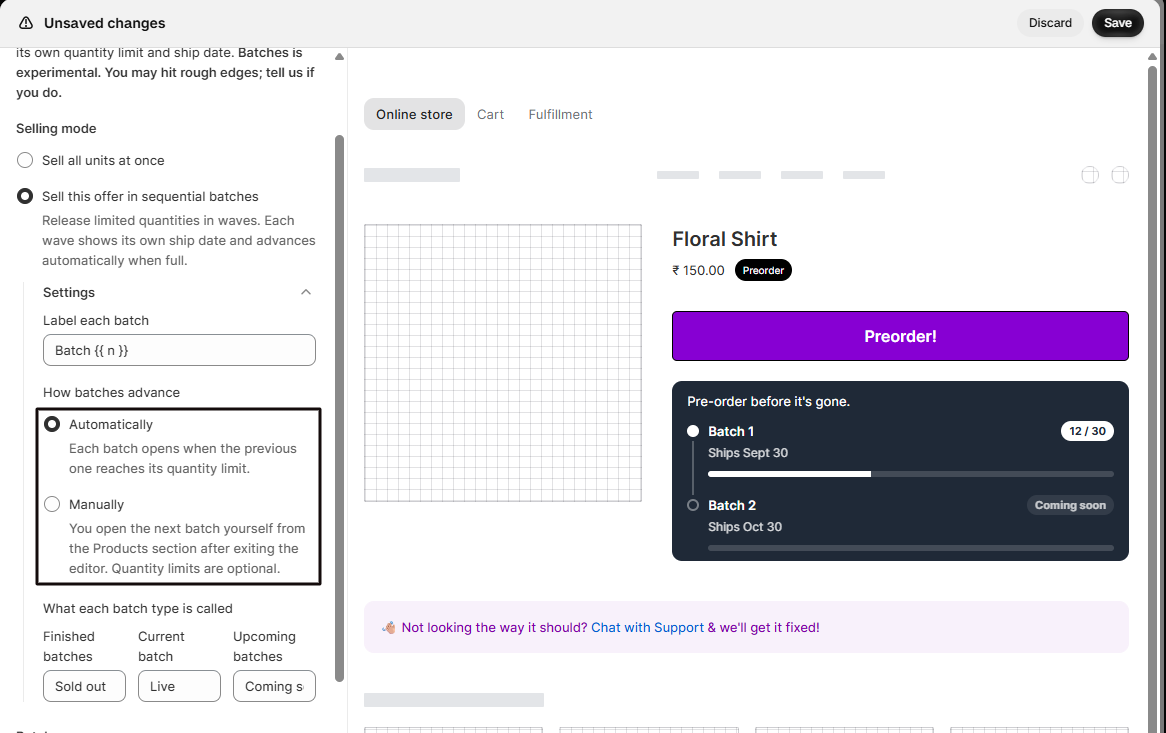
Section titled “How batches advance”In the batch Settings, under How batches advance, choose:
- Automatically: a variant moves to the next batch on its own the moment it hits the current batch’s quantity limit. Each variant runs its own schedule, so a fast-selling size can be on Batch 3 while a slow one is still on Batch 1.
- Manually: quantity limits become optional and batches stay open until you close them. You open the next one yourself from the offer’s Products section, one variant at a time or several selected together.
Choose how batches look
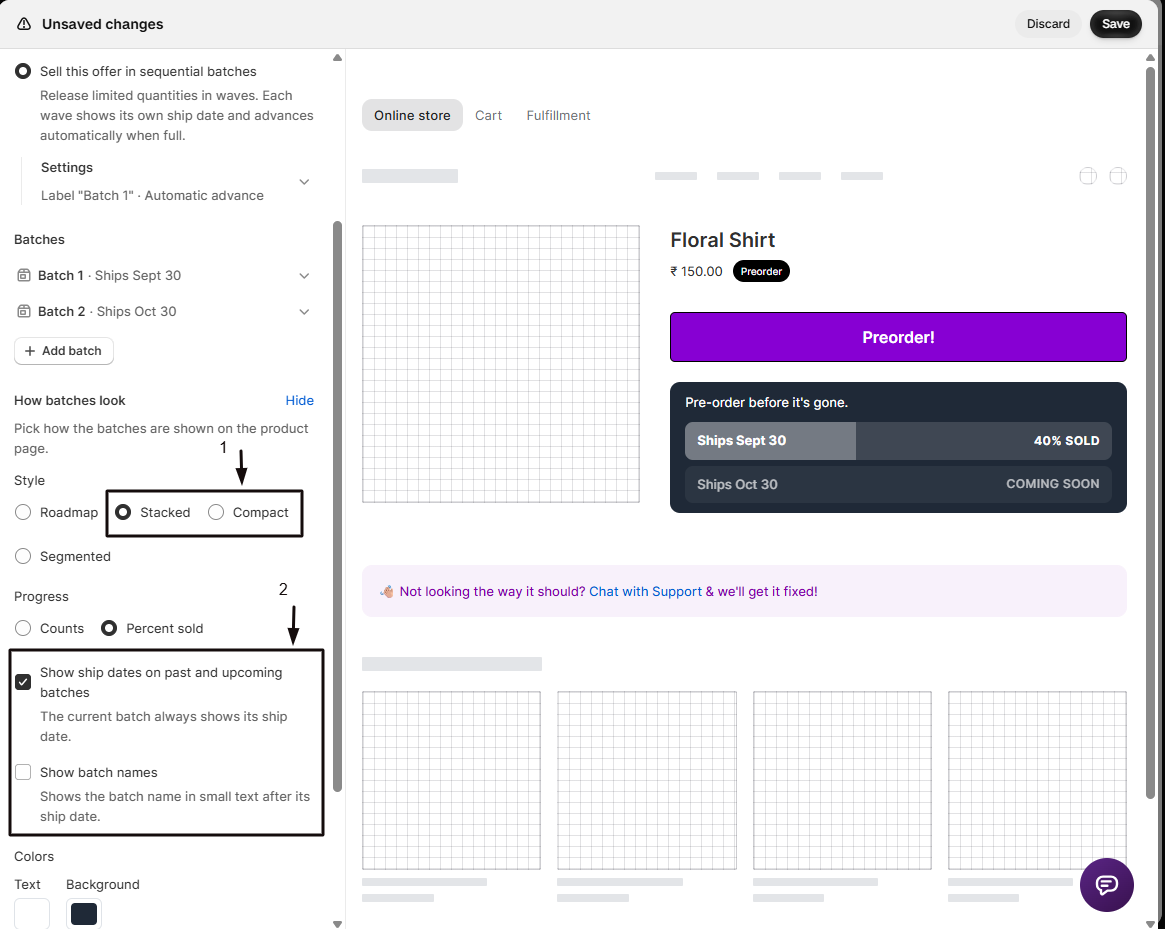
Section titled “Choose how batches look”You can show batches on the product page in four styles:
| Style | What it shows | Best for |
|---|---|---|
| Roadmap (default) | A list of every batch with its ship date and a progress bar. | Showing the whole plan. |
| Stacked | One full-width row per batch. The current batch fills up as it sells. | Highlighting how full the current batch is. |
| Compact | One line for the current batch only. | Tight product pages. |
| Segmented | One block per batch, side by side. | Up to four batches. |
-
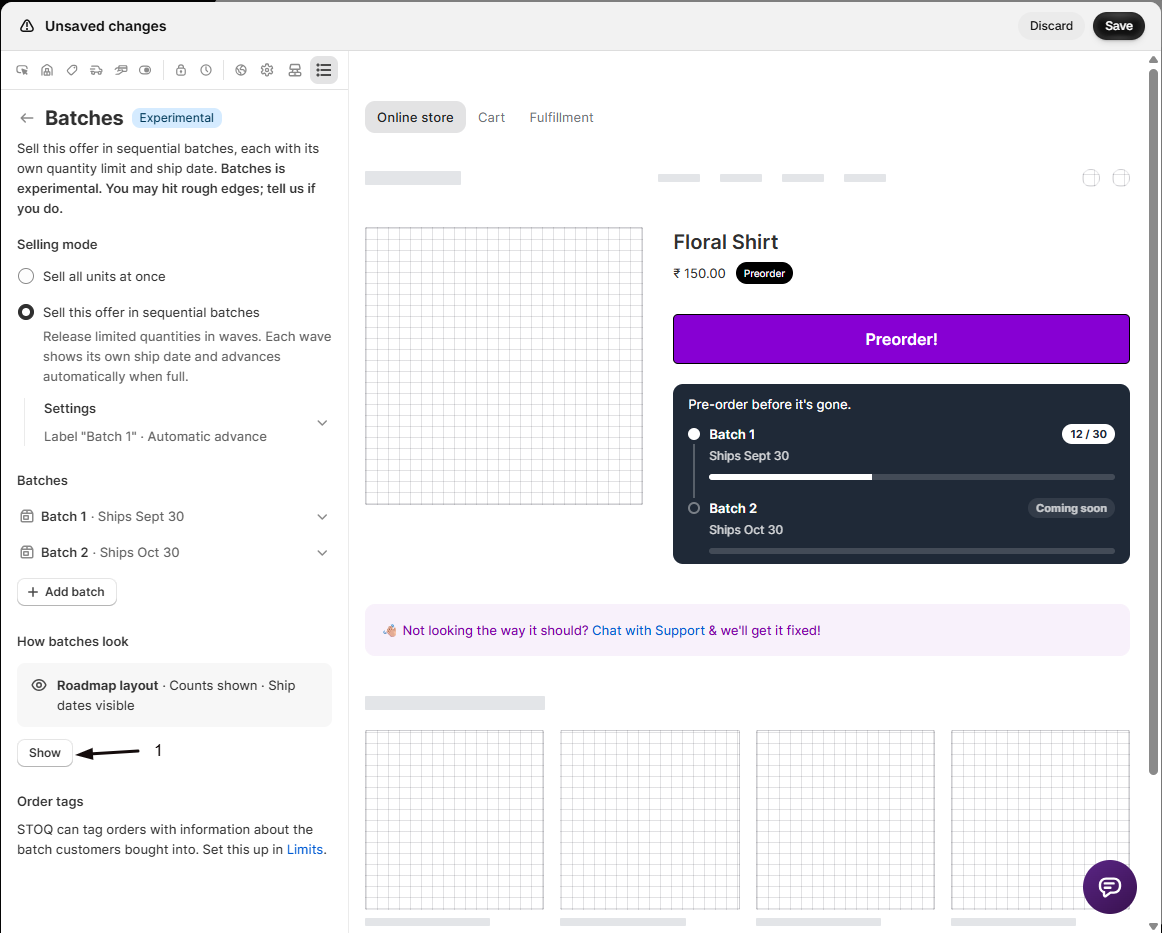
Open the display options
In the Batches section of the editor, find How batches look and click Show.
-
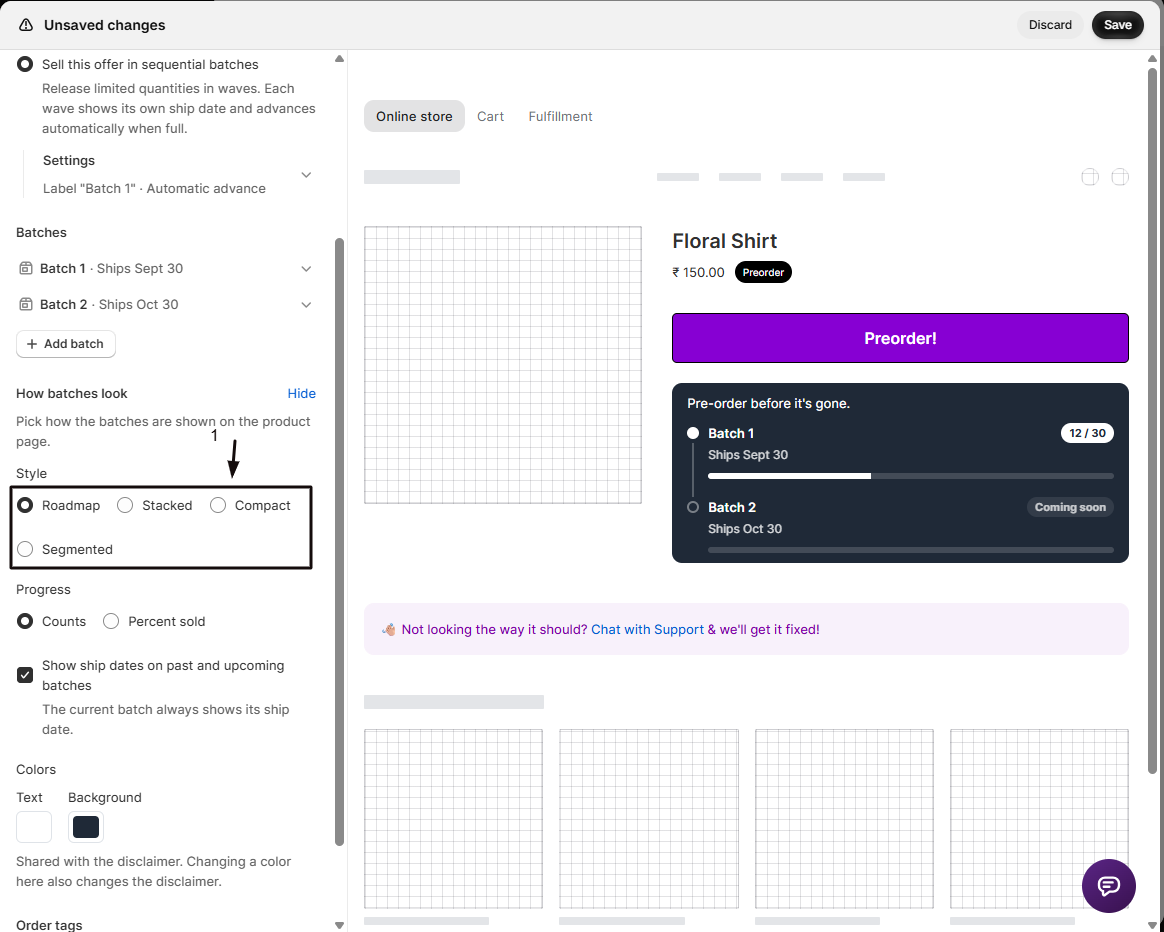
Pick a style
Under Style, choose Roadmap, Stacked, Compact, or Segmented.
-
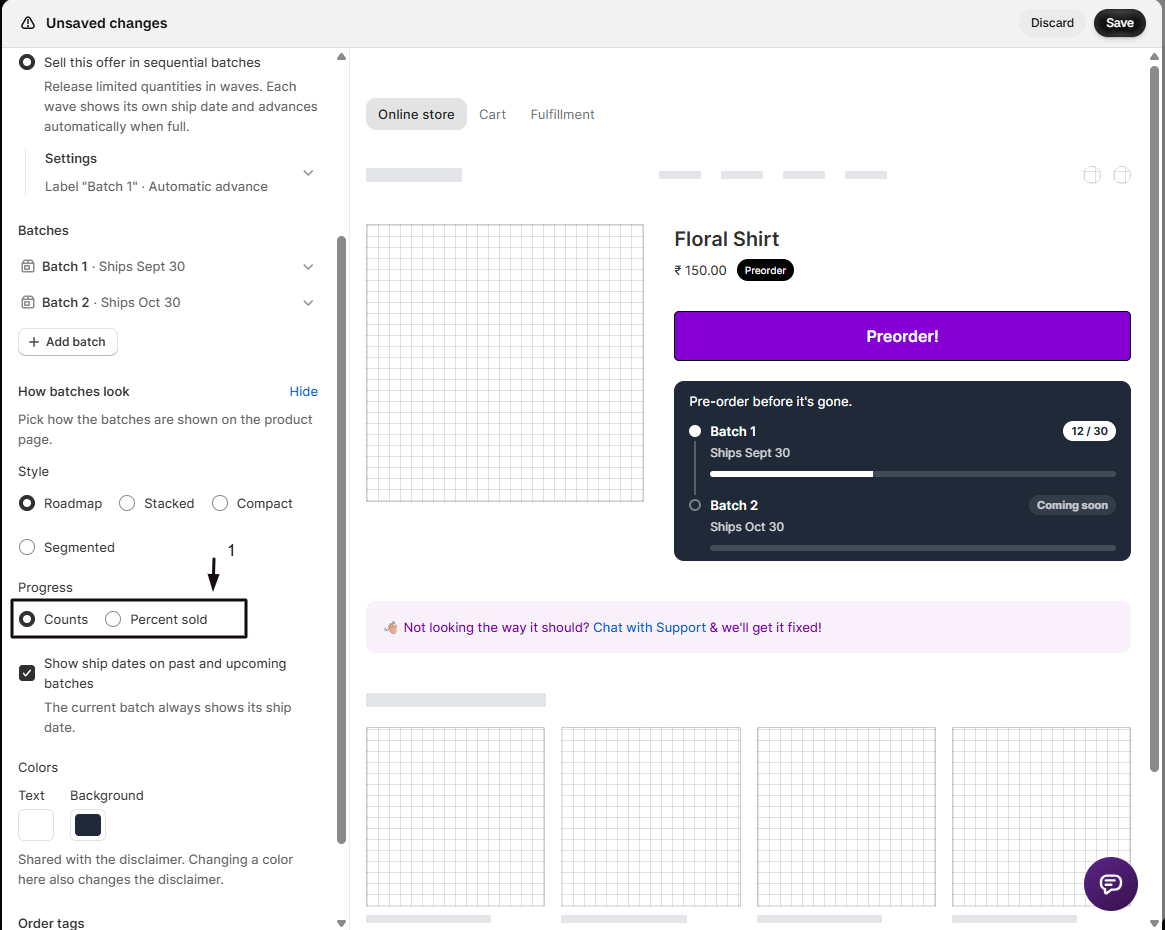
Choose how progress reads
Under Progress, choose Counts to show units sold and the limit, like 23 / 100, or Percent sold to show a percentage, like 23% sold.
-
Set the extra options
Depending on the style, you’ll also see:
- Show ship dates on past and upcoming batches (Roadmap and Stacked). On by default. The current batch always shows its ship date.
- Show batch names (Stacked and Compact). Off by default. Shows the batch name in small text after its ship date.
Only the options the chosen style can use are shown.
-
Pick the colors
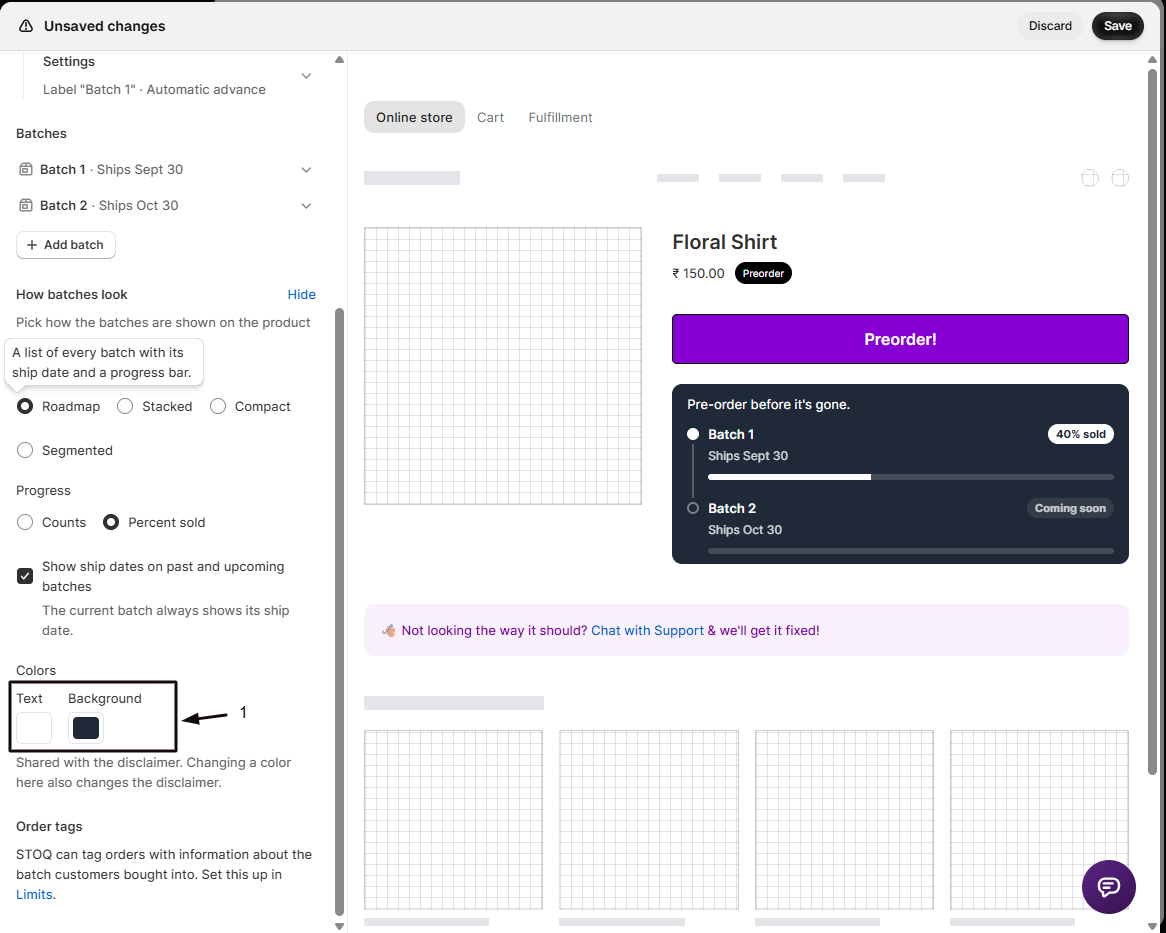
Under Colors, click the Text and Background swatches to choose the batch display’s colors. These are the same colors as the disclaimer in the offer’s Widget section, so changing them here changes the disclaimer too, and the other way round.
-
Save
Save the offer. The preview in the editor uses the same code as your storefront, so what you see there is what customers get.
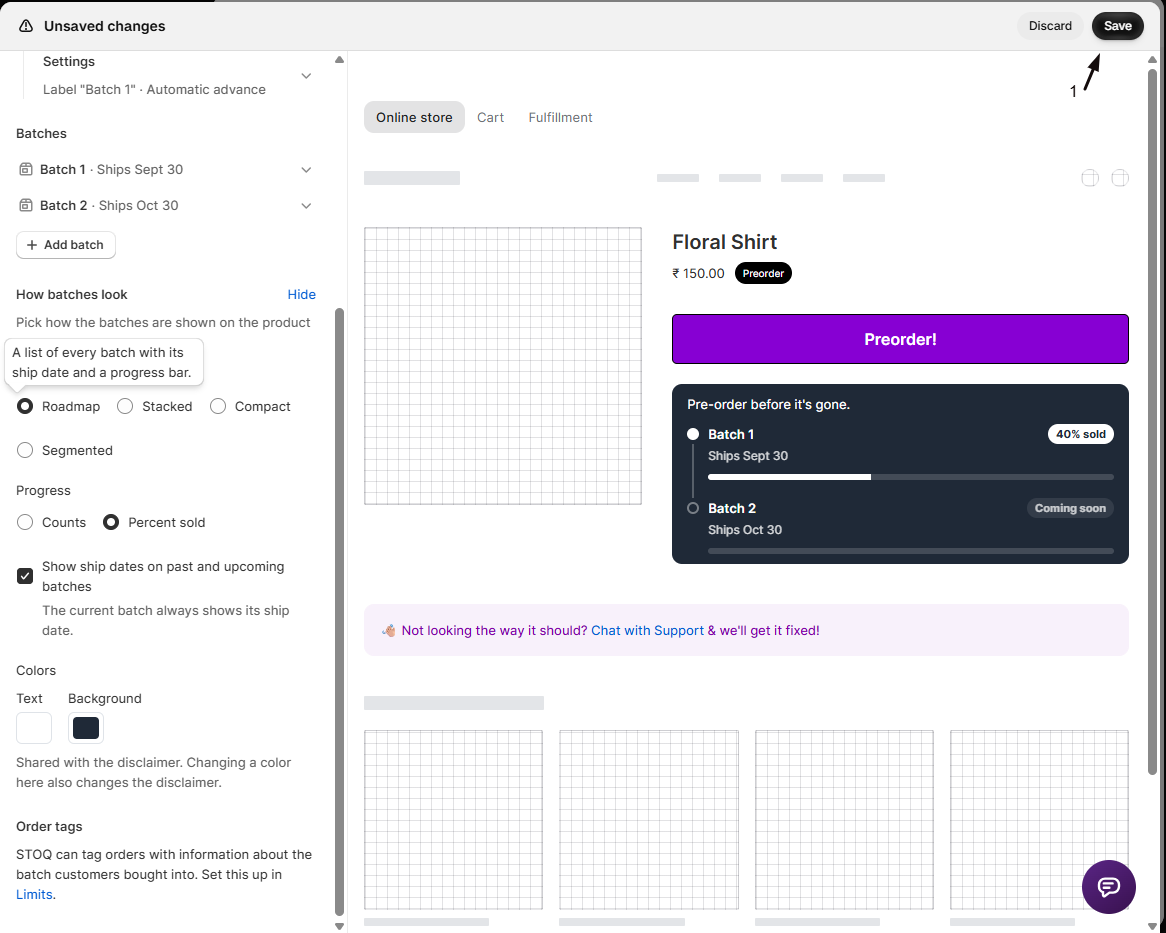
When the section is collapsed, its summary line shows your choices, for example “Stacked layout · Percent sold · Ship dates visible”.
Existing offers keep the Roadmap style with counts and ship dates shown until you change them.
What customers see
Section titled “What customers see”Every style tracks each batch’s status:
- Finished batches show your “finished” word (Sold out by default).
- The current batch shows its progress as counts or a percentage. If it has no quantity limit, it shows your “current” word (Live by default).
- Upcoming batches show your “upcoming” word (Coming soon by default).
You can change the three words in the batch Settings, under What each batch type is called. Roadmap, Stacked, and Segmented show the whole schedule, so a customer can see the full plan before ordering and knows which batch and ship date they’re buying into. Compact shows only the current batch.
On the order
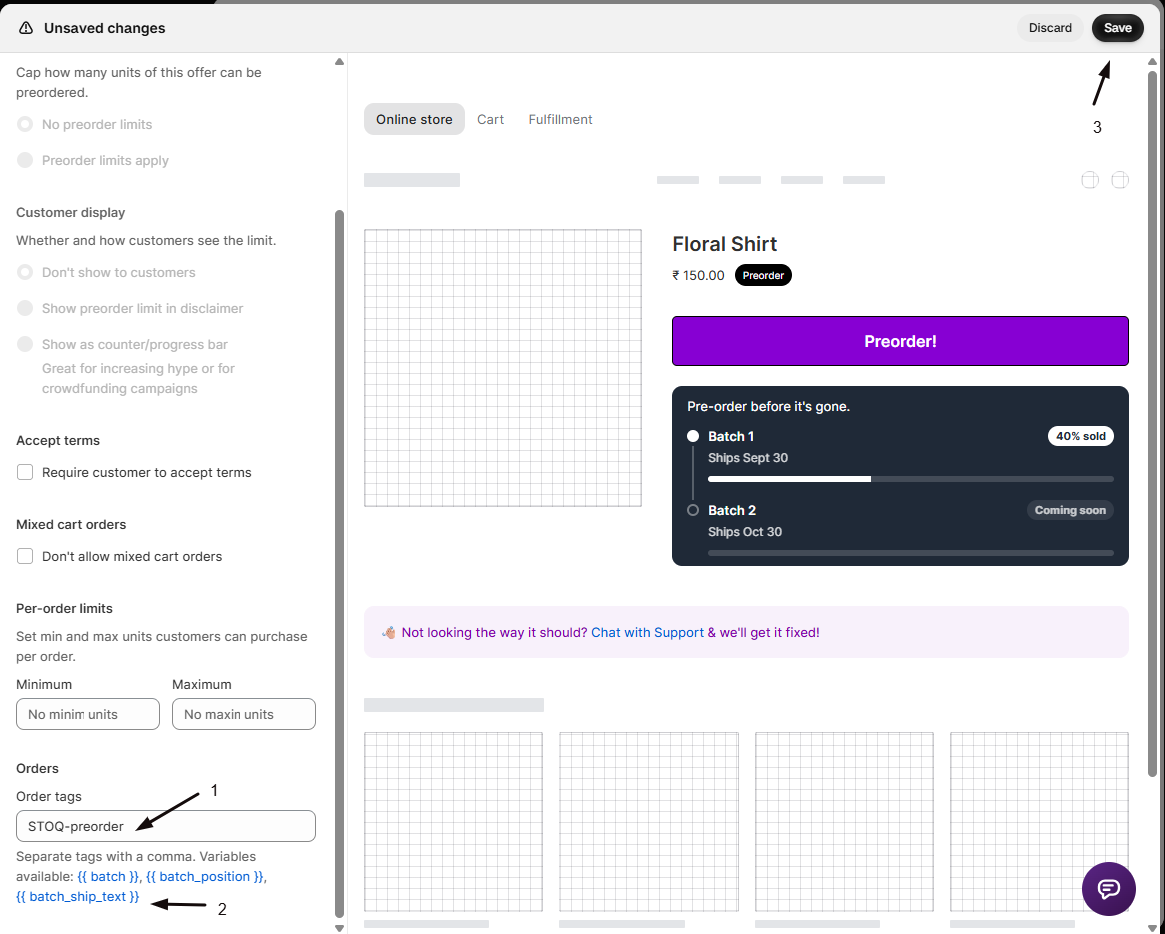
Section titled “On the order”The batch a customer bought into is recorded on the order line and shown to your team. If Show fulfillment timeline in cart is on in the offer’s Advanced section, the cart line shows only the current batch and its ship date, for example Batch 2: Ships Oct 30, not your default shipping text from the Shipping section. You can also tag orders by batch: go to Limits → Order tags and use {{ batch }}, {{ batch_position }}, or {{ batch_ship_text }}. Selling in person works too: the POS confirmation screen shows staff which batch the item goes into, with its ship date.
Show the batch in your preorder text
Section titled “Show the batch in your preorder text”The same three variables work in the offer’s Disclaimer (in the editor’s Widget section), the Terms text (in Limits & terms), and the Custom cart attribute (in Advanced). Click Variables next to the field’s label, then click Add to field next to the variable you want:
| Variable | Fills with | Example |
|---|---|---|
{{ batch }} |
The open batch’s name | Batch 2 |
{{ batch_position }} |
The open batch’s number | 2 |
{{ batch_ship_text }} |
The open batch’s shipping text | October 30th |
For example, a disclaimer of Ships {{ batch_ship_text }} reads “Ships October 30th” on the product page and updates when the customer switches variant. Preorder emails use the batch the order bought into. The batch variables are only listed while batches are on for the offer, and if batches are turned off they’re left out of the text.
When the last batch fills
Section titled “When the last batch fills”- On offers where STOQ manages the quantity, a variant stops selling once its final batch reaches its limit.
- On offers that sell against your Shopify inventory, your real stock decides when a variant sells out, not the batch limits. Stock the total across every batch, or the later ones are never reachable.
Track progress
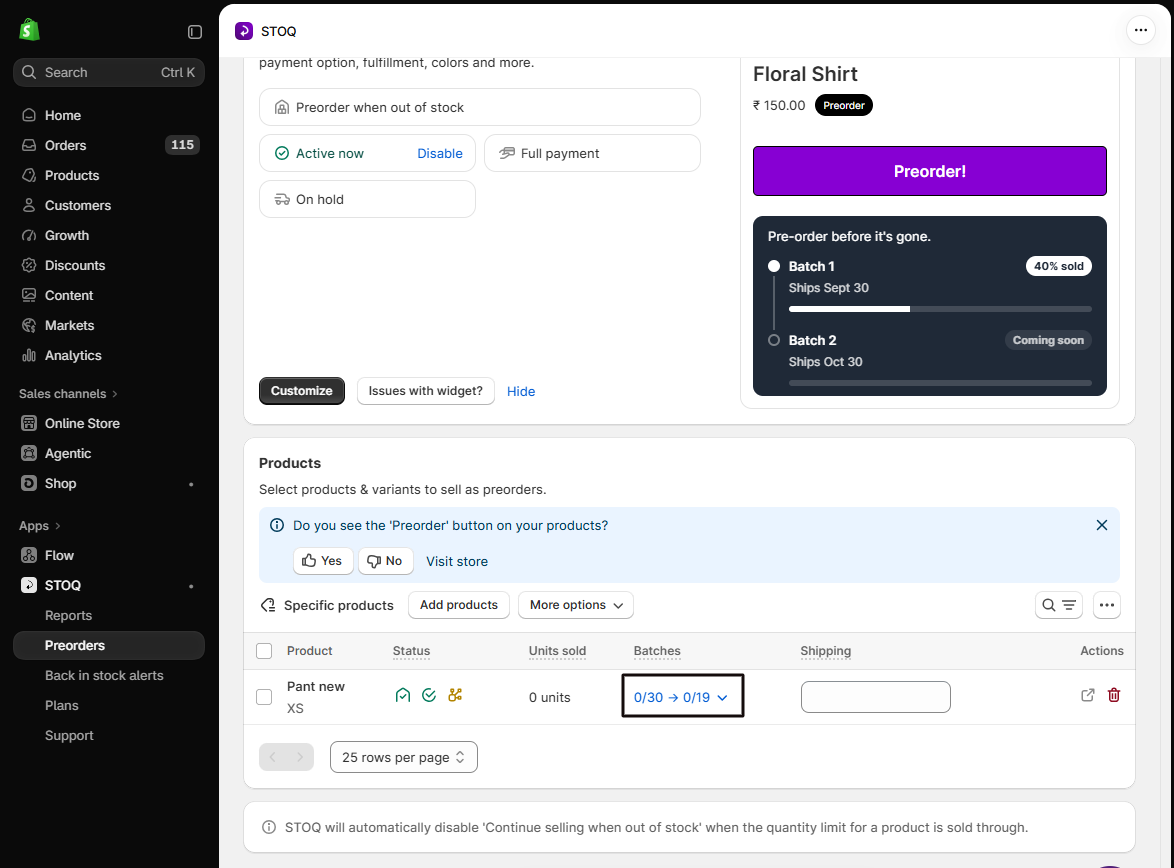
Section titled “Track progress”The offer’s Products section shows each variant’s current batch and how far through it is, with a breakdown per batch. If you chose manual advance, that’s also where you open the next batch: use Start next batch on a variant, or select several variants and advance them together.
Is the batch quantity limit per variant or per offer?
Per variant. A limit of 50 on a batch means each variant in the offer sells up to 50 units in that batch, then moves to the next one.
Do all variants advance together?
Not in automatic mode. Each variant advances on its own when it hits the current batch’s limit, so different variants can be on different batches at the same time. In manual mode, you choose which variants to advance and when.
Which batch style should I pick?
Use Roadmap or Stacked to show the full schedule with ship dates, Segmented for a short run of up to four batches, and Compact when space on the product page is tight and customers only need the current batch.
Will changing the style affect existing orders?
No. The style only changes how batches look on the product page. Orders, batch assignment, and tags stay the same.
Can I change what the batches are called?
Yes. Set a label format like Wave {{ n }} in the batch Settings, and rename the three status words (Sold out, Live, Coming soon) under What each batch type is called. The names show on the storefront, in the admin, on POS, and in order tags.
Why does the cart line show the batch date instead of my shipping text?
On a batch offer, the cart line shows the current batch and its ship date in place of your default shipping text, so customers see one date, not two. This needs Show fulfillment timeline in cart to be on in the offer’s Advanced section. To change the date, edit that batch’s Shipping field in the Batches section.
I sell against my Shopify inventory. Why aren't later batches selling?
When the offer uses Shopify inventory, your real stock decides when a variant sells out, not the batch limits. If you only stocked enough for the first batch, the later ones are never reachable. Stock the total across every batch.
What happens to orders if I delete a batch?
Orders already placed in that batch keep their items. The batch is removed and the remaining batches are renumbered. This can’t be undone.
Why can't I turn batches on?
Batches need a paid plan and don’t combine with market-specific offers. If the selling mode is greyed out, check your plan, then check that the offer isn’t set to specific markets.
Related guides
Section titled “Related guides”Thanks for letting us know.
Still stuck? Ask Quinn or chat with support