Use MBC Bundles with preorders
How MBC Bundles behaves with STOQ preorders, and which bundle type to choose for each setup.
Last updated
This article helps you understand how MBC Bundles behaves with STOQ preorders. MBC Bundles is listed as compatible with STOQ, but this is a compatibility setup, not a direct integration between the two apps. That means STOQ does not manage the bundle inside MBC, and MBC does not automatically inherit every STOQ preorder setting in every bundle type.
The best setup depends on what kind of bundle you are creating. Use this guide to choose the right MBC bundle type and understand which STOQ preorder features work with each setup.
Bundle types
Section titled “Bundle types”| MBC bundle type | STOQ result | Recommendation |
|---|---|---|
| Separate products | Works with STOQ preorders. Full payment and collect-later flows work. Partial payments can work, but if an MBC discount is used, the deposit and remaining payment may be calculated from the pre-MBC-discount price. | Recommended |
| Volume Discounts | Works with partial payments, preorder discounts, and fulfillment setup. | Recommended |
| Buy X Get Y on Separate products | Works with partial payments, preorder discounts, and fulfillment setup. | Recommended |
| Product Groups | Limited support. If the Product Group contains both preorder and in-stock products, partial payments, preorder discounts, and fulfillment hold do not work correctly. The preorder product can still show Purchase type: Preorder as a line item detail. If all products in the Product Group are preorder products, these features can work, but partial payments may still calculate from the pre-MBC-discount price when MBC discounts are used. | Use only for all-preorder Product Groups or basic preorder identification. For mixed preorder and in-stock bundles, use Separate products or Volume Discounts instead. |
Separate products
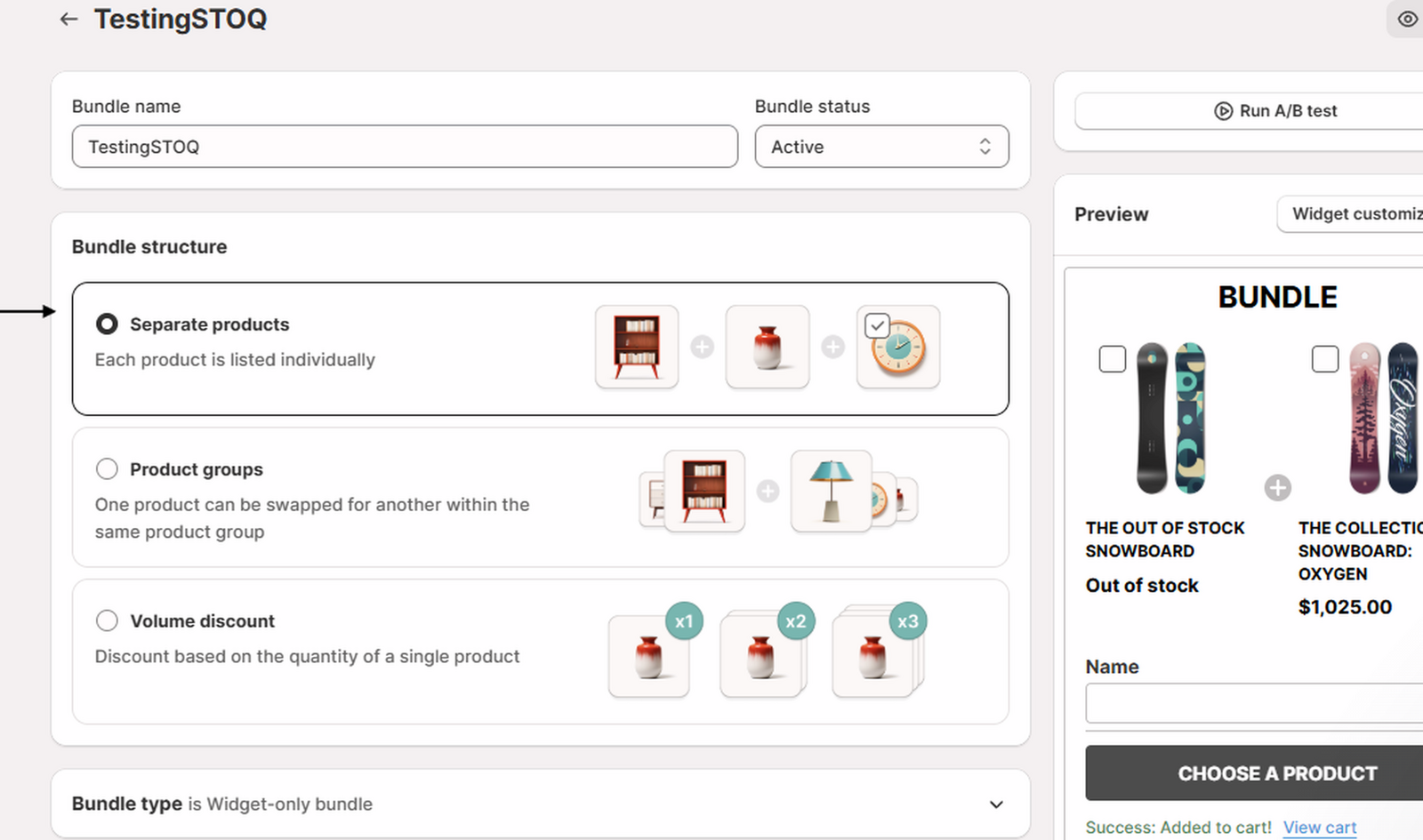
Section titled “Separate products”MBC Separate products bundle structure works with STOQ preorders. STOQ preorder messaging appears on the preorder product, and STOQ line item properties also show on the Shopify order.
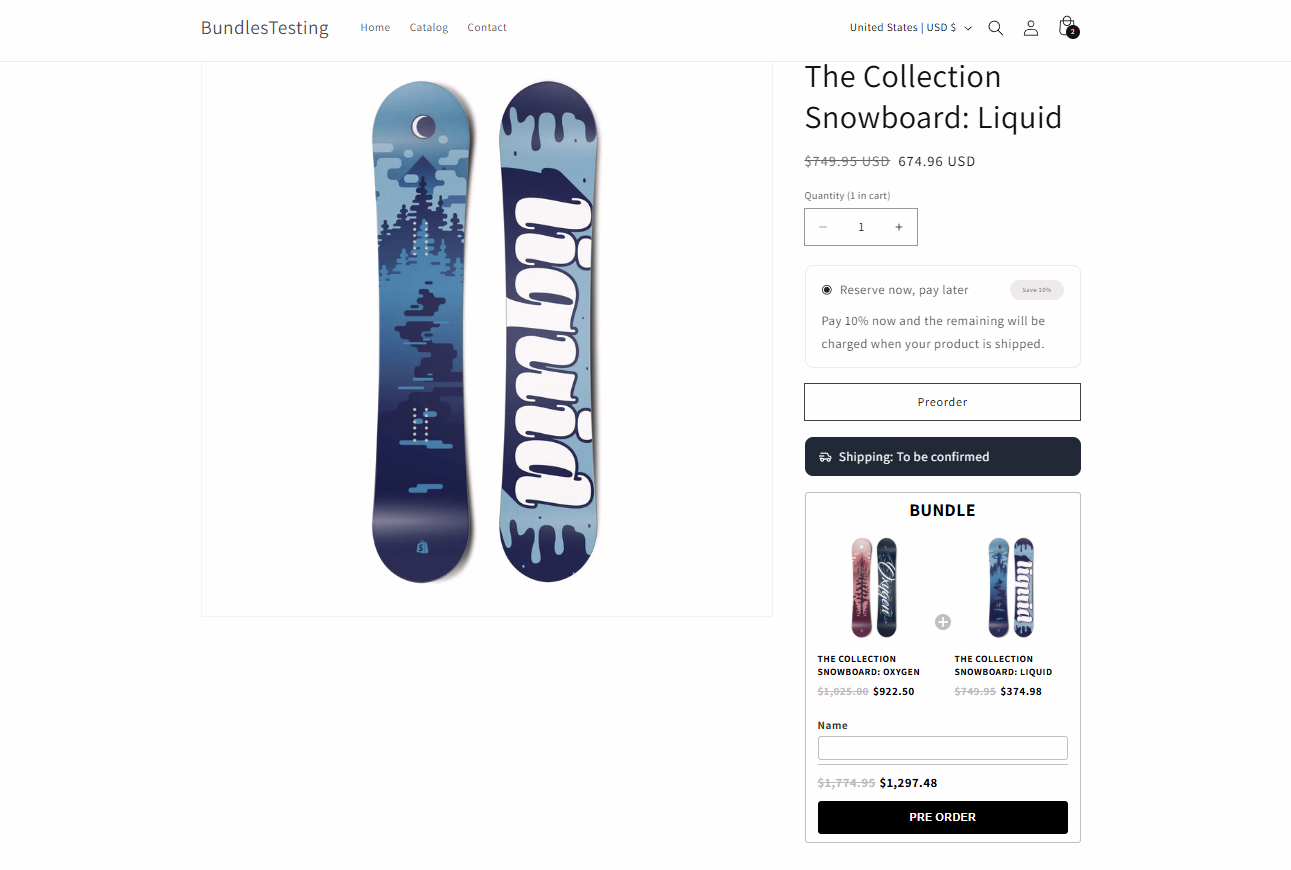
With this setup, the in-stock product and preorder product are added to checkout as separate products. The preorder product shows the correct preorder details at checkout, and preorder details appear in the Shopify order.
This setup works for mixed bundles that include:
- One in-stock product
- One preorder product
The preorder product can show details such as shipping text, payment information, and preorder discounts.
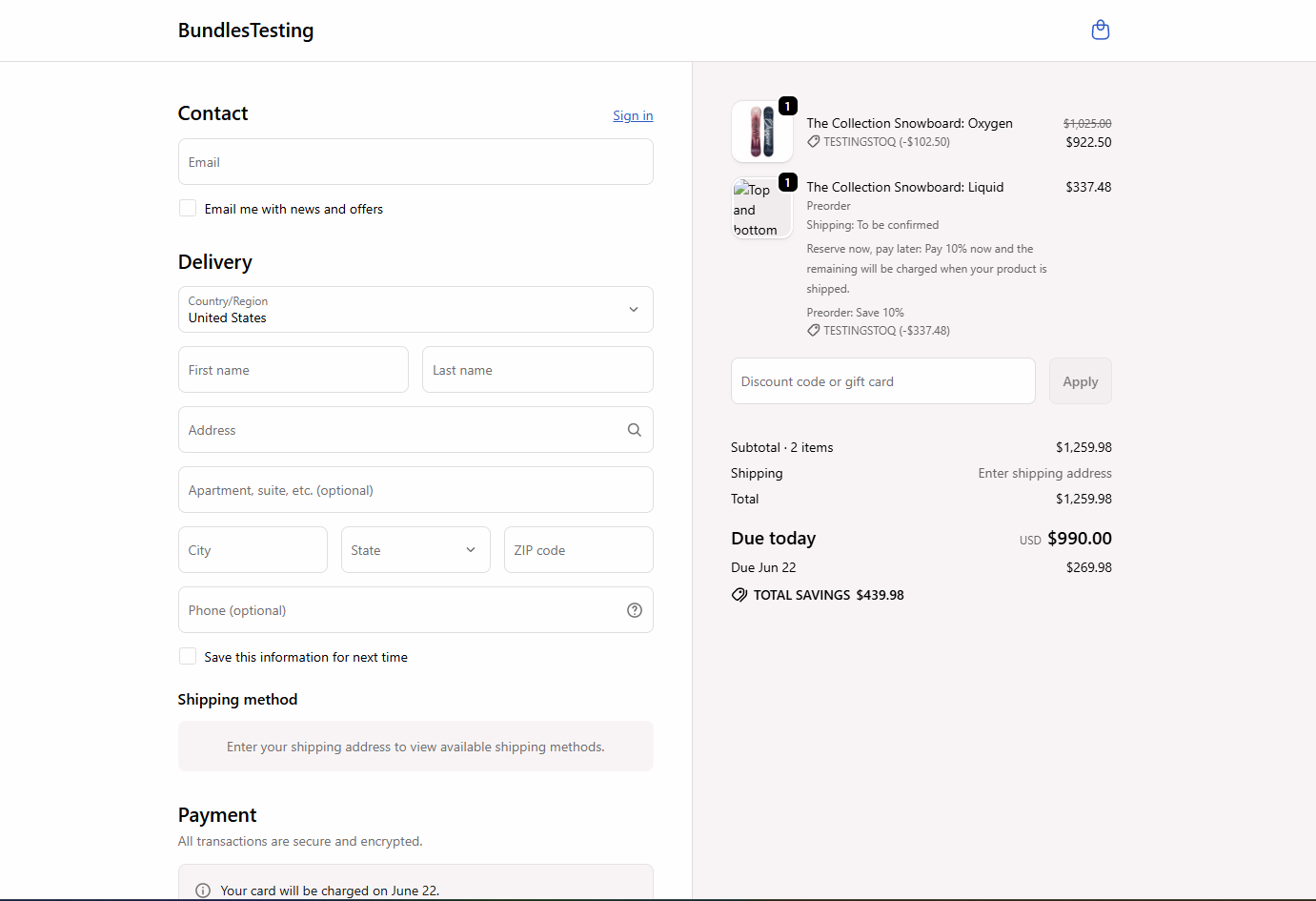
Separate products with partial payments
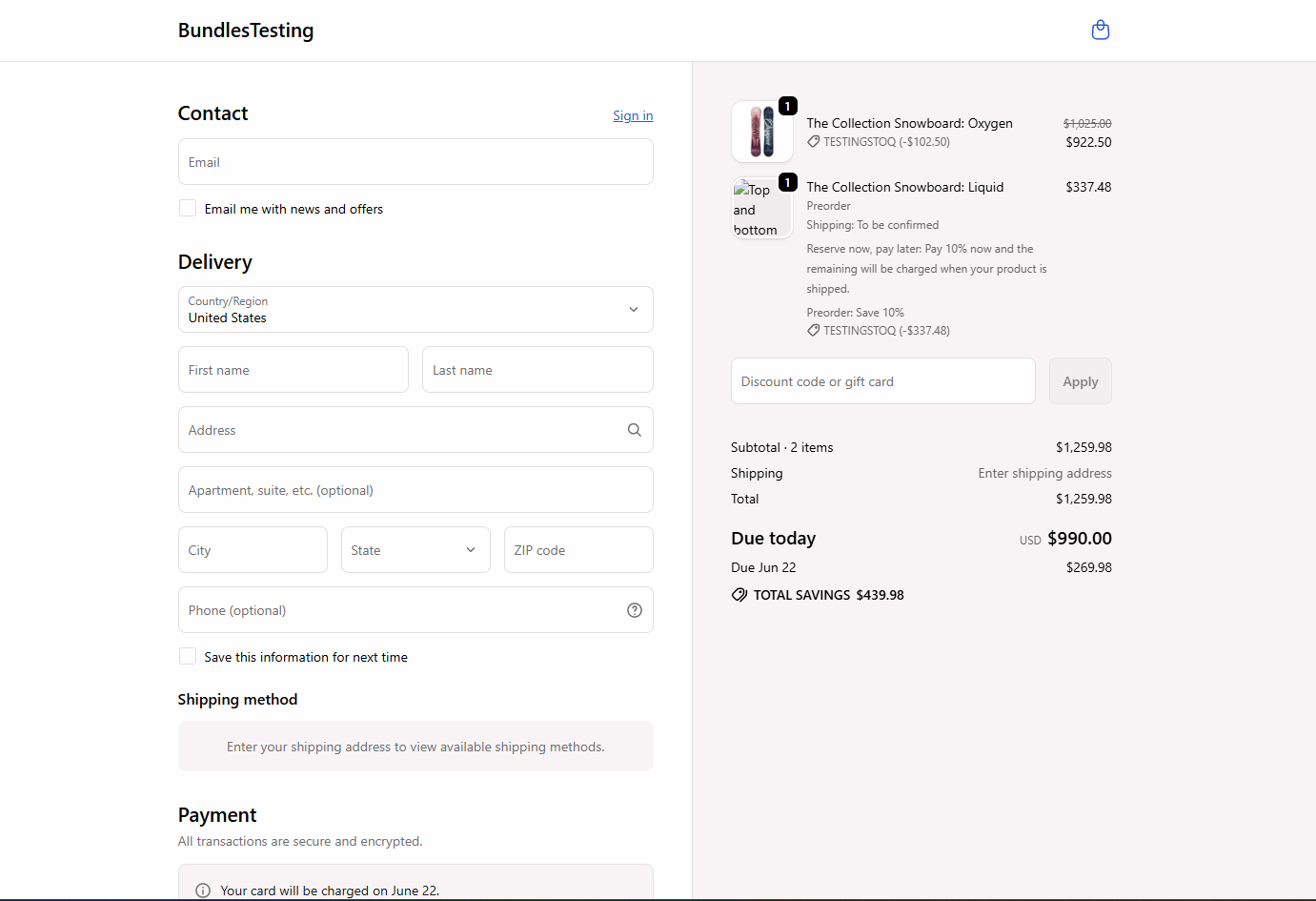
Section titled “Separate products with partial payments”In this setup, the preorder product shows the correct preorder details. However, the partial payment amount may not be based on the final discounted price.
For example, if MBC applies a bundle discount to the preorder product, STOQ may still calculate the deposit and remaining payment using the preorder product’s price before the MBC discount is applied. This means the checkout total can look correct, but the split between “due today” and “due later” may not match the final discounted preorder price.
Separate products with full payment
Section titled “Separate products with full payment”Full payment worked correctly with MBC bundle discounts and STOQ preorder discounts.
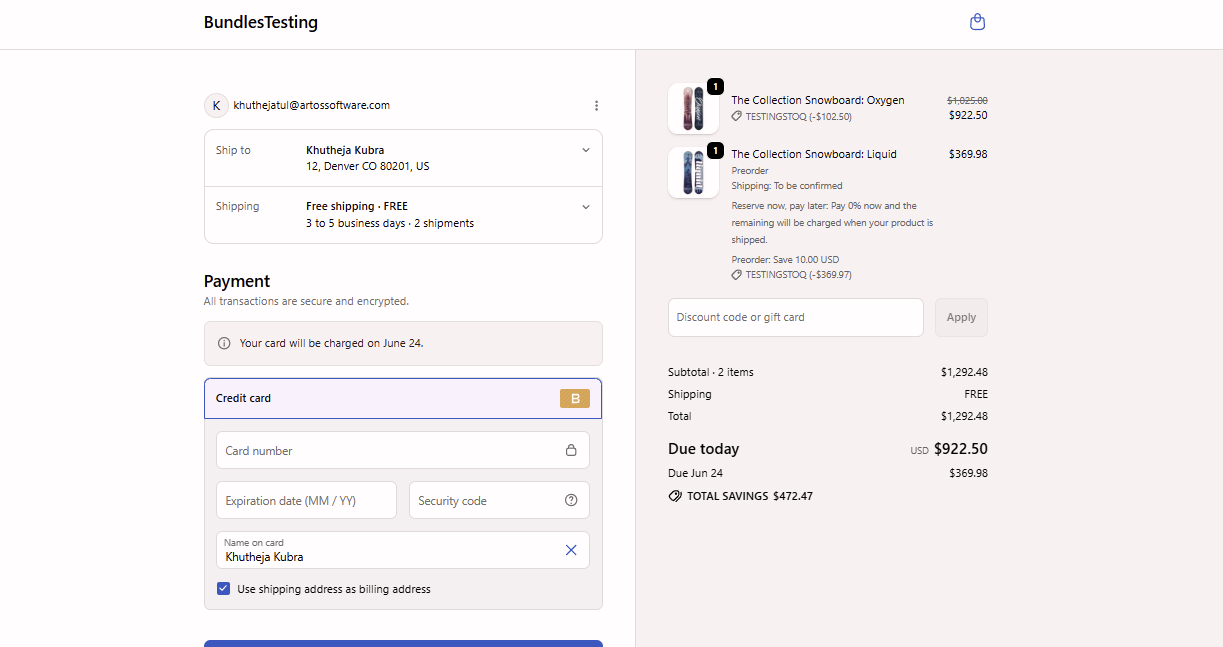
Separate products with “No upfront payment”
Section titled “Separate products with “No upfront payment””The partial payment setup where the customer is not charged at checkout (collect $0) works correctly for the preorder item. In a mixed cart, the in-stock product will be charged at checkout and the preorder product will be deferred, so the preorder product amount is due later.
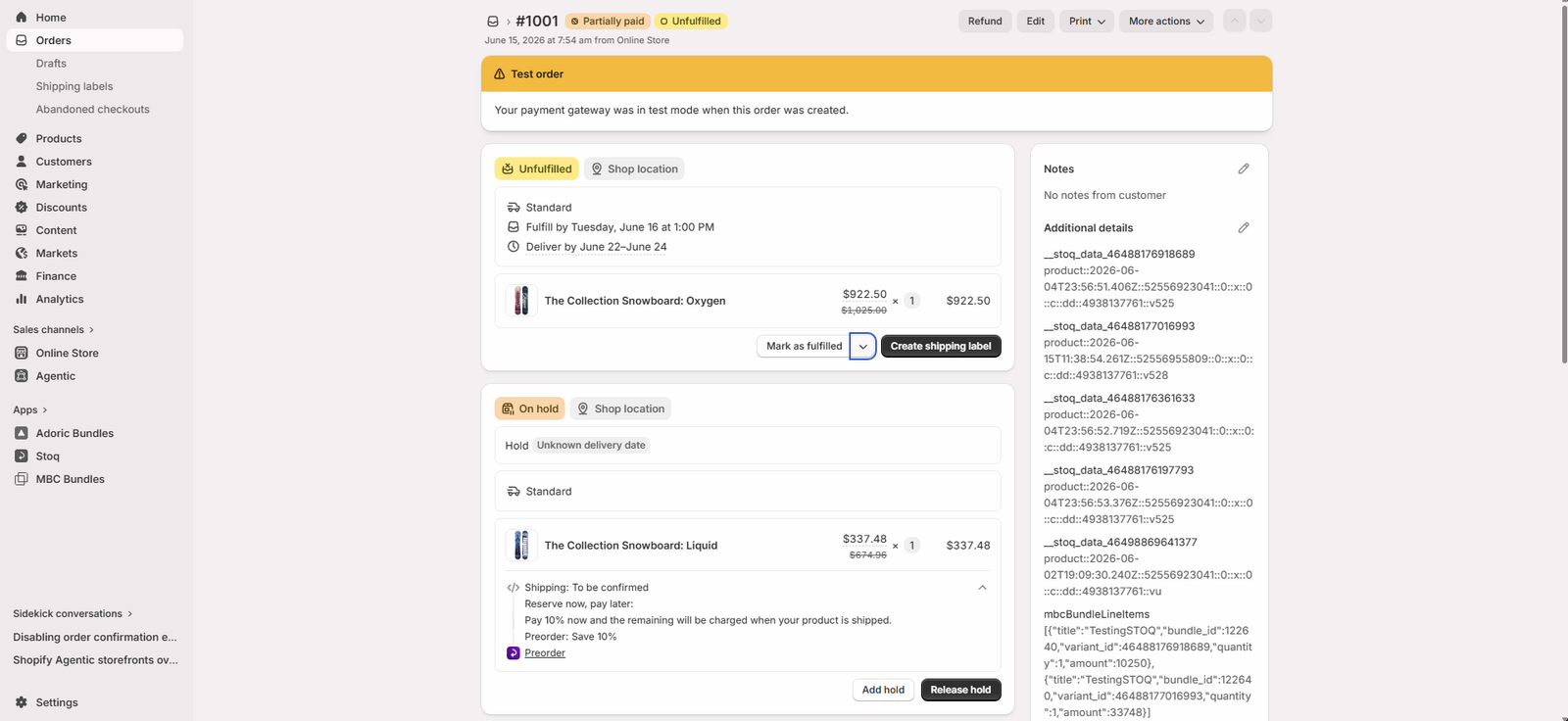
Shopify order result
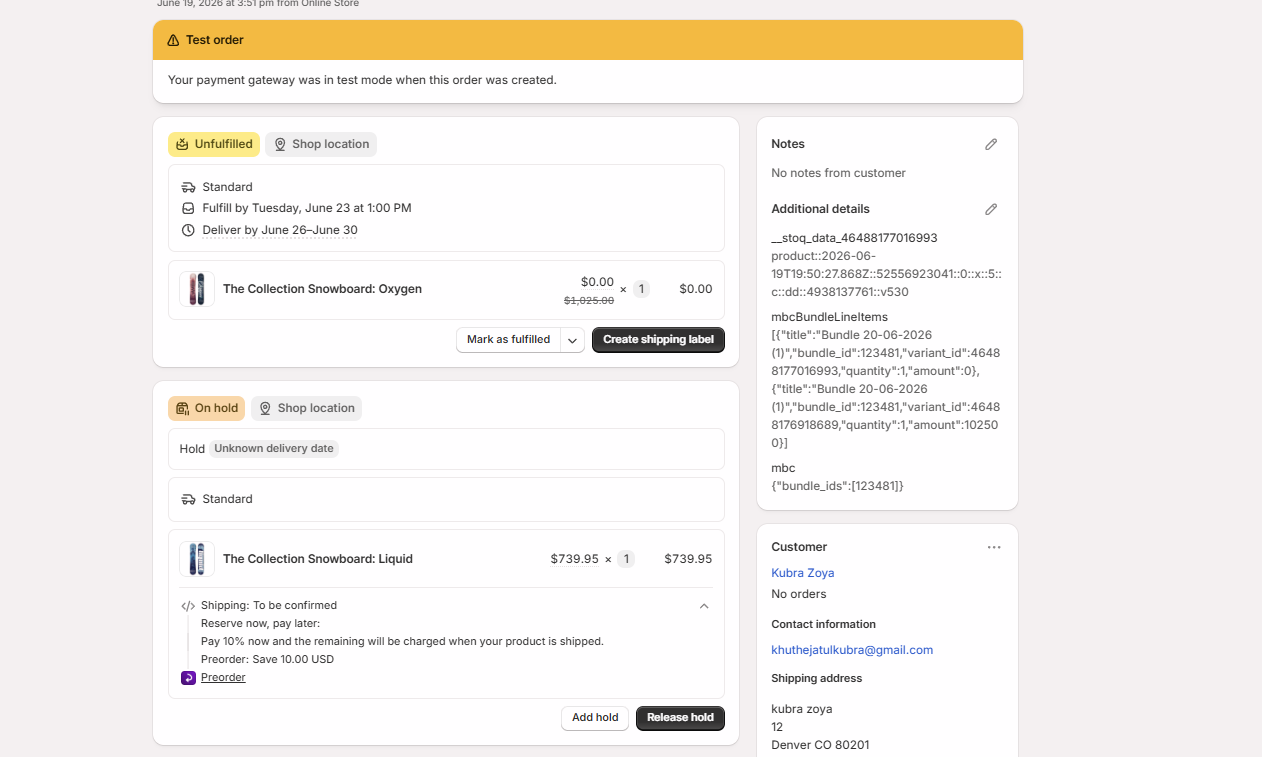
Section titled “Shopify order result”For Separate products, STOQ fulfillment hold works without any issues. The preorder product appeared separately on hold, while the in-stock product remained available for normal fulfillment.
Product Groups
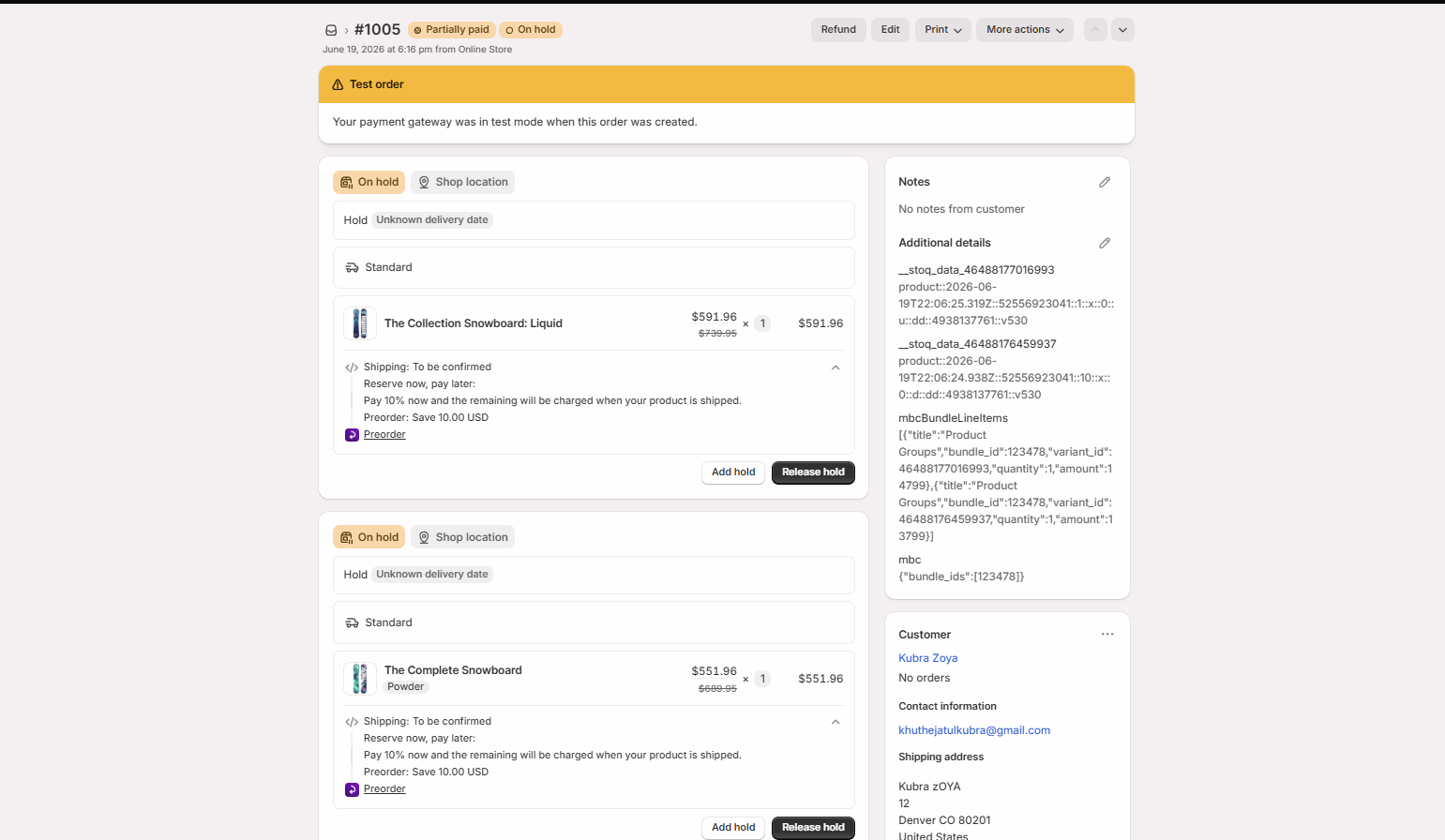
Section titled “Product Groups”MBC Product Groups have limited support with STOQ preorders. Compatibility depends on whether the Product Group contains only preorder products or a mix of preorder and in-stock products.
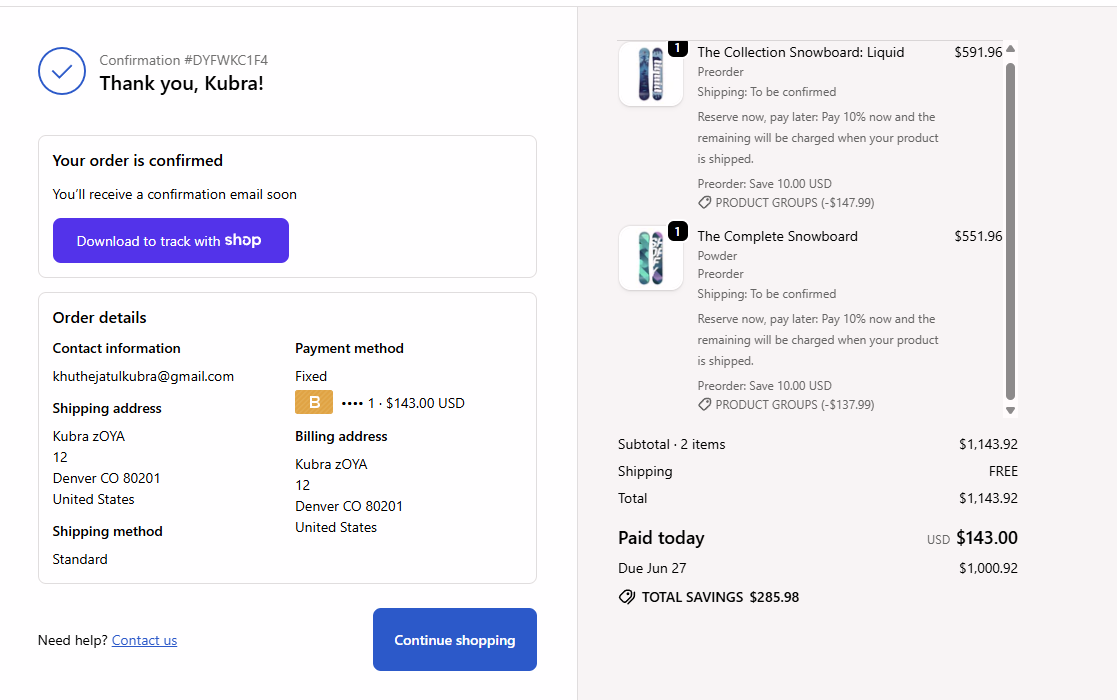
Product Groups with all preorder products
Section titled “Product Groups with all preorder products”Product Groups work better when all products in the group are preorder products. If all products in the Product Group are preorder products, STOQ preorder features can work, including preorder details, STOQ preorder discounts, partial payments, and fulfillment setups.
However, partial payments can have the same limitation as Separate products when MBC discounts are used. If MBC applies a discount to the preorder products, STOQ may still calculate the deposit and remaining payment using the preorder product’s price before the MBC discount is applied. This means the checkout total can look correct, but the split between “due today” and “due later” may not match the final discounted preorder price.
Product Groups with mixed preorder and in-stock products
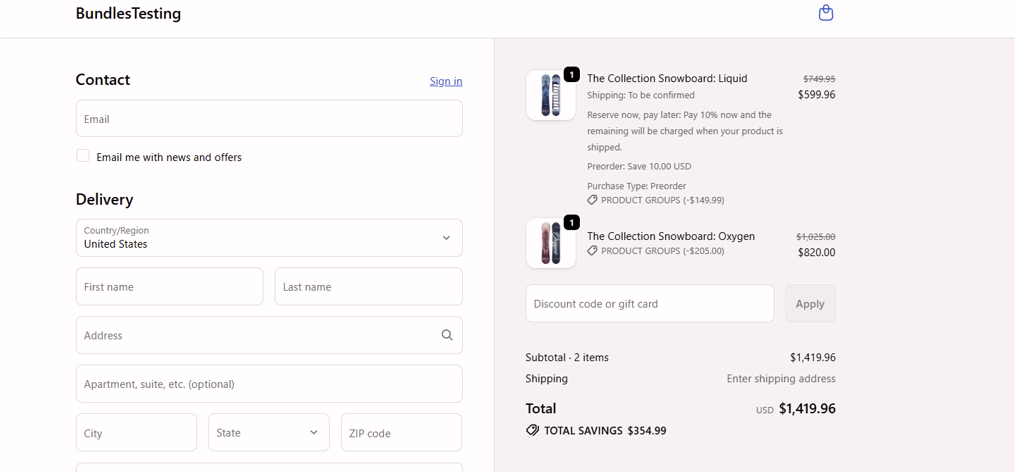
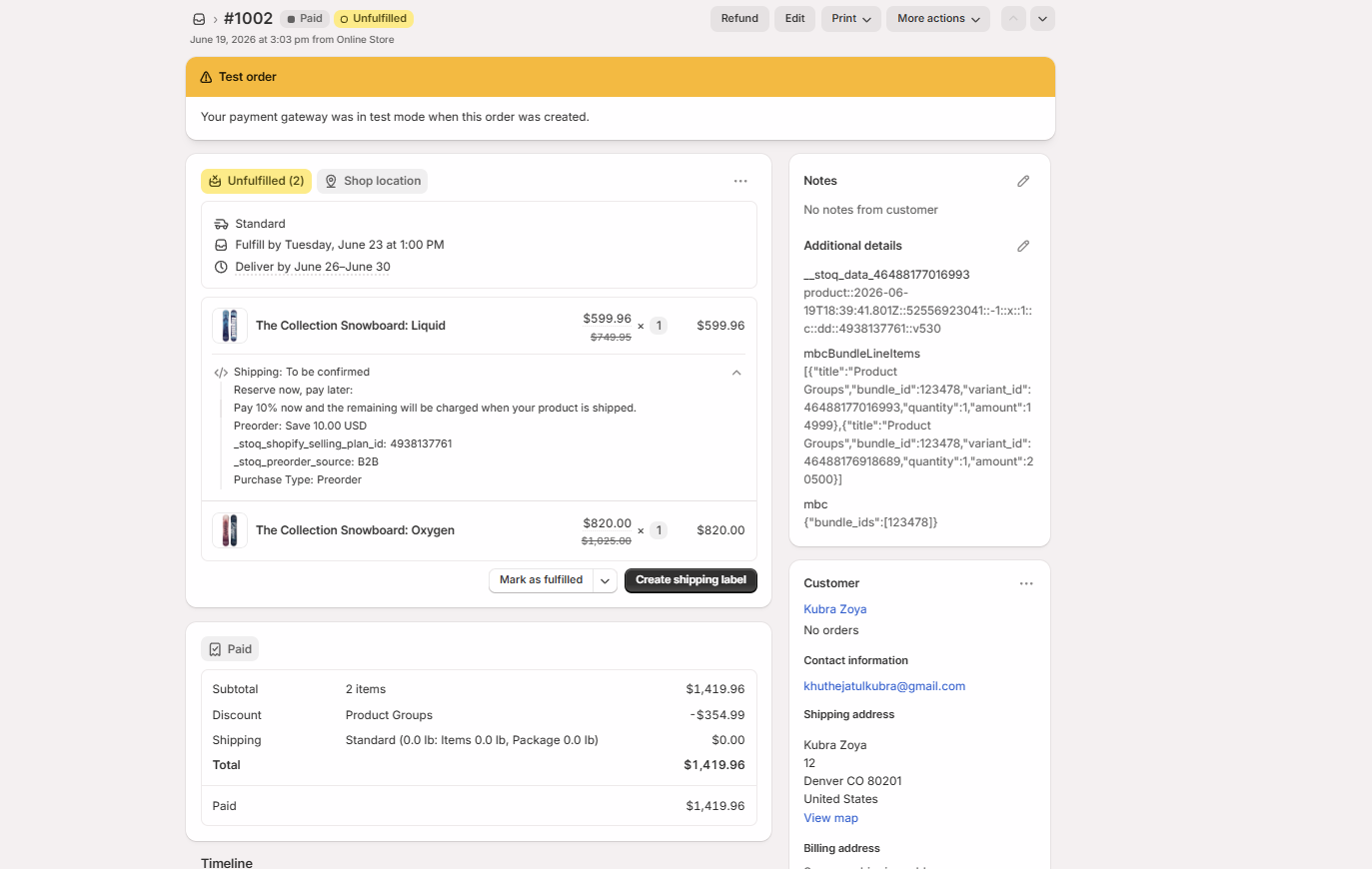
Section titled “Product Groups with mixed preorder and in-stock products”Product Groups are not recommended when the group contains both preorder and in-stock products. In this setup, the preorder product can still show Purchase type: Preorder as a line item detail. This helps distinguish the preorder product from an in-stock product in the order. However, key STOQ preorder features do not work correctly with mixed Product Groups. Avoid mixed Product Groups with STOQ preorder discounts, partial payments, and fulfillment setup.
If you use a mixed Product Group with STOQ, use:
- Full payment
- No STOQ preorder discount
- “Unfulfilled” shipping status
This setup can work if you only need the preorder product to be identified in the order using Purchase type: Preorder.
Recommended use
Section titled “Recommended use”Use Product Groups only when all products in the group are preorder products, and check the checkout behavior before going live. Avoid Product Groups for mixed preorder and in-stock bundles if you need preorder discounts, partial payments, or any fulfillment setups.
Volume Discounts
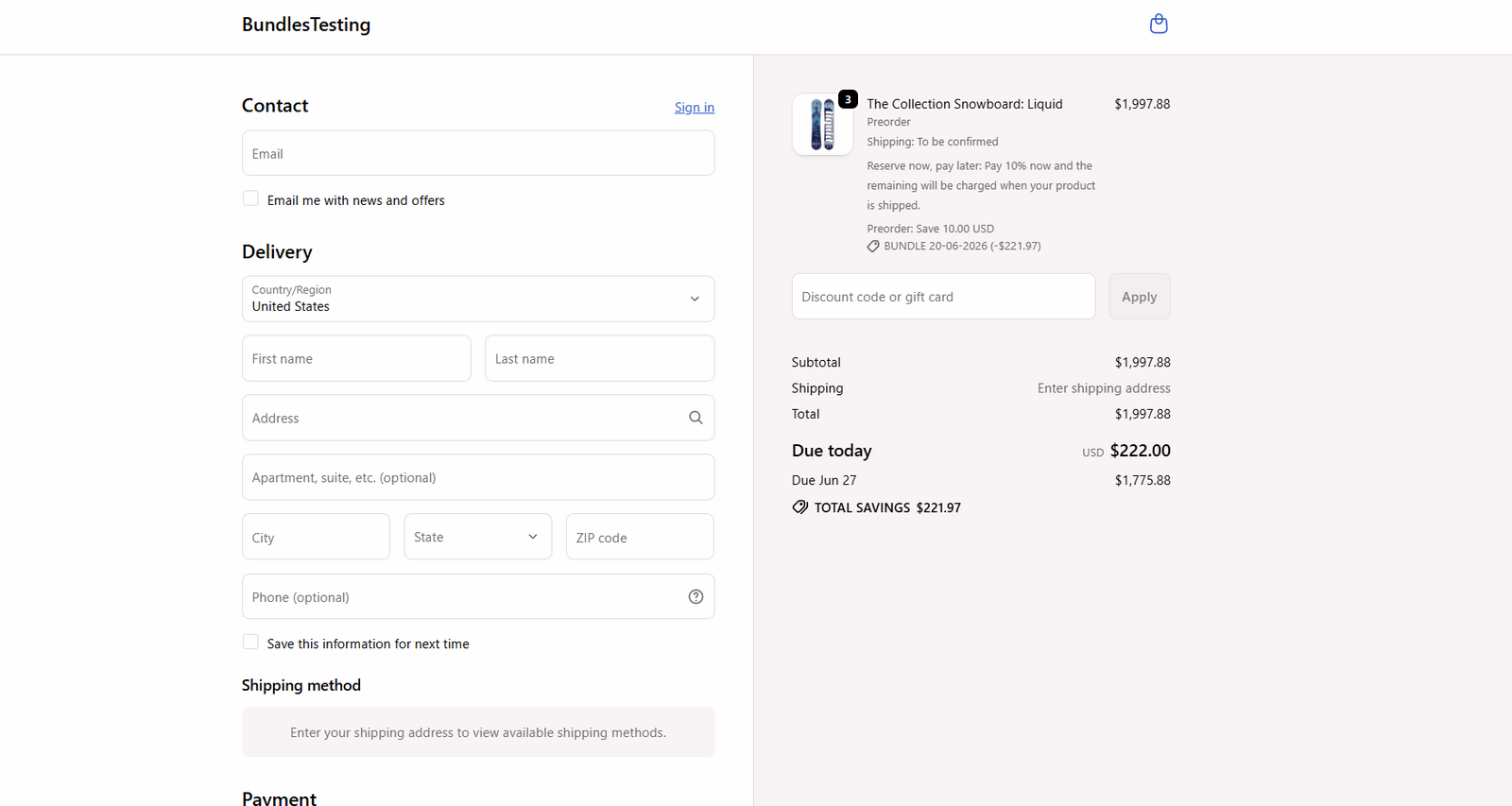
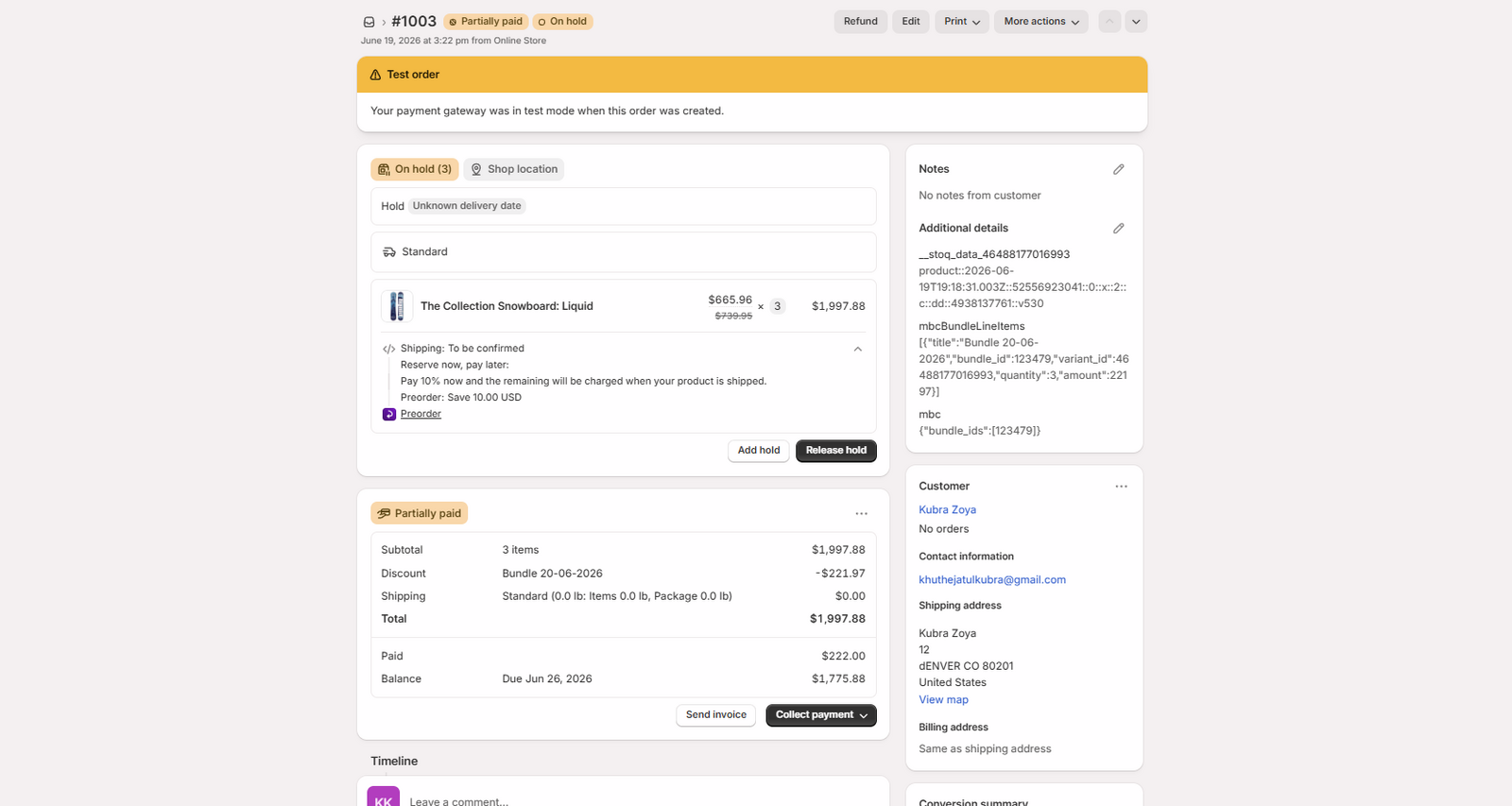
Section titled “Volume Discounts”MBC Volume discounts work with STOQ preorders.
Use this bundle type when you want to offer quantity-based discounts on a preorder product. For example, customers can buy 2 or 3 units of the same preorder product and receive a discount. With Volume discounts, the preorder product can show the correct preorder details at checkout, the volume discount applies correctly, and STOQ preorder settings continue to work.
Buy X Get Y on Separate products
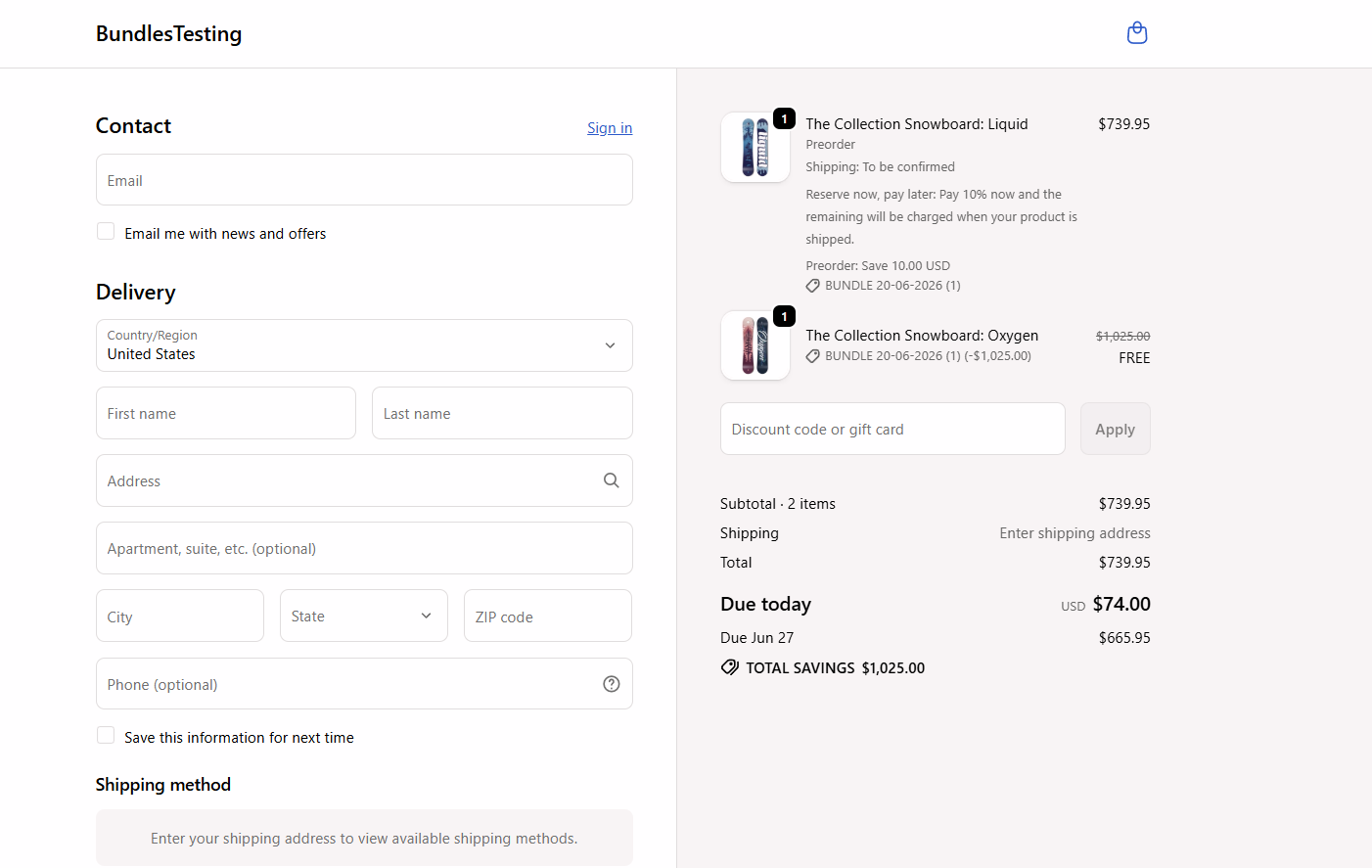
Section titled “Buy X Get Y on Separate products”Buy X Get Y offers created using MBC’s Separate products setup work with STOQ preorders. Use this bundle type when you want customers to buy a preorder product and receive another product for free or at a discount. With this setup, the free or discounted product is added correctly, and the preorder product keeps its preorder details. This means customers can preorder one product and receive another product as part of the Buy X Get Y offer, while the preorder product still keeps its preorder payment details.
Recommended use
Section titled “Recommended use”Use Buy X Get Y with Separate products if you want to offer a free or discounted item with a preorder product.
Troubleshooting
Section titled “Troubleshooting”Bundle widget does not appear
Make sure MBC is set to show bundles even when a product is out of stock.
Full bundle is not added to cart
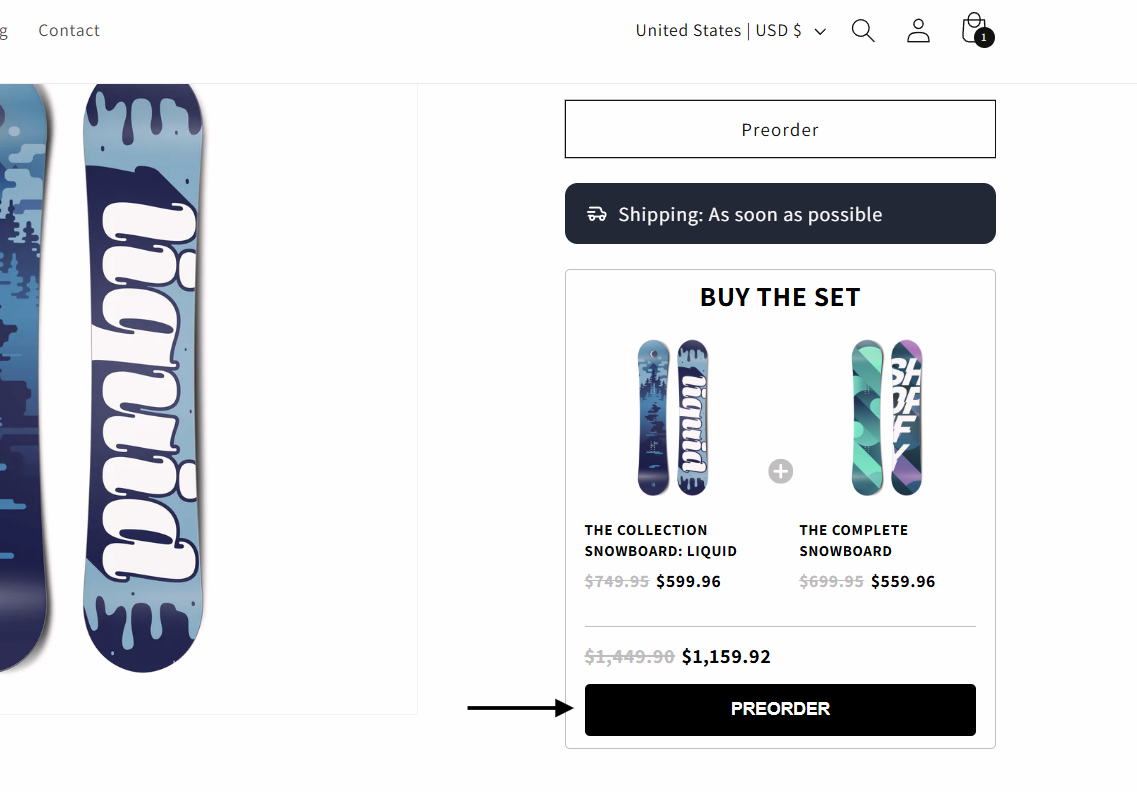
Make sure the MBC bundle button is clicked, not the main preorder button.
Partial payment amount looks wrong
MBC discounts may affect how the deposit and remaining payment are calculated.
Preorder item is not placed on hold
Check if you are using a mixed Product Group. Use Separate products or Volume discounts instead.
Preorder discount does not apply
Check if you are using a mixed Product Group. Use Separate products or Volume discounts instead.
Can I use Product Groups with one preorder product and one in-stock product?
This is not recommended. The preorder product may still show Purchase type: Preorder, but preorder discounts, partial payments, and fulfillment hold may not work correctly.
Can I use Product Groups if all products are preorder products?
Yes. If all products in the Product Group are preorder products, preorder discounts, partial payments, and fulfillment hold can work. However, if you also use MBC discounts, the partial payment split may still be calculated before the MBC discount is applied. Check checkout before going live.
Can I use STOQ partial payments with MBC Bundles?
Yes, but use them carefully. Partial payments work well with Volume discounts. With Separate products or Product Groups, the payment split may not match the final discounted price if MBC discounts are used.
What payment option is safest when using bundle discounts?
Full payment or Don’t collect payment now.
Why was only one product added to cart?
The main preorder button was likely clicked. To add the full bundle, customers must click the button inside the MBC bundle widget.
Related guides
Section titled “Related guides”Thanks for letting us know.
Still stuck? Ask Quinn or chat with support