Show preorder info on packing slips
Print preorder details on your Shopify packing slips by turning on cart details in STOQ.
Last updated
STOQ adds preorder details, like the offer name, fulfillment date, and payment terms, to each order’s line items at checkout. Packing slips themselves are printed by Shopify or an app like Order Printer, not STOQ. Once you turn the details on, your packing slip template prints them like any other line-item detail.
Before you begin
Section titled “Before you begin”- STOQ adds these details at checkout. Turn on the ones you want before customers place their order, they can’t be added to orders already placed.
- Your packing slip template needs to print line-item details for these to show. Shopify’s default template already does; if you’re using a custom template or an app like Order Printer, confirm it prints line-item properties.
Set it up
Section titled “Set it up”On a phone, this menu is collapsed. In the Shopify mobile app, tap the STOQ logo at the top of the screen to open it, then choose the section named below. There is no hamburger icon. See Finding the STOQ menu.
Turn on the preorder details in STOQ
Section titled “Turn on the preorder details in STOQ”-
Open the offer
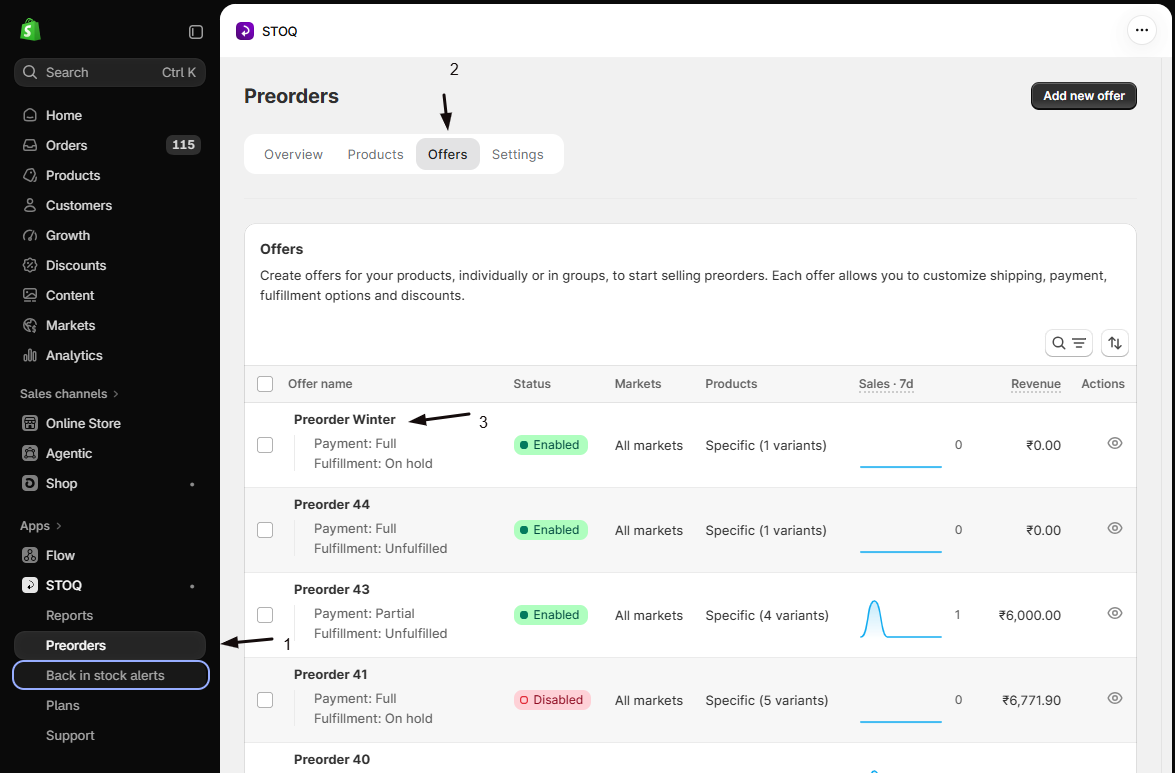
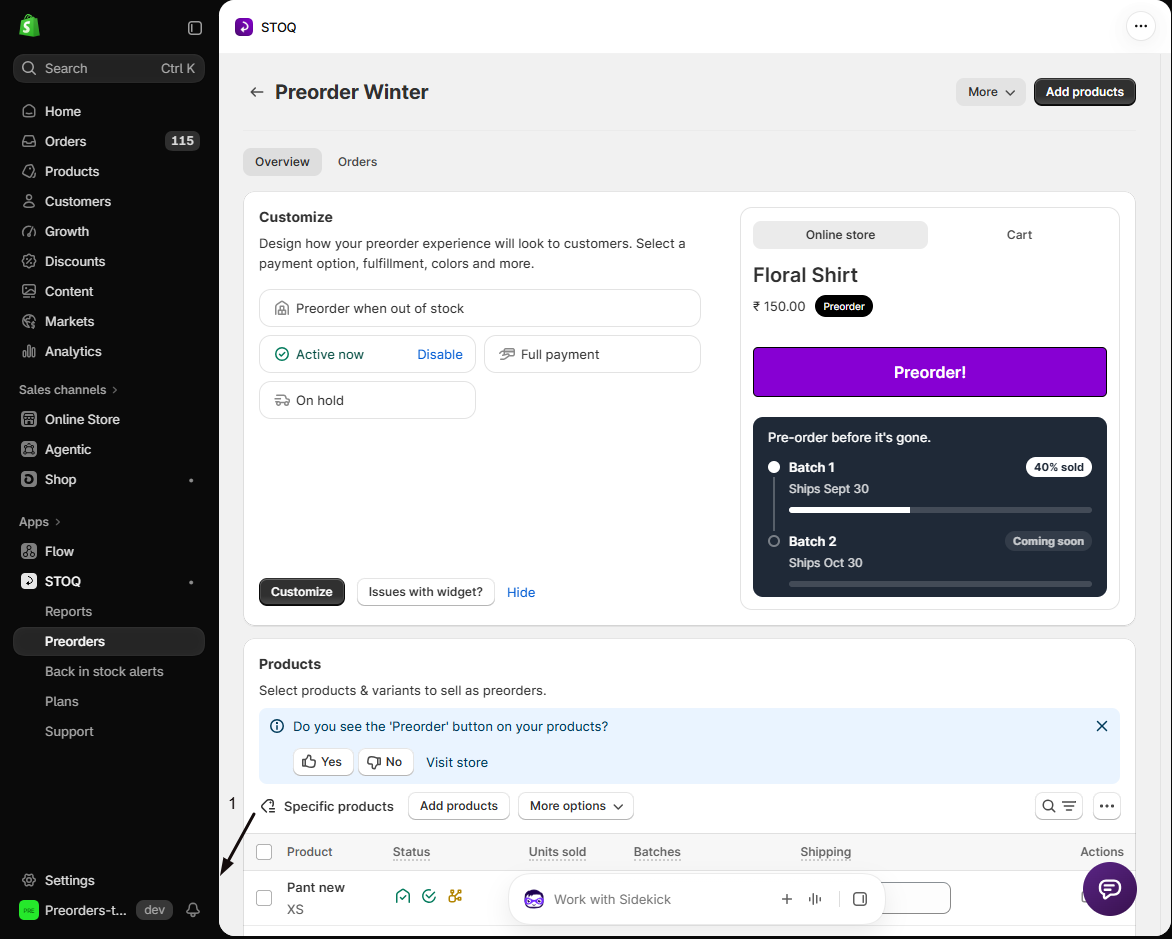
- In the left menu bar of the STOQ app, click Preorders.
- Click the Offers tab.
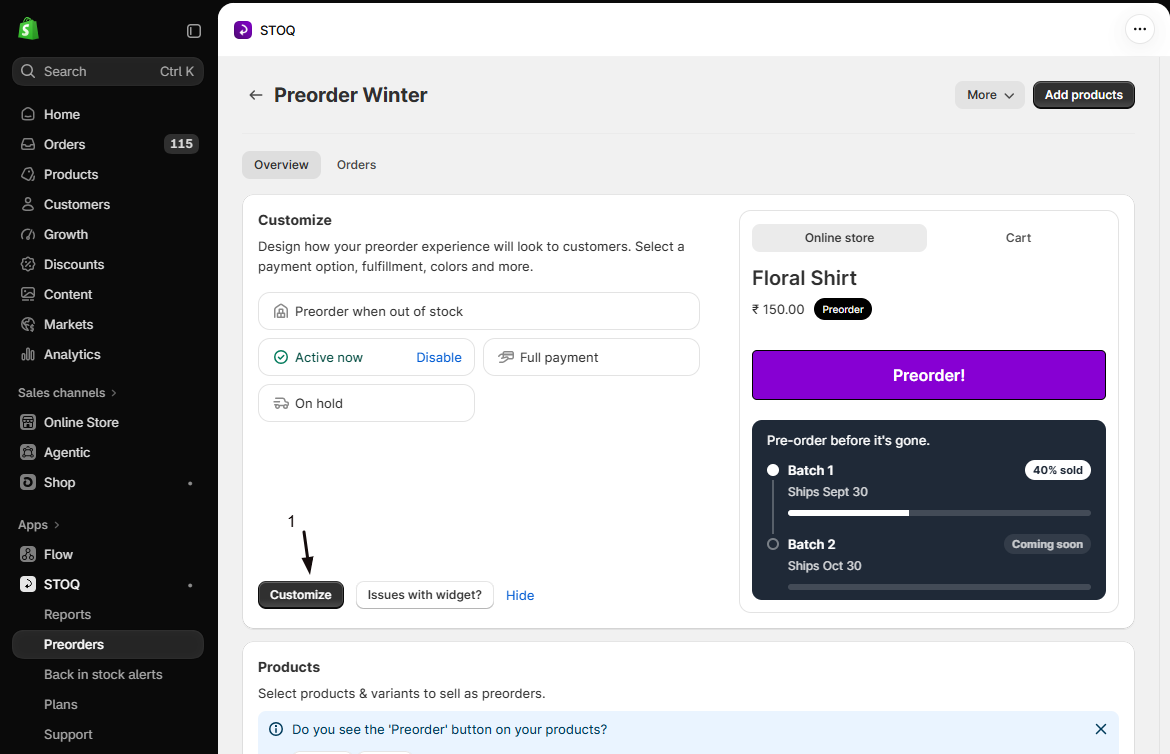
- Click the offer to open its Overview tab.
- Click the Customize button to open the editor.
-
Open Advanced, then Cart
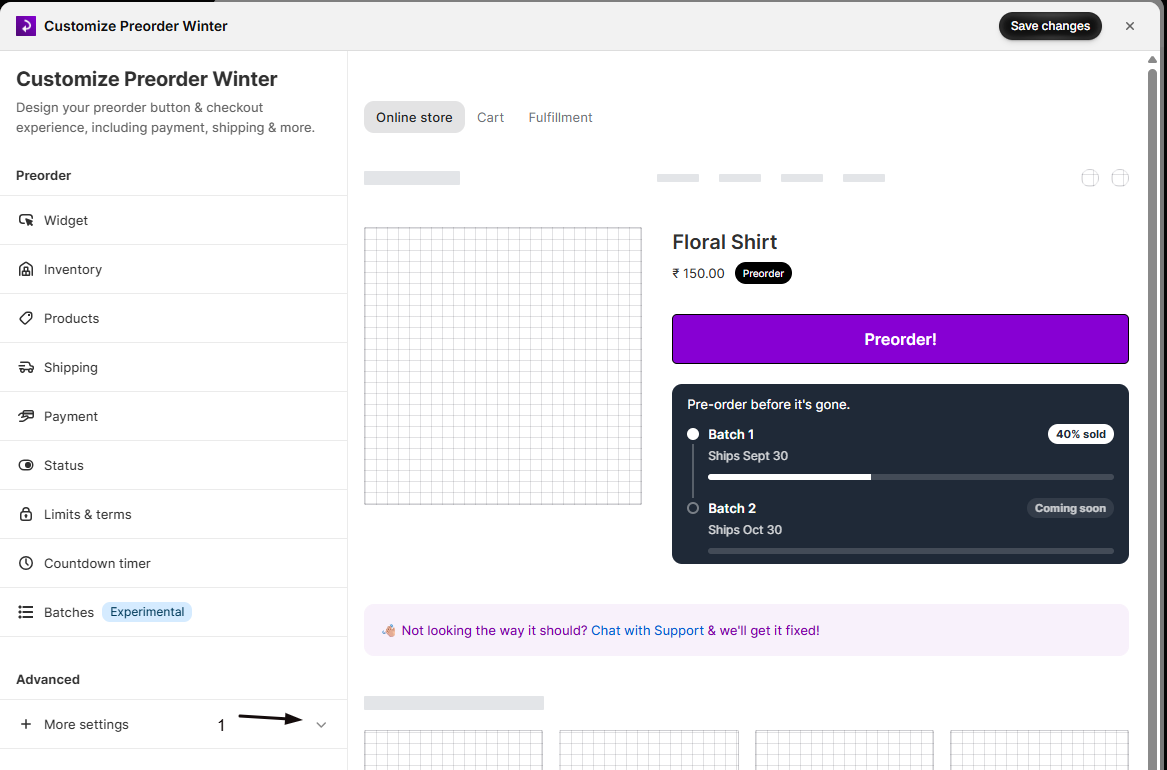
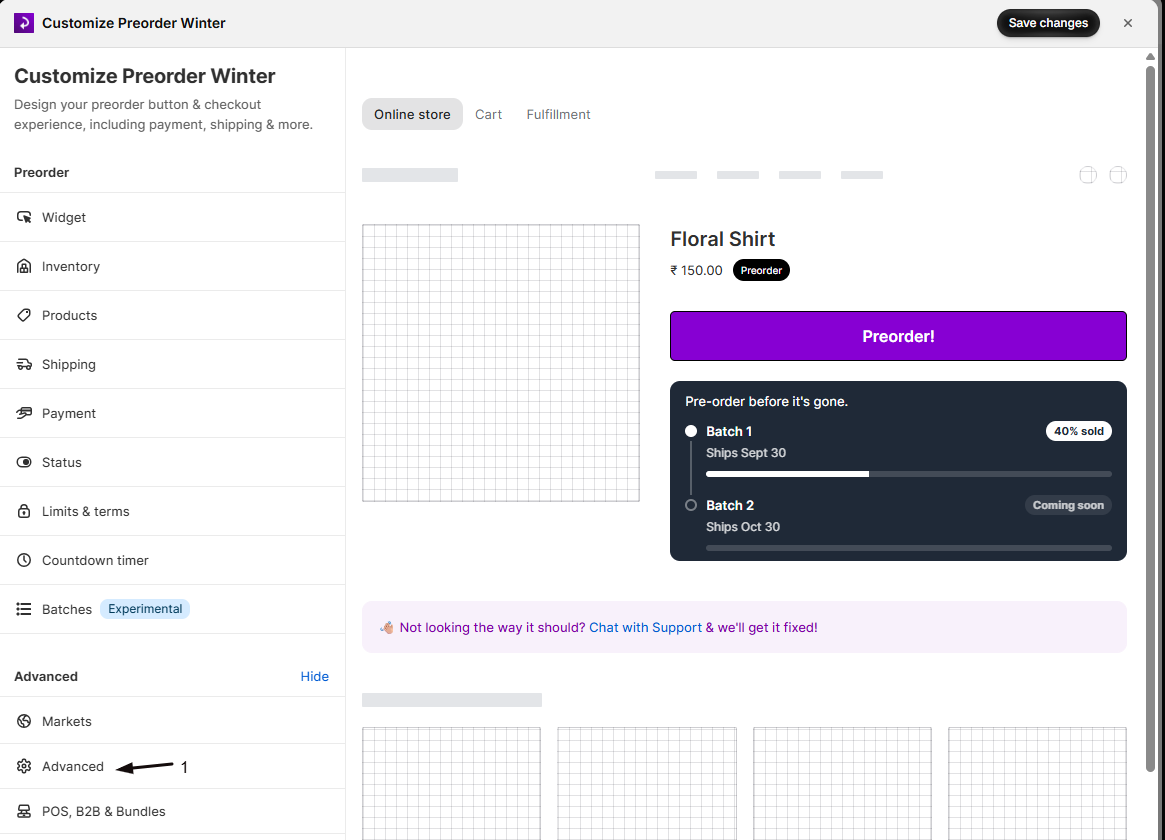
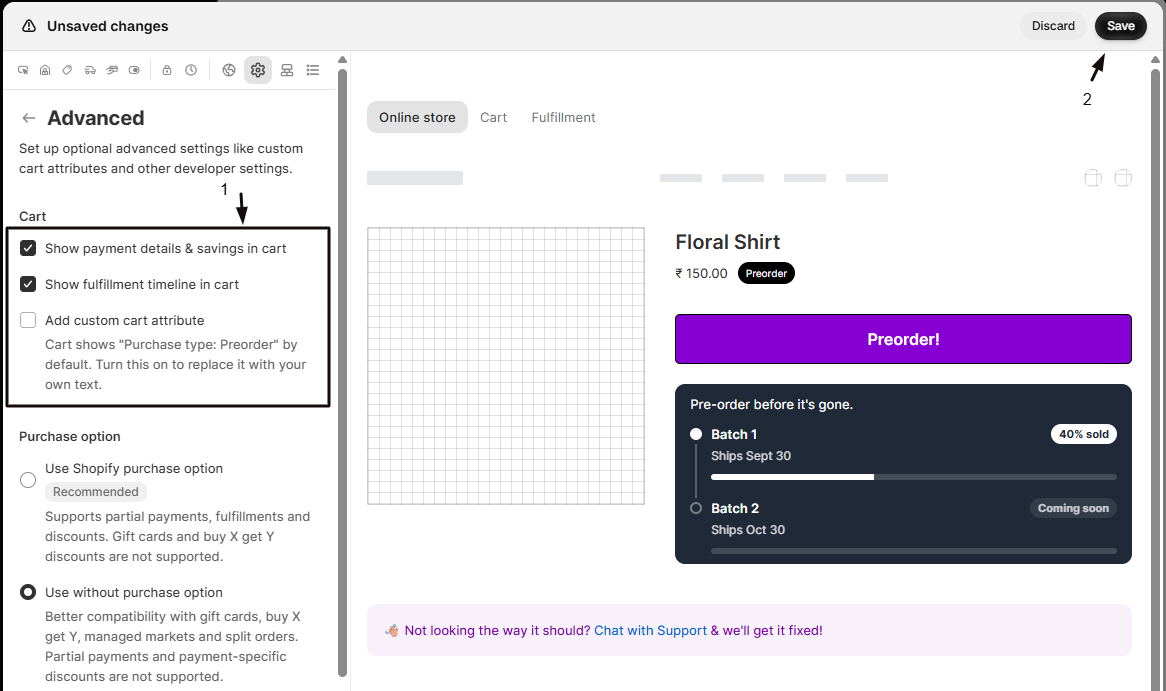
In the editor’s settings list, click More settings to expand it, then click Advanced. The details live under the Cart heading.
-
Turn on the details you want
- Show fulfillment timeline in cart: adds the offer’s shipping date or message.
- Show payment details & savings in cart: adds the payment breakdown (amount due now vs. remaining), and the discount if the offer has one.
- Add custom cart attribute: a single freeform message you compose from the available variables (offer name, date, days, payment, discount, and a few others).
-
Save changes
Click Save changes at the top right of the editor. New orders from this offer will carry the details you turned on.
There’s a fourth detail in a different place: under Limits & terms, the Record when customer accepted terms checkbox (paid plans) adds a “Preorder Terms Accepted: …” line with the date and time the customer ticked the preorder acknowledgement box at checkout. See Preorder advanced settings for the full list of cart details and variables.
For orders placed by B2B customers, STOQ also adds a “Purchase type: Preorder” line automatically, no setup needed. If the offer has a custom cart attribute, your text replaces that line. See Change or translate the “Purchase type: Preorder” cart text.
Print them on your packing slip
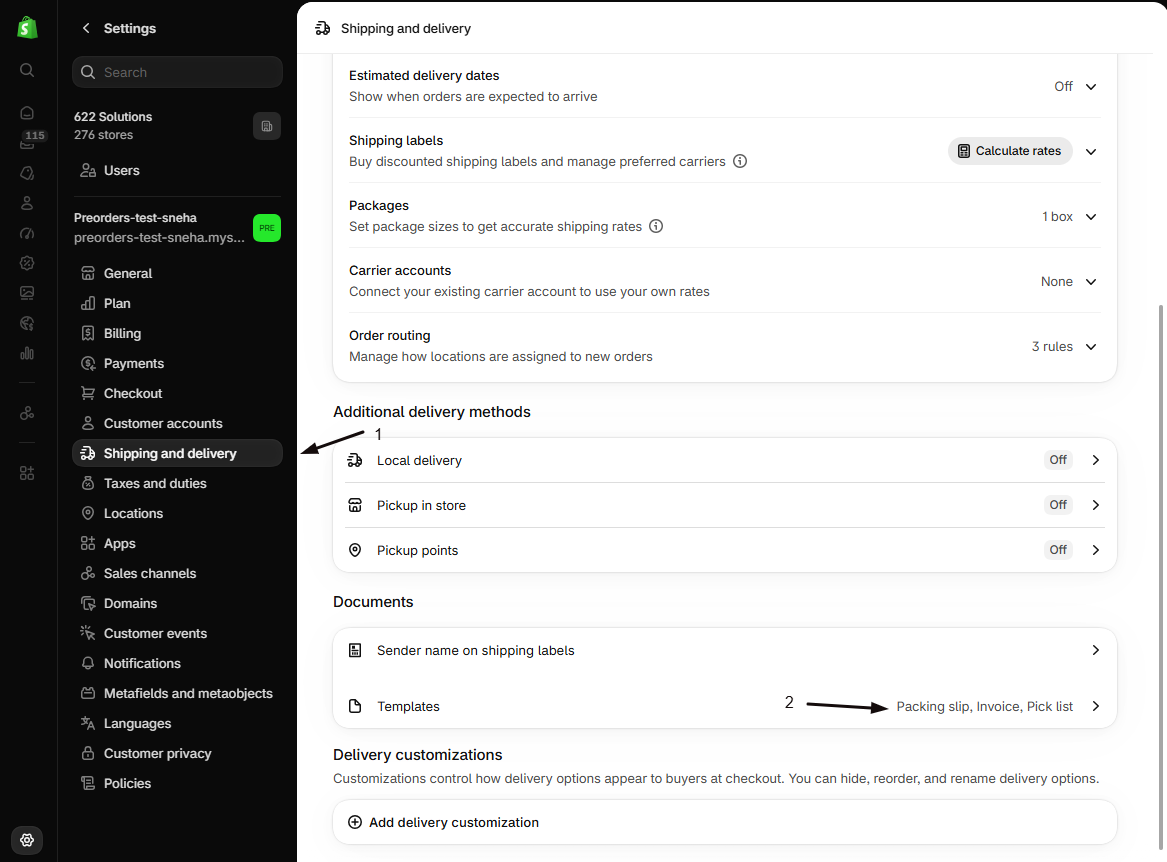
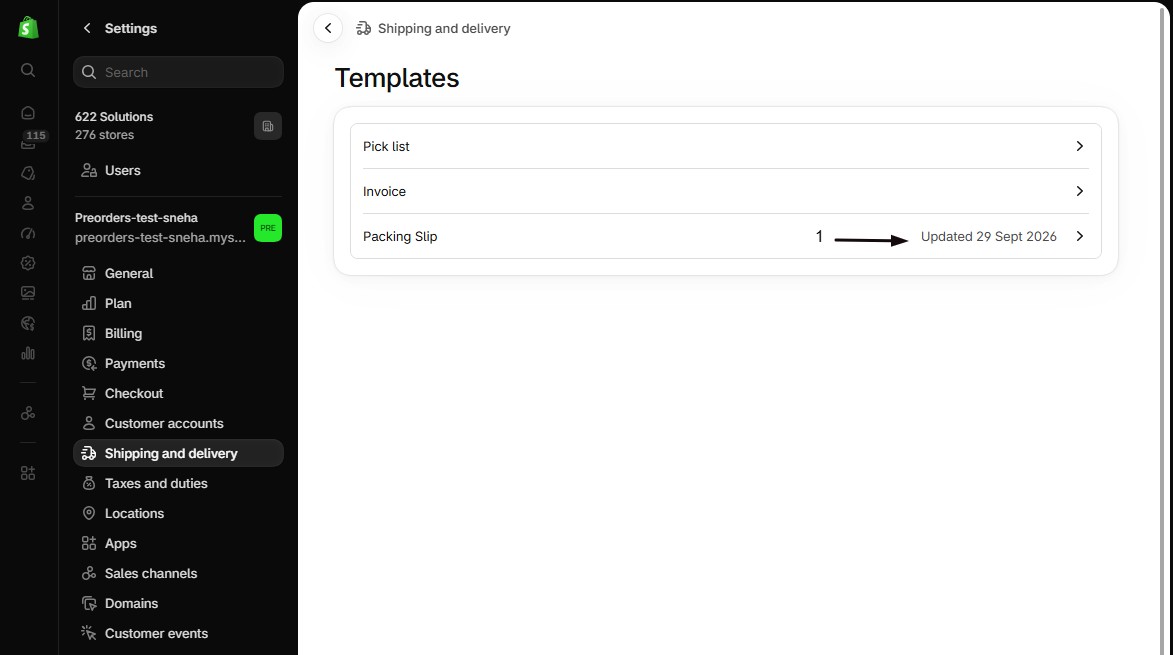
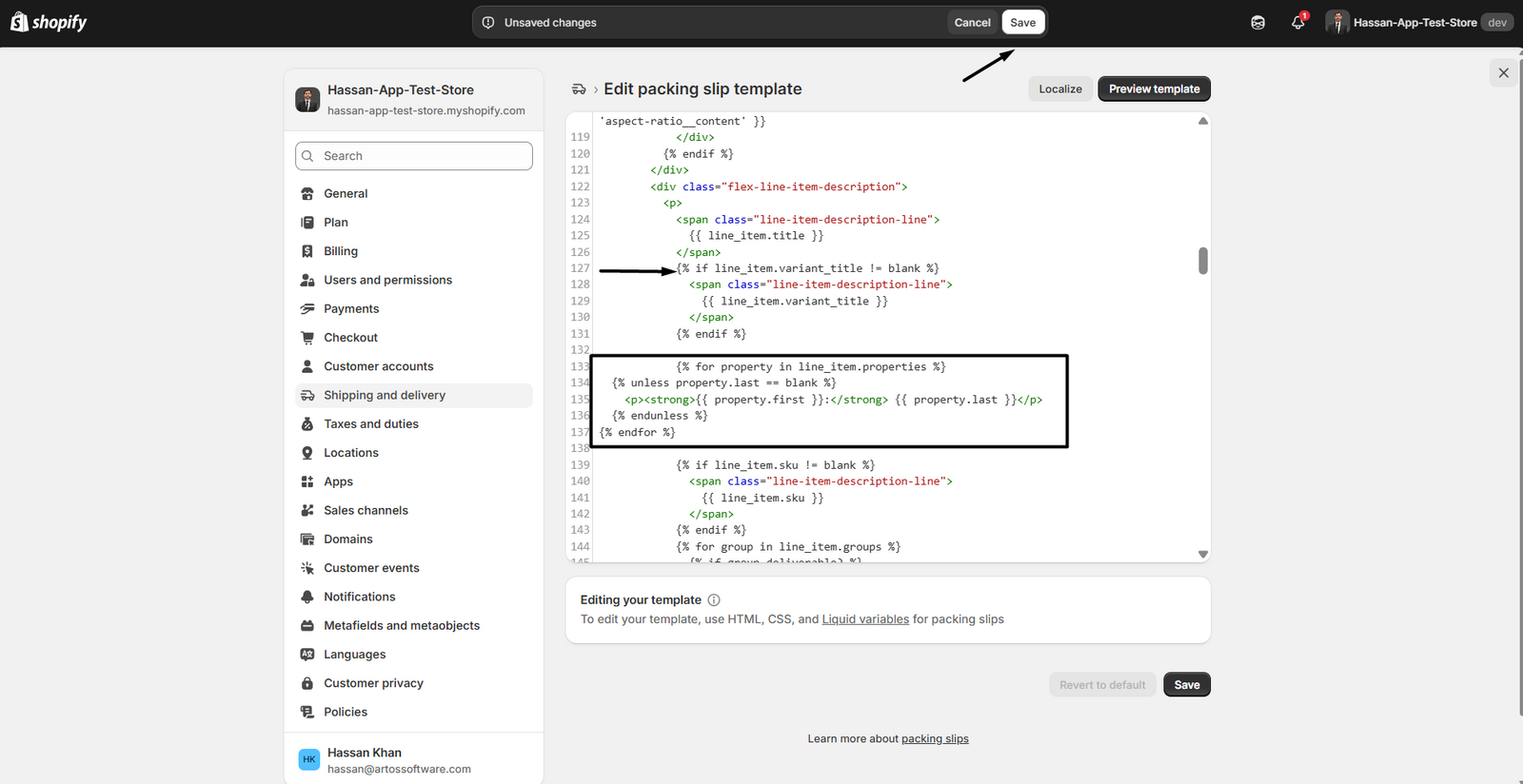
Section titled “Print them on your packing slip”Your packing slip template lives in Shopify: Settings → Shipping and delivery → Packing slips. Shopify’s default template already prints line-item details, so the preorder details appear automatically once you’ve turned them on.
If your template doesn’t print them, add a loop for line-item details to the template:
{% for property in line_item.properties %} {% unless property.first == blank or property.first[0] == '_' %} <p><strong>{{ property.first }}:</strong> {{ property.last }}</p> {% endunless %}{% endfor %}The property.first[0] == '_' check hides STOQ’s internal tracking lines (their names start with an underscore) so only the customer-facing details print. STOQ adds these underscore-prefixed lines mainly when the offer uses Use without purchase option, where it stores tracking data such as the selling plan reference as a line-item property.
What appears on the slip
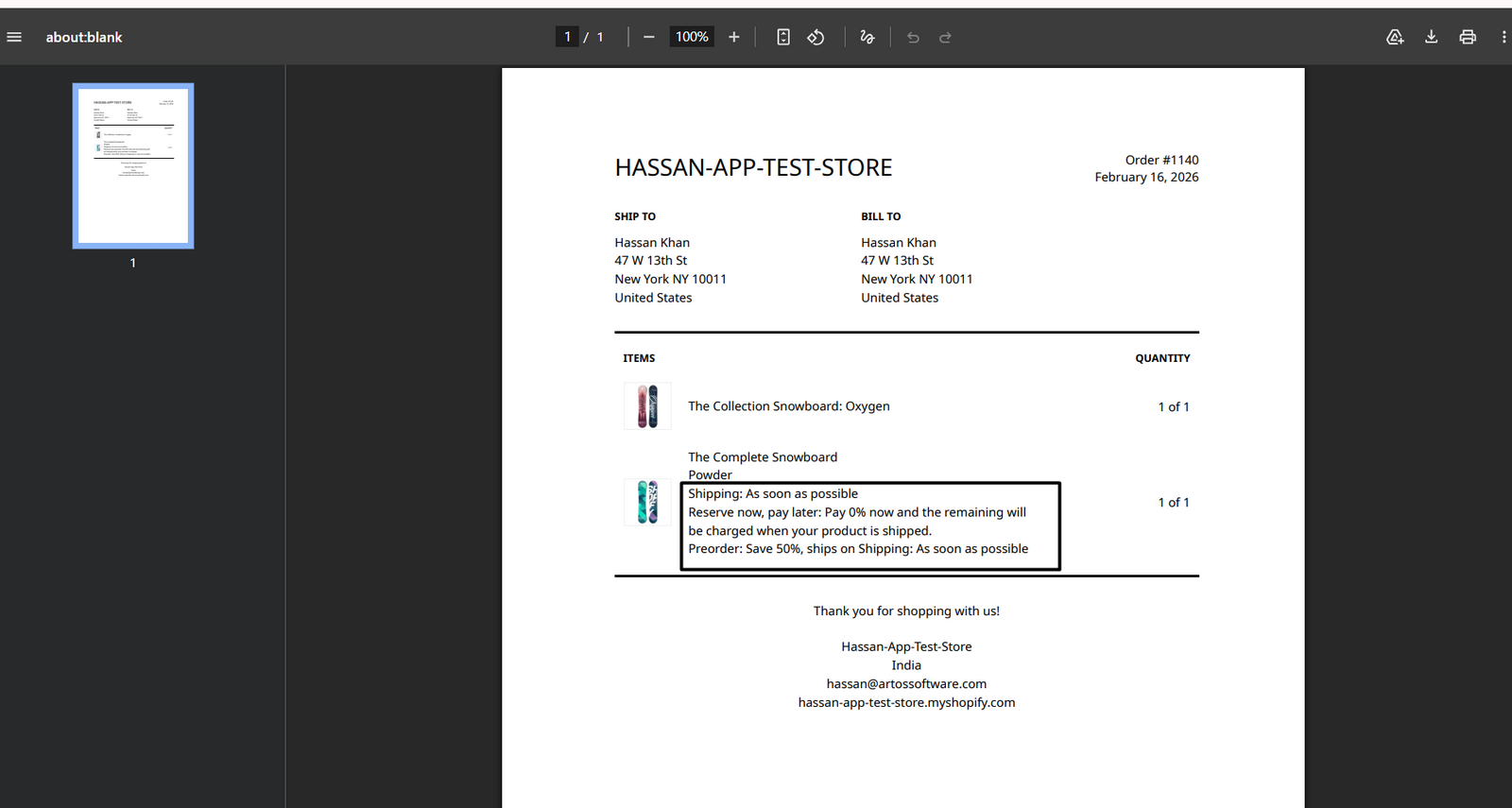
Section titled “What appears on the slip”A preordered line shows the product and quantity as usual, plus each detail you turned on, on its own line. STOQ names each line after the detail, for example:
The Complete Snowboard, Powder · Qty 1 Shipping: As soon as possible Reserve now, pay later: Pay 0% now and the remaining will be charged when your product is shipped. Preorder: Save 50%, ships on Shipping: As soon as possible
Check your setup
Section titled “Check your setup”-
Turn on the details
- In the offer editor, expand More settings and click Advanced.
- Under the Cart heading, turn on the details you want.
- Click Save changes at the top right of the editor.
-
Place a test preorder
On your storefront, add the preorder product to cart and check out.
-
Check the order in Shopify admin
Open the order in Shopify admin and confirm the details appear under the line item (for example, “Shipping: As soon as possible”).
-
Print or preview the packing slip
- From the order, click More actions.
- Click Print packing slip.
- Confirm the same lines appear on the slip.
Troubleshooting
Section titled “Troubleshooting”Nothing appears on the order at all
The details weren’t turned on for the offer before the customer checked out. Turning them on now won’t add them to existing orders; turn them on and place a new test order to confirm.
Details show in Shopify admin but not on the printed slip
Your packing slip template isn’t printing line-item details. Add the loop from “Print them on your packing slip” above.
Lines starting with an underscore show up on the slip
Your template’s loop isn’t filtering out STOQ’s internal tracking properties. Use the property.first[0] == '_' check shown above.
A visible line like "Shipping: As soon as possible" prints and you want to hide it
Each detail you turned on prints as its own line, named after the detail (for example a Shipping line for the fulfillment timeline). To drop a specific one, add its name to the loop’s filter. For example, to hide the shipping line:
{% for property in line_item.properties %} {% unless property.first == blank or property.first[0] == '_' or property.first == 'Shipping' %} <p><strong>{{ property.first }}:</strong> {{ property.last }}</p> {% endunless %}{% endfor %}Does STOQ have its own packing slip template?
No. STOQ adds preorder details to the order at checkout; printing is handled by Shopify’s built-in packing slip feature or an app like Order Printer. STOQ has no packing slip designer of its own.
Can I show the deposit and balance amounts on the slip?
Yes. Turn on Show payment details & savings in cart under Advanced → Cart. It adds the payment breakdown (amount due now vs. remaining) for deposit or partial-payment offers. See Set up payment for preorders.
Will the shipping date update on the slip if I change the offer's date later?
No. The details are written once, at checkout, from the offer’s settings at that moment. Changing the offer’s date afterward only affects new orders; existing orders keep the date that was shown when they were placed.
Can I add my own custom line, like a warehouse note?
Yes. Use Add custom cart attribute under Advanced → Cart to write a single freeform message (optionally using the available variables for offer name, date, payment, discount, and so on). It prints wherever your packing slip template prints line-item details.
I sell to B2B customers, is anything different?
For B2B orders, STOQ also adds a “Purchase type: Preorder” line automatically, which prints on the packing slip the same way as the other details. If the offer has a custom cart attribute, your text prints in its place.
Related guides
Section titled “Related guides”Thanks for letting us know.
Still stuck? Ask Quinn or chat with support