Set up locations and markets
Control which Shopify locations count toward preorder availability, in a single market or across multiple Shopify Markets.
Last updated
Use this guide to control which Shopify locations count toward preorder availability, whether you sell from one location or many, and in one Shopify market or several. By the end, the Preorder button will show or hide based on the right location’s stock for each shopper, on the product page and on collection, home, and search pages.
Before you begin
Section titled “Before you begin”- Shopify locations and Shopify Markets must already be set up in Shopify admin (Settings → Locations, Settings → Markets). STOQ doesn’t create or modify them; it only reads your existing setup.
- This setting is shop-wide and shared with STOQ’s Back in Stock alerts feature (there labeled Market-based alerts): the market-to-location mapping you set up here is the same data both features use, so you only configure it once per shop, but a change here also affects Back in Stock alerts.
Choose your setup
Section titled “Choose your setup”STOQ splits this into two mutually exclusive setups. Only one is active at a time, switching from one to the other turns the other off.
| Your setup | What you configure | Paid plan required? |
|---|---|---|
| Single market, you sell in one country/market, possibly from multiple locations | Filter locations: a manual list of which locations’ inventory should count for preorder decisions | No |
| Multiple markets, you use Shopify Markets to sell internationally | Market-based preorders: map each Shopify market to the location(s) that fulfill it | Yes, the toggle is disabled for free-plan shops, with an upgrade prompt |
If your products are stocked across multiple locations but you only sell in one market, turn on Filter locations. This matters because, without it, the Preorder button can behave inconsistently on pages that aren’t the product page (collection, home, search): Shopify’s storefront APIs don’t always give STOQ enough context on those pages to know which location’s stock to check, so STOQ needs an explicit list.
If you sell in multiple Shopify Markets, turn on Market-based preorders instead, and map each market to the location(s) that fulfill orders placed in it.
What customers will see
Section titled “What customers will see”- Single market: every shopper sees the same Preorder button logic, based on the locations you selected in Filter locations, or all fulfillable locations if you haven’t set a filter.
- Multiple markets: a shopper’s Preorder button availability is based on the location(s) mapped to the Shopify market they’re browsing in. A variant can show the Preorder button for a shopper in one market while showing as regular in-stock (or unavailable) for a shopper in a different market, if the underlying location stock differs.
- Shipping methods, rates, local pickup, and local delivery are Shopify’s shipping-profile and zone configuration; STOQ doesn’t control which shipping options appear at checkout for a given market or location. See Preorder shipping profiles and zones.
Set it up
Section titled “Set it up”On a phone, this menu is collapsed. In the Shopify mobile app, tap the STOQ logo at the top of the screen to open it, then choose the section named below. There is no hamburger icon. See Finding the STOQ menu.
-
Open the Locations & Markets panel
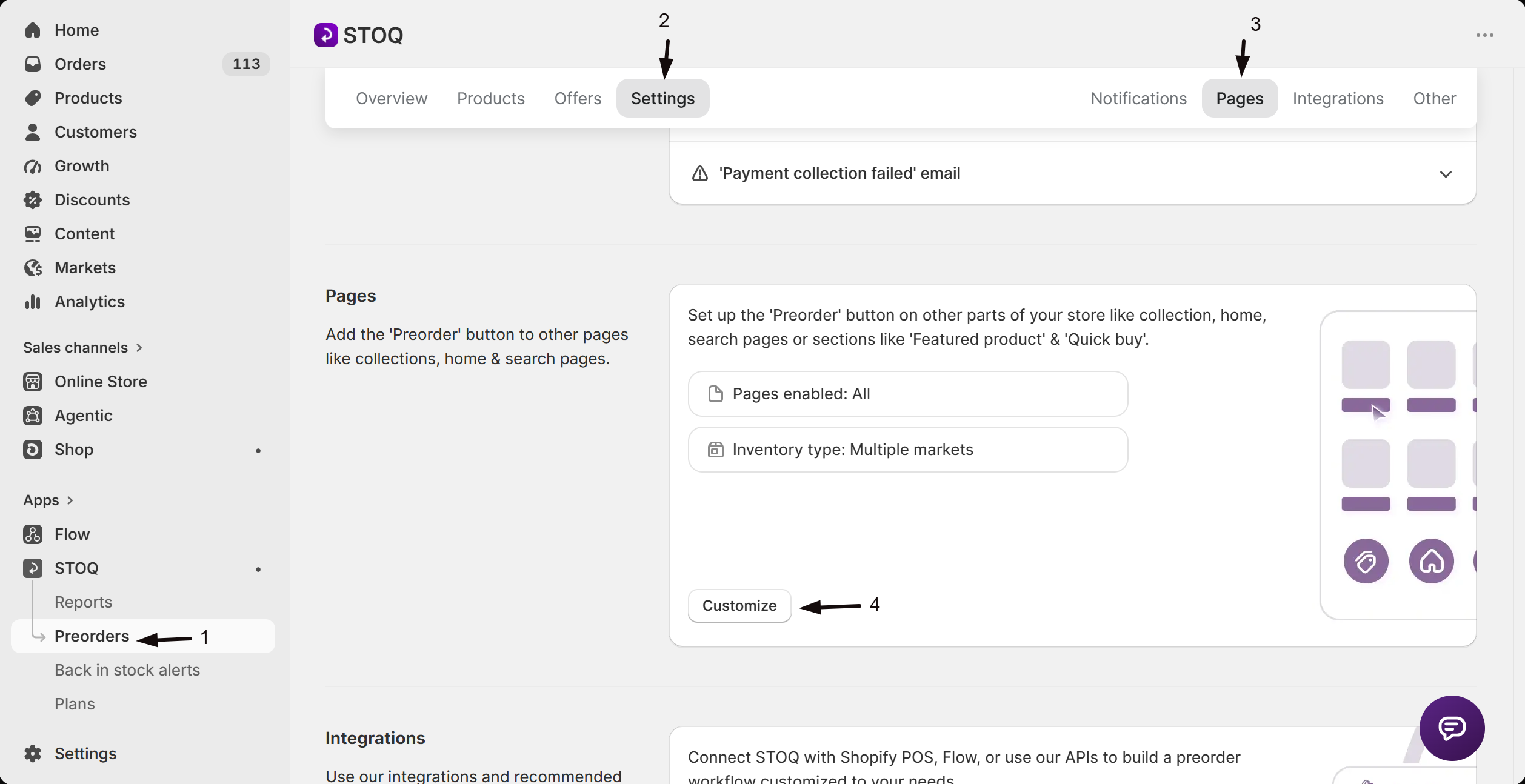
- In the left menu bar of the STOQ app, click Preorders.
- Click the Settings tab, then the Pages sub-tab.
- Click Customize to open the pages editor, the screen used to configure where the Preorder button appears (product page, collection, home, search, custom pages).
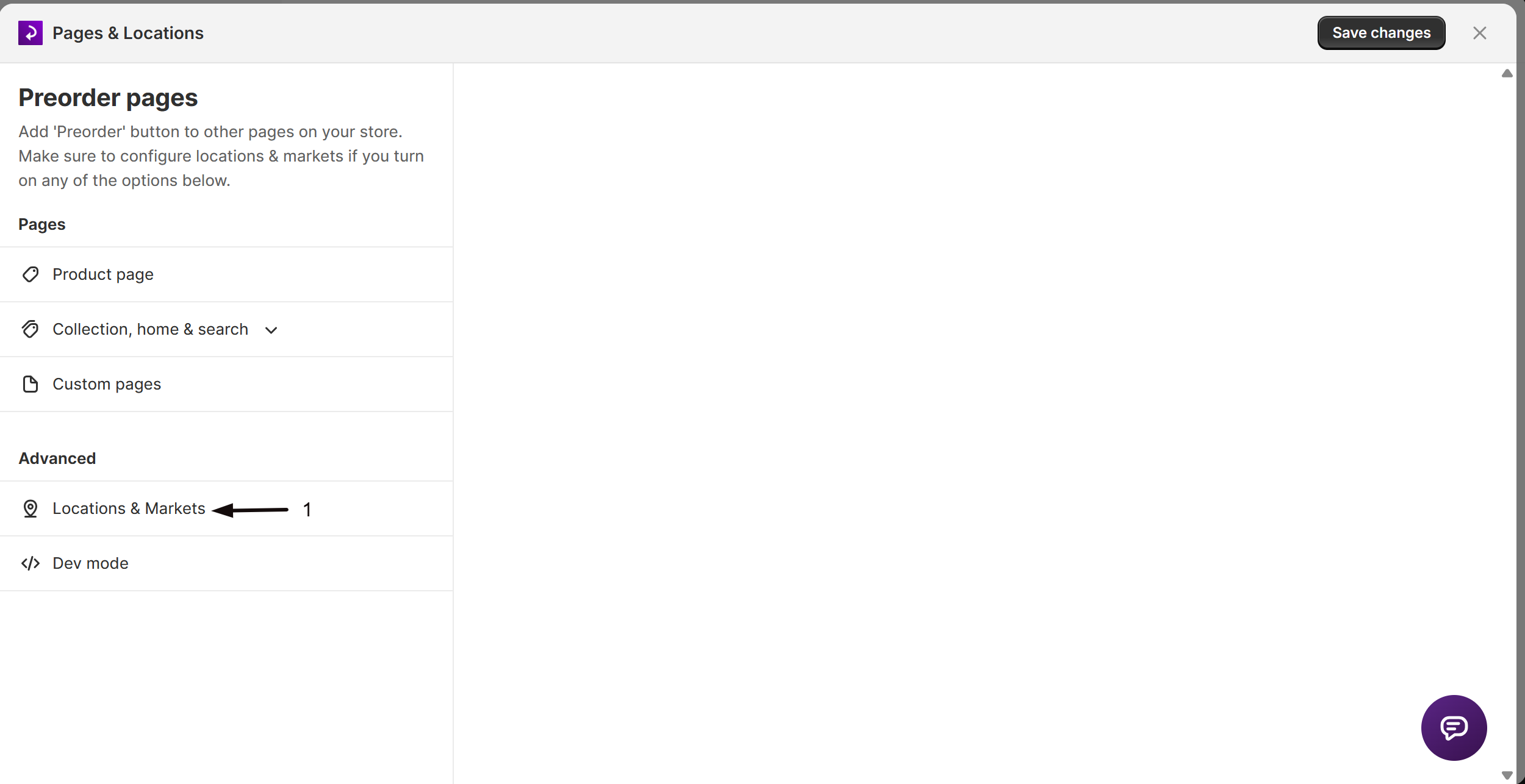
- In the editor’s sidebar, scroll to the Advanced section and click Locations & Markets.
-
Choose your market setup
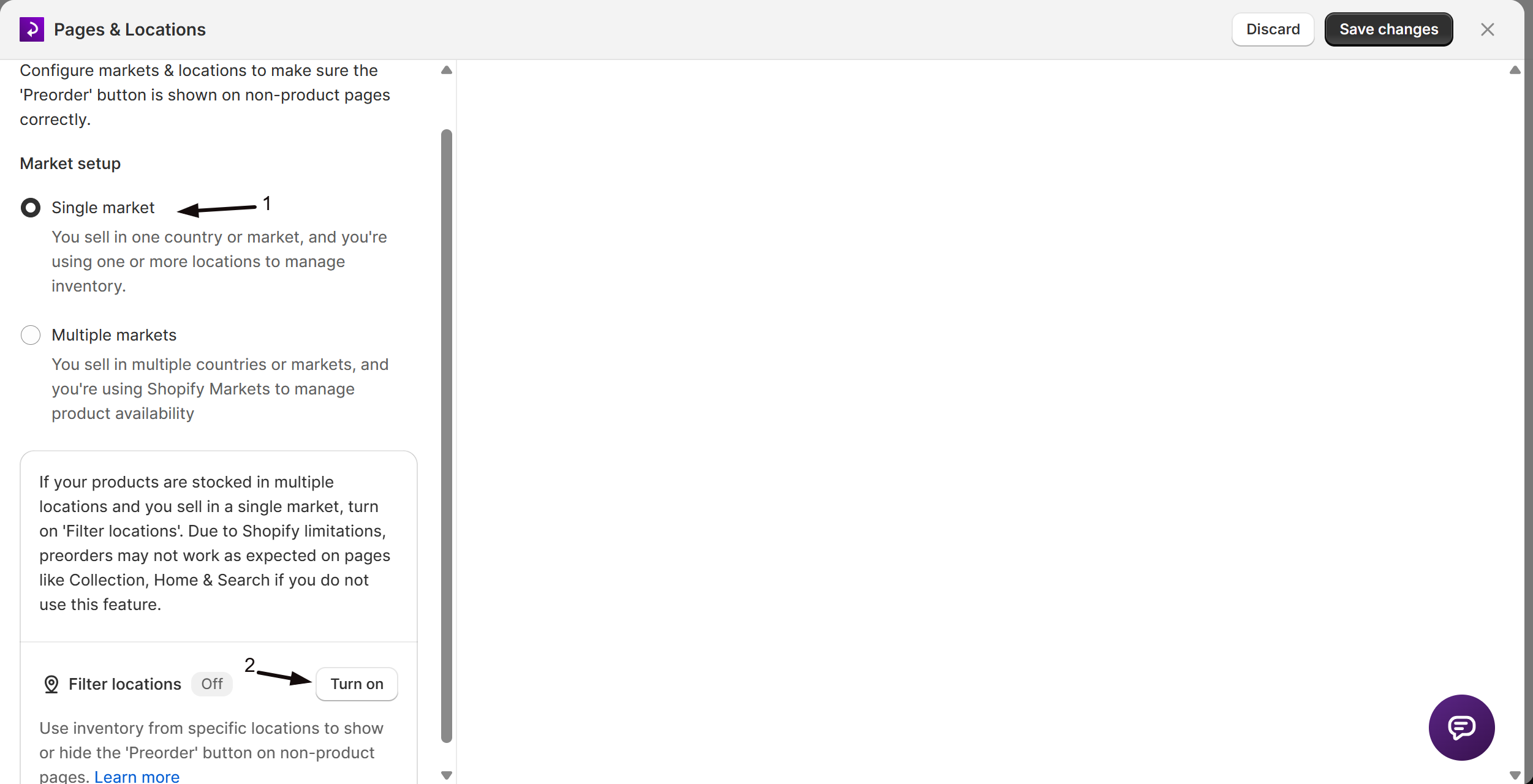
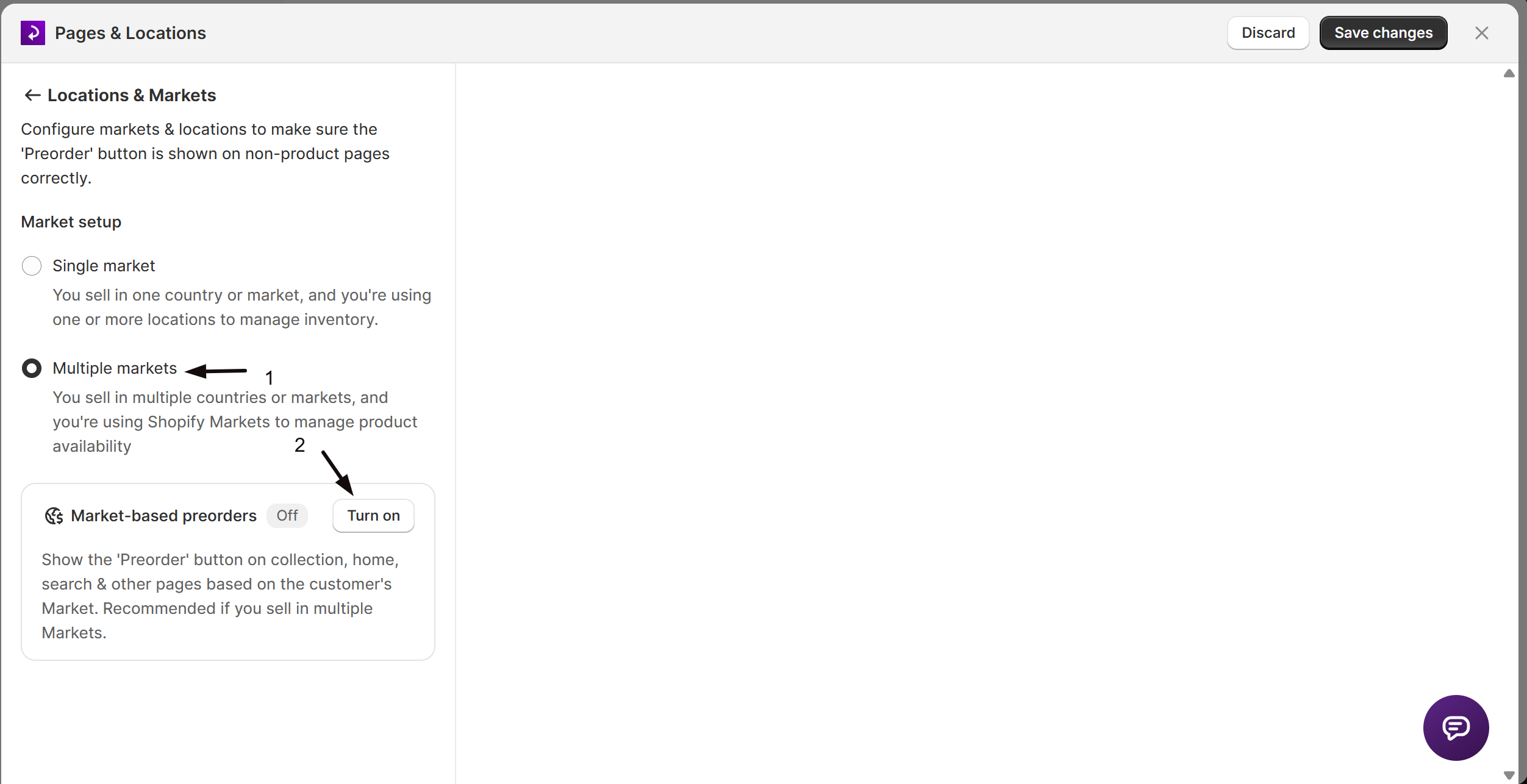
At the top of the panel, choose Single market or Multiple markets. This determines which control below applies.
-
Configure your setup
For Single market, turn on Filter locations and select which locations’ inventory STOQ should use for preorder decisions.
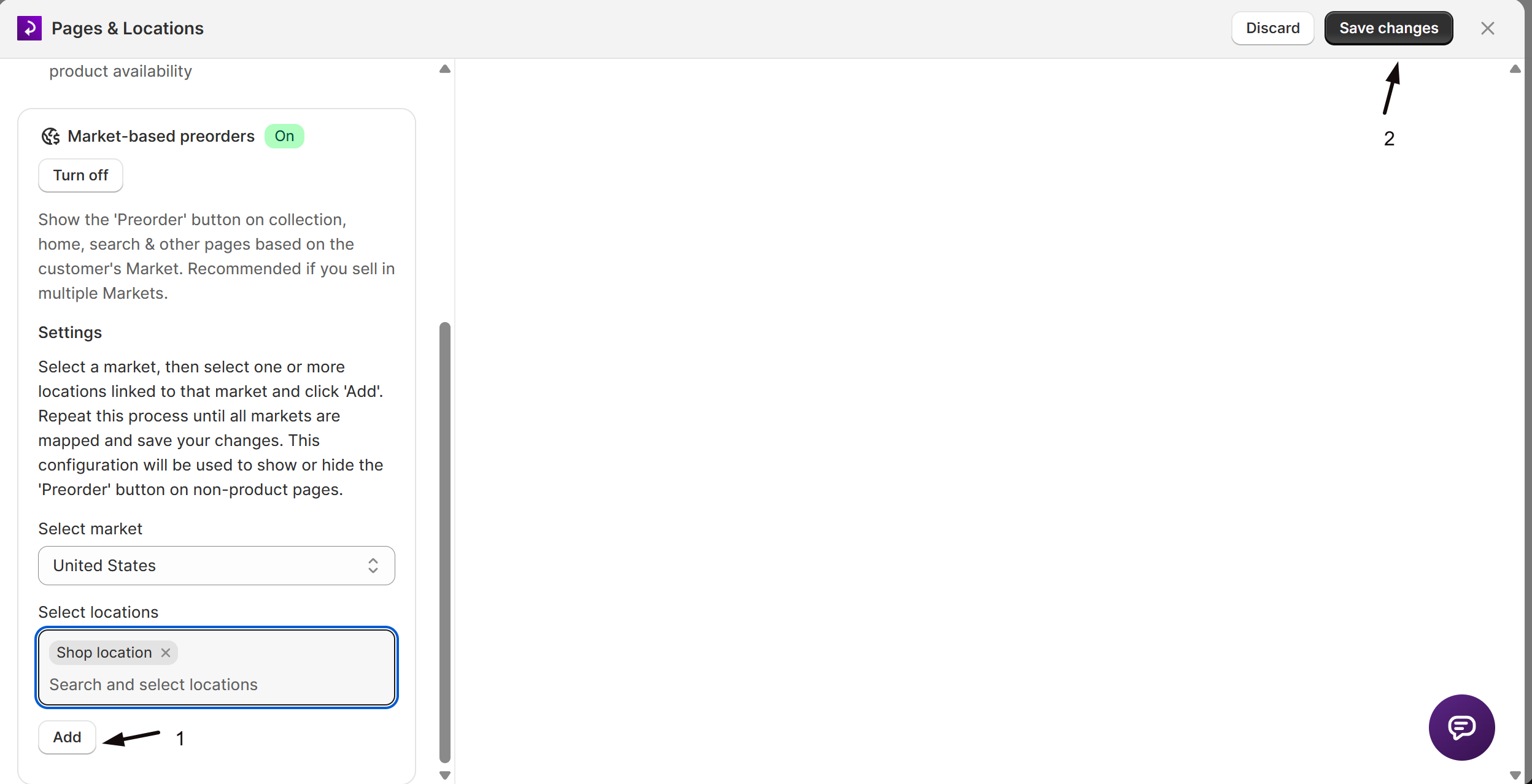
For Multiple markets, turn on Market-based preorders, then for each market:
- Select a market from the dropdown.
- Select one or more locations that fulfill it.
- Click Add.
- Repeat until every market you sell in is mapped.
-
Save changes
Click Save changes at the top right of the editor. Changes apply the next time STOQ evaluates preorder availability on your storefront.
How STOQ evaluates inventory
Section titled “How STOQ evaluates inventory”Once locations and/or market mappings are configured, STOQ applies them whenever it decides if a variant is preorder-eligible, for the product page and, especially, for collection, home, and search pages, where it has to compute preorder/in-stock/out-of-stock status for many variants at once. The filtering happens in a fixed order:
-
Fulfillable locations (always first)
STOQ keeps only locations where Shopify’s Fulfill online orders setting is on. This is a backend behavior with no dashboard toggle. See How Shopify’s fulfillable inventory setting affects preorders.
-
Market locations (if Multiple markets is on and a market is detected)
STOQ narrows further to only the locations mapped to the shopper’s current market.
-
Preorder location filter (if Filter locations is on, single-market only)
STOQ narrows further to only the locations you selected in Filter locations. This step is skipped entirely if Market-based preorders is active.
Whatever locations remain are summed to get “this variant’s stock” for preorder purposes on that page.
When Multiple markets is on, STOQ computes and caches preorder/in-stock/out-of-stock variant lists separately for each market, and refreshes them periodically. Your storefront reads the set for whichever Shopify market the visitor is browsing in.
Check your setup
Section titled “Check your setup”- Toggle between Single market and Multiple markets and confirm only the relevant control (Filter locations vs. market-to-location mapping) is shown and active.
- For single-market shops: with Filter locations on, confirm the Preorder button reflects only the selected locations’ stock on collection, home, and search pages.
- For multi-market shops: browse your storefront from two different markets (or use Shopify’s market preview), and confirm the Preorder button availability differs correctly based on each market’s mapped locations.
- To check a variant’s status for a specific market without leaving STOQ, open the offer’s Products tab and use the globe icon (Product status by market) to switch to that market, or All markets for the combined view. Each variant’s status then reflects that market’s mapped locations. See Restrict a preorder offer to specific markets. You can also browse your storefront from that market, or use Shopify’s market preview, to confirm the Preorder button reflects the mapped locations.
Troubleshooting
Section titled “Troubleshooting”The Preorder button doesn't show on collection, home, or search pages, but works on the product page
For single-market shops, turn on Filter locations and select the correct locations. For multi-market shops, confirm every market is mapped to its fulfilling location(s) under Market-based preorders.
Preorder button availability looks wrong for shoppers in a specific market
Confirm that market is mapped to the correct location(s) in Market-based preorders. A shopper’s button depends entirely on which locations are mapped to their market.
You can't find both Filter locations and Market-based preorders active at once
They’re mutually exclusive. Switching one on turns the other off, and only the current market mode’s control applies.
You've restricted an offer to Specific markets but the button still misbehaves on non-product pages
Confirm you’ve also completed the shop-wide location-to-market mapping here. The offer-level setting depends on this mapping to work correctly. See Sell preorders in multiple markets.
Do I need to configure Locations & Markets if I only sell in one country from one location?
No. If you have a single Shopify location and don’t use Shopify Markets, the default single-market setup with Filter locations off works without any extra configuration: STOQ uses all fulfillable locations automatically.
What's the difference between this Locations & Markets setting and the 'Markets' section inside an individual offer?
They’re different settings, and you typically need both. This shop-wide setting tells STOQ which locations belong to which Shopify market, so inventory checks work correctly everywhere. The offer-level Markets section (see Sell preorders in multiple markets) restricts which markets see that specific offer’s Preorder button at all, and relies on this shop-wide mapping to work on non-product pages.
Can I use Filter locations and market-to-location mapping at the same time?
No. Single market (with Filter locations) and Multiple markets (with market-to-location mapping) are mutually exclusive; switching to one turns off the other.
Does STOQ control shipping rates or delivery options per location or market?
No. Shipping methods, rates, local pickup, and local delivery are configured through Shopify’s shipping profiles and zones, not STOQ. STOQ’s role is limited to deciding when the Preorder button appears based on location/market inventory. See Preorder shipping profiles and zones.
If I change my market-to-location mapping, does it affect Back in Stock alerts too?
Yes. The mapping is shared shop-wide between Preorders and Back in Stock alerts (labeled Market-based alerts there): it’s the same underlying data, so a change here also affects which location’s restocks trigger Back in Stock alerts for a given market.
Related guides
Section titled “Related guides”Thanks for letting us know.
Still stuck? Ask Quinn or chat with support