Fix Preorder button display problems
Fix why the Preorder button isn't showing, still says Add to cart, or is in the wrong place.
Last updated
Use this guide if your storefront isn’t showing the Preorder button where you expect it, whether it’s missing entirely, still shows Add to cart, or looks wrong on some products. By the end, customers will see the Preorder button on the right products, with the right styling, so they can check out on preorder as intended.
Most display problems come down to one of a few things: the offer or product isn’t set up quite right, the same product is in more than one offer, or the button placement depends on your theme.
Before you begin
Section titled “Before you begin”These checks assume you already have a preorder offer created with at least one product added. If you haven’t set one up yet, start with Set up preorders or the New merchant quick start.
Two things to rule out before working through the checks below:
- The STOQ app embed must be on. The button renders through the STOQ theme app embed, if it’s off, the button won’t appear no matter what else is set up correctly. Check it from the app’s home page (the preorder card shows the embed status), or in Online Store → Themes → Customize → App embeds → STOQ / Restock Rocket.
- Check the live storefront, or a draft theme’s Preview, not the theme editor’s inline preview pane. The inline preview pane doesn’t run the app embed, so a check there can look wrong even when everything is set up correctly. To test a draft theme, enable the embed on it and open its Preview.
What customers will see
Section titled “What customers will see”You can style parts of the preorder widget yourself, but some of how it looks is inherited from your theme:
| You control (in the offer’s Widget settings) | Depends on your theme |
|---|---|
| Button text, text color, background color, border radius, font | Exact button position on the product page |
| The preorder badge and disclaimer text and colors | Spacing around the price and shipping/date text |
| Whether the shipping message and savings are shown | Mobile layout and where elements wrap on small screens |
See Design the preorder widget for the fields you control. If the badge placement, mobile layout, or spacing near the price looks wrong and it isn’t something in the Widget settings, it’s theme-level, send support the details in What to send support below and they can advise or adjust.
Check your setup
Section titled “Check your setup”Open the product page on your live storefront, not the theme editor preview, ideally in an incognito window. Confirm whether the button is missing, still shows Add to cart, or shows in the wrong place or style. That tells you which check below to start with.
Troubleshooting
Section titled “Troubleshooting”The Preorder button is missing, or still shows "Add to cart"
Check these, in order, from most to least common:
-
The offer is Enabled
1. In the left menu bar of the STOQ app, click **Preorders**.2. Click the **Offers** tab.3. Confirm the offer's status is **Live**, not **Off** or **Scheduled** (a Scheduled offer won't show the button until its start date).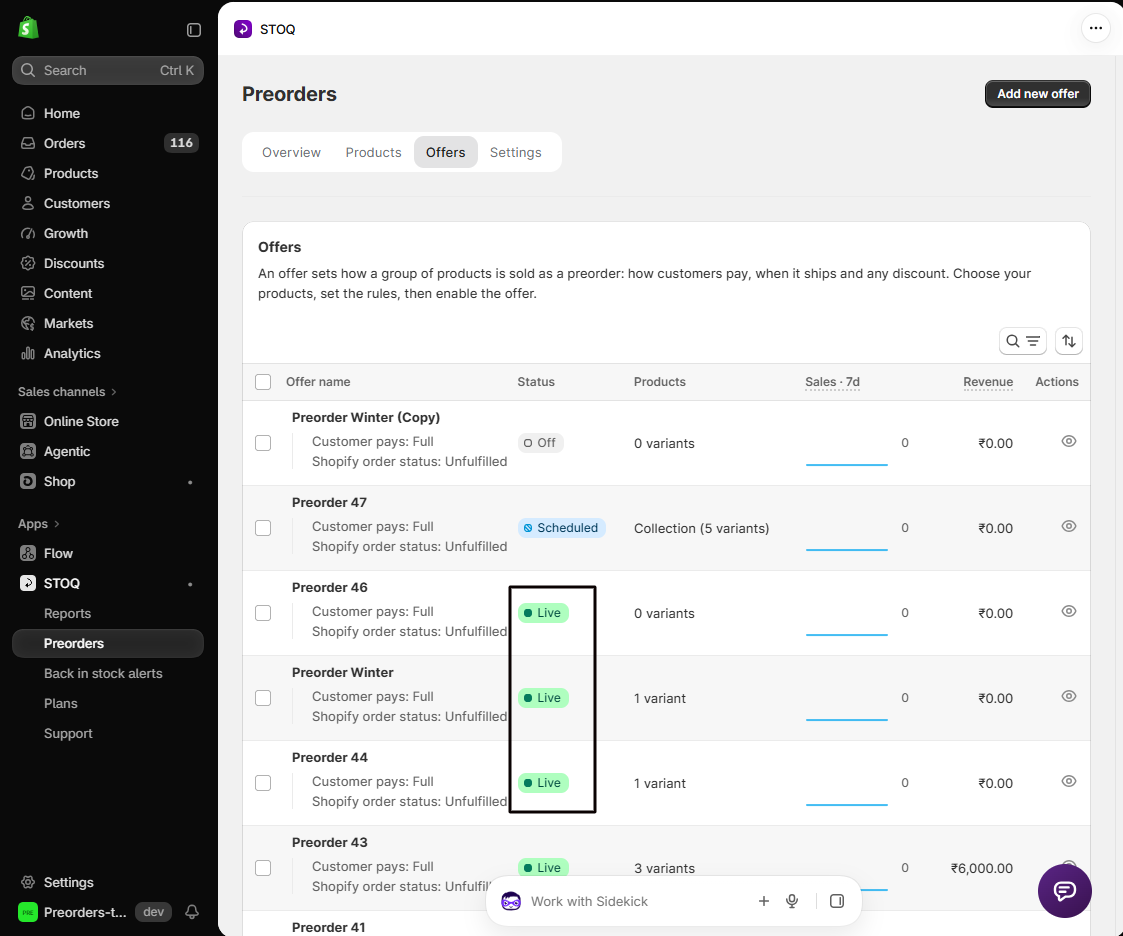
-
The product (and the right variant) is in the offer
Open the offer's **Products** section and confirm the product is listed. Preorder behavior is set **per variant**: if only some variants are in the offer, only those show the button. See [Add products to an offer](/preorders/add-products-to-an-offer/).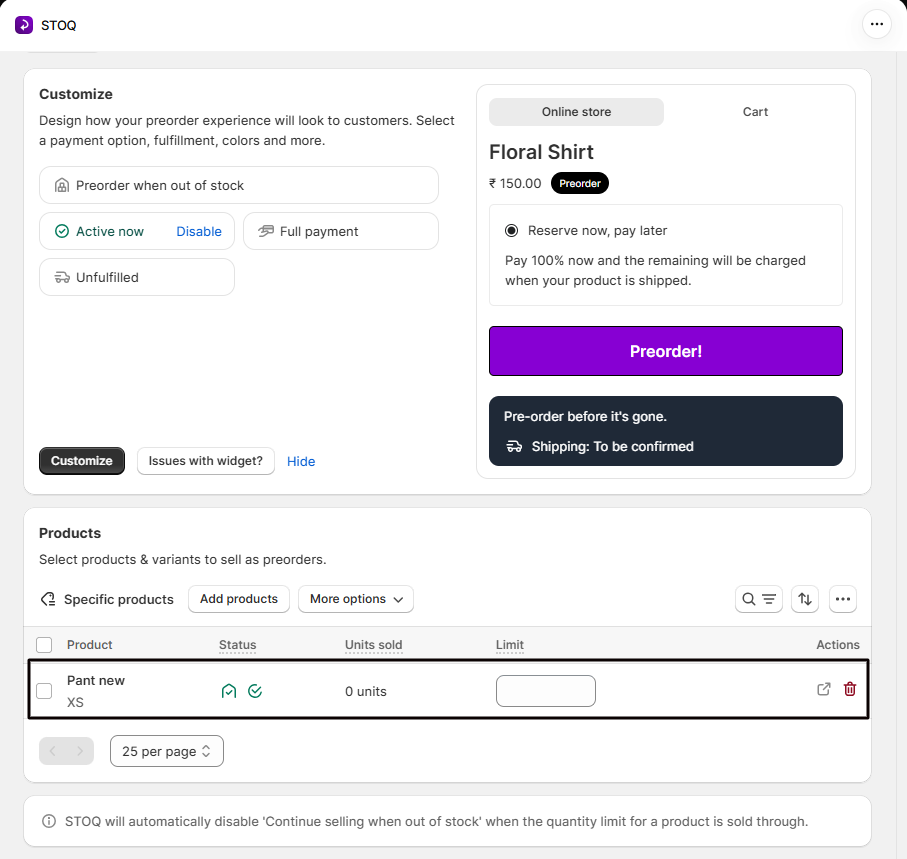
-
Continue selling when out of stock is on
For an out-of-stock preorder, the variant needs Shopify's **Continue selling when out of stock** turned on, or Shopify shows it as sold out and the button can't appear. STOQ flags and can fix this when you add products: check the **Status** column in the Products tab for warning icons.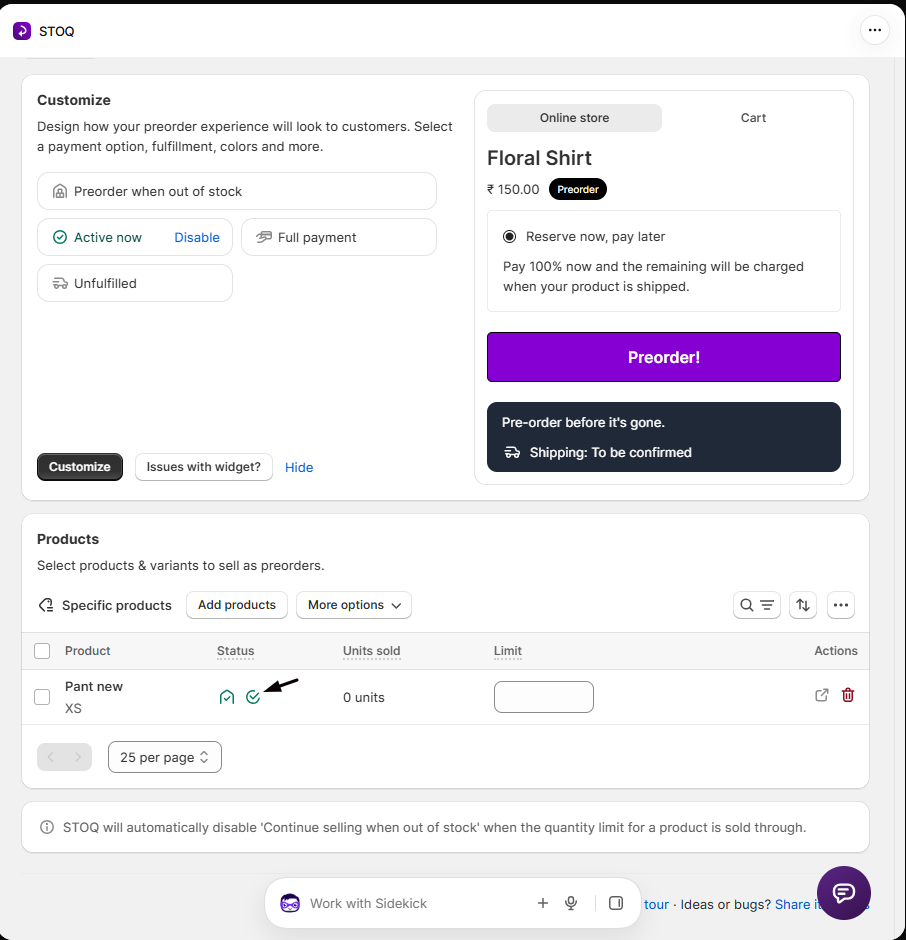
-
The product’s inventory state matches the offer’s rule
- Out-of-stock preorder (the default): the variant’s inventory must be 0 or below. If it’s still in stock, the normal Add to cart shows instead.
- In-stock preorder: the variant’s inventory must be 1 or above. See Preorder inventory settings.
-
The customer’s market is enabled for the offer
If the offer is restricted to specific markets, the button only appears for visitors in those markets. To check, click Preorders in the left menu, click the Offers tab, open the offer, click Customize, then click More settings to expand it, click Markets, and confirm the shopper’s market is selected under Specific markets (or that All markets is chosen). See Sell preorders in multiple markets.
-
The STOQ app embed is enabled
Recheck the embed as described in Before you begin, and confirm on the live storefront:1. Open the app's **home page** to see the embed status on the preorder card, or check it directly in Shopify.2. In Shopify, click **Online Store**.3. Click **Themes**.4. Click **Customize** on your live theme.5. Click **App embeds**.6. Confirm **STOQ / Restock Rocket** is turned on.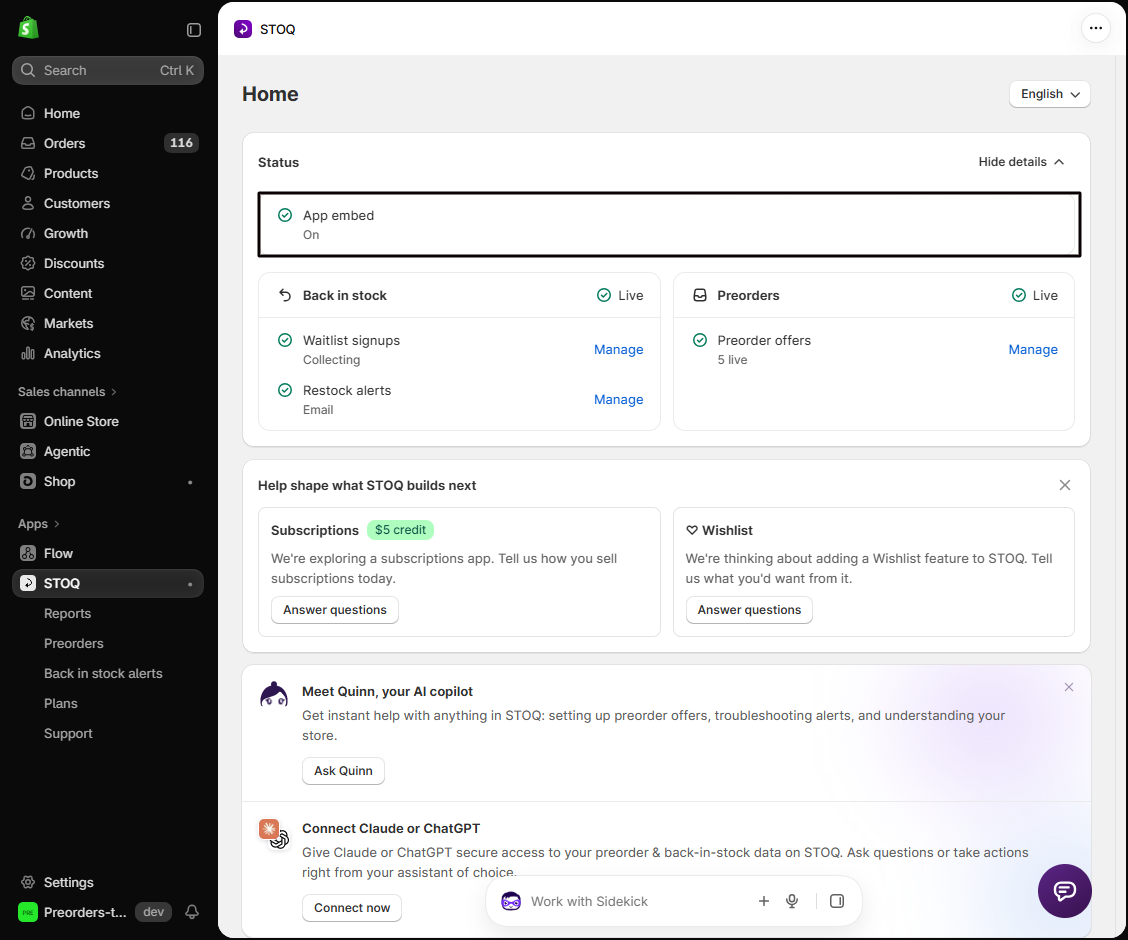
-
The product isn’t in another active offer
A product or variant should belong to only one active preorder offer, see the next check.
The product page shows both "One-time purchase" and "Preorder" options
This selector comes from your theme, not STOQ. STOQ’s preorder is a Shopify selling plan, and some themes render a subscription selector (One-time purchase / Preorder) on any product that has a selling plan, on the product page and in quick-buy or featured-product blocks. Turn it off in your theme:
- In your Shopify admin’s left menu, click Online Store, then Themes.
- Click Customize on the theme you’re using.
- In the template dropdown at the top of the editor, choose Products to open the product page.
- In the left sidebar, click the Subscriptions block.
- On the right, turn off Enable subscription selectors, then click Save.
The block and toggle names come from your theme, so they can differ slightly between themes. If you can’t find the setting or would rather not change it yourself, STOQ support can help: open the purple chat icon in the bottom-right of the STOQ app and choose Talk to a human. They can request collaborator access to your store and disable it for you.
The same product is in more than one offer
A variant can be on more than one offer, but overlapping offers conflict, so a variant should be in just one active preorder offer at a time. If the same product is covered by two offers, for example, an All products offer and a Specific products offer that both include it, the offers conflict, and the Preorder button may not behave as expected or may not appear at all. This is a common cause of a setup not working, so if you’ve checked everything else, look here next.
To check which offer a variant belongs to, use the Offer linked dropdown on the Products tab of the Preorders page (Preorders in the left menu -> Products tab). To remove a product from an offer, see Add products to an offer -> Remove products. After removing it from all but one offer, re-check the product page.
The Preorder button shows in a menu, header, or footer
The button attached to a product link outside the main product form, so it rendered in the wrong place: a navigation menu, header, or footer that links to a product. STOQ picks the insertion point from your theme’s markup, and a broad match can land it somewhere unintended. Support can set up button placement for your theme so it only appears on the product page: open the purple chat icon at the bottom right of the STOQ app, choose Talk to a human, and send your store URL and the page where the stray button appears.
You can't add products to an offer
If clicking Add products does nothing, the product picker doesn’t respond, or the product doesn’t get added:
-
Refresh and retry
Reload the STOQ page and try again: a stalled picker usually clears on refresh.
-
Confirm the product and variant are active in Shopify
A draft or archived product (or an inactive variant) can’t be added. Make sure the product is Active in Shopify admin.
-
Check it isn’t already in another offer
A variant already linked to another offer won’t add cleanly, remove it there first (see the conflict check above).
-
Still stuck? Contact support
Send the product name and URL and a screenshot of what happens when you try to add it.
Nothing above fixes it
Reach support fast by clicking the purple chat icon at the bottom right of the app and choosing Talk to human. Include:
- Shop URL
- Product URL (the exact page where it looks wrong)
- Affected variant (which size/color/option, if it’s variant-specific)
- Preorder offer name
- What the button currently says, for example “Add to cart”, nothing, or a misplaced Preorder button
- What you expected it to say or where you expected it
- A screenshot or short video of the issue
Limitations
Section titled “Limitations”Preorder behavior is set per variant, so a product can show the Preorder button on one variant and normal Add to cart on another. This is expected, not a bug, it happens whenever only some variants are in the offer or only some are out of stock. If a specific variant isn’t showing the button, check that that variant is in the offer, has Continue selling on, and its inventory matches the offer’s rule.
If I fix the button, does it change anything about orders I've already received?
No. The Preorder button only controls what new visitors see on the product page going forward. Fixing a display issue doesn’t change or reprocess orders that were already placed.
Can I add the same product to multiple preorder offers?
No, avoid overlapping active preorder offers for the same product or variant. They can conflict and cause storefront display issues. Keep each product in a single active offer.
Only some variants show the Preorder button. Is that a bug?
Usually not. Preorder is per variant, so only variants that are in the offer and match its inventory rule show the button. Add the missing variants to the offer, and check their Continue selling setting and inventory, if they should all show it.
The button shows fine on desktop but looks off on mobile. Can STOQ fix that?
Button text and colors are yours to set in the Widget settings, but mobile layout and spacing are controlled by your theme. Send support the product URL, your theme name, a mobile screenshot, and what you expected, and they can advise or adjust for your theme.
How do I change the shipping message or date shown on the product page?
It comes from your offer’s Shipping settings, not your theme. Open the offer and edit the shipping/scheduled message: you can set one message for all products or a different timeline per product. See Set up fulfillment and shipping options.
I'm testing but the button won't show, is there anything test-specific to check?
Use the live storefront, or a draft theme’s Preview, not the theme editor’s inline preview pane, which doesn’t run the embed. See Test your preorder offer before launch.
Related guides
Section titled “Related guides”Thanks for letting us know.
Still stuck? Ask Quinn or chat with support