Payment failed email
Learn when STOQ sends the 'Payment collection failed' email and how to customize its content.
Last updated
The Payment collection failed email is automatically sent to a customer when STOQ attempts to collect their outstanding preorder balance and the charge doesn’t succeed, for example because their card was declined or had insufficient funds. It includes a button that takes the customer straight to Shopify’s payment page to complete the payment themselves.
This email only applies if you have at least one preorder offer with partial payment (a deposit) and automatic payment collection turned on. If you collect 100% at checkout, or only collect balances manually, this email never sends.
Before you begin
Section titled “Before you begin”| Requirement | Notes |
|---|---|
| Paid STOQ plan | Preorder email alerts require a paid plan. The Preorder email alerts toggle is disabled on free plans. |
| Partial payment offer | The email fires only when automatic collection fails on an order with an outstanding balance (partially paid or payment pending). |
| Customer email on file | The email is sent to the customer’s email address stored on the preorder order. |
| Shopify payment collection URL | STOQ fetches a direct payment URL from Shopify. If Shopify doesn’t return a URL for the order, the customer email is skipped: the failure event is still logged and you still receive an internal notification. |
How it works
Section titled “How it works”STOQ regularly checks every preorder order that has an outstanding balance set to collect automatically. Depending on your offer’s settings, it attempts to charge the customer’s saved card on the scheduled balance due date or when the order ships. Because Shopify settles card charges asynchronously, STOQ also rechecks pending attempts against Shopify every 10 minutes, for up to 24 hours after the initial attempt.
When STOQ confirms a failed charge, either immediately or after this follow-up check, it:
- Logs a payment collection failed event on the order timeline, viewable from Reports → Preorders → Orders.
- Sends an internal notification email to your store’s report address, subject “Payment Collection Failed for Order #XXXX”.
- Sends the customer-facing email described in this article, if Shopify returned a payment collection URL for the order.
- Fires a Shopify Flow trigger for payment collection failures, if you have that trigger enabled.
Choose your setup
Section titled “Choose your setup”By default, STOQ sends the Payment collection failed email itself. If you already use Klaviyo for other preorder notifications, you can route this one through a Klaviyo flow instead.
| Platform | Use when |
|---|---|
| STOQ | You want to customize and send the email directly, with your own subject, header, message, and button text, inside the STOQ editor. |
| Klaviyo | You already use Klaviyo and want to build this notification in a Klaviyo flow, triggered by a STOQ event. |
When Klaviyo is configured for this event, STOQ doesn’t send its built-in email at all: Klaviyo handles delivery exclusively.
What customers will see
Section titled “What customers will see”If Shopify returns a payment collection URL for the order, the customer gets an email with your customized subject, header, message, and button text. The button takes them straight to Shopify’s hosted payment page, not the customer account order detail page, which doesn’t reliably show a “Pay Now” button. The customer has to click through and pay themselves: STOQ doesn’t attempt the automatic charge again.
Depending on how Shopify reports the failure, this email can go out immediately or up to 24 hours later, while STOQ keeps rechecking the payment every 10 minutes.
Set it up
Section titled “Set it up”On a phone, this menu is collapsed. In the Shopify mobile app, tap the STOQ logo at the top of the screen to open it, then choose the section named below. There is no hamburger icon. See Finding the STOQ menu.
The subject, header, message body, and button text are fully editable. Changes apply to all future payment-failed emails sent from your shop.
Customize the email content
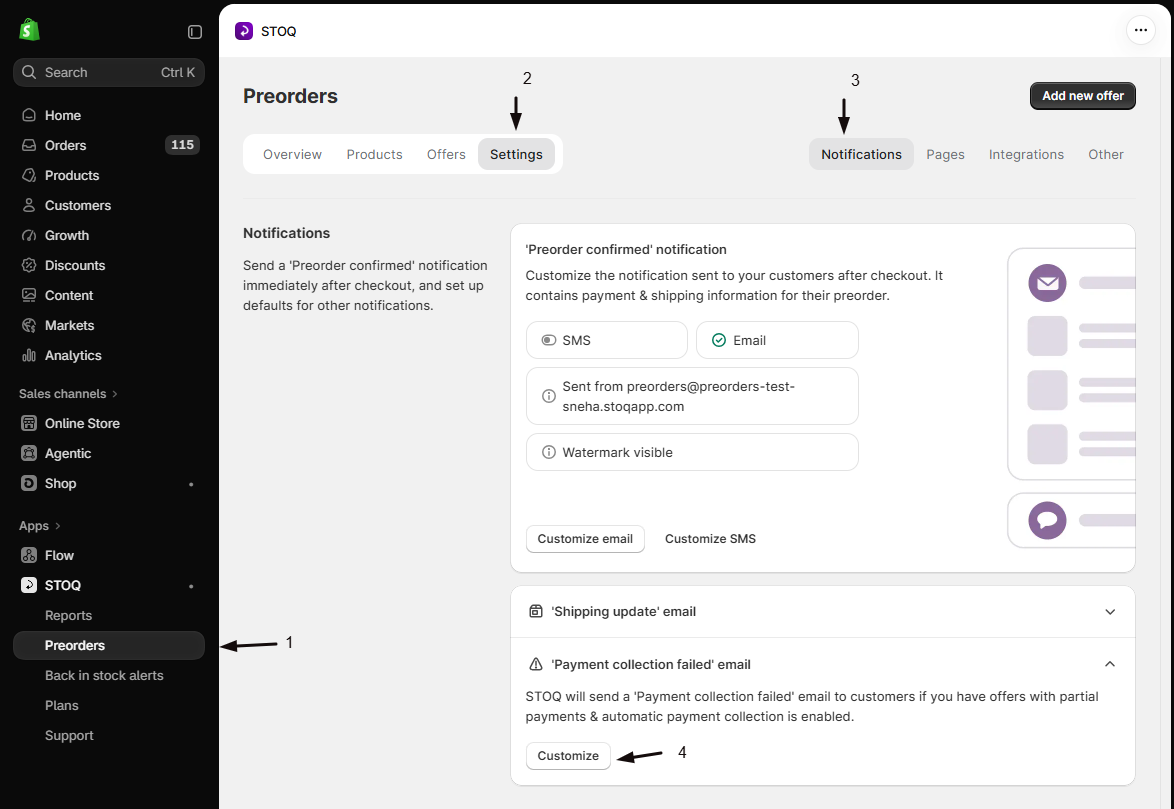
Section titled “Customize the email content”- In the left menu bar of the STOQ app, click Preorders.
- Click the Settings tab.
- Open the Notifications sub-tab.
- Scroll to the ‘Payment collection failed’ email card and click Customize to open the template editor.
-
Open Payment collection failed settings
Clicking Customize on the ‘Payment collection failed’ email card opens the template editor with the Payment collection failed panel selected. If you opened the editor from another notification, click the Payment collection failed icon in the editor’s icon sidebar, or select it under Other notifications, to switch to this panel.
-
Edit the email content
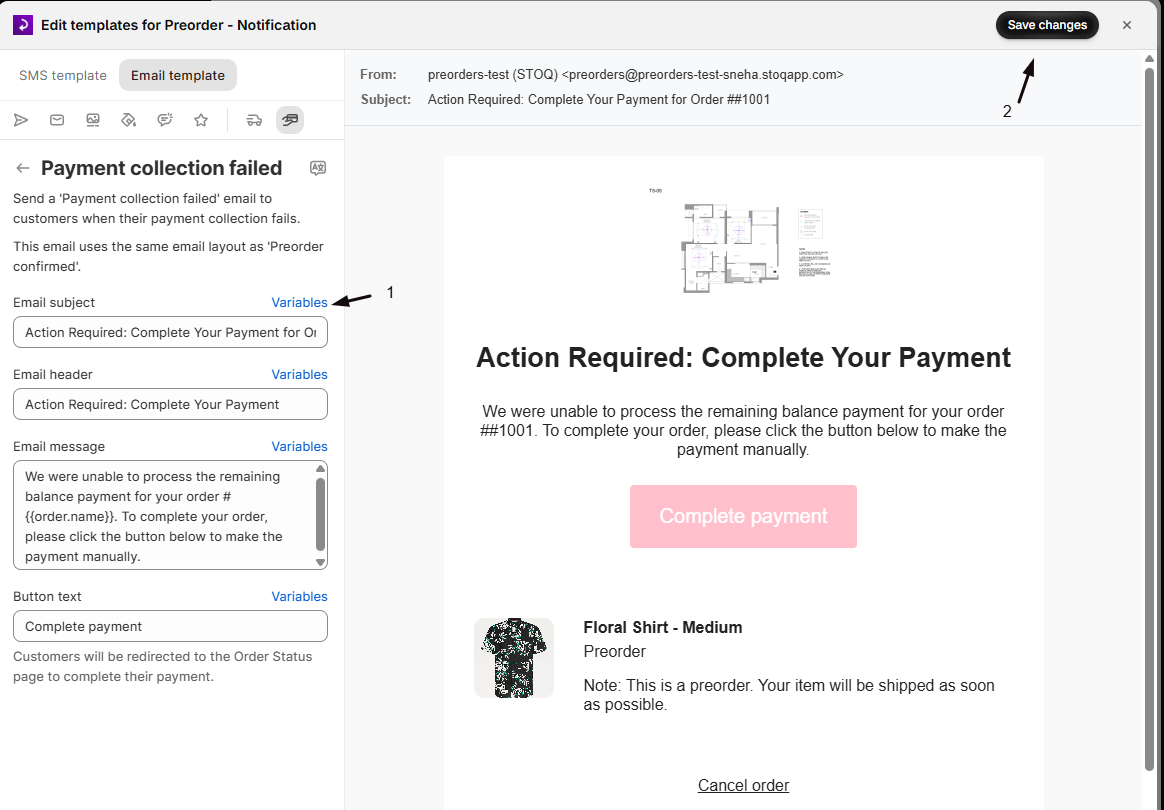
The panel has four fields, all of which support Liquid variables: click Variables next to any field label to see available merge tags.
Field Default value Email subject Complete payment | Order #{{order.name}} from {{shop.name}}Email header Complete payment for your orderEmail message Hey there! We were unable to process the remaining balance payment for your preorders on order #{{order.name}}. Click the button below to complete your payment to receive your preorders.Button text Complete paymentThe button always links to Shopify’s payment collection page for the order; you can’t change its destination.
-
Save your changes
Click Save changes at the top right of the editor. Your updated content is used on the next automatic payment collection failure email.
Translate the email into other languages
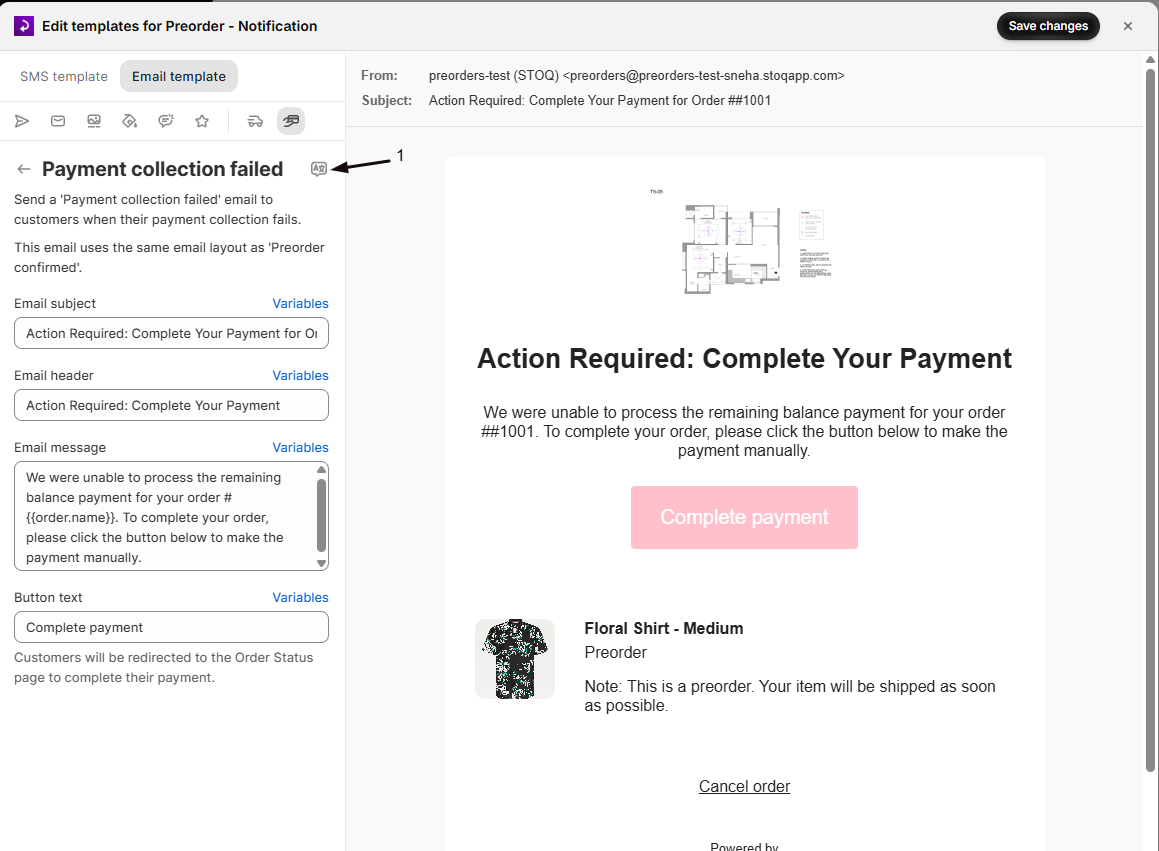
Section titled “Translate the email into other languages”If you have multi-language enabled, you can translate all four fields. From the Payment collection failed panel, click the language icon in the top-right corner of the panel header to open the Template Translator, with the Payment collection failed notification type pre-selected. See Preorder multi-language for setting up locale routing.
Route through Klaviyo instead
Section titled “Route through Klaviyo instead”-
Connect Klaviyo
Follow the steps in Connect Klaviyo for preorders to link your Klaviyo account and verify your setup.
-
Configure the payment failed flow
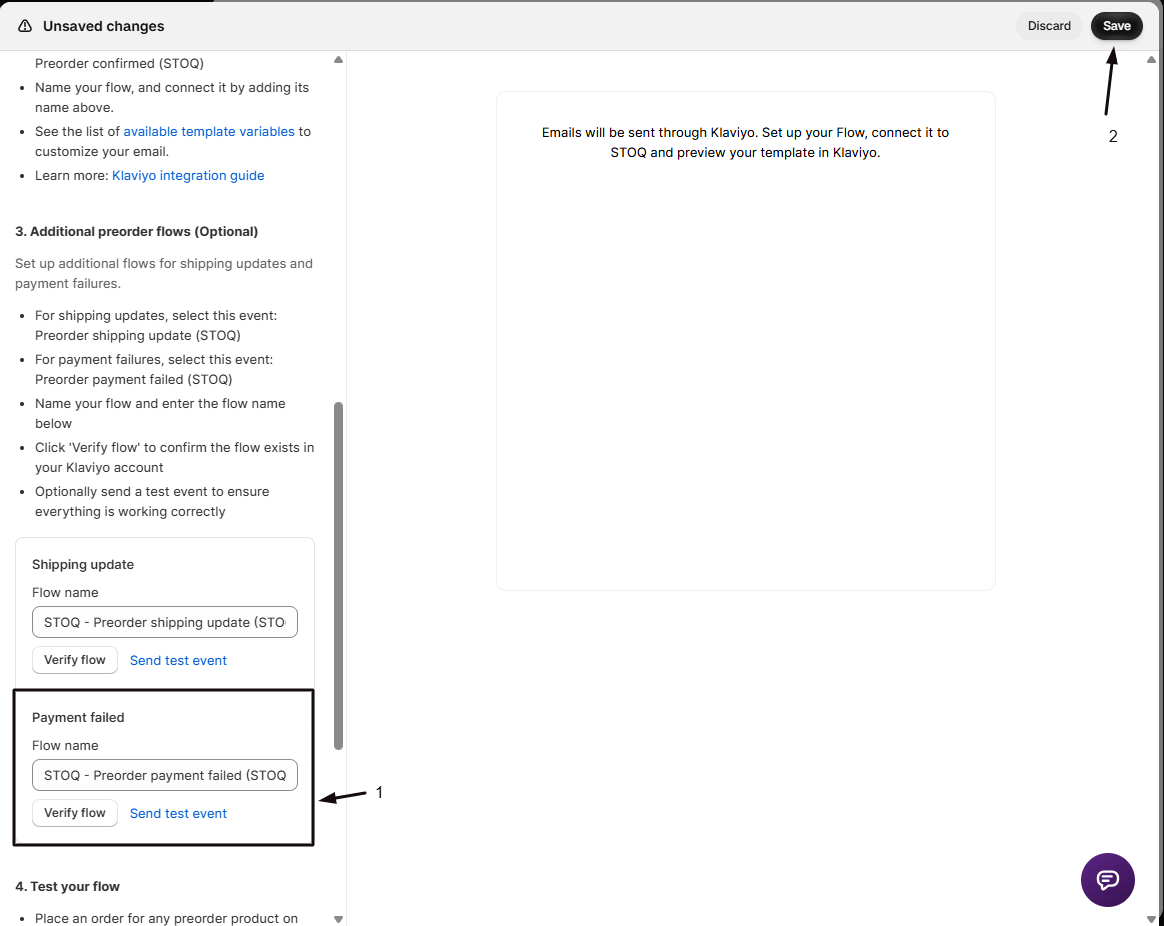
- In the preorder template editor, click Send emails through (the send icon).
- Scroll to 3. Additional preorder flows (Optional).
- Under Payment failed, enter the name of your Klaviyo flow triggered by the Preorder payment failed (STOQ) event.
- Click Verify flow.
Once verified, the Payment collection failed panel shows a blue “Klaviyo flow configured” banner. STOQ then triggers your Klaviyo flow with the order ID, order number, order name, and the Shopify error message on every payment failure.
Check your setup
Section titled “Check your setup”After a payment failure occurs, go to Reports → Preorders → Orders and click the order. The order timeline shows a payment collection failed event with the amount and the error Shopify returned. If a customer email was sent, a matching email message record is also logged on the order.
Troubleshooting
Section titled “Troubleshooting”Shopify doesn't return a payment collection URL for the order
No customer email sends, though the internal notification and timeline event still do. This can happen if the order is fully refunded, voided, or no longer has an outstanding balance by the time STOQ checks. Check the error detail on the order timeline event.
Preorder email alerts is off
No customer email ever sends. Turn on the Preorder email alerts toggle in the Notifications settings; this requires a paid plan.
You use Klaviyo and no email arrives
Open the Payment collection failed panel and confirm the blue “Klaviyo flow configured” banner is showing. If it’s not verified, the built-in STOQ email is blocked and an error is recorded on the email message record.
More than 24 hours pass with no email after a failed charge attempt
STOQ has abandoned the retry window. Collect the balance manually from Reports -> Preorders -> Orders, or with Collect remaining preorder payments.
When exactly does STOQ send this email? Does it fire immediately when payment fails?
It depends on how Shopify reports the failure.
- If Shopify returns an immediate error when STOQ tries to collect (a hard decline, for example), the email queues right away.
- If Shopify accepts the request but the charge settles behind the scenes (insufficient funds, an expired card), STOQ rechecks every 10 minutes and sends the email as soon as it detects the failure: anywhere from 10 minutes to 24 hours after the initial attempt.
- After 24 hours, STOQ abandons the attempt and no email sends.
Does the email charge the customer or change their order?
No. It only links to Shopify’s hosted payment page. The customer has to visit the link and pay themselves, and STOQ doesn’t re-attempt the automatic charge after a failure.
Does customizing the email template affect emails already sent?
No. Changes apply only to future payment-failed emails; anything already sent keeps its original content.
What's the difference between this email and manually sending a payment link?
Both land the customer on the same Shopify payment page, but they’re triggered differently. The Payment collection failed email sends automatically after a failed automatic charge attempt. A payment link is something you send manually from an order, using the Collect payment action, which can optionally notify the customer if collection fails. See Collect remaining preorder payments to send payment links in bulk.
Can I re-trigger the payment failed email manually for a specific order?
There’s no dedicated resend button, but you can trigger one from the order. Go to Reports → Preorders → Orders, open the order, and use the Collect payment action with “Send email notifications to customers if payment fails” checked. If collection fails again, a new email sends.
Can I route this notification through Shopify Flow instead of email?
Not instead of, but alongside it: STOQ fires a Shopify Flow trigger for payment collection failures on every failure, whether or not the customer email sends, as long as you have that trigger enabled. The payload includes the order ID, order number, order name, and Shopify’s error message. See Preorders with Shopify Flow for the full list of triggers.
Related guides
Section titled “Related guides”Thanks for letting us know.
Still stuck? Ask Quinn or chat with support