Show the preorder button on store pages
Turn on the Preorder button for collection pages, your home page, search results, and Quick Buy.
Last updated
Use this guide if you want the Preorder button to appear beyond the product page, on collection pages, your home page, search results, or Quick Buy pop-ups. By the end, customers will see the button (and, where you enable it, a preorder badge) everywhere you choose across your store.
Before you begin
Section titled “Before you begin”| Requirement | Where to check |
|---|---|
| STOQ theme app embed enabled | STOQ Home page Status card: the App embed row reads On (click Details to see it) |
| At least one active preorder offer | Preorders (left menu) → Offers tab |
If the app embed isn’t enabled, the Preorder button won’t appear anywhere on your storefront, including the product page. The Enable the app embed steps below fix that.
Choose your setup
Section titled “Choose your setup”This only matters if you stock inventory across more than one Shopify location, or sell in more than one Shopify Market. If you fulfill everything from a single location, skip ahead to Set it up: no Locations & Markets configuration is needed.
Shopify doesn’t tell app embeds which location or market a shopper is browsing from on non-product pages, so STOQ needs you to specify it:
- Single market, multiple locations: turn on Filter locations and select the locations that fulfill online orders.
- Multiple Shopify Markets: turn on Market-based preorders instead, and map each market to its locations. This requires a paid STOQ plan.
The two are mutually exclusive: choosing Multiple markets clears any Filter locations configuration.
What customers will see
Section titled “What customers will see”The Preorder button already appears automatically on individual product pages once a product has an active offer. Turning on more placements adds the button, and optionally a badge, elsewhere in your store:
- Collection pages: the button on each product card in the list, plus an optional badge that flags a product whenever any of its variants is on preorder, even if the variant shown on the card isn’t.
- Home page and search results: the same button wherever your theme lists products.
- Quick Buy pop-ups and home page Featured product sections: the button inside these theme widgets, on paid plans where the STOQ team has built the integration for your theme.
None of this changes checkout or sends any notification: it’s a display change only. Confirmation emails, shipping updates, and payment charges only happen when a customer completes a preorder at checkout, which is controlled by Shopify’s checkout, not by these placement settings.
Set it up
Section titled “Set it up”On a phone, this menu is collapsed. In the Shopify mobile app, tap the STOQ logo at the top of the screen to open it, then choose the section named below. There is no hamburger icon. See Finding the STOQ menu.
Enable the app embed once, then choose which pages show the button. If you stock across multiple locations or sell in multiple Markets, also complete the Locations & Markets steps that match your setup from Choose your setup above.
Enable the app embed
Section titled “Enable the app embed”-
Check the STOQ home page
Open STOQ and look at the Status card on the Home page. If the App embed row reads Off, click Turn on app embed to open the guide that walks you through turning it on.

-
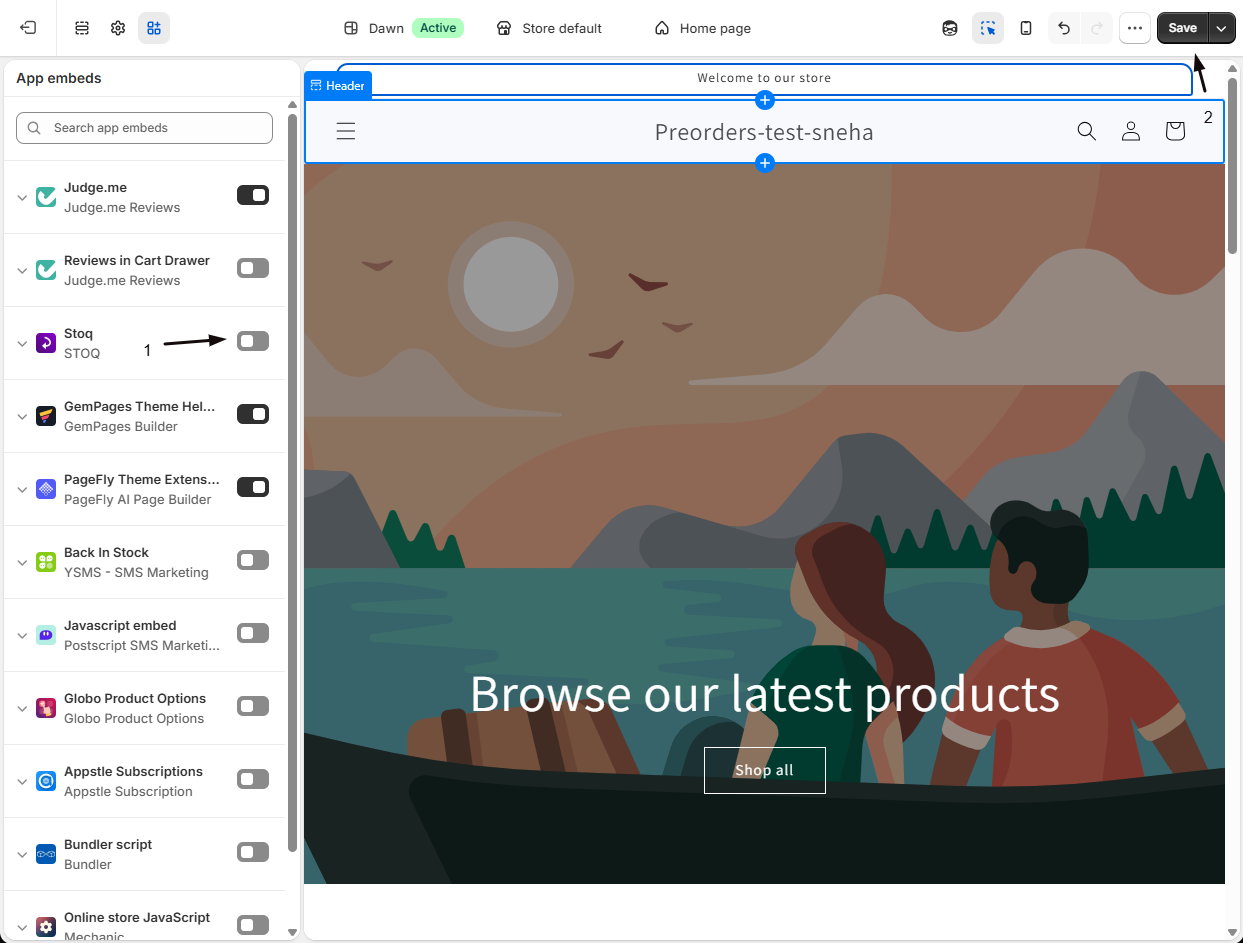
Enable manually if needed
If automatic activation isn’t available, your browser opens the Shopify Theme Editor at the correct screen.
- Turn on the STOQ toggle.
- Click Save in the top-right corner of the Theme Editor.
Turn on page placements
Section titled “Turn on page placements”-
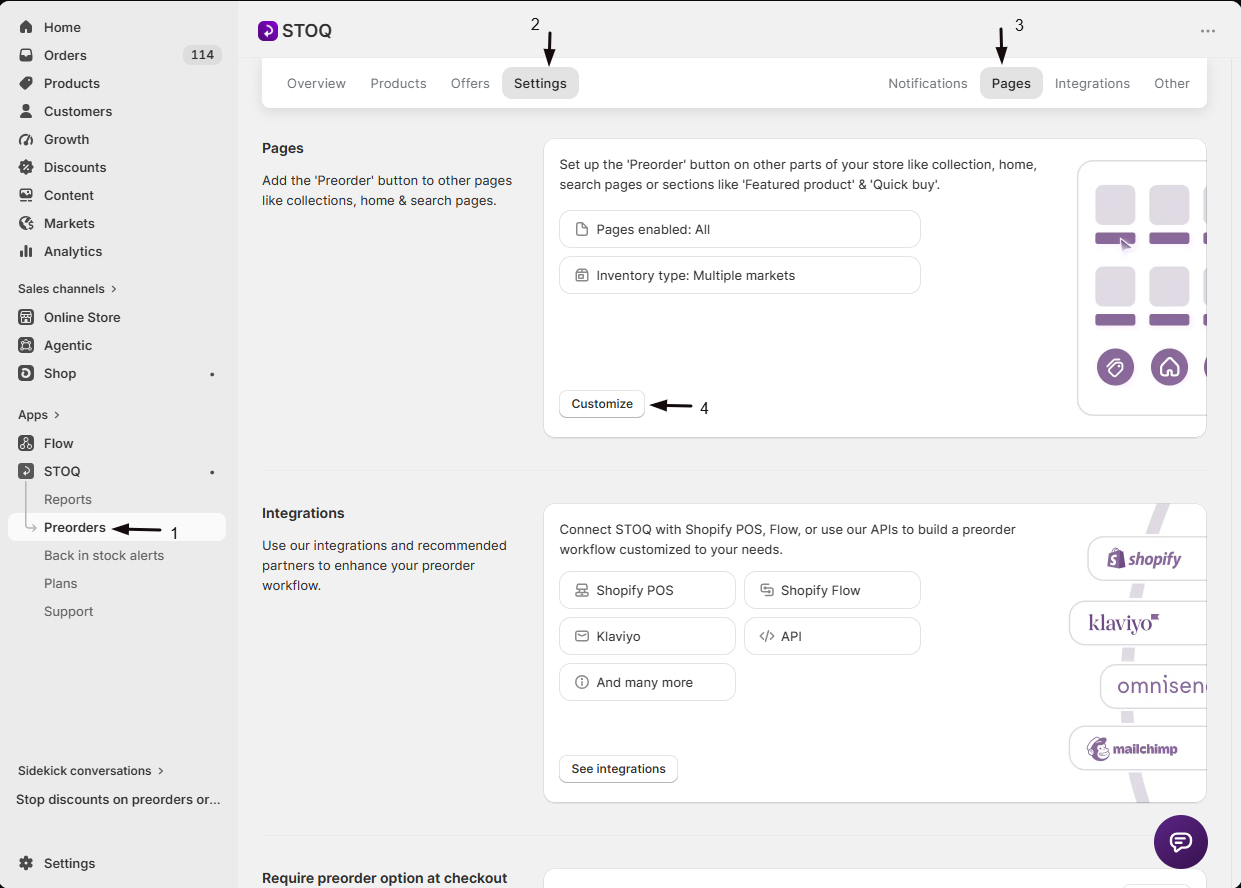
Open the Pages & Locations editor
- In the left menu bar of the STOQ app, click Preorders.
- Click the Settings tab.
- Click the Pages sub-tab.
- Click Customize. This opens the Pages & Locations editor.
-
Choose a page type
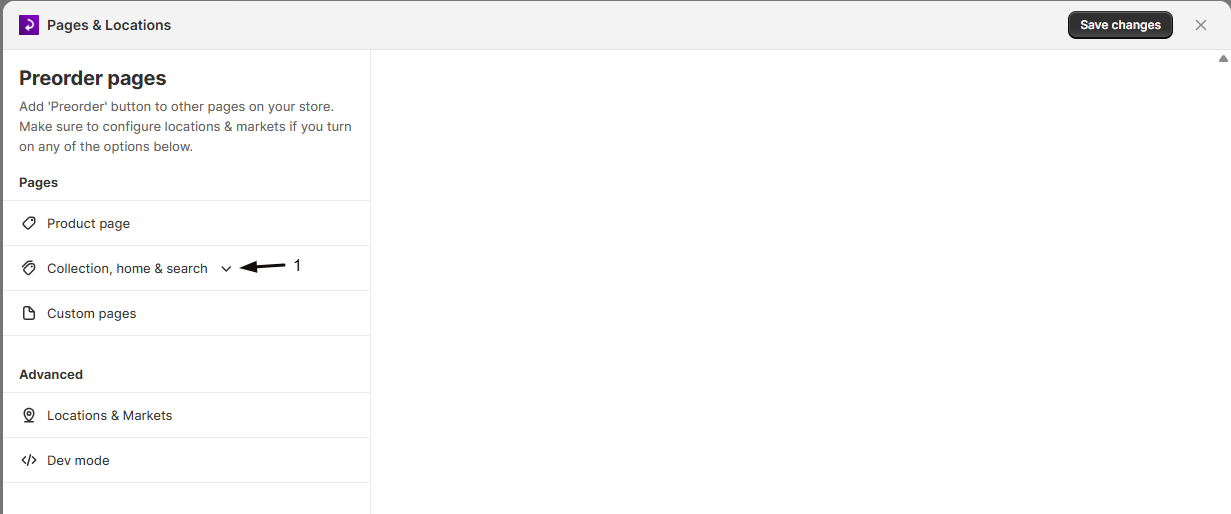
The left sidebar shows two sections. Under Pages:
- Product page: no toggle needed; the button appears automatically based on your offer’s inventory settings.
- Collection, home & search: click to expand this group, then select the sub-page you want to configure: Collection page, Home page, or Search page.
- Custom pages: for non-standard page layouts; contact the STOQ team via this section to arrange an integration.
Under Advanced:
- Locations & Markets: configure how STOQ evaluates inventory for non-product pages. This is where you set up the setup you picked in Choose your setup, above.
- Dev mode: for eligible merchants, exposes CSS selectors and insertion-type options for custom theme positioning.
-
Enable the page
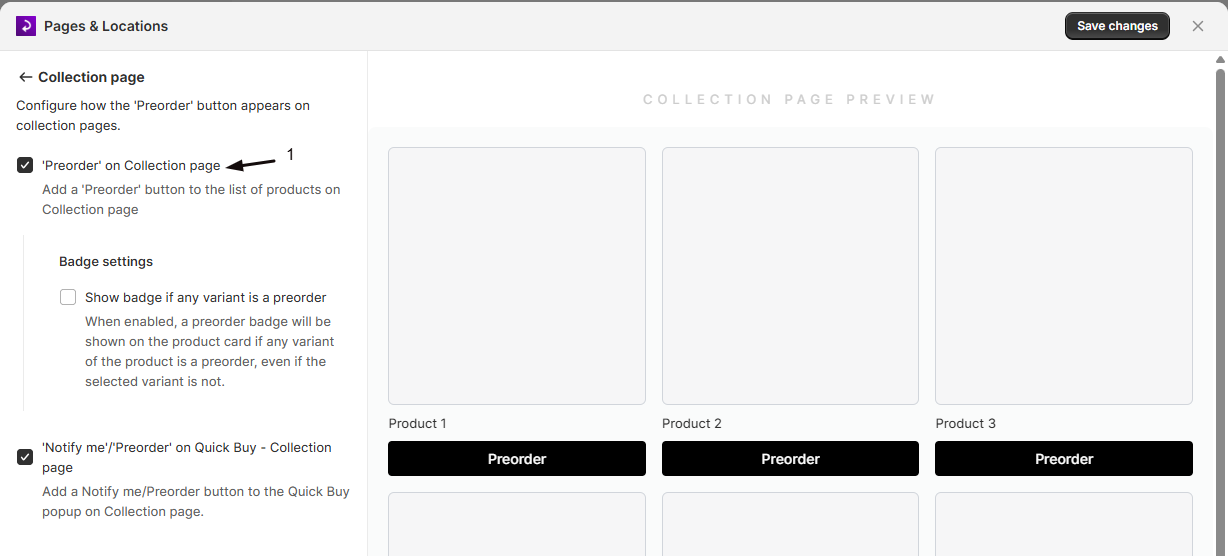
Inside each page section, check the box labelled ‘Preorder’ on [Page name] to add the button to that page’s product list.
-
Configure badge settings (collection page only)
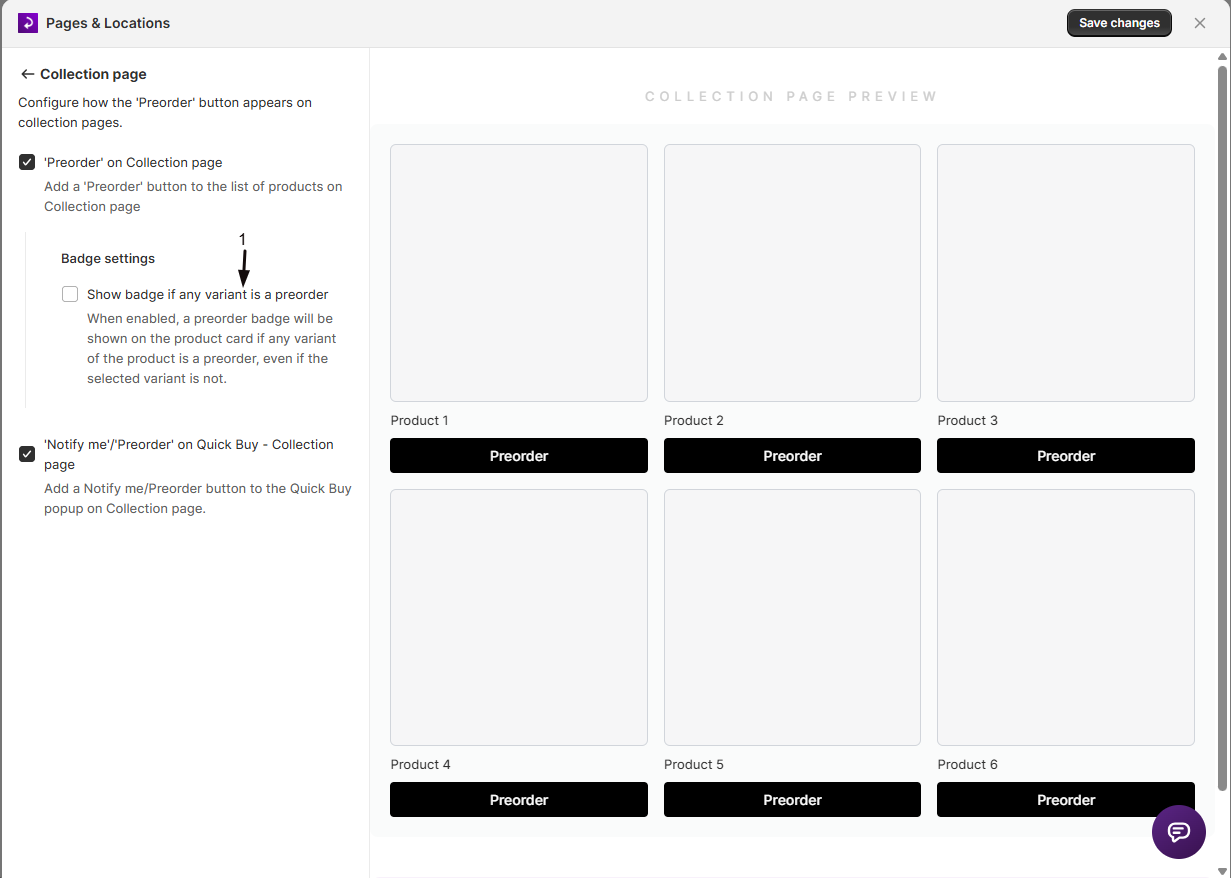
When the collection page is enabled, a Badge settings sub-section appears. Check Show badge if any variant is a preorder to display a preorder badge on a product card whenever at least one variant is under a preorder offer, even if the currently displayed variant isn’t.
-
Enable Quick Buy
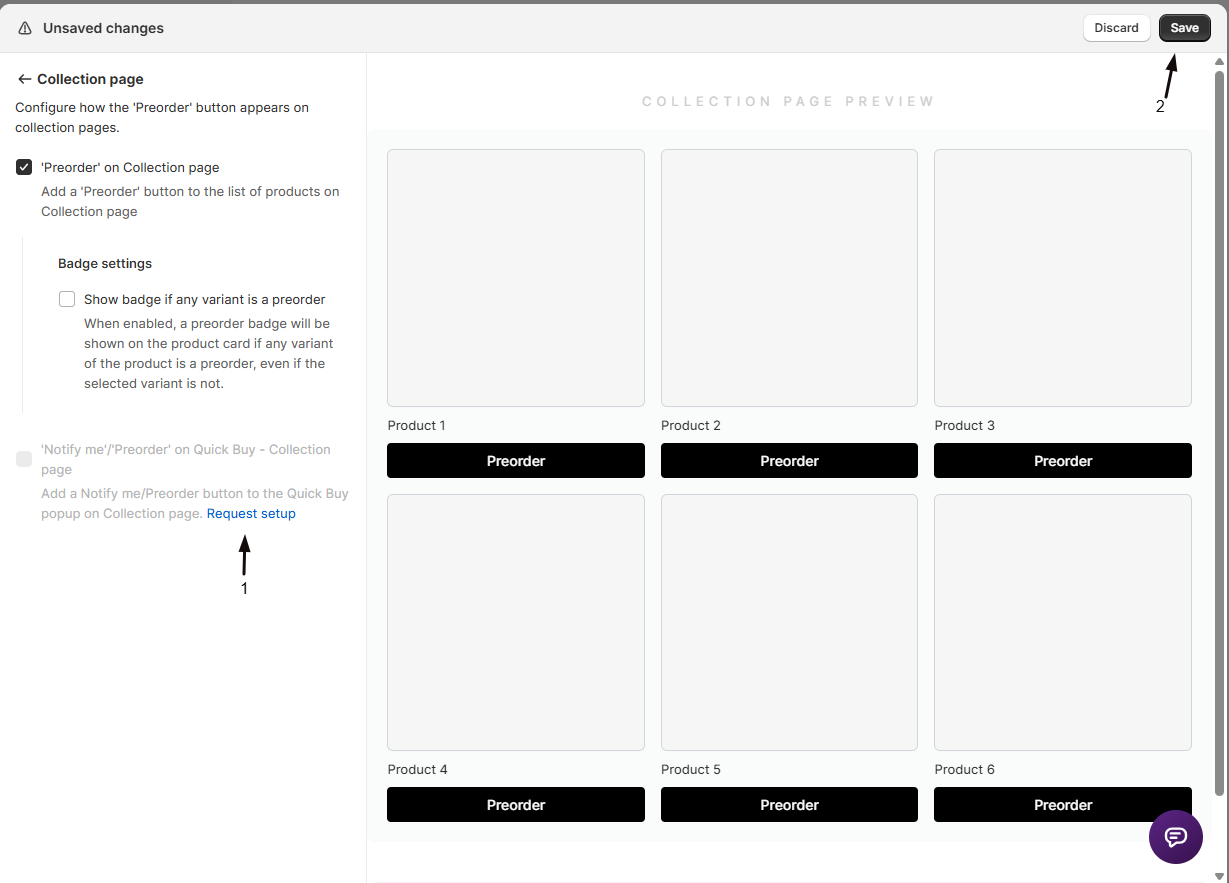
After you enable a page, a second checkbox appears: ‘Notify me’ / ‘Preorder’ on Quick Buy - [Page name]. This checkbox is disabled unless you’re on a paid plan and an integration for your theme already exists.
- If the integration exists and you’re on a paid plan, the checkbox is active: toggle it on.
- If you’re on a paid plan but no integration exists yet, a Request setup link appears next to the description. Click it to notify the STOQ team.
- While a request is pending, a Requested badge appears on the checkbox and it stays disabled until the integration is complete.
-
Enable Featured product sections (home page only)
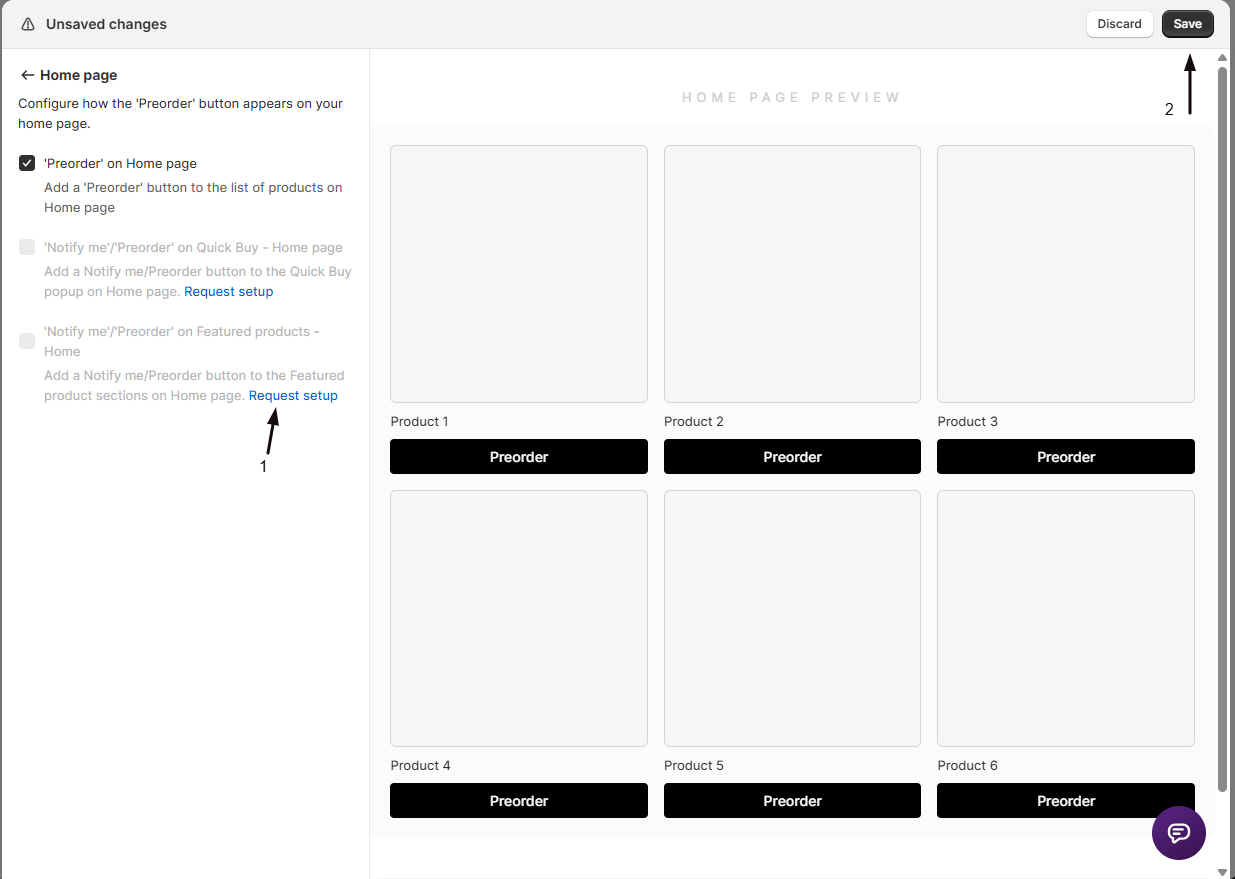
On the home page, an additional checkbox, ‘Notify me’ / ‘Preorder’ on Featured products - Home, appears after you enable the home page toggle. Like Quick Buy, it requires a paid plan and a team-built integration. Click Request setup if the integration doesn’t yet exist for your theme.
-
Save your changes
Click Save changes in the top bar. The button becomes active on the selected pages immediately. You don’t need to publish your theme again beyond the initial app embed activation.
Single market: turn on Filter locations
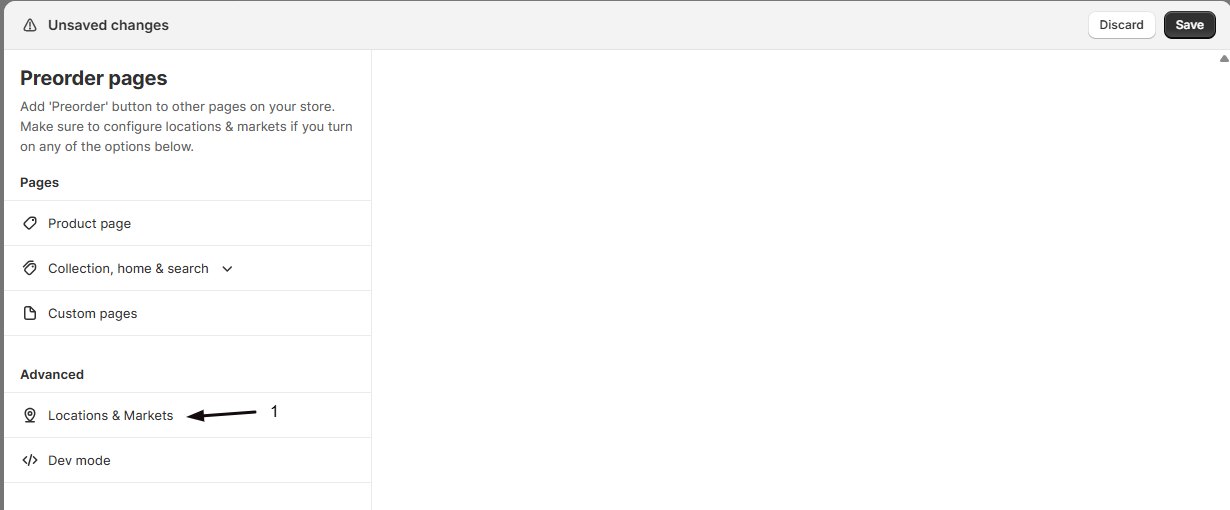
Section titled “Single market: turn on Filter locations”Open Locations & Markets under Advanced in the left sidebar of the Pages & Locations editor.
-
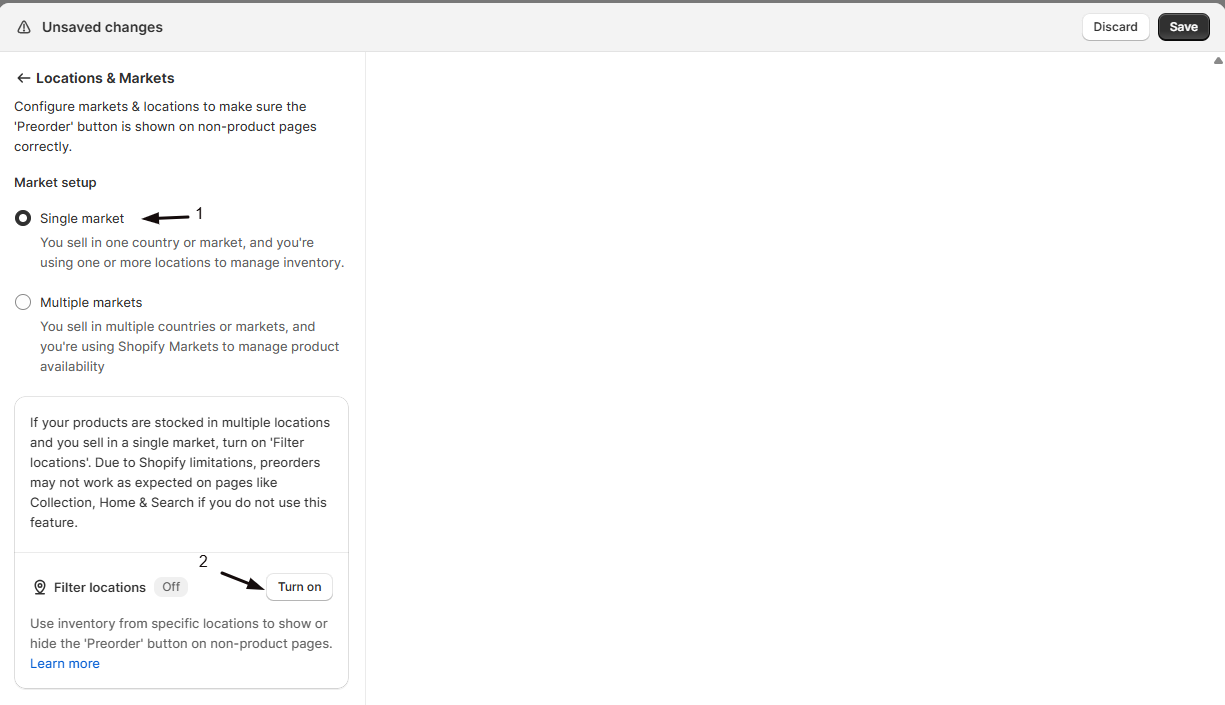
Select ‘Single market’
Select the Single market radio button.
-
Enable Filter locations
Turn on the Filter locations toggle. A list of your Shopify locations appears below it.
-
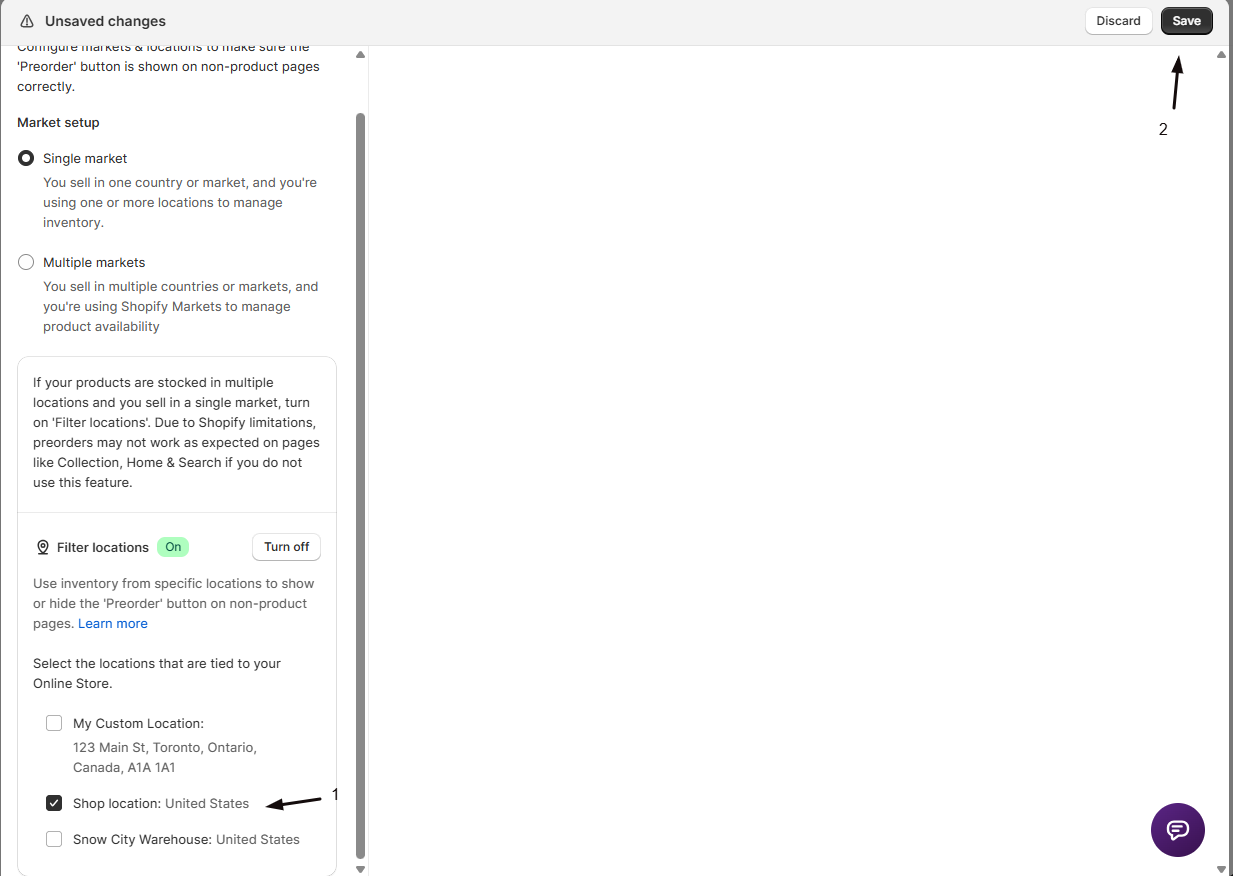
Select the locations tied to your Online Store
Check every location whose inventory should count toward the Preorder button decision on collection, home, and search pages. Typically these are your warehouse or fulfilment-centre locations, not retail-only locations that can’t ship online orders.
-
Save your changes
Click Save in the top-right corner of the editor. STOQ now restricts inventory evaluation on non-product pages to the selected locations.
Multiple markets: turn on Market-based preorders
Section titled “Multiple markets: turn on Market-based preorders”Open Locations & Markets under Advanced in the left sidebar of the Pages & Locations editor.
-
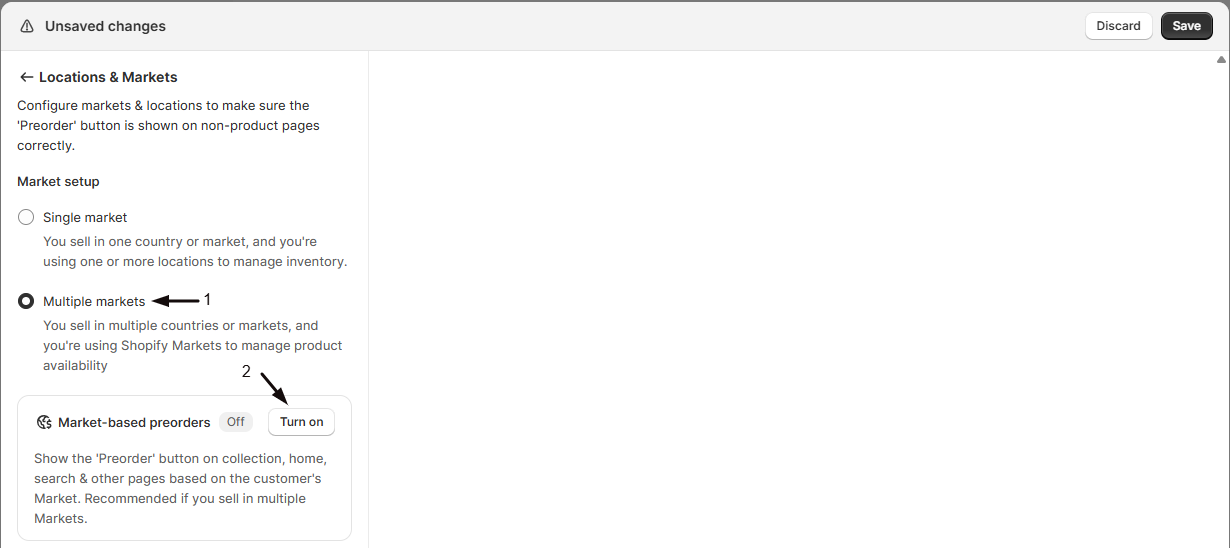
Select ‘Multiple markets’
Select the Multiple markets radio button. This automatically clears the Filter locations setting, since the two modes are mutually exclusive.
-
Enable Market-based preorders
Turn on the Market-based preorders toggle. A Settings section expands below.
-
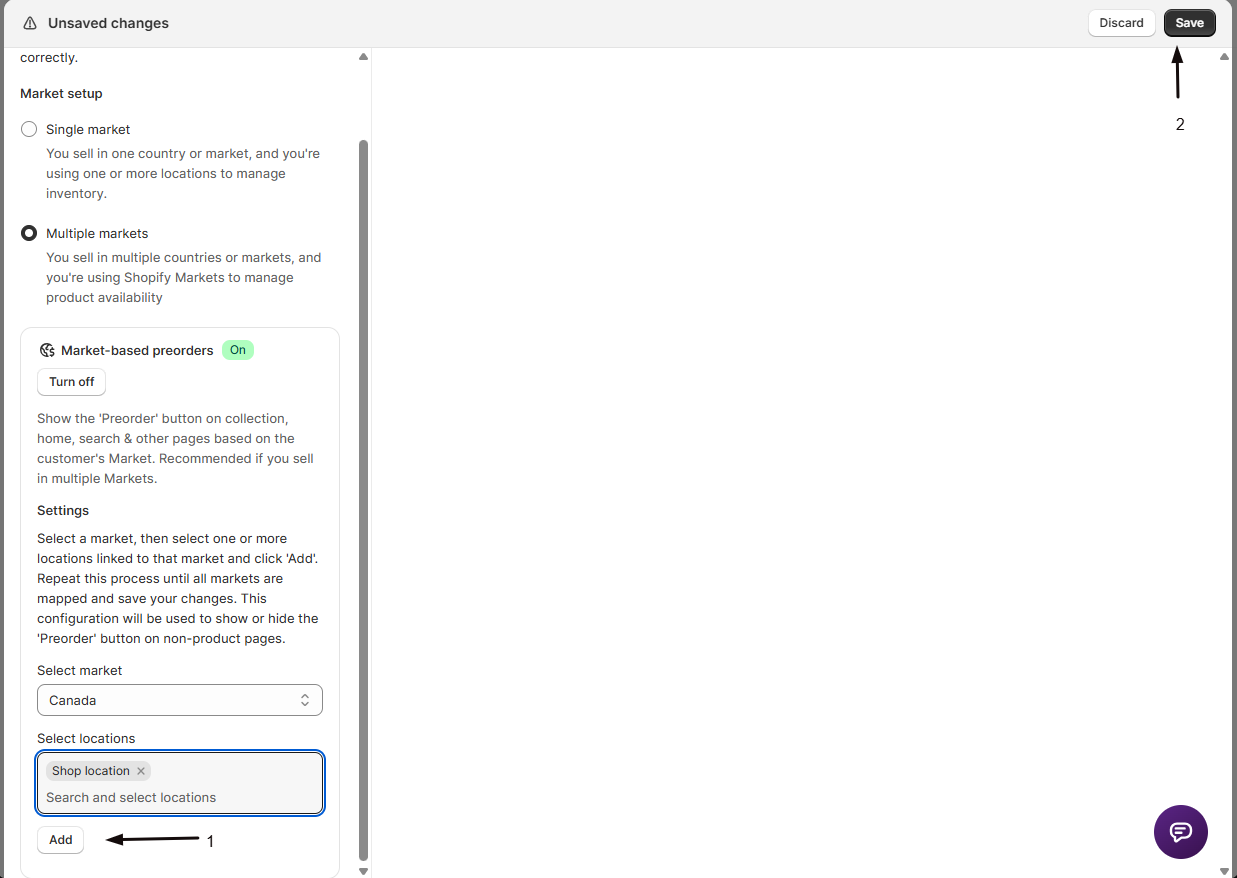
Map each market to its locations
For each Shopify Market:
- Select the market from the Select market drop-down.
- Search for and select one or more inventory locations linked to that market.
- Click Add.
Repeat until every market you sell in has at least one location mapped. STOQ shows the Preorder button on non-product pages only when the selected locations have stock that triggers preorder conditions for that market’s customers.
-
Save your changes
Click Save in the top-right corner of the editor. STOQ saves the page-toggle settings immediately and the market-location pairs shortly after.
Check your setup
Section titled “Check your setup”- Open your storefront and go to a collection that contains at least one product with an active preorder offer.
- The Preorder button should appear on that product’s card in the list.
- If it doesn’t, click Details on the Status card on the STOQ Home page and confirm the App embed row reads On, then work through Troubleshooting below.
Troubleshooting
Section titled “Troubleshooting”The Preorder button doesn't appear on a collection, home, or search page
Confirm that page type is turned on in the Pages & Locations editor and that the STOQ app embed is enabled.
You turned the page toggle on but the button still doesn't show
Confirm the product has an active preorder offer under Preorders (left menu) -> Offers tab. For product-page issues like offer status, variant, or market restrictions, see Troubleshoot the preorder button.
The Quick Buy or Featured product checkbox is greyed out
It needs a paid plan and a theme integration built by the STOQ team. Click Request setup if you haven’t already; a Requested badge means it’s already pending.
The button shows up in the wrong place on a non-standard collection layout
Use Dev mode (if available on your account) to set custom CSS selectors and an insertion type, or contact the STOQ team via Custom pages.
The button shows on collection pages for products that aren't actually on preorder
Turn on Filter locations (single market) or Market-based preorders (multiple markets) so STOQ stops summing inventory across every location.
You changed your Shopify theme
Re-enable the app embed in the new theme’s editor. Your page and Locations & Markets settings stay as they were and apply automatically once the embed is on.
Limitations
Section titled “Limitations”- Quick Buy and Featured product placements need a paid plan and a per-theme integration that the STOQ team builds after you click Request setup, typically ready in 12-24 hours.
- Custom or non-standard page layouts aren’t covered by the standard page toggles; use Dev mode (if enabled on your account) or contact STOQ via Custom pages.
Do I need to configure anything for the button to show on the product page?
No. The product page button is automatic once a product has an active preorder offer, no Pages & Locations setup needed. This guide covers the other, opt-in placements.
Does turning on these placements notify or charge customers, or change existing orders?
No. Showing the button on collection, home, search, or Quick Buy is a visual change only. It doesn’t send any notification or charge, and it has no effect on orders already placed. Notifications and charges only happen when a customer completes a preorder at checkout.
How long does a Quick Buy or Featured product integration take?
After you click Request setup, the STOQ team typically completes the integration within 12-24 hours. You’ll get an email and an in-app chat message when it’s ready.
I sell in multiple Shopify Markets. Do I need Filter locations or Market-based preorders?
Use Market-based preorders, which requires a paid STOQ plan. It maps each Shopify Market to one or more inventory locations, so STOQ evaluates only the locations relevant to each customer’s market. Filter locations is for single-market stores only.
Does Filter locations affect the button on the product page?
No. The product page always uses accurate per-variant inventory data regardless of this setting. Filter locations and Market-based preorders only change how STOQ evaluates inventory on non-product pages, where Shopify doesn’t give app embeds per-customer location context.
Related guides
Section titled “Related guides”Thanks for letting us know.
Still stuck? Ask Quinn or chat with support