Rename an offer
Change the customer-facing offer name and the internal name you use in your STOQ dashboard.
Last updated
Every preorder offer has two name fields that look similar but do different jobs: Offer name, which customers see in cart and at checkout, and Internal name, which is only for you to identify the offer inside STOQ. Renaming one does not change the other.
Before you begin
Section titled “Before you begin”| Requirement | Detail |
|---|---|
| At least one offer created | If you have no offers yet, see Set up preorders |
| Know which name you want to change | See Choose your setup below if you’re not sure |
Choose your setup
Section titled “Choose your setup”An offer has two separate name fields, sitting next to each other in the same Widget section of the offer editor, so it’s easy to mix them up:
| Field | Who sees it | Where it appears | Default |
|---|---|---|---|
| Offer name | Customers | Cart and checkout, as the line item’s selling plan/purchase option name | “Preorder” |
| Internal name | You (merchants/staff) | The Offers list, the offer editor drawer title, exports, and STOQ’s AI assistant when referring to the offer | “Preorder N” (auto-numbered so each new offer gets a unique name) |
Change Offer name if you want customers to see something different in cart and checkout. Change Internal name if you just want to tell offers apart in your own dashboard; customers never see it.
What customers will see
Section titled “What customers will see”Customers never see the internal name. What they see in cart and at checkout is the Offer name, carried through to Shopify as the selling plan’s name. If an offer has multiple payment options such as full and partial payment, Shopify shows each one as “Offer name: Payment option title”, for example “Preorder: Full payment” and “Preorder: 50% deposit”, so the Offer name is the shared prefix across all of an offer’s payment options.
Set it up
Section titled “Set it up”On a phone, this menu is collapsed. In the Shopify mobile app, tap the STOQ logo at the top of the screen to open it, then choose the section named below. There is no hamburger icon. See Finding the STOQ menu.
Change the offer name (customer-facing)
Section titled “Change the offer name (customer-facing)”-
Open the offer
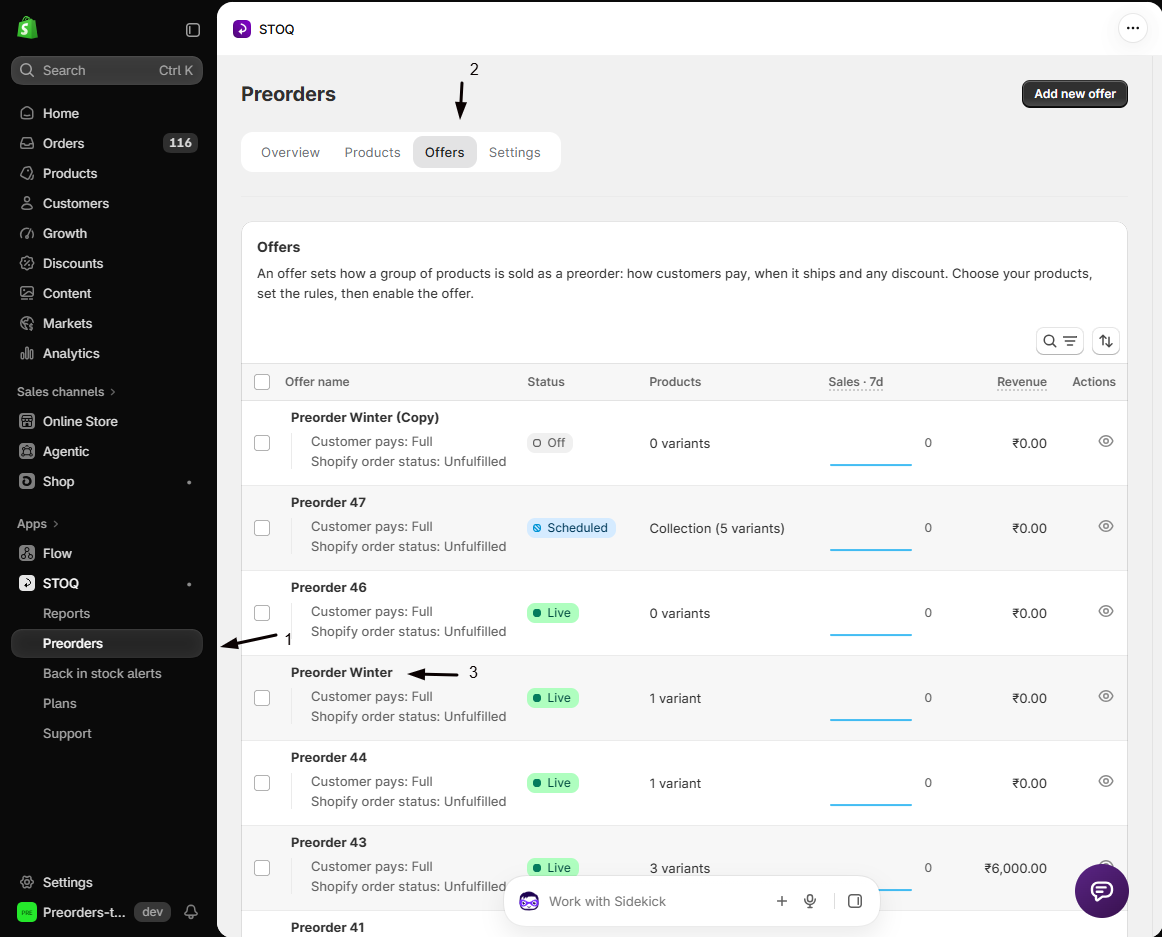
- In the left menu bar of the STOQ app, click Preorders.
- Click the Offers tab.
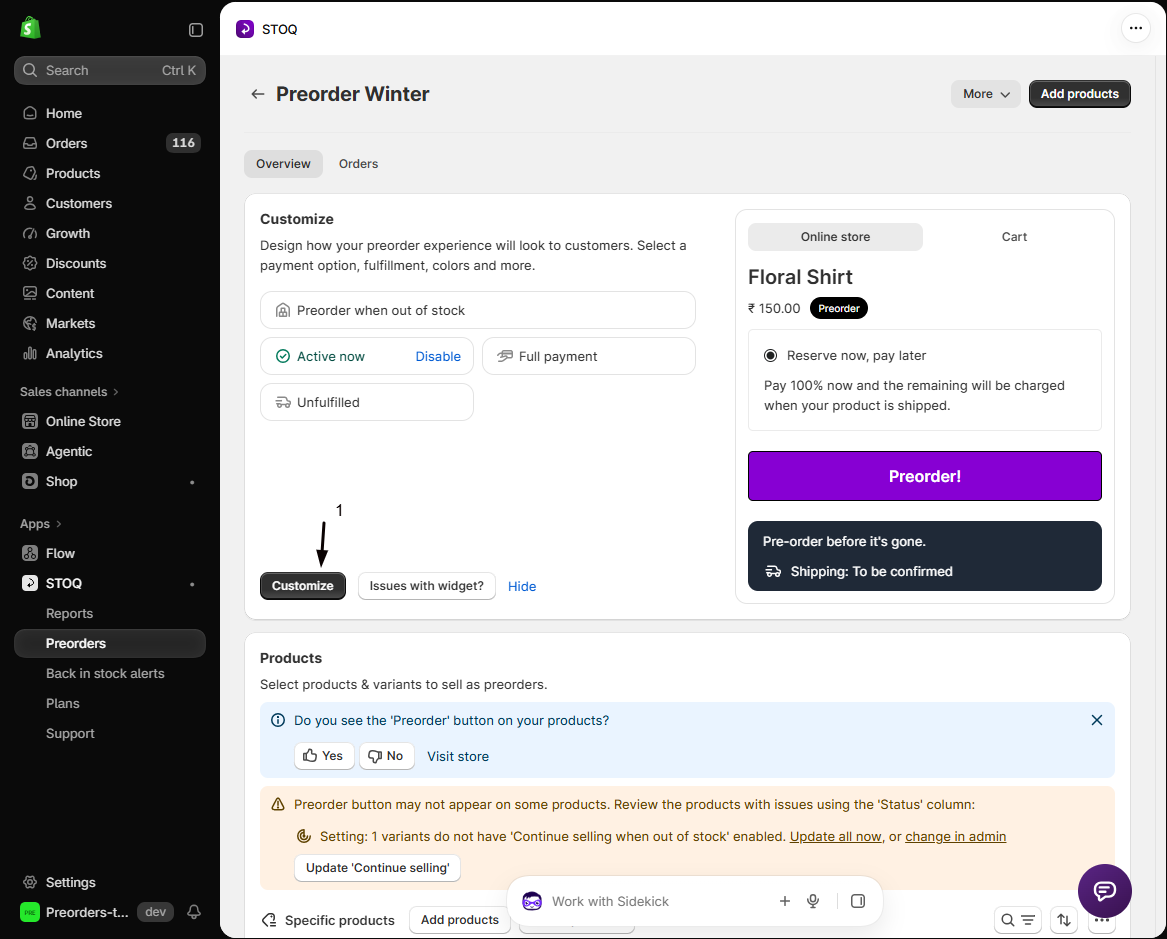
- Click the offer you’d like to rename. Its Overview tab opens, showing the Customize button, a live preview, and the offer’s Products section.
-
Open the Widget section
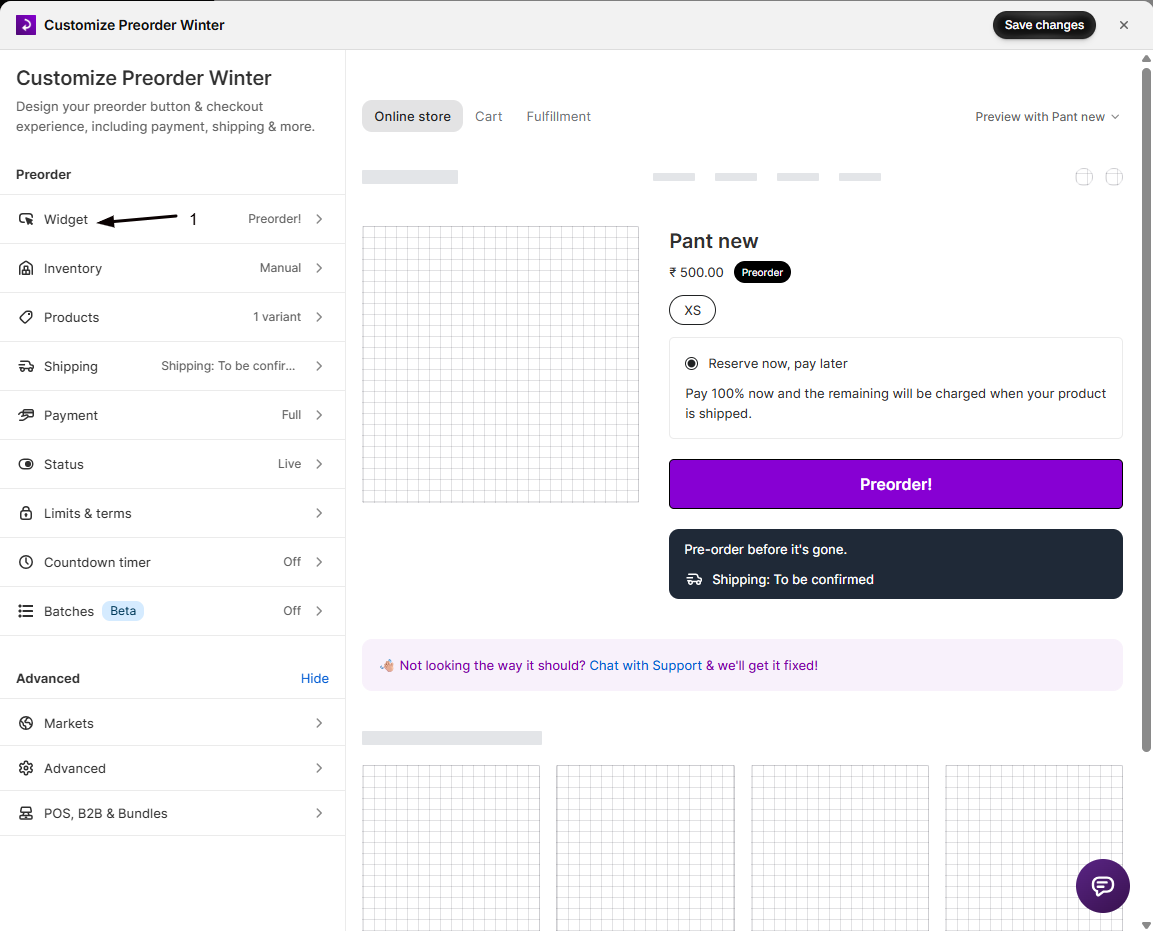
- Click the Customize button to open the editor.
- In the sidebar, click Widget.
-
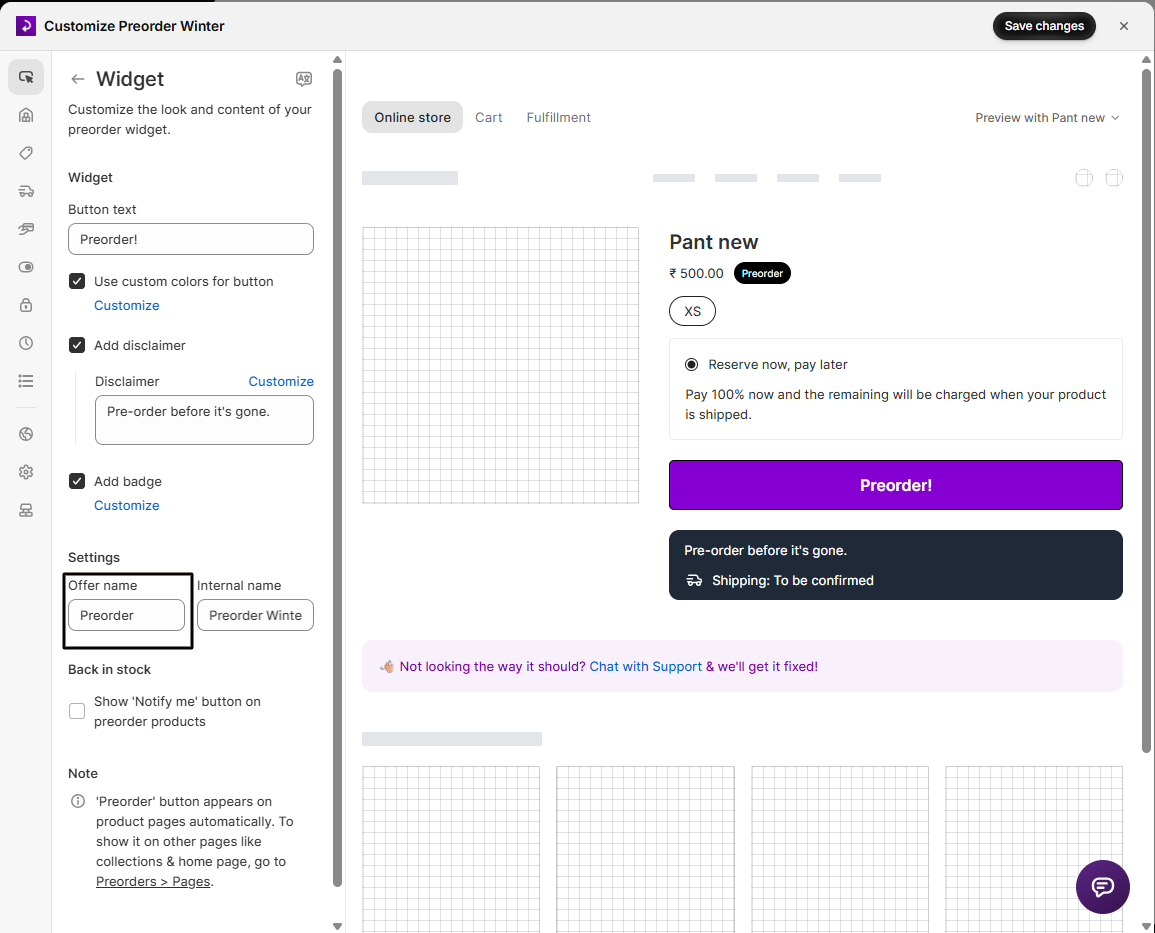
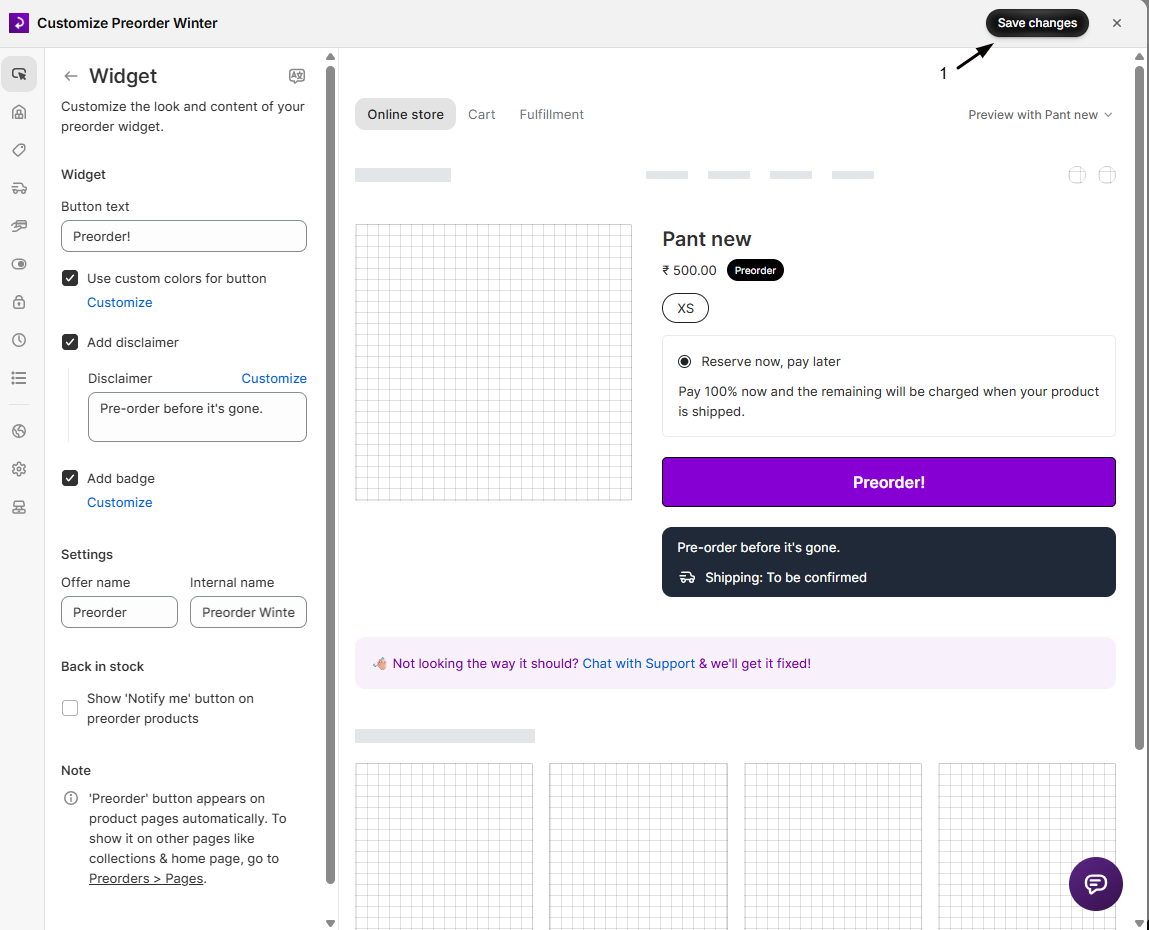
Update Offer name
In the Offer name field, enter the name you want customers to see. This is the name that appears on the selling plan/purchase option shown in cart and at checkout, and it’s also used as the selling plan’s merchant code in Shopify.
-
Save
Save the offer. The new name is pushed to the underlying Shopify selling plan and will show up in cart and checkout for new preorder purchases going forward.
Change the internal name (dashboard only)
Section titled “Change the internal name (dashboard only)”-
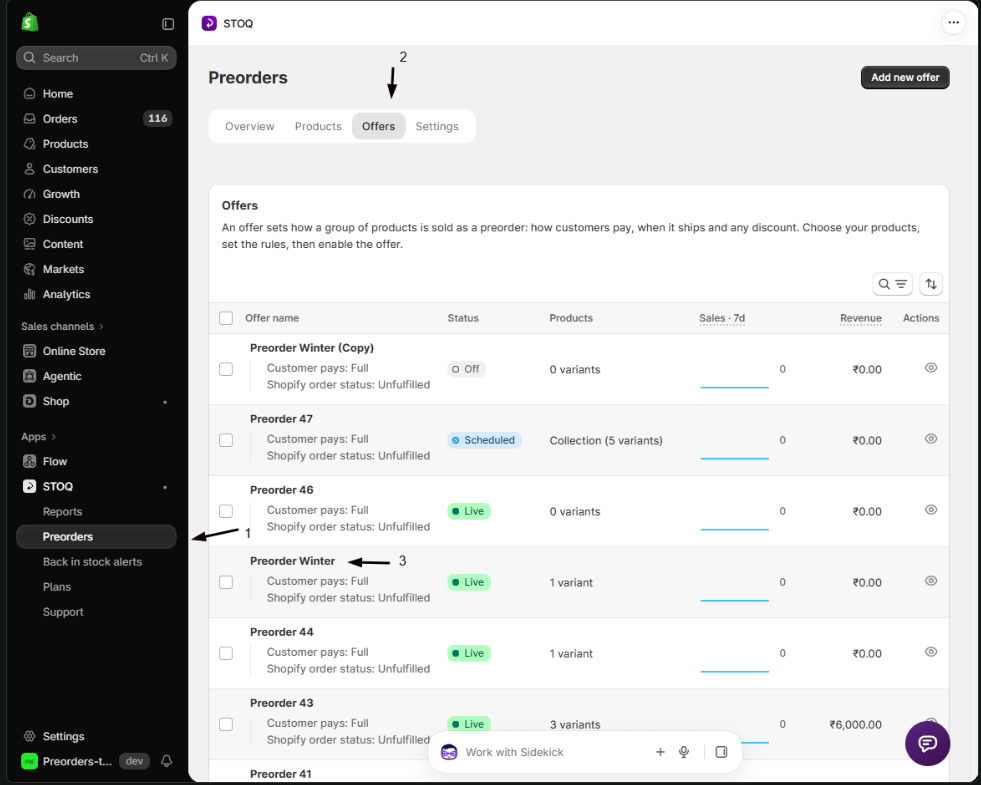
Open the offer
- In the left menu bar of the STOQ app, click Preorders.
- Click the Offers tab.
- Click the offer you’d like to rename. Its Overview tab opens, showing the Customize button, a live preview, and the offer’s Products section.
-
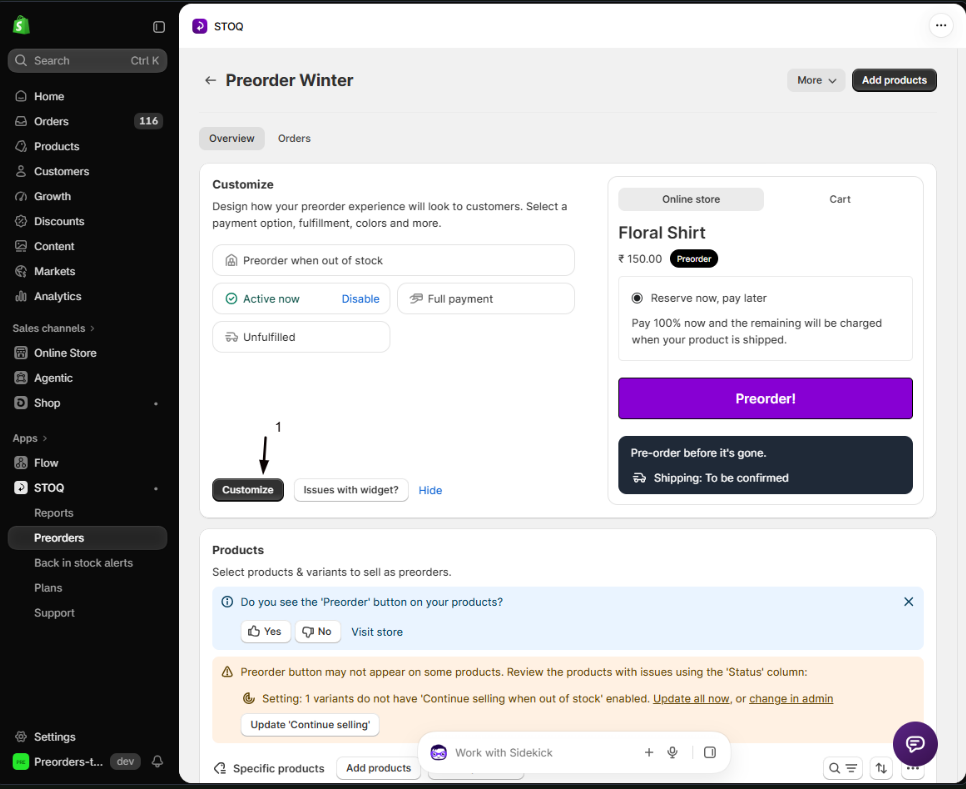
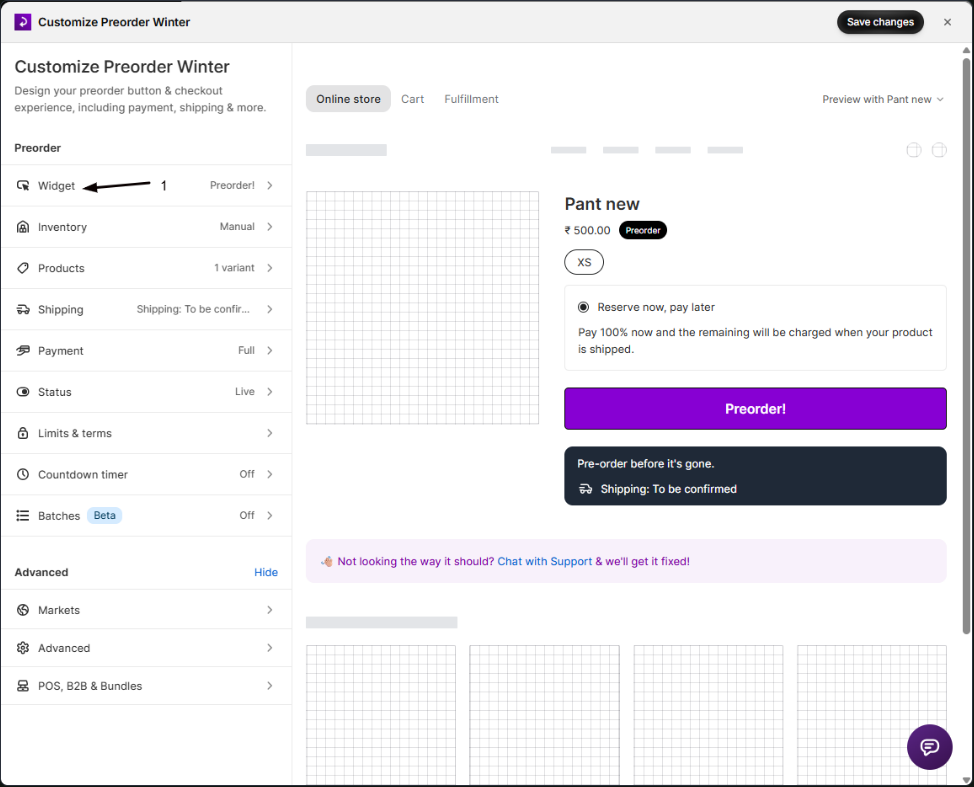
Open the Widget section
- Click the Customize button to open the editor.
- In the sidebar, click Widget.
-
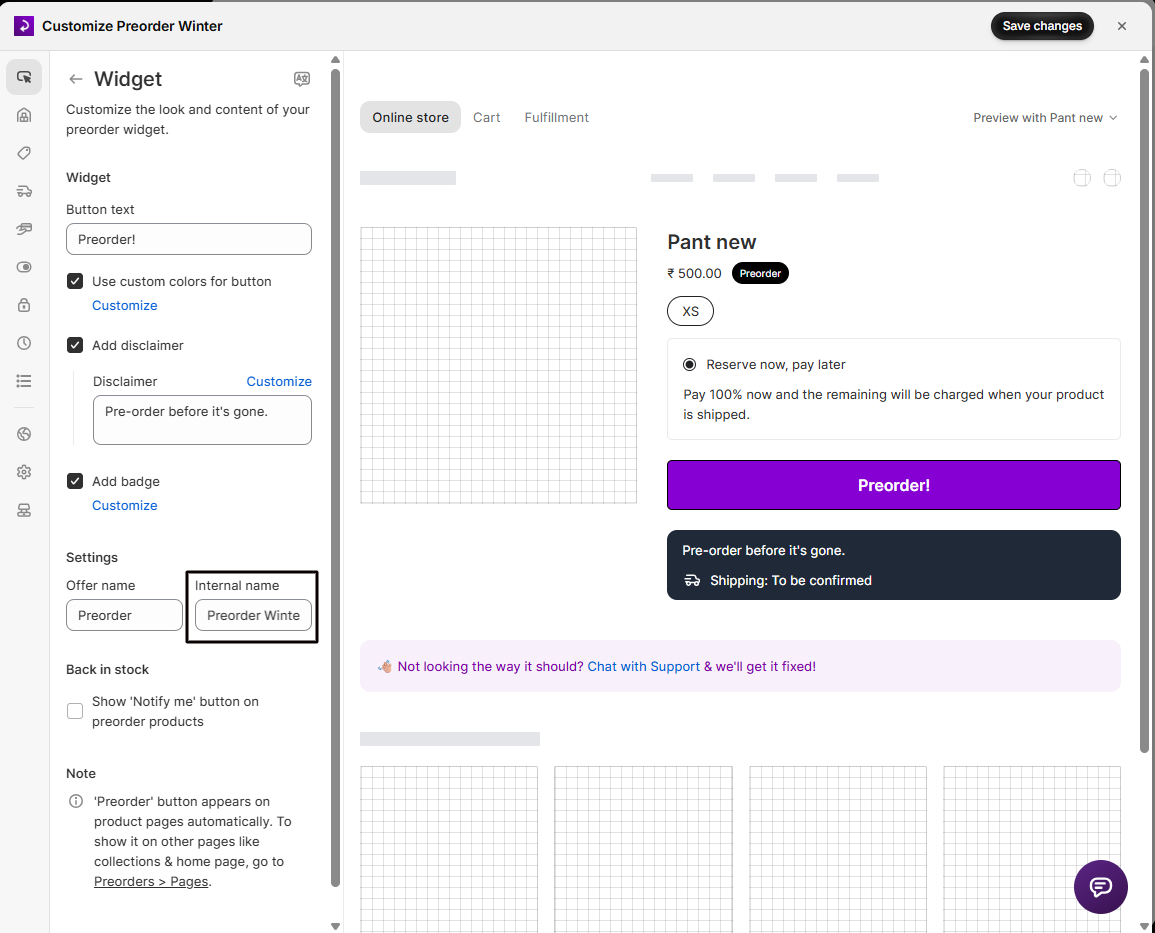
Update Internal name
In the Internal name field, enter a name that helps you tell this offer apart from others in your dashboard, for example “Winter Jacket Restock” or “VIP Early Access.” This name is never shown to customers.
-
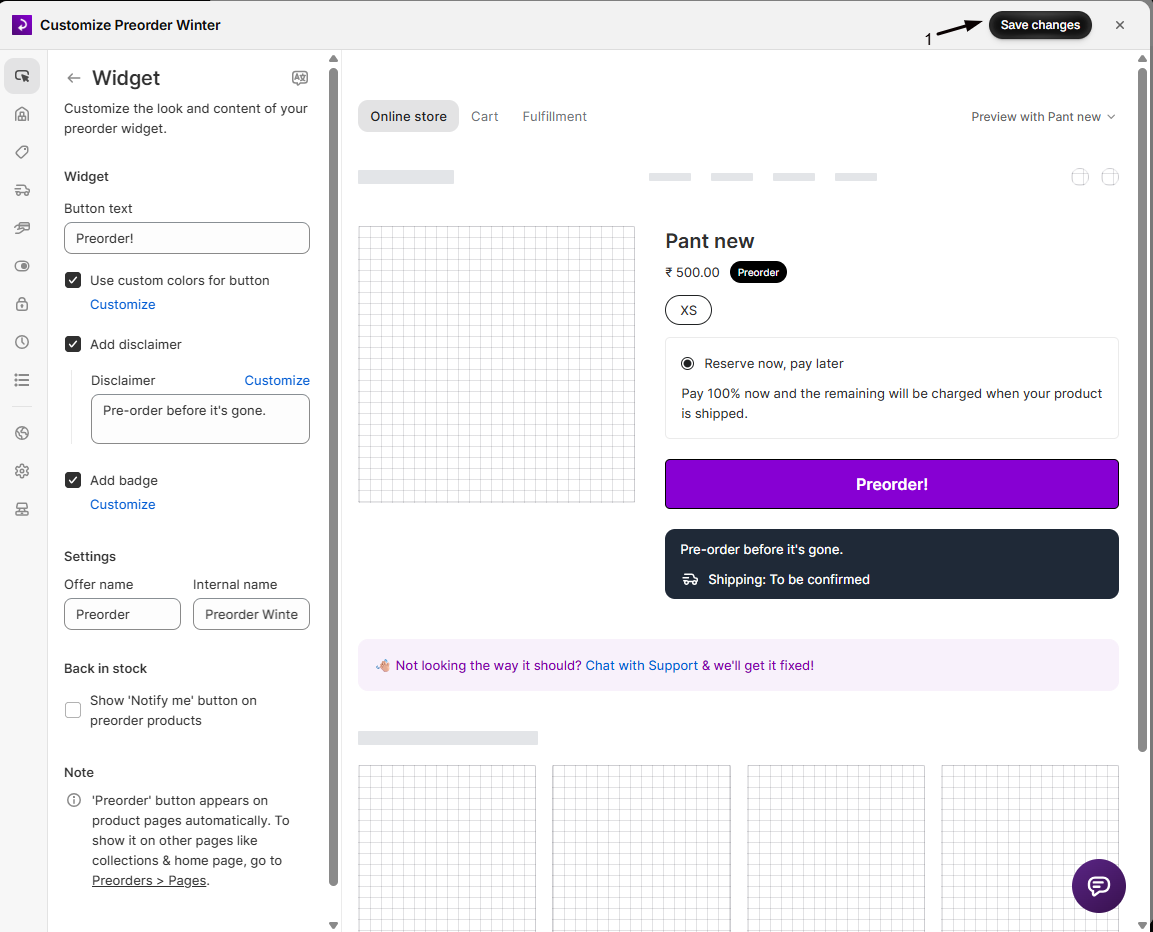
Save
Save the offer. The Offers list, the drawer title (“Customize [internal name]”), and CSV exports now show the updated internal name.
Check your setup
Section titled “Check your setup”- Offer name: Add a preorder product to your cart on the live storefront and confirm the new name appears against the line item, or check the Shopify order/draft order after a test purchase.
- Internal name: Return to the Offers tab (Preorders in the left menu → Offers tab) and confirm the updated name appears in the list and in search results.
Troubleshooting
Section titled “Troubleshooting”Customers still see the old name at checkout
- Confirm you edited Offer name, not Internal name, a common mix-up since the two fields sit next to each other.
- Make sure you saved the offer after editing.
Orders placed before the change keep the name that was active at checkout time; only new preorder purchases show the updated name.
You get a "Name has already been taken" error
This applies only to Internal name, which must be unique across all of a shop’s offers. Pick a different name; a name freed up by deleting an offer becomes available again. Offer name has no such restriction and can repeat across offers.
You can't save because a name field is empty
Both Offer name and Internal name are required. Enter a value for each field before saving.
Does changing Offer name affect orders already placed?
No. Orders placed before the change keep the name that was active at checkout time; only new preorder purchases show the updated name.
Does renaming an offer affect its products, discounts, or other settings?
No. Renaming either field only changes the name: it does not touch the offer’s attached products, payment settings, fulfillment settings, or any other configuration.
Does STOQ auto-generate a default internal name for new offers?
Yes. New offers get an auto-numbered internal name (“Preorder 1”, “Preorder 2”, “Preorder 3”, and so on), so each new offer has a unique internal name per shop without you having to set one.
If an offer has full and partial payment options, does each option get its own name?
It depends on which field:
- Each payment option has its own title (for example “Full payment” or “50% deposit”), set in the Payment section.
- The Offer name is shared across all of an offer’s payment options.
- Shopify displays them combined, like “Preorder: Full payment”, so changing Offer name updates the shared prefix for every payment option at once.
Related guides
Section titled “Related guides”Thanks for letting us know.
Still stuck? Ask Quinn or chat with support