Tag orders from a preorder offer
Automatically add Shopify order tags to orders that contain a preorder product, per offer.
Last updated
STOQ can automatically tag Shopify orders that contain a preorder product. Tags are set per offer, so each offer can apply its own, which makes it easy to filter, automate, and route preorder orders in Shopify.
Add tags to an offer
Section titled “Add tags to an offer”On a phone, this menu is collapsed. In the Shopify mobile app, tap the STOQ logo at the top of the screen to open it, then choose the section named below. There is no hamburger icon. See Finding the STOQ menu.
-
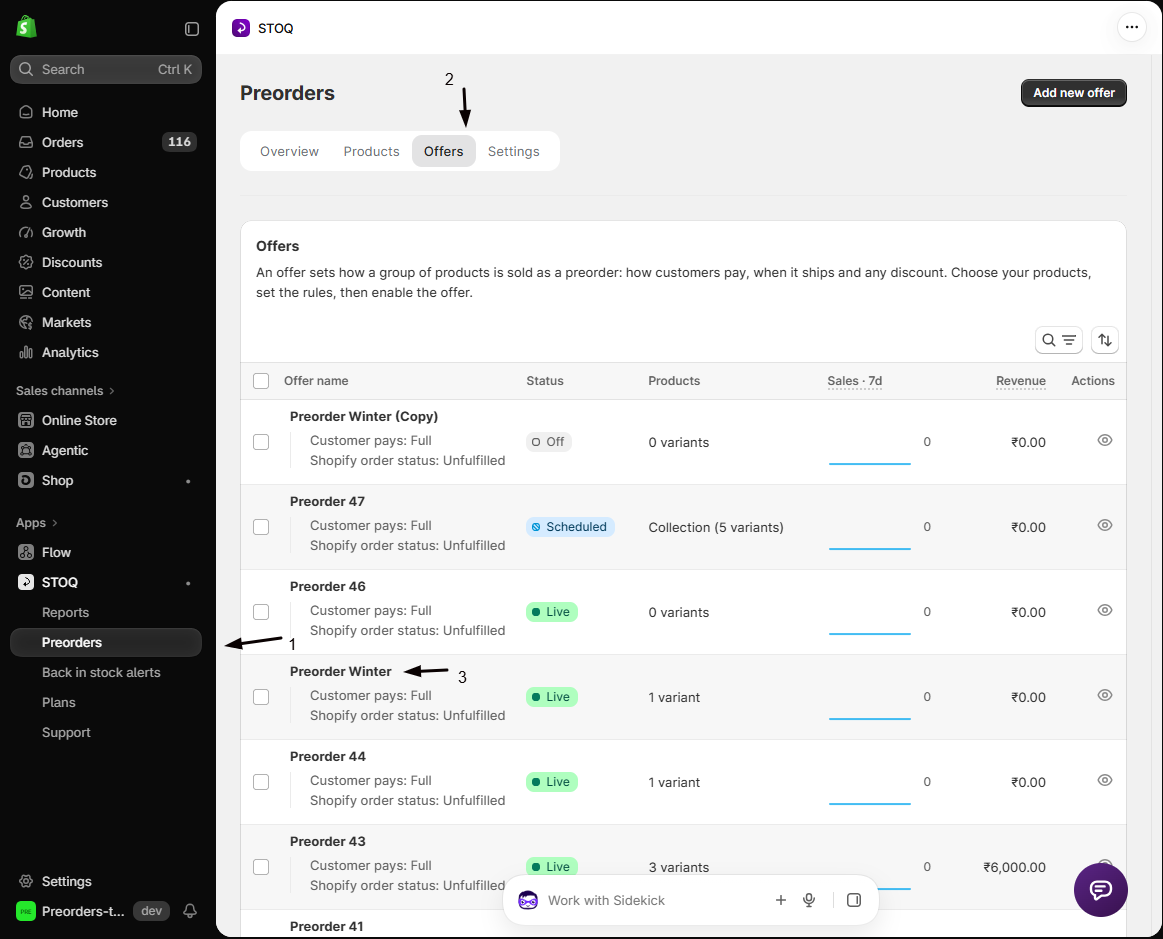
Open the offer
In the left menu bar of the STOQ app, click Preorders, click the Offers tab, and click the offer to open its Overview.
-
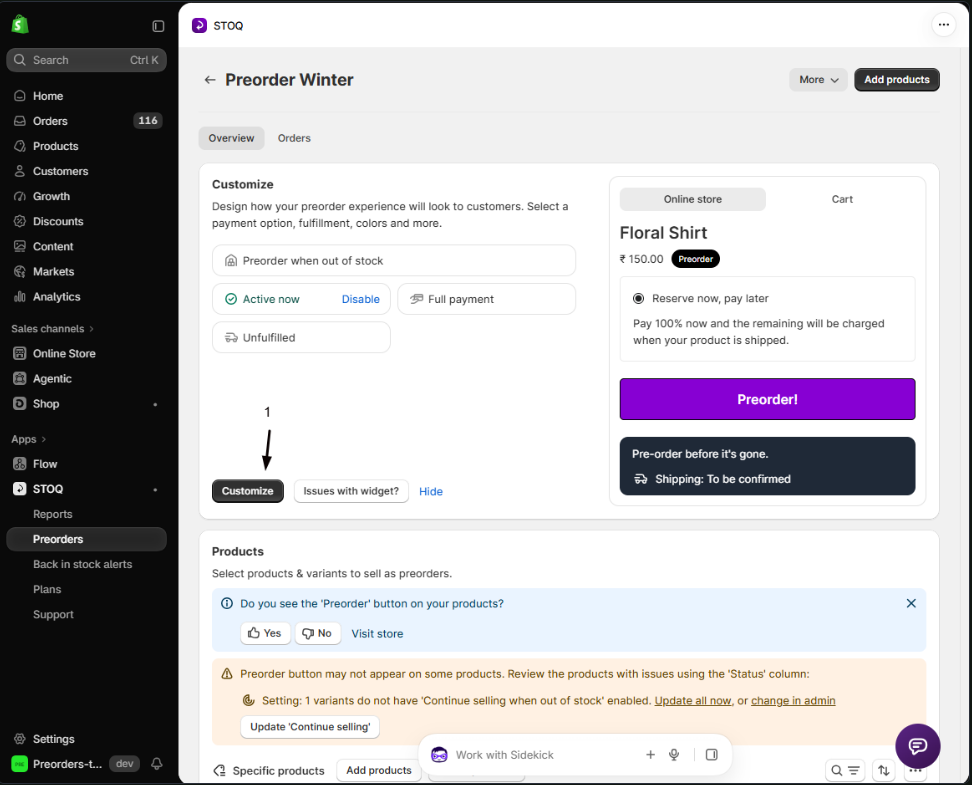
Open the offer editor
Click Customize to open the offer editor.
-
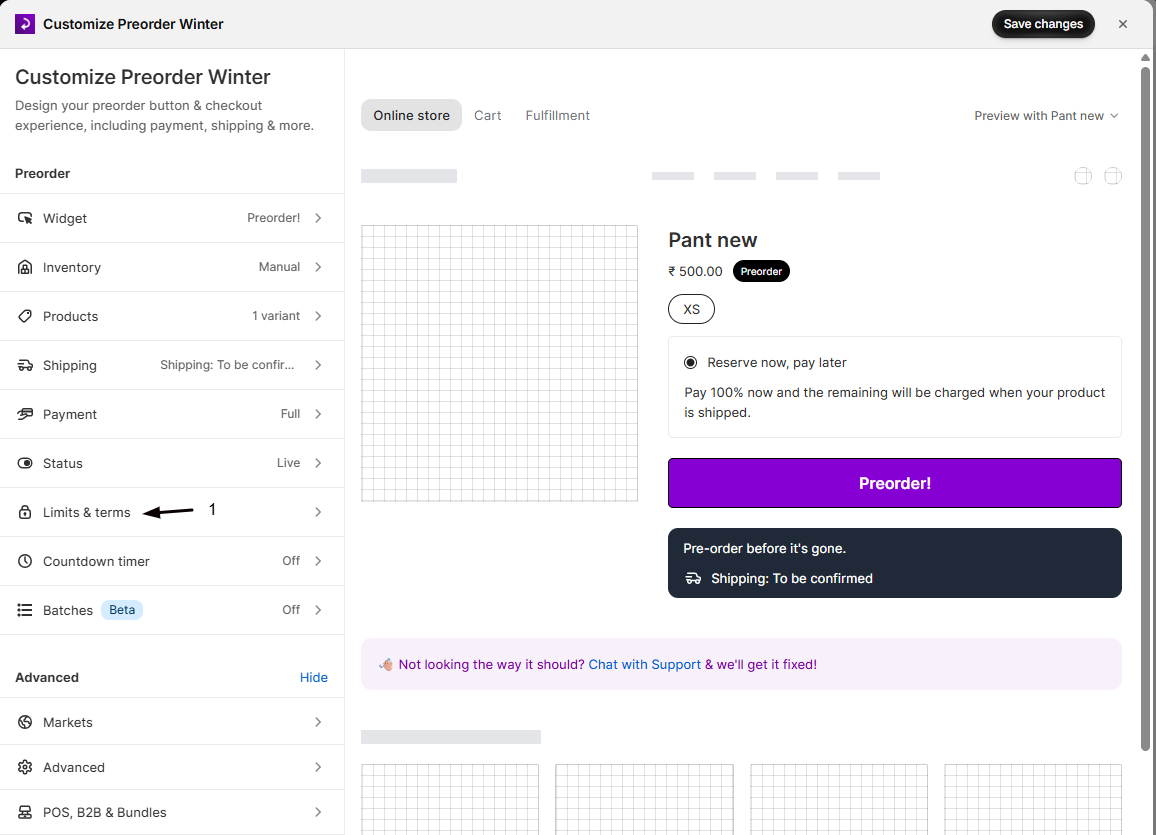
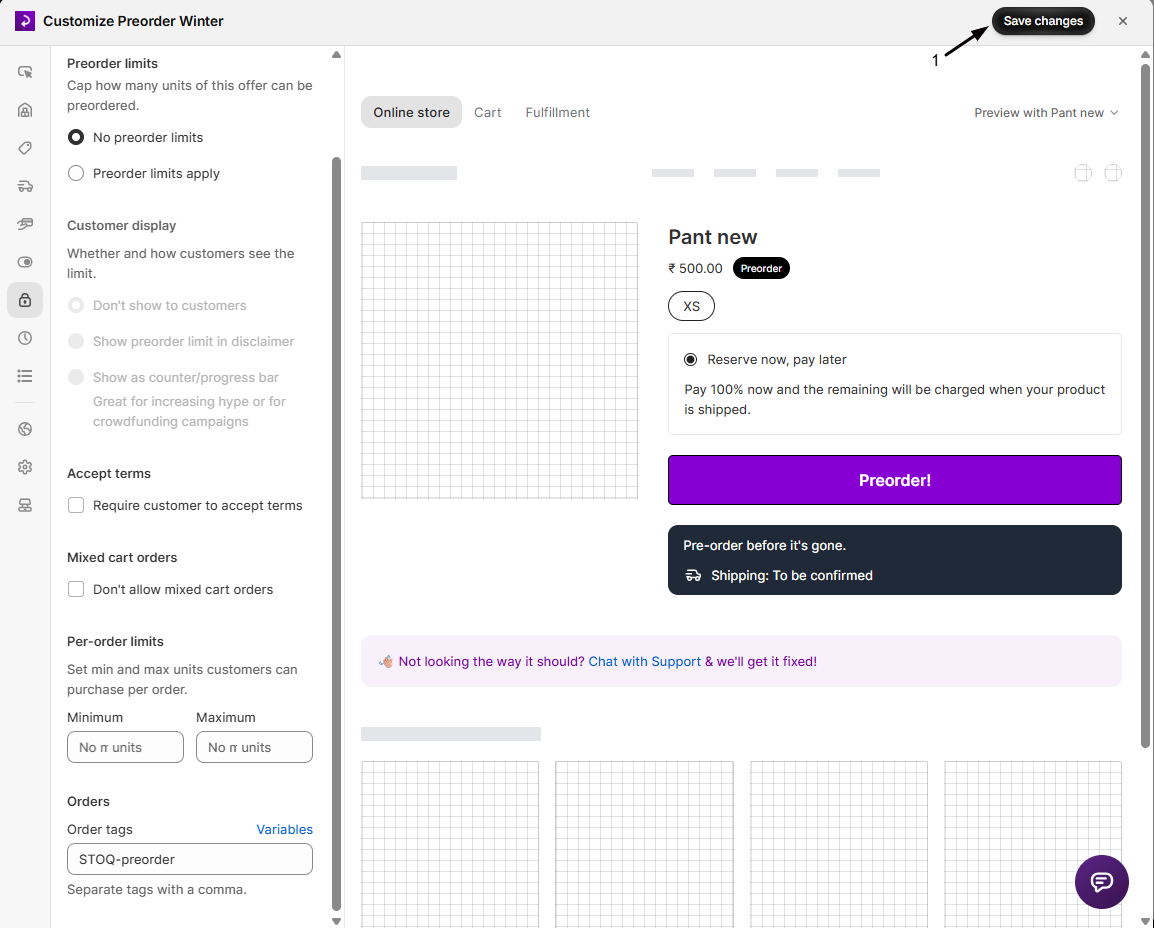
Go to Limits & terms
In the editor’s left sidebar, click Limits & terms, then find the Order tags field under the Orders heading.
-
Enter your tags
Type one or more tags separated by commas, for example
preorder,ship-later. Use tags that describe the offer or fulfillment workflow.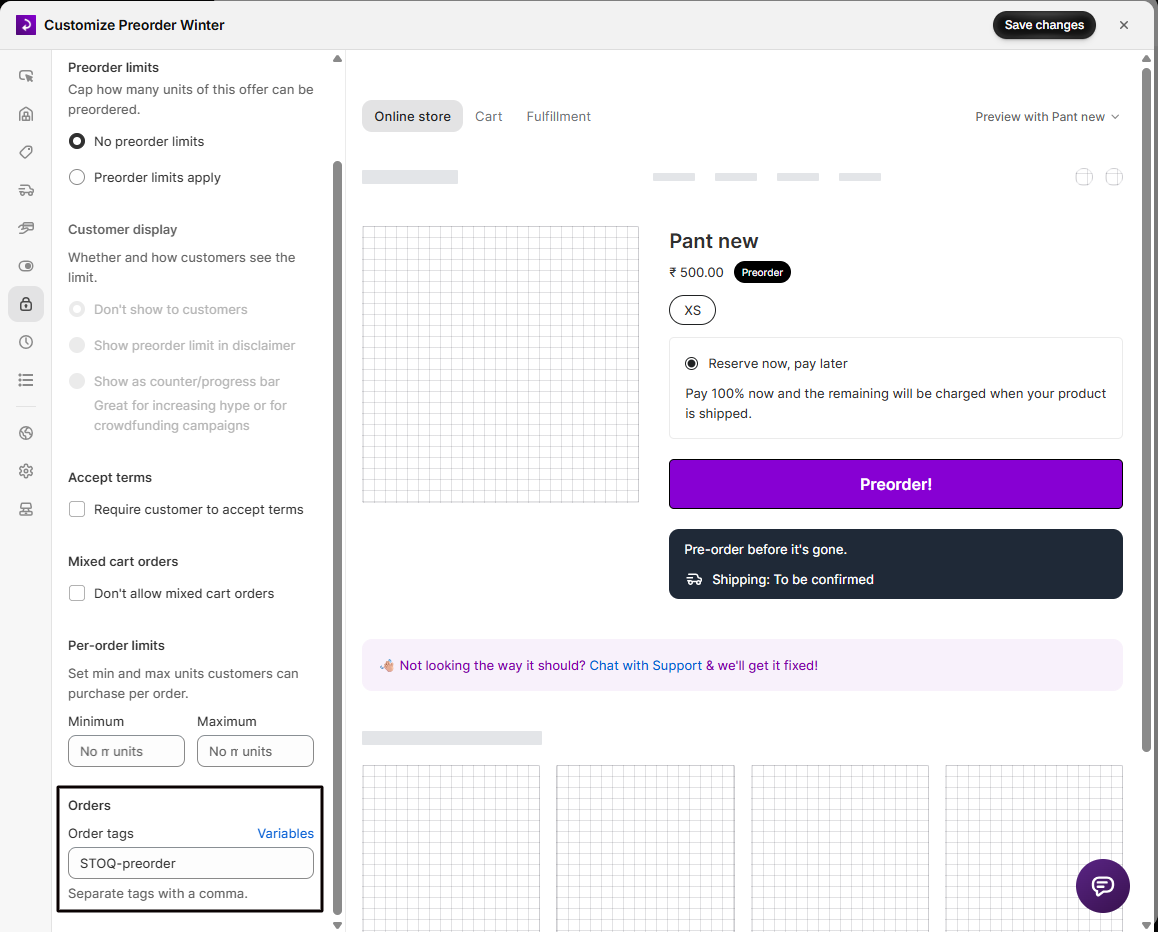
-
Save
Click Save. New orders containing this offer’s products get the tags.
When tags are applied
Section titled “When tags are applied”Tags are added shortly after checkout, not during it. When a customer places a preorder, Shopify notifies STOQ, STOQ records the order as a preorder, and then adds the tags to it. This usually takes a few seconds, so an order can appear in Shopify briefly before its tags show up.
Only orders STOQ recognizes as preorders are tagged. An order that STOQ doesn’t record as a preorder, for example one created by a third-party split app, doesn’t get the offer’s tags.
Where tags show in Shopify
Section titled “Where tags show in Shopify”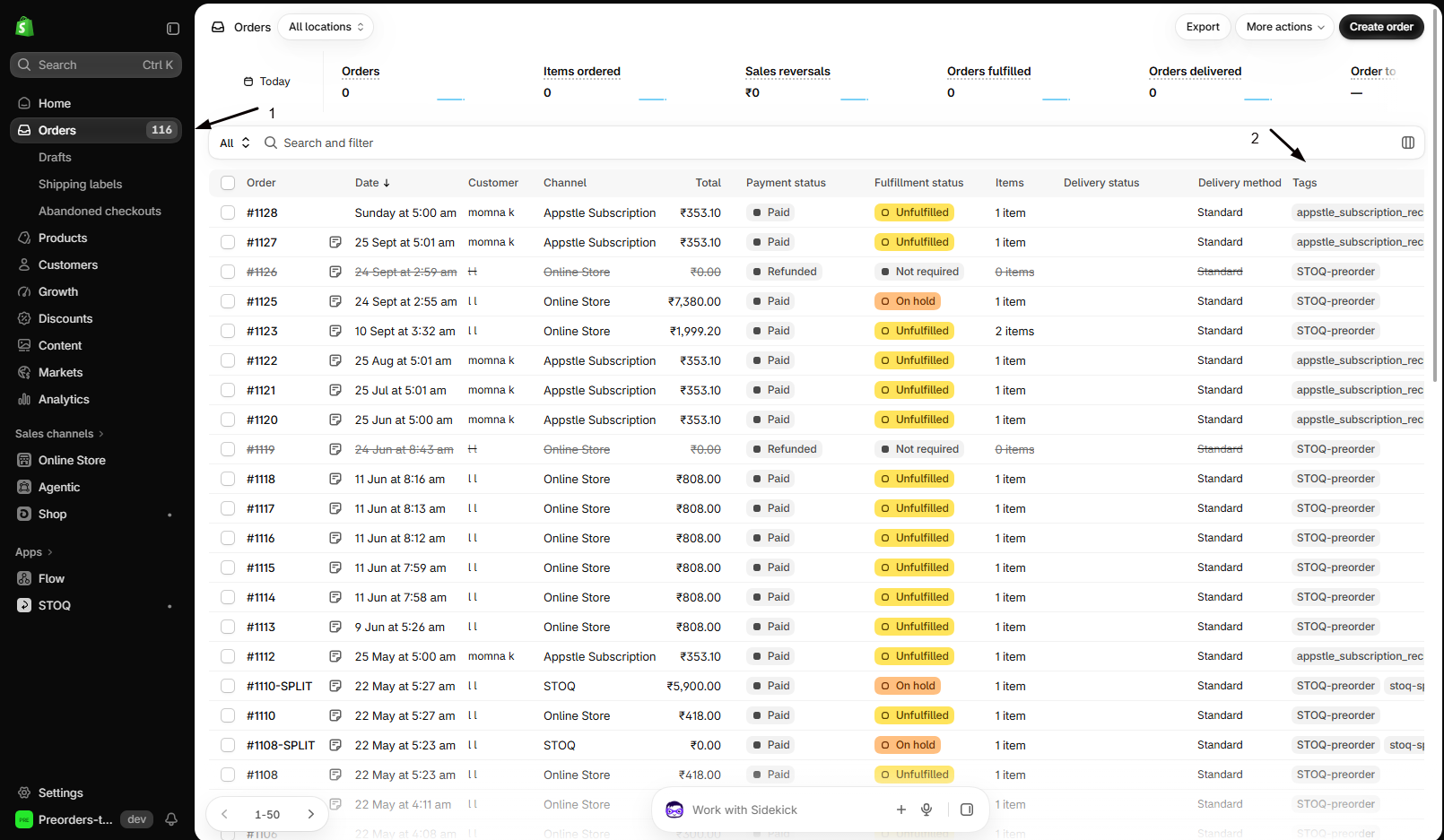
On an order’s detail page, tags appear in the Tags section on the right. On the orders list, they show as small labels, and you can filter with Tagged with.
Use the tags
Section titled “Use the tags”- Filter your orders list by tag.
- Trigger Shopify Flow automations from a tag.
- Route orders to the right fulfillment process.
- Export tagged orders for analysis.
Can each offer have different tags?
Yes. Every offer has its own Order tags field.
What about a mixed order with preorder and regular items?
It gets the tags as long as it contains at least one preorder product from a tagged offer.
How do I remove tags from past orders?
Clearing the field stops tagging future orders but doesn’t remove tags already applied. Edit those orders in Shopify, or use a bulk action.
Is there a tag limit?
STOQ doesn’t impose one, but Shopify allows up to 250 tags per order and 40 characters each.
An order is missing its tags
Check that the order is one STOQ recorded as a preorder, and that the offer had tags saved before the order was placed. If tagging didn’t complete, STOQ retries it, and the tags appear once it succeeds.
Why does my split order have extra tags?
If the offer moves preorder items into a separate order, STOQ also tags the original order with its hold and split tags, set in the offer’s split order settings. The hold tag is removed automatically once the preorder item is refunded off the original order. See Separate orders for mixed carts.
Related guides
Section titled “Related guides”Thanks for letting us know.
Still stuck? Ask Quinn or chat with support