Change or translate the "Purchase type: Preorder" cart text
Replace the default 'Purchase type: Preorder' cart line with your own wording, in any language.
Last updated
Use this guide if customers see “Purchase type: Preorder” in their cart or at checkout and you want different wording, or the same line in another language. By the end, the cart shows your text in its place.
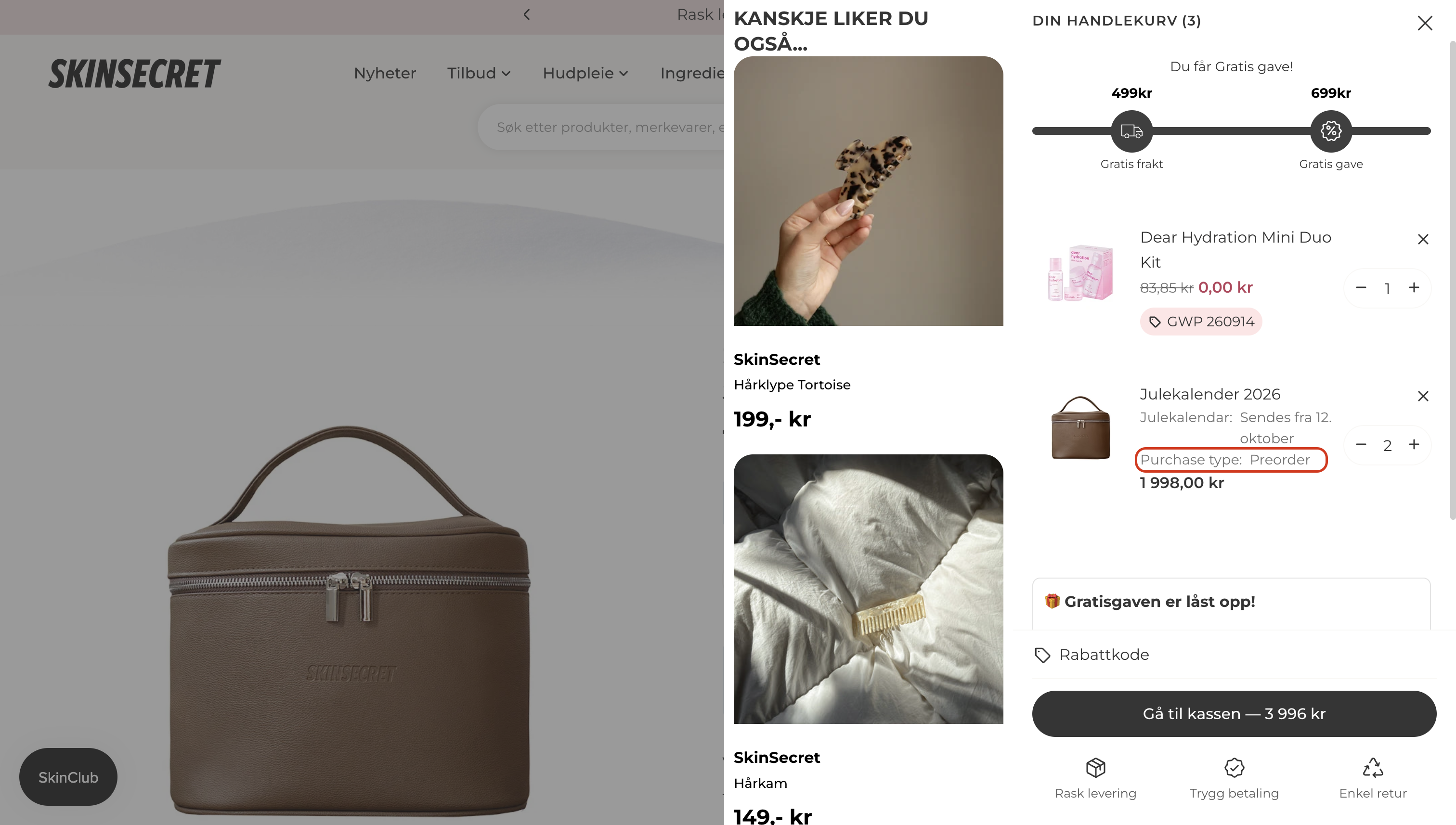
When the cart shows this line
Section titled “When the cart shows this line”STOQ adds “Purchase type: Preorder” to a preorder item so shoppers can tell it’s a preorder. It appears when:
- The offer has Use Shopify purchase option turned off.
- The customer is a B2B buyer.
- The preorder is sold through Shopify POS.
An offer that uses Use Shopify purchase option for a regular (non-B2B) customer never shows this line. The cart shows the purchase option name instead, which Shopify translates through its own purchase option translations.
What customers will see
Section titled “What customers will see”Once you set a custom cart attribute, your text shows instead of “Purchase type: Preorder”, not alongside it. The same line is saved on the order, so it’s also what you see in Shopify admin, on packing slips, and on POS orders.
If you leave the custom cart attribute off, the cart keeps showing “Purchase type: Preorder”.
Set it up
Section titled “Set it up”-
Open the offer’s advanced settings
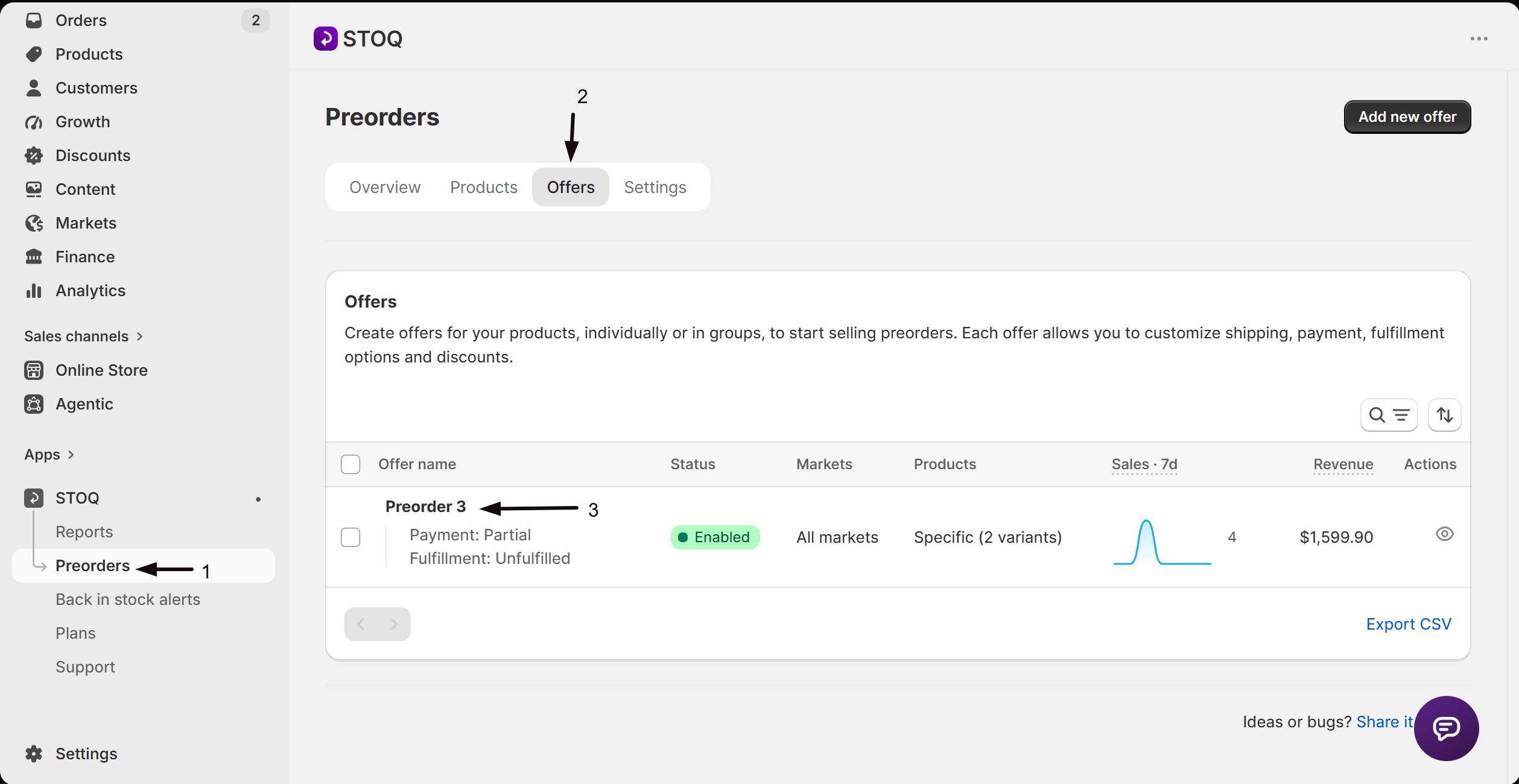
- Click Preorders in the left menu, then open the Offers tab.
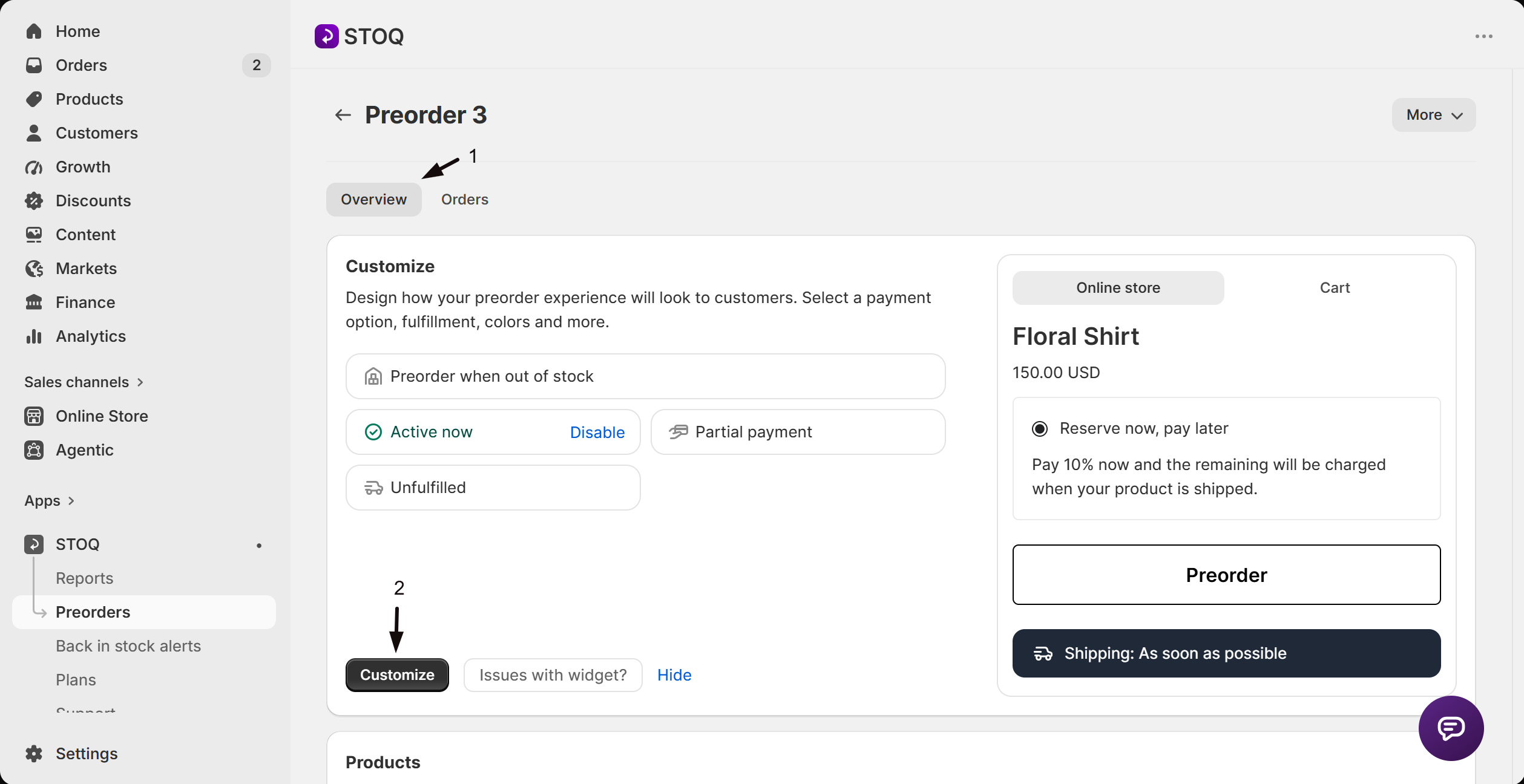
- Open the offer.
- Click Customize.
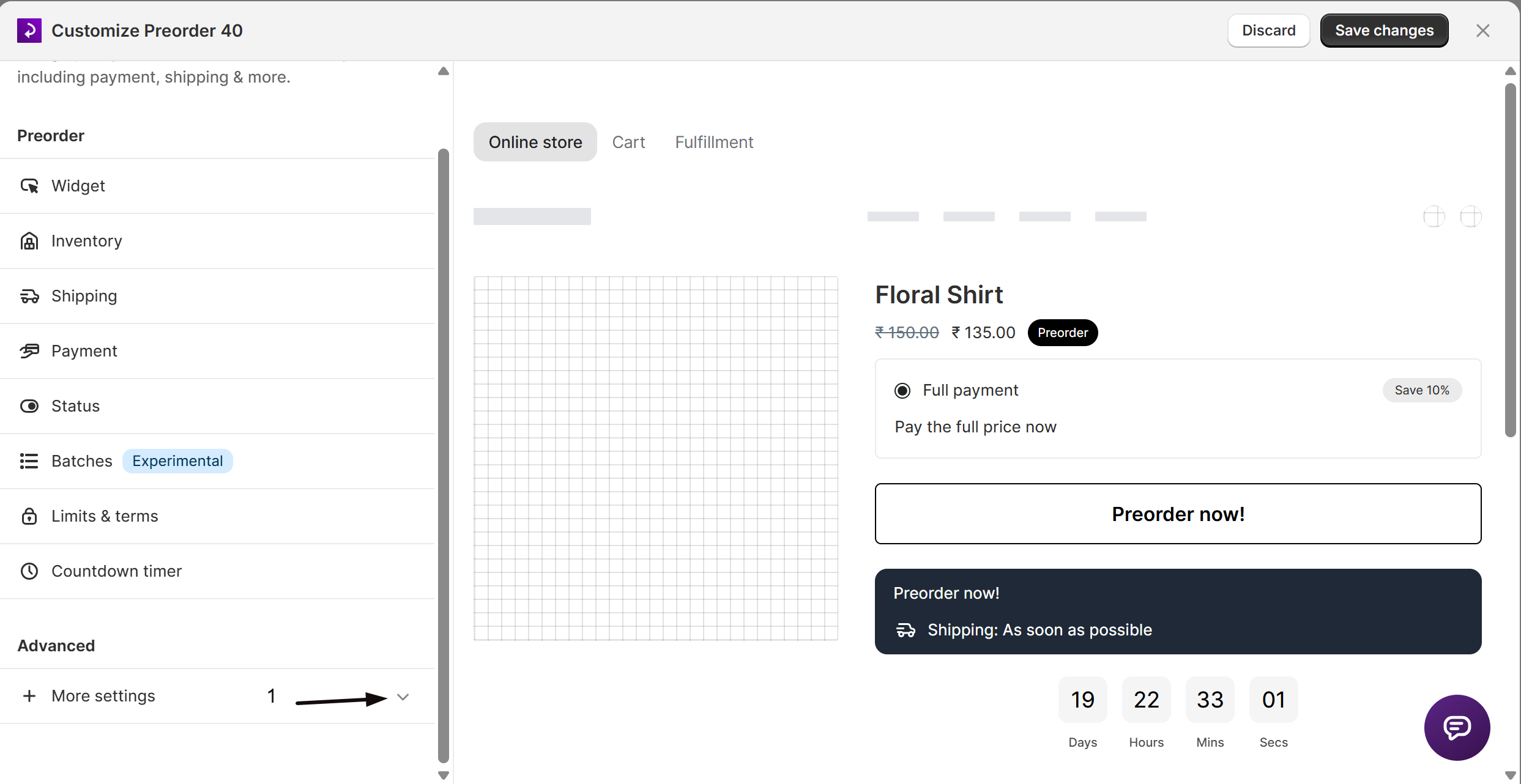
- In the editor, expand More settings and click Advanced.
-
Turn on the custom cart attribute
Check Add custom cart attribute. When the offer’s purchase option is off, the text under the checkbox reads “Cart shows “Purchase type: Preorder” by default. Turn this on to replace it with your own text.”
Turning it on fills the Custom cart attribute field with
Purchase type: Preorder, so you can edit the wording rather than start from blank.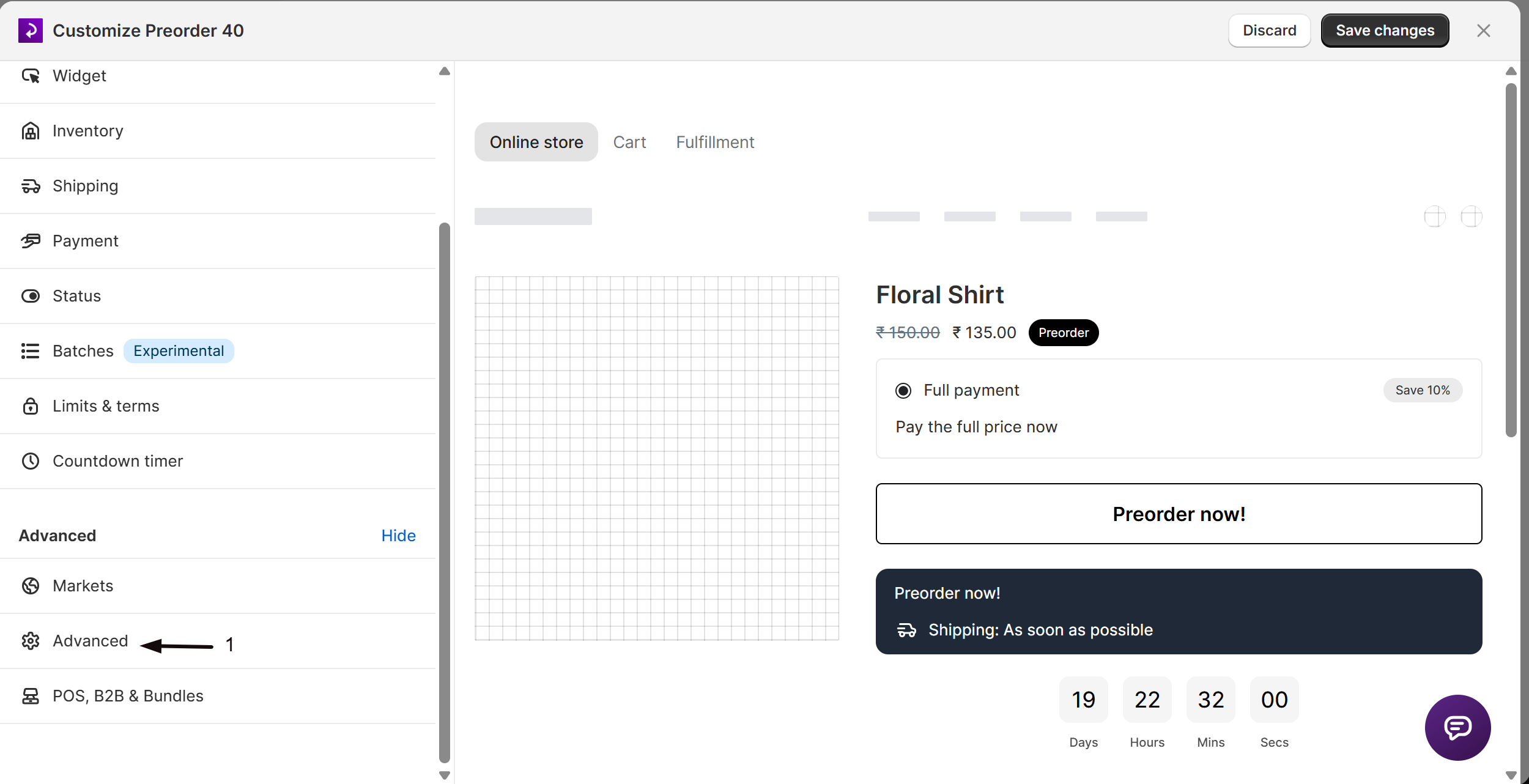
-
Enter your wording
Type your text in the Custom cart attribute field in
key:valueformat. The part before the colon is the label and the part after it is the value, for exampleTipo de compra: Reserva.You can use variables such as
{{ name }}and{{ date }}. Click available variables in the field’s help text for the full list. -
Save
Save the offer.
-
Translate it for each language
If your store sells in more than one language, open the offer’s translations and enter the Custom cart attribute wording for each language. See Translate into other languages.
STOQ doesn’t ship a translation for this field, so type each language’s wording in yourself.
Check your setup
Section titled “Check your setup”- Open your store in an incognito window.
- Add a product from the offer to the cart.
- Open the cart and confirm your text shows and “Purchase type: Preorder” doesn’t.
- If you translated it, switch the storefront language and check again.
Troubleshooting
Section titled “Troubleshooting”- If the cart still shows “Purchase type: Preorder”: confirm Add custom cart attribute is checked, the field isn’t empty, and the offer is saved. Then remove the item from the cart and add it again, because items already in a cart keep the text they were added with.
- If POS still shows “Purchase type: Preorder”: POS fills in only
{{ name }},{{ date }}, and{{ disclaimer }}. If your text uses any other variable, such as{{ payment }}or{{ discount }}, POS falls back to “Purchase type: Preorder”. Remove the other variables to show your text on POS. - If the line doesn’t appear at all: the offer uses Use Shopify purchase option and the customer isn’t a B2B buyer, so the cart shows the purchase option name instead. See When the cart shows this line.
Will this change orders that were already placed?
No. The new text applies to items added to the cart after you save. Past orders, and items already sitting in a cart, keep “Purchase type: Preorder”.
Does my text show on the order in Shopify admin?
Yes. Your text replaces the line on the order too, so Shopify admin, packing slips, and POS show your wording. STOQ still tracks the order as a preorder, because it uses a separate hidden property for that.
Why is there no translation field for 'Purchase type: Preorder' itself?
The default line is fixed English and isn’t an offer setting, so it doesn’t appear in the offer translator. The custom cart attribute is the translatable line that takes its place.
Does this work for B2B customers and POS?
Yes. Your text replaces the line for B2B buyers and for preorders sold through Shopify POS. On POS, stick to the {{ name }}, {{ date }}, and {{ disclaimer }} variables.
Can I remove the line completely?
Not with a setting. In these modes the cart always shows either “Purchase type: Preorder” or your custom cart attribute. Keep the wording short if you want it to take up less space.
Related guides
Section titled “Related guides”Thanks for letting us know.
Still stuck? Ask Quinn or chat with support