Show the shipping timeline on preorders
Display a shipping timeline on your preorder product page, set its message per fulfillment status, and turn the shipping icon on or off.
Last updated
The shipping timeline tells preorder customers when to expect their order. It shows on the product page next to the Preorder button, as “Shipping: “ followed by your message. The default message depends on the offer’s fulfillment status, and you can edit it.
Show the shipping timeline
Section titled “Show the shipping timeline”On a phone, this menu is collapsed. In the Shopify mobile app, tap the STOQ logo at the top of the screen to open it, then choose the section named below. There is no hamburger icon. See Finding the STOQ menu.
-
Open the Shipping section
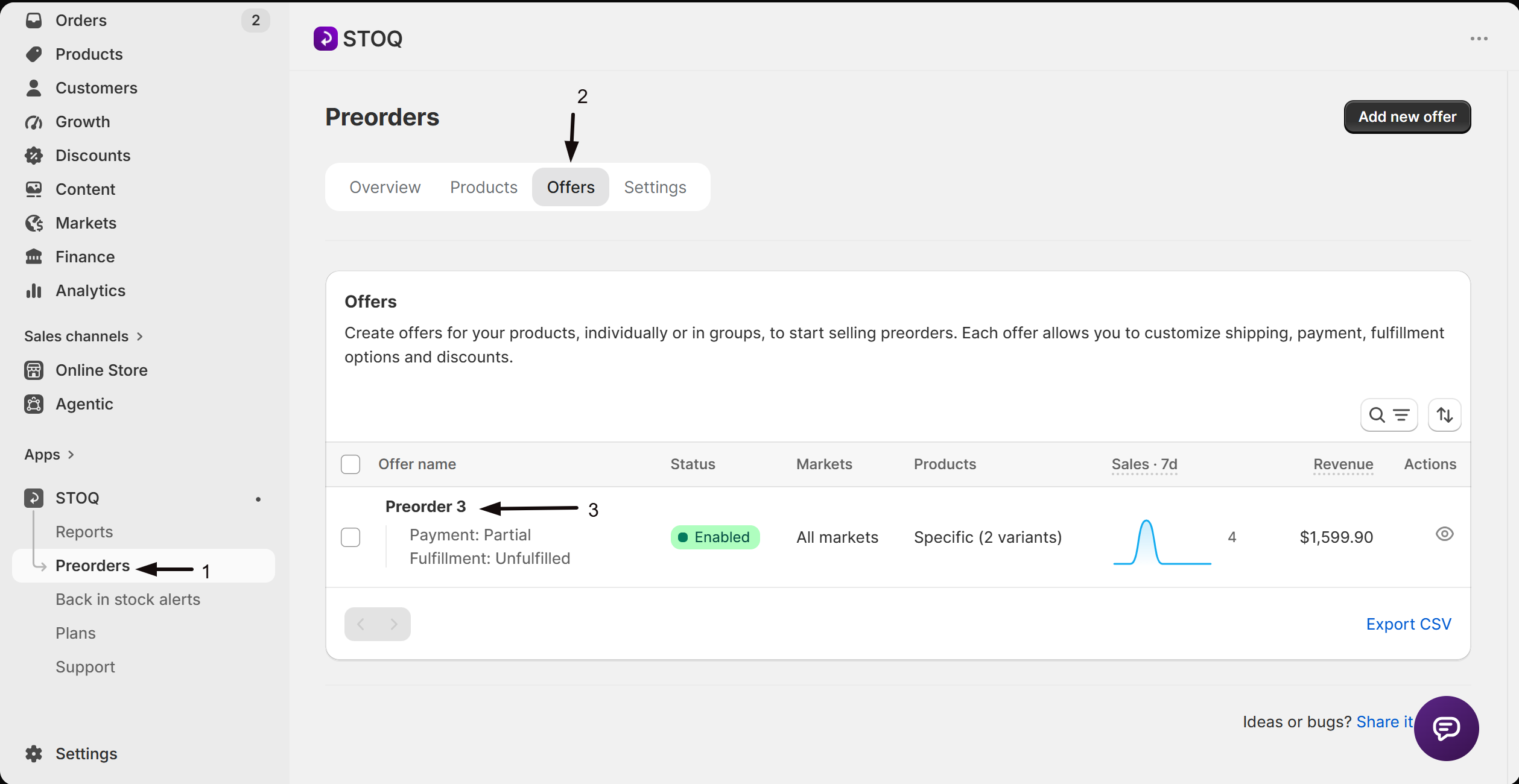
- In the left menu bar of the STOQ app, click Preorders.
- Click the Offers tab, then click the offer you want to edit.
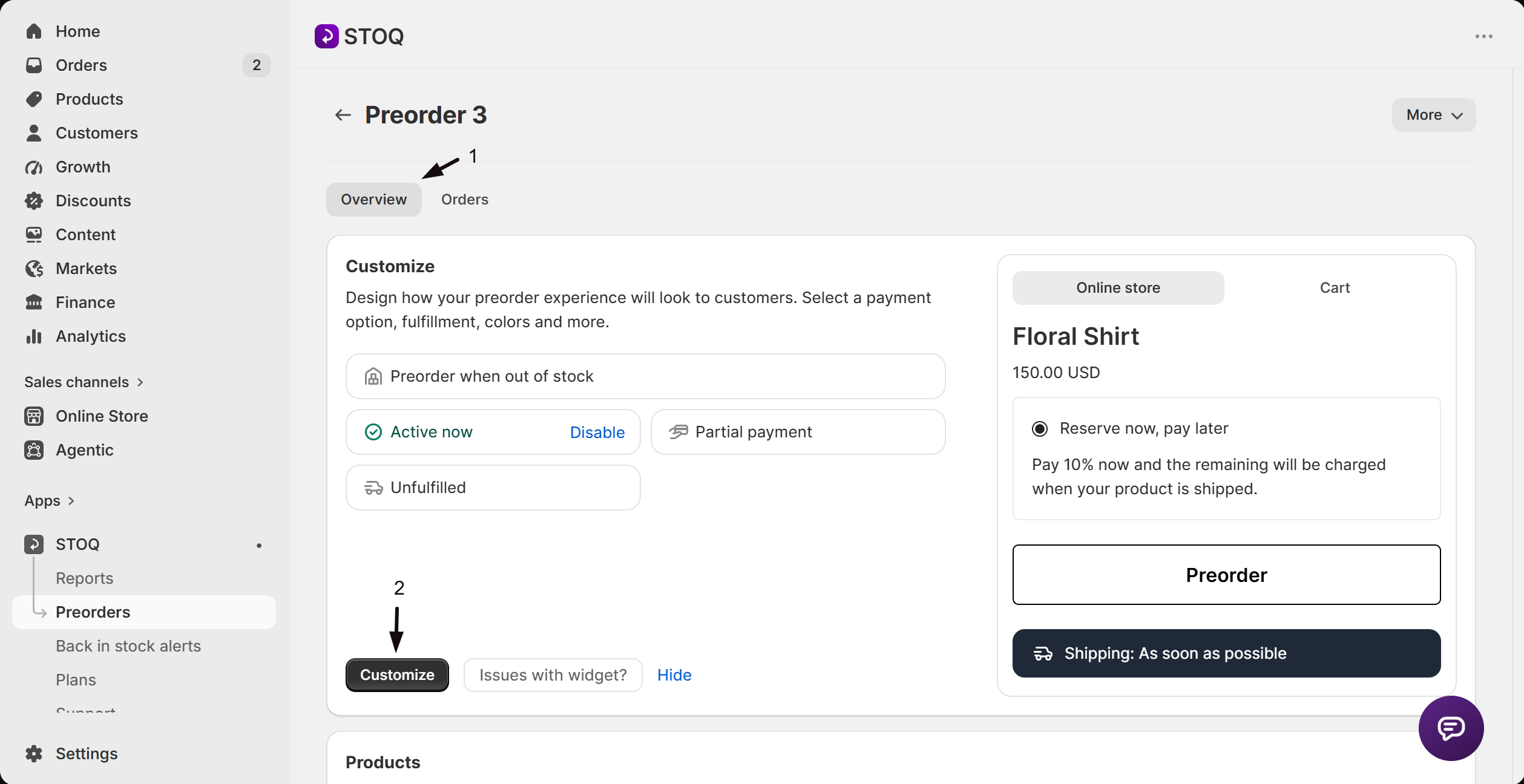
- On the Overview tab, click Customize to open the offer editor.
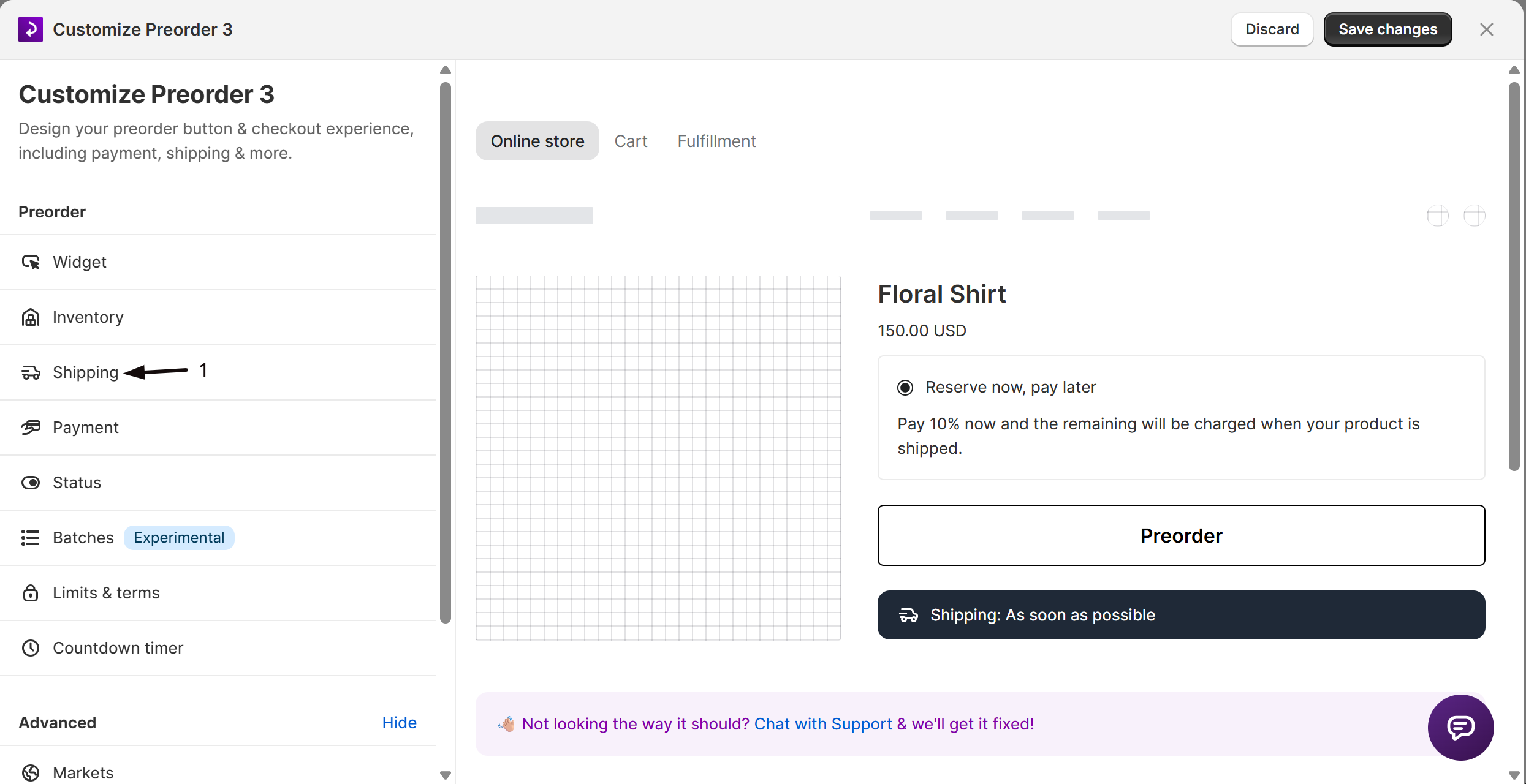
- In the editor’s sidebar, click Shipping.
-
Turn the timeline on
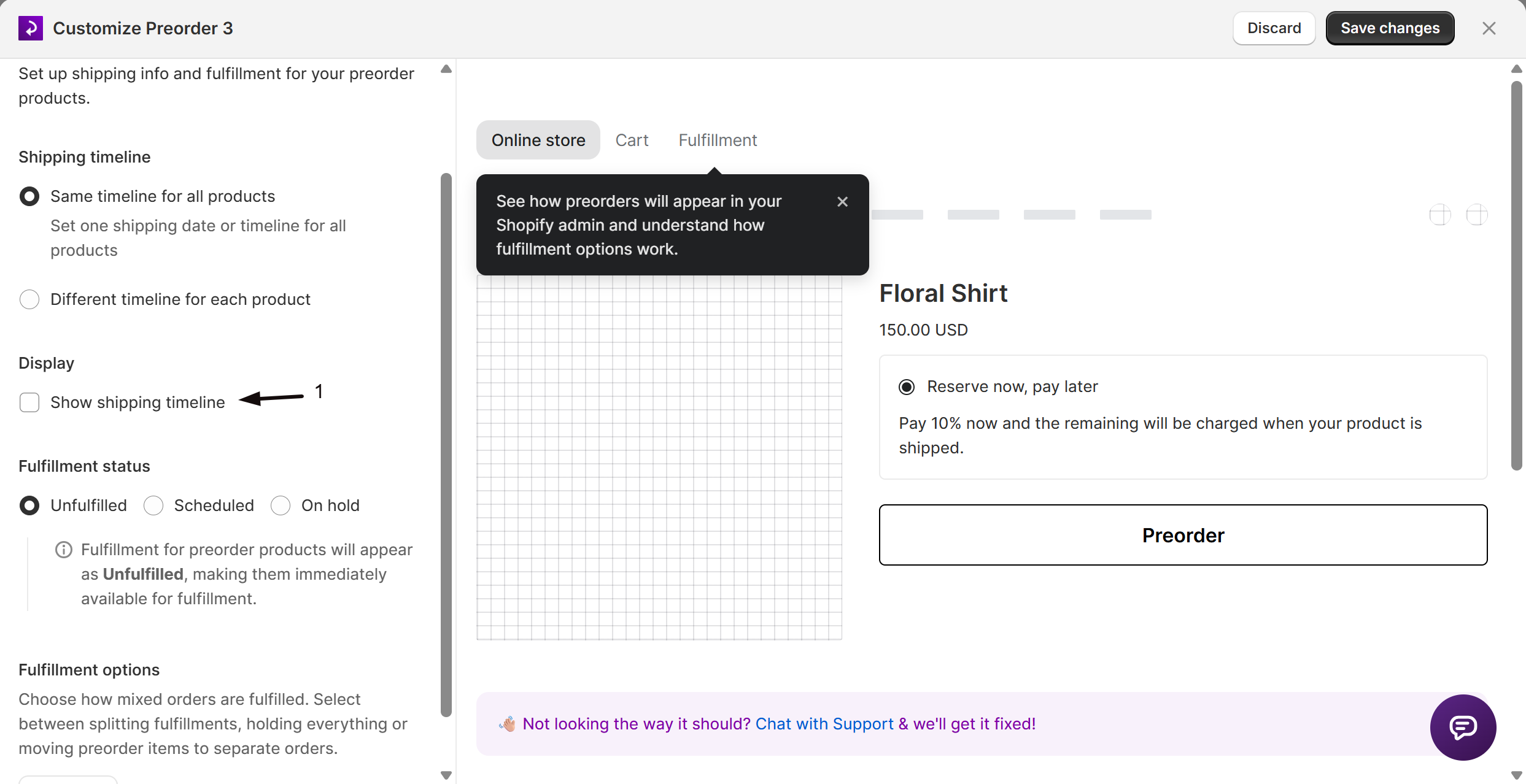
Under Display, check Show shipping timeline.
-
Set the message
Edit the Message field. Its default depends on your Fulfillment status (see below), and you can change the wording or use the available variables.
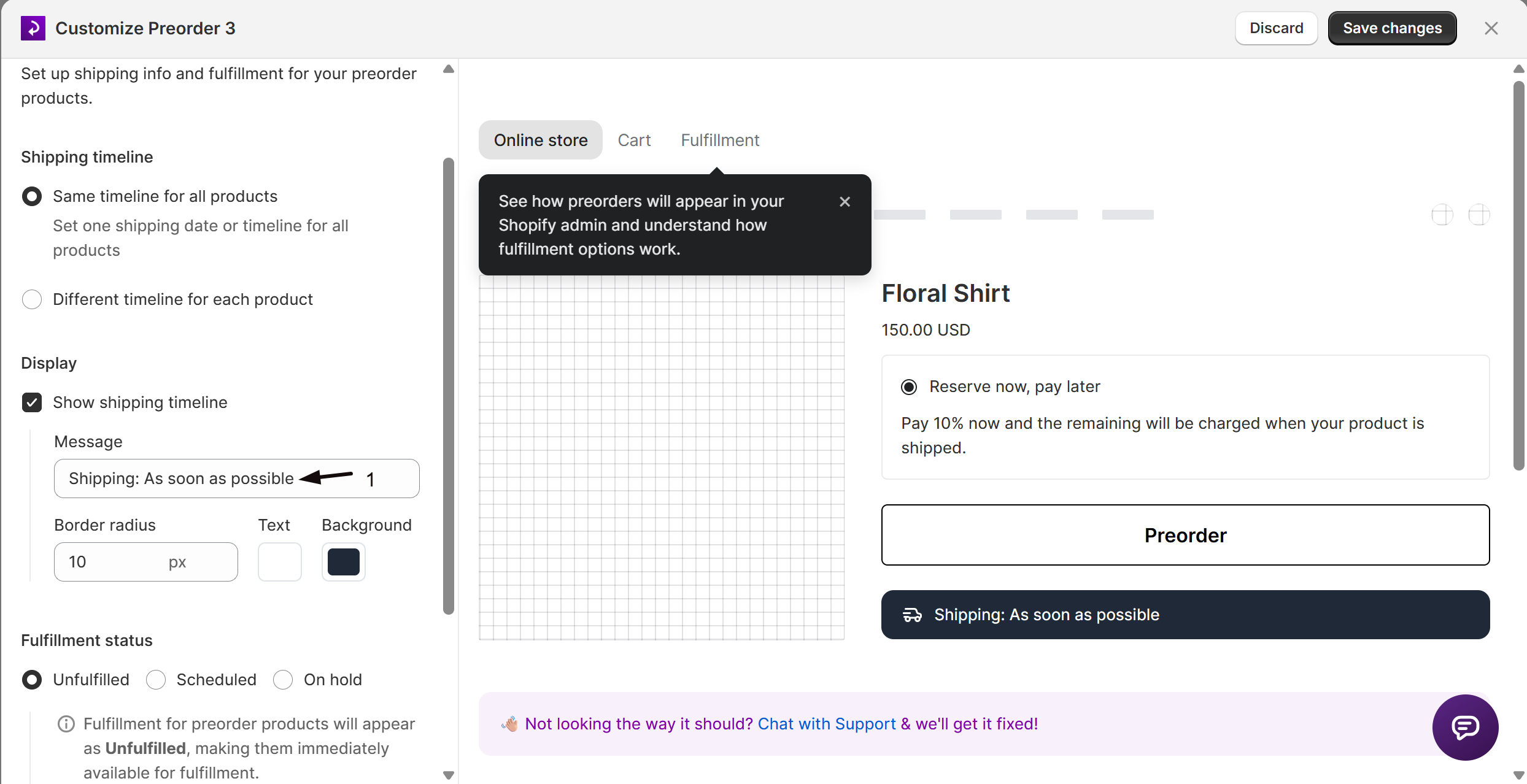
-
(Optional) style the timeline
Set the Border radius, Text color, and Background color to match your theme.
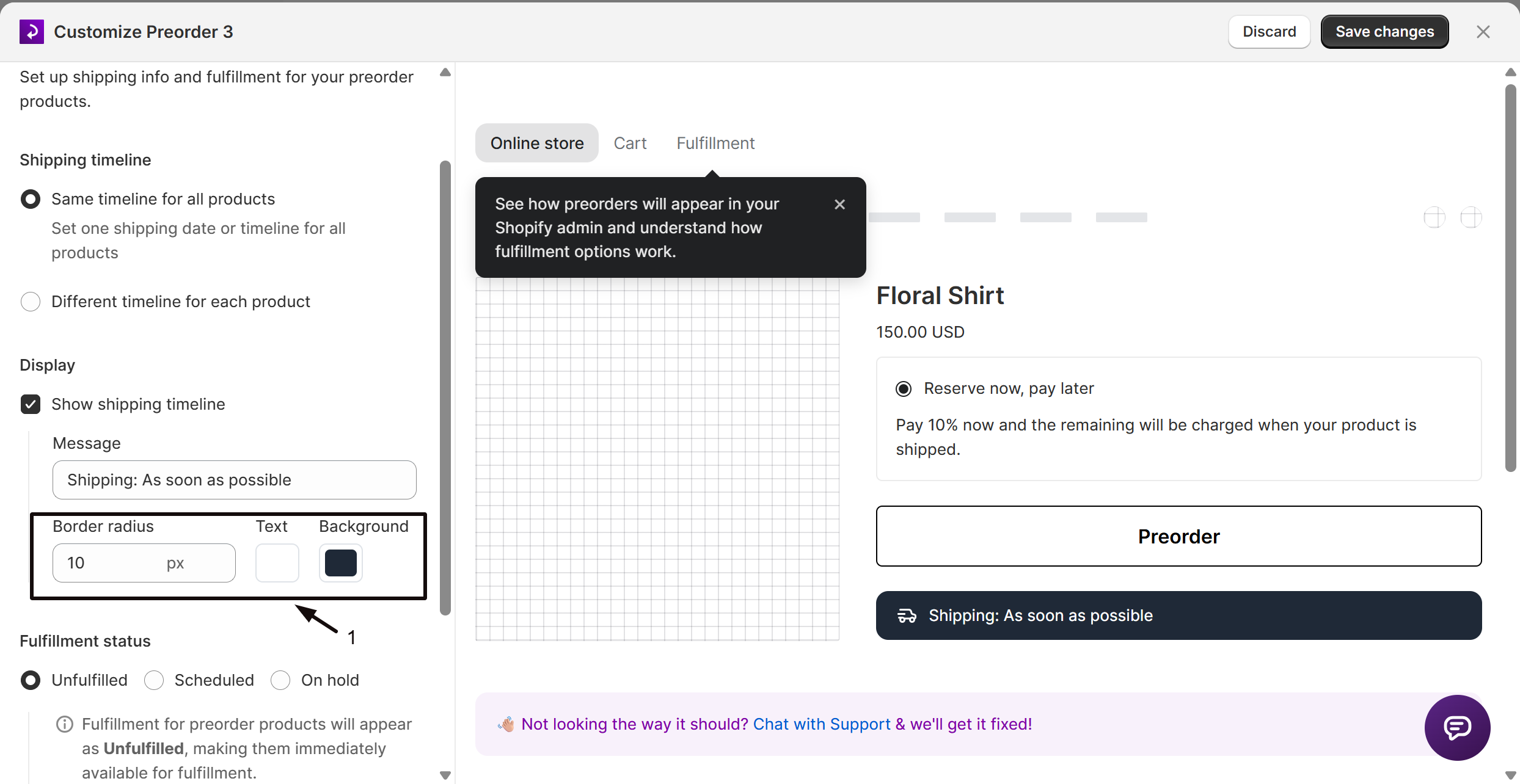
-
Save changes
Click Save changes in the top right of the offer editor. The timeline shows on the product page for products in this offer.
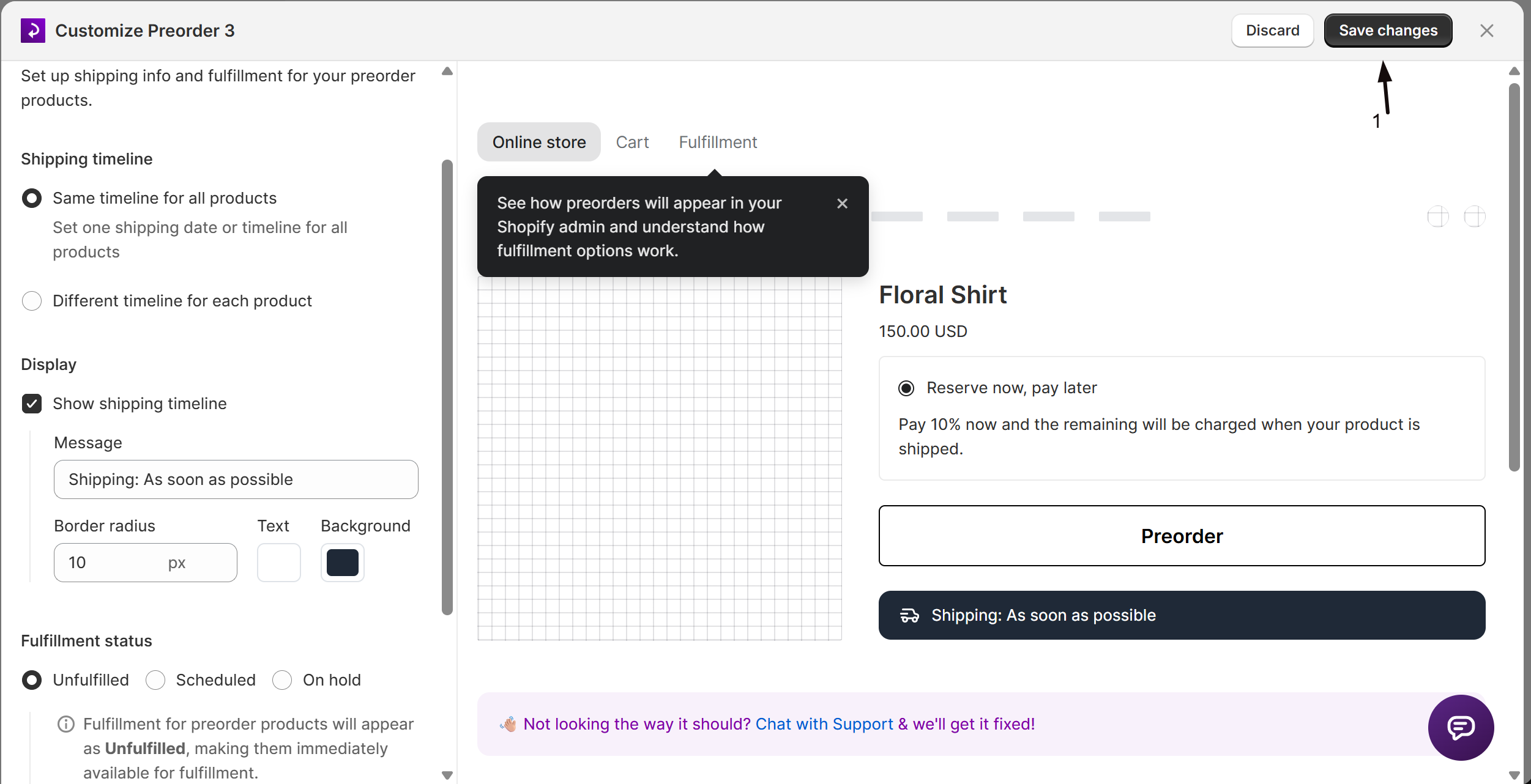
The default message depends on your fulfillment status
Section titled “The default message depends on your fulfillment status”In the same Shipping section, under Fulfillment status, you choose how preorders are fulfilled. The shipping timeline Message defaults to match, and you can edit it:
- Unfulfilled: the message defaults to Shipping: As soon as possible. Edit it directly in the Message field, for example “Shipping: Ships in 2 to 3 weeks”.
- Scheduled: the message defaults to
Shipping: {{ date }}. Choose On a specific date and pick a date, or Set number of days after purchase and enter a number of days. STOQ fills that value into the{{ date }}variable, so customers see a real date. - On hold: the message defaults to Shipping: To be confirmed. Edit it directly in the Message field.
Variables you can use in the message
Section titled “Variables you can use in the message”Under the Message field, STOQ shows Variables available: {{ date }}, {{ month_year }}, {{ year }}.
| Variable | Inserts |
|---|---|
{{ date }} |
The full ship date (from the specific date, or calculated from days after purchase) |
{{ month_year }} |
The month and year only, for example “Dec 2025” |
{{ year }} |
The year only |
Set a different timeline per product
Section titled “Set a different timeline per product”By default the offer uses one timeline for every product (Same timeline for all products). To vary it:
-
Choose per-product timelines
In the offer editor’s Shipping section, under the Shipping timeline heading, select Different timeline for each product instead of Same timeline for all products.
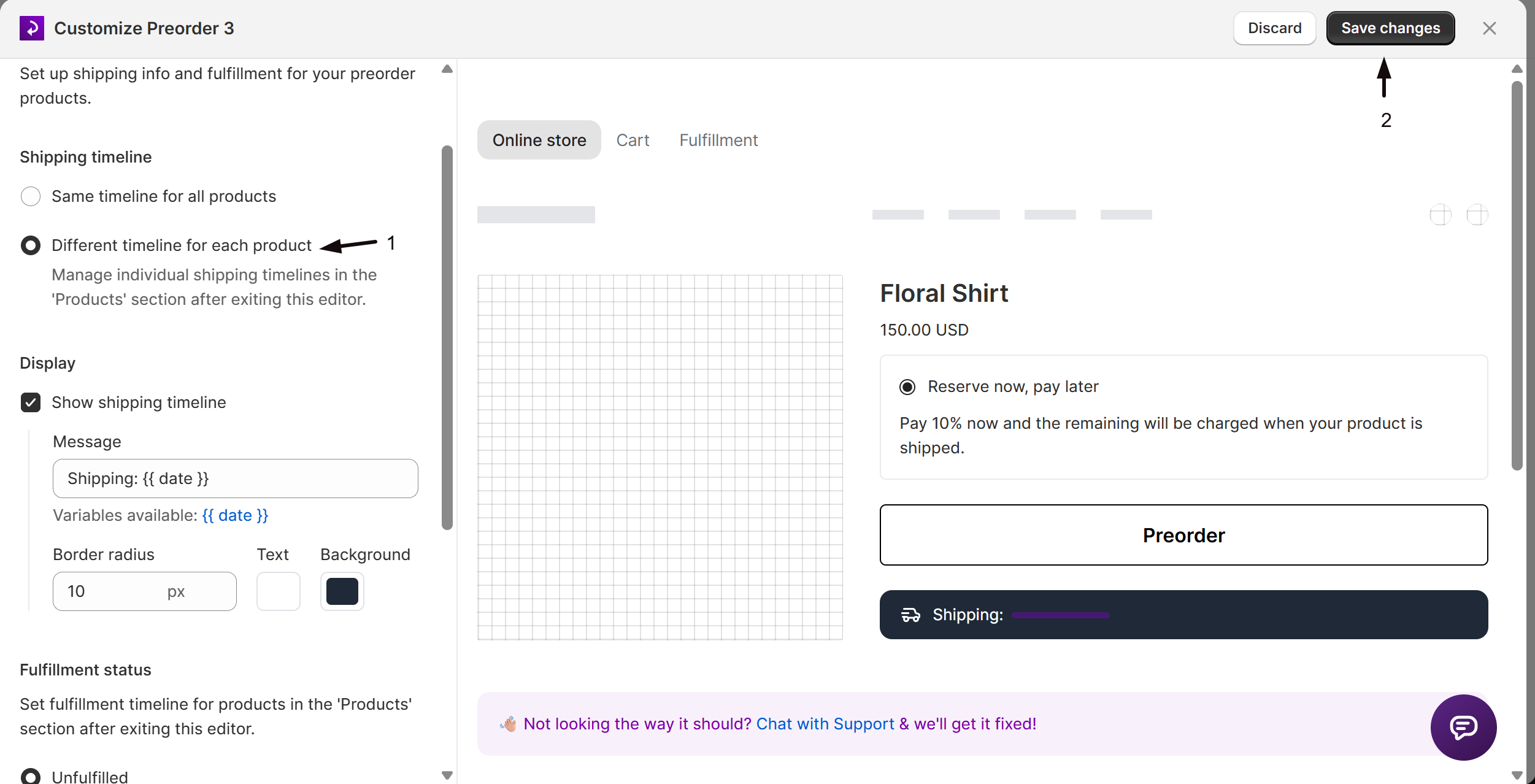
-
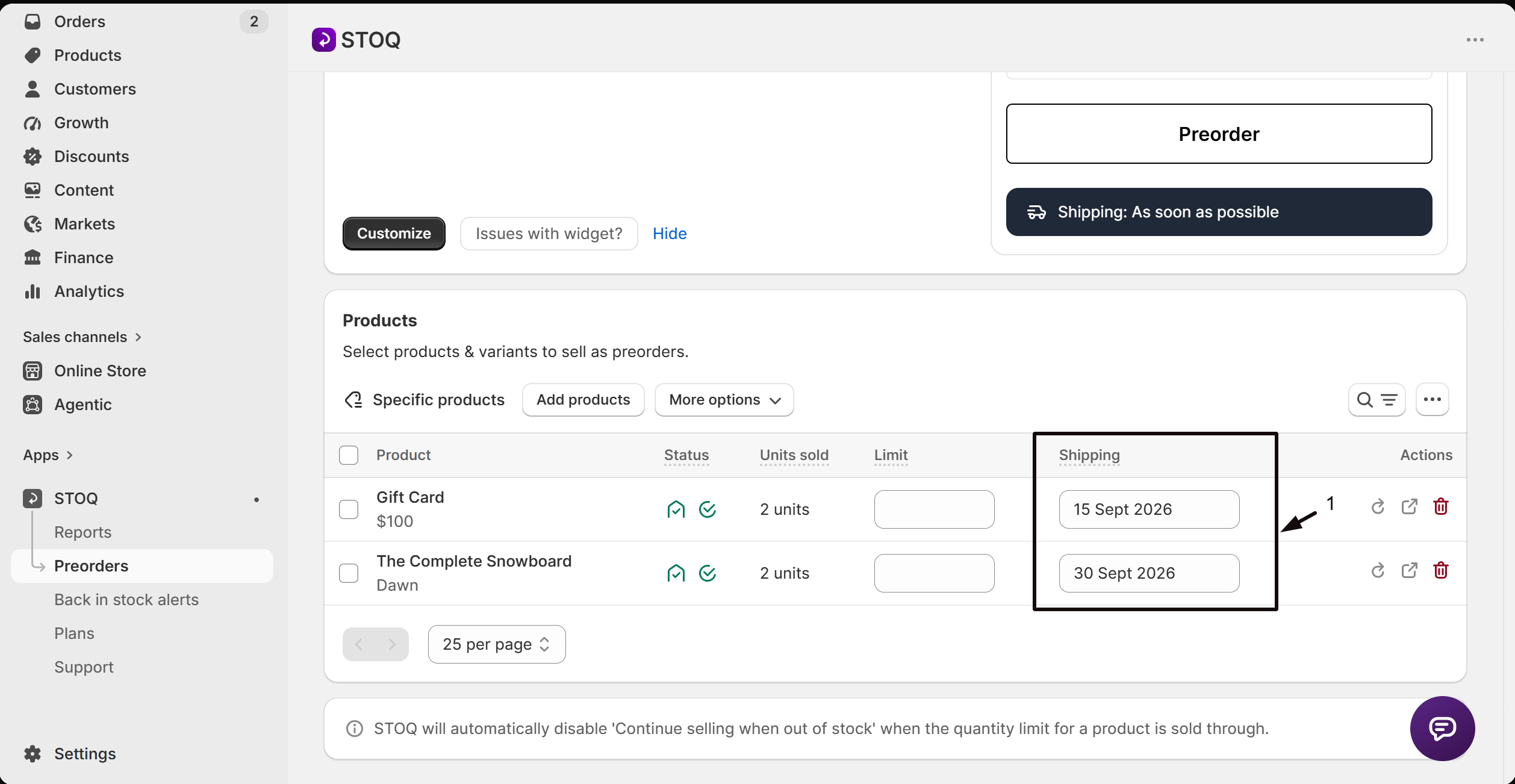
Fill in each product’s timeline
Go to the offer’s Products section and enter the shipping timeline for each product in the Shipping column.
-
Save
Click Save in the top bar on the Overview tab of the offer.
Turn the shipping icon on or off
Section titled “Turn the shipping icon on or off”STOQ shows small icons next to the quantity and shipping details on the product page. To remove them (or add them back):
-
Open the Limits & terms section
- In the left menu bar of the STOQ app, click Preorders.
- Click the Offers tab, then click the offer you want to edit.
- On the Overview tab, click Customize to open the offer editor.
- In the editor’s sidebar, click Limits & terms.
-
Toggle the icons and save
The icons live with the disclaimer, so make sure the disclaimer is on:
- Under Preorder limits, choose Preorder limits apply.
- Under Customer display, choose Show preorder limit in disclaimer.
- Click Customize, then turn Use icons for quantity & shipping details on to show the icons, or off to hide them.
- Click Save changes in the top right of the offer editor.
Check your setup
Section titled “Check your setup”Open a preorder product on your live storefront and confirm the shipping timeline shows your message next to the Preorder button, with or without the icon as you set it.
Where does the shipping timeline appear?
On the product page for products in the offer, next to the Preorder button, as “Shipping: “ followed by your message.
What's the difference between the shipping timeline and the disclaimer under the button?
They are two separate lines, set in two different places. The shipping timeline (“Shipping: “ followed by your text) comes from the Shipping section’s Message field. The disclaimer line, such as the quantity-remaining text, comes from Limits & terms > Customer display > Show preorder limit in disclaimer. Editing one doesn’t change the other.
How do I show a real ship date?
Set the Fulfillment status to Scheduled, then choose On a specific date or Set number of days after purchase. The {{ date }} variable in the message fills in with that date.
Can I show a different shipping date per product?
Yes. In the Shipping section choose Different timeline for each product, then set each product’s timeline in the Shipping column of the offer’s Products section.
Why is the shipping icon still showing (or missing)?
It’s controlled by Use icons for quantity & shipping details in the Limits & terms section, not the Shipping section. It sits with the disclaimer, so turn on Preorder limits apply and Show preorder limit in disclaimer, click Customize, and toggle it there.
Can I translate the shipping message?
Yes. Use the language option in the Shipping section to edit the message for your store’s other languages.
Related guides
Section titled “Related guides”Thanks for letting us know.
Still stuck? Ask Quinn or chat with support