Set up the preorder confirmation notification
Enable and customize the automatic email and SMS sent to customers after they place a preorder.
Last updated
Use this guide if you want customers to get an automatic confirmation right after they place a preorder. STOQ can send this by email, SMS, or both, separate from Shopify’s own order confirmation, with preorder-specific details like payment terms and the shipping timeline.

Before you begin
Section titled “Before you begin”| Requirement | Detail |
|---|---|
| Paid plan | The automatic preorder confirmation email and SMS require a paid STOQ plan. The toggle is visible on free plans but locked. |
| Active preorder offer | At least one offer must be set up on the Offers tab (click Preorders in the left menu, then the Offers tab). |
| Customer must have an email address or phone number | STOQ reads those values from the Shopify order. If the order has no email, no email is sent. SMS is only sent if the order includes a phone number. |
Choose your setup
Section titled “Choose your setup”Email and SMS can each be delivered through a different platform. Pick the one that fits how you already send messages.
Email:
| Platform | Use when |
|---|---|
| STOQ | You want to customize and send the email directly, with your own subject, colors, button text, and social links, inside the STOQ editor. |
| Klaviyo | You already use Klaviyo and want to build the email in a Klaviyo flow, triggered by a STOQ metric event. |
| Shopify Flow | Not available for preorder confirmations. Shopify Flow is only supported for back-in-stock alerts. |
SMS:
| Platform | Use when |
|---|---|
| STOQ (via Twilio) | You want STOQ to send the text directly. Per-message charges apply and vary by country. |
| Klaviyo | You already use Klaviyo and want to trigger the text from a Klaviyo flow. |
| Postscript | You already use Postscript and want to trigger the text from a Postscript keyword flow. Needs a one-time connection, covered below. |
SMS through Twilio also needs the shop’s toll-free number registered and verified before the toggle unlocks. Klaviyo and Postscript don’t have this extra step.
What customers will see
Section titled “What customers will see”STOQ sends the confirmation immediately after the preorder is created, after Shopify’s own order confirmation email, which always sends regardless of this setting.
- Email (STOQ platform): a branded email with your subject line, header, description, and button linking to the order, plus preorder-specific details Shopify’s own email doesn’t include, like the shipping timeline and payment terms. A small “Powered by STOQ” line can appear in the footer unless you remove it on a paid plan.
- SMS: a short text you customize with Liquid variables such as the product name and shipping timeline.
If you leave a channel off, the customer only gets Shopify’s standard order confirmation.
Set it up
Section titled “Set it up”On a phone, this menu is collapsed. In the Shopify mobile app, tap the STOQ logo at the top of the screen to open it, then choose the section named below. There is no hamburger icon. See Finding the STOQ menu.
Find the notification settings
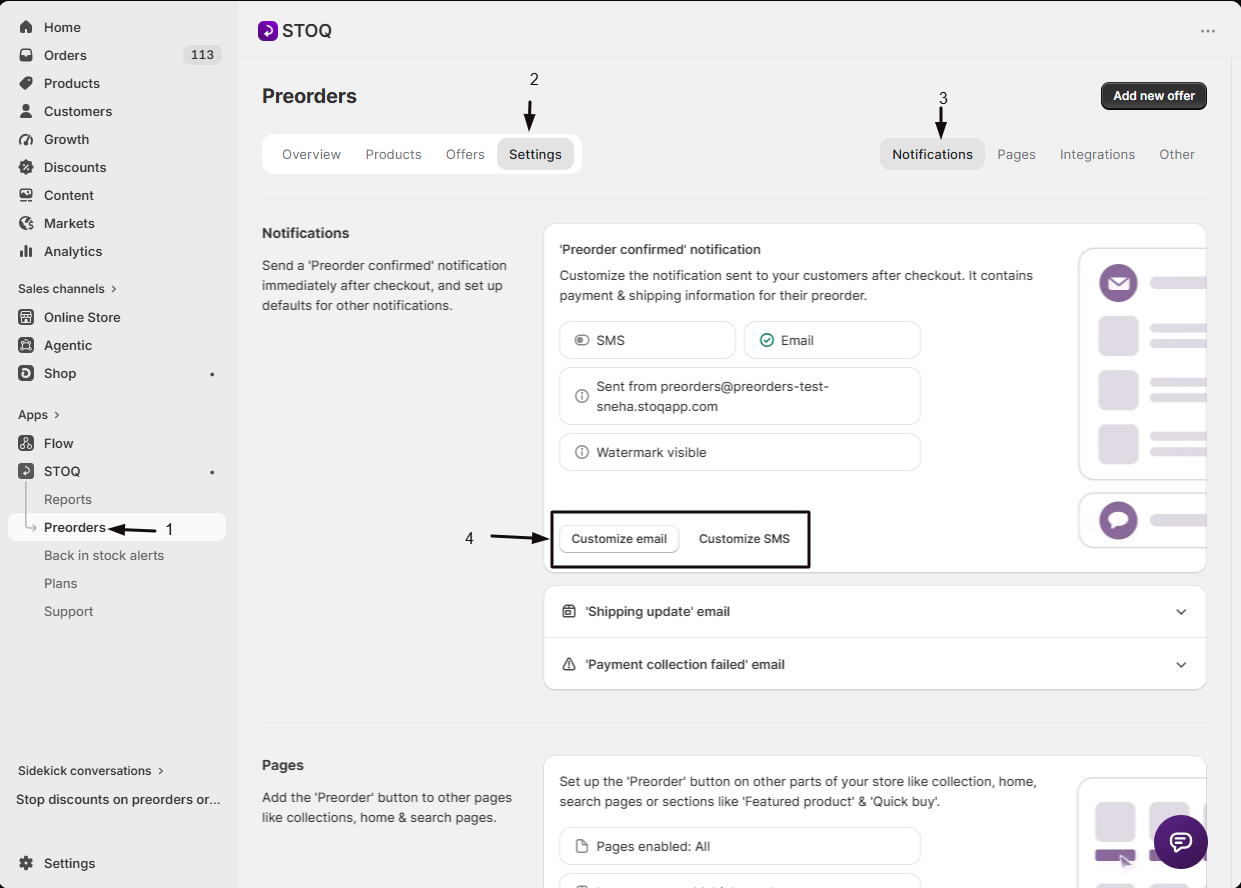
Section titled “Find the notification settings”- In the left menu bar of the STOQ app, click Preorders.
- Click the Settings tab.
- Open the Notifications sub-tab.
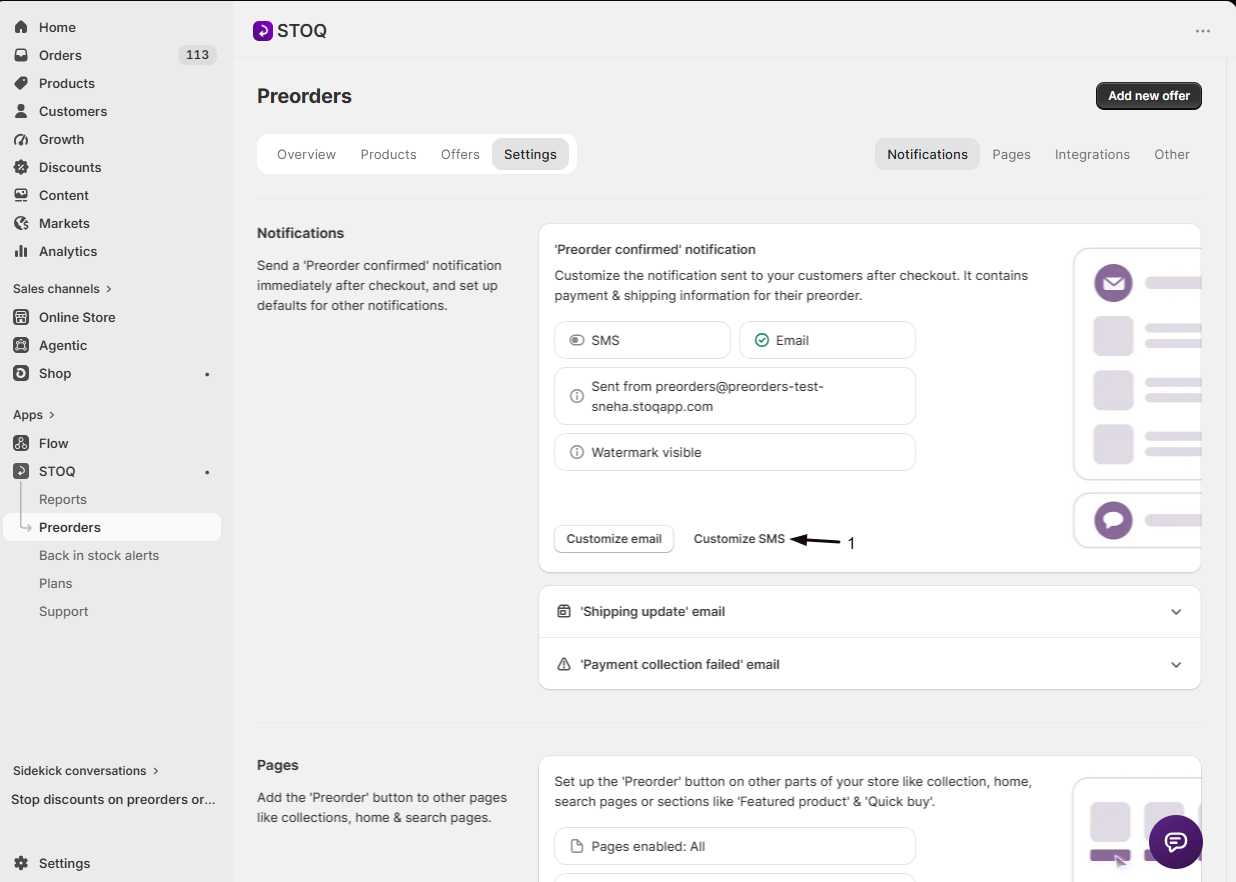
You’ll see a card labeled ‘Preorder confirmed’ notification with two buttons, Customize email and Customize SMS. Each opens the notification template editor for that channel.
Turn on the confirmation email
Section titled “Turn on the confirmation email”-
Open the email template editor
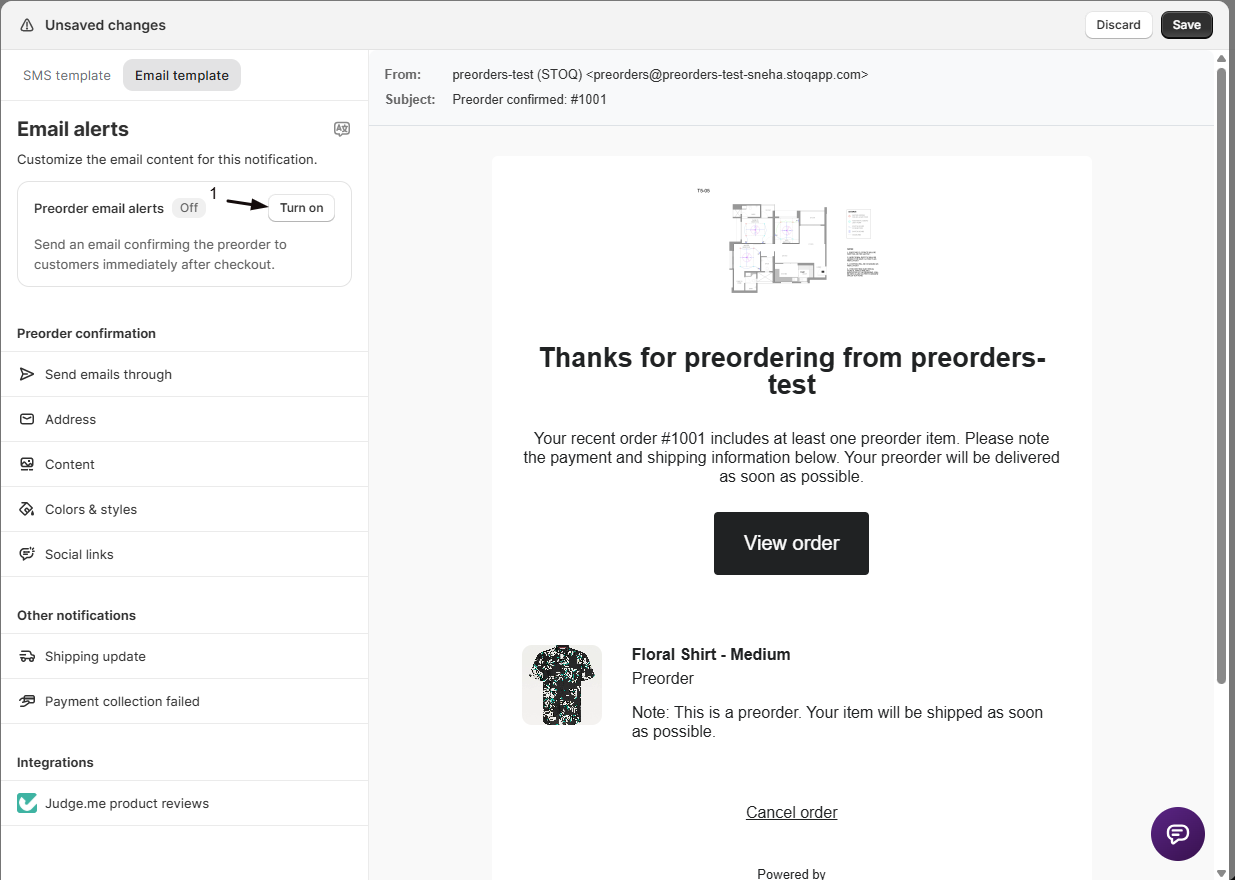
Click Customize email on the ‘Preorder confirmed’ notification card.
-
Turn on Preorder email alerts
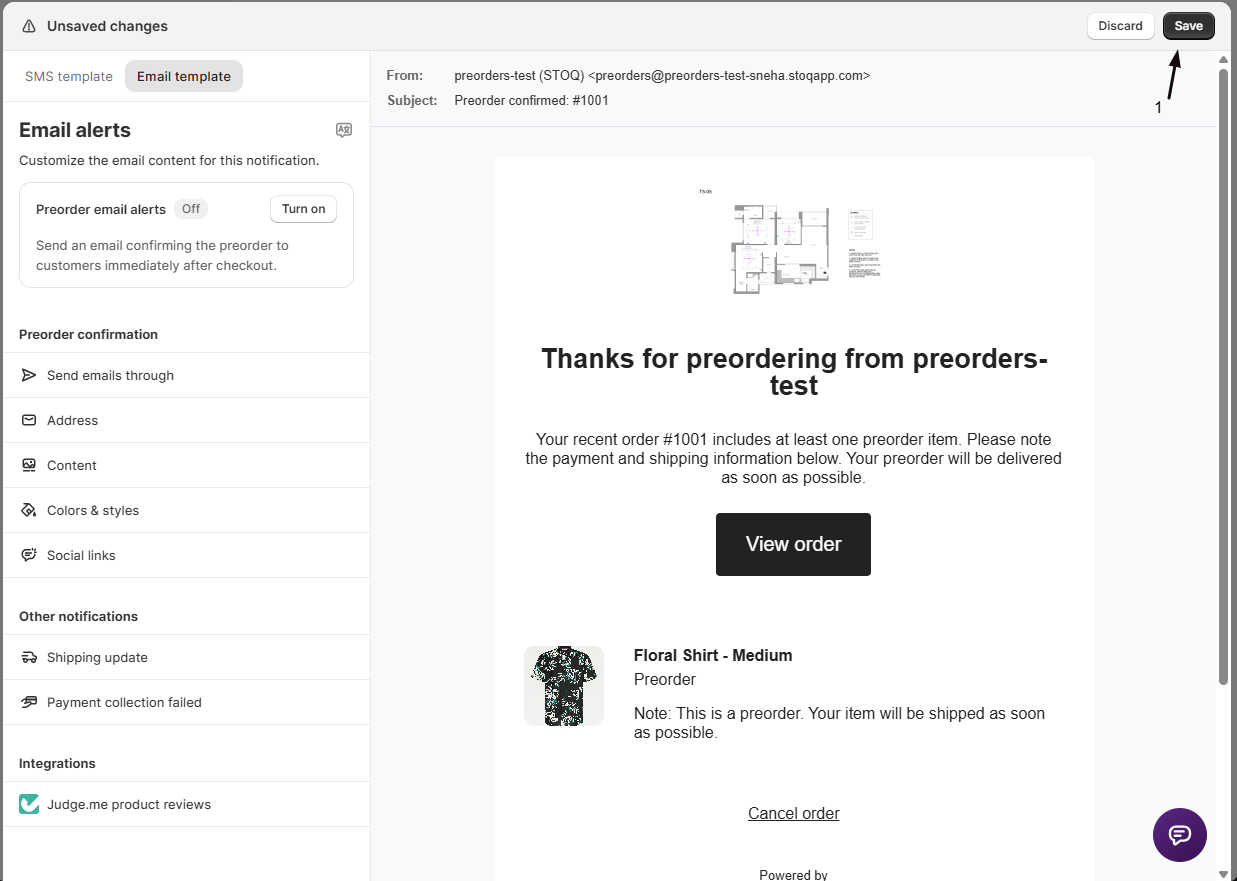
In the side panel, turn on the Preorder email alerts toggle. STOQ now sends the confirmation email to each customer immediately after their preorder is created.
-
Choose your email platform
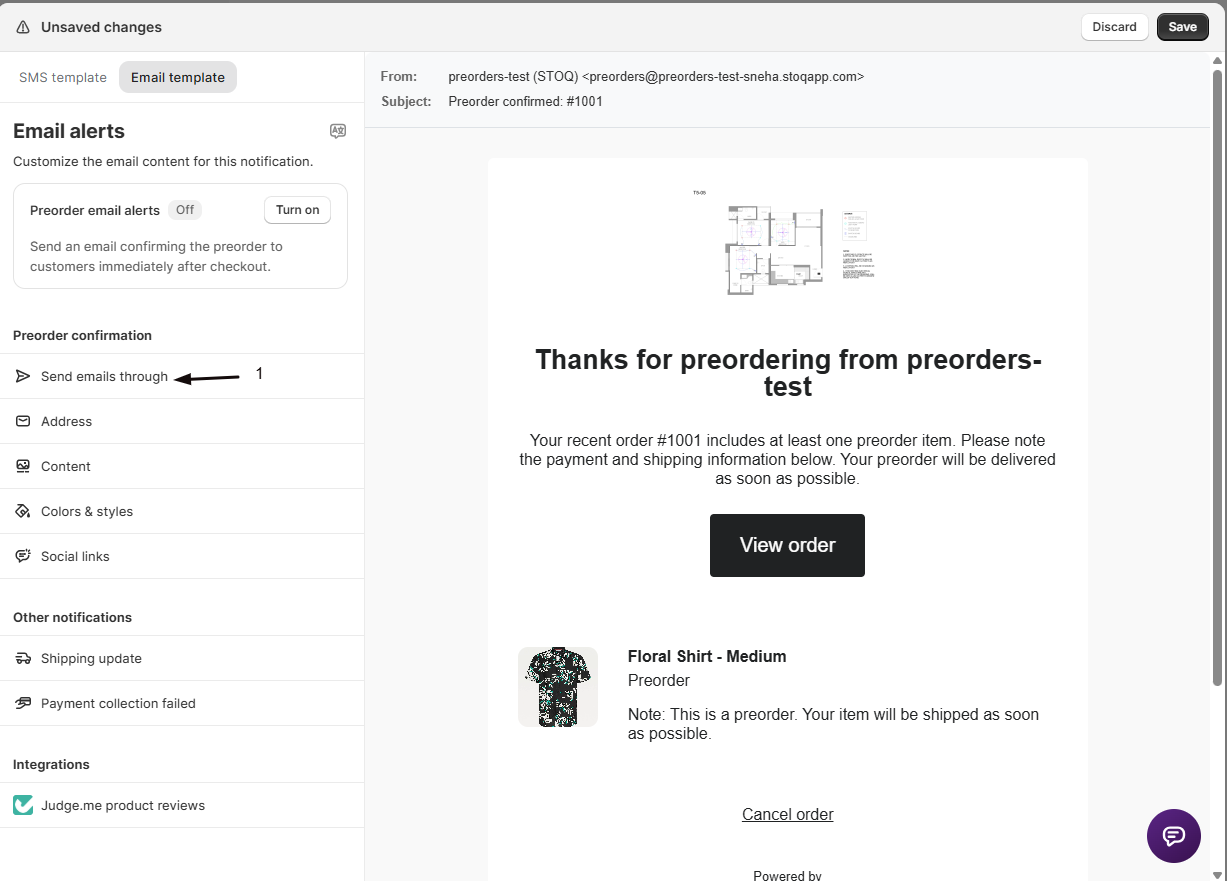
Click Send emails through and pick STOQ or Klaviyo. See Choose your setup above for the difference.
-
Customize content (STOQ platform only)
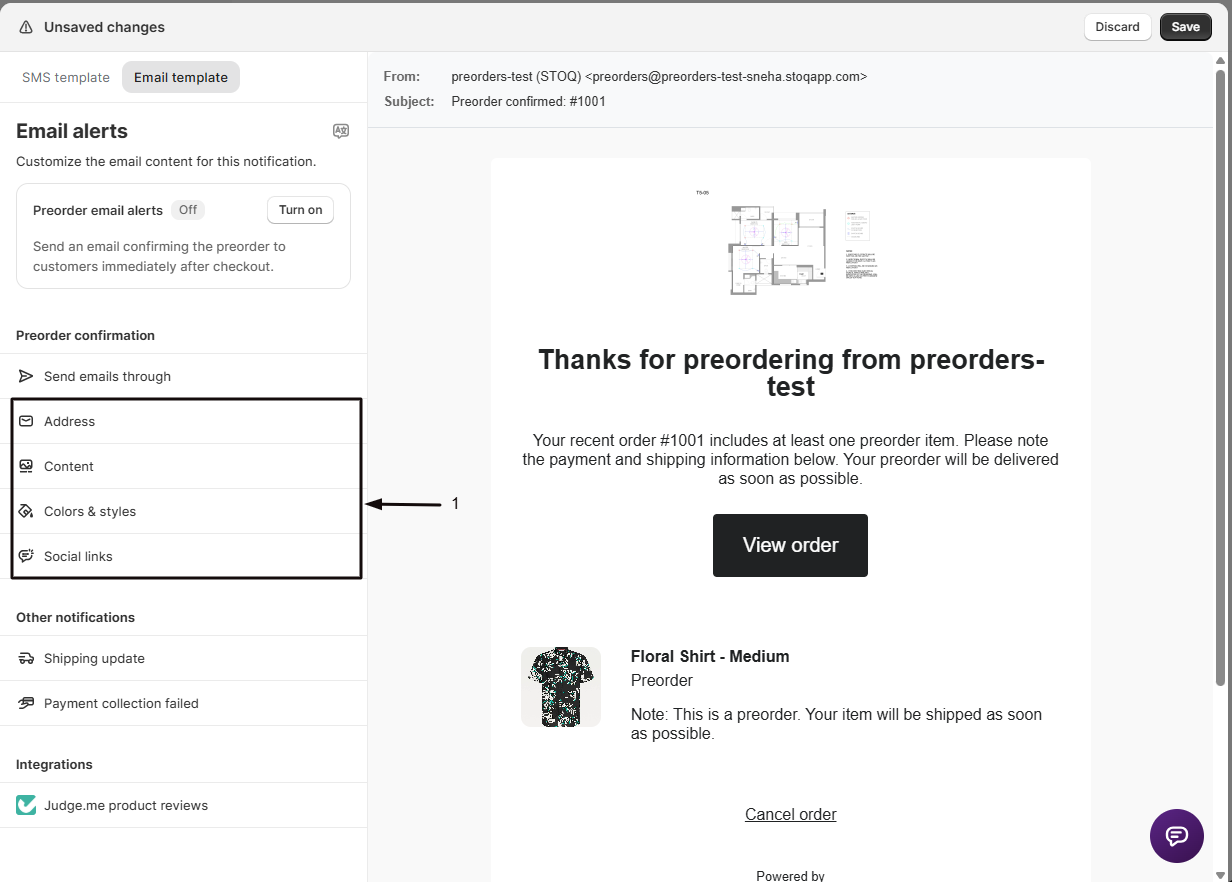
Use the side panel sections to customize:
- Address: the “from” name and email address customers see
- Content: subject line, preheader, header text, body description, button text, and the Show ‘Powered by STOQ’ watermark checkbox
- Colors & styles: background, section, text, and button colors, and border radius
- Social links: optional links to your social profiles in the email footer
-
Save your settings
Click Save. The toggle state and content settings save immediately.
-
Preview and send a test email
- Below the email preview, click Preview (or Change, if it already reads “Previewing [product] from [offer]”).
- In the Preview a preorder product window, pick an Offer, search for and select a Product from that offer, then click Done.
- Click Send test email, enter your Email address, then click Send.
The test email shows the product you picked, from your own offer. Its subject starts with “(Test email from STOQ - your-store.myshopify.com)”.
Email variables
Section titled “Email variables”These are the variables the Variables button next to each email field offers. Click Variables, then Add to field next to the one you want. Each is replaced with the order’s real data when the email sends. Variable names are lowercase and must match exactly.
| Variable | What it shows |
|---|---|
{{shop.domain}} |
Your store’s domain |
{{shop.name}} |
Your store name, as set in the sender’s From name |
{{shop.logo_url}} |
The link to the logo you uploaded under Content |
{{customer.name}} |
The customer’s full name |
{{customer.first_name}} |
The customer’s first name |
{{customer.last_name}} |
The customer’s last name |
{{customer.email}} |
The customer’s email address |
{{order.name}} |
The order number, like #1001 |
{{products_list}} |
The preorder product names, separated by commas |
{{first_product}} |
The name of the first preorder product |
{{products_count}} |
The total number of preorder products in the order |
{{other_count}} |
The number of preorder products beyond the first |
{{shipping_timeline}} |
The shipping timeline of the first preorder product |
With Judge.me connected, the list also offers {{reviews.average_rating}} and {{reviews.count}}.
Custom CSS selectors
Section titled “Custom CSS selectors”The confirmation email is a table-based HTML template. In the editor’s Custom CSS field (the Selectors link lists them), target its elements with the selectors below. You often need !important to override STOQ’s own inline styles.
| Selector | What it targets |
|---|---|
body .email-container |
The div containing all email elements |
td.logo-container |
The cell holding the store logo |
td.logo-container .logo |
The logo image |
td .header |
The header text |
td .description p |
The description paragraphs |
td.button-container |
The cell holding the button |
td.button-container .view-button |
The view order button |
td.preorder-product |
The preorder product block |
td.preorder-product .product-name |
The product name |
td.preorder-product .offer-name |
The offer name |
td.preorder-product .offer-description |
The offer description, which is the widget’s disclaimer text from Add disclaimer. Included per line item when the disclaimer is on |
td.preorder-product .offer-fulfillment |
The offer fulfillment text |
td .footer a |
The cancel order link |
To hide the disclaimer text from the confirmation email, paste this into the Custom CSS field:
td.preorder-product .offer-description { display: none !important; }Turn on the confirmation SMS
Section titled “Turn on the confirmation SMS”-
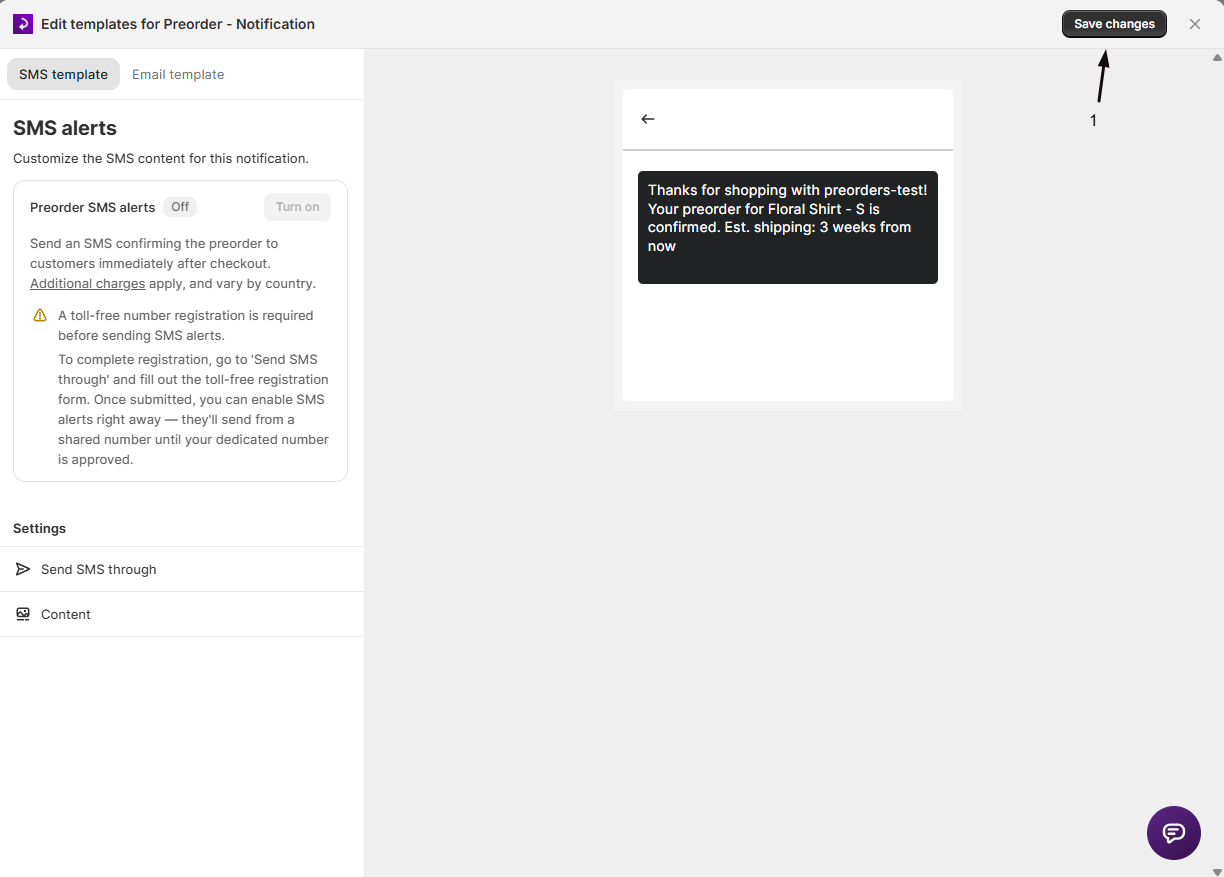
Open the SMS template editor
Click Customize SMS on the ‘Preorder confirmed’ notification card.
-
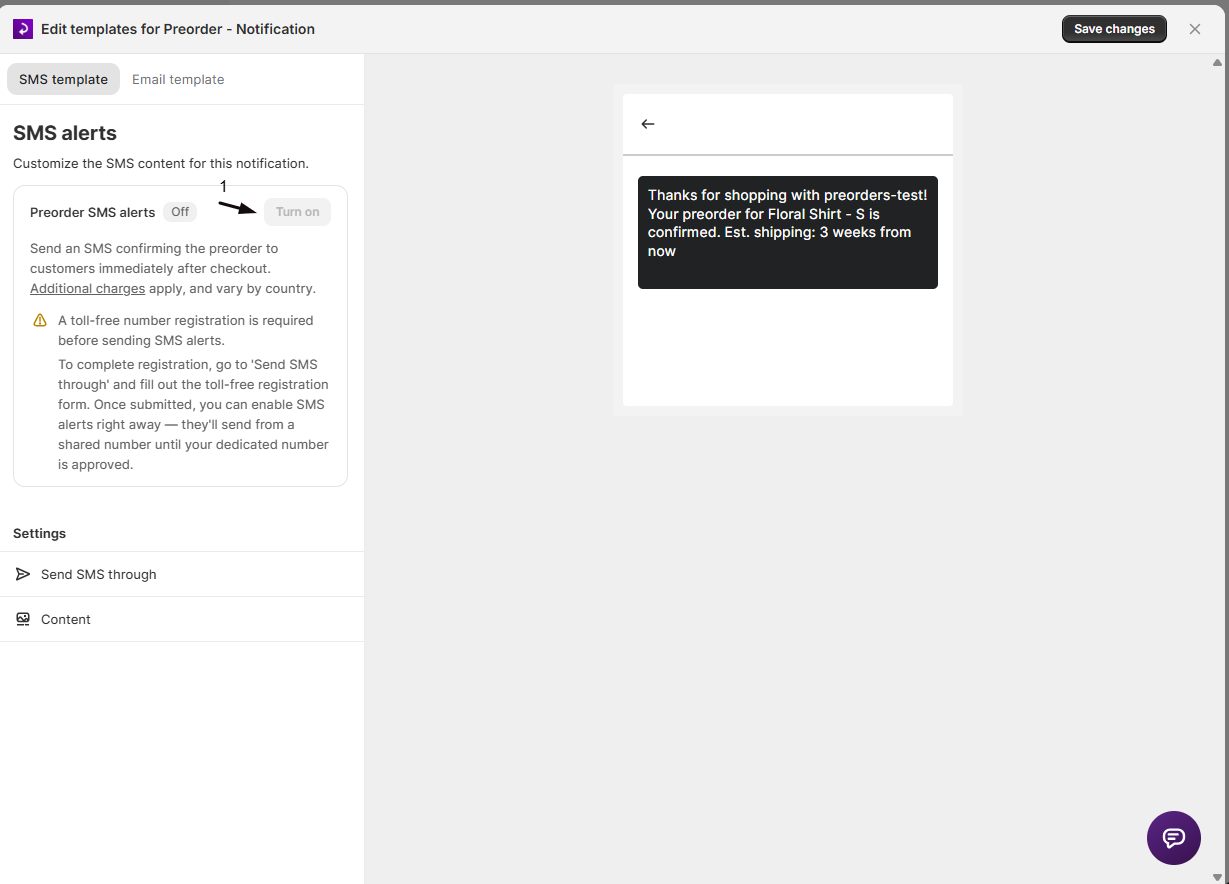
Turn on Preorder SMS alerts
- Turn on the Preorder SMS alerts toggle.
- Click OK, I understand on the dialog explaining per-message charges.
STOQ now sends the SMS immediately after each preorder is created, provided the order has a phone number and the customer hasn’t opted out.
-
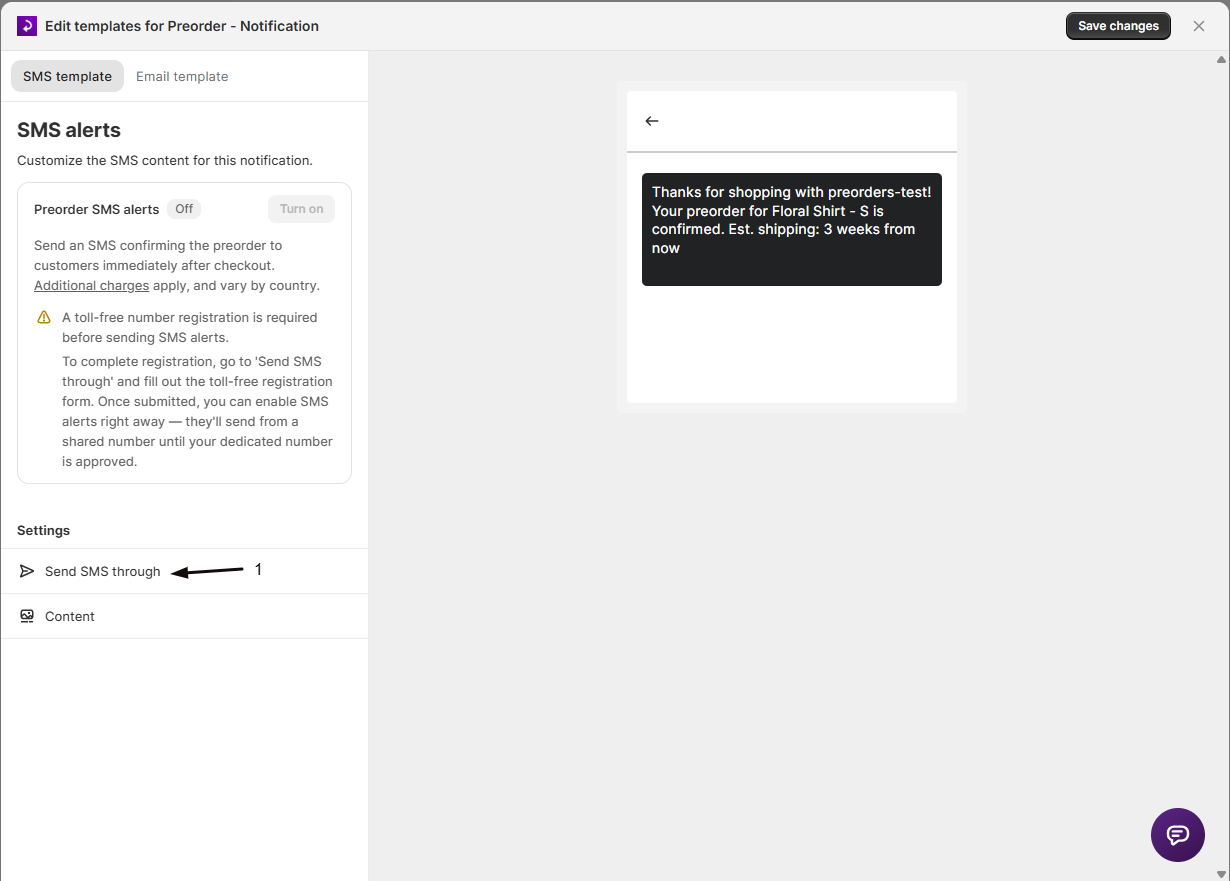
Choose your SMS platform
Click Send SMS through and pick STOQ, Klaviyo, or Postscript. See Choose your setup above for the difference. If you pick Postscript, continue with Connect Postscript for SMS below.
-
Customize the SMS message
Click Content to edit the SMS body with Liquid variables:
Variable Value {{shop.name}}Your store name {{products}}Comma-separated list of preorder product names {{first_product}}Name of the first preorder product {{other_count}}Number of additional products beyond the first {{products_count}}Total number of preorder products in the order {{shipping_timeline}}Shipping timeline of the first preorder product {{customer.name}}Customer’s full name {{customer.first_name}}Customer’s first name {{customer.last_name}}Customer’s last name {{customer.phone}}Customer’s phone number {{order.name}}Order name, for example #1001 {{order.number}}Order number The default body is:
Thanks for shopping with {{shop.name}}! Your preorder for {{products}} is confirmed. Est. shipping: {{shipping_timeline}}. -
Save your settings
Click Save. Settings take effect for all new preorders from that point forward.
Connect Postscript for SMS
Section titled “Connect Postscript for SMS”Only needed if you selected Postscript above.
-
Connect your Postscript account
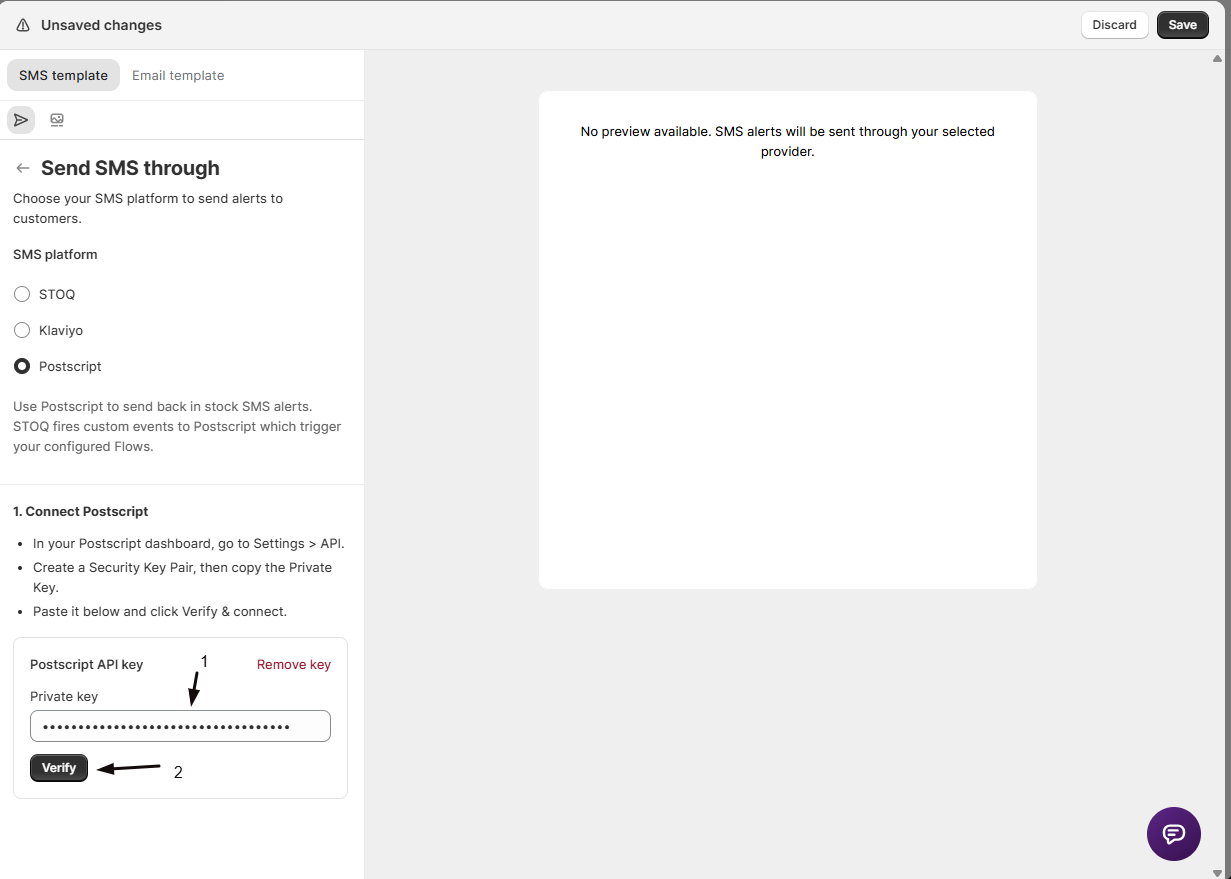
In Send SMS through, select Postscript. The panel shows a 1. Connect Postscript section.
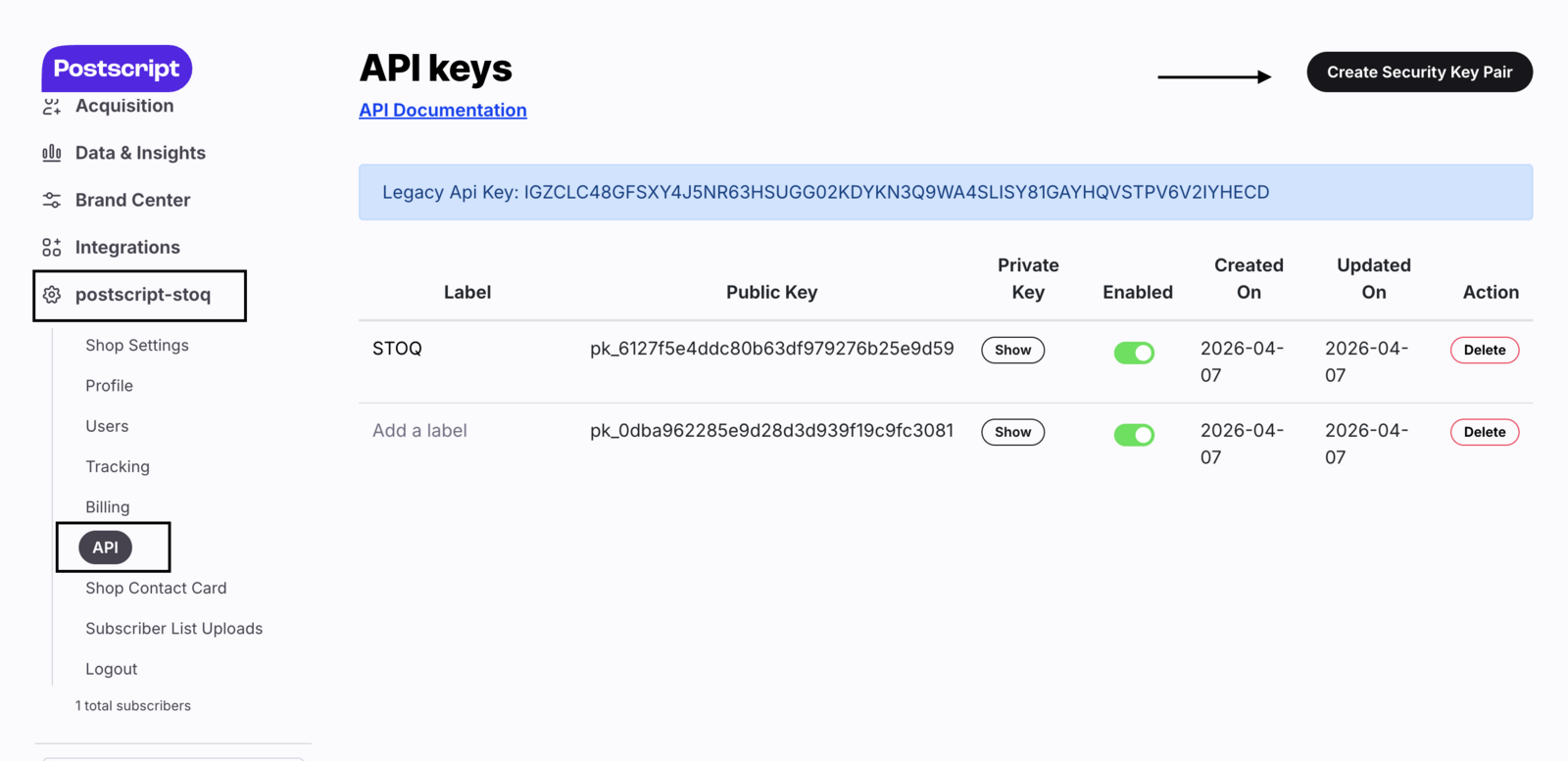
- In your Postscript dashboard, go to Settings → API.
- Create a Security Key Pair and copy the Private Key.
- Paste the key into the Private key field and click Verify.
A green checkmark appears next to Postscript API key once accepted. If verification fails, confirm you copied the Private Key (not the Public Key) and that your Postscript account has API access enabled.
-
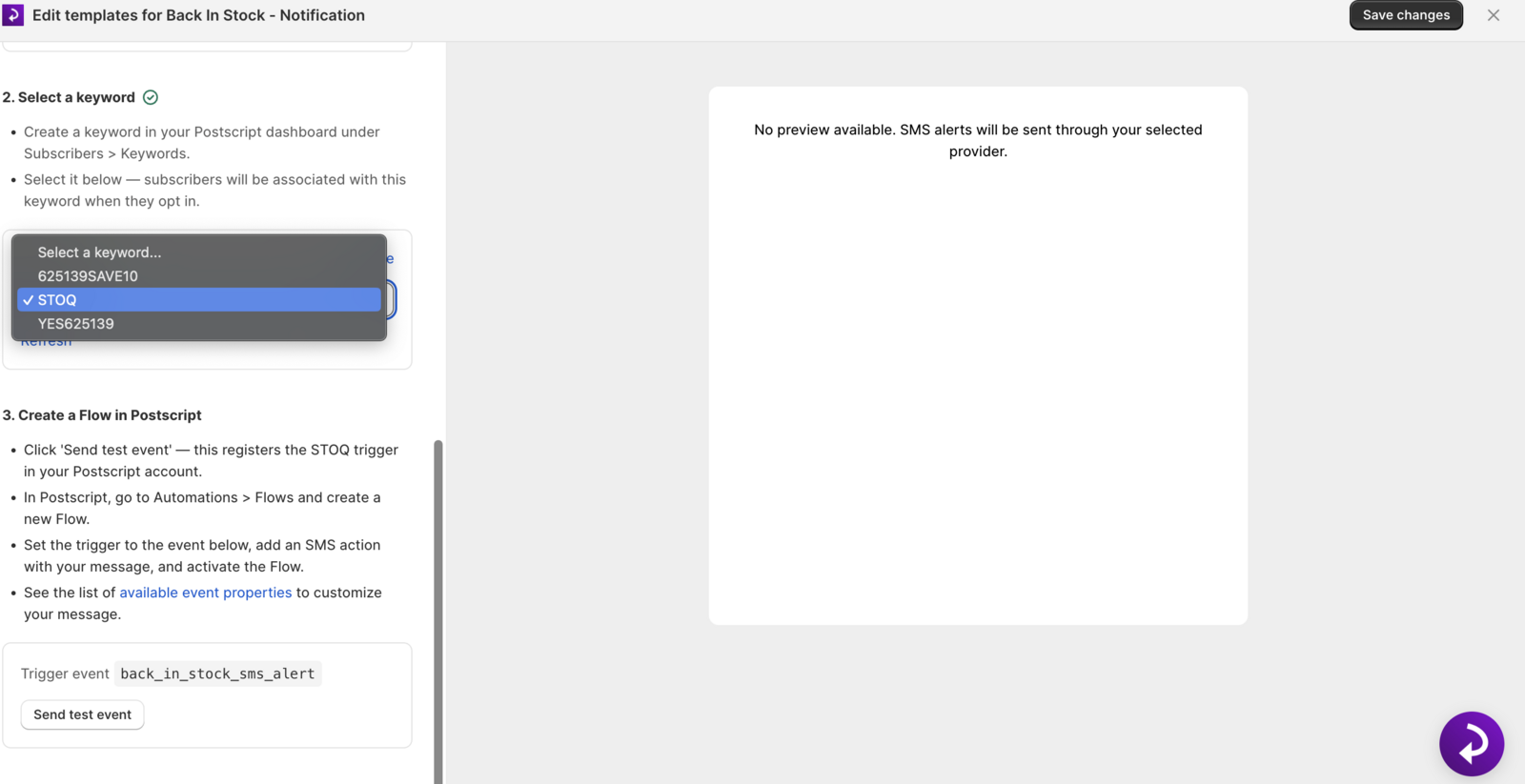
Select a keyword
The 2. Select a keyword section appears after connecting.
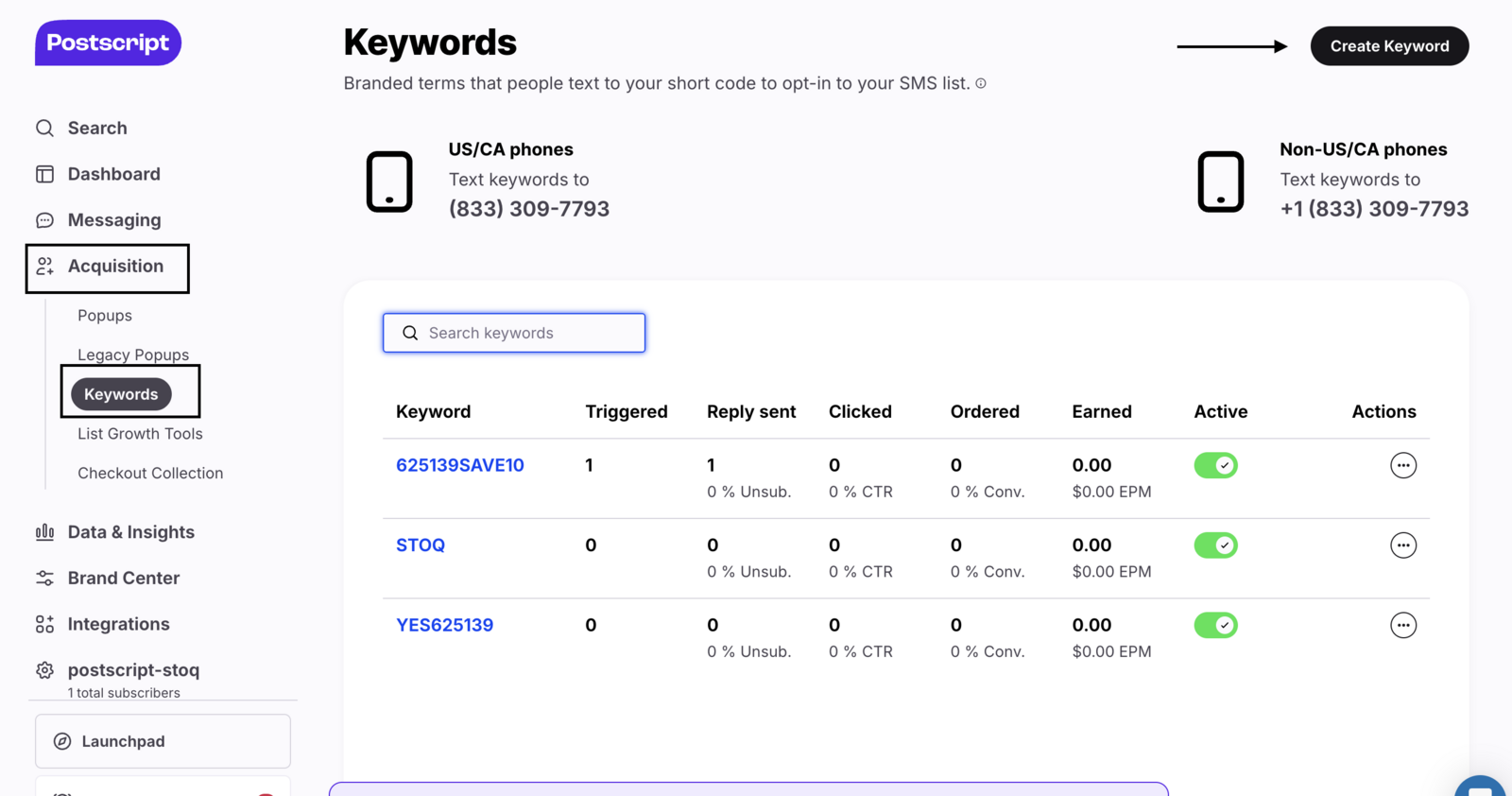
- In your Postscript dashboard, create a keyword under Subscribers → Keywords if you don’t already have one.
- Back in STOQ, select the keyword from the dropdown. STOQ fetches your keywords automatically; click Refresh if the list is empty.
-
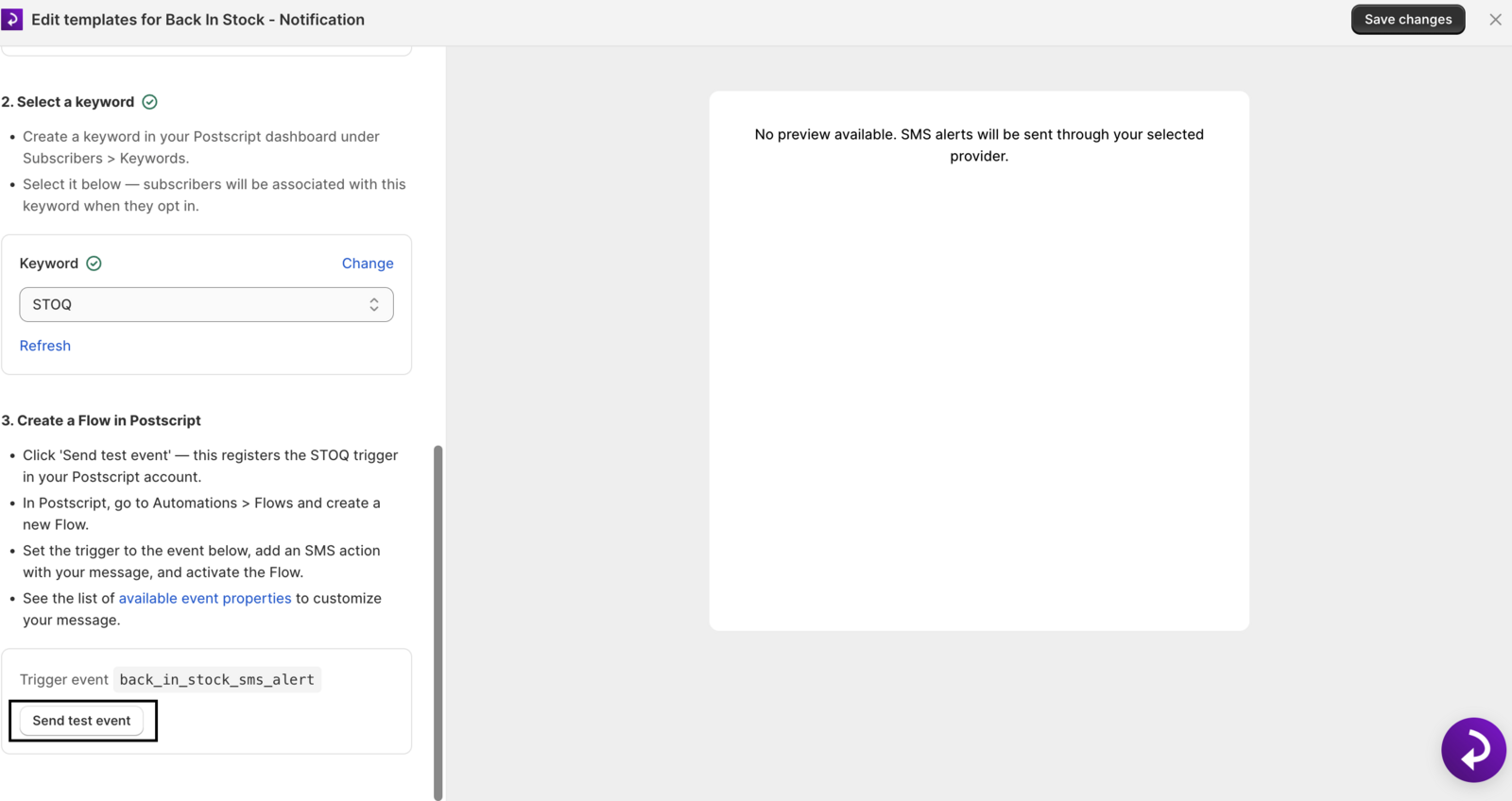
Create a Flow in Postscript
The 3. Create a Flow in Postscript section appears after selecting a keyword.
- Click Send test event to register the STOQ trigger (“Preorder SMS Confirmed”) in your Postscript account.
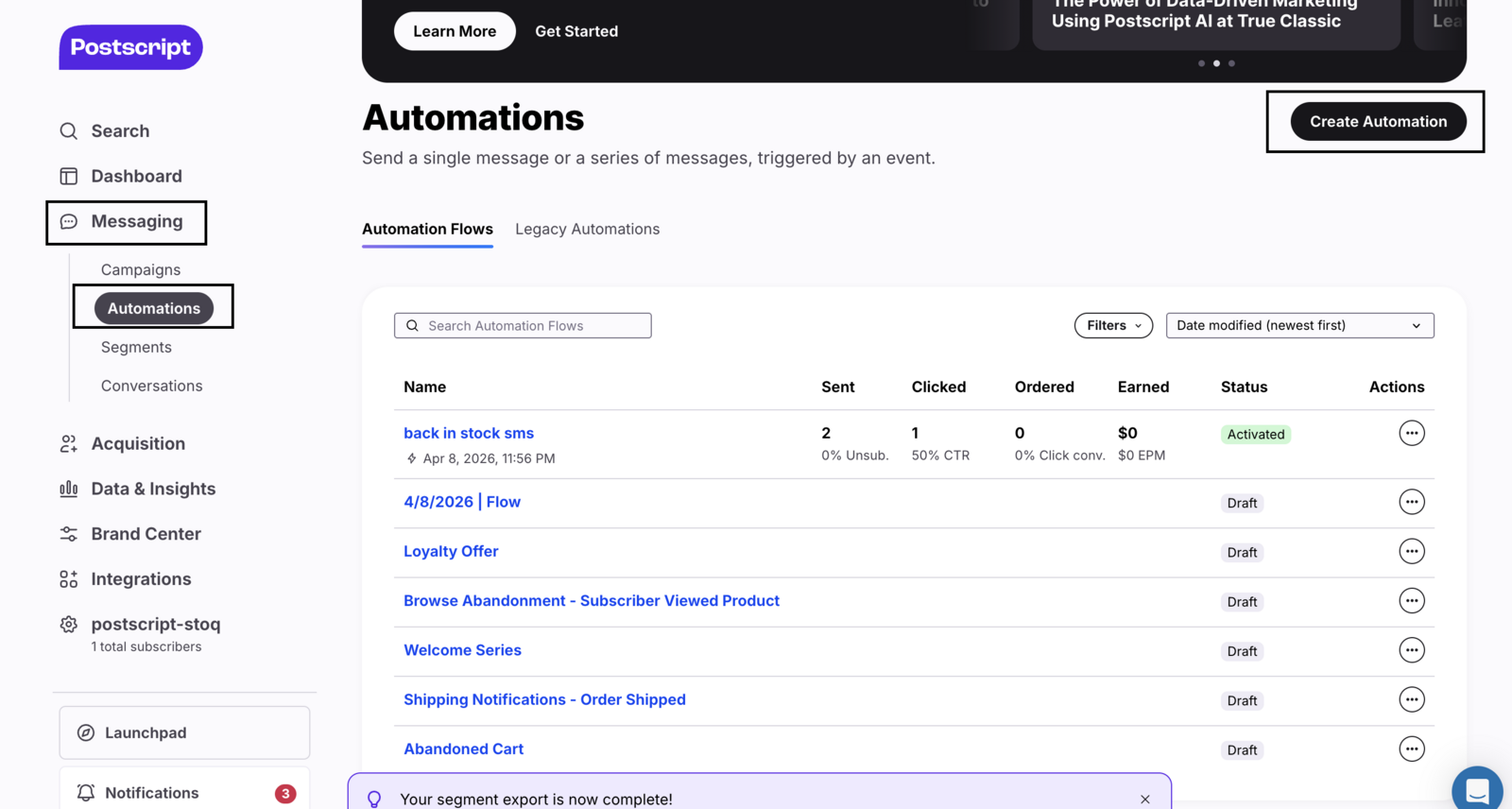
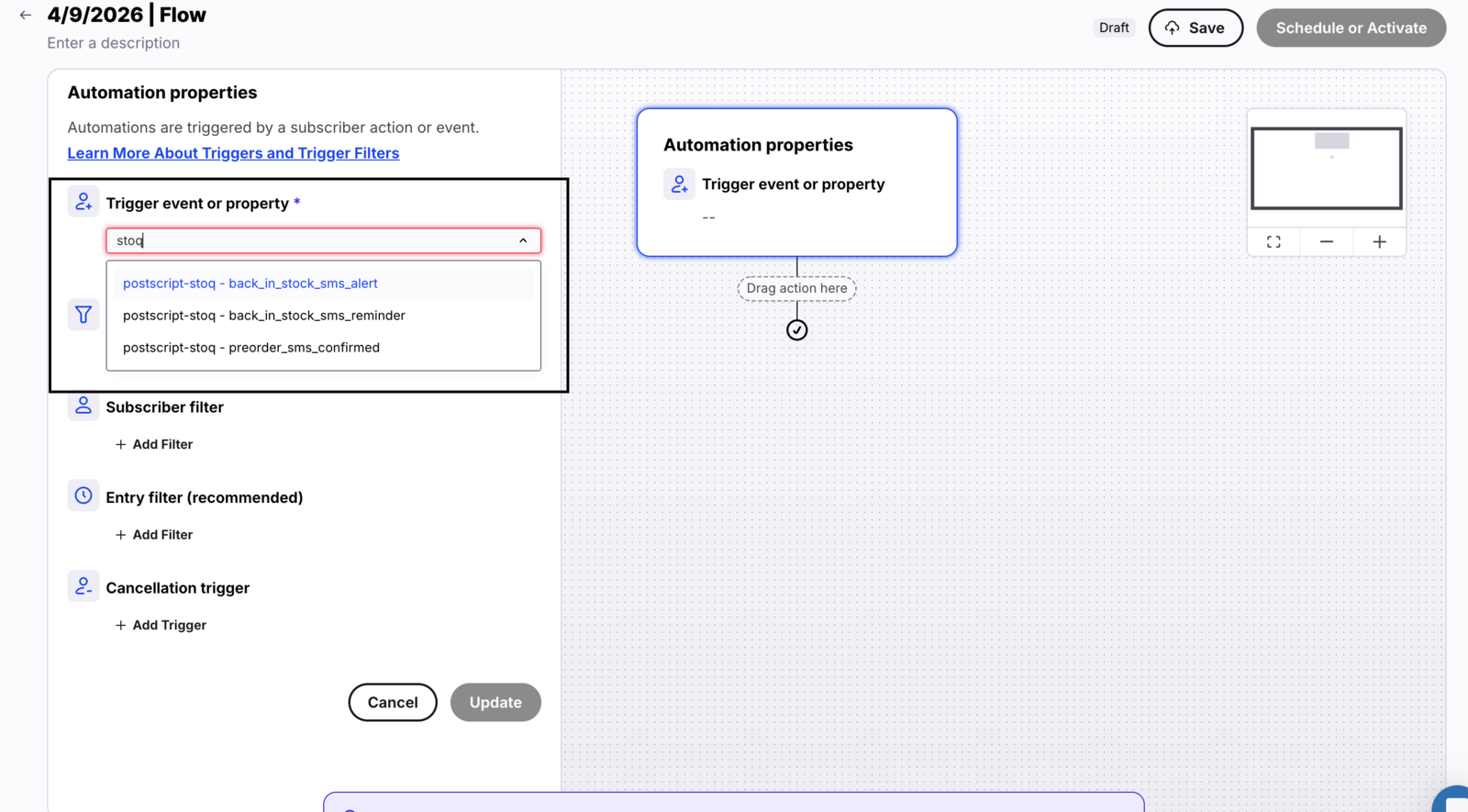
- In Postscript, go to Automations → Flows and create a new Flow.
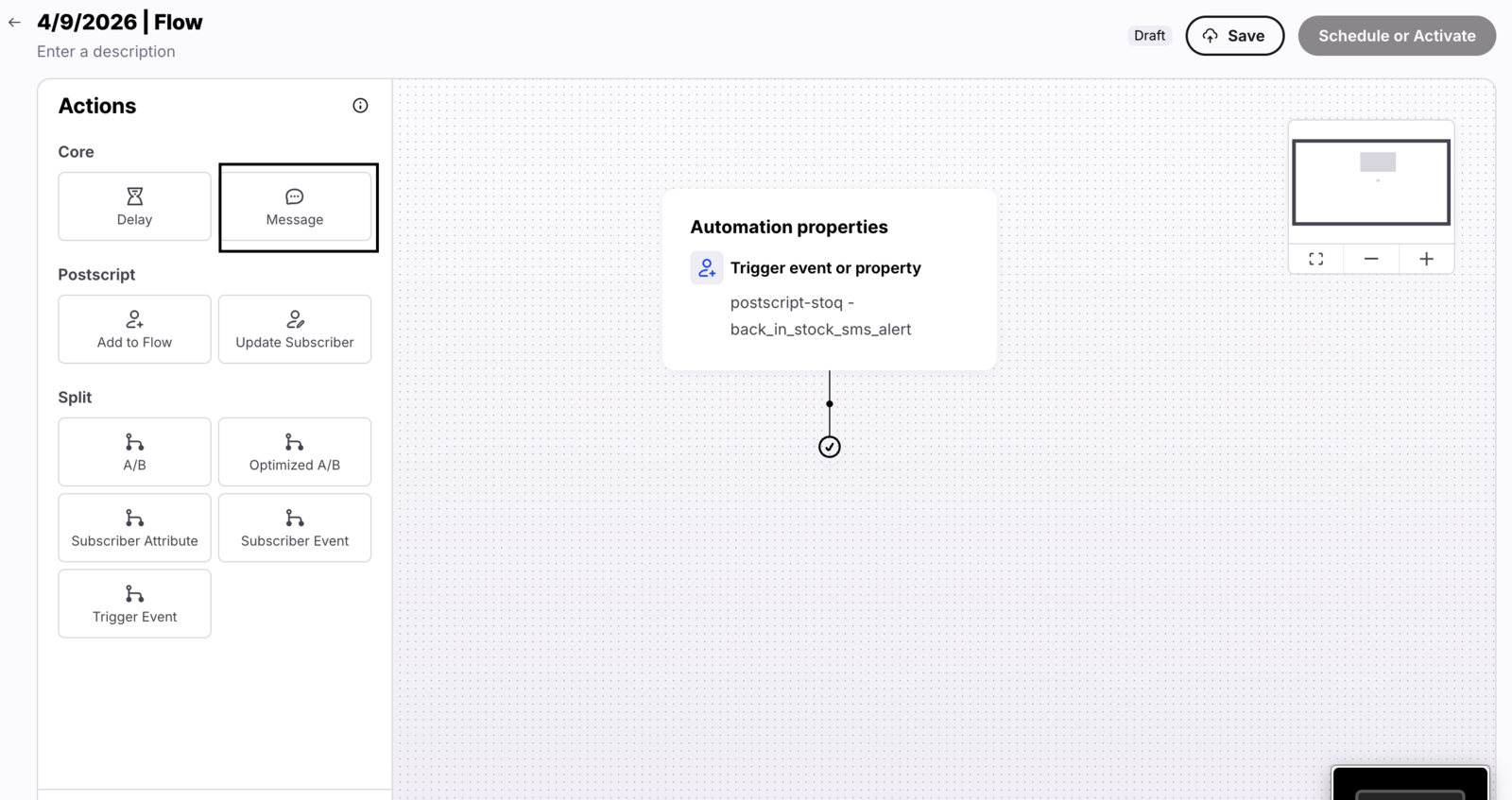
- Set the trigger to the “Preorder SMS Confirmed” event, add an SMS action with your confirmation message, and activate the Flow.
- Return to STOQ and click I’ve created the Flow to complete setup.
A green checkmark appears next to the flow section once confirmed.
-
Save and test
- Click Save in the SMS template editor.
- Place a test preorder with a phone number to confirm Postscript delivers the SMS. See Test your preorder offer.
Send a confirmation manually
Section titled “Send a confirmation manually”Resend or send for the first time from the order detail view.
-
Open the order
- Go to Reports → Preorders.
- Click the order you want to notify.
-
Send from the Notify customer menu
Click the Notify customer dropdown in the page header.
- Send email confirmation sends or resends the confirmation email.
- Send SMS confirmation sends or resends the SMS. This only appears if the order includes a phone number.
Manual sends are logged in the order timeline with “(sent manually)” next to the timestamp.
Send confirmations in bulk
Section titled “Send confirmations in bulk”-
Open the preorders list
Go to Reports → Preorders.
-
Select orders
Check the boxes next to the orders you want to notify, or use select-all to target every order matching your current filters.
-
Send from the bulk action menu
- In the bulk action bar, open Communication.
- Click Send email confirmation.
STOQ queues the sends as a background job and shows a “Notifications sent” toast once queued; emails then deliver asynchronously.
STOQ deduplicates bulk sends: if a confirmation already went out to an order as part of the same bulk operation, it won’t be sent a second time.
Check your setup
Section titled “Check your setup”Open the order detail page in Reports → Preorders and scroll to the order timeline. A successful send shows an event like:
Order confirmation email was sent to customer@example.com
A manual send shows the same event with (sent manually) appended.
You can also place a test order with your own email address and confirm receipt. See Test your preorder offer for a step-by-step test flow.
Troubleshooting
Section titled “Troubleshooting”The confirmation email isn't sending even though the toggle is on
Confirm:
- You’re on a paid plan.
- If you use Klaviyo, your Klaviyo setup and preorder flow are verified (a warning banner appears in Customize email -> Send emails through if not).
- The order has a customer email.
- The order timeline for a logged send error.
The SMS toggle is locked or greyed out
Either the shop is on a free plan, or (Twilio only) the toll-free number is still pending registration or verification. Klaviyo and Postscript don’t have this requirement.
Postscript SMS confirmations aren't sending
Confirm:
- The Postscript API key row shows a green checkmark (re-verify your Private Key if not).
- The 3. Create a Flow section is checked off (STOQ logs “Postscript SMS flow not verified” if the I’ve created the Flow step was skipped).
- The Flow triggers on “Preorder SMS Confirmed” and is active, not in draft.
- The order has a phone number.
A bulk send shows "Notifications sent" but customers have not received anything yet
This is expected. The toast confirms the batch was queued, not delivered; large batches can take several minutes. Check individual order timelines to confirm delivery.
Limitations
Section titled “Limitations”- SMS doesn’t send if the order’s product has a country code blocked for the customer’s phone country.
- If you deliver the confirmation through Klaviyo or Postscript, STOQ doesn’t control the footer or branding of those messages, including the “Powered by STOQ” watermark.
Does enabling this replace Shopify's order confirmation email?
No. STOQ’s preorder confirmation is a separate, additional email that goes out after Shopify’s own order confirmation. Shopify’s confirmation is controlled by Shopify and sends regardless of STOQ’s setting. STOQ’s email adds preorder-specific content Shopify’s default doesn’t include: the shipping timeline, payment terms, and a link to the order.
Does turning this on send confirmations to preorders I already have, or only new ones?
Only new ones. Automatic sending fires when a preorder is first created, so turning the toggle on doesn’t retroactively notify existing orders. To notify an existing order, use Send a confirmation manually or Send confirmations in bulk above.
Will resending a confirmation charge the customer again?
No. Sending or resending the confirmation is purely informational and doesn’t trigger any payment action. Payment collection is a separate action, controlled under the Collect payment button or scheduled payment settings.
Can I use Klaviyo for the preorder confirmation email?
Yes. Select Klaviyo under Send emails through in the email template editor. STOQ fires a metric event, Preorder confirmed (STOQ) (OAuth) or Stoq - Preorder Confirmed (API key), and you build the email template and flow in Klaviyo triggered by that metric. STOQ also supports optional Klaviyo flows for shipping updates and payment failures from the same setup screen. See Connect Klaviyo for preorders.
Does the SMS confirmation send if the customer opted out of marketing?
Not if they opted out of STOQ notifications specifically; the SMS won’t send. Klaviyo and Postscript handle their own SMS compliance and opt-out rules independently, since STOQ just passes the send request to those platforms.
Can I change where the confirmation email button sends customers?
No. The button in the preorder confirmation email always opens the customer’s order. The Take customer to option, which points a button at the product page or checkout, exists only on back in stock emails, not on preorder emails.
What is the 'Watermark visible' chip and how do I remove it?
It’s a chip on the ‘Preorder confirmed’ notification card that shows when the Show ‘Powered by STOQ’ watermark checkbox is checked in the email template editor, meaning a small “Powered by STOQ” line appears in the footer of confirmation emails sent through STOQ. To remove it, open Customize email → Content and uncheck the box. This requires a paid plan; on a free plan the checkbox is locked and the watermark always shows.
Related guides
Section titled “Related guides”Thanks for letting us know.
Still stuck? Ask Quinn or chat with support