Hold the entire order
Hold every item in an order that contains a preorder, including in-stock items, until you manually release it.
Last updated
Use this guide if you want nothing in an order to ship until its preorder item is ready, including any in-stock items in that same order. By the end, every fulfillment in orders that contain a preorder will be held after checkout until you release them.
This is different from the On hold fulfillment status, which holds only the preorder items and lets in-stock items ship. Hold all fulfillments holds the whole order.
Before you begin
Section titled “Before you begin”| Requirement | Detail |
|---|---|
| Paid plan | Available on Lite and above |
| Fulfillment status | Hold all fulfillments appears only when the offer’s fulfillment status is set to Unfulfilled or On hold |
| Release | Held fulfillments are released by you, not automatically |
What customers will see
Section titled “What customers will see”Every fulfillment in the order, preorder and in-stock alike, is held after checkout, so nothing ships until you release it. The reason note you add appears on the held fulfillment in Shopify admin so your team can see why the hold was placed, but it’s never shown to the customer.
Set it up
Section titled “Set it up”-
Open the Shipping section
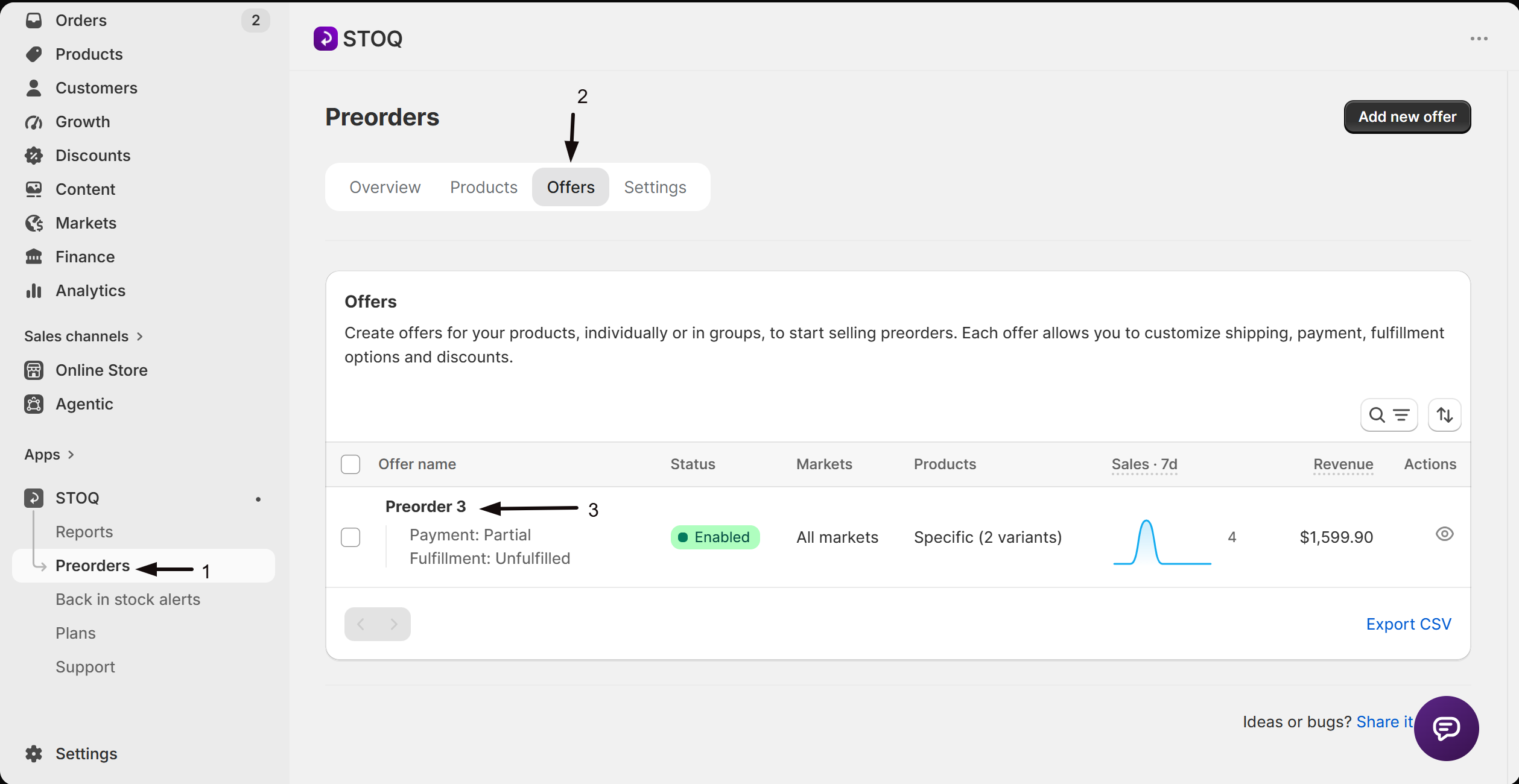
- In the left menu bar, click Preorders.
- Click the Offers tab.
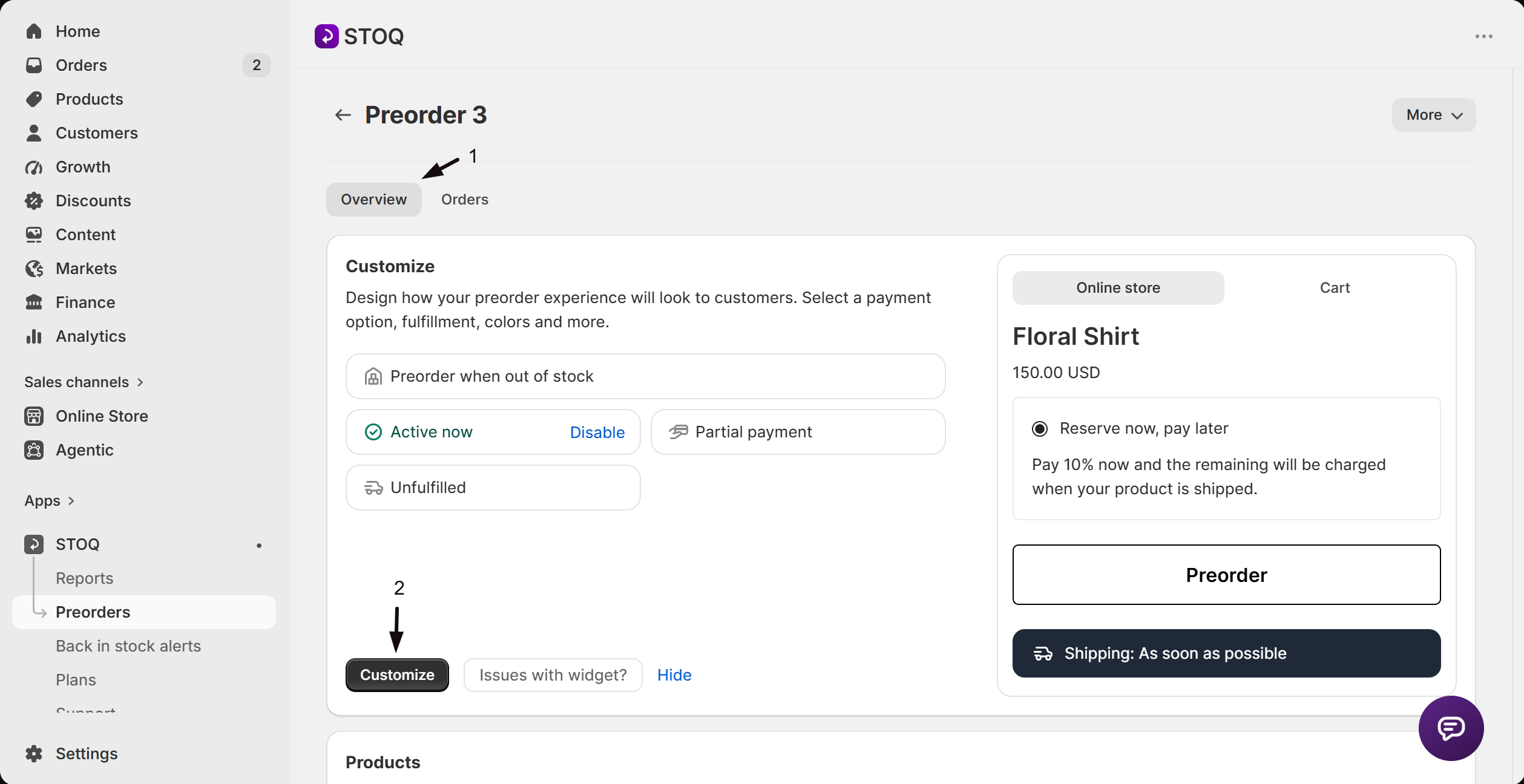
- Click the offer you’d like to edit. Its Overview tab opens, showing the Customize button, a live preview, and the offer’s Products section.
- Click the Customize button to open the editor.
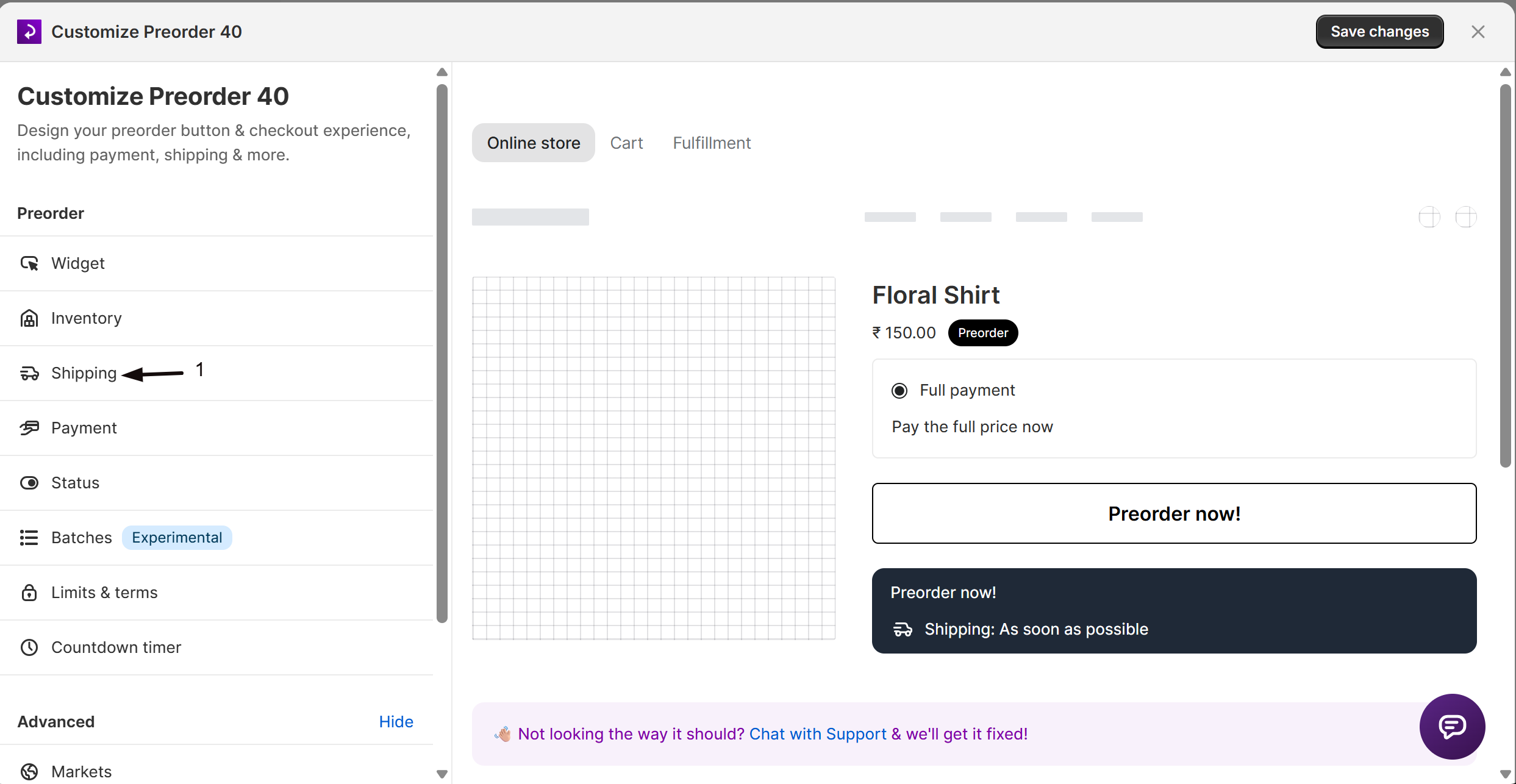
- In the sidebar, click Shipping.
-
Set the fulfillment status
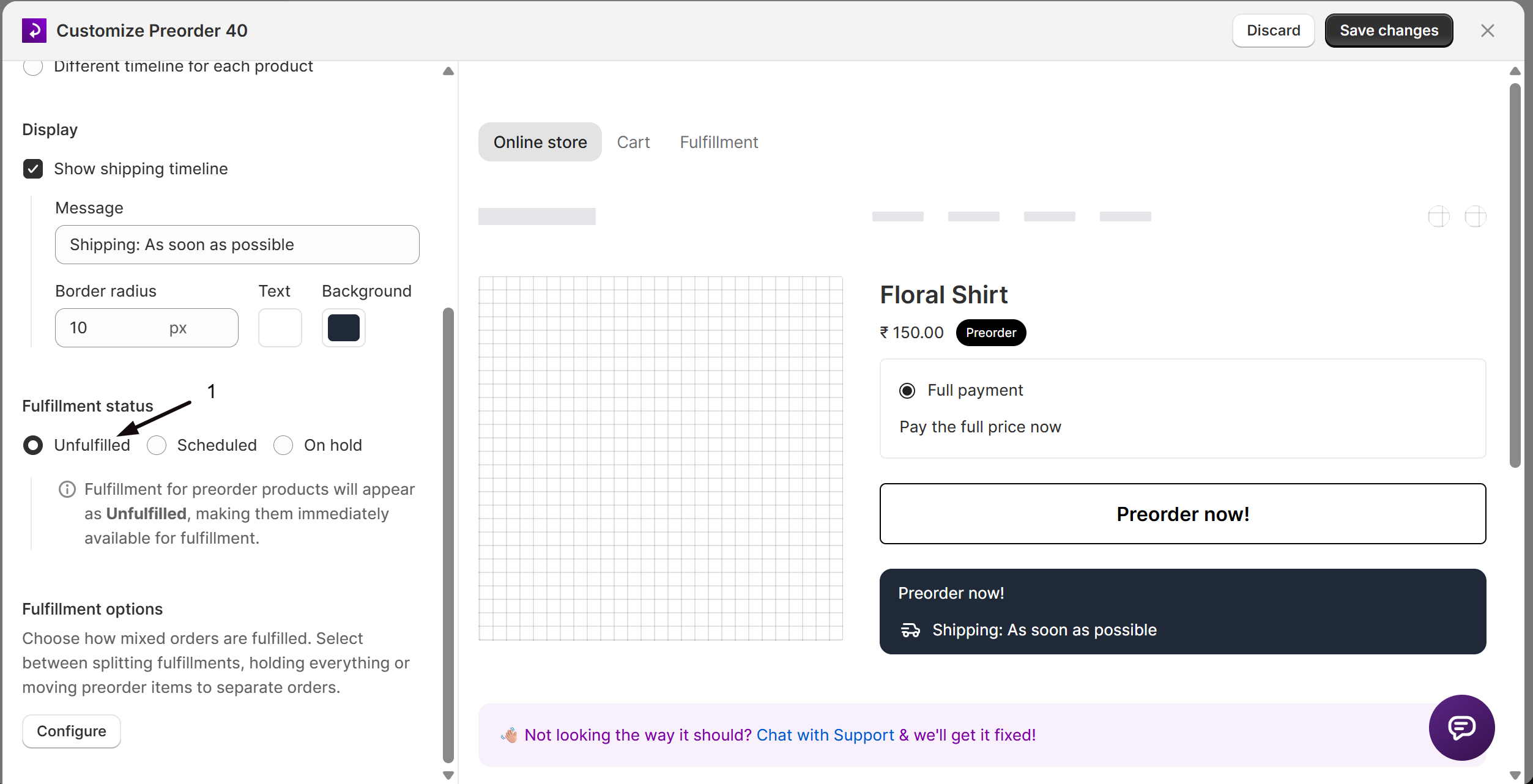
Under Fulfillment status, select Unfulfilled or On hold.
-
Enable Hold all fulfillments
Under Fulfillment options, click Configure to expand the options, then check Hold all fulfillments. Turning it on turns off Split fulfillments and Separate orders, which are mutually exclusive.
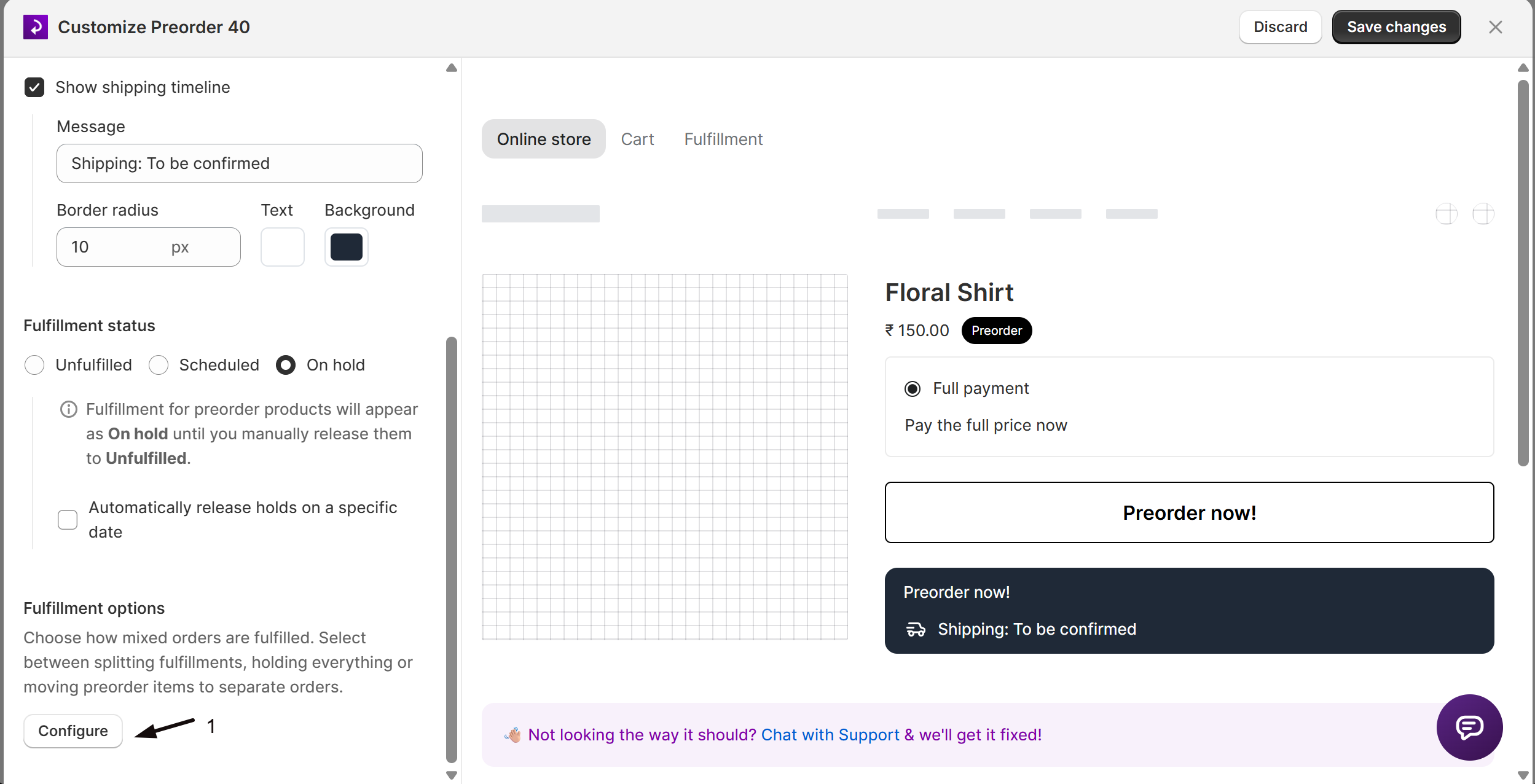
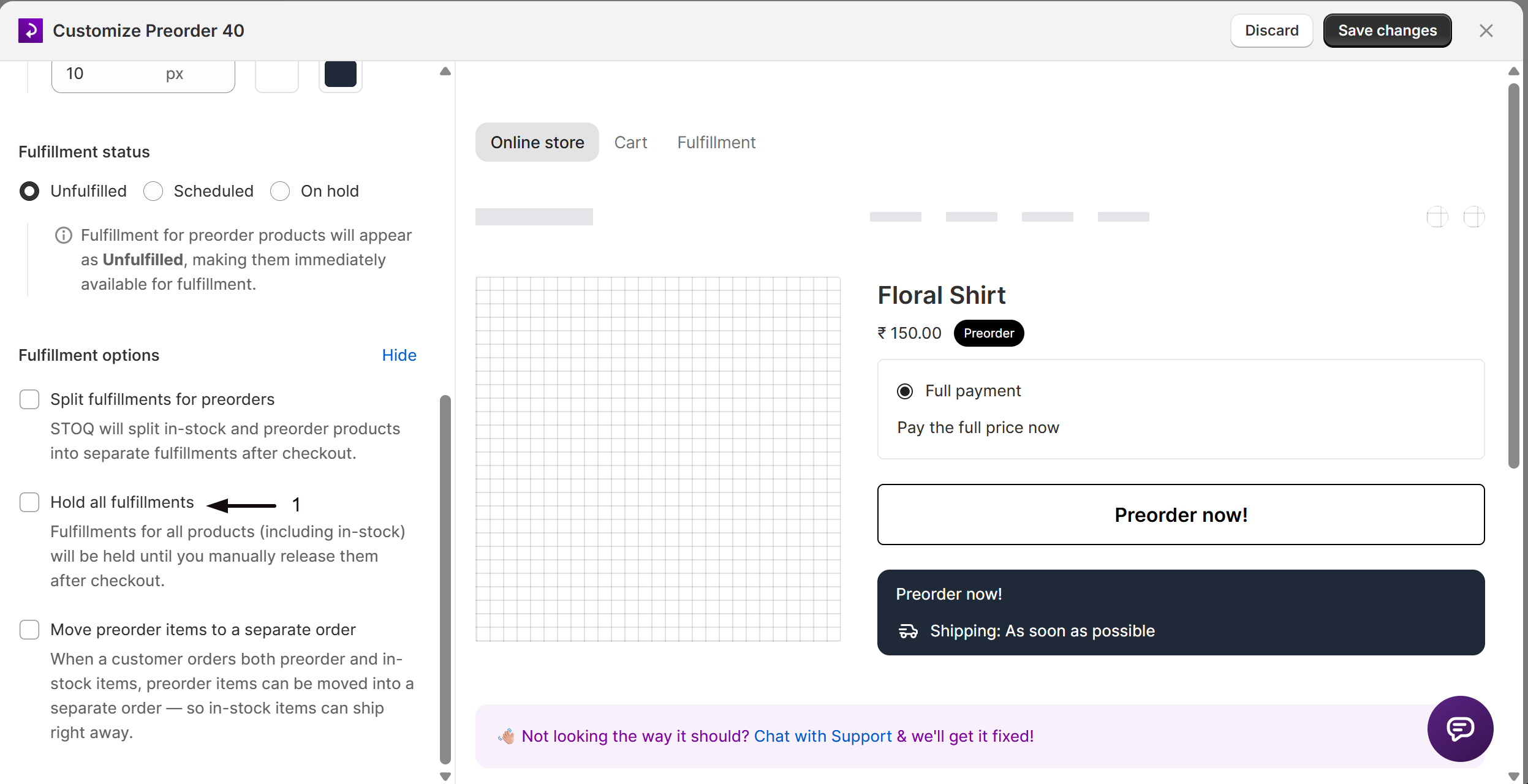
-
(Optional) Add a reason note
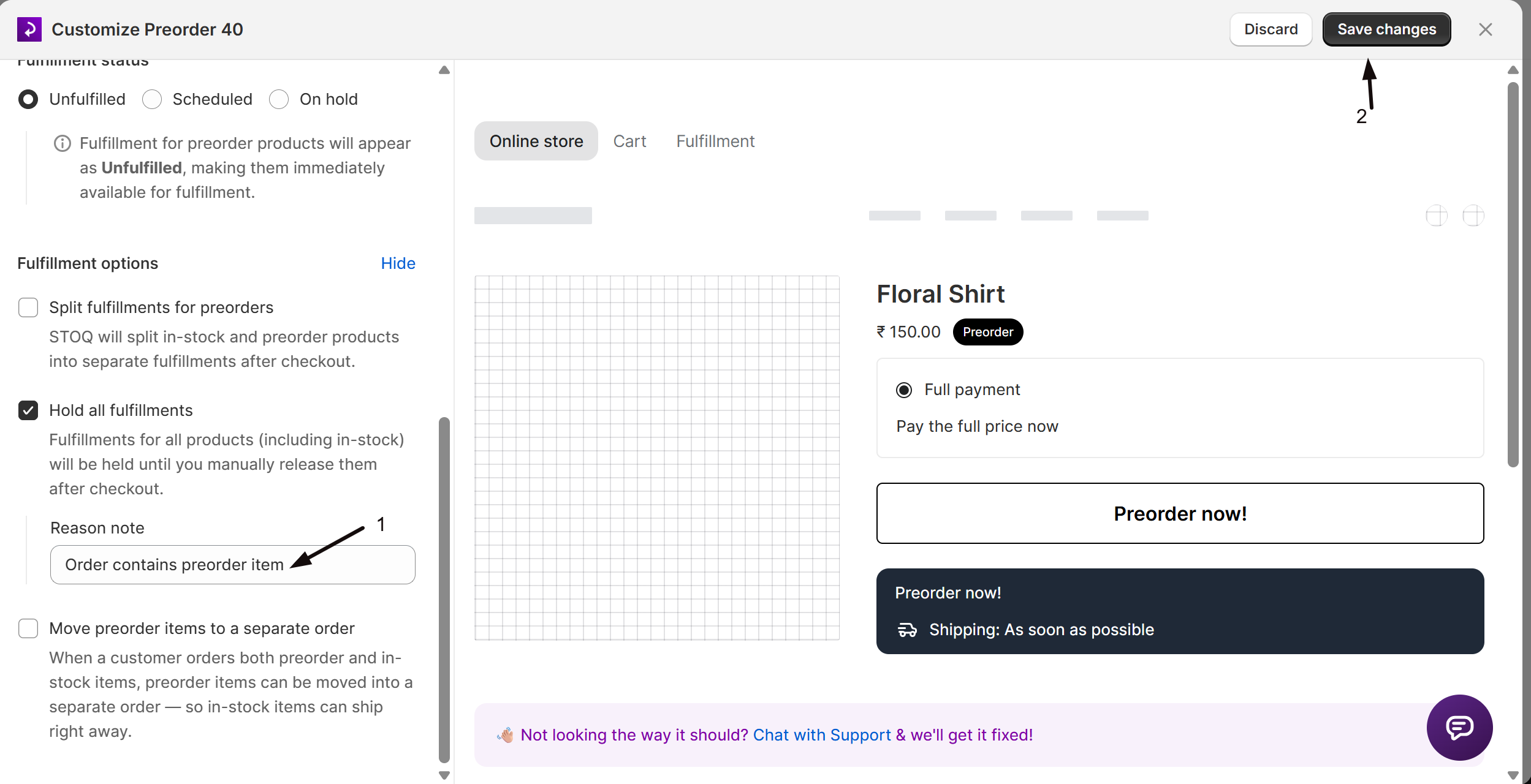
Add a Reason note (default “Order contains preorder item”). This note is internal to Shopify: it appears on the held fulfillment in Shopify admin so your team can see why the hold was placed, and is never shown to the customer.
-
Save changes
Click Save changes at the top right of the editor. The setting applies to orders placed afterward.
Hold an order that’s already placed
Section titled “Hold an order that’s already placed”To hold one existing order by hand, whatever its offer’s settings:
- In the left menu bar of the STOQ app, click Reports, then click Preorders, then the Orders tab.
- Click the order to open it.
- At the top of the order page, click Fulfill order, then click Hold fulfillments.
- Optionally, enter a Reason (optional) note. It shows on the hold in Shopify; leave it empty to use the default hold note.
- Click Hold fulfillments to confirm.
Every open or scheduled fulfillment in the order is held, preorder and in-stock items alike. To hold several orders at once, check them in the Orders list and use the Hold fulfillments bulk action, listed under Fulfillment. Cancelled and fully fulfilled orders can’t be held.
Release the hold
Section titled “Release the hold”When you’re ready to ship, release the held fulfillments:
- In STOQ: Reports → Preorders → Orders → open the order → click Release “On hold” fulfillments in the Fulfill order dropdown. You can also select multiple orders and release in bulk. (For a single offer’s orders: Preorders in the left menu → Offers tab → open the offer → its Orders tab.)
- In Shopify admin: open the order → fulfillment section → Release hold.
- With Shopify Flow: automate it with a release-fulfillment-hold action.
Check your setup
Section titled “Check your setup”Place a test order with an in-stock item and a preorder item. In Shopify, confirm the entire order is held (both items), then release it and confirm everything becomes fulfillable.
Troubleshooting
Section titled “Troubleshooting”In-stock items aren't shipping
That’s expected. Hold all fulfillments holds the entire order, including in-stock items, until you release it. If in-stock items should ship right away, use the On hold status or Split fulfillments instead.
Held fulfillments aren't syncing to your fulfillment provider
Some warehouse and 3PL/WMS systems import only Unfulfilled orders, so a held fulfillment may not sync until you release it. Test this with your provider before launch.
You can't turn on Hold all fulfillments alongside Split fulfillments or Separate orders
They’re mutually exclusive. Turning on Hold all fulfillments turns the other two off automatically.
You can't find where to release a hold
See Release the hold above, releases are available in STOQ, Shopify admin, or Shopify Flow.
Does turning on Hold all fulfillments affect orders already placed?
No. The setting applies only to orders placed after you save. Existing orders keep the fulfillment behavior they were created with. To hold one of them, use Hold fulfillments on the order (see Hold an order that’s already placed).
How is this different from the On hold status?
The On hold status holds only the preorder items; in-stock items still ship. Hold all fulfillments holds the entire order, including in-stock items.
Does the reason note show to the customer?
No. The reason note is internal: it appears in Shopify admin on the held fulfillment, not to the customer.
Does Hold all fulfillments need the Shopify purchase option?
No. It’s a fulfillment hold, so it works with or without the purchase option, which is why it’s the way to hold preorders when the purchase option is off.
How do I release a Hold-all order?
Release it like any held order: from Reports → Preorders → Orders, open it and click Release “On hold” fulfillments (or select several and release in bulk); this releases the whole order, in-stock items included. See Release held fulfillments.
Related guides
Section titled “Related guides”Thanks for letting us know.
Still stuck? Ask Quinn or chat with support