Send preorder SMS confirmations
Text customers a preorder confirmation right after checkout, through STOQ, Klaviyo, or Postscript.
Last updated
STOQ can send an SMS confirming a preorder immediately after the customer checks out. A text lands faster and gets opened more than email, and it can include the shipping timeline so customers know when to expect their order. This is a paid feature and carries a per-message cost.
Before you begin
Section titled “Before you begin”| Requirement | Detail |
|---|---|
| A paid plan | Preorder SMS confirmations require a paid plan. On a free plan the toggle is disabled with an upgrade prompt. |
| Carrier verification | Before SMS can send, STOQ must verify your store with network carriers. Customers can still preorder in the meantime; sending is paused until verification completes. |
| A phone number at checkout | The customer must provide a phone number, otherwise there’s nothing to text. |
| Toll-free registration | US and Canada stores may need to register a toll-free number with carriers before SMS can send. |
Turn on preorder SMS
Section titled “Turn on preorder SMS”On a phone, this menu is collapsed. In the Shopify mobile app, tap the STOQ logo at the top of the screen to open it, then choose the section named below. There is no hamburger icon. See Finding the STOQ menu.
-
Open the preorder notifications
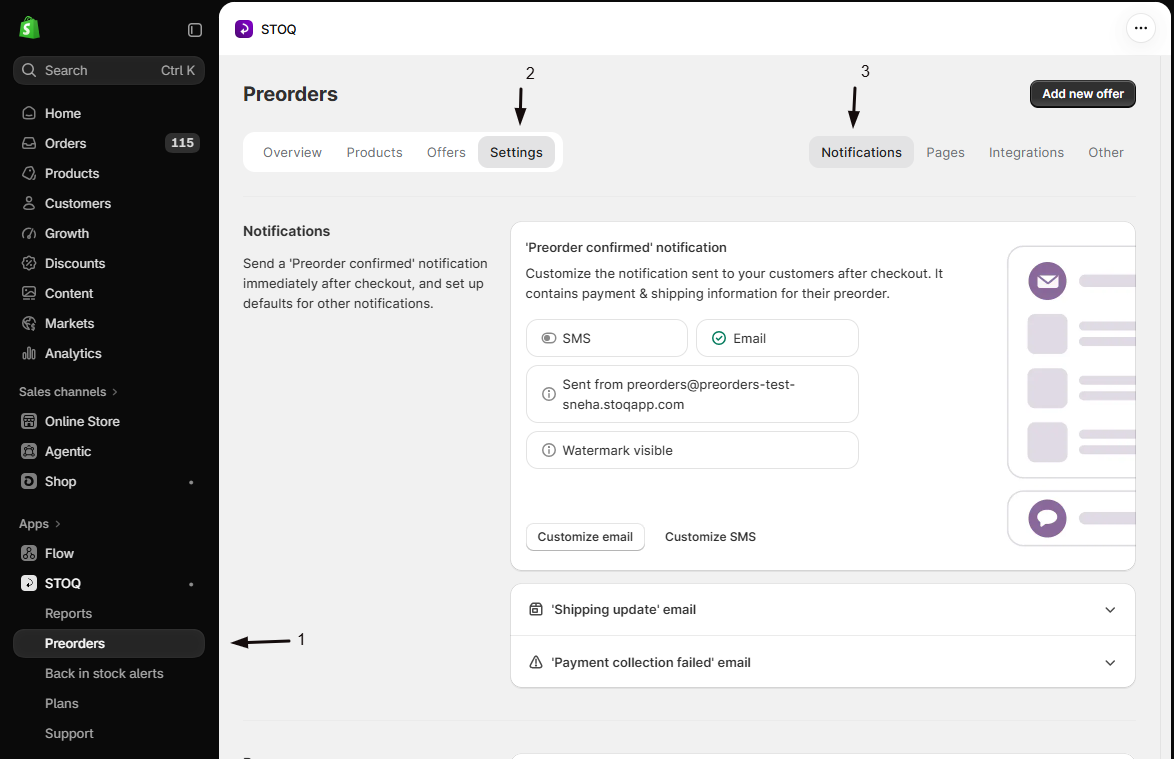
In the left menu bar of the STOQ app, click Preorders, then open Settings > Notifications.
-
Open Customize SMS
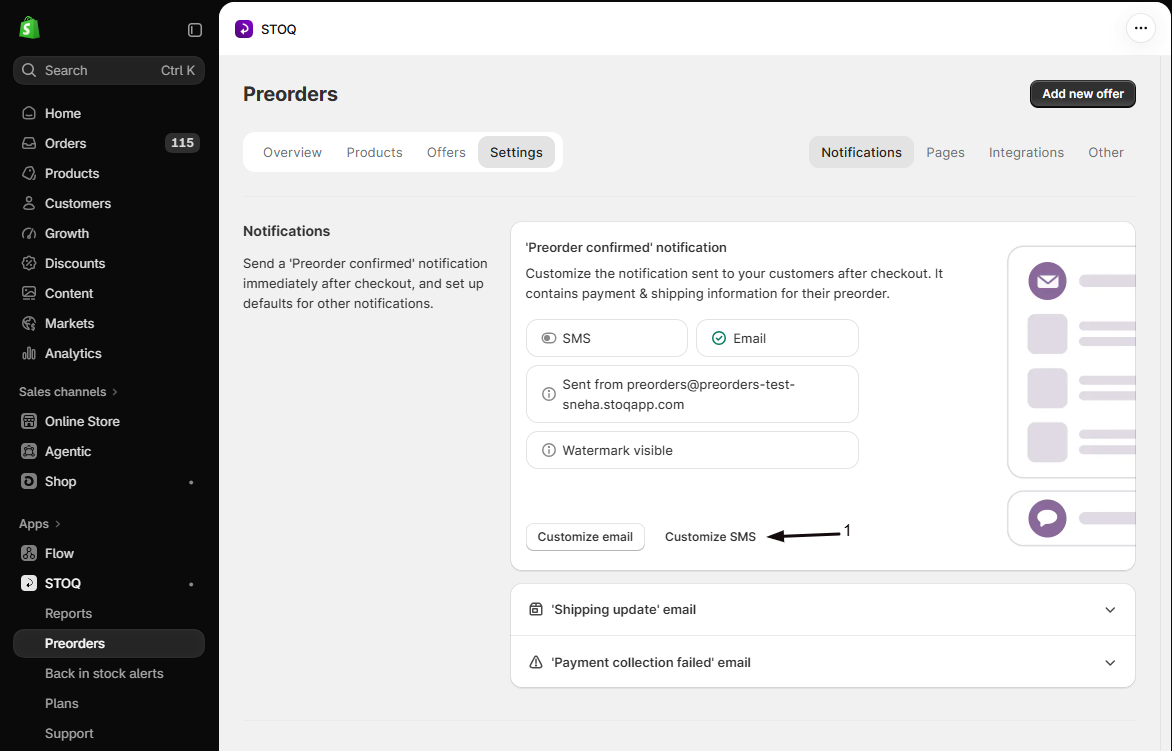
On the ‘Preorder confirmed’ notification card, click Customize SMS to open the SMS editor.
-
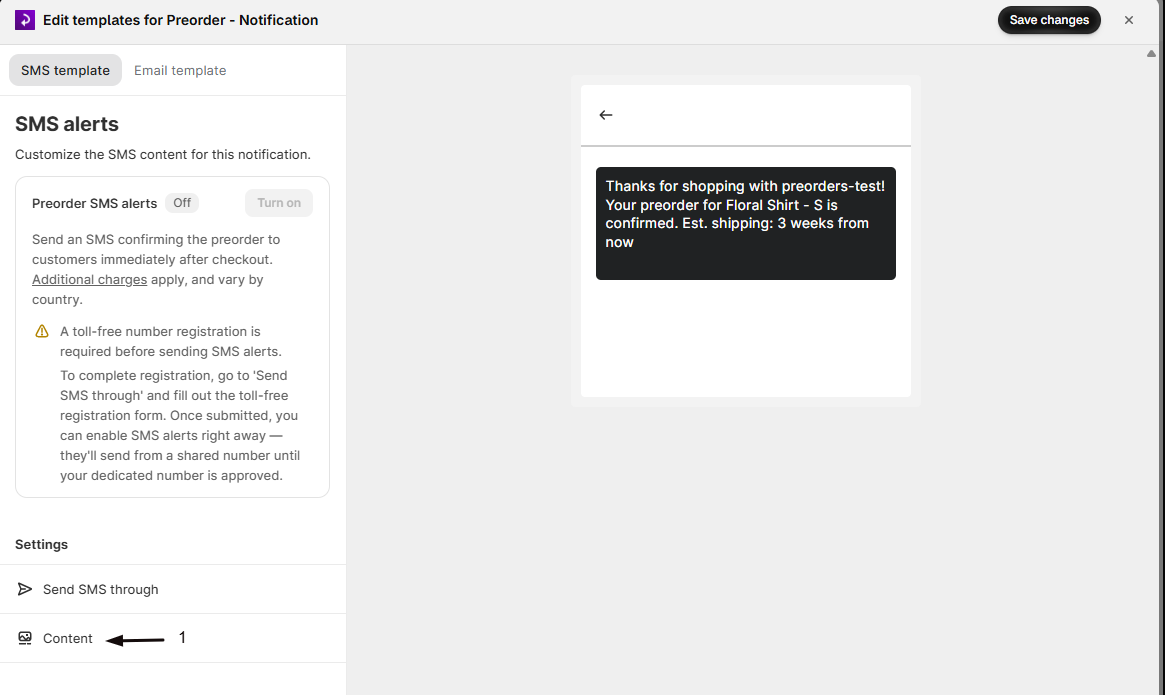
Turn on Preorder SMS alerts
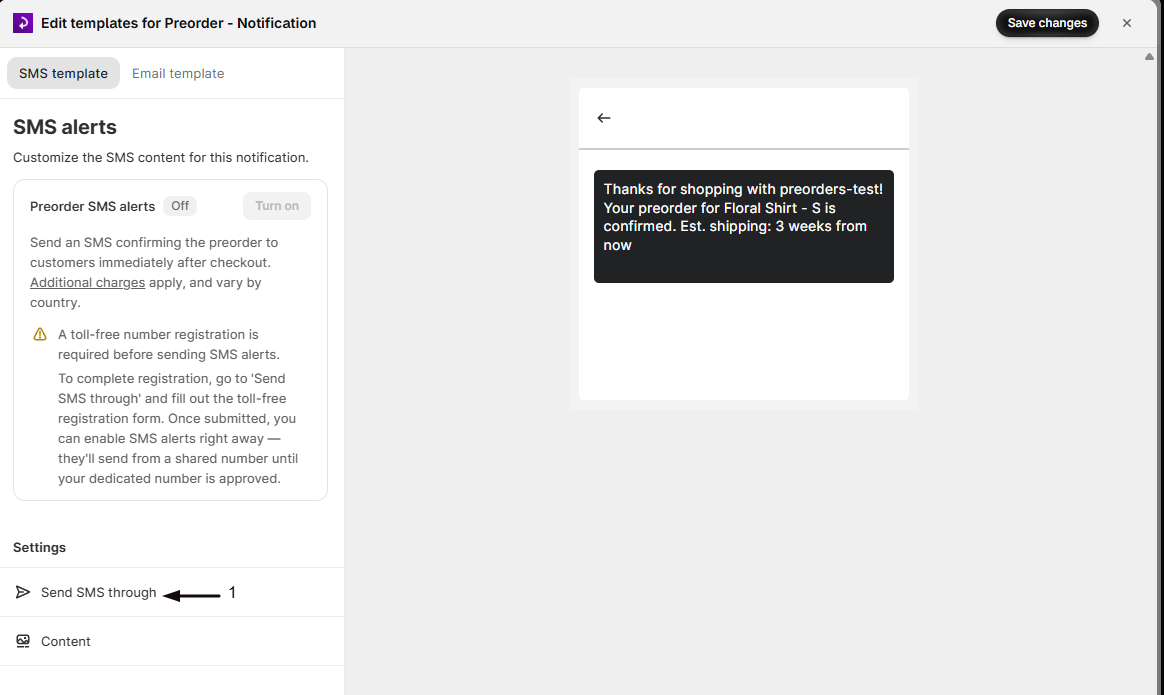
In the SMS editor, next to Preorder SMS alerts, click Turn on and confirm the notice about per-message SMS charges. The Settings list below then shows Send SMS through and Content.
-
Choose how it sends
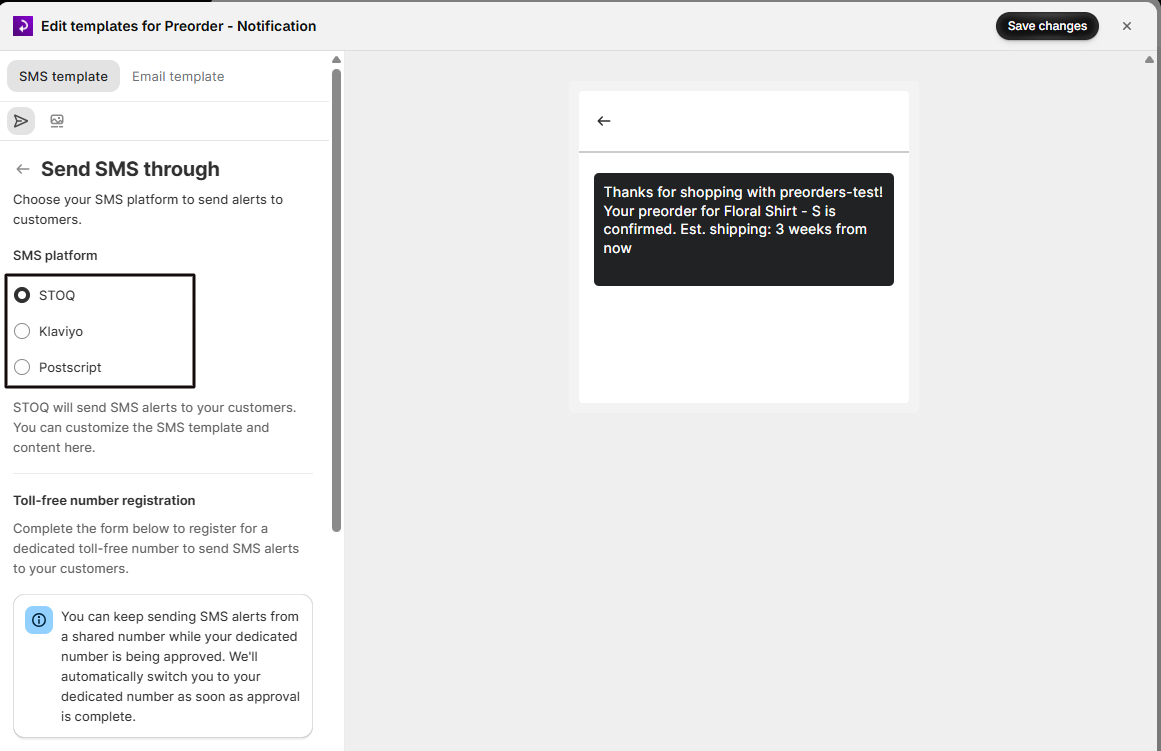
Under Settings, click Send SMS through and pick your SMS platform: STOQ (built-in), Klaviyo, or Postscript.
-
Write the message
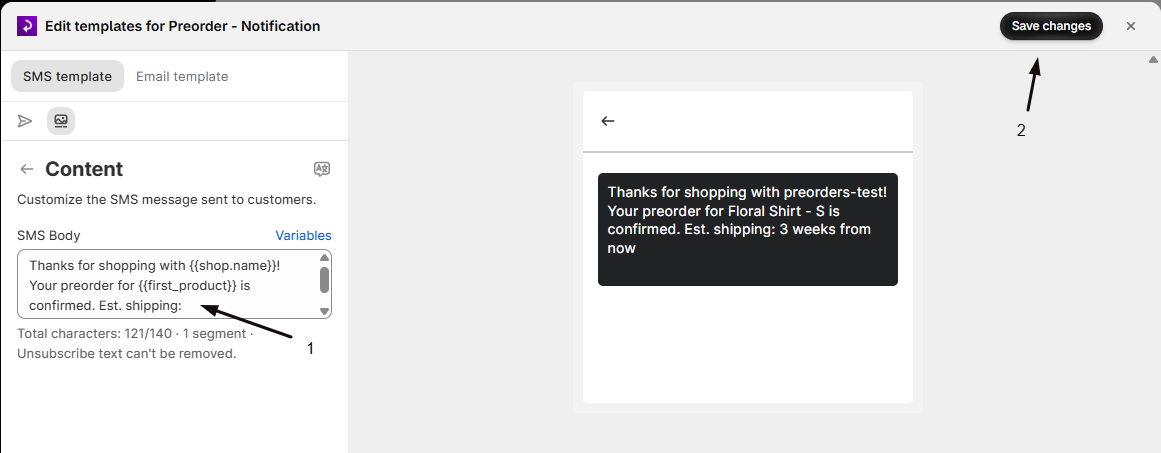
Go back, then under Settings click Content. Edit the SMS Body, using the Variables link to personalize it (see below).
-
Save
Click Save changes at the top right. Customers who preorder with a phone number now get a confirmation text.
Variables you can use
Section titled “Variables you can use”Insert variables in the SMS body to fill in each order’s details. The editor lists the full set; common ones:
| Variable | Inserts |
|---|---|
{{ customer.name }} |
The customer’s name |
{{ first_product }} |
The first preordered product |
{{ products }} |
All preordered products as a comma-separated list |
{{ products_count }} |
How many preordered products are in the order |
{{ shipping_timeline }} |
The offer’s shipping timeline message |
{{ order.name }} |
The order name, like #1001 |
{{ shop.name }} |
Your store’s name |
Send through Klaviyo or Postscript instead
Section titled “Send through Klaviyo or Postscript instead”If you’d rather send from Klaviyo or Postscript, choose that provider under Send SMS through and set up the flow in that platform. See Send SMS alerts through Klaviyo and Send alerts through Postscript. Those platforms deliver and bill the SMS, so STOQ’s per-segment pricing doesn’t apply.
Resend a confirmation manually
Section titled “Resend a confirmation manually”To re-send a confirmation for a single order, open Reports > Preorders, open the order, and choose Send SMS confirmation from the Notify menu.
Troubleshooting
Section titled “Troubleshooting”The Preorder SMS alerts toggle is disabled
You’re on a free plan, or your store hasn’t submitted its toll-free registration where that’s required. Upgrade, or complete registration. The toggle’s tooltip shows which applies.
Customers preorder but no text arrives
Sending is paused until carrier verification completes. Check the SMS panel for a verification banner; sending resumes automatically once it’s done. Also confirm the customer actually provided a phone number.
The message looks cut off or costs more than expected
The body is over one segment. Shorten it, and avoid emojis and accented characters, which use more segments. See How SMS segments work.
Related guides
Section titled “Related guides”Thanks for letting us know.
Still stuck? Ask Quinn or chat with support