Export preorder products
Download an offer's products as a CSV for a backup or reference before you make bulk changes.
Last updated
You can export an offer’s current product list as a CSV, to keep as a backup or to work from before a big change. The export lives in the offer editor’s Products section. To add or remove products in bulk, see Import products with a CSV.
Export an offer’s products
Section titled “Export an offer’s products”-
Open the offer’s Products section
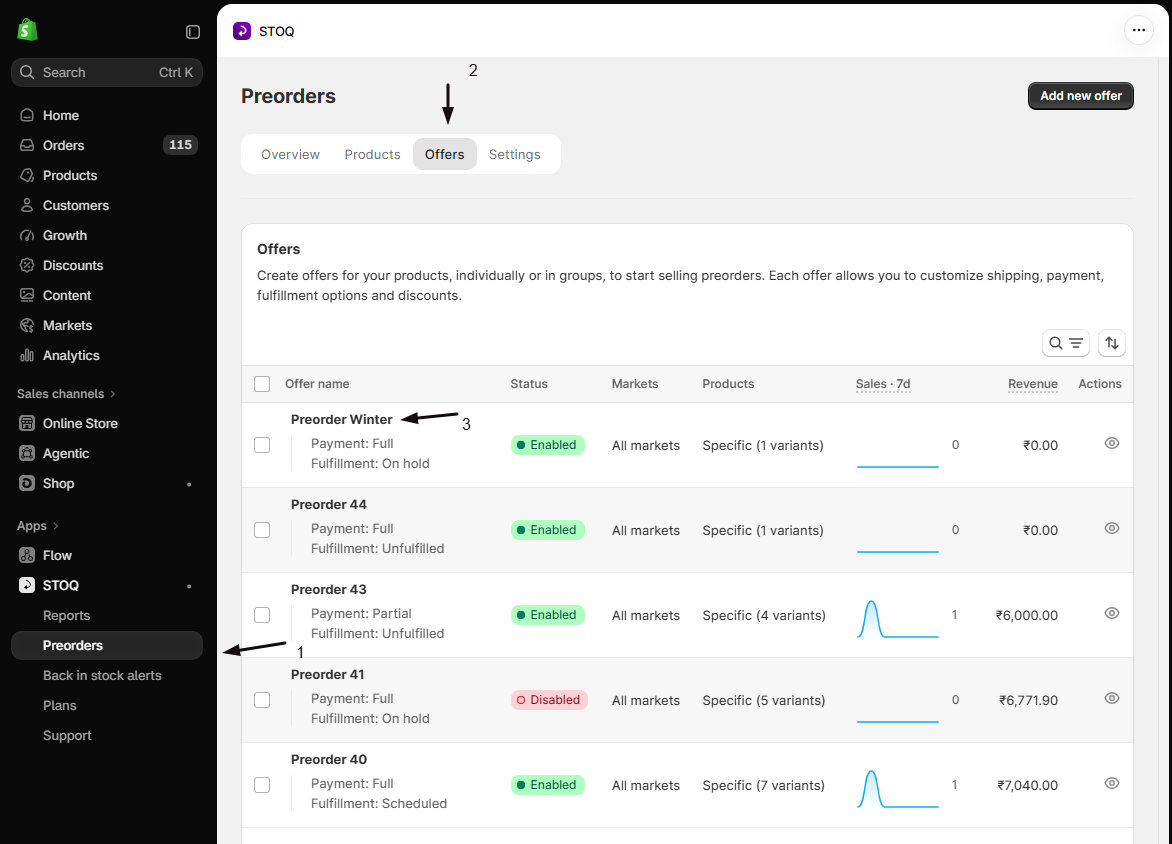
Click Preorders, open the Offers tab, click the offer to open its Overview tab, and scroll to the Products section.
-
Export to CSV
Click the ⋯ menu in the Products section header and choose Export to CSV. STOQ emails the file to your registered address (large exports take a few minutes).
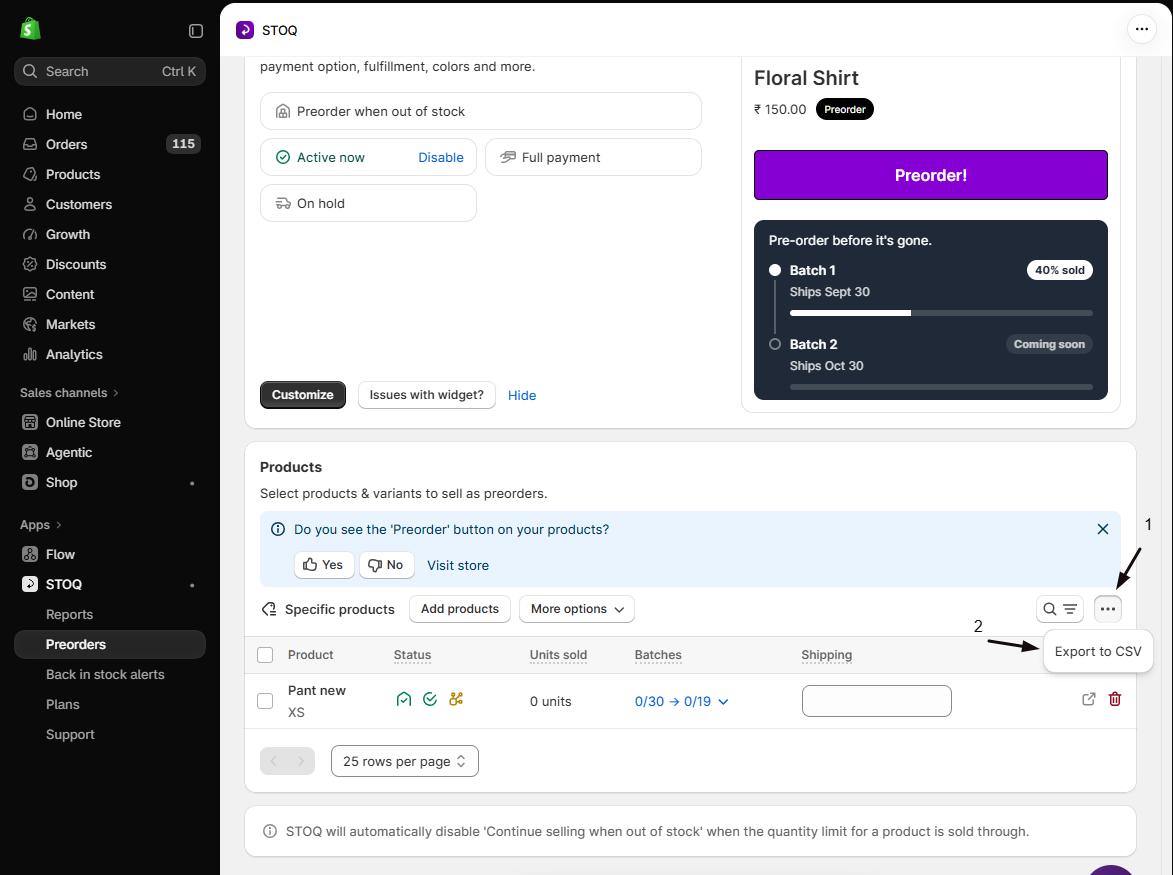
The file includes product titles and handles, variant details (SKU, title, options), inventory, pricing, and product and variant IDs. Keep an export as a backup before big changes.
Import products in bulk
Section titled “Import products in bulk”To add or remove products across one or more offers from a CSV, use Import products with a CSV. You upload a file, map its columns to STOQ’s fields, and STOQ applies the changes in the background.
Troubleshooting
Section titled “Troubleshooting”The export email never arrived
Check spam and confirm your report email address in Settings.
I can't find the export option
It’s on the offer’s Overview tab. Go to Preorders > Offers, open the offer, then scroll to the Products section and open the ⋯ menu.
Related guides
Section titled “Related guides”Thanks for letting us know.
Still stuck? Ask Quinn or chat with support