Connect Postscript for back in stock SMS alerts
Send back in stock SMS alerts through your own Postscript flows instead of STOQ's built-in SMS.
Last updated
Connect Postscript to send back in stock SMS alerts through your own Postscript flows instead of STOQ’s built-in delivery. STOQ fires an event into Postscript when a product restocks; you build and send the text from a Postscript Flow. Use this if you already run SMS marketing through Postscript and want restock alerts to go out the same way.
Before you begin
Section titled “Before you begin”| Requirement | Detail |
|---|---|
| Paid STOQ plan | Selecting Postscript as your SMS platform requires a paid plan. The option is visible on free plans but locked. |
| Postscript account | You need an active Postscript account with API access enabled, so you can generate a Security Key Pair. |
| SMS alerts turned on | The SMS alerts toggle for the notification must be on before you can choose a provider. |
What customers will see
Section titled “What customers will see”Customers who sign up for a back in stock alert with a phone number still get a text the moment the product restocks, at the same trigger point as before. The difference is who sends it: once Postscript is selected as the provider, STOQ no longer sends the text itself, it only fires an event, and your Postscript Flow controls the message content, timing, and opt-out handling. Customers are associated with the Postscript keyword you choose during setup, so they show up as subscribers in your Postscript account.
Set it up
Section titled “Set it up”On a phone, this menu is collapsed. In the Shopify mobile app, tap the STOQ logo at the top of the screen to open it, then choose the section named below. There is no hamburger icon. See Finding the STOQ menu.
Connecting Postscript has three parts: select it as your SMS platform, connect your account, then create the Flow Postscript uses to actually send the text.
Select Postscript as your SMS platform
Section titled “Select Postscript as your SMS platform”-
Open the SMS template editor
- In the left menu bar of the STOQ app, click Back in stock alerts.
- Click the Settings tab.
- Open the Notifications sub-tab.
- Click the notification card labeled When you restock to select it.
- Click Customize SMS.
-
Turn on SMS alerts, if you haven’t already
In the side panel, turn on the SMS alerts toggle. In the “SMS alerts include additional charges” dialog that appears, click OK, I understand.
-
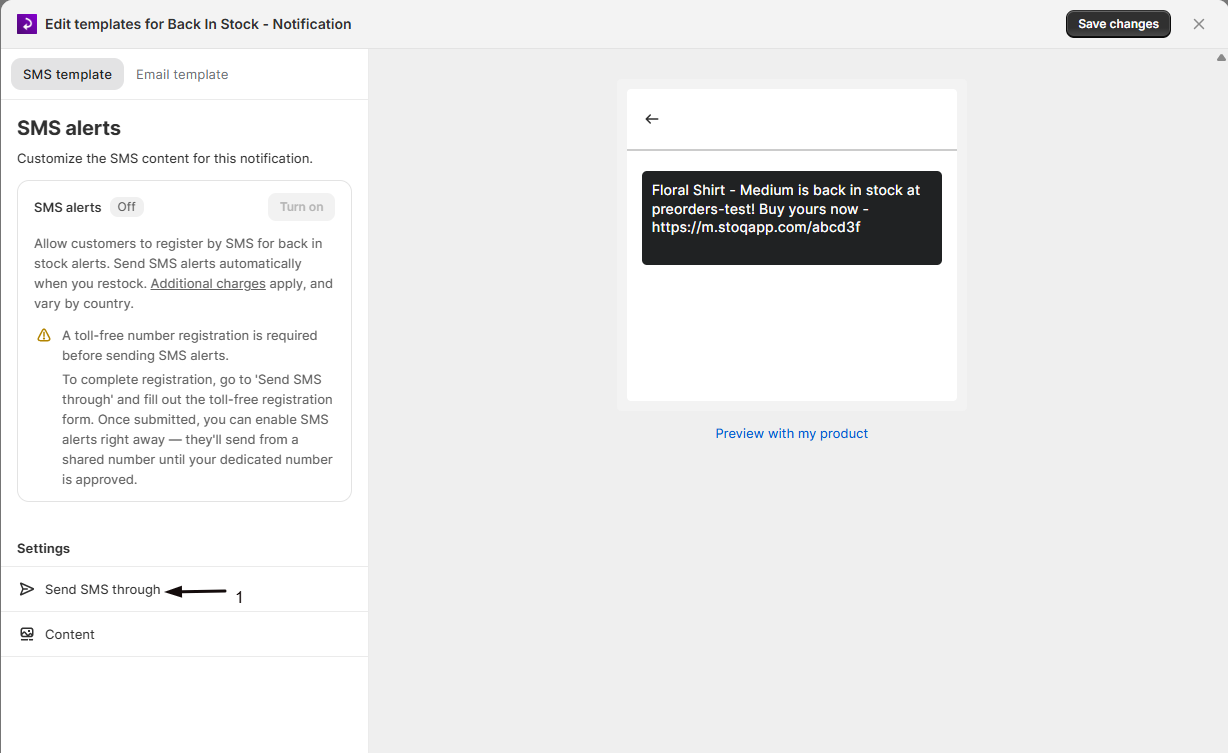
Open the SMS platform selector
Click Send SMS through.
-
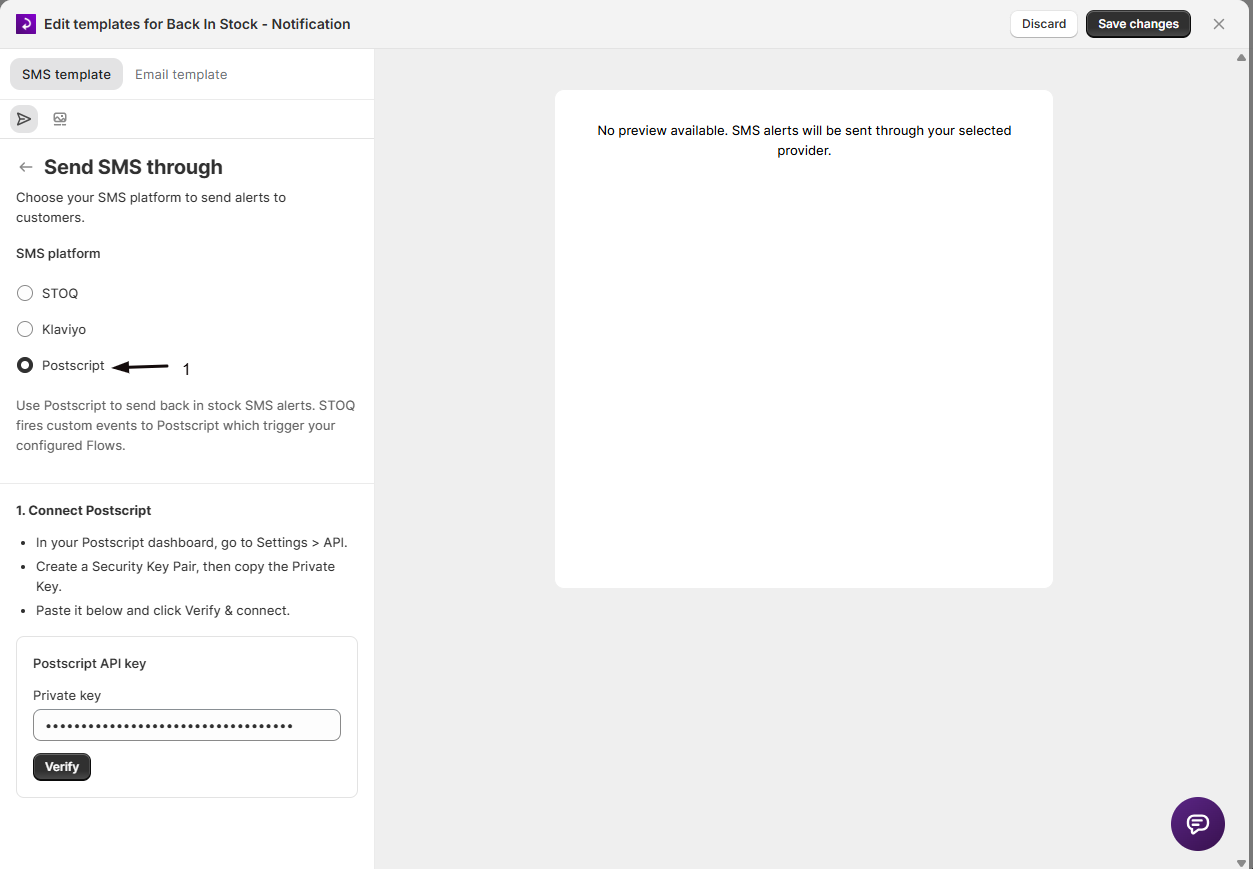
Select Postscript
Under SMS platform, choose the Postscript radio button.
Connect your Postscript account
Section titled “Connect your Postscript account”The connection is made once per shop and is shared with the preorder Postscript setup, so you only need to do this once even if you also send preorder SMS through Postscript.
-
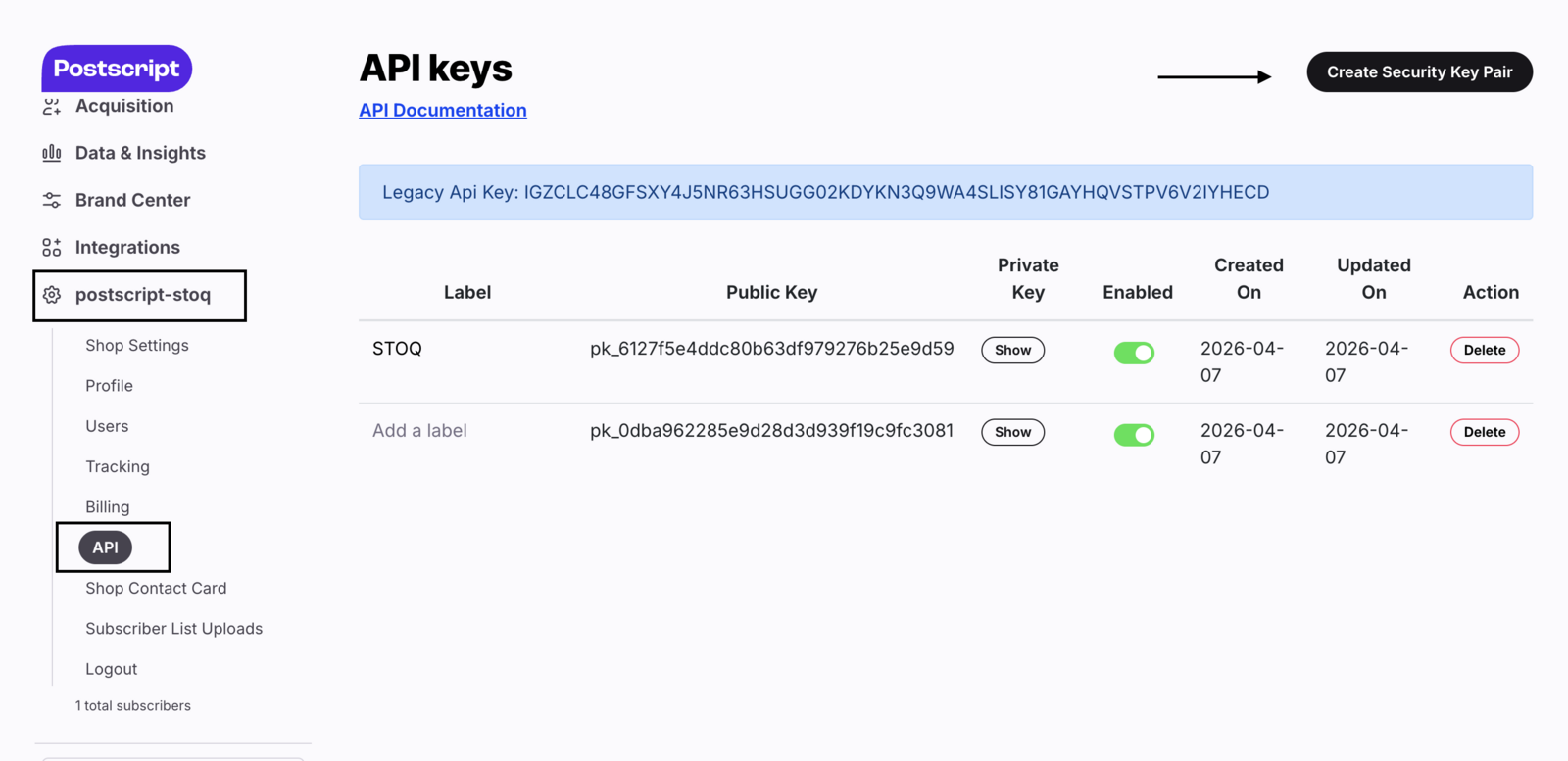
Get your Postscript Private Key
- In your Postscript dashboard, go to Settings > API.
- Create a Security Key Pair and copy the Private Key.
-
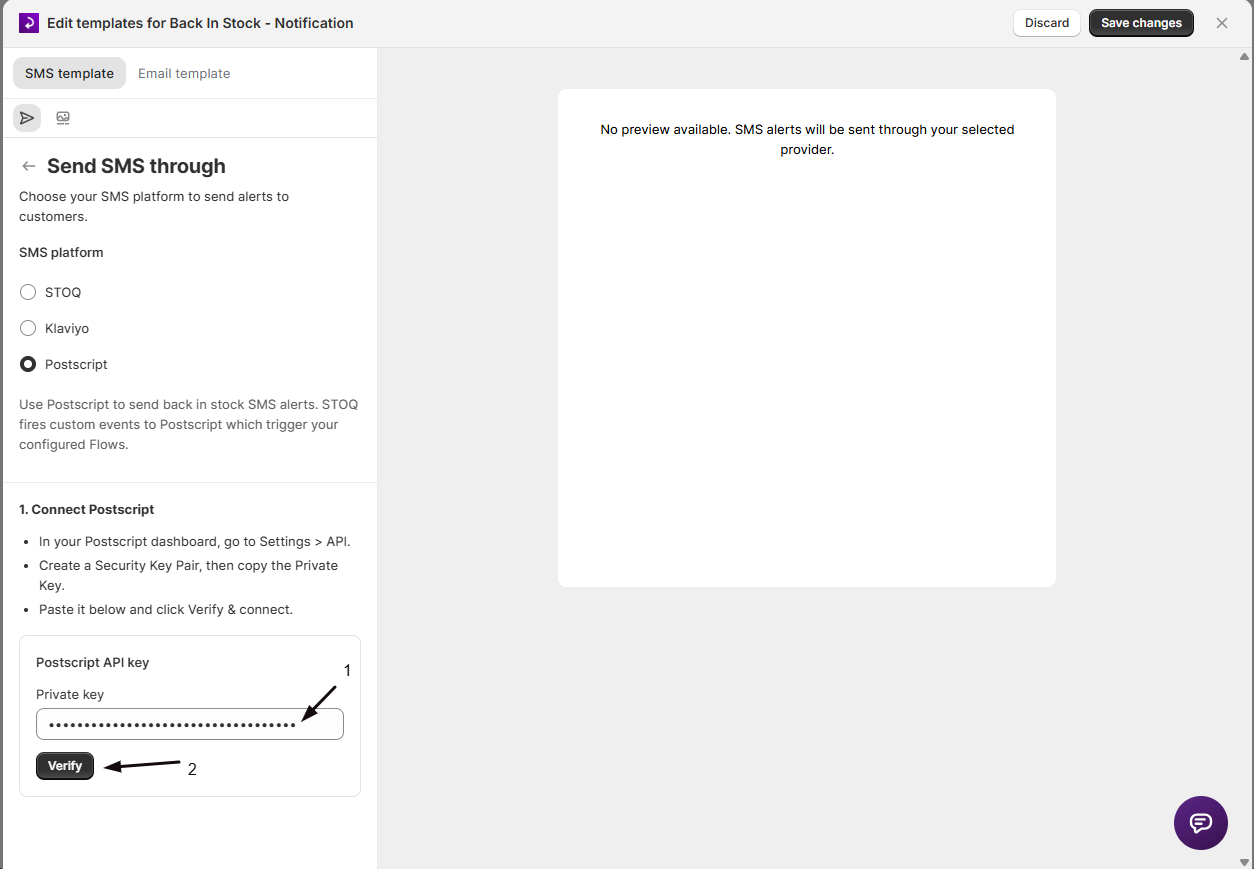
Verify the key in STOQ
Under 1. Connect Postscript, paste the key into the Private key field and click Verify. A green checkmark appears next to Postscript API key once it’s accepted. If verification fails, confirm you copied the Private Key (not the Public Key) and that your Postscript account has API access enabled.
-
Select a keyword
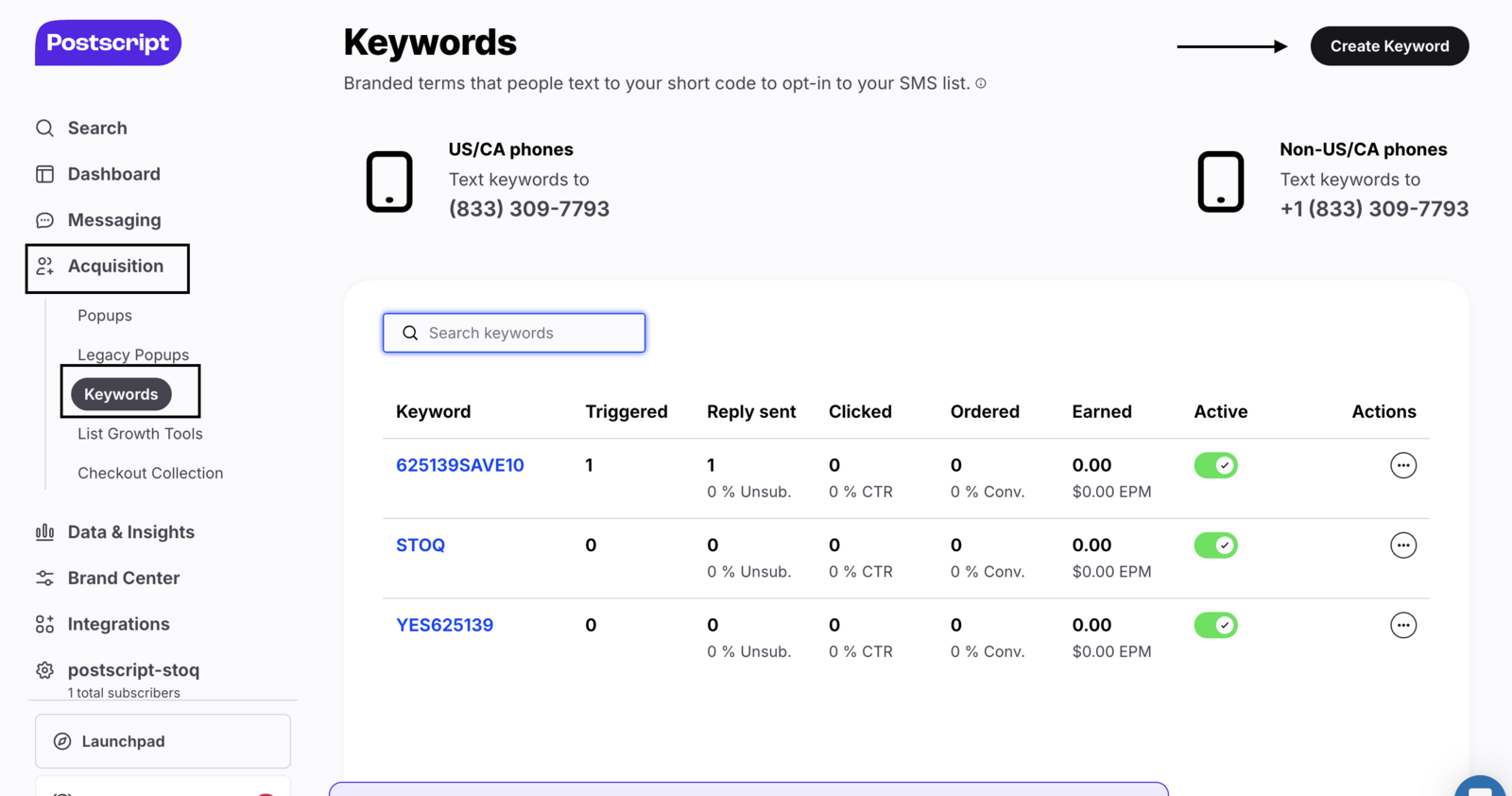
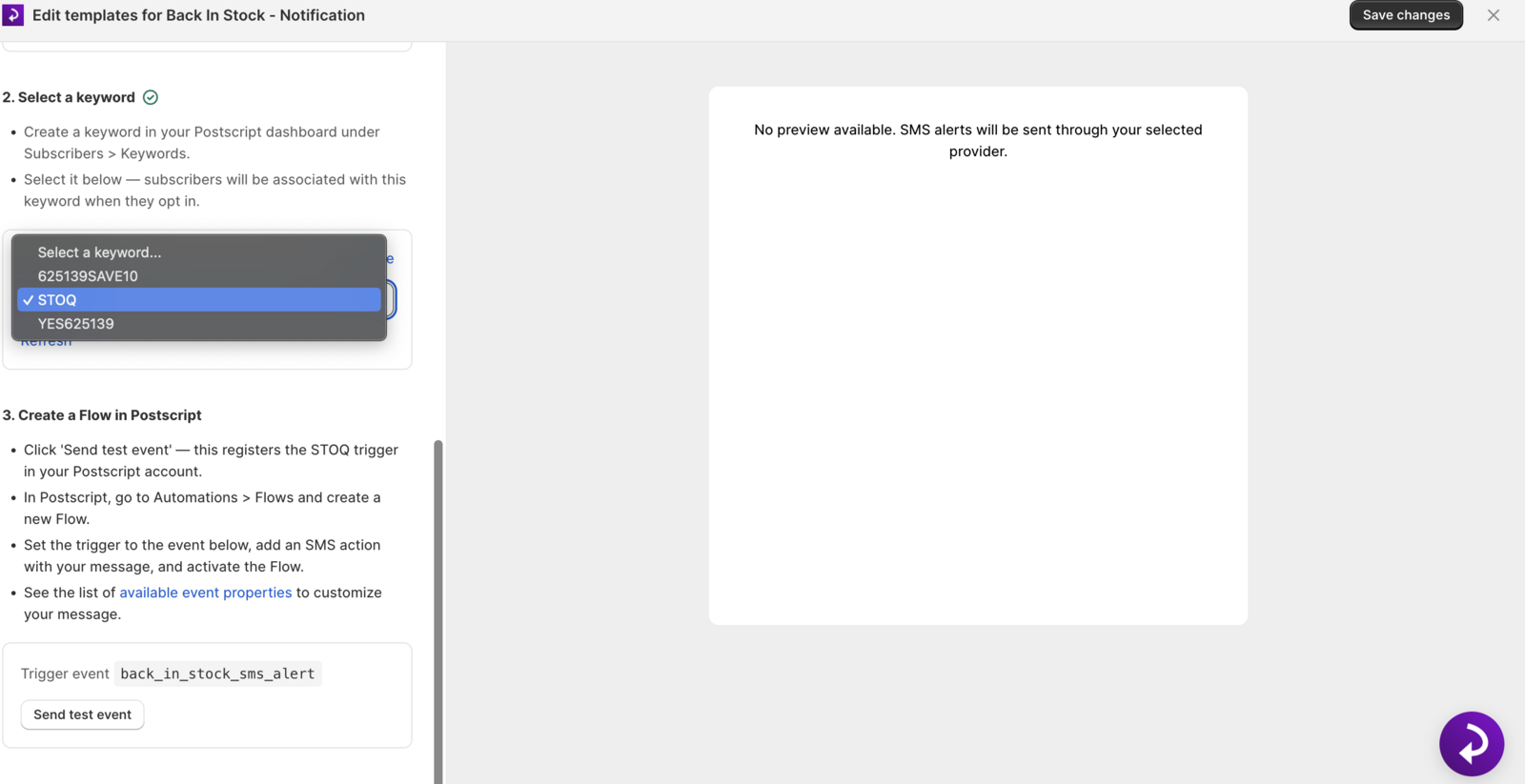
Under 2. Select a keyword:
- In your Postscript dashboard, create a keyword under Subscribers > Keywords if you don’t already have one.
- Back in STOQ, select the keyword from the dropdown. STOQ fetches your keywords automatically, click Refresh if the list is empty.
Subscribers are associated with this keyword when they opt in.
Create a Flow in Postscript
Section titled “Create a Flow in Postscript”-
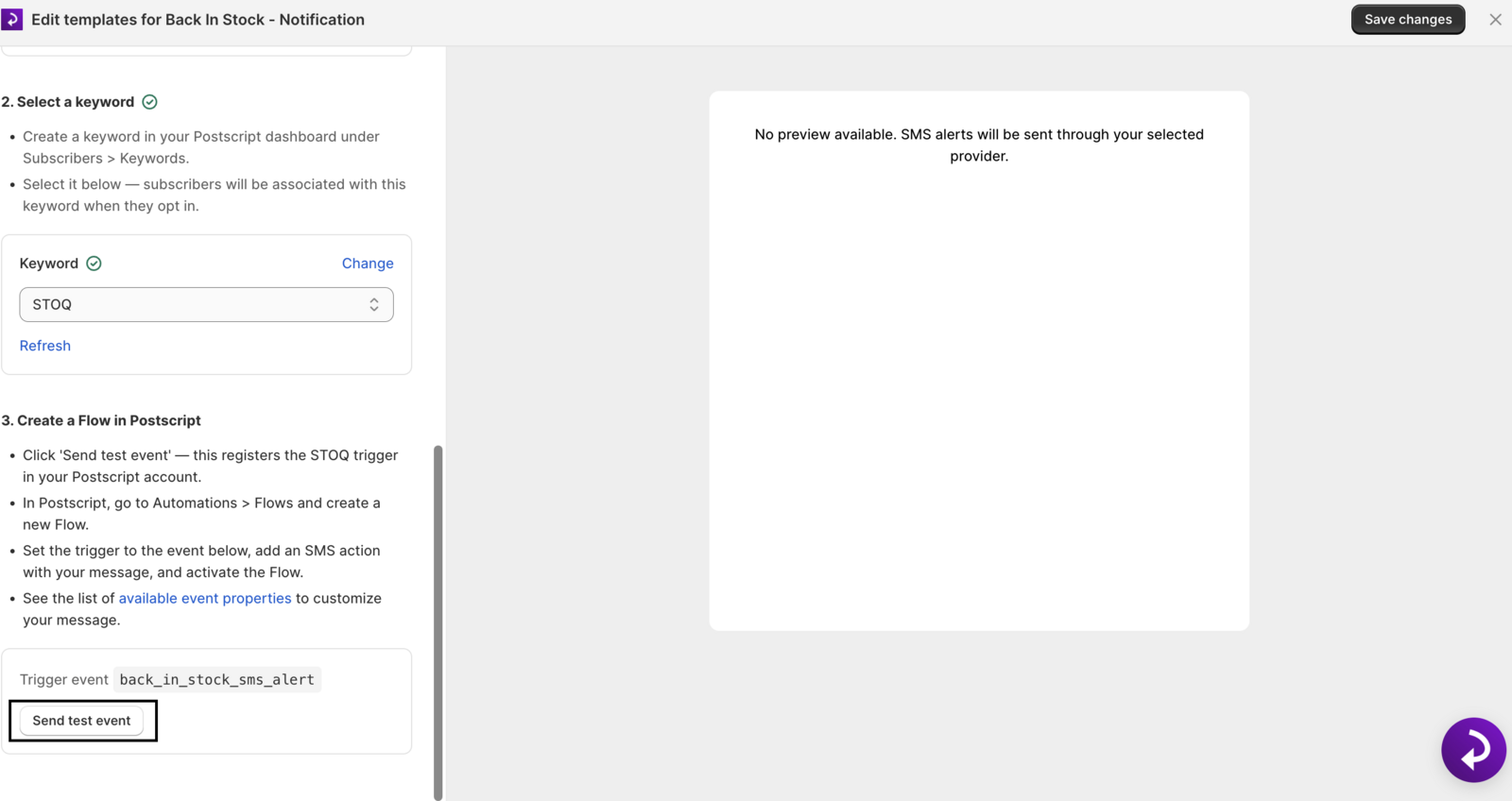
Register the trigger
Under 3. Create a Flow in Postscript, click Send test event. This registers the STOQ trigger, shown as Trigger event underneath, in your Postscript account.
-
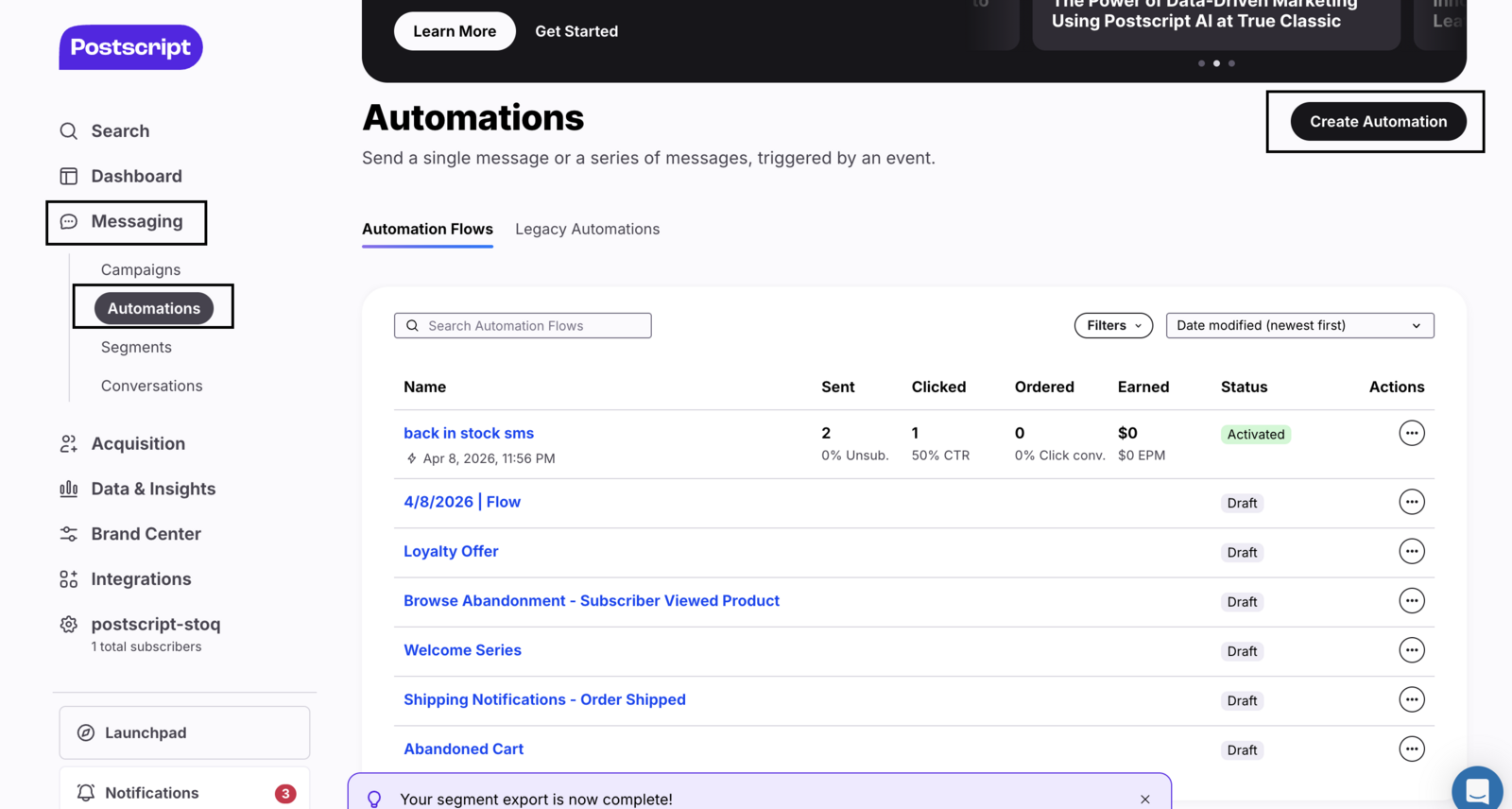
Build the Flow in Postscript
- In Postscript, go to Automations > Flows and create a new Flow.
- Set the trigger to the event name shown in STOQ (see Trigger event names below).
- Add an SMS action with your restock message.
- Activate the Flow.
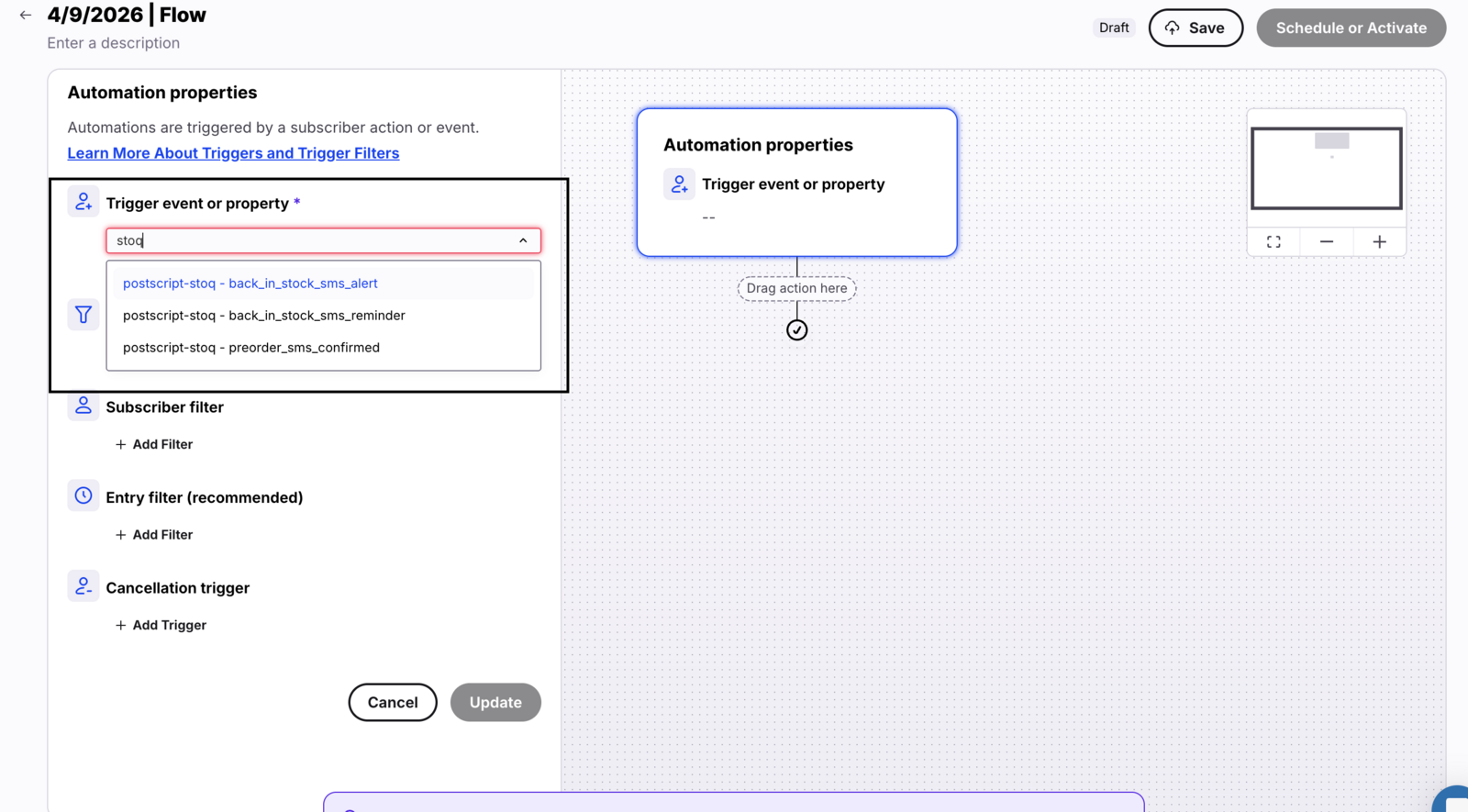
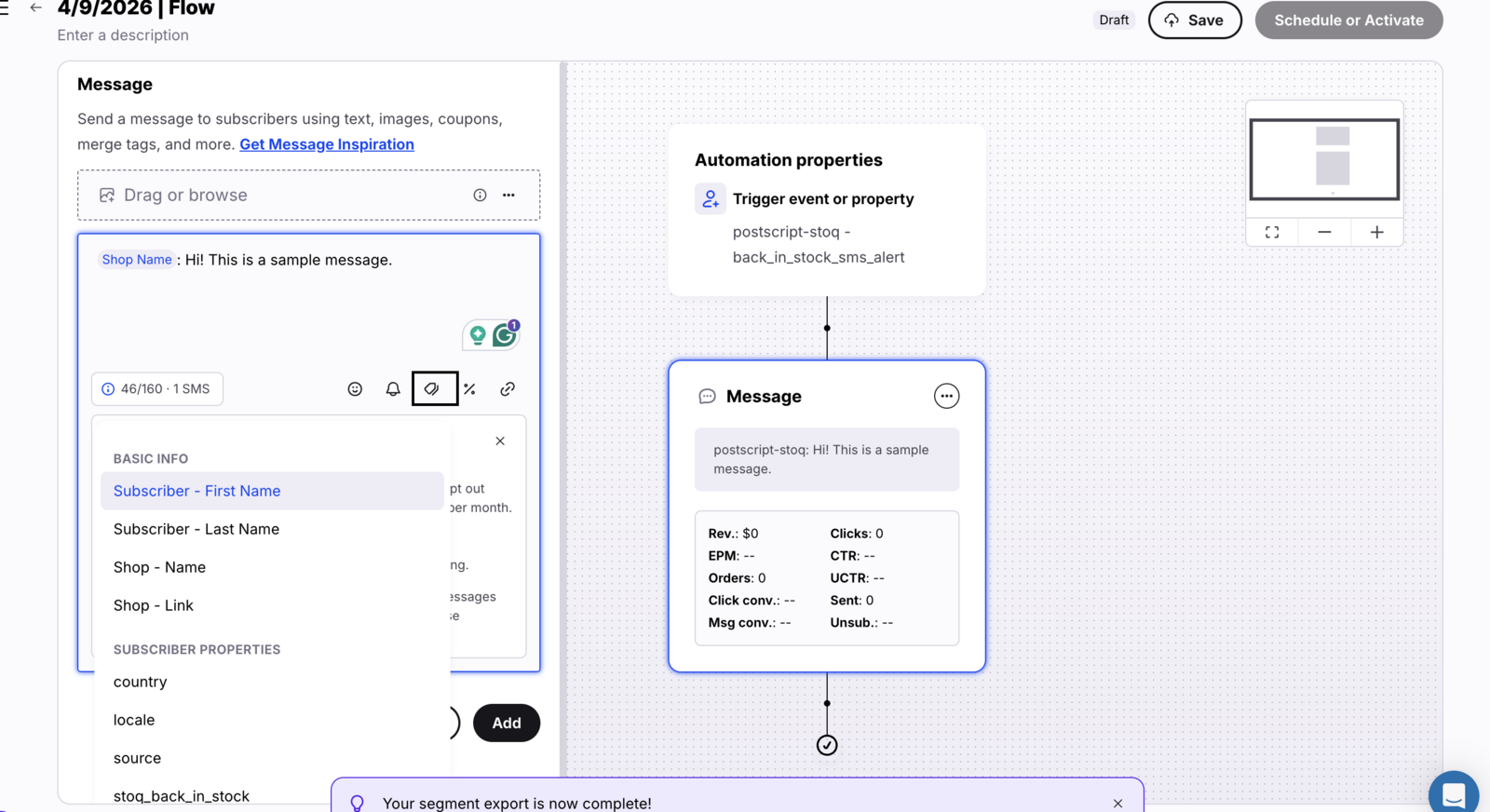
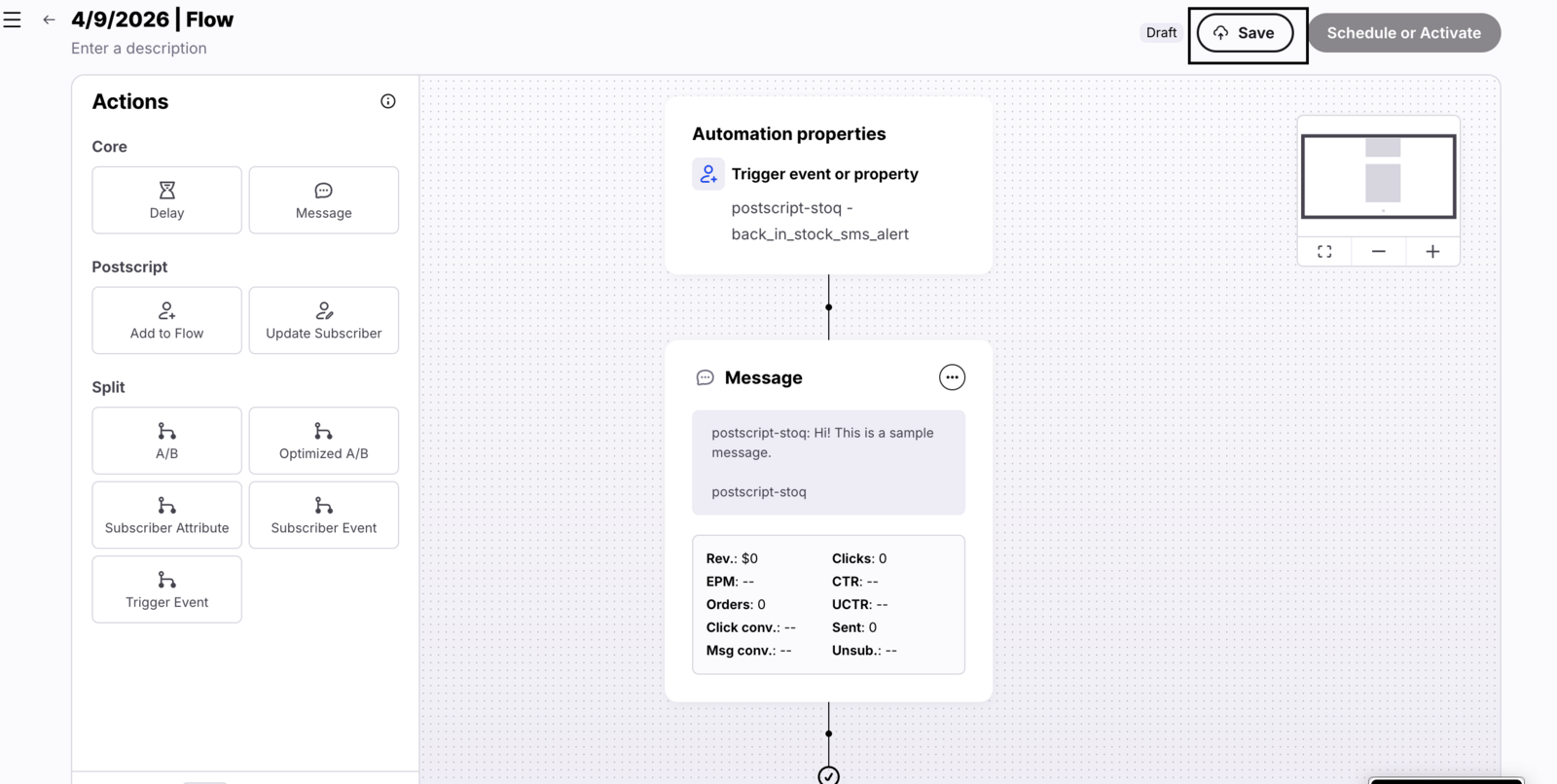
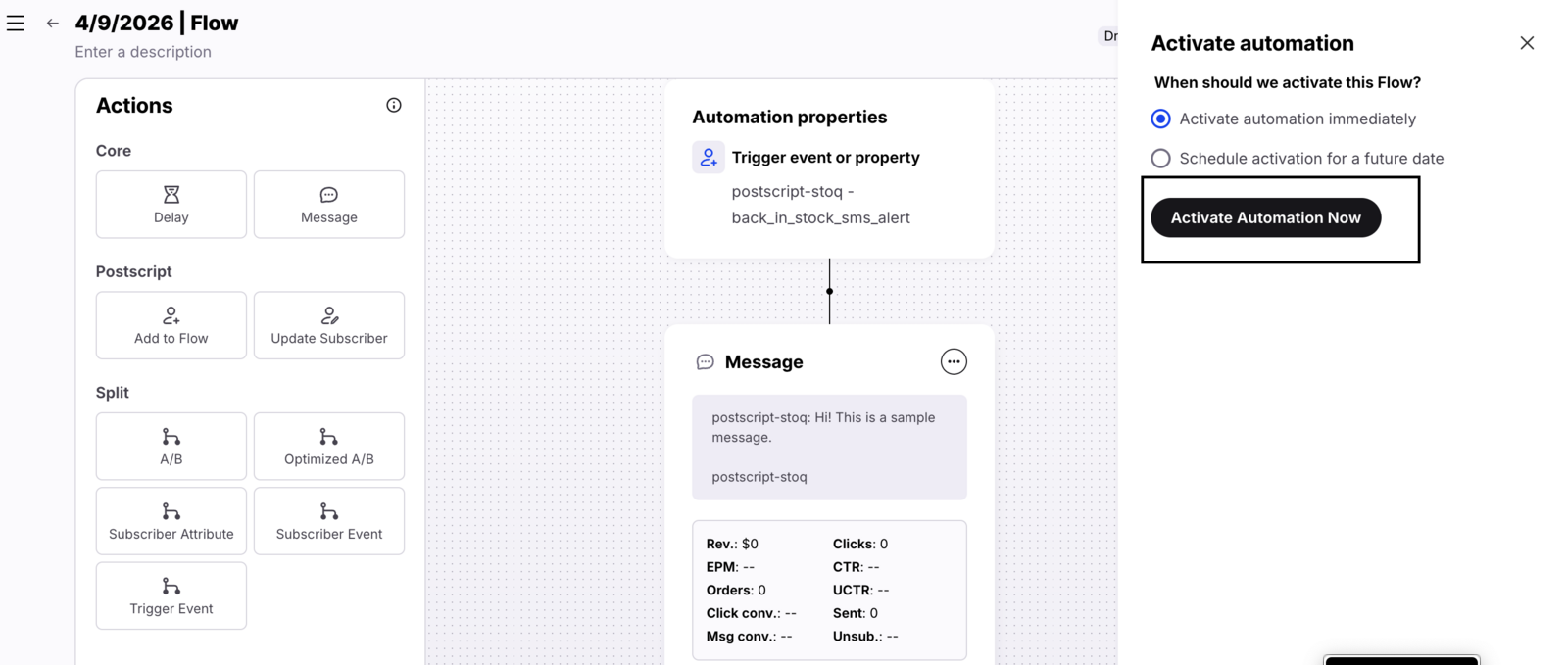
-
Confirm it’s live
Back in STOQ, click I’ve created the Flow. A green checkmark appears next to the flow section once confirmed.
-
Save
Click Save in the SMS template editor.
Trigger event names
Section titled “Trigger event names”Each notification in the sequence fires its own event, so if you use a reminder notification in addition to the automatic alert, repeat the Create a Flow steps above for that notification too, with its own event name.
| Notification | Trigger event |
|---|---|
| Automatic restock alert | back_in_stock_sms_alert |
| Reminder notification | back_in_stock_sms_reminder |
Check your setup
Section titled “Check your setup”- Sign up for a back in stock alert on your storefront using your own phone number.
- Confirm the Postscript opt-in text by replying Y.
- Restock the product and check your phone for the back in stock SMS alert, sent by your Postscript Flow.
Troubleshooting
Section titled “Troubleshooting”"Postscript setup incomplete" banner shows on the Notifications sub-tab
The banner lists which part is missing. Connect your account under Customize SMS -> Send SMS through if the API key isn’t verified, or finish the Flow setup for the specific notification it names (automatic or reminder).
Verifying the Private Key fails
Confirm you copied the Private Key, not the Public Key, from Postscript’s Security Key Pair, and that API access is enabled on your Postscript account.
The keyword dropdown is empty
Click Refresh, or create a keyword in Postscript under Subscribers > Keywords first, then refresh again.
The back in stock SMS isn't sending through Postscript at all
Work through these in order:
- The API key checkmark under 1. Connect Postscript.
- The keyword under 2. Select a keyword.
- The flow checkmark under 3. Create a Flow in Postscript for that specific notification.
- That the Flow in Postscript triggers on the correct event name and is active, not in draft.
- That the customer signed up with a phone number.
Customers aren't receiving the opt-in text
Check that the keyword is correctly configured in your Postscript account and that your Postscript account itself can send SMS to the customer’s country.
Limitations
Section titled “Limitations”If Postscript is selected as the SMS provider but the account connection or a notification’s flow isn’t fully verified, STOQ blocks that notification rather than falling back to its own SMS delivery, so nothing sends until setup is complete. The automatic alert and any reminder notification each need their own Flow verified separately, connecting Postscript doesn’t automatically cover all of them.
Do I need to connect Postscript separately for back in stock and preorder alerts?
No. The API key and keyword connection is made once per shop and covers both. Only the Flow you build in Postscript is separate for each notification, since each fires a different trigger event, for example back_in_stock_sms_alert for back in stock versus preorder_sms_confirmed for preorders.
Does Postscript send the text, or does STOQ?
Postscript does. STOQ only fires an event when a product restocks, and your Postscript Flow controls the message content, send timing, and opt-out handling.
What happens if a customer signs up before my Postscript Flow is verified?
STOQ blocks the SMS alert rather than sending it another way. The customer won’t get a text for that restock until you finish verifying the Flow.
Does selecting Postscript affect customers who already signed up?
No. It only changes how future alerts are delivered. Existing signups stay on the waitlist and get notified the same way, through whichever provider is active when the product restocks.
Can customers still opt out through Postscript?
Yes. Postscript handles its own SMS compliance and opt-out replies independently, since STOQ just passes the event to Postscript.
Related guides
Section titled “Related guides”Thanks for letting us know.
Still stuck? Ask Quinn or chat with support